◎ Work Service Categories
Work service categories are mainly used to provide a clear category index for employees when ordering work service items in the Technician APP or the shop management dashboard. At the same time, these categories are also used for service item search and filtering functions on various platforms and applied to data statistics and analysis related to work service items.
When creating work service items, you must place the service item under the corresponding work service category. Therefore, you need to complete the inspection service category first before creating inspection service items. Work service categories are divided into five main types: maintenance, repair, replacement, body repair & painting, wash & detailing, and others. These five primary categories are preset by the system and currently cannot be modified. Therefore, you need to create subcategories under these five primary categories.
📍 You can configure related content in: AutoX3 Brand Management Dashboard > Service Management > Work Management > Work Service Categories.
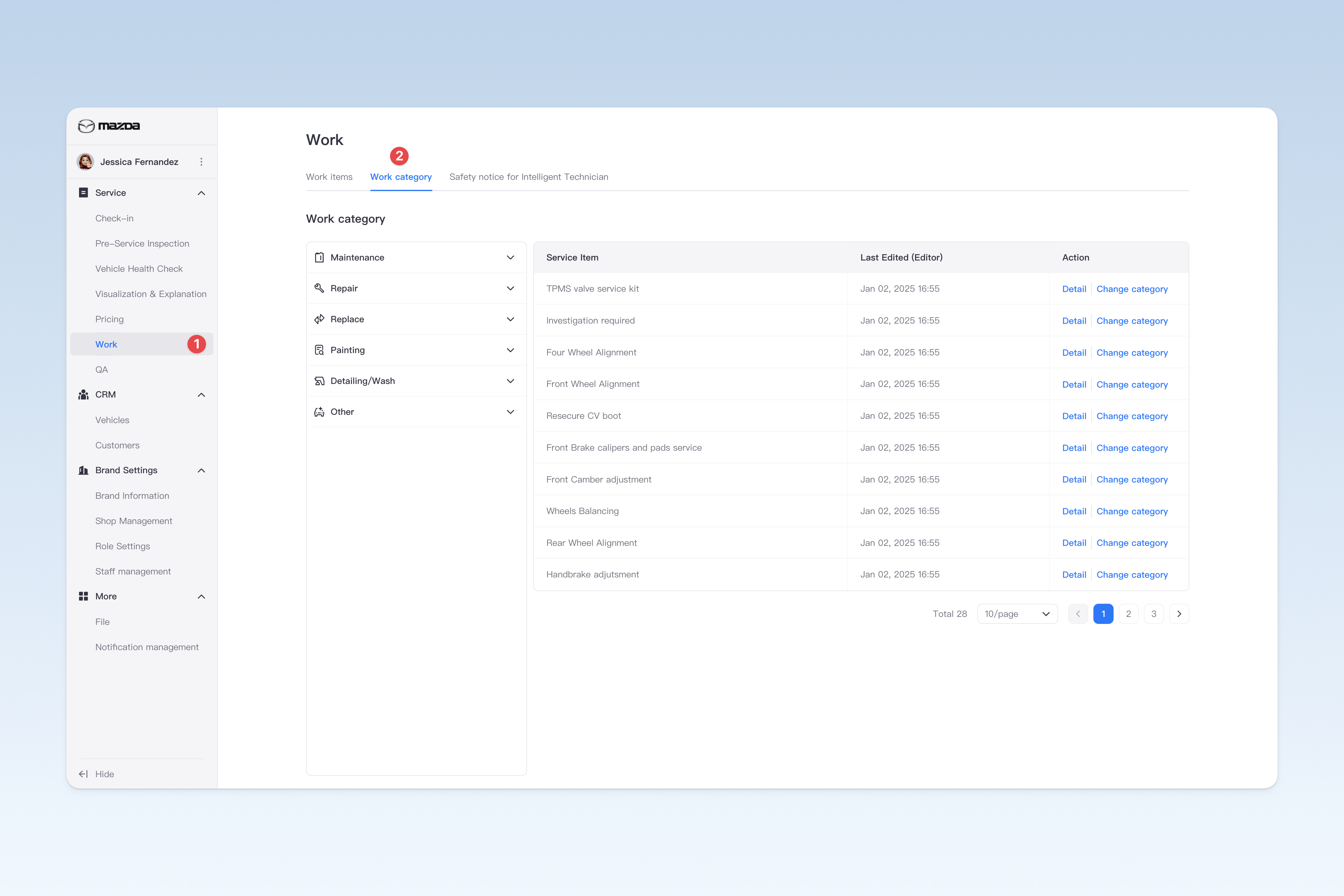
Creating Work Service Categories
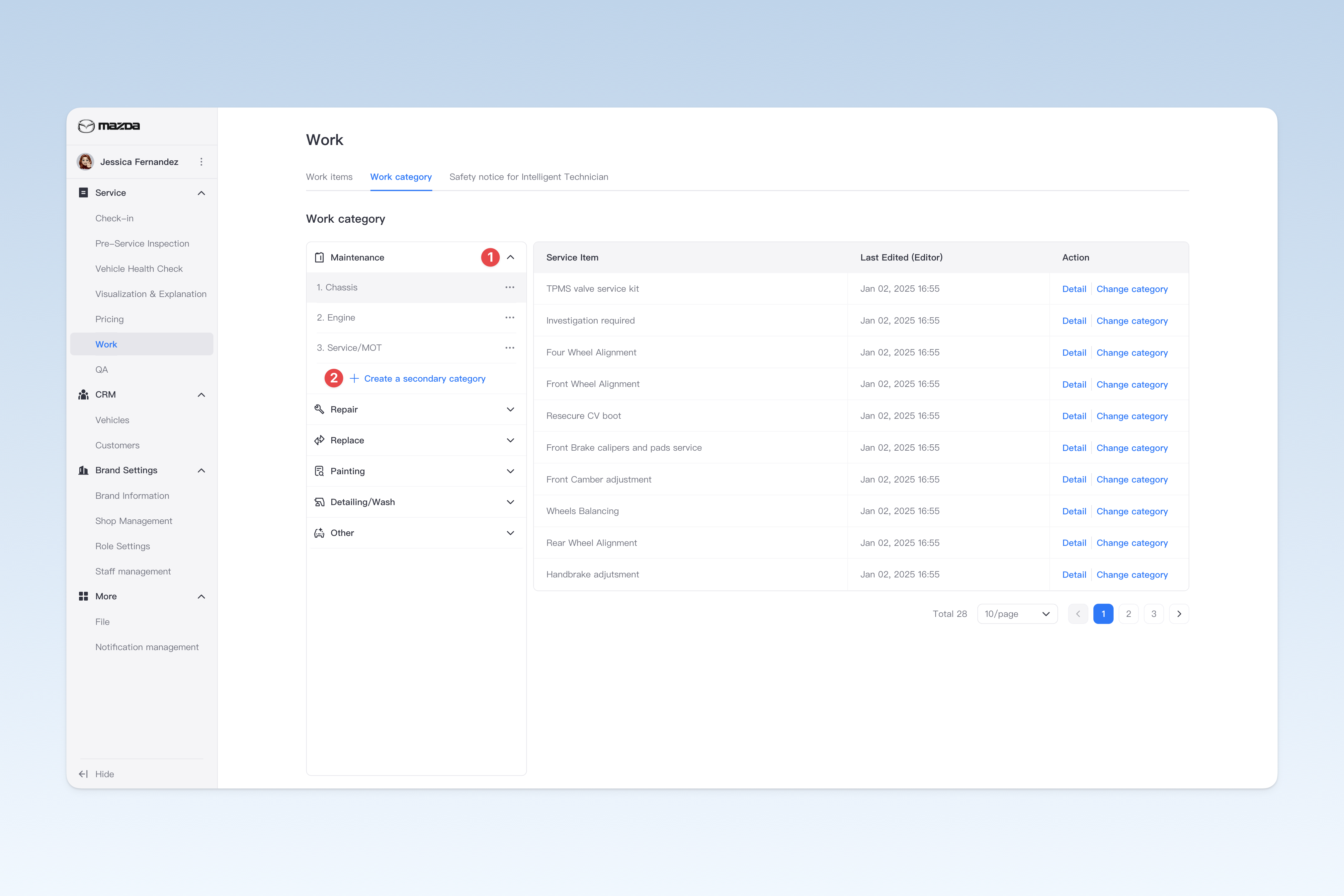
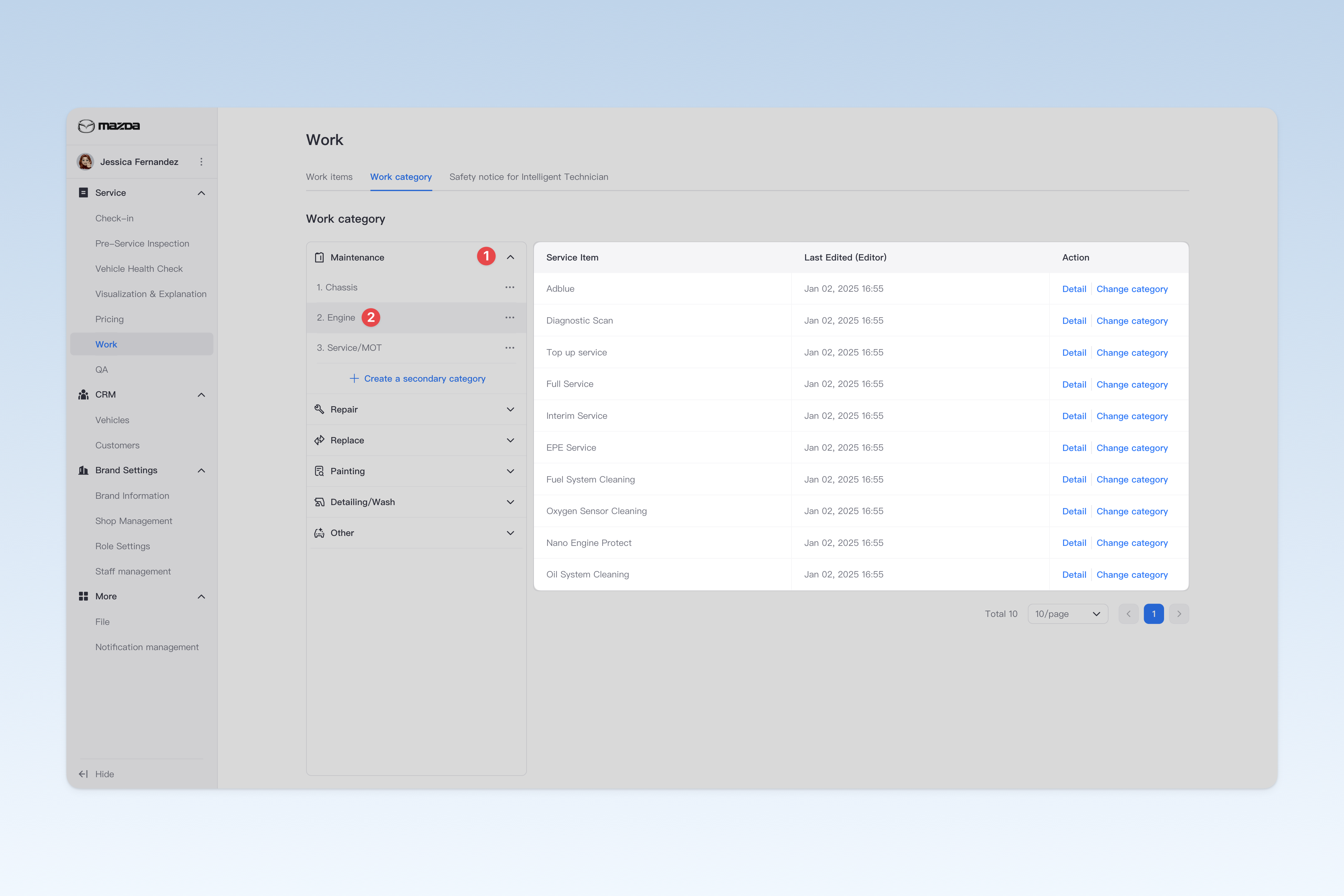
On the "Work Service Categories" page, select a primary category and click to expand it. Then, click the 【Create secondary category】 button under that primary category to open the "Create category" pop-up window. In the pop-up window, enter the "Category name" and click the 【Create】 button to complete the creation.
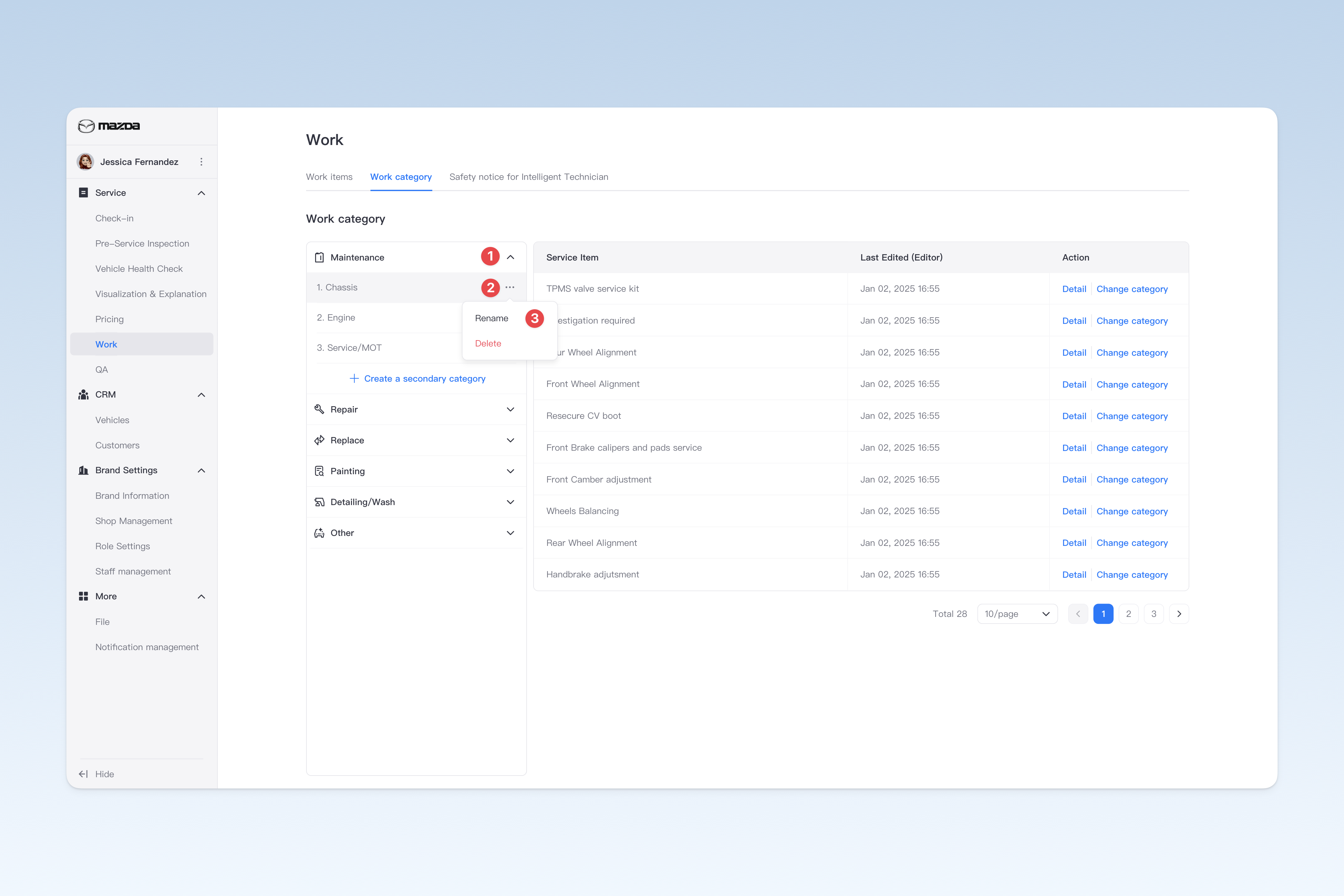
Modifying Work Service Category Names
On the "Work Service Categories" page, select a primary category and click to expand it. Find the secondary category that needs to be renamed, click the 【···】 button on the right, and select 【Rename】 from the drop-down menu.
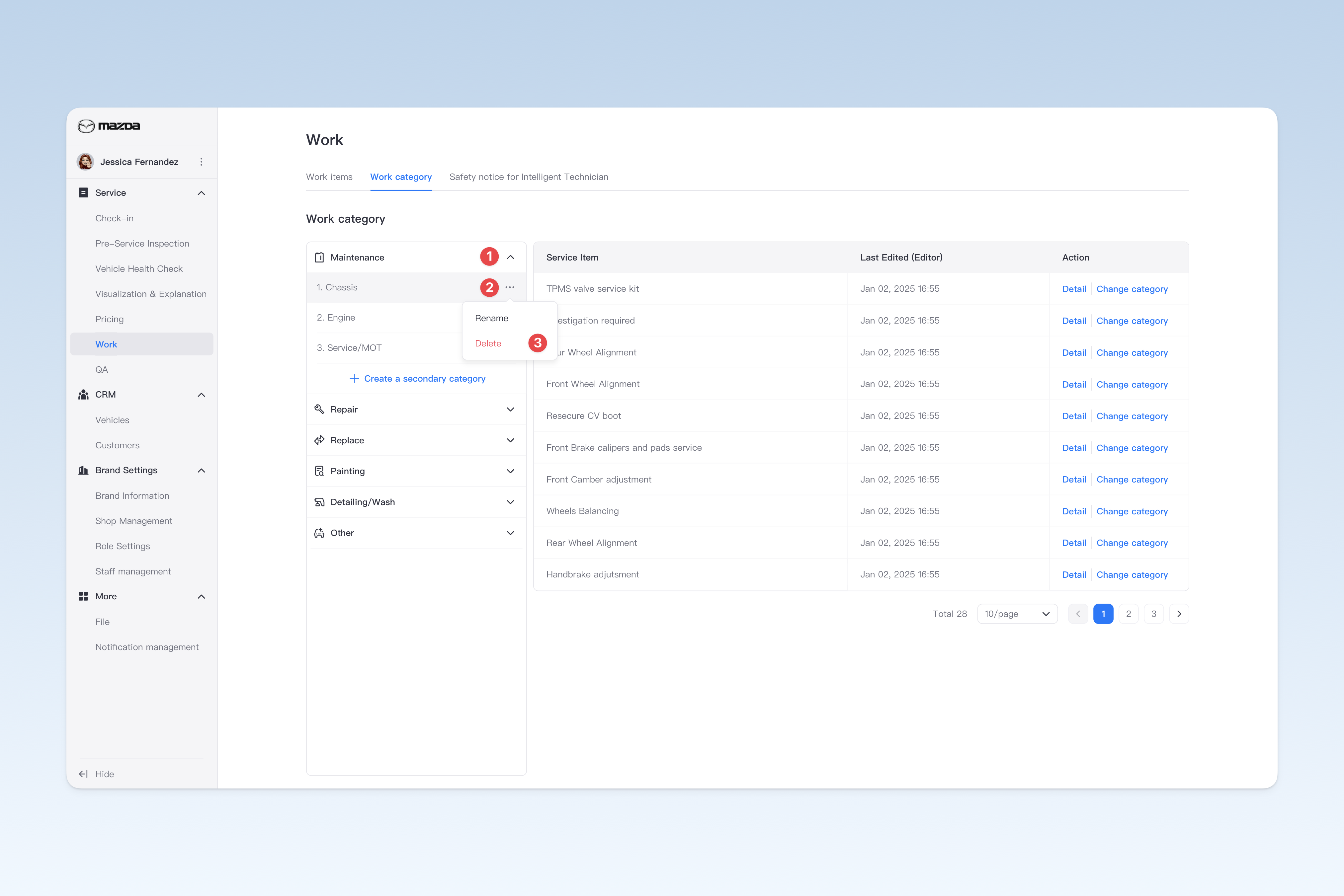
Deleting Work Service Categories
On the "Work Service Categories" page, select a primary category and click to expand it. Find the secondary category to be deleted, click the 【···】 button on the right, select 【Delete】 from the drop-down menu, and click 【Confirm】 to delete.
⚠️ Note: When there are service items under a category, it cannot be deleted directly. Please move all service items under this category to other categories before attempting to delete it.
Viewing Service Items Under Work Service Categories
On the "Work Service Categories" page, select a primary category and click to expand it. Click any secondary category, and the service items under that secondary category will be displayed on the right.
Changing Categories for Work Service Items
Currently, there are two ways to change the category of a service item:
Method 1: Changing on the Work Service Categories Page:
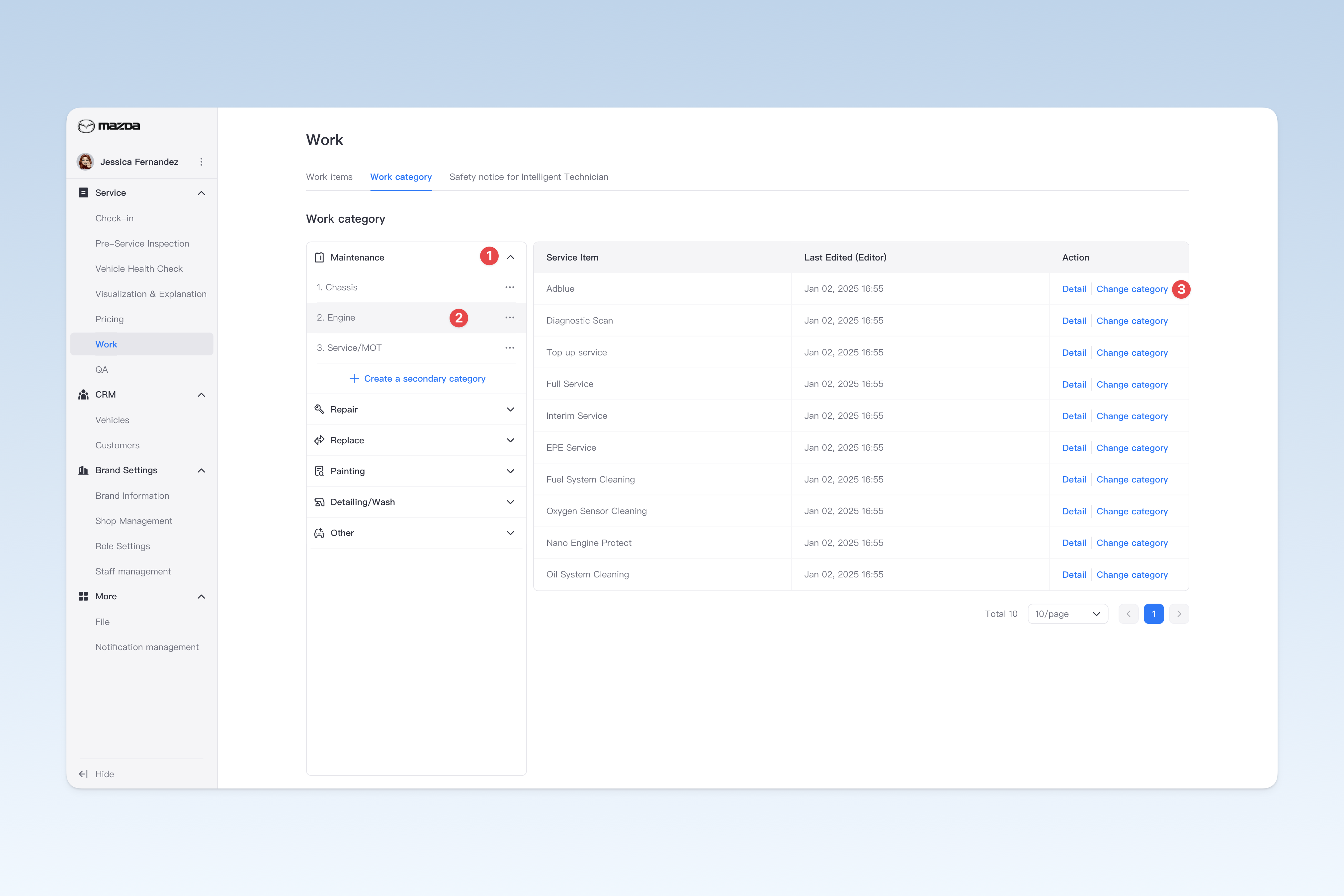
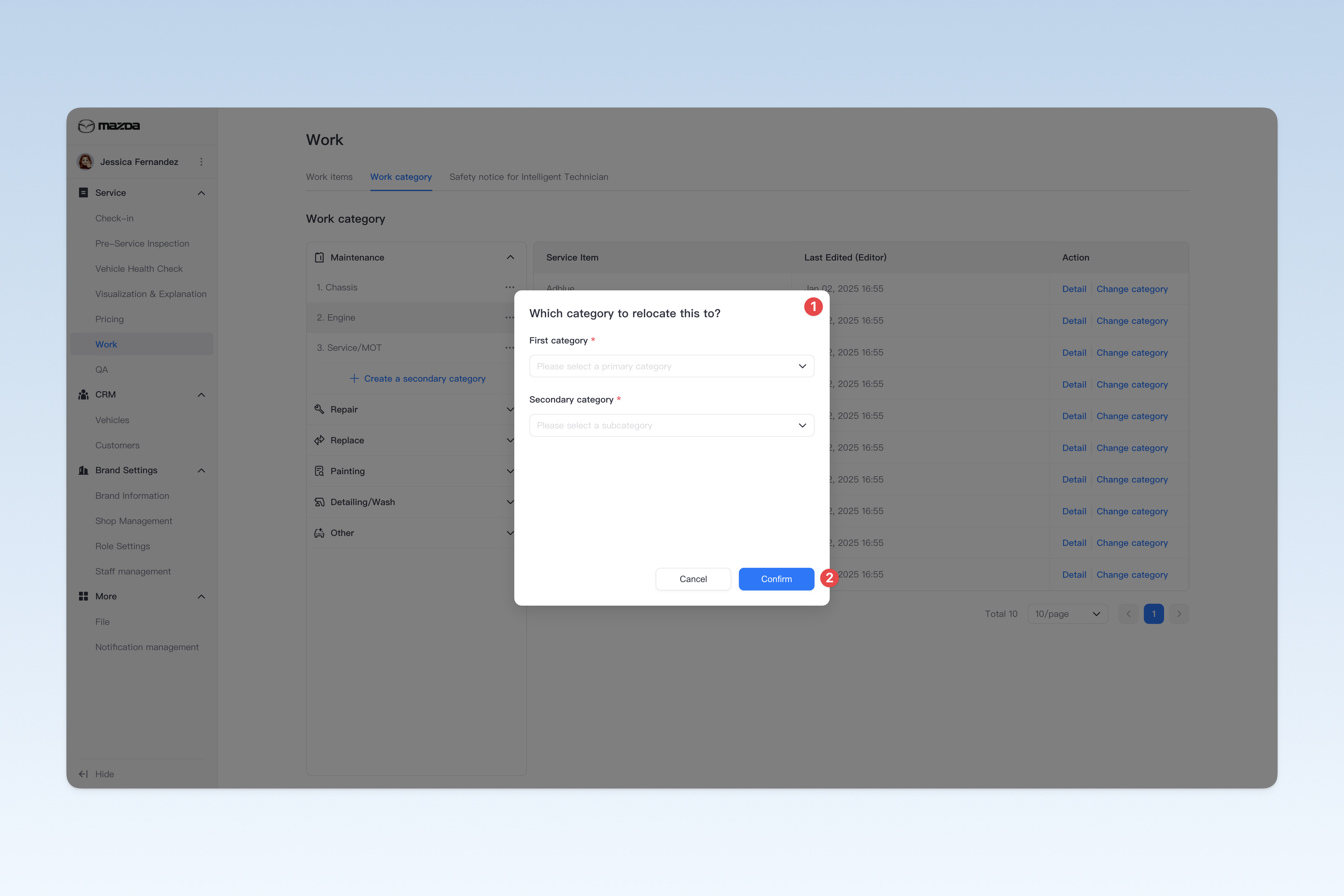
On the "Work Service Categories" page, select a primary category and click to expand it. Find the corresponding service item, click the 【Change category】 button on the right side of the list. In the pop-up window, select the target category and click 【Confirm】 to complete the change.
Method 2: Changing on the Work Service Item Details Page
Please refer to: ◎ Work Service Items