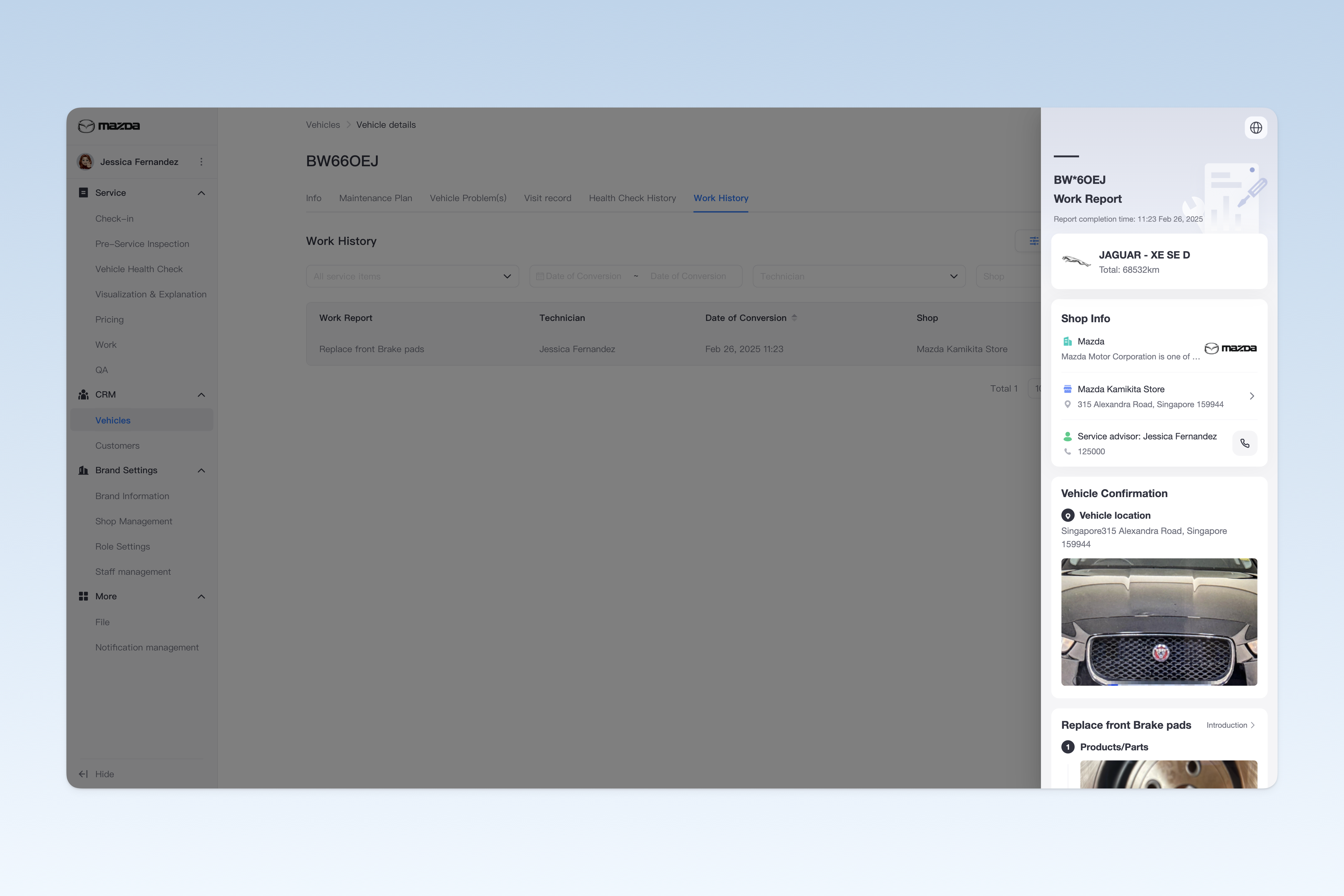
◎ Managing Vehicle Information
The vehicle pool is a centralized vehicle management module that aims to comprehensively track and manage information of all vehicles serviced by shops under the group. Through this system, group administrators can obtain real-time core data of each vehicle, including basic information (such as brand, model, VIN, registration date, etc.), condition and fault status, historical repair and maintenance records, and future maintenance plans. Based on this rich data, management can gain in-depth understanding of customer group characteristics, identify high-value users, analyze common model problems, and accordingly develop differentiated service plans and precise marketing strategies.
📍 You can configure related content in: AutoX3 Brand Management Dashboard > Customer Management > Vehicle Pool.
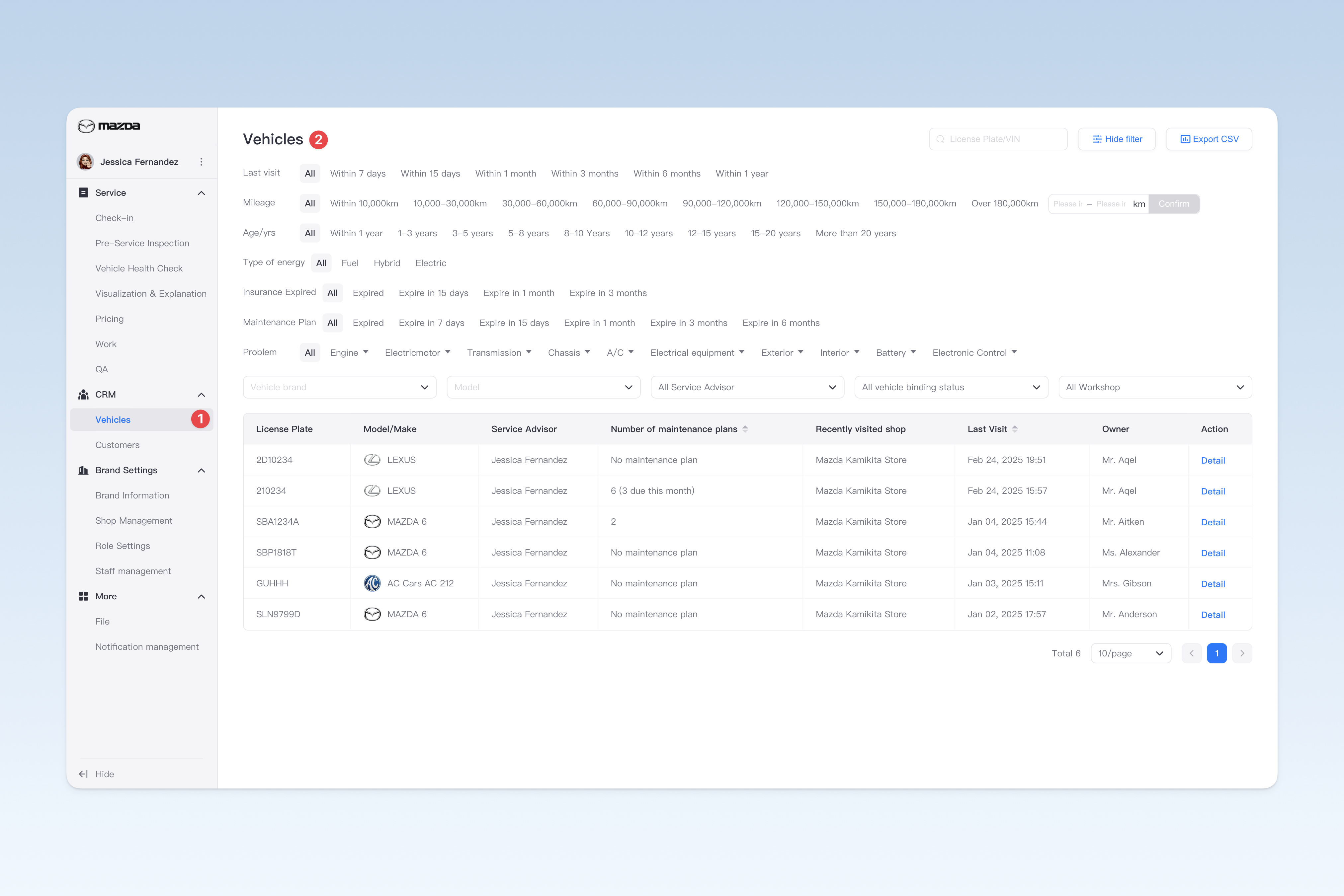
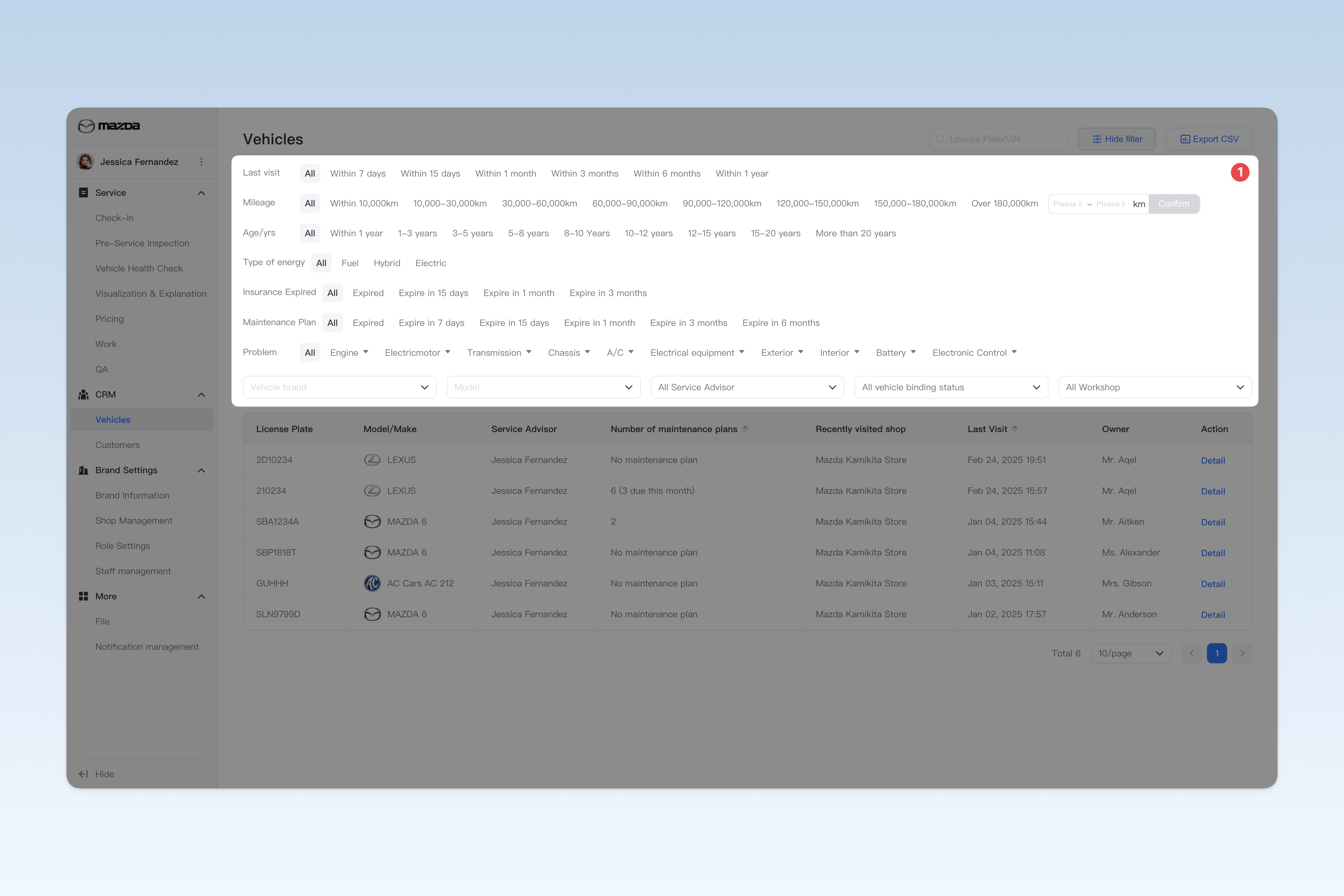
Filter vehicles by conditions
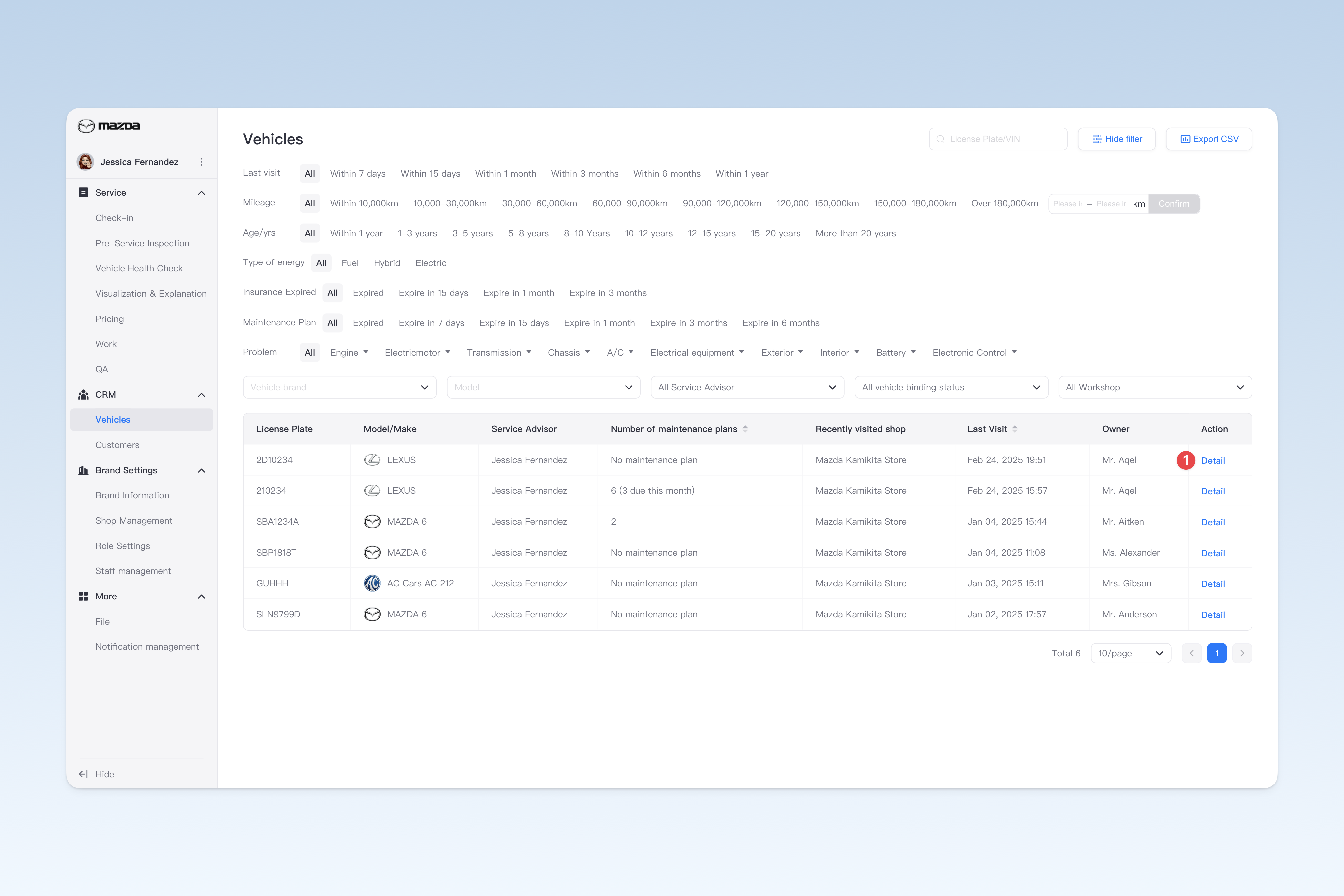
On the "Vehicle Pool" page, click the [+ Show Filter] button in the upper right corner to display all available filter conditions. You can flexibly combine conditions (such as mileage, vehicle age, energy type, etc.) to find target vehicles based on your actual needs.
In addition, you can directly use the search function by entering the "license plate number" or "VIN code" to quickly locate the target vehicle.
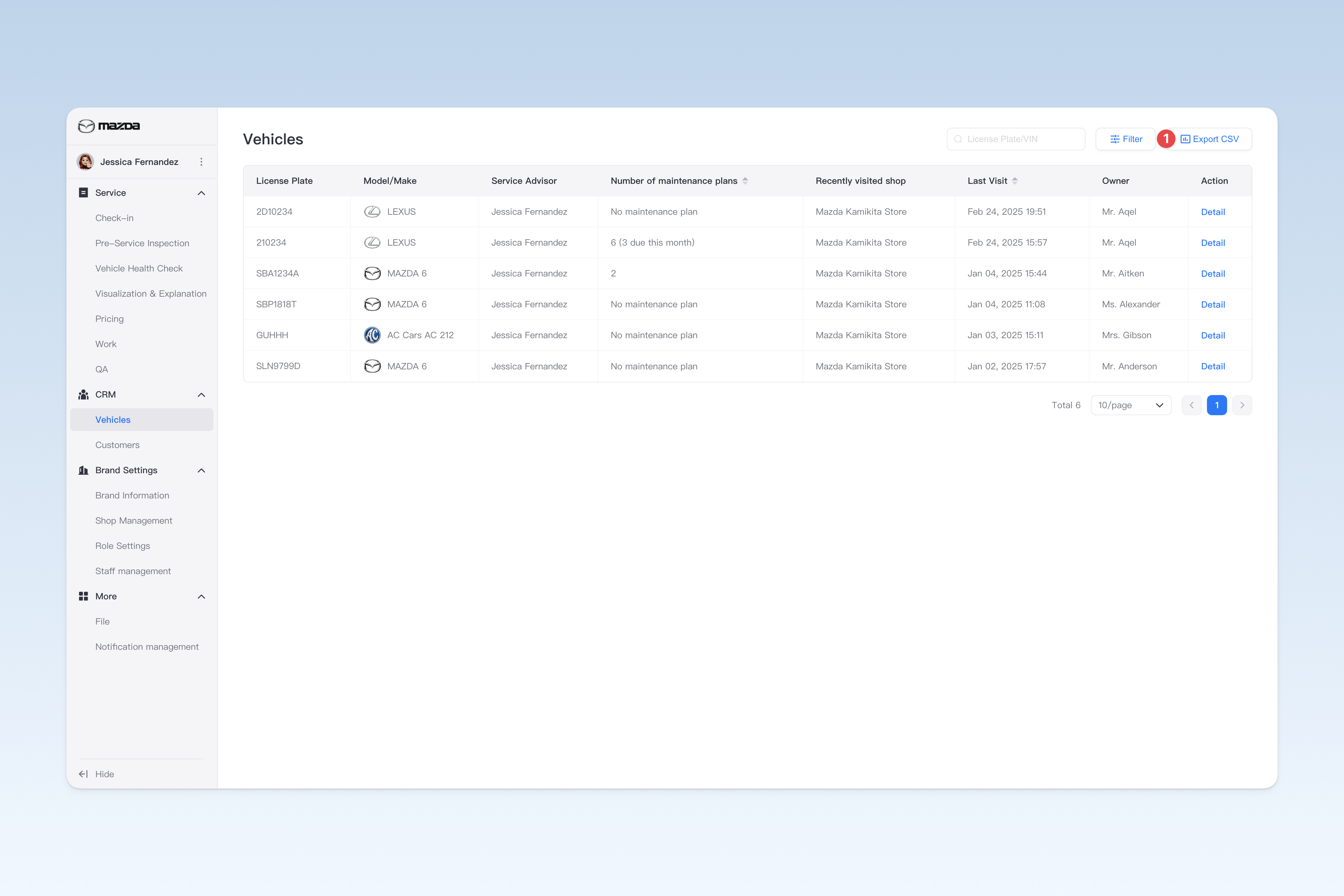
Export vehicle list as a spreadsheet file
On the "Vehicle Pool" page, click the [+ Export CSV] button in the upper right corner. After waiting a short time, the system will automatically create a download task in the browser. Please check the browser's download page for the exported spreadsheet file.
Modify vehicle basic information
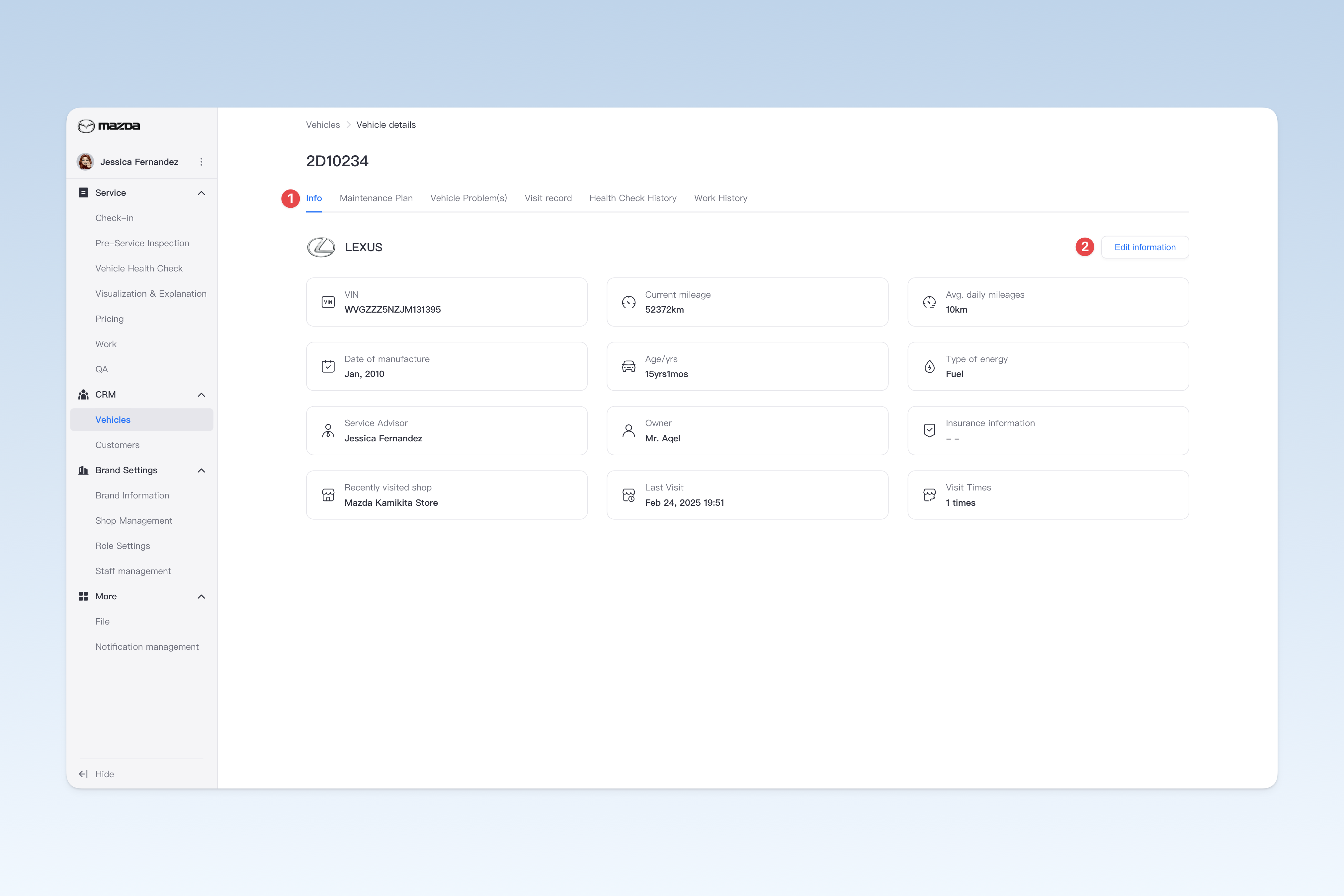
On the "Vehicle Pool" page, find the corresponding vehicle and click the [Detail] button on the right side of the list. On the pop-up "Vehicle Details" page, click the [Basic Information] menu. This page is mainly used to view/modify some basic information of the vehicle.
To modify vehicle basic information, click the [Edit Information] button. In the pop-up "Edit Vehicle Information" window, you can modify the following contents.
- License plate number: (editable)
- Vehicle brand and model: (editable)
- VIN number: (editable)
- Total mileage
- Average daily mileage
- Purchase date: (editable)
- Vehicle age
- Energy type: (editable)
- Dedicated service advisor: (editable)
- Owner
- Insurance information: (editable)
- Most recently visited shop
- Last visit time
- Number of visits
- MOT: (only for UK)
⚠️ Note: Before modifying vehicle information, communicate with the shop to avoid causing unnecessary internal misunderstandings.
View and Manage Maintenance Plans
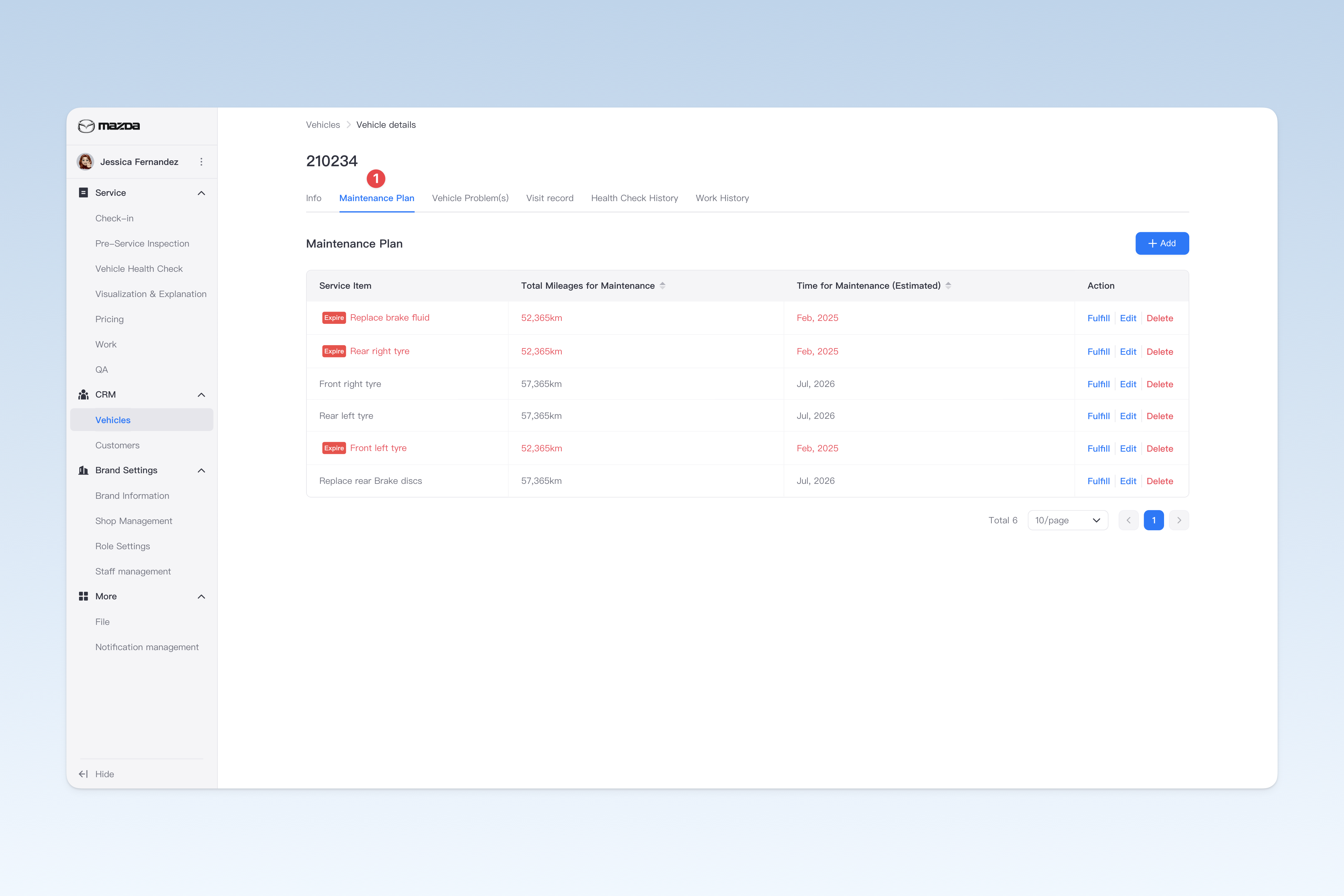
In the "Vehicle Pool" page, find the corresponding vehicle and click the [Details] button on the right side of the list. In the "Vehicle Details" page that pops up, click the [Maintenance Plan] menu to switch to the "Maintenance Plan" page.
⚠️ Note: Communicate and negotiate with the shop before operating on maintenance plans to avoid unnecessary internal misunderstandings.
Add Maintenance Plan
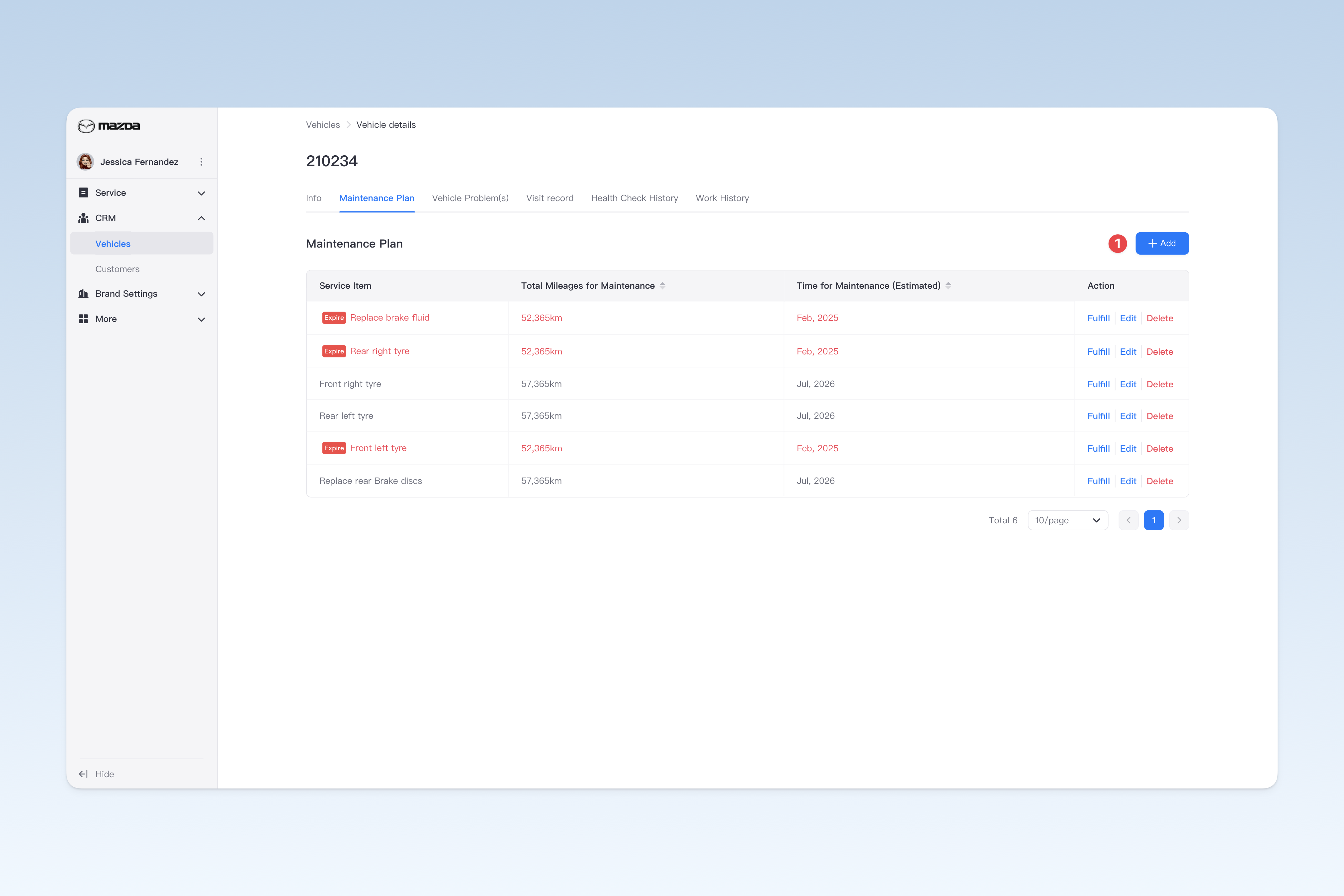
On the "Maintenance Plan" page, click the [Add] button and a service item selection window will pop up. After selecting the required maintenance plan, fill in the date or mileage when maintenance should be performed, and click the [Confirm] button to complete the addition.
Fulfill Maintenance Plan
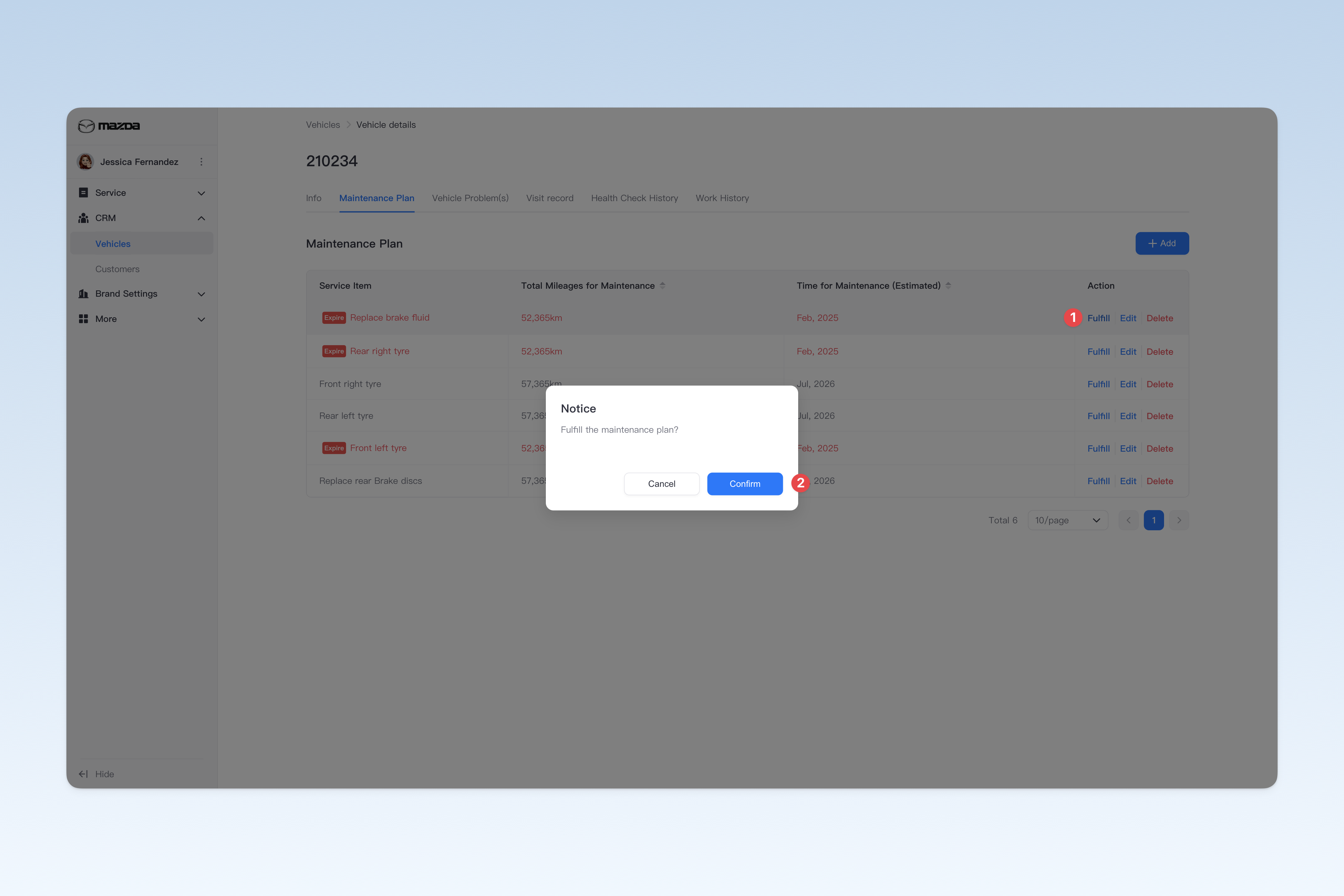
On the "Maintenance Plan" page, find the maintenance plan that needs to be fulfilled, click the [Fulfill] button on the right side of the list, a confirmation window will pop up, click [Confirm] to fulfill.
Edit Maintenance Plan
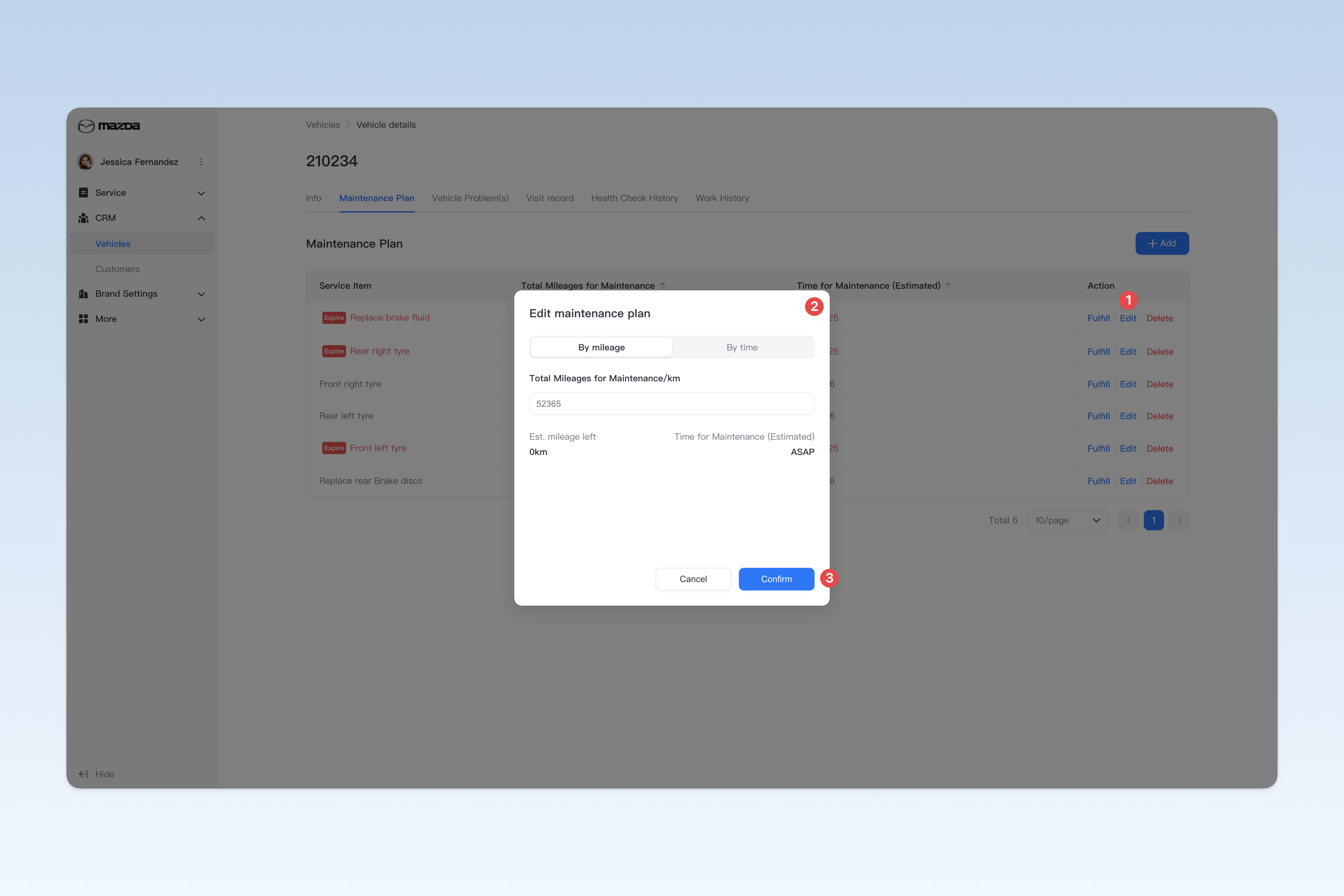
On the "Maintenance Plan" page, find the maintenance plan that needs to be modified, click the [Edit] button on the right side of the list, an edit window will pop up, modify the date or mileage when maintenance should be performed, and click the [Confirm] button to complete the modification.
Delete Maintenance Plan
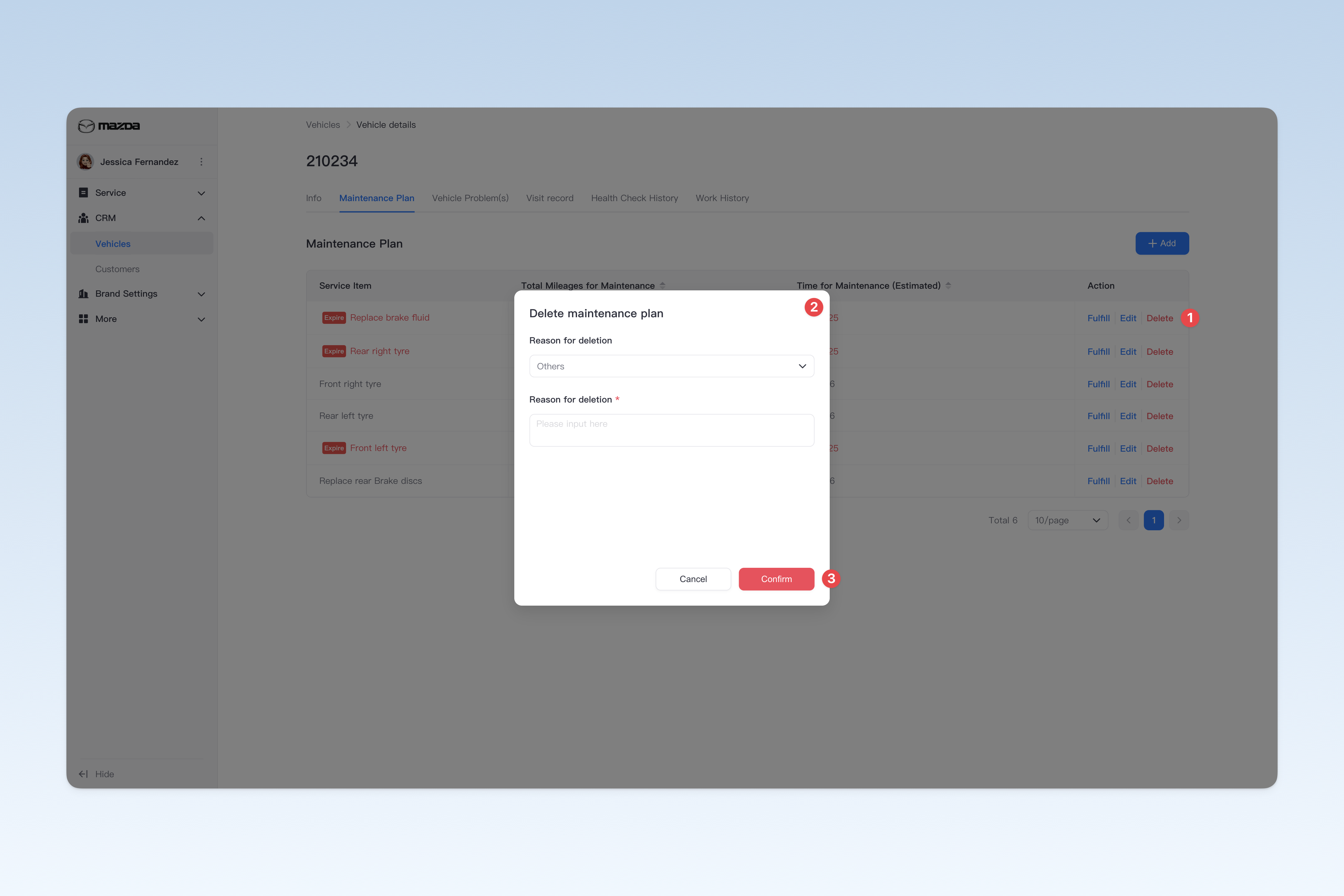
On the "Maintenance Plan" page, find the maintenance plan that needs to be deleted, click the [Delete] button on the right side of the list, a "Delete Reason" window will pop up, fill in the reason for deletion, and click [Confirm] to delete.
View Maintenance Plan Fulfillment Record
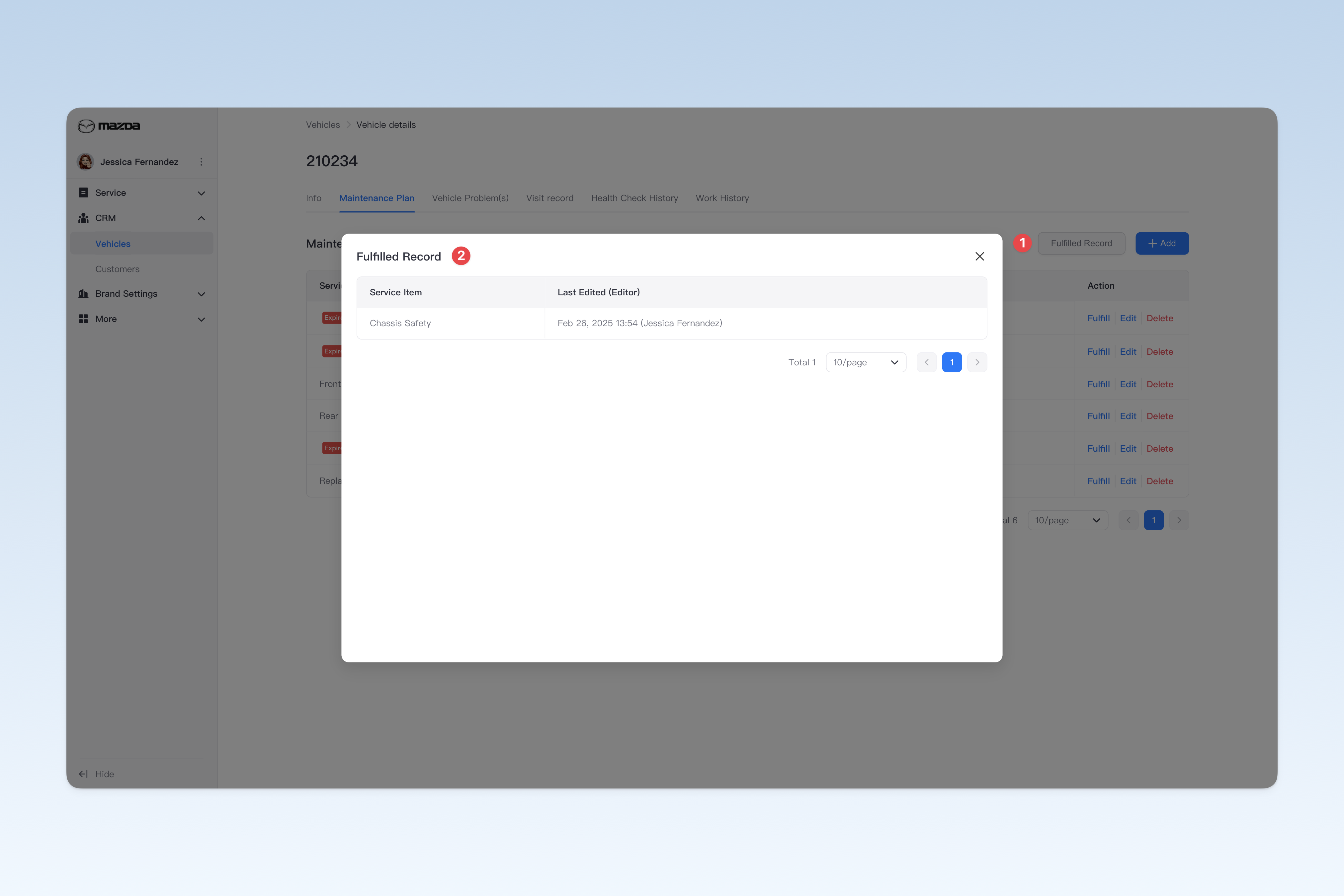
On the "Maintenance Plan" page, click the [Fulfilled Record] button and a "Maintenance Plan Fulfillment Record" window will pop up. This window records the historical fulfillment records of the vehicle's maintenance plans in detail.
View Existing Vehicle Problems
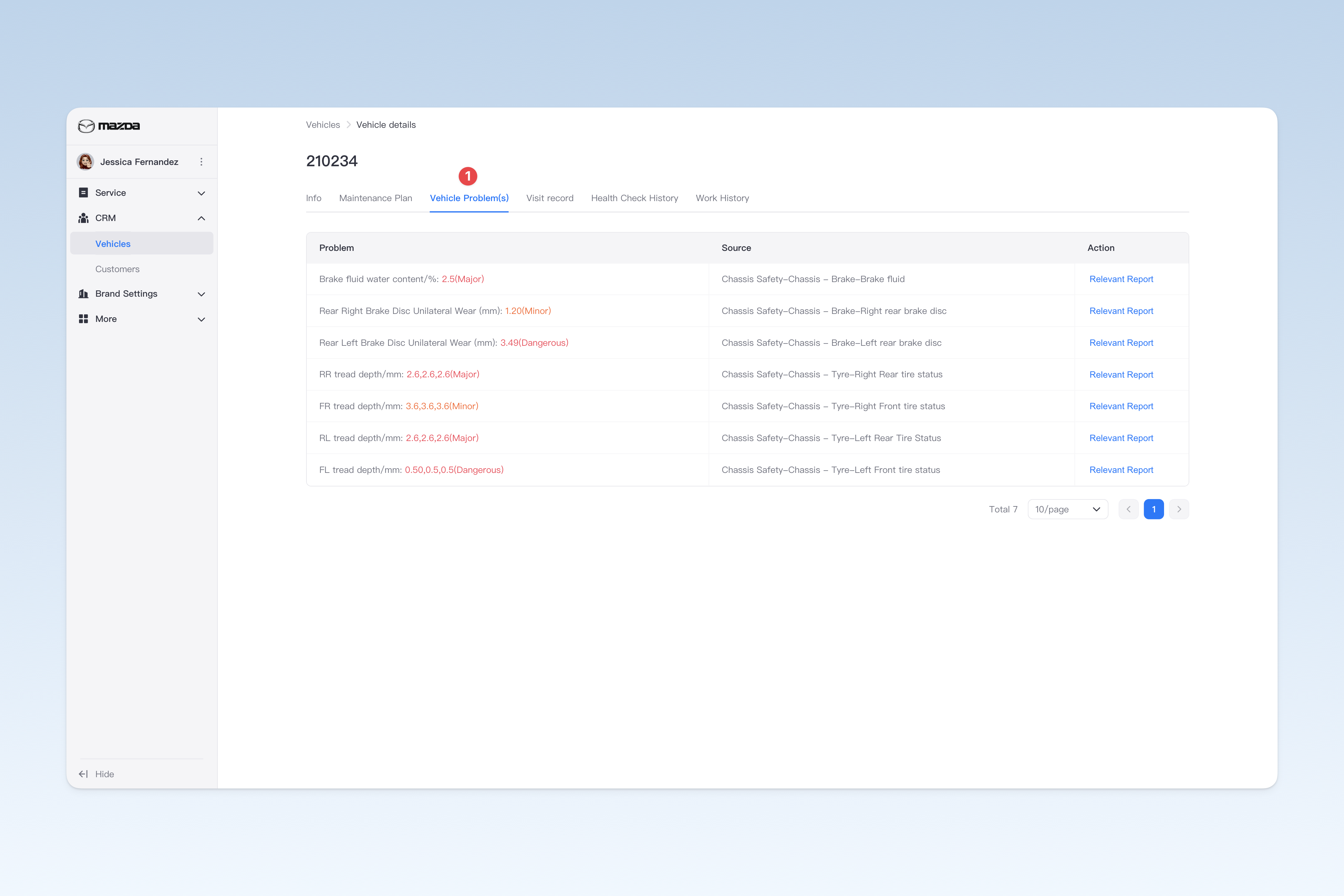
In the "Vehicle Pool" page, find the corresponding vehicle and click the [Details] button on the right side of the list. In the "Vehicle Details" page that pops up, click the [Vehicle Problem(s)] menu. This page is mainly used to view the existing abnormal problems of the vehicle. These abnormal problems are discovered by the shop technicians during the inspection of the vehicle. Due to the owner's failure to handle them in time, these problems still exist.
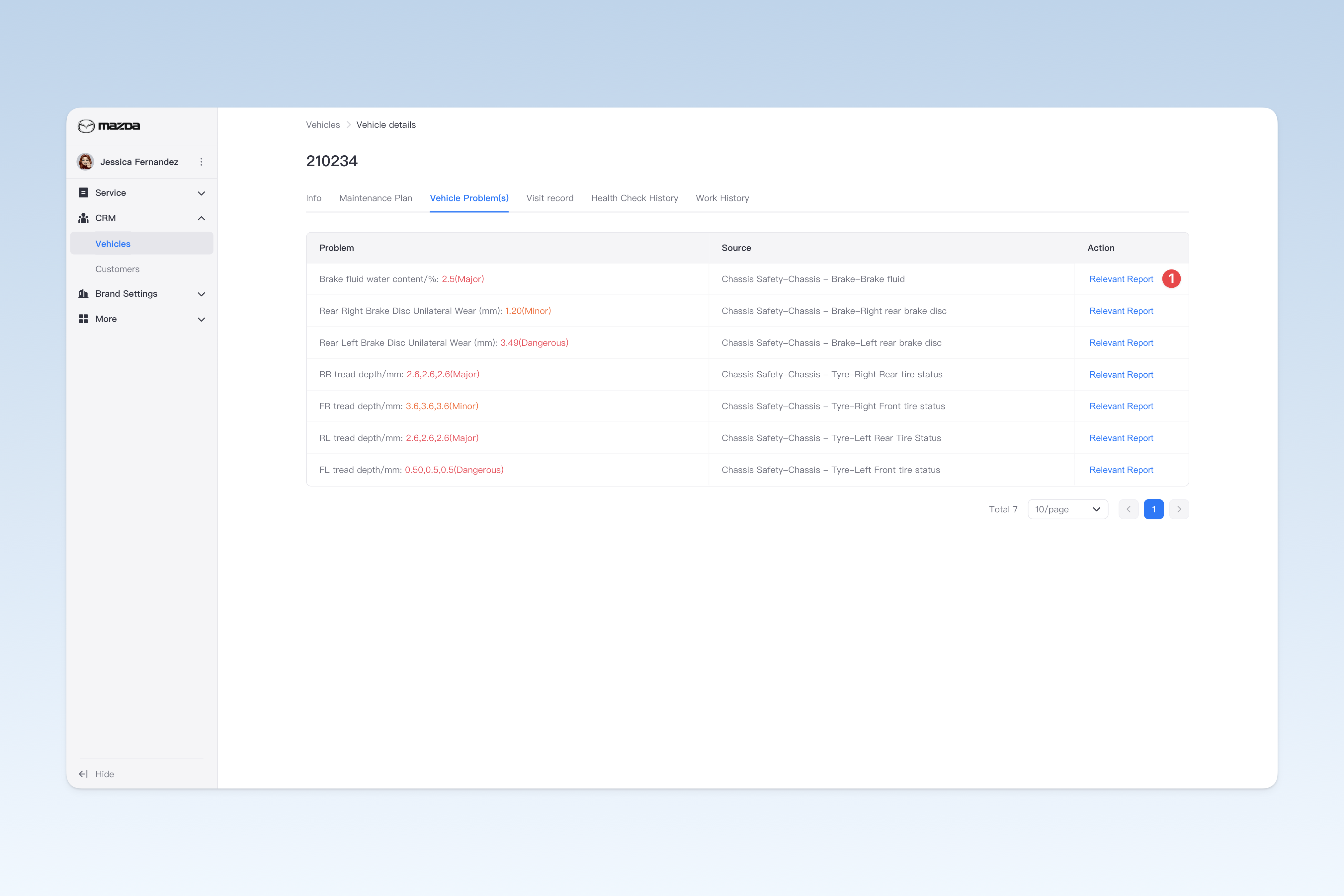
In the operation column on the right side of the list, click the [View report] button to view the health check report source of the problem.
View Vehicle Visit Records
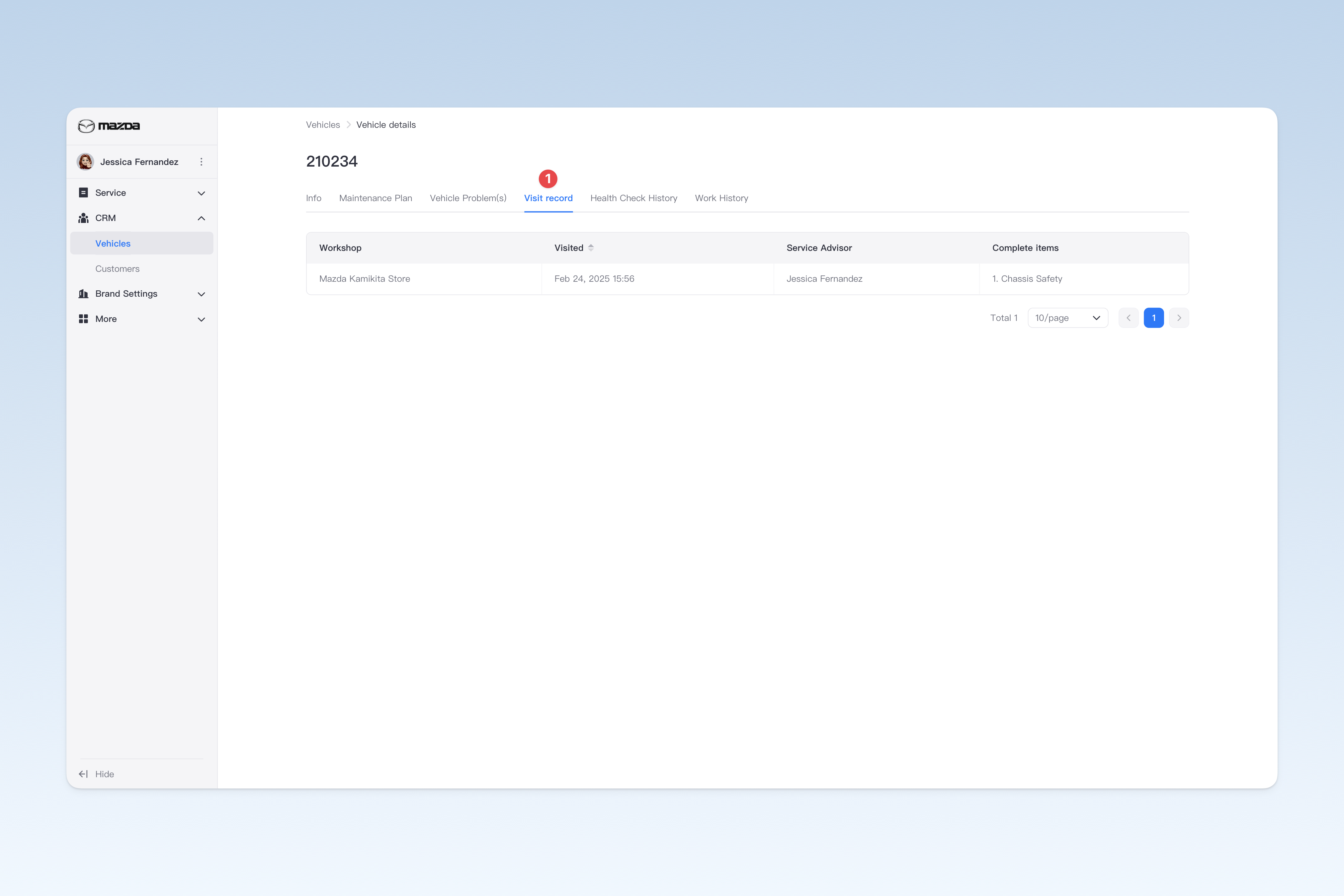
In the "Vehicle Pool" page, find the corresponding vehicle and click the [Details] button on the right side of the list. In the "Vehicle Details" page that pops up, click the [Visit record] menu. This page is mainly used to view the vehicle's visit records, including the following information:
- Workshop visited:
- Time:
- Service Advisor:
- Specific service items completed during the vehicle's visit:
View Vehicle Health Check Records
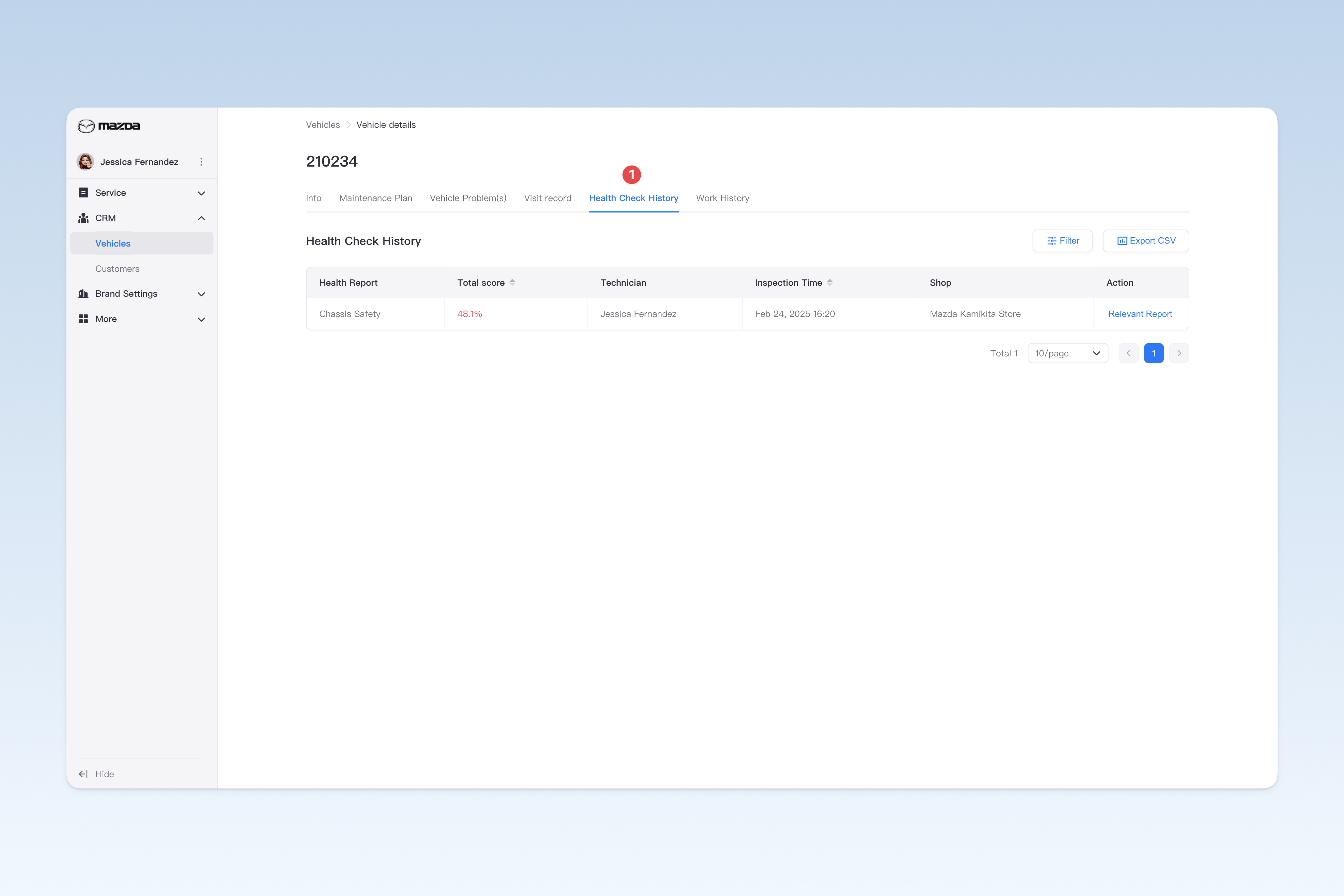
On the "Vehicle Pool" page, find the corresponding vehicle and click the [Details] button on the right side of the list. On the "Vehicle Details" page that pops up, click the [Health Check Records] menu to switch to the "Health Check Records" page.
Filter Health Check Records by Conditions
On the "Health Check Records" page, click the [Filter] button in the upper right corner to display all available filter conditions. You can combine these conditions according to your actual needs to find health check reports.
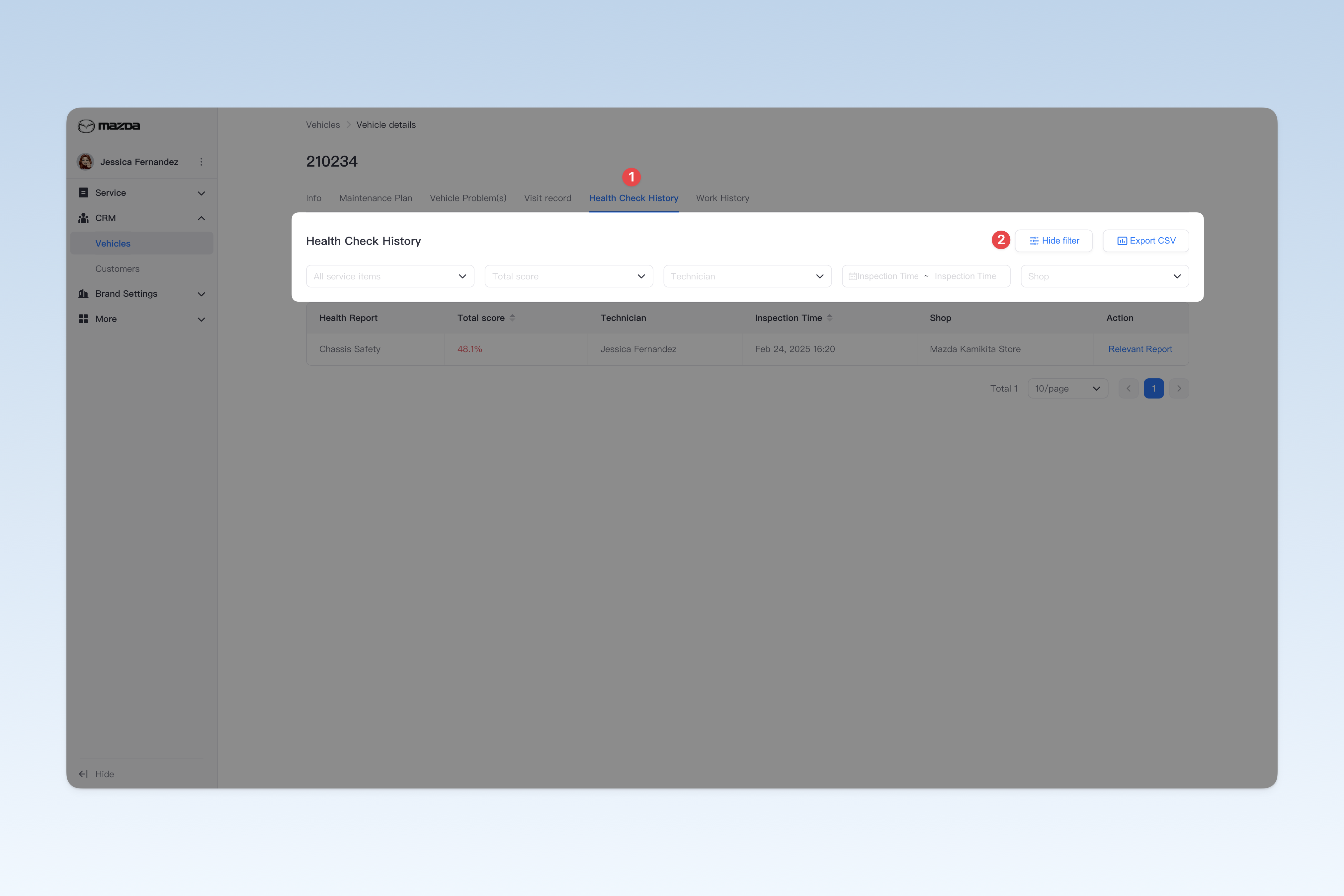
Export Health Check Records to a Spreadsheet File
On the "Health Check Records" page, click the [Export CSV] button in the upper right corner. After a short wait, the system will automatically create a download task in the browser. Please find the exported spreadsheet file on the browser's download page.
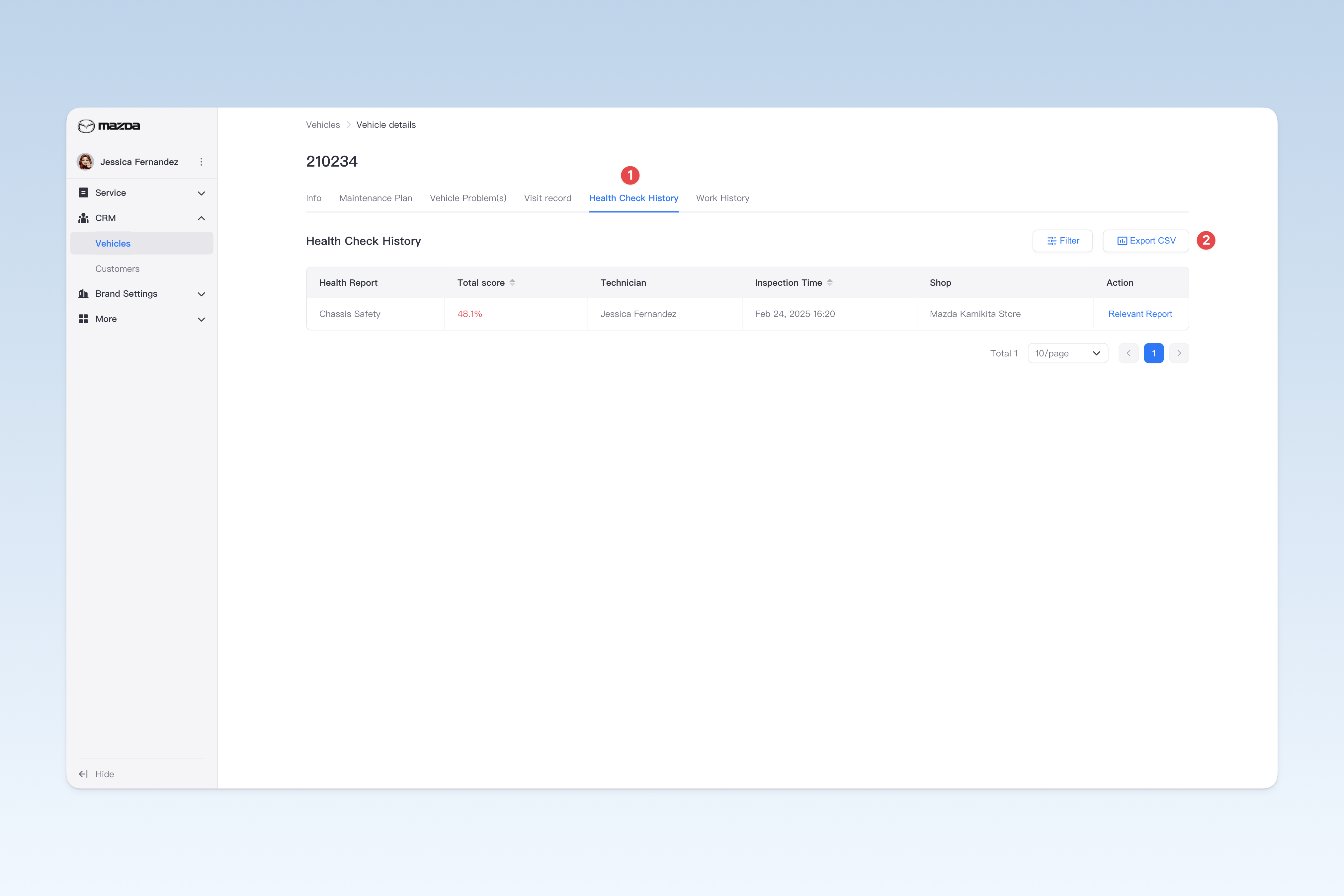
View the Health Check Report Corresponding to a Record
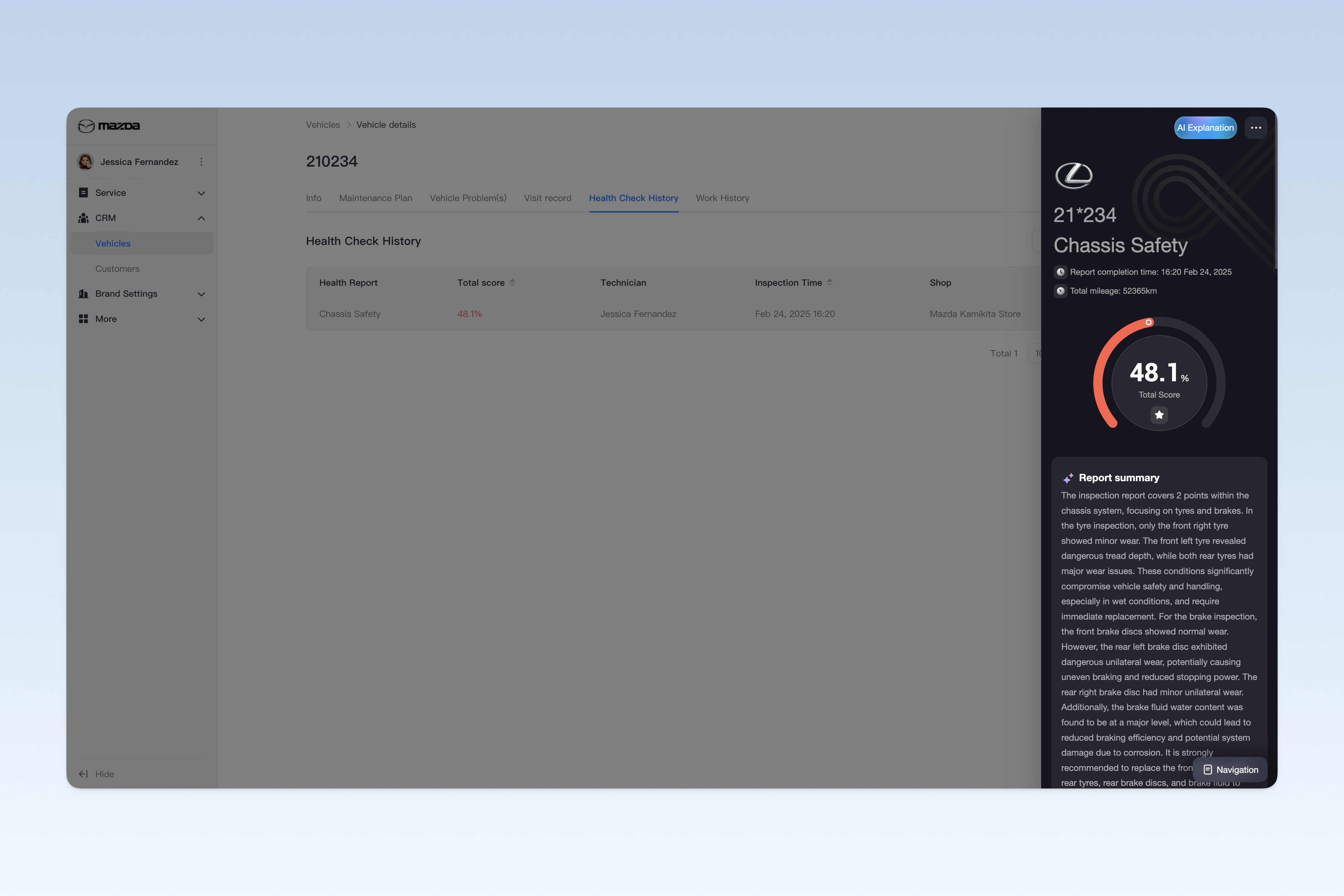
On the "Health Check Records" page, click the [View Health Check Report] button on the right side of the list, and the corresponding health check report will pop up on the right side of the screen.
![1. Click the [View Health Check Report] button](https://i18n.autox3.com/doc/helpcenter/2025/1740552027265-e028056a-5ab6-43bd-9168-1734e09a7565.png)
View Vehicle Work Records
On the "Vehicle Pool" page, find the corresponding vehicle and click the [Details] button on the right side of the list. On the "Vehicle Details" page that pops up, click the [Work Records] menu to switch to the "Work Records" page.
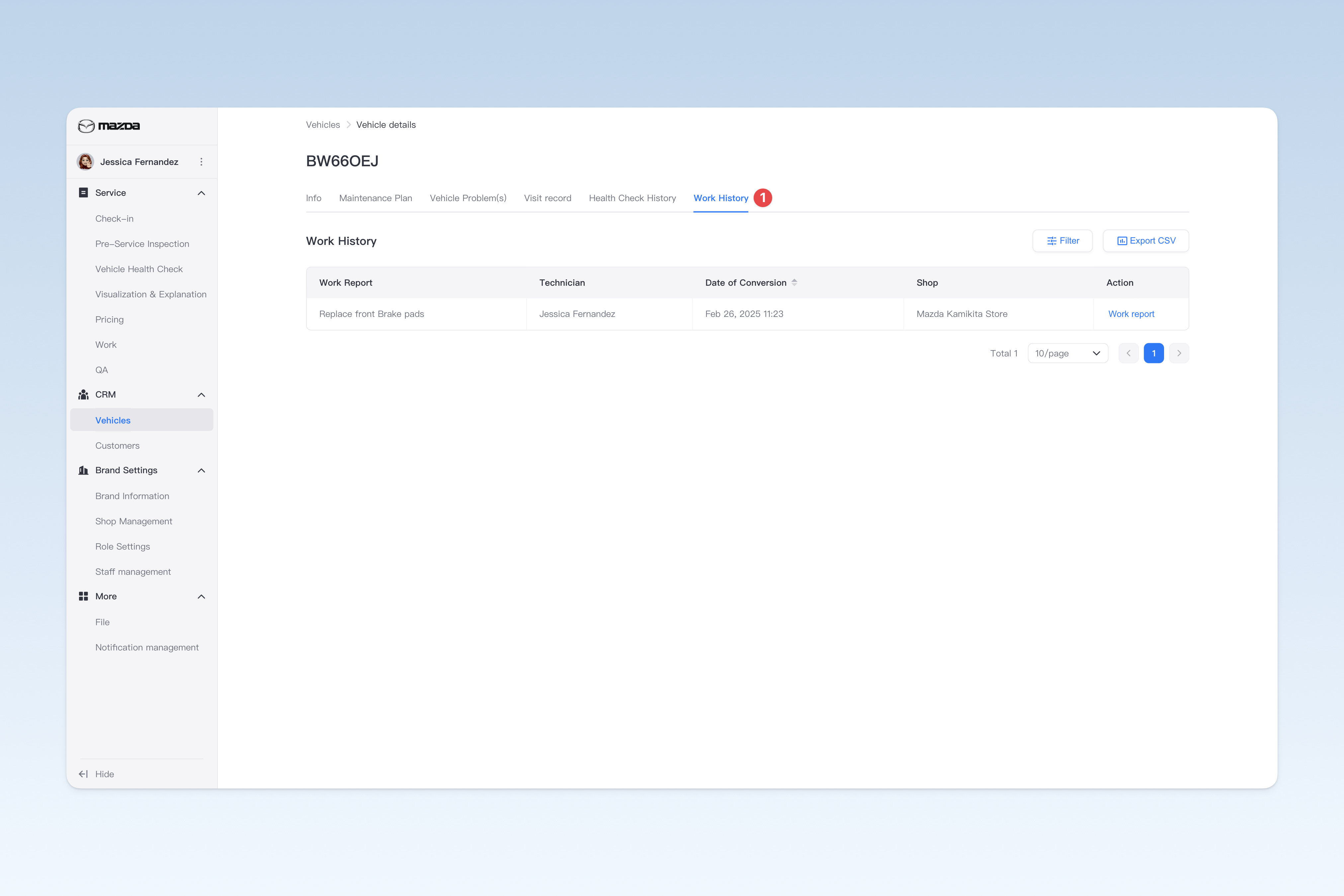
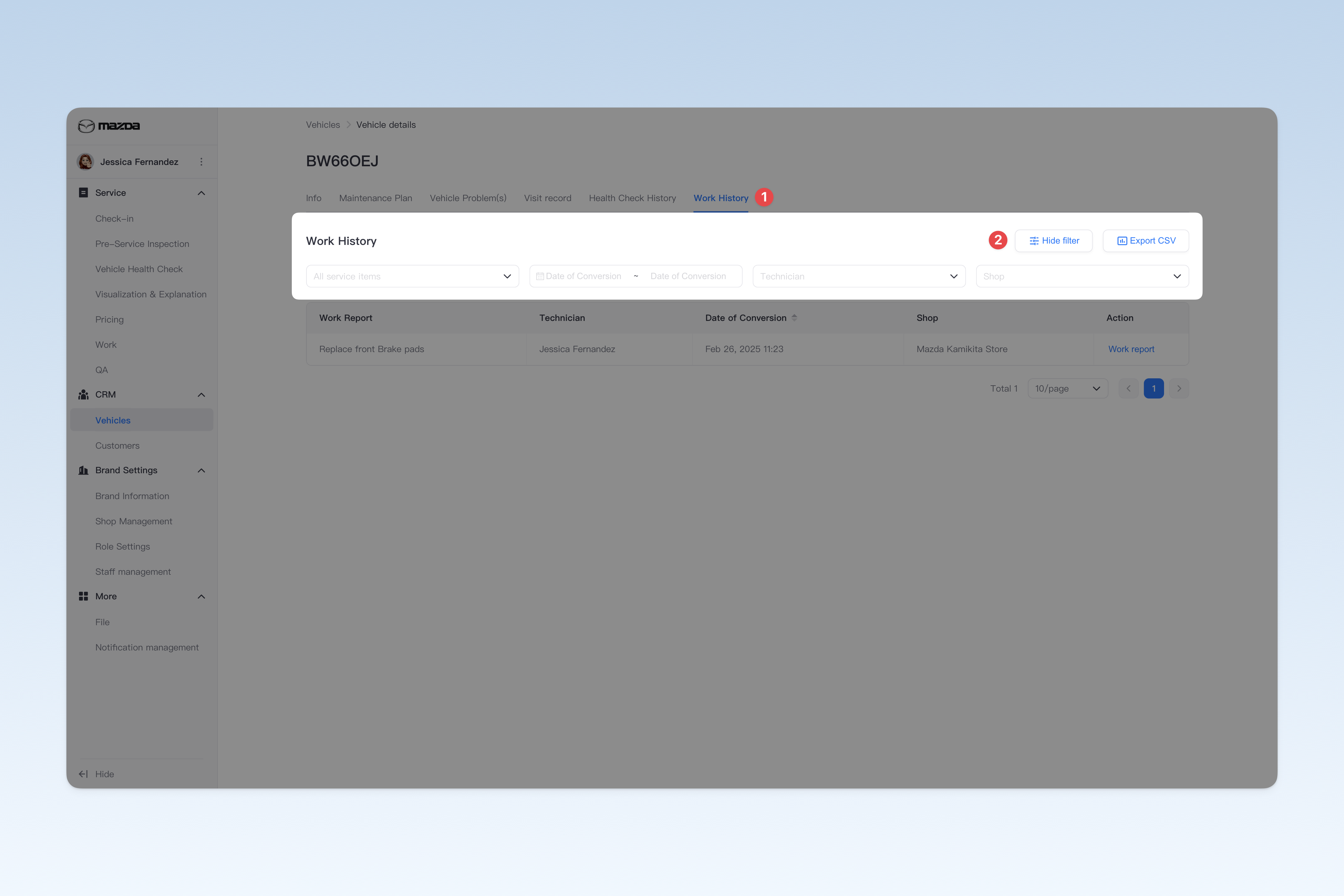
Filter Work Records by Conditions
On the "Work Records" page, click the [Filter] button in the upper right corner to display all available filter conditions. You can combine these conditions according to your actual needs to find work reports.
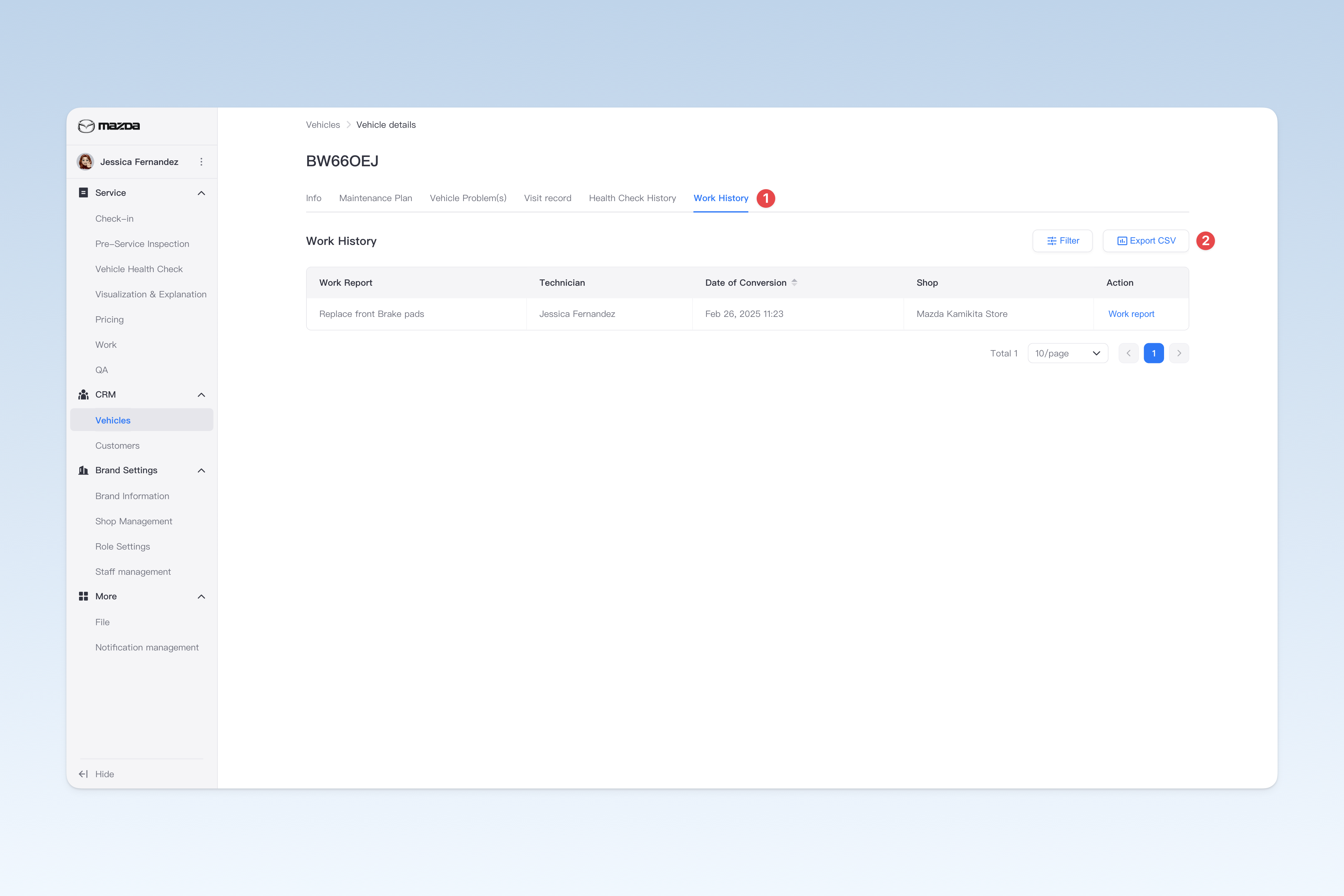
Export Work Records to a Spreadsheet File
On the "Work Records" page, click the [Export CSV] button in the upper right corner. After a short wait, the system will automatically create a download task in the browser. Please find the exported spreadsheet file on the browser's download page.
View the Work Report Corresponding to a Record
On the "Work Records" page, click the [View Work Report] button on the right side of the list, and the corresponding work report will pop up on the right side of the screen.
![1. Click the [View Work Report] button](https://i18n.autox3.com/doc/helpcenter/2025/1740552179572-94064c44-1512-4d7c-b098-28ac9ac58152.png)