Shop Management
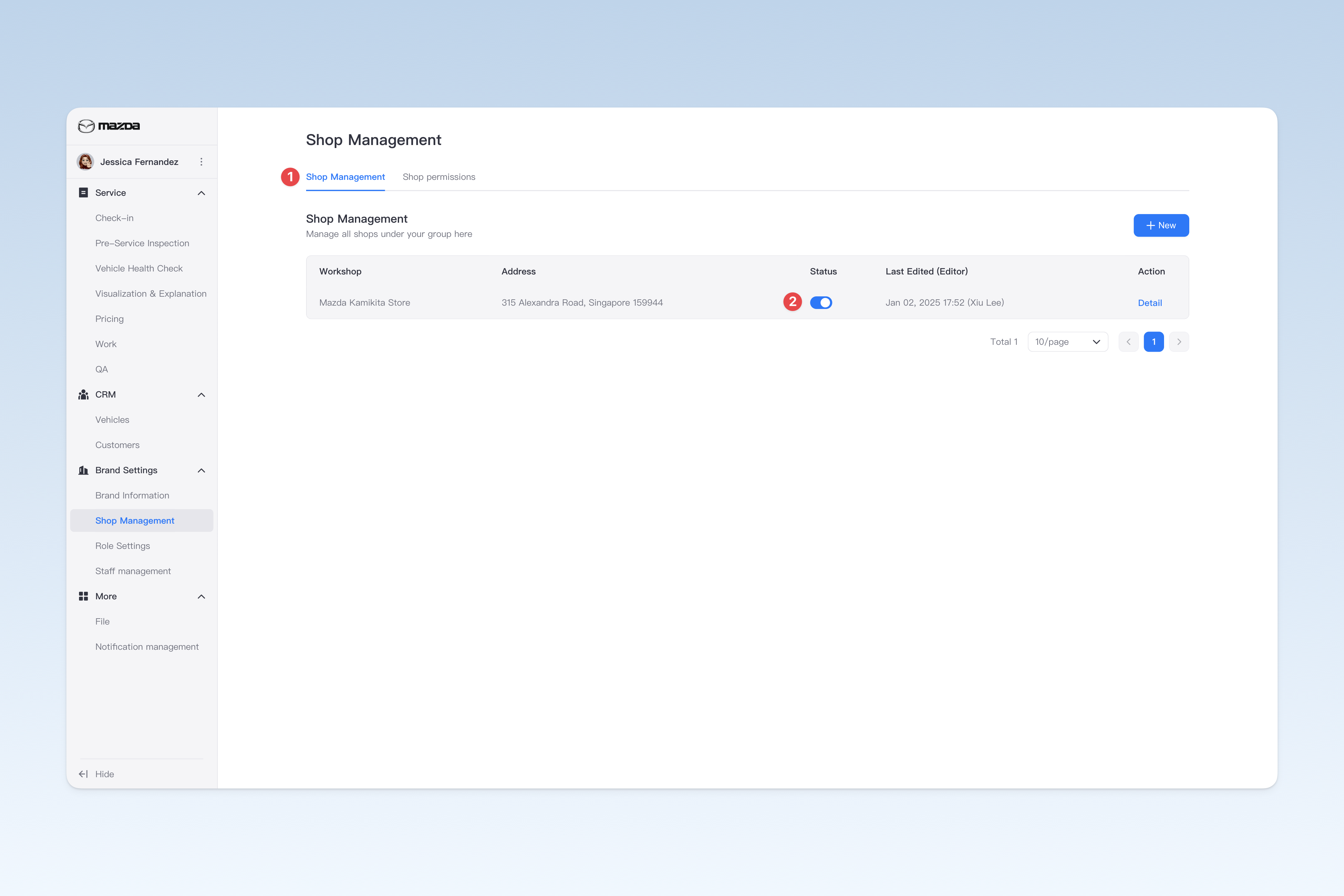
📍 You can configure related content in: AutoX3 Brand Management Dashboard > Brand Management > Shop Management > Shop Management.
Create Shop
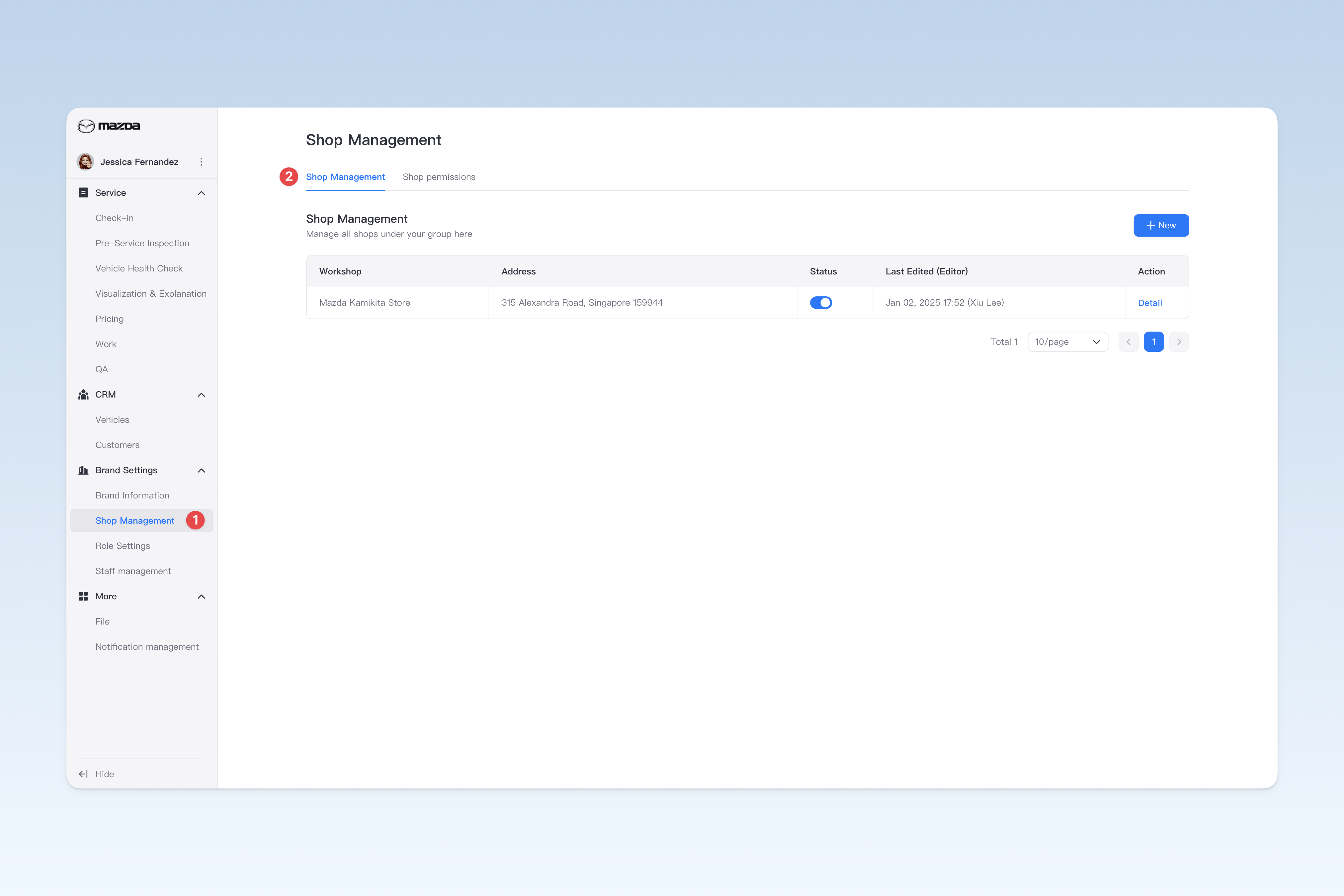
On the "Shop Management" page, click the【Create】button to enter the "Create Shop" page.
When creating a shop, you need to complete the following three steps: fill in basic information, configure the shop's service scope, and add employees to the shop. After completing, click the【Submit】button to finish.
Configure Shop Basic Information
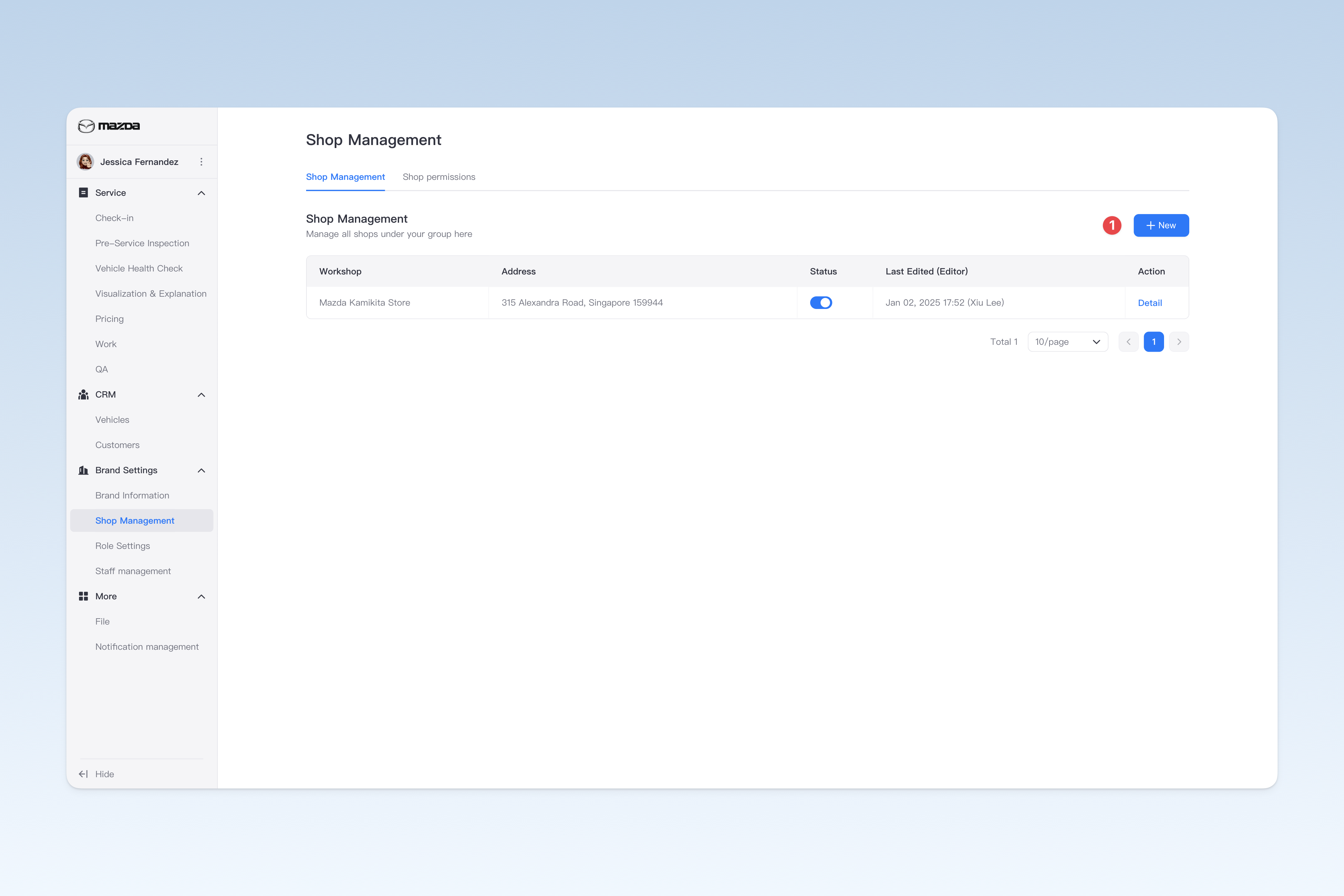
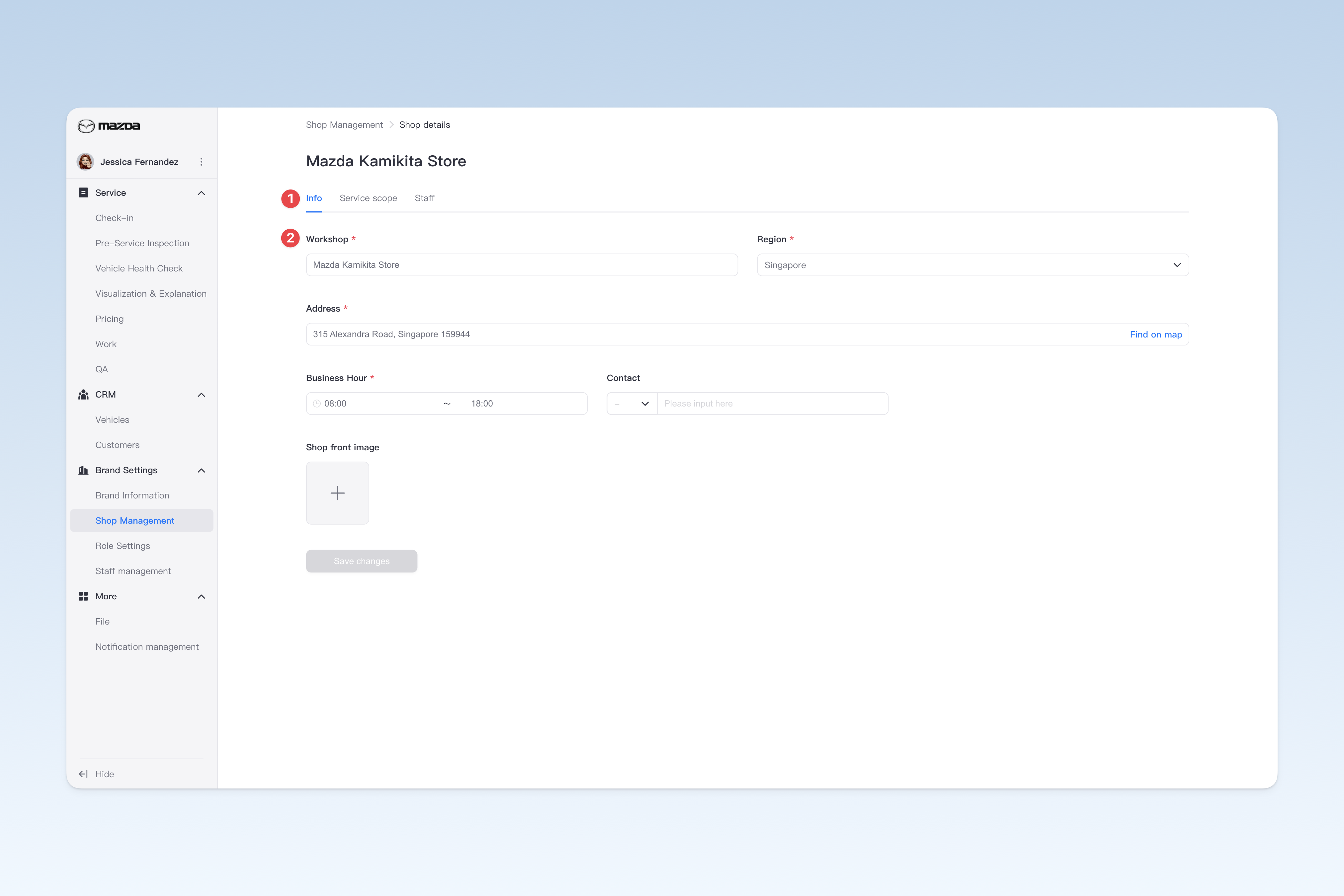
On the "Shop Management" page, find the shop you want to modify, click the【Details】button in the operation column on the right side of the list, and in the pop-up "Shop Details" page, click the【Basic Information】menu. This page is mainly used to configure some basic information of the shop.
- Shop Name: The name of the shop.
- Region: The province, city and district where the shop is located.
- Address: The detailed address of the shop should be accurate to the house number, so that customers can easily find and navigate to the shop.
- Business Hours: The shop's business hours should be clearly marked for customers to reasonably arrange their visit time.
- Contact Number: The contact number of the shop.
- Shop Front Image: The image of the shop's entrance or storefront, so that customers can quickly identify and find the shop location through intuitive pictures.
Configure Shop Service Scope
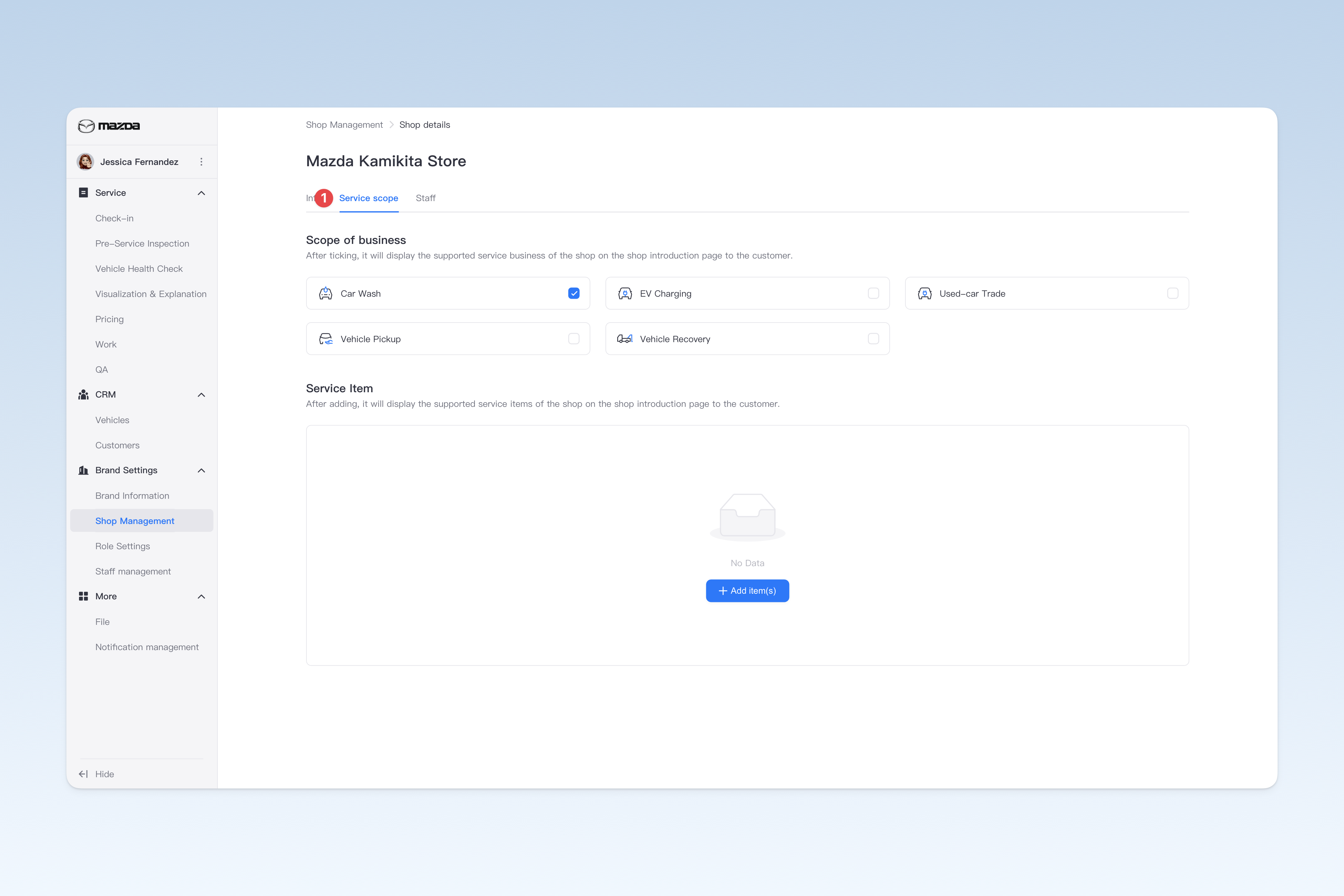
This page is mainly used to configure the service content displayed by the shop to customers, so that customers can clearly understand the service items provided by the shop.
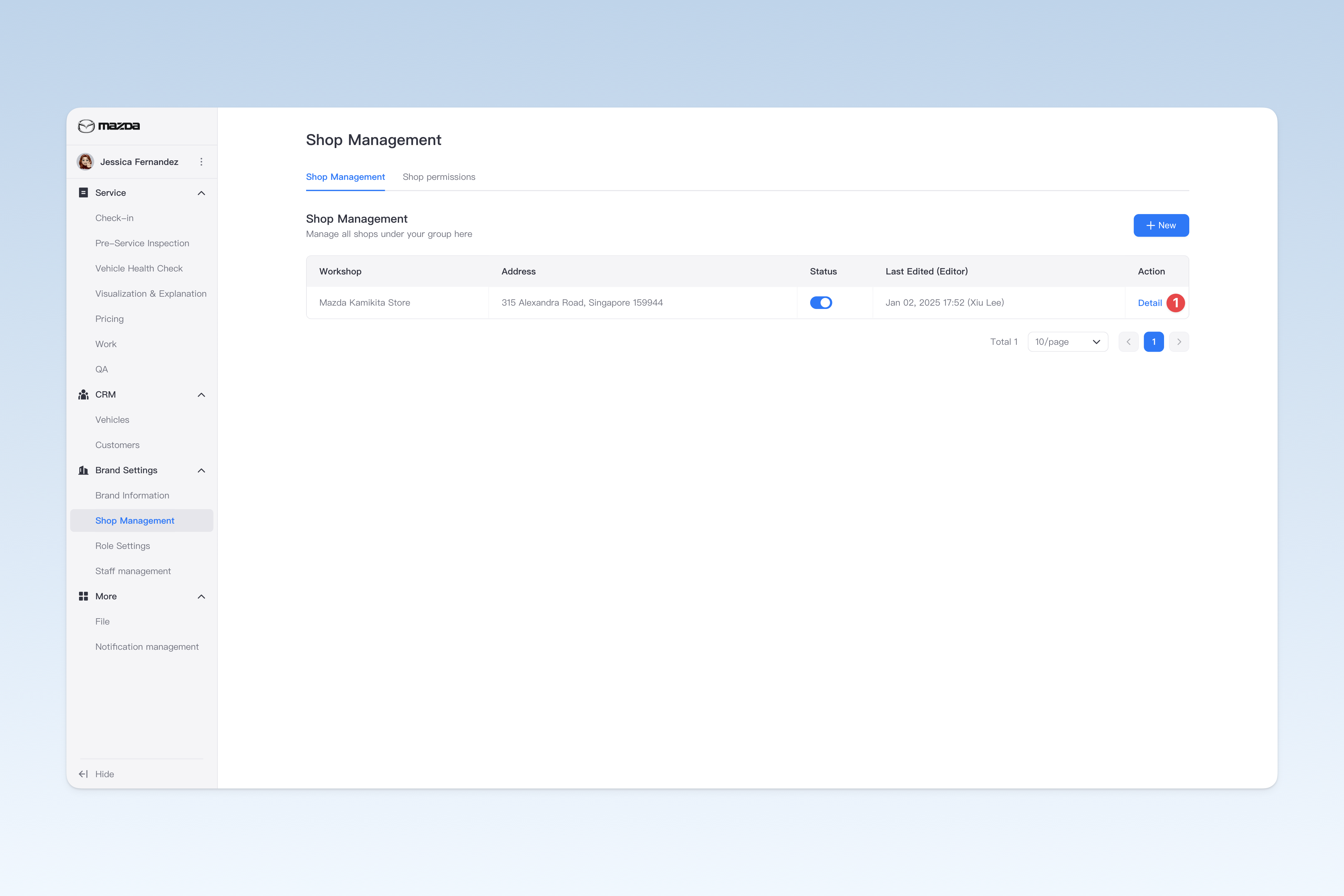
On the "Shop Management" page, find the shop you want to modify, click the【Details】button in the operation column on the right side of the list, and in the pop-up "Shop Details" page, click the【Service Scope】menu.
Business Scope
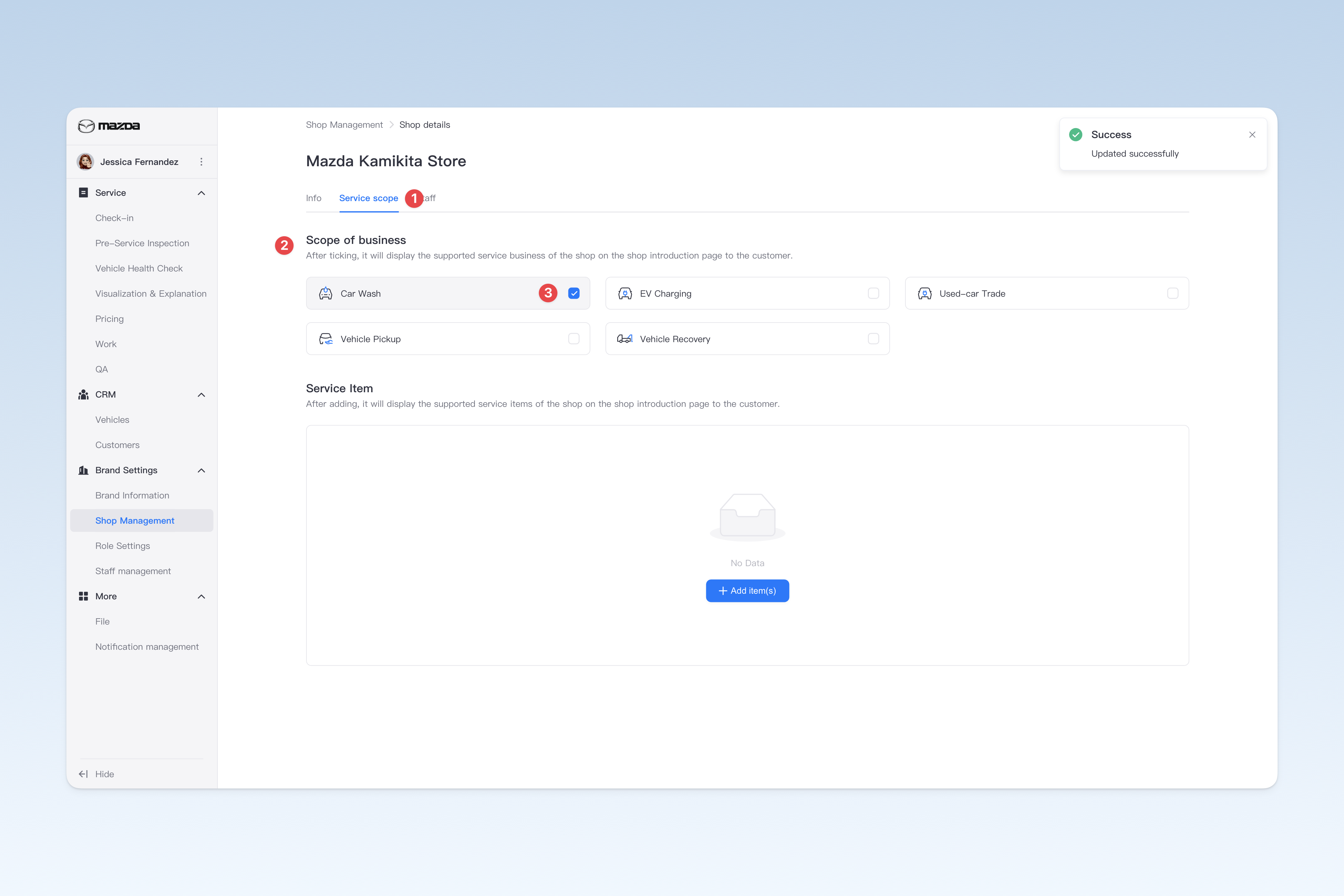
After selecting the business operated by the shop, this business information will be displayed on relevant shop introduction pages, making it convenient for customers to understand the service content supported by the shop.
Service Items
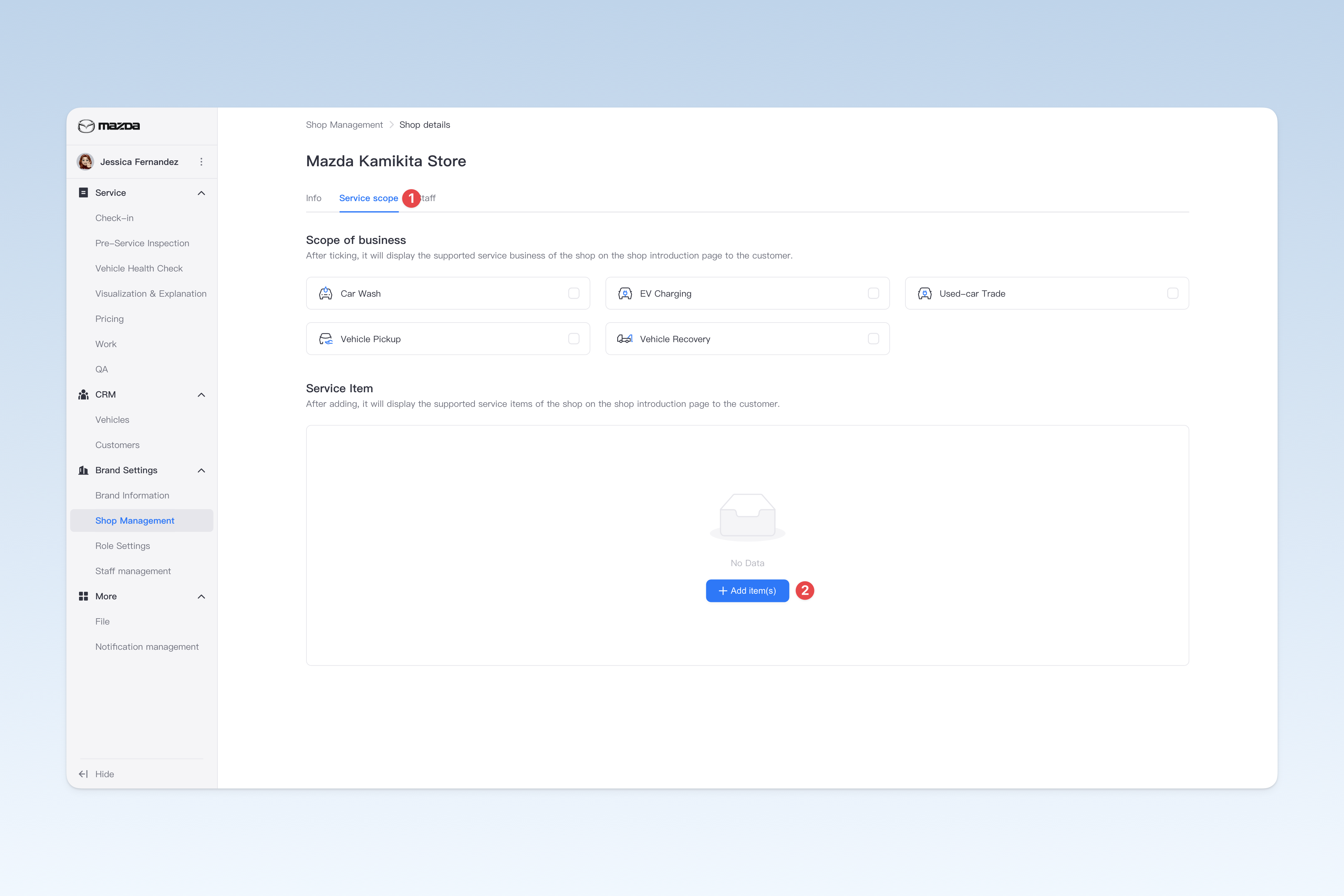
Configure the specific service items operated by the shop. This information will be displayed on relevant shop introduction pages for customers to view and make appointments.
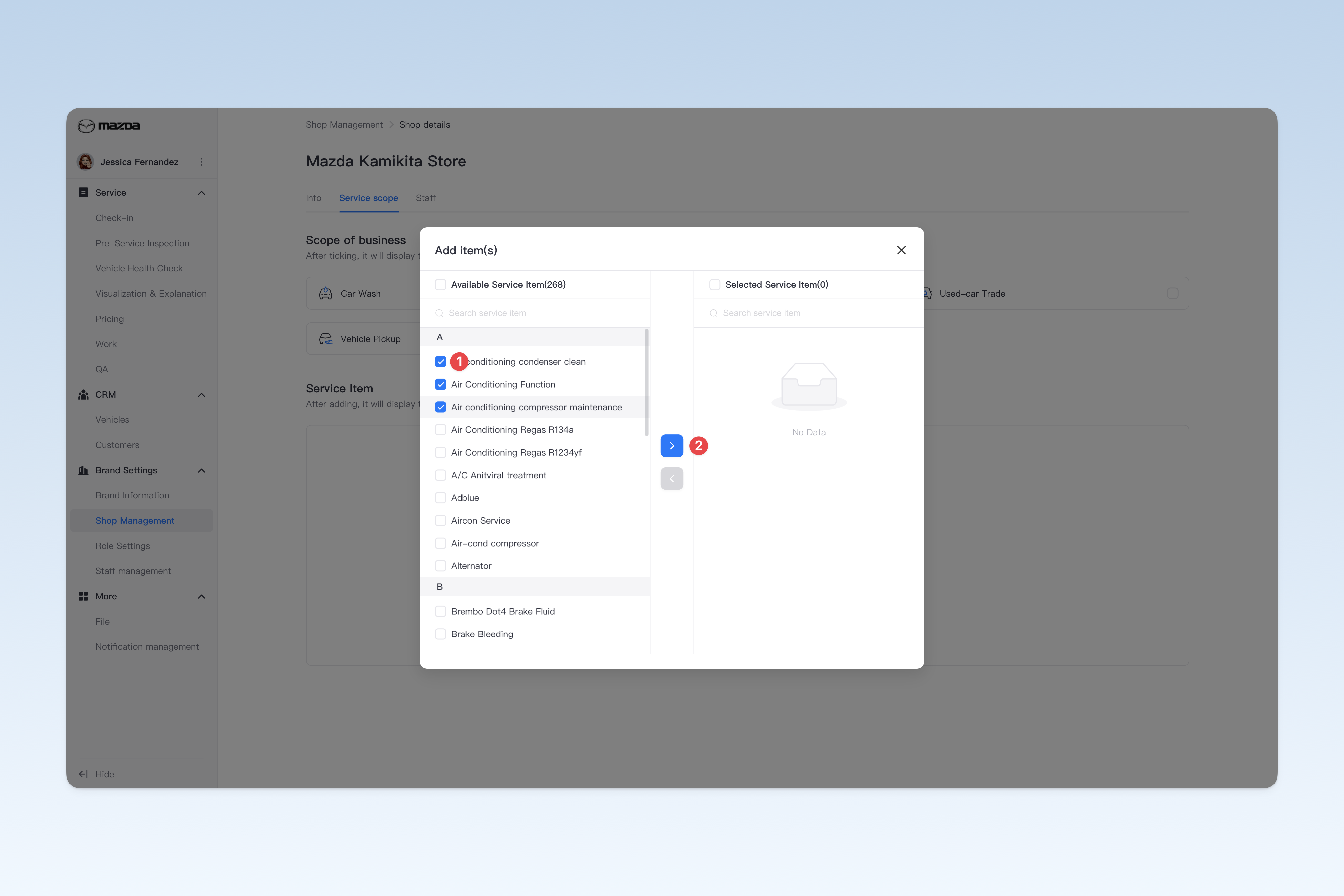
- After clicking the【Add Items】button, a configuration window will pop up.
- The left side of the pop-up window displays the health check and service items already created in the current system, while the right side displays the currently added service items.
- In the left list, select the items you want to add and click the blue【>】arrow button in the middle. The selected items will move to the right, indicating successful addition.
- After completing the selection, click the close button in the upper right corner of the pop-up window to finish adding items.
- Return to the "Service Scope" page, and you will see the newly added items displayed in the list.
For how to create service items, please refer to: ◎ Health Check Services and ◎ Service Items.
Manage Shop Staff
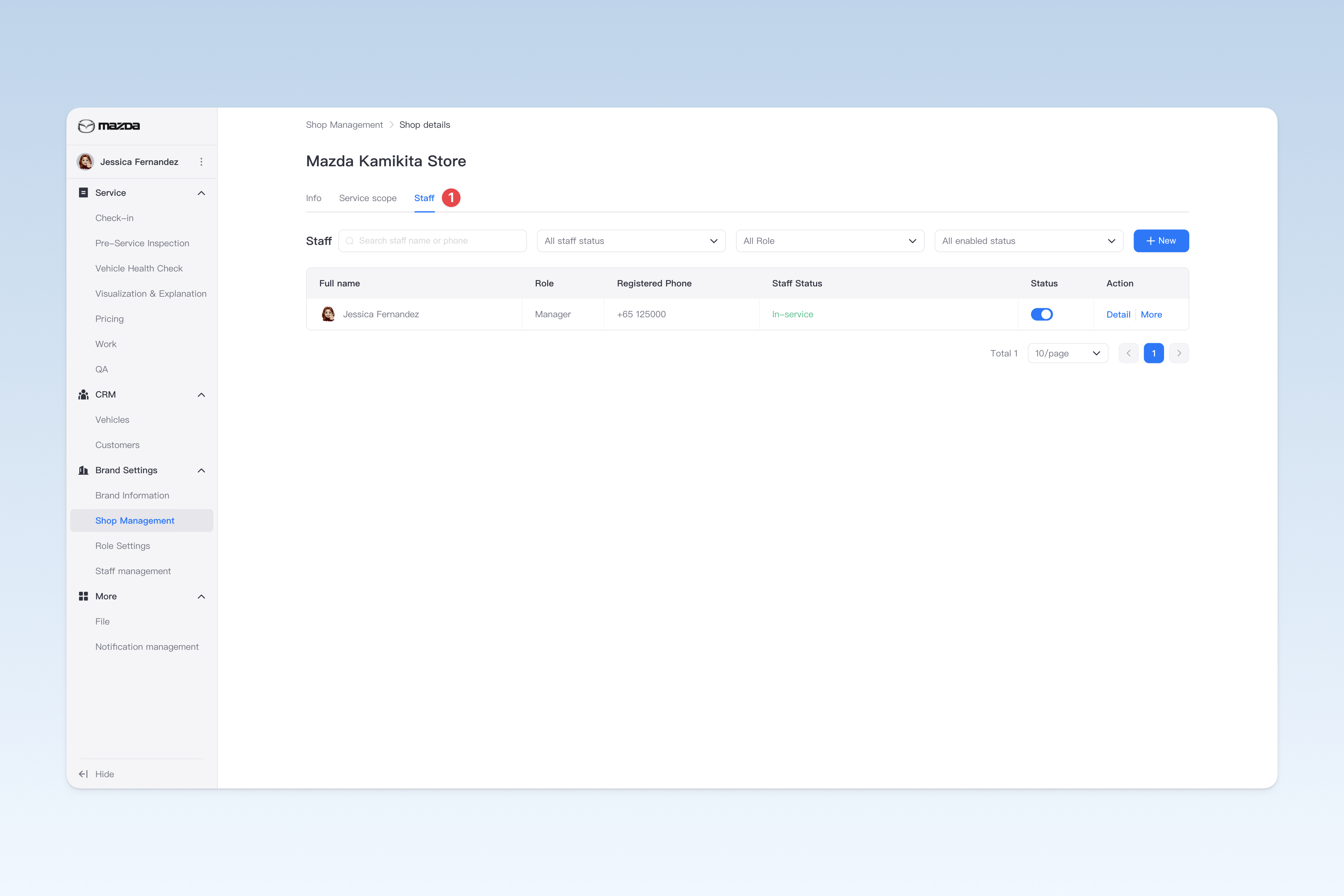
On the "Shop Management" page, find the corresponding shop and click the【Details】button in the operation column on the right side of the list. In the pop-up "Shop Details" page, click the【Shop Staff】menu.
On this page, you can add staff, view staff details, enable/disable staff, and perform operations such as resignation, role transfer, and shop transfer. For specific guidelines on staff management, please refer to related operation instructions: ◎ Manage Group Staff
Enable/Disable Shop
On the "Shop Management" page, find the "Enabled Status" in the list and click the【Switch】button to "enable" or "disable" any shop.
⚠️ Note: Currently, the system does not support directly deleting shops. If you temporarily do not need to use a shop, you can disable it. After disabling, all staff under the shop will not be able to log in normally.