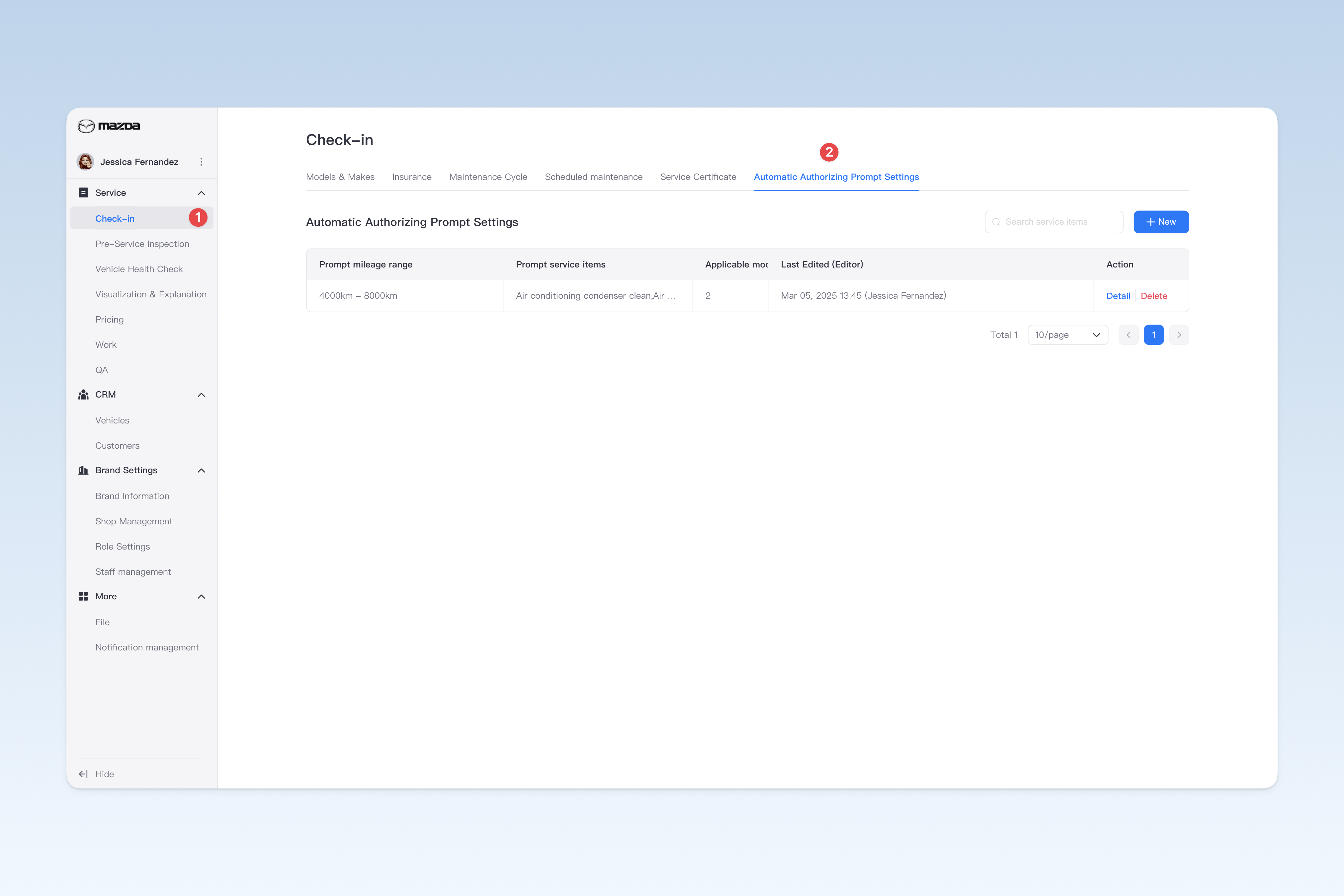
◎ Configure Automatic Authorizing Prompt
You can set a mileage range. When creating a service order, if the vehicle's total mileage falls within the set range, the Intelligent Technician App will automatically prompt the check-in staff whether to order this service item.
Suggested prompt: Based on mileage and vehicle model, the system recommends ordering 'XXX'. Confirm order?
- Usage example: You can automatically recommend ordering "Transmission oil change" for high-mileage vehicles and "Engine oil change" for low-mileage vehicles, aiming to more flexibly control ordered items based on mileage.
📍 You can configure related content in: AutoX3 Brand Management Dashboard > Service > Check-in Vehicle > Automatic Authorizing Prompt.
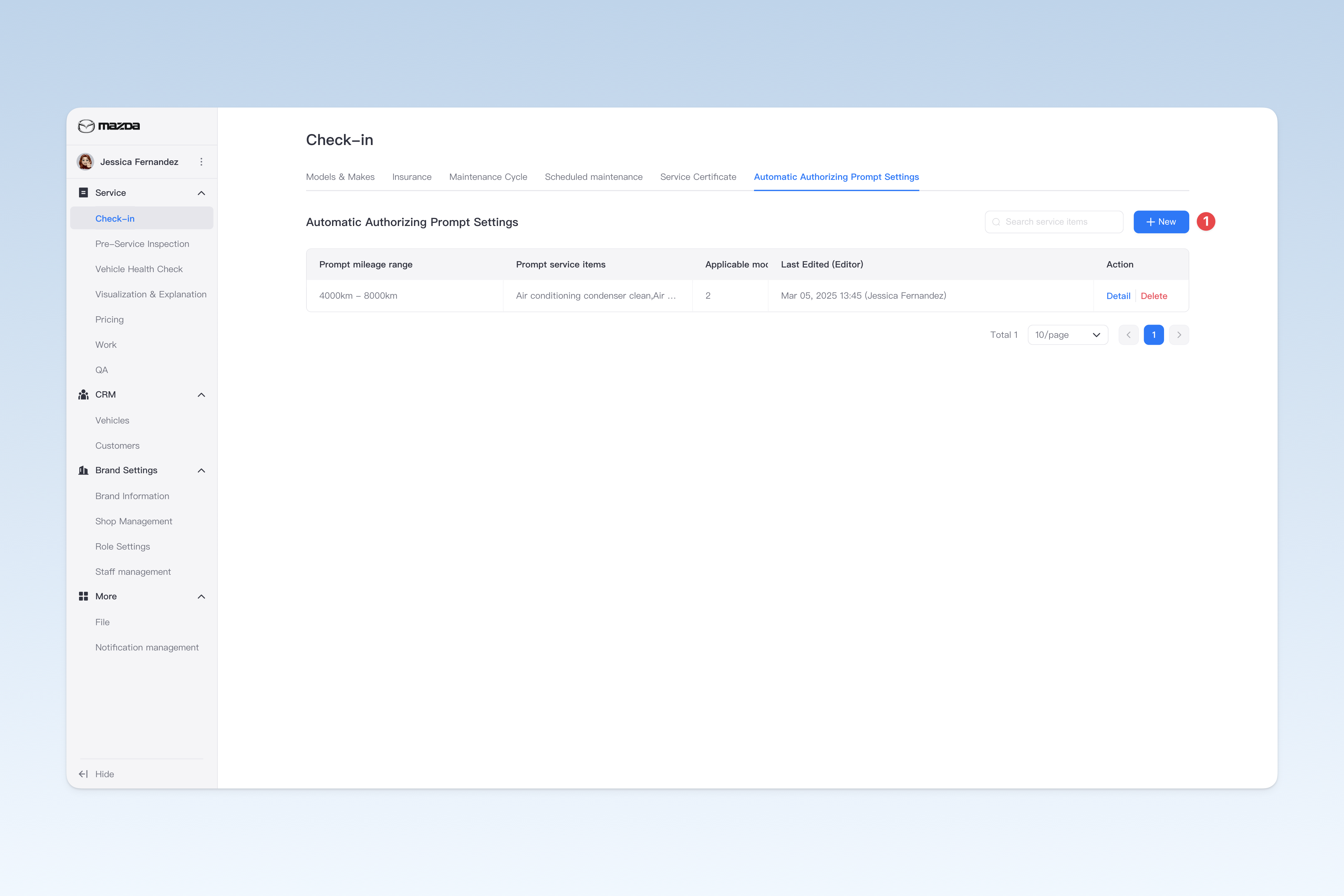
Create an Authorizing Prompt Template
On the "Automatic Authorizing Prompt" page, click the [Create] button to enter the "Automatic Authorizing Prompt" page.
Creating an authorizing prompt requires 2 steps: filling in basic information and associating applicable models. After completing, click [Submit] to finish.
📢 When using for the first time, read the instructions and click [Get started] to create "Automatic Authorizing Prompt" content.
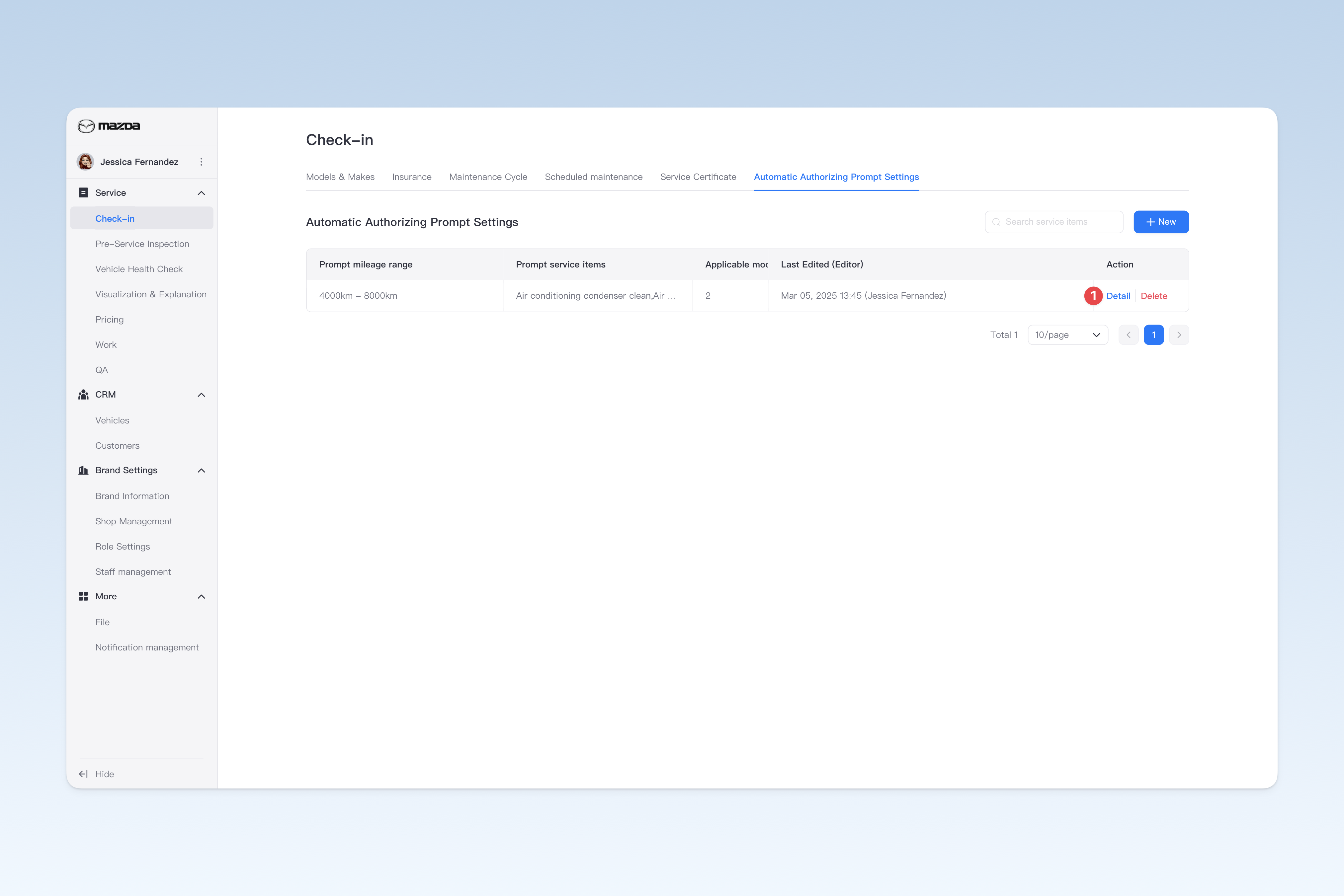
Configure Basic Information for Automatic Authorizing Prompt
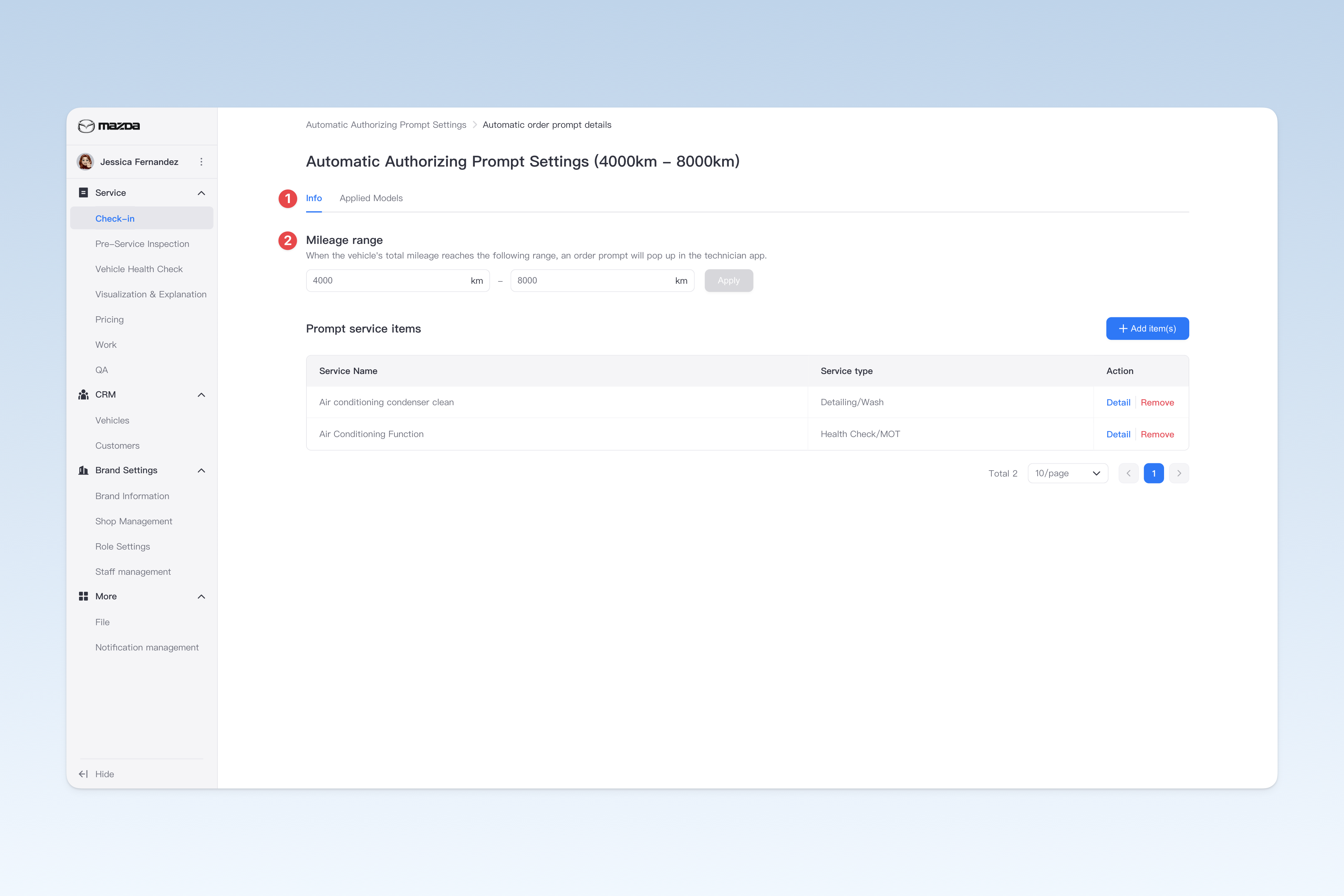
On the "Automatic Authorizing Prompt" page, find the template to be modified, click [Detail] in the operation column on the right, and click [Basic Information] in the pop-up "Automatic Authorizing Prompt Details" page. This page is mainly used to configure basic information of the automatic authorizing prompt template.
- Mileage range: Set the mileage range that triggers the automatic authorizing prompt.
- Prompt service item:
- After clicking [Add service item], a blank record will be inserted. Click the "Service item" box and select the item to add from the drop-down menu, or directly enter keywords to search.
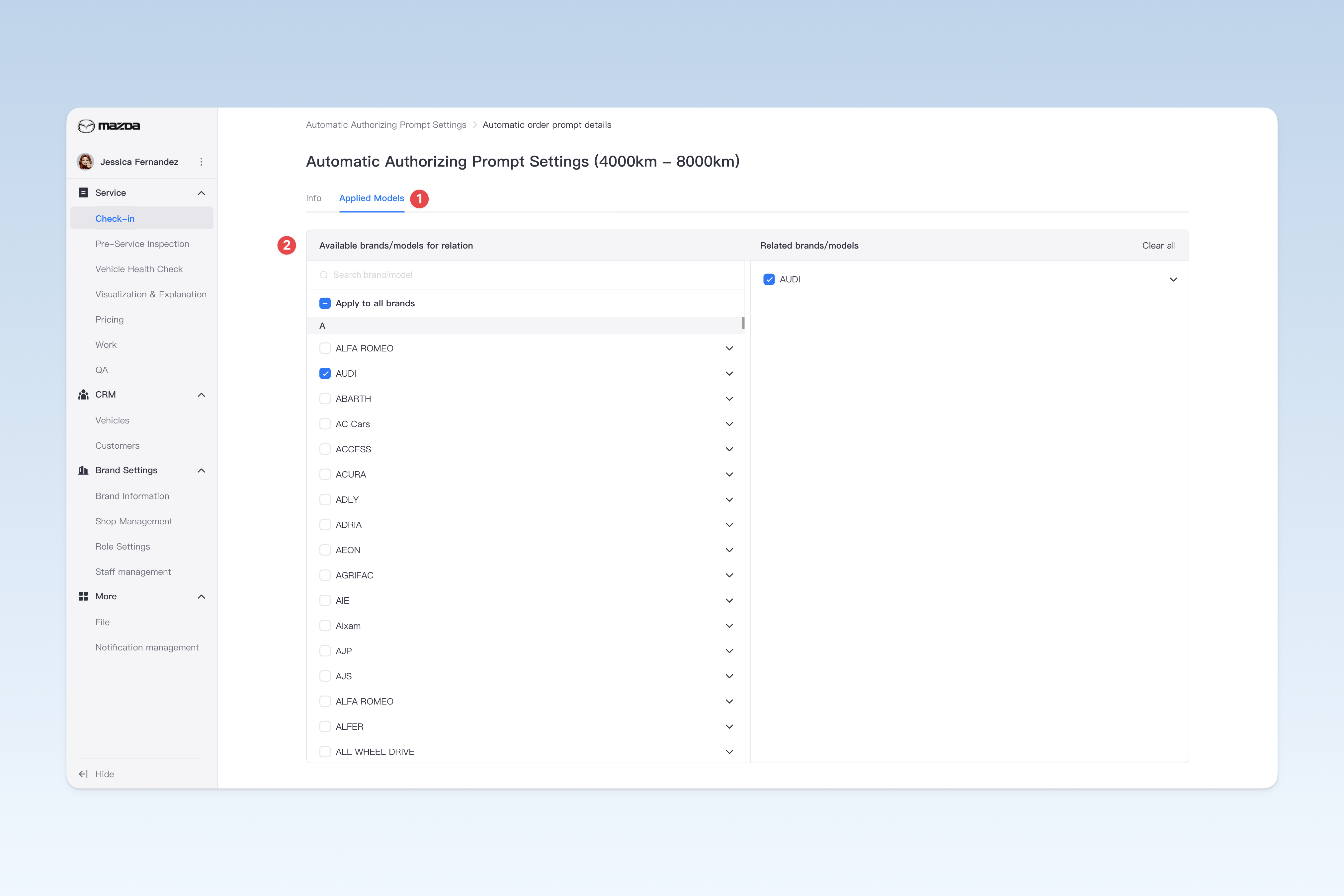
Associate Applicable Models
On the "Automatic Authorizing Prompt" page, find the corresponding prompt template, click [Detail] in the operation column on the right, and click [Applicable Models] in the pop-up "Automatic Authorizing Prompt Details" page.
On the "Applicable Models" page, all vehicle brands are displayed on the left. Click a brand name to expand all models under it. You can select associated models by checking them. Associated brands and models will be displayed in the "Related brands/models" list on the right for viewing and management.