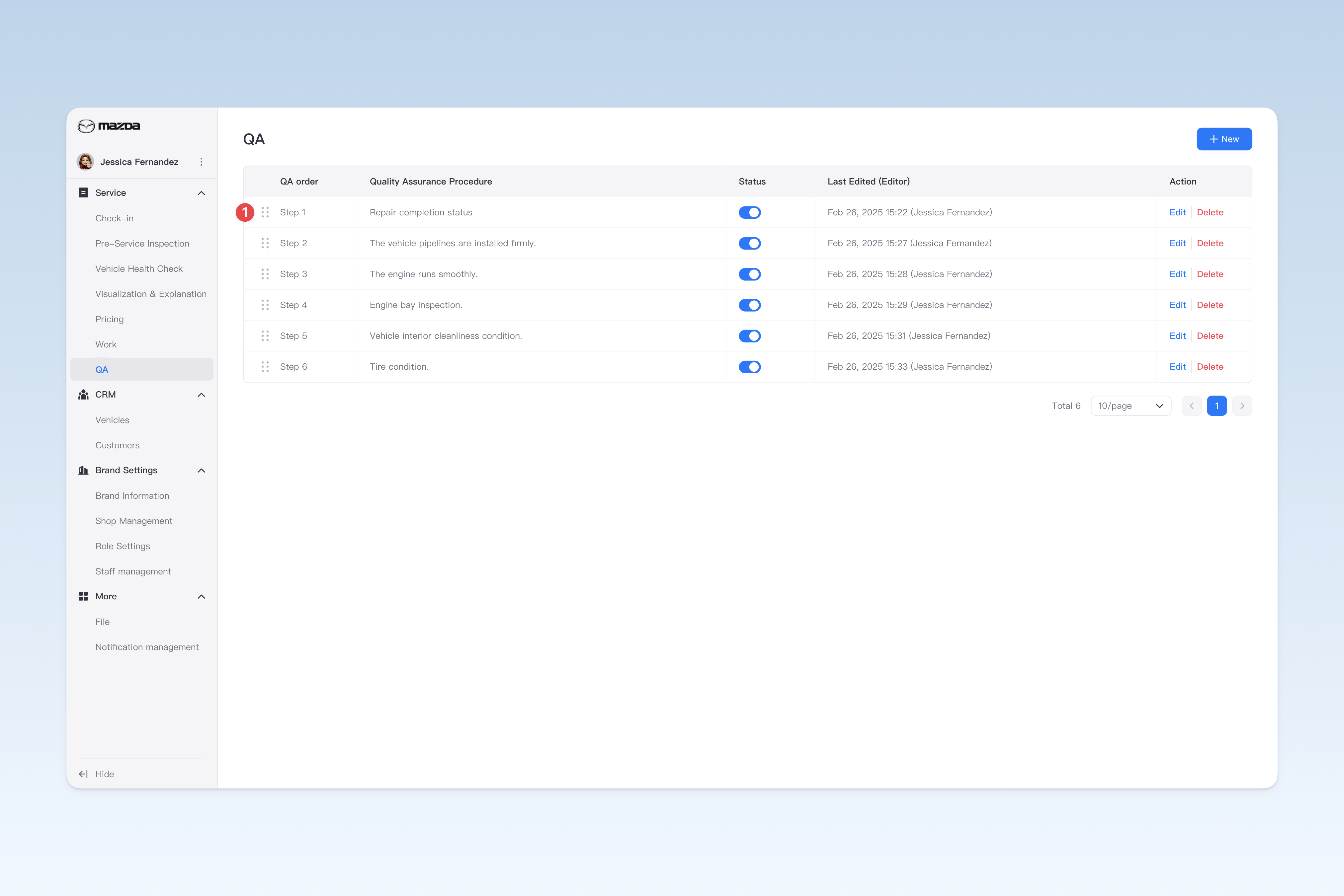
▣ QA Management
The main purpose of the QA process is to ensure that repaired or maintained vehicles meet quality standards, guaranteeing customer safety and satisfaction.
Currently, two QA modes are provided:
- Global QA (introduced in this document): A comprehensive QA process for all work items. As long as a work order exists in the system, the global QA process will be automatically activated. It is mainly used for unified inspection of the overall quality of all work items and is more suitable for regular QA scenarios.
- Work Item QA: An independent QA for a specific work service item, allowing separate QA procedures to be set for that item. This feature is more suitable for large-scale projects with complex work steps and longer durations. "Work Item QA" can only be activated after the work order is submitted. To use Work Item QA, please refer to item 5 in ◎ Work Service Items: "Configuring Work Item QA".
📍 You can configure related content in: AutoX3 Brand Management Dashboard > Service Management > QA Management.
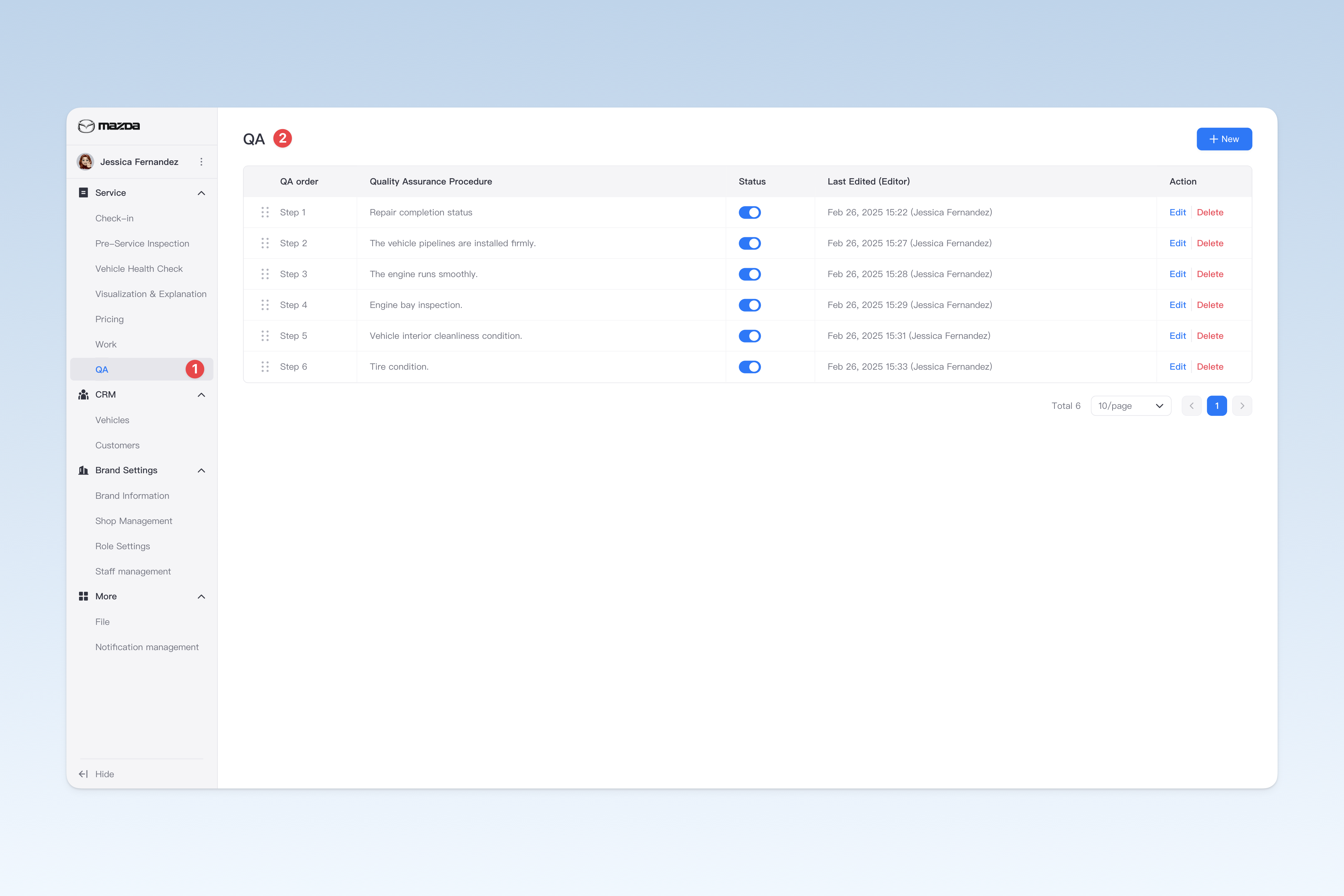
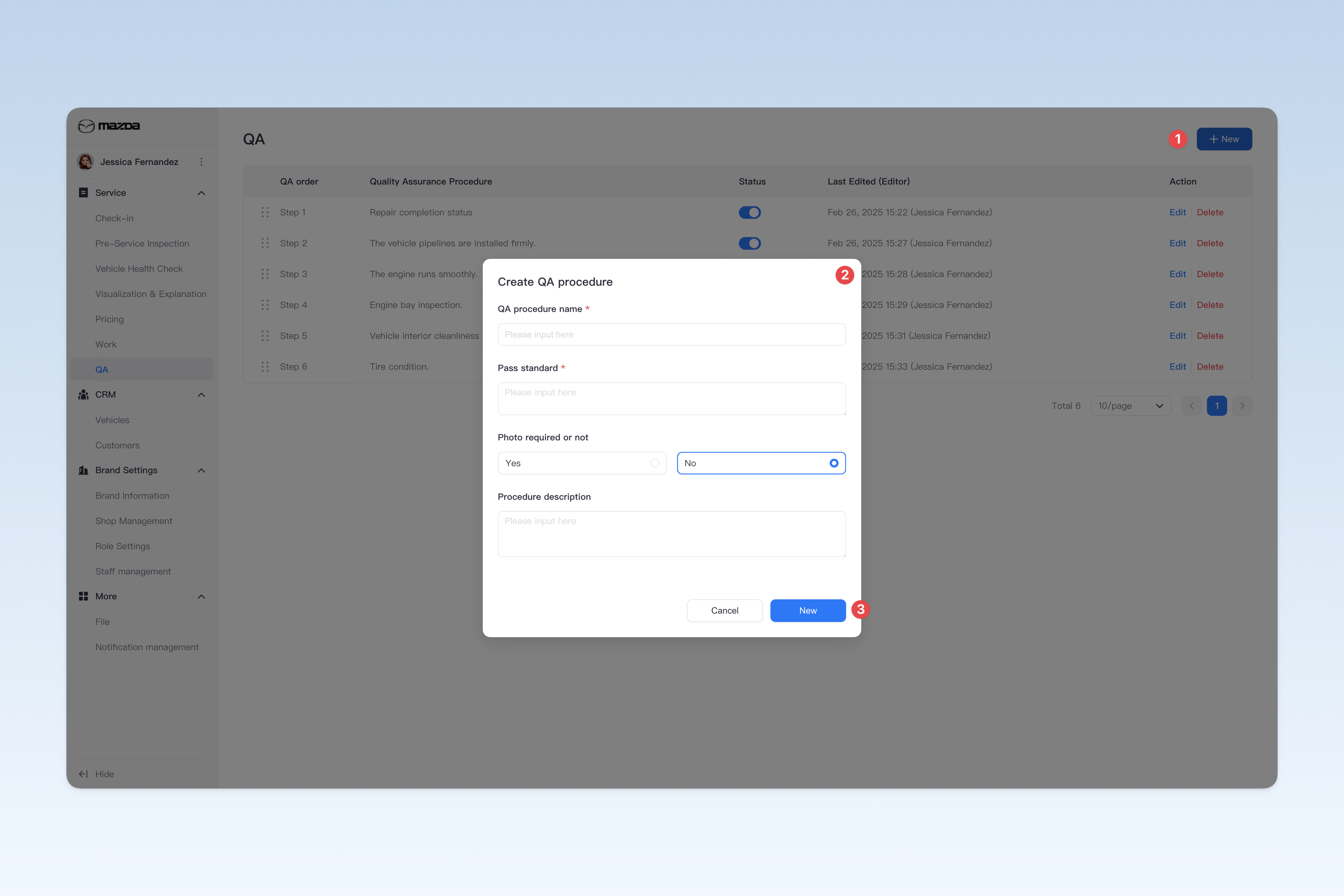
Creating a QA Procedure:
On the "QA Management" page, click the [Create] button to open the "Create QA Procedure" popup.
In the popup, you need to enter the QA procedure name, pass criteria, select whether photos are required, and enter the procedure description. After completion, click the [Create] button to finish creating.
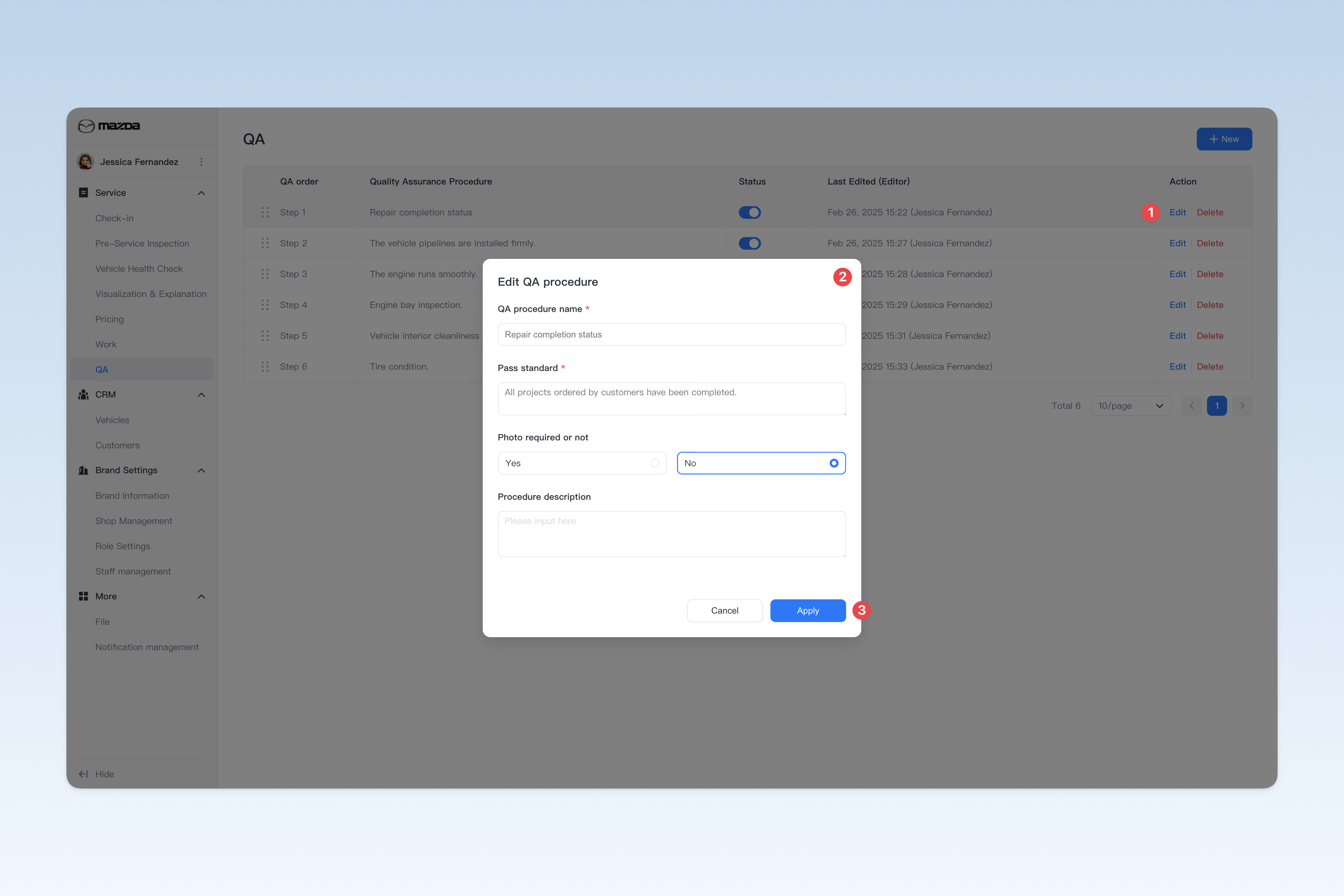
Configuring QA Procedure Basic Information:
On the "QA Management" page, find the procedure to be modified, and click the [Edit] button in the operation column on the right. The following information can be modified in the "Edit QA Procedure" popup.
- QA Procedure Name: The name of the QA procedure step.
- Pass Criteria: Used to clarify specific requirements and judgment basis for QA qualification (ensuring QA personnel have standards to follow during the QA process).
- Photo Required: Whether staff are required to take photos/videos for the current step during QA.
- Procedure Description: The detailed description of the QA procedure step (used to present to the customer)
Deleting a QA Procedure:
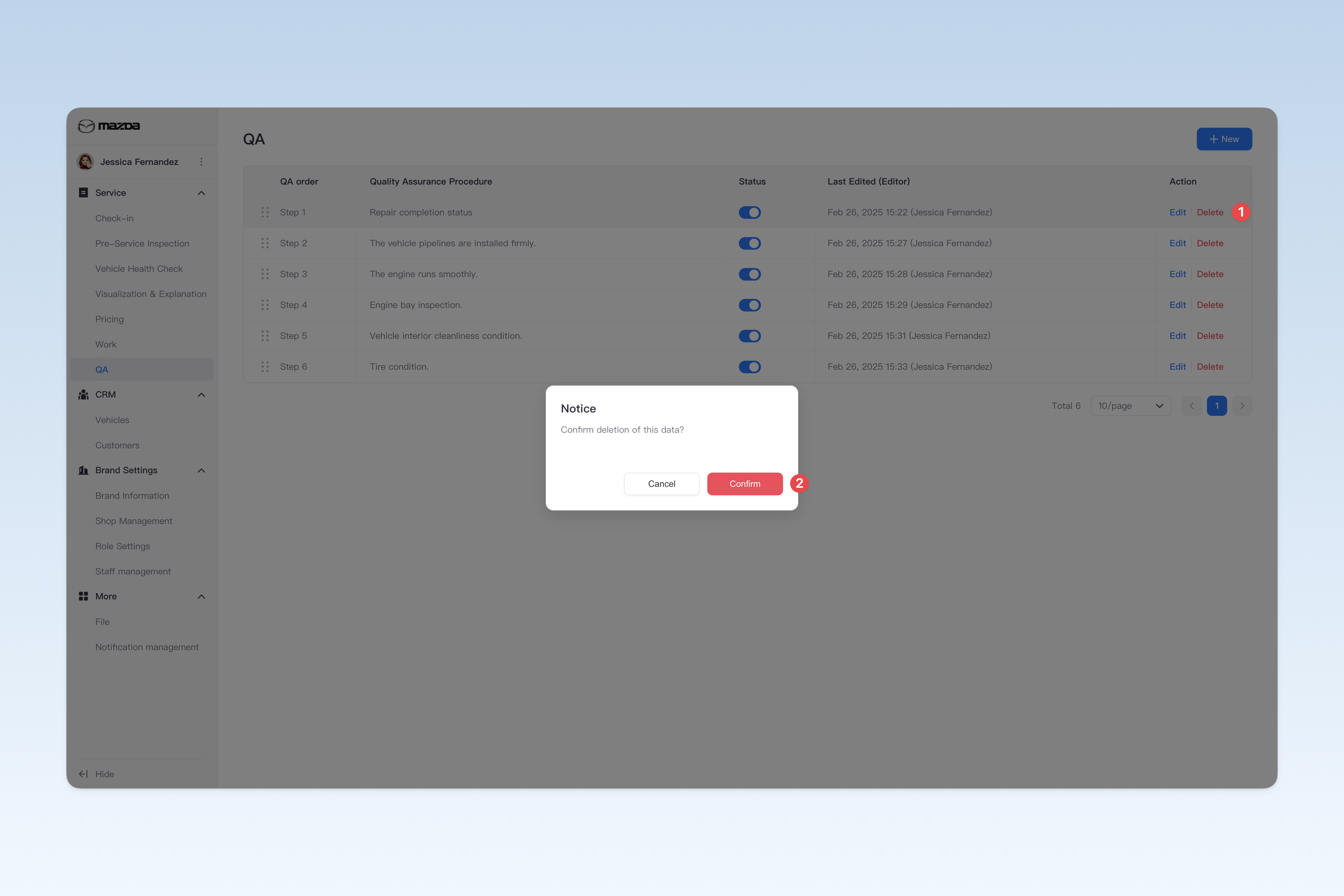
On the "QA Management" page, find the QA procedure to be deleted, click the [Delete] button in the operation column on the right, a confirmation popup will appear, click [Confirm] to delete the corresponding procedure.
Enabling/Disabling a QA Procedure:
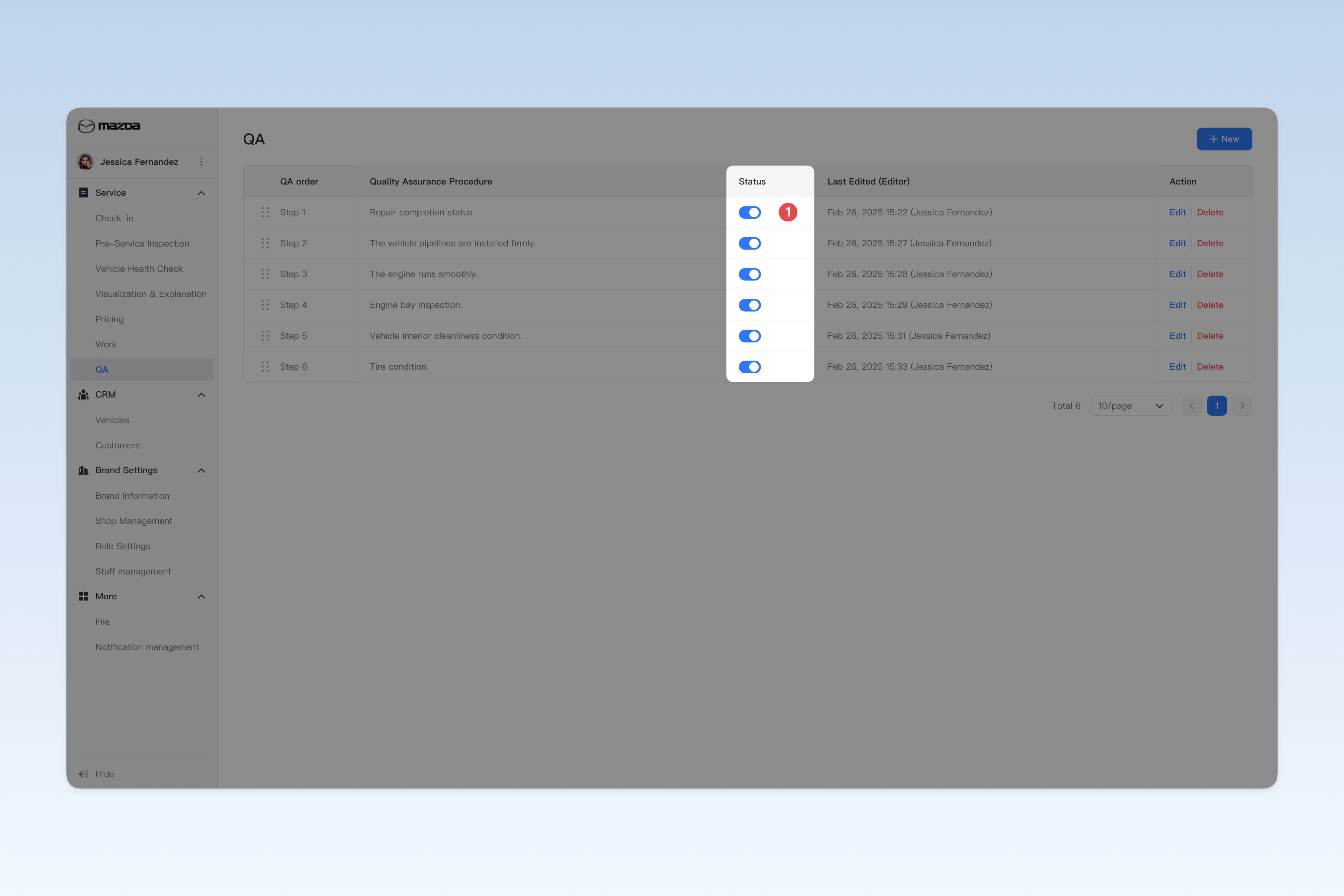
On the "QA Management" page, find the "Enabled Status" column in the list, click the [On/Off] button to "enable" or "disable" any QA procedure.
Changing the Order of QA Procedures:
On the "QA Management" page, find the procedure to be reordered, hover the mouse over the drag icon on its left, the mouse pointer will change to a "drag" style. Press and hold the left mouse button and drag up and down to adjust the order of the procedures.