◎ Intelligent Hub Training Centre Settings
The Training Centre is mainly used to manage training courses within the group, including software operation tutorials, shop operation explanations, etc. After configuration, shop managers can use the Intelligent Hub APP to play training videos on the big screen for centralized staff training.
📍 You can configure related content in: AutoX3 Brand Management Dashboard > Service > Explanation Management > Intelligent Hub Training Centre.
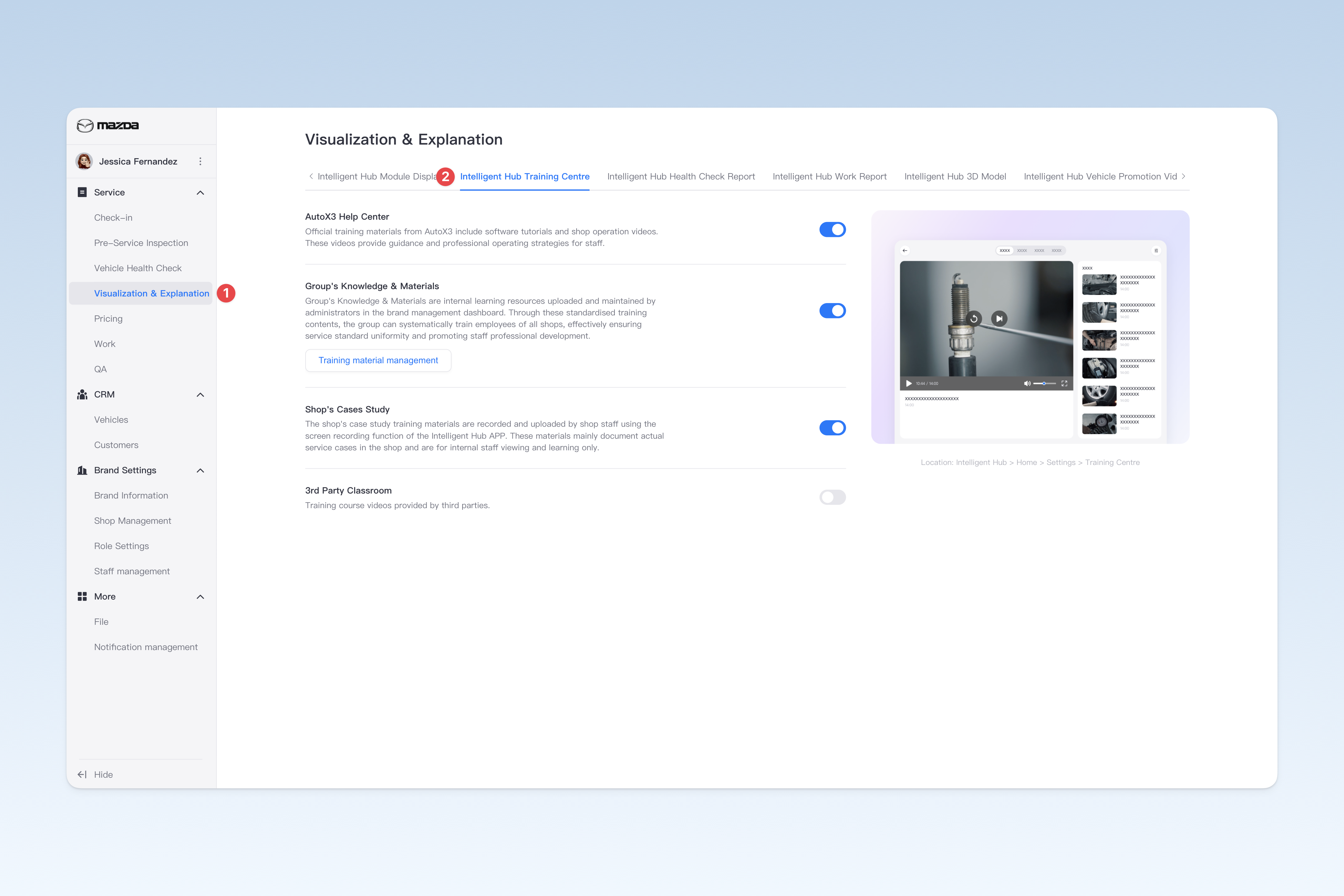
Official Training Materials
Official training materials from AutoX3 include software tutorials and shop operation videos. These videos provide guidance and professional operating strategies for staff.
Group's Knowledge & Materials
Group's Knowledge & Materials are internal learning resources uploaded and maintained by administrators in the brand management dashboard. Through these standardised training contents, the group can systematically train employees of all shops, effectively ensuring service standard uniformity and promoting staff professional development.
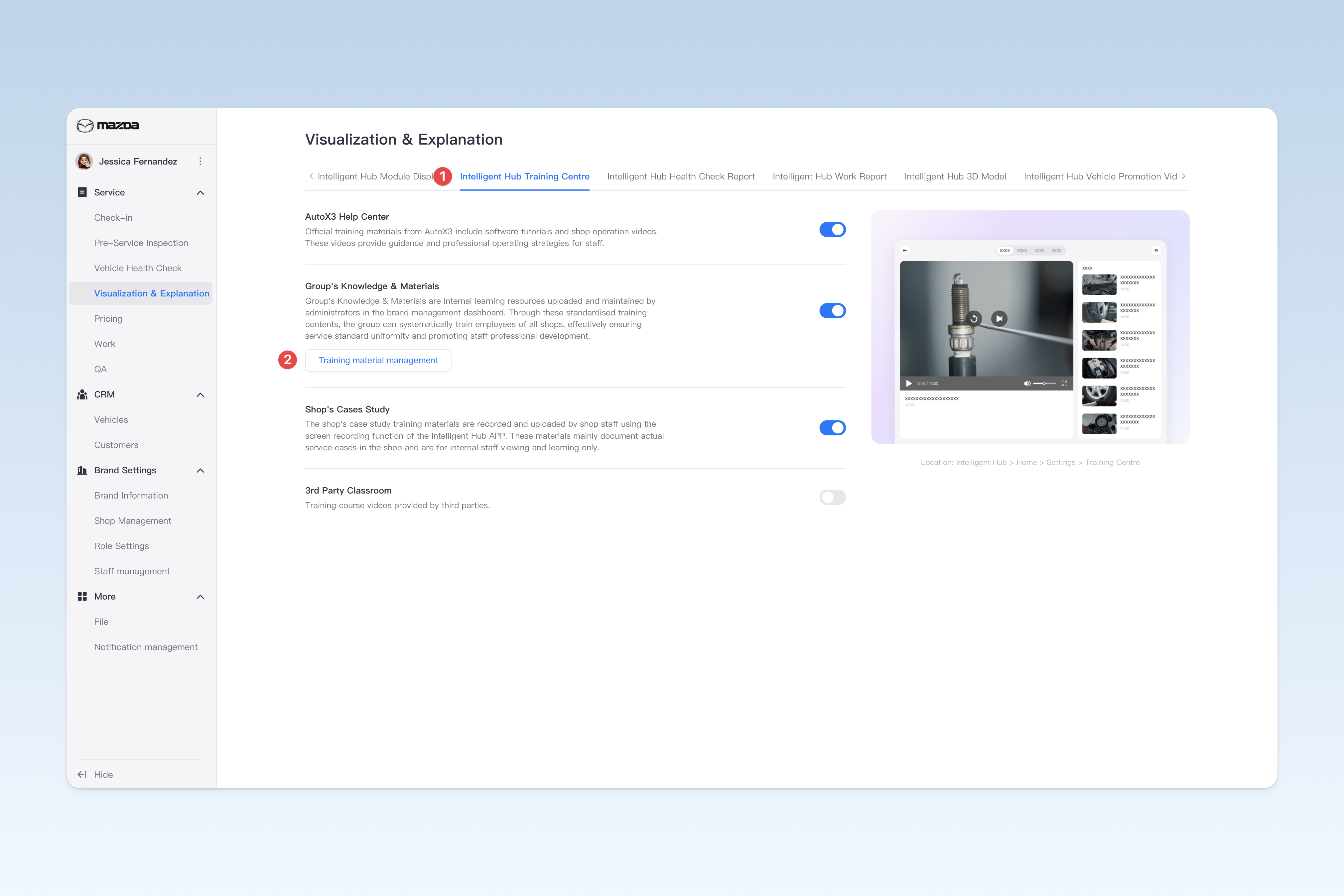
Upload Group's Knowledge & Materials
In the "Intelligent Hub Training Centre" page, find "Group's Knowledge & Materials", click the [Training Materials Management] button. In the pop-up "Group Training Materials" page, click the [Upload File] button.
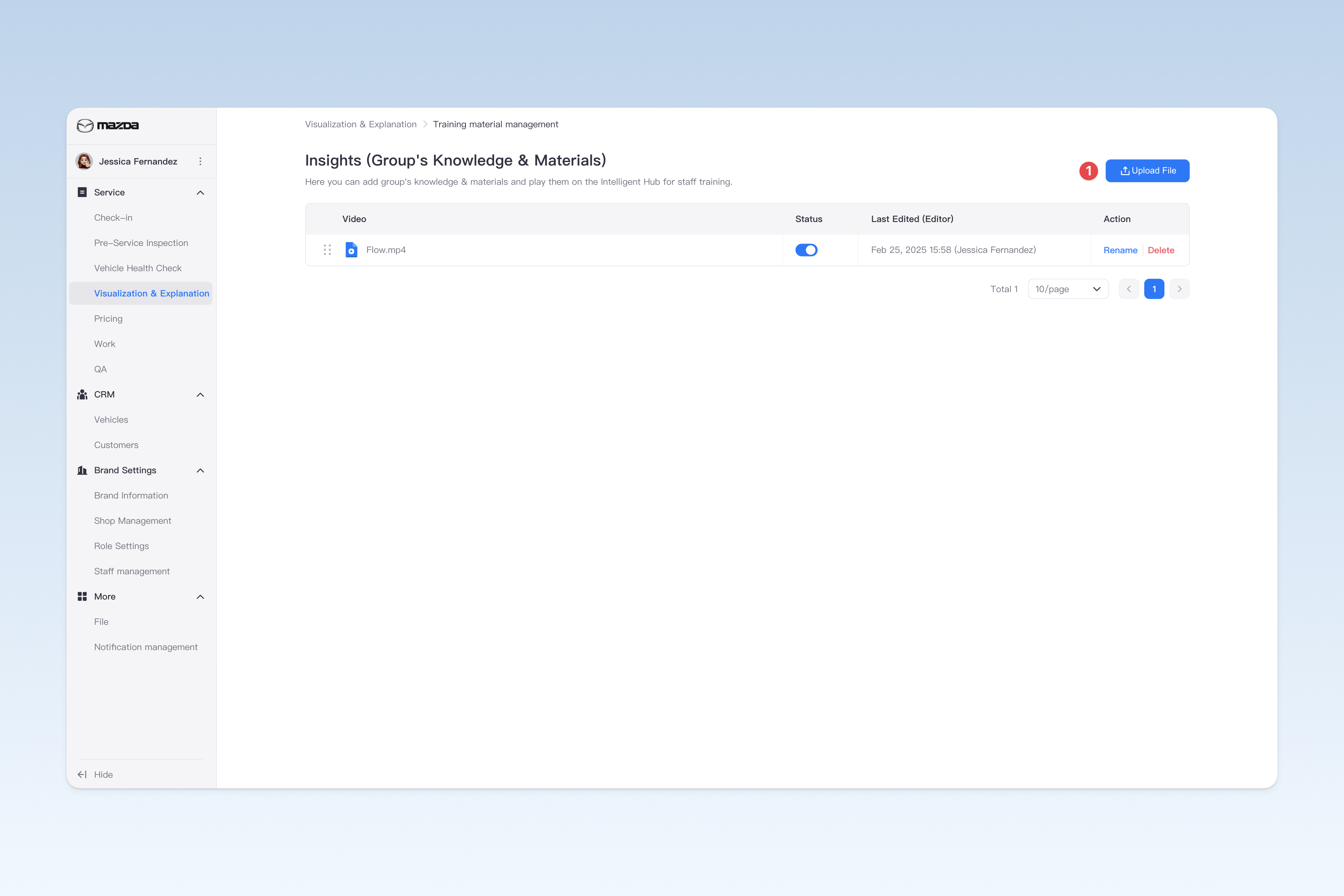
*Suggested upload format: Mp4, under 300mb, 16:9 ratio, clear video.
After successful upload, you can find the video in the first row of the list. The video name defaults to the file name. To change the name, refer to the "Modify Training Material File Name" instructions below.
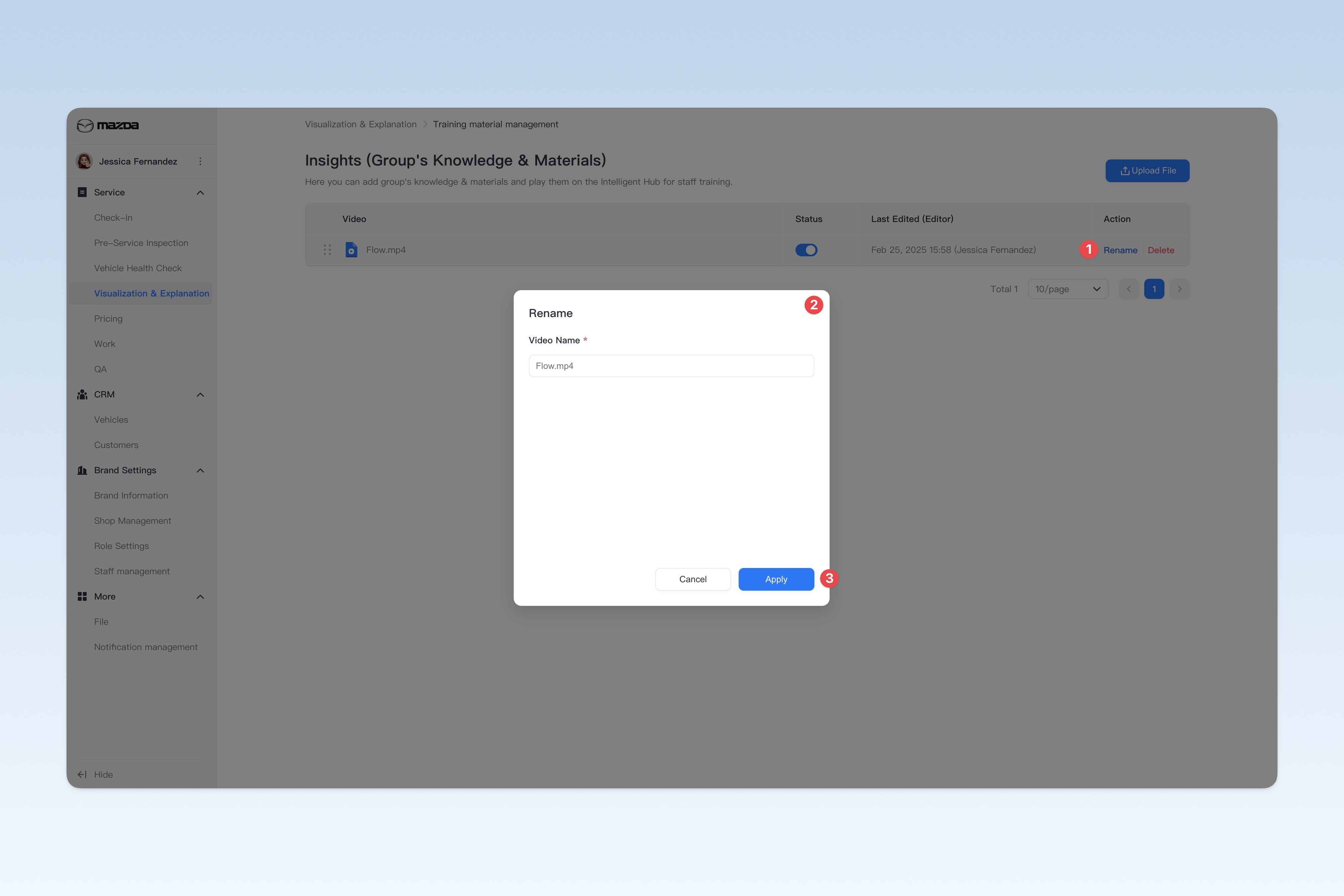
Modify Training Material File Name
In the "Intelligent Hub Training Centre" page, find "Group's Knowledge & Materials", click the [Training Materials Management] button to open the "Group Training Materials" page. Find the file to modify, click the [Rename] button on the right side of the list, and change the file name in the pop-up "Rename" window.
Enable/Disable Training Material
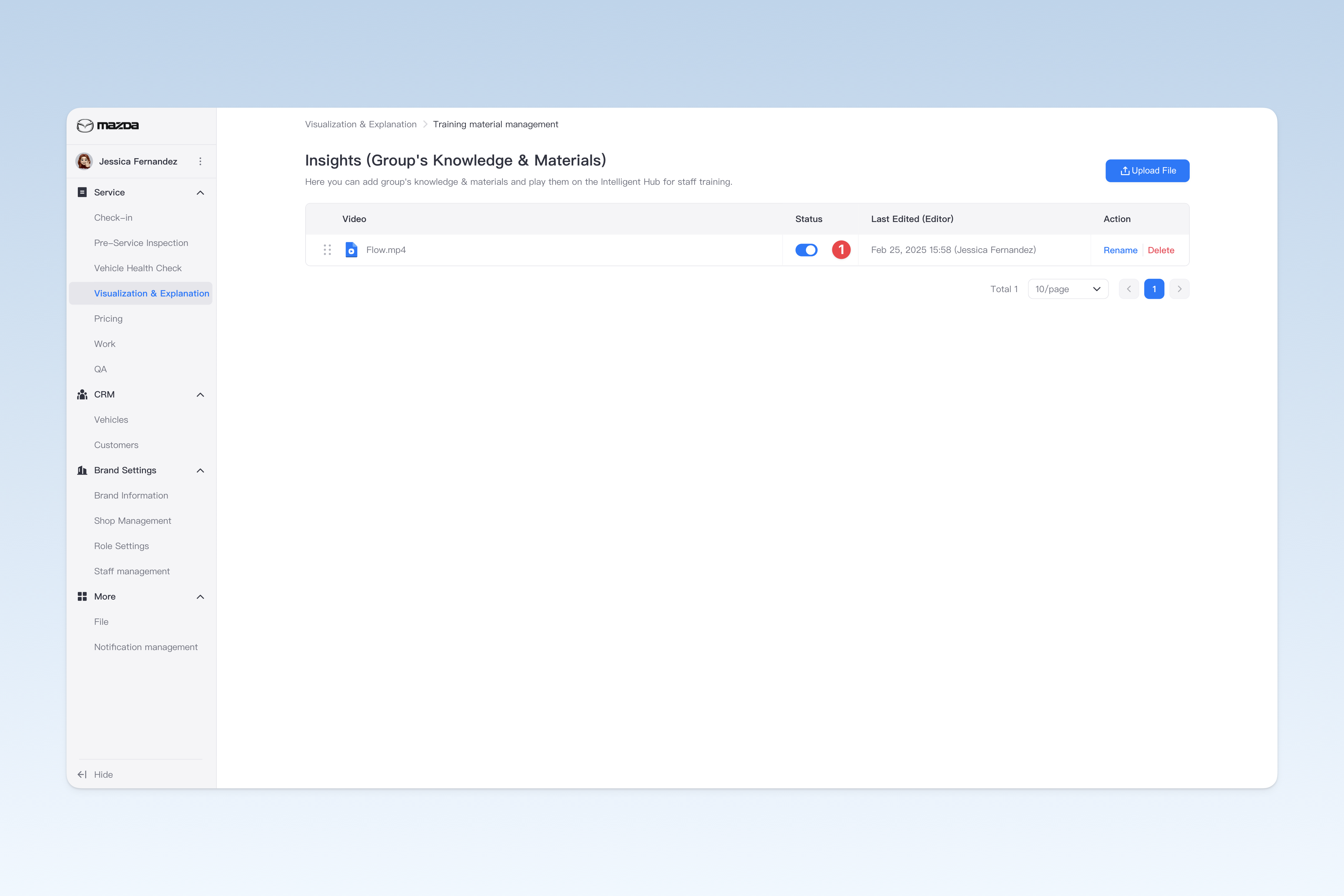
In the "Intelligent Hub Training Centre" page, find "Group's Knowledge & Materials", click the [Training Materials Management] button to open the "Group Training Materials" page. Find the "Enabled Status" column, click the [On/Off] button to "Enable" or "Disable" any file.
Delete Training Material
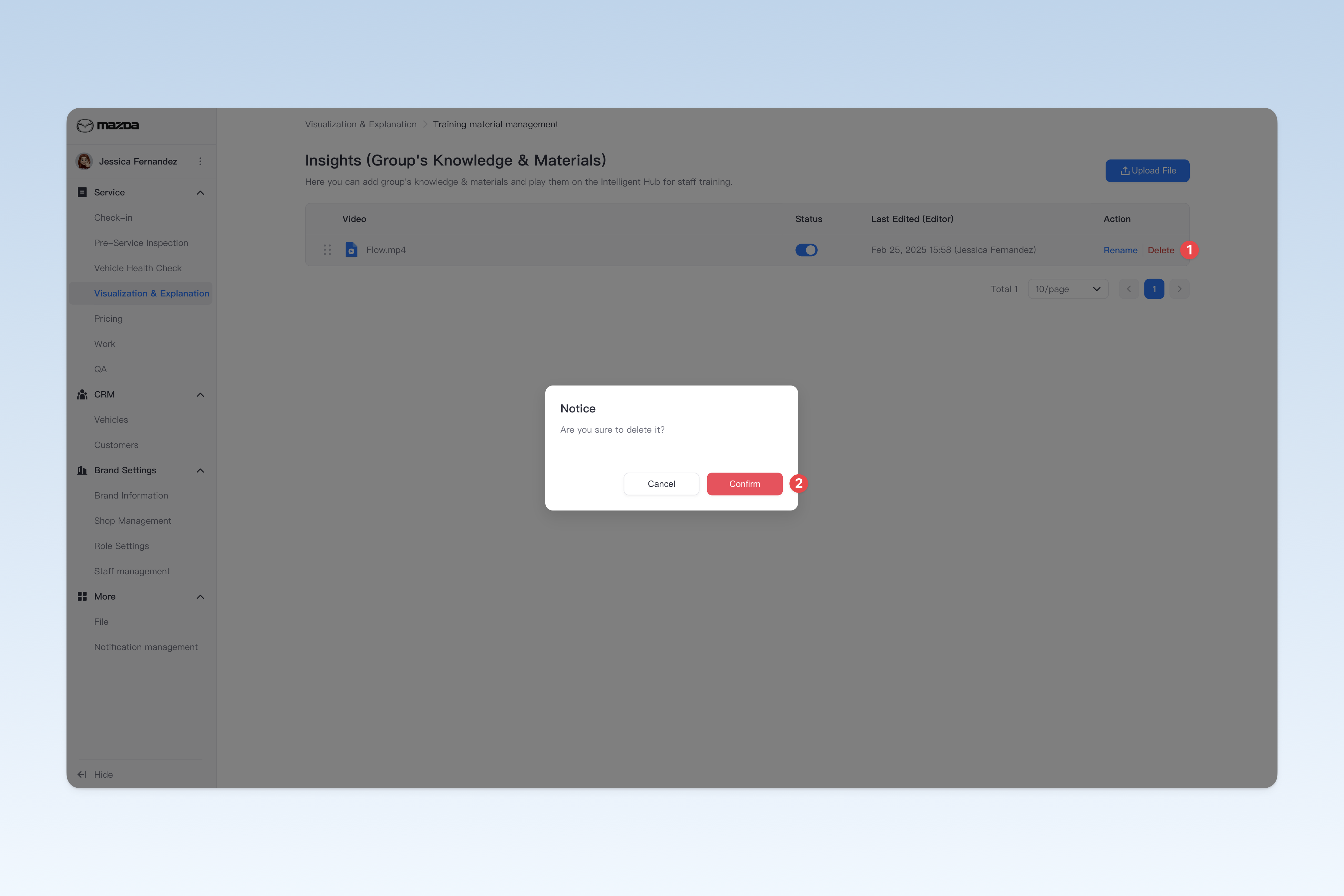
In the "Intelligent Hub Training Centre" page, find "Group's Knowledge & Materials", click the [Training Materials Management] button to open the "Group Training Materials" page. Find the file to delete, click the [Delete] button on the right side of the list. A confirmation window will pop up, click [Confirm] to delete.
Modify Training Material Display Order
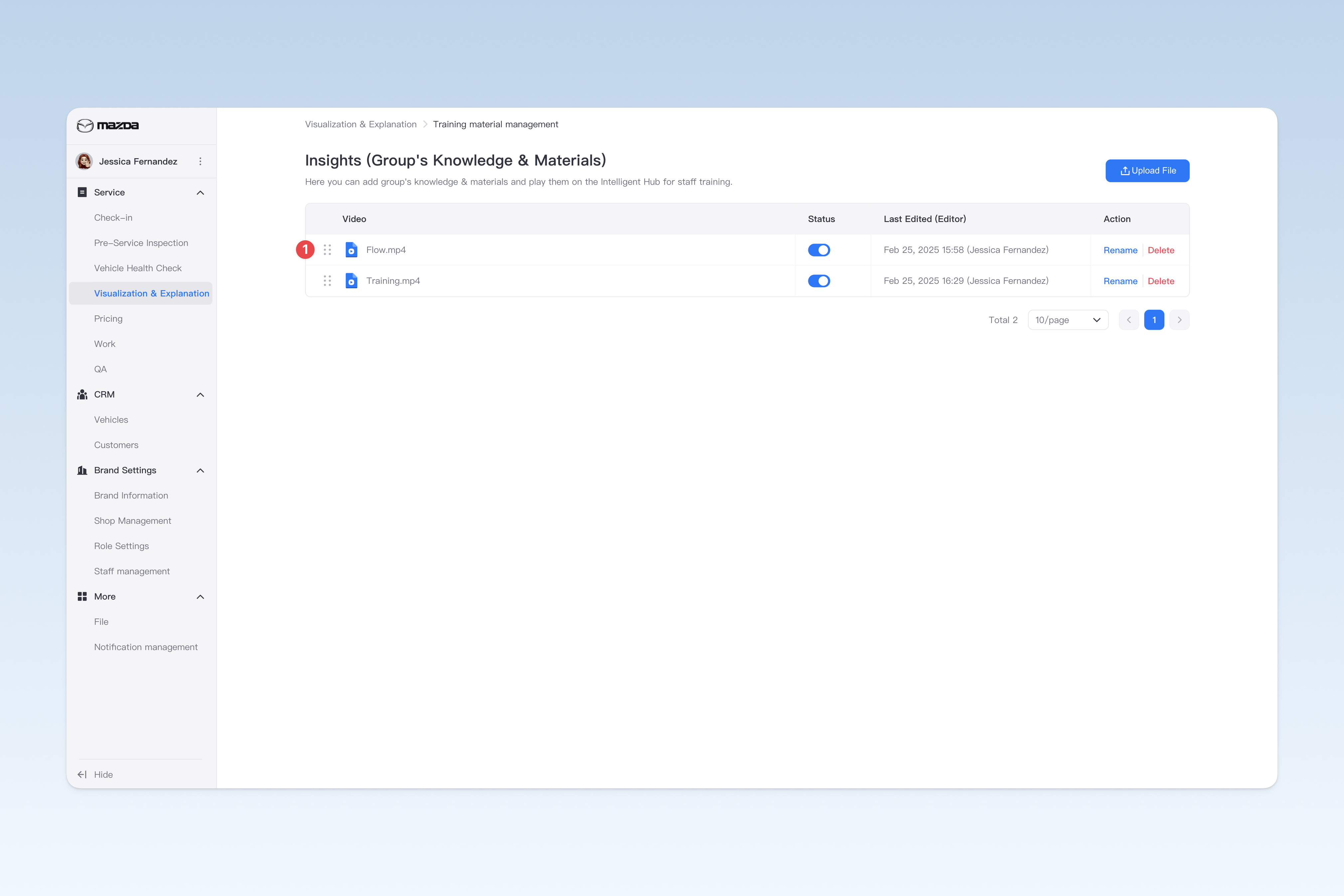
In the "Intelligent Hub Training Centre" page, find "Group's Knowledge & Materials", click the [Training Materials Management] button to open the "Group Training Materials" page. Find the file to adjust order, hover the mouse over the drag icon on the left. The cursor will change to a "move" style. Hold the left mouse button and drag up and down to adjust the file order.
Shop's Cases Study
The shop's case study training materials are recorded and uploaded by shop staff using the screen recording function of the Intelligent Hub APP. These materials mainly document actual service cases in the shop and are for internal staff viewing and learning only.
3.1 How to use:
Enter the Intelligent Hub APP, under the "Health Check Report" or "Work Report" module on the homepage, click the [Record] button in the top menu bar. When the small dot in the button turns green, recording starts. Click again to stop recording. After recording, the video can be found in the list under: Intelligent Hub APP > Home > Settings > Training Centre > Shop's Cases Study.
3rd Party Classroom
Training course videos provided by third parties.