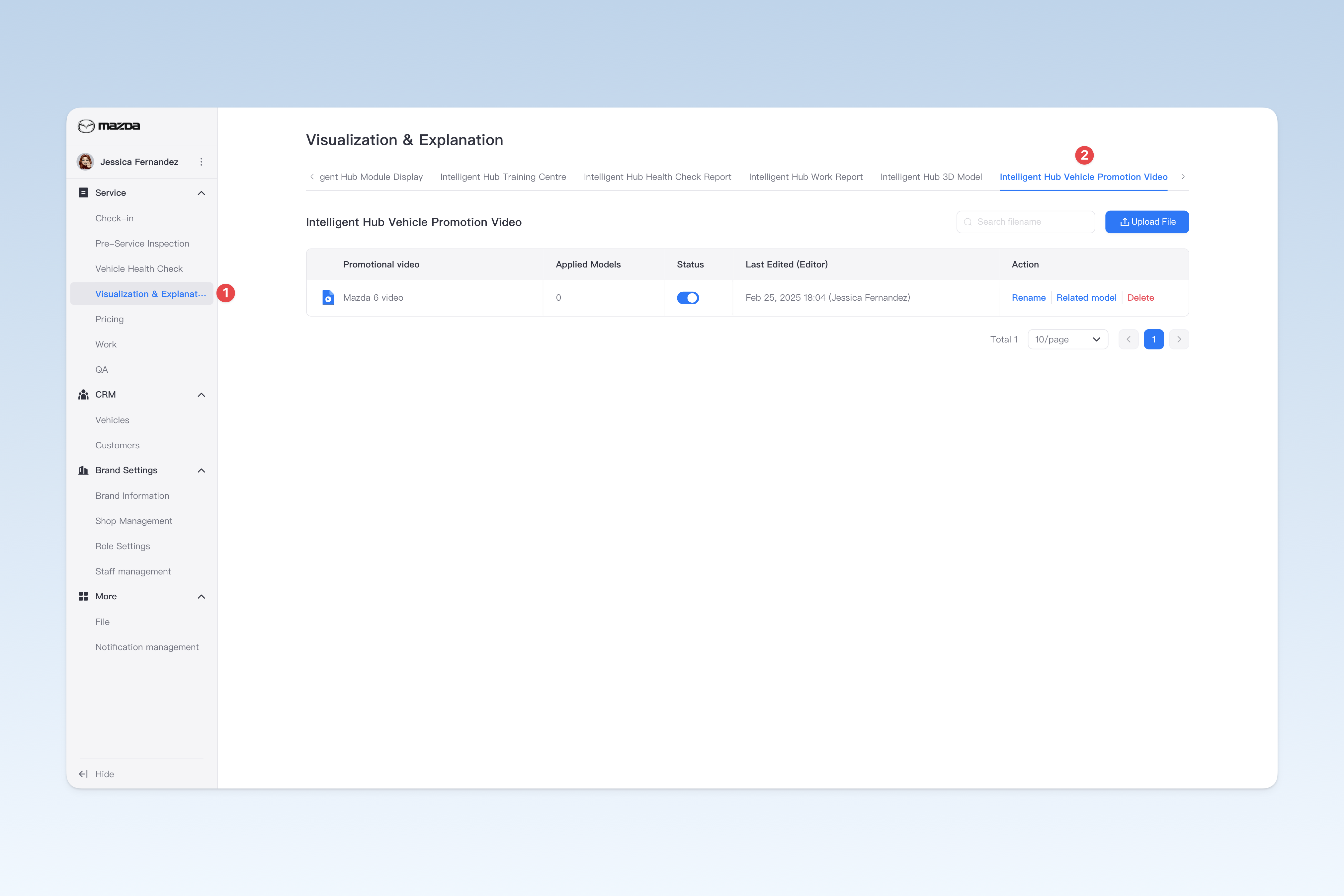
◎ Intelligent Hub Vehicle Promotion Video Management
You can upload an MP4 format video to be displayed at the top of the Intelligent Hub APP > Health Check Report > Overview page as a vehicle promotion video. This video not only brings a strong visual impact to customers, but also assists staff in explaining the health check report by showcasing vehicle features in a more intuitive way, effectively enhancing customers' awareness of and affinity for the brand and model.
⚠️ Note: The vehicle promotion video is optional. If no video is uploaded, the Intelligent Hub APP will automatically display the system default image. If a related thumbnail template also exists for a model, the promotion video will take priority on the Intelligent Hub.
📍 You can configure related content in: AutoX3 Brand Management Dashboard > Service Management > Visualization & Explanation > Intelligent Hub Vehicle Promotion Video.
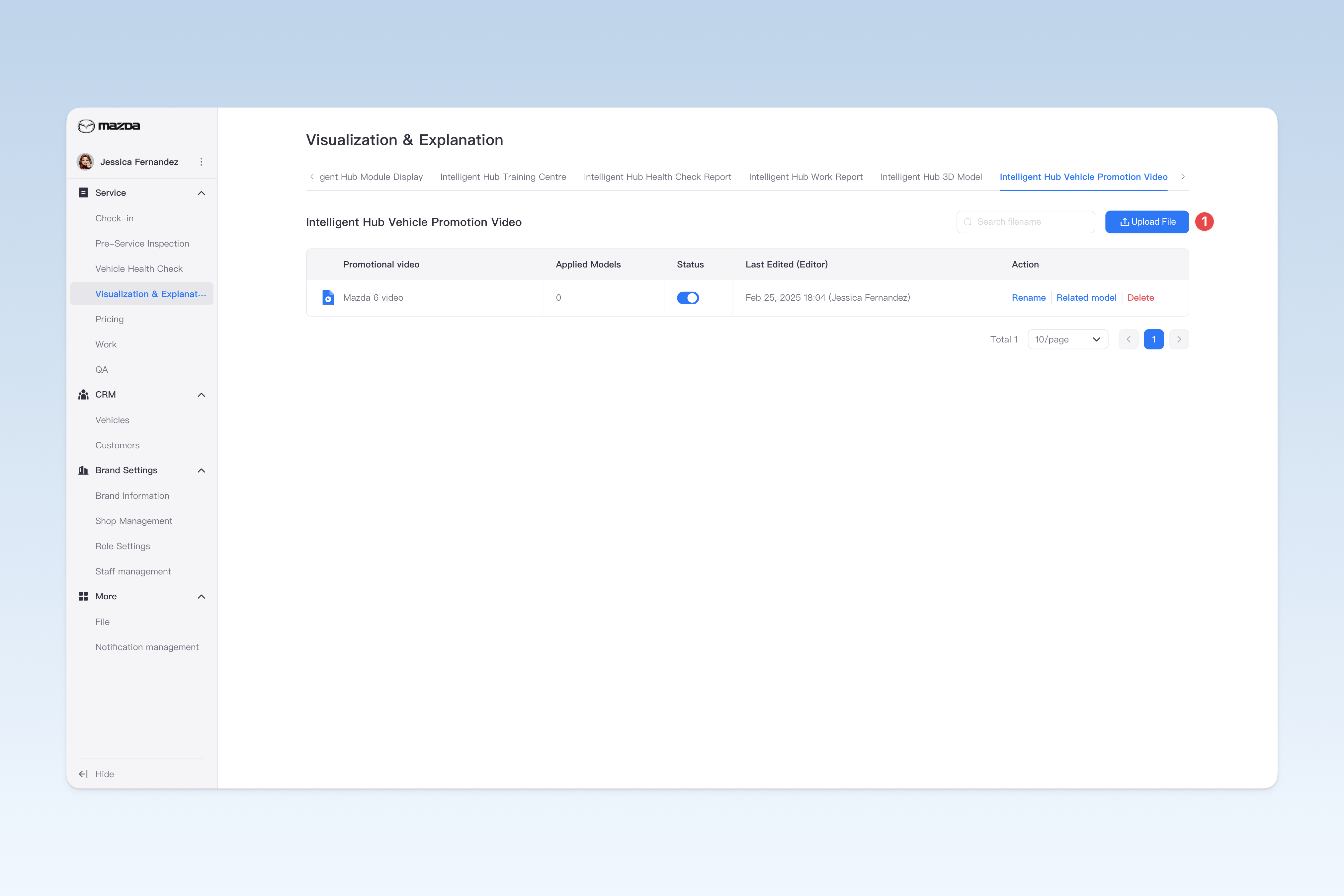
Upload Vehicle Promotion Video
On the "Intelligent Hub Vehicle Promotion Video" page, click the 【Upload File】 button. The system's file selection window will pop up. Locate the folder storing the target video, select the MP4 format video file, and click 【Confirm】 to complete the upload.
*Recommended upload format: Mp4, under 10mb, clear video with 20:5 aspect ratio.
After successful upload, you can find the newly uploaded video in the first row of the list. The video's name defaults to the name of the video file itself. If you need to modify the name, please refer to the "Modify Vehicle Promotion Video Name" instructions below.
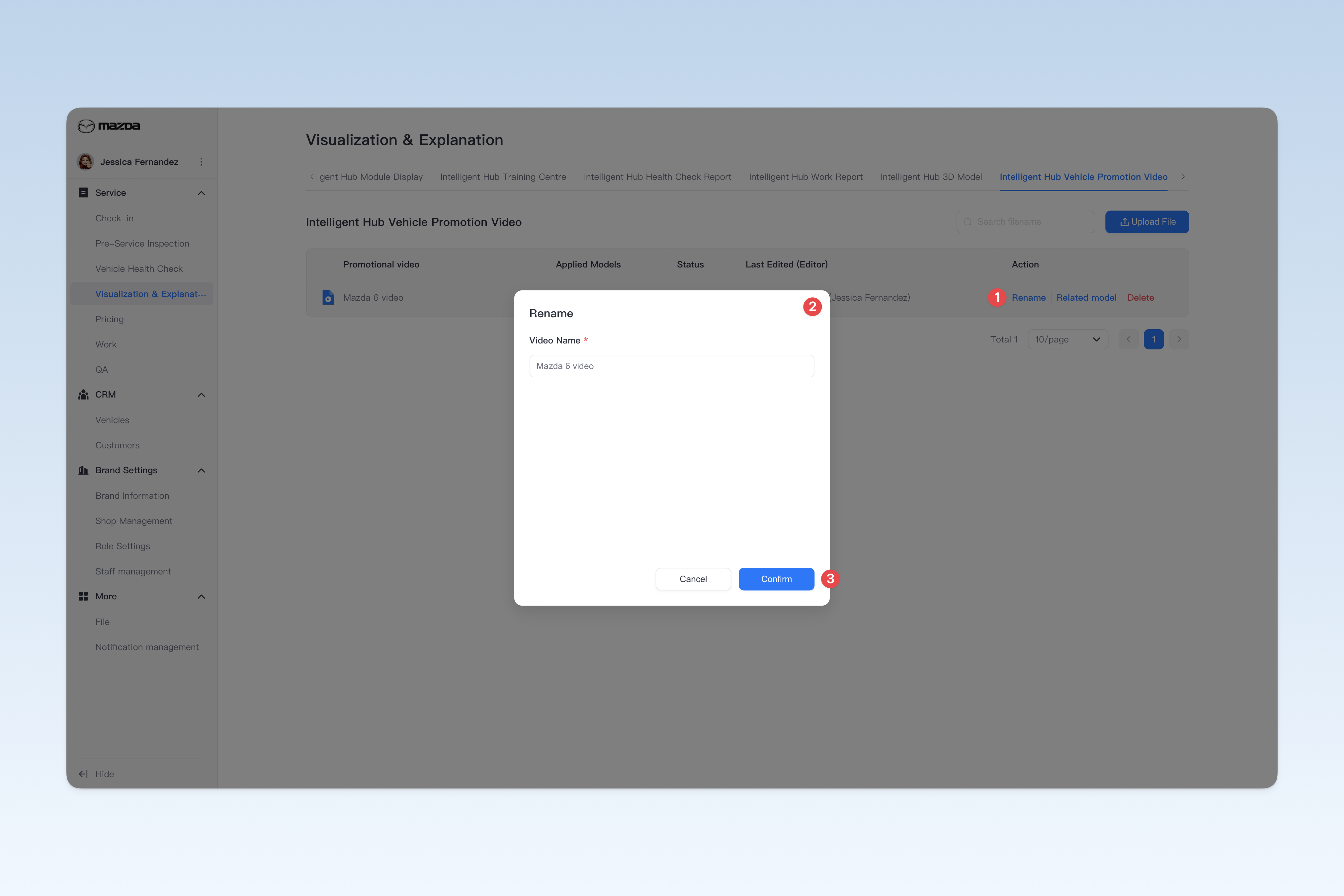
Modify Vehicle Promotion Video Name
On the "Intelligent Hub Vehicle Promotion Video" page, find the file that needs modification and click the 【Rename】 button in the Operation column on the right side of the list. Modify the file name in the pop-up "Rename" window.
Enable/Disable Vehicle Promotion Video
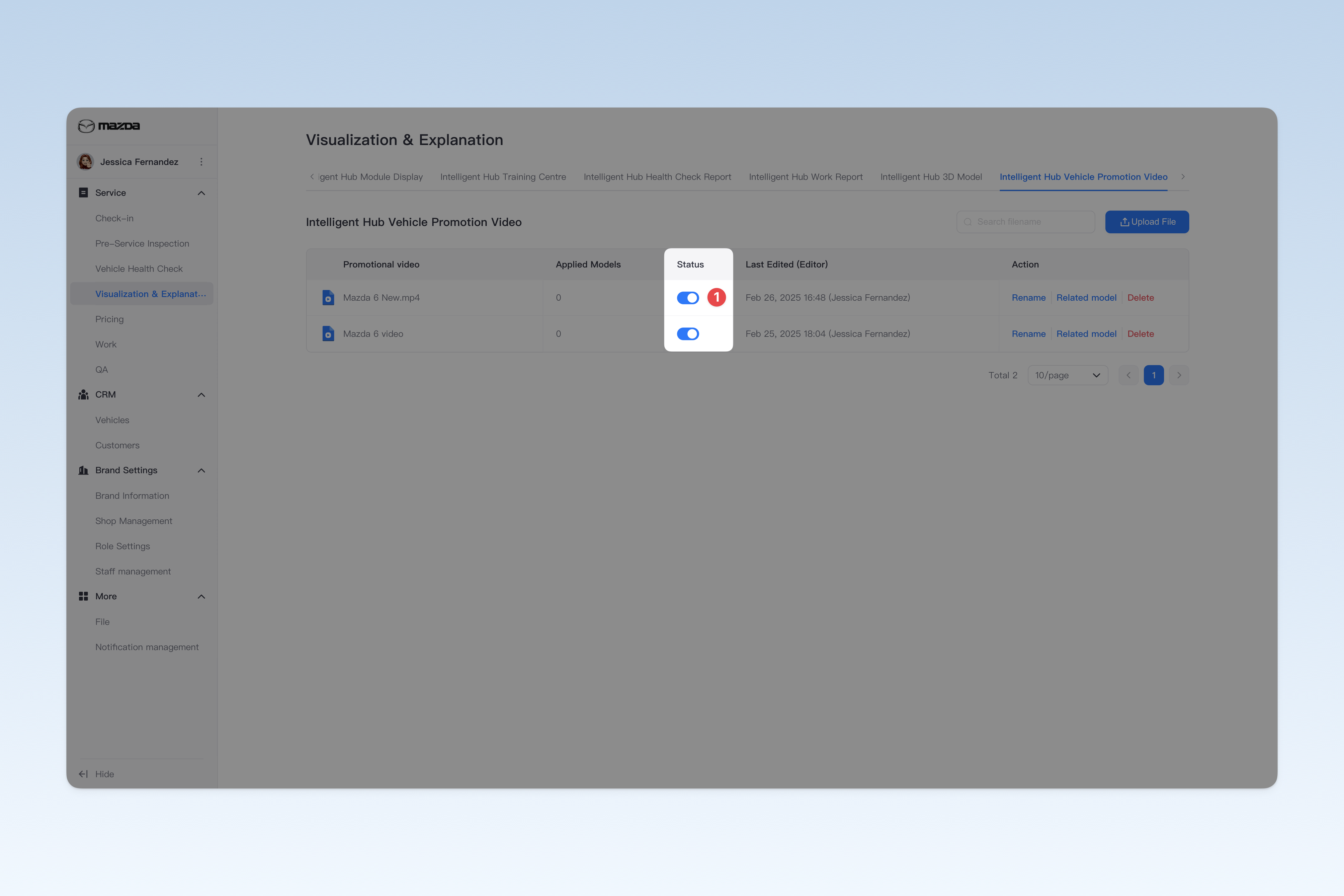
On the "Intelligent Hub Vehicle Promotion Video" page, find the "Enabled Status" column in the list and click the 【On/Off】 button to "Enable" or "Disable" any promotion video.
Relate Models to Vehicle Promotion Video
⚠️ Note: Newly uploaded promotion videos need to be related to corresponding models so that the Intelligent Hub APP can normally display the relevant video in the health check report based on the customer's vehicle model.
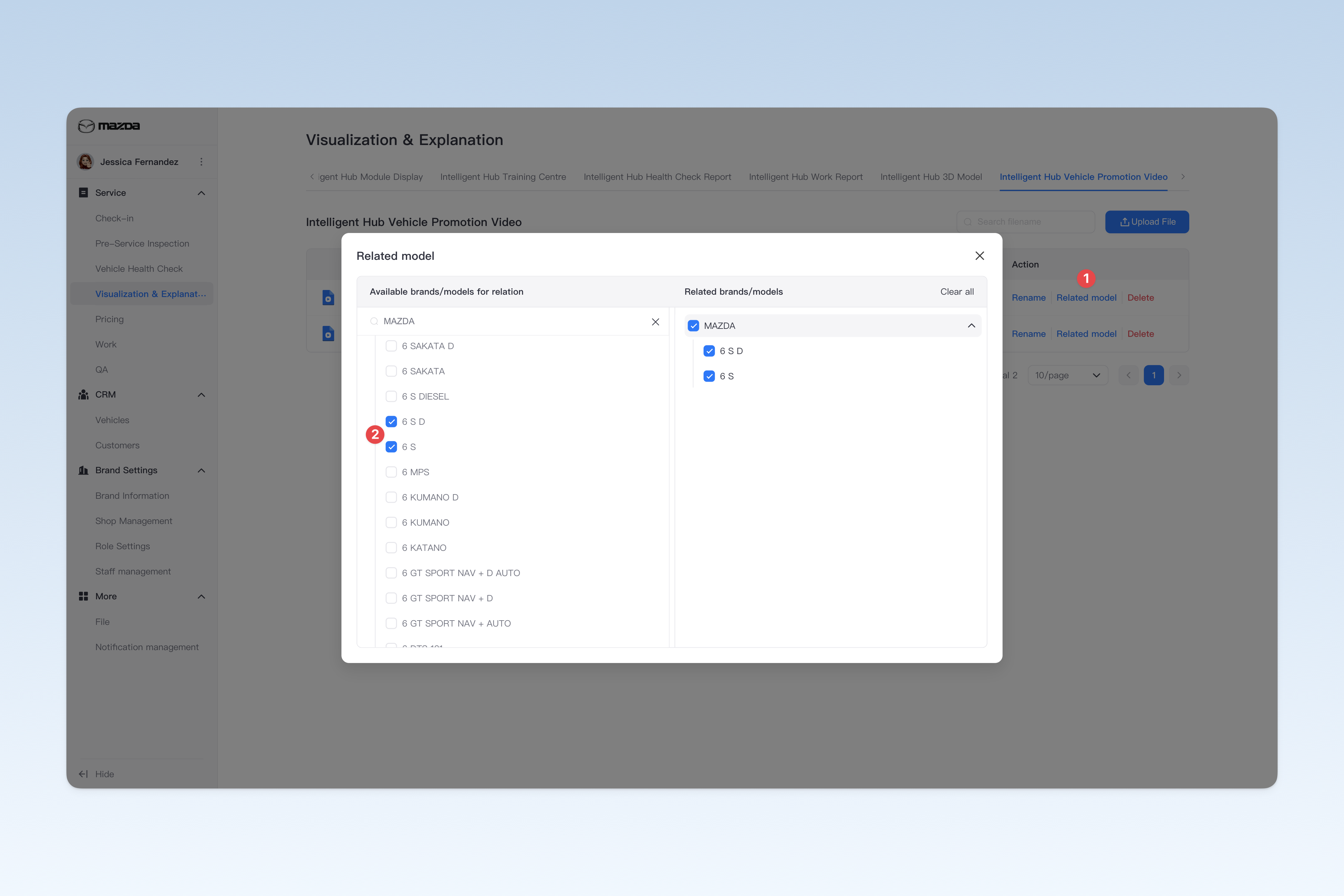
On the "Intelligent Hub Vehicle Promotion Video" page, find the promotion video that needs model relation and click the 【Relate Models】 button in the Operation column on the right side of the list. The "Relate Models" window will pop up.
In the "Relate Models" window, all vehicle brands are displayed on the left. Click a brand name to expand all models under that brand. You can select the models to relate by checking the boxes. Related brands and models will be displayed in the "Related brands/models" list on the right for viewing and management.
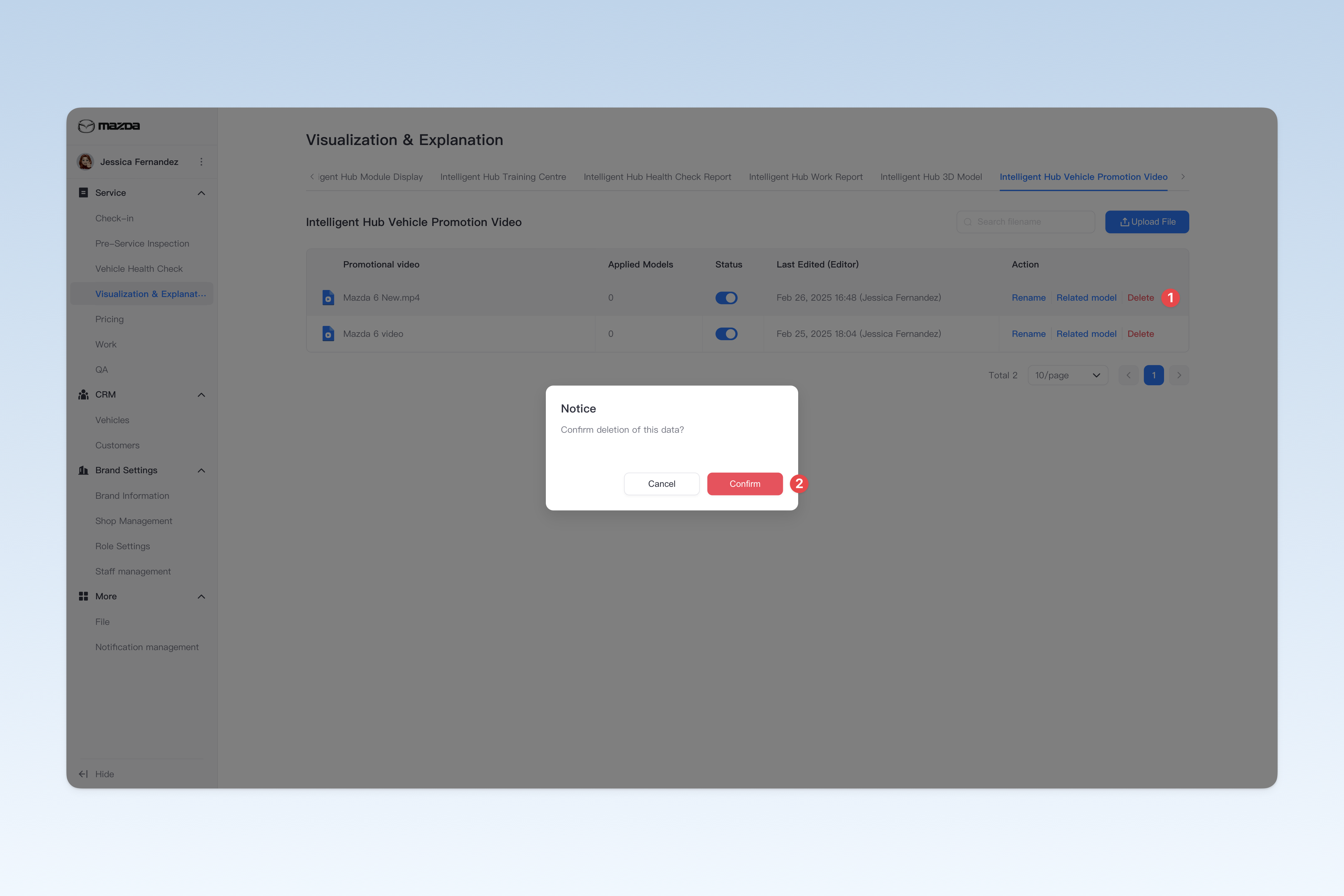
Delete Vehicle Promotion Video
On the "Intelligent Hub Vehicle Promotion Video" page, find the video to be deleted and click the 【Delete】 button in the Operation column on the right side of the list. A confirmation window will pop up. Click 【Confirm】 to delete.