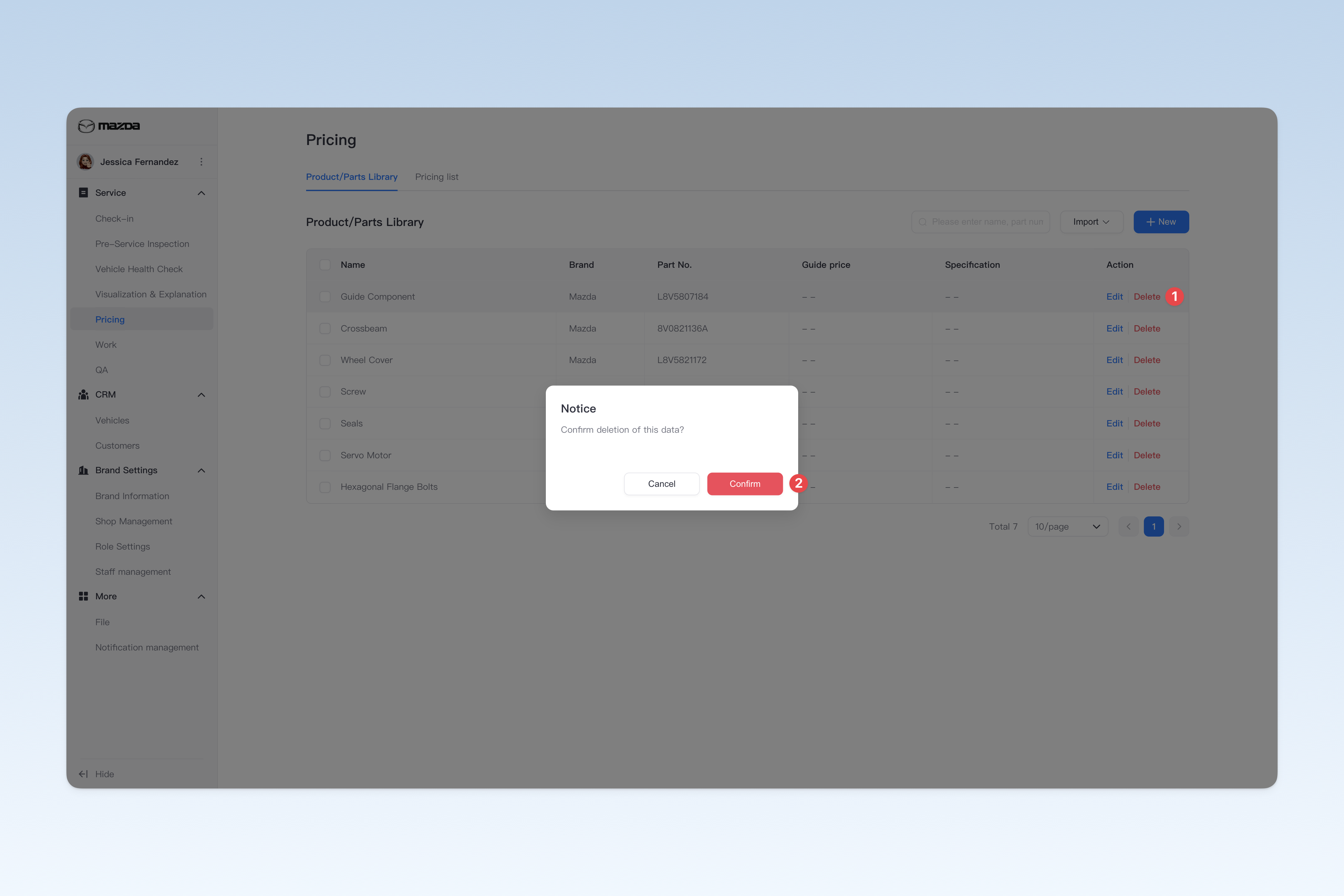
◎ Product/Parts Library
Product/Part information is used to provide necessary parts data when adding a pricing list.
The product/part data created in the brand management dashboard serves as a reference for the shops, but is not the final data used. To ensure normal use, shop administrators need to import the product/part information from the brand management dashboard into the shop management dashboard. When staff add parts using the pricing list, the product/part library in the shop management dashboard is the final reference.
📍 You can configure related content in: AutoX3 Brand Management Dashboard > Service > Pricing > Product/Parts Library.
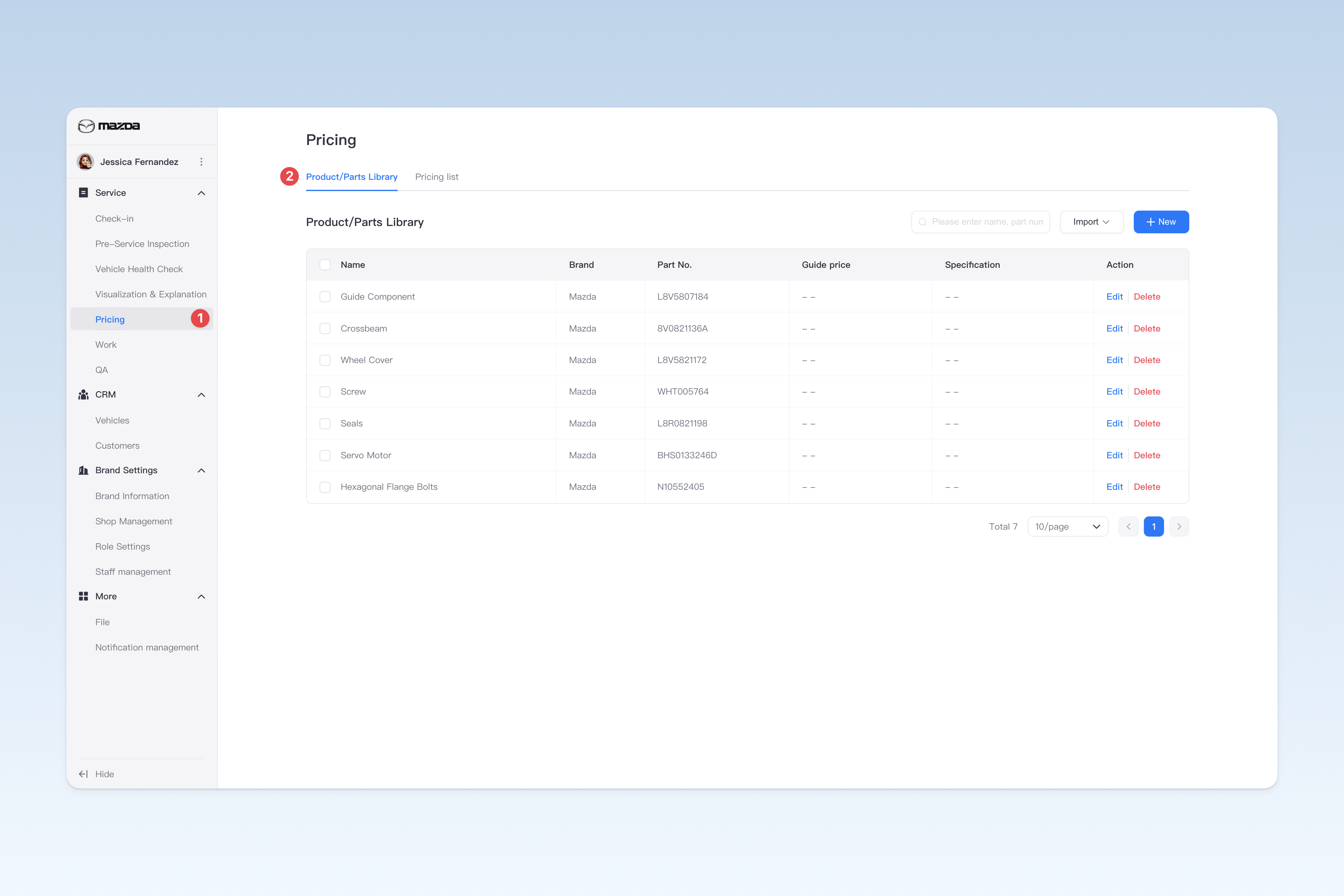
Create Product/Part
On the "Product/Parts Library" page, click the【Create】button to open the "Create Product/Part" pop-up window.
In the pop-up window, you need to enter: Product/Part Name, Brand, Product/Part No., Guide Price, Specification Description. Once completed, click the【Create】button to finish creating.
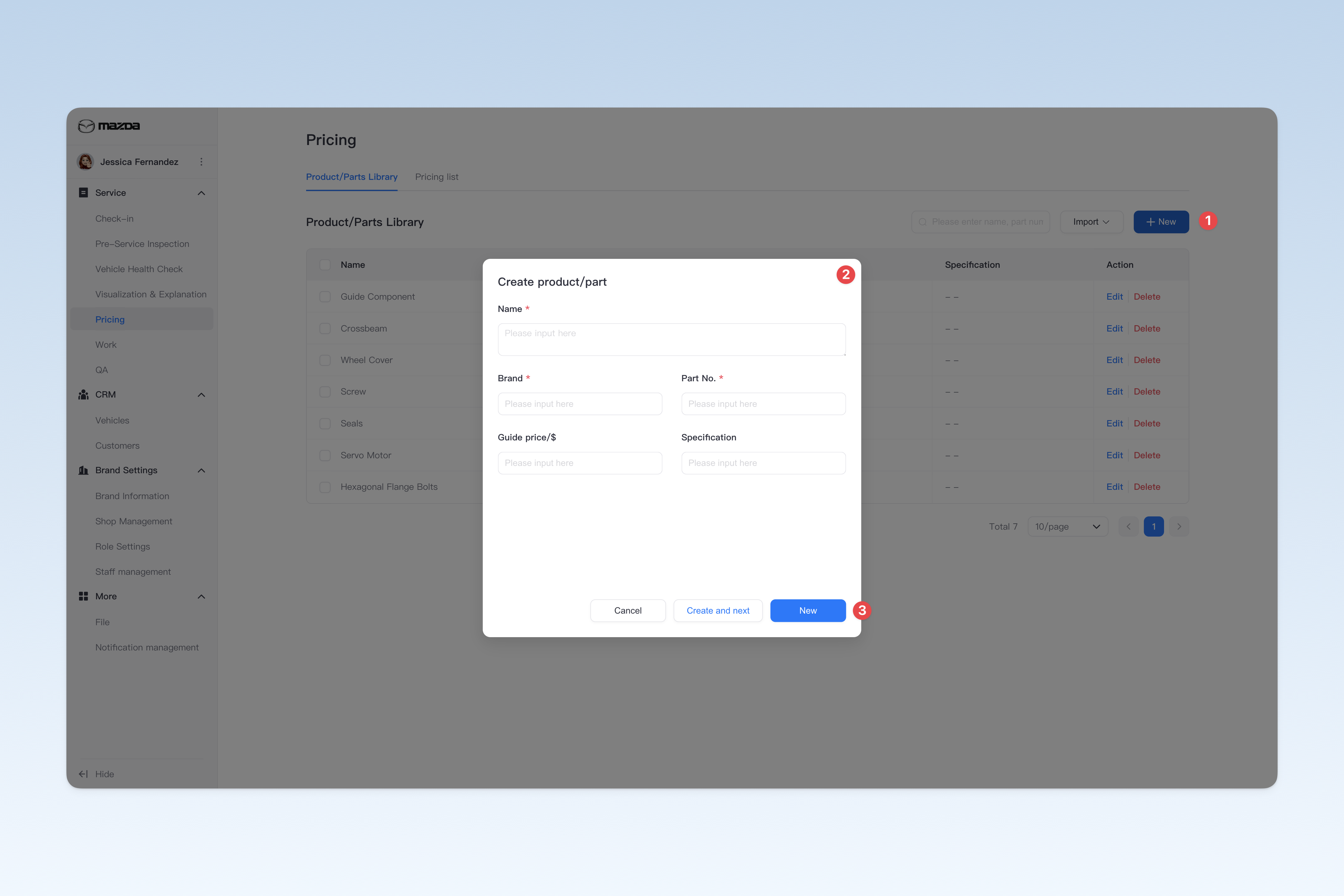
Edit Product/Part Information
On the "Product/Parts Library" page, find the product/part you want to modify, click the【Edit】button on the right side of the list, and you can modify the following in the "Edit Product/Part" pop-up window:
- Product/Part Name: The name of the product or part.
- Brand: The brand of the product or part.
- Product/Part No.: The part number of the product or part.
- Guide Price: The unit price of the product or part.
- Specification Description: The specification information or brief introduction of the product or part.
Import Products/Parts from Shop
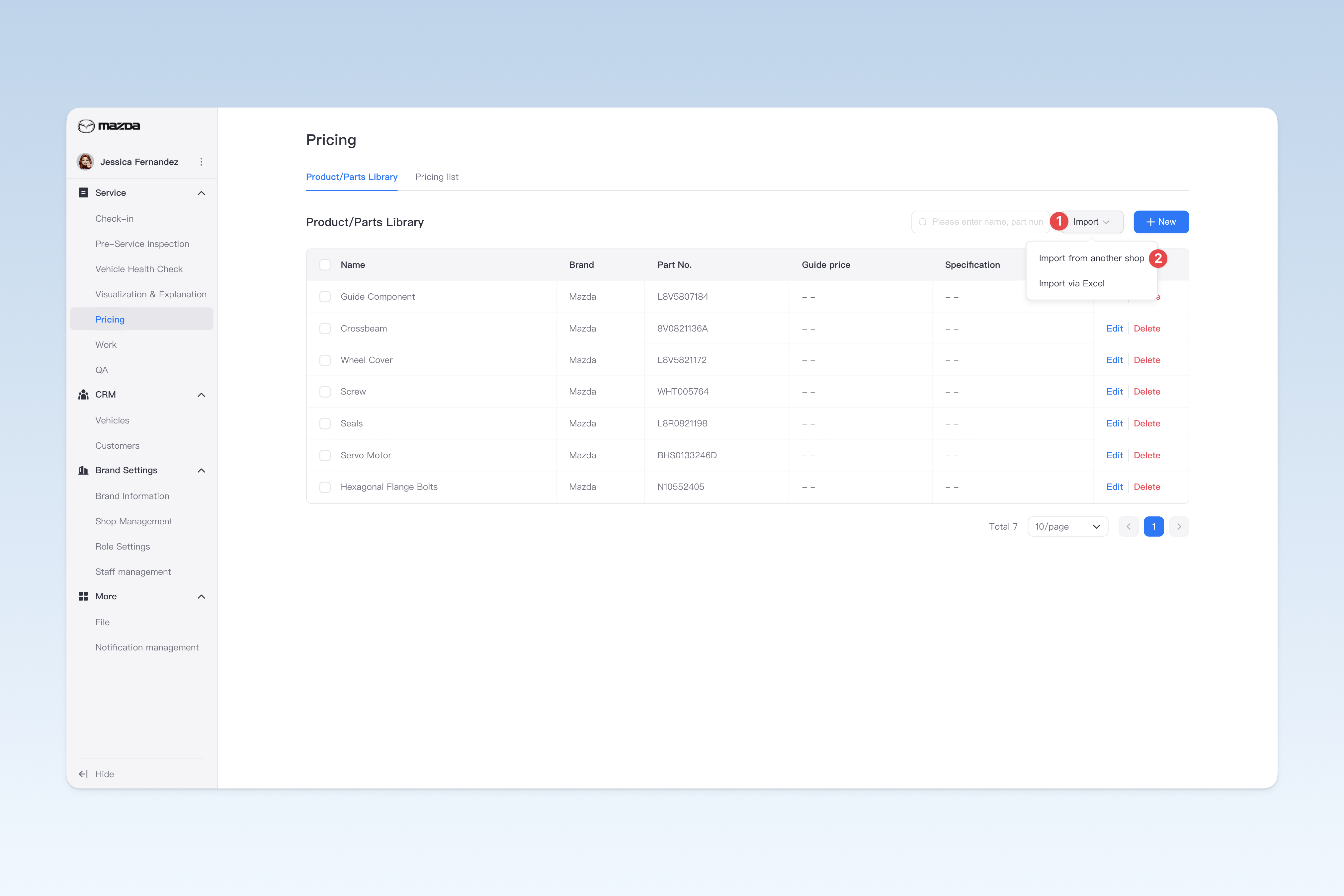
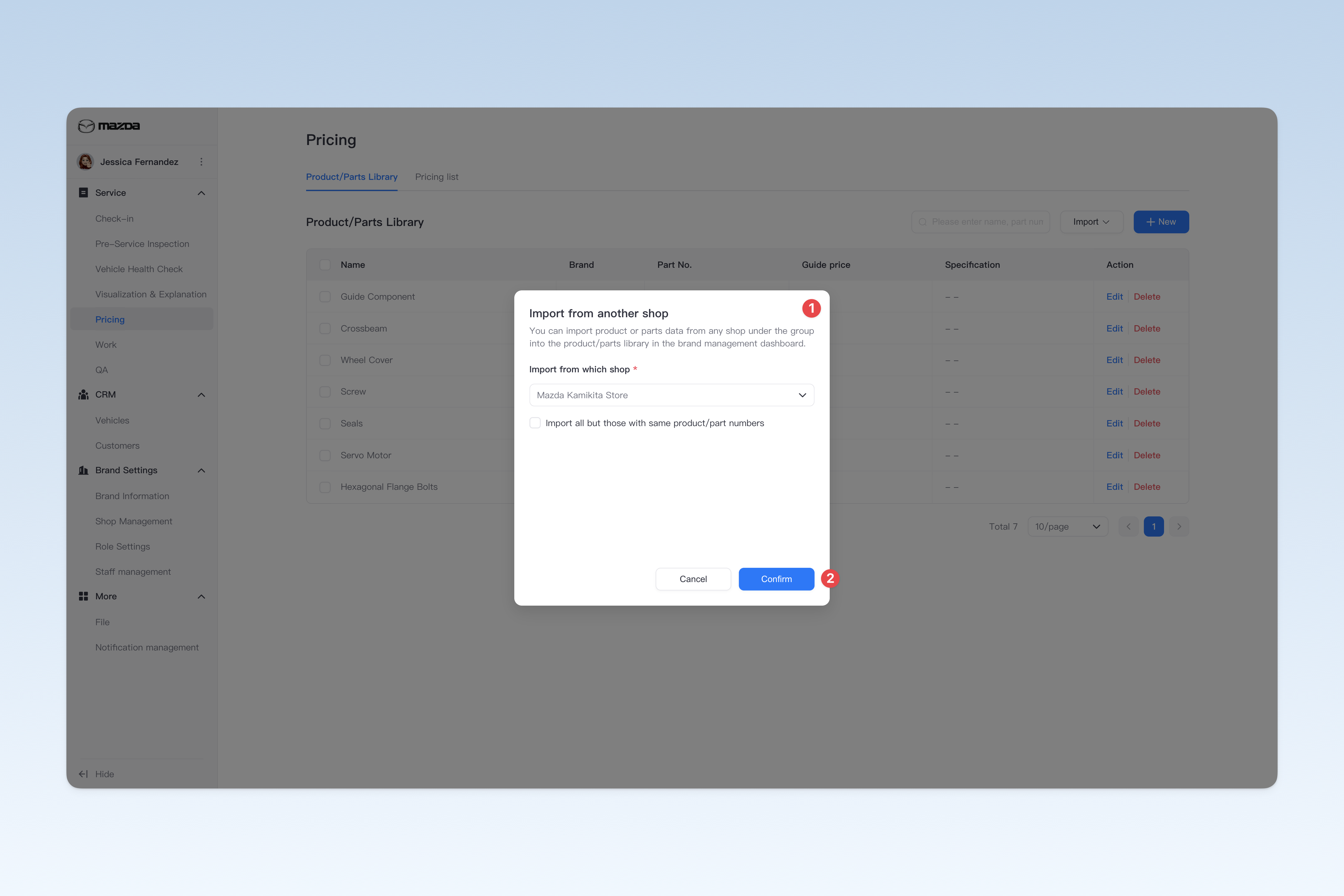
You can import product/part data from any shop under the group into the product/parts library in the brand management dashboard.
On the "Product/Parts Library" page, click the【Import Parts】button and select【Import from Shop】in the drop-down menu. The "Select Import Shop" pop-up window will appear, where you can select the shop you need to import data from. After confirmation, click the【Confirm】button to complete the parts import.
⚠️ Tip: To skip duplicate parts during import, check the "Import all but those with same product/part numbers" option.
Import via Excel File
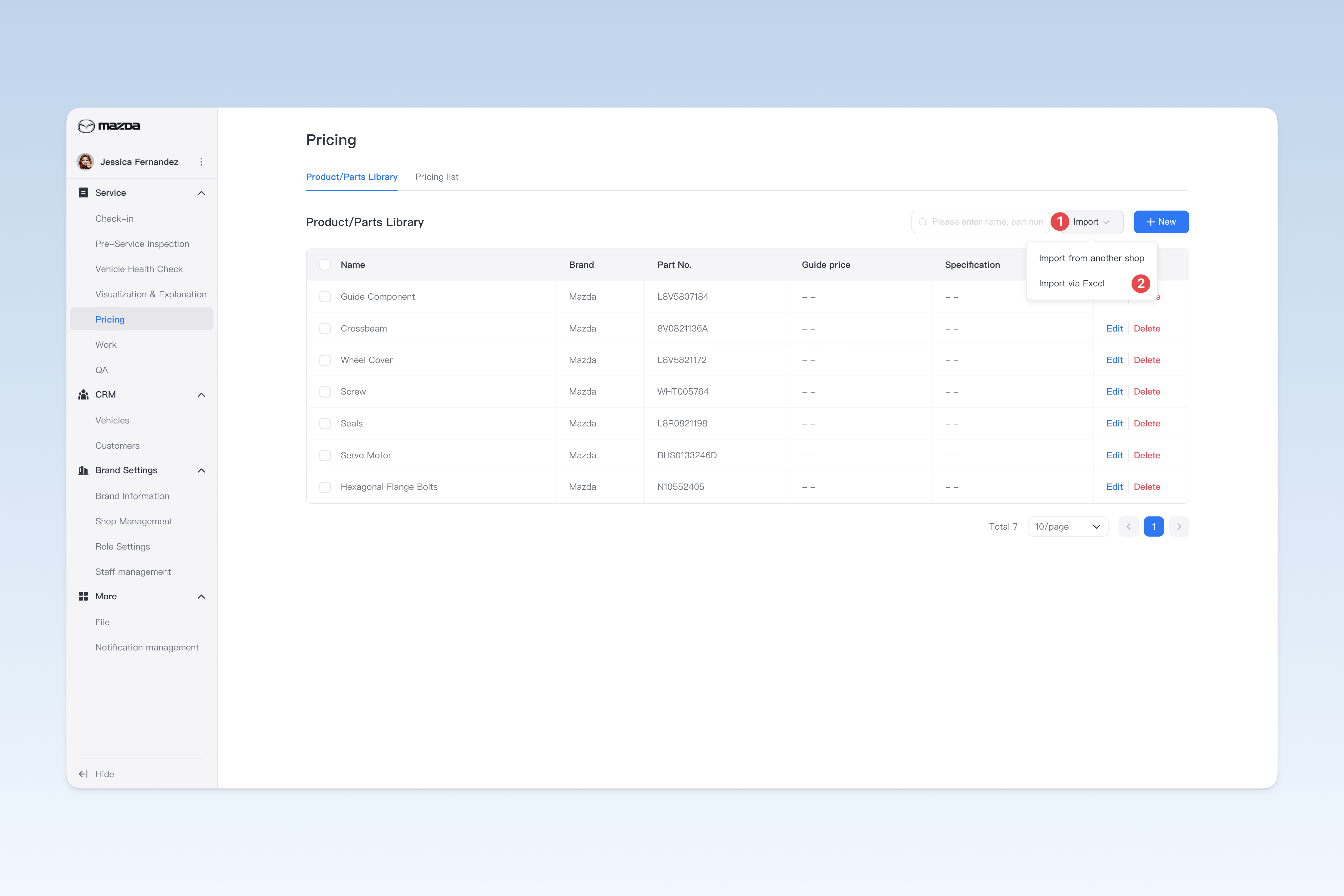
You can import information from an Excel file into the product/parts library in the brand management dashboard.
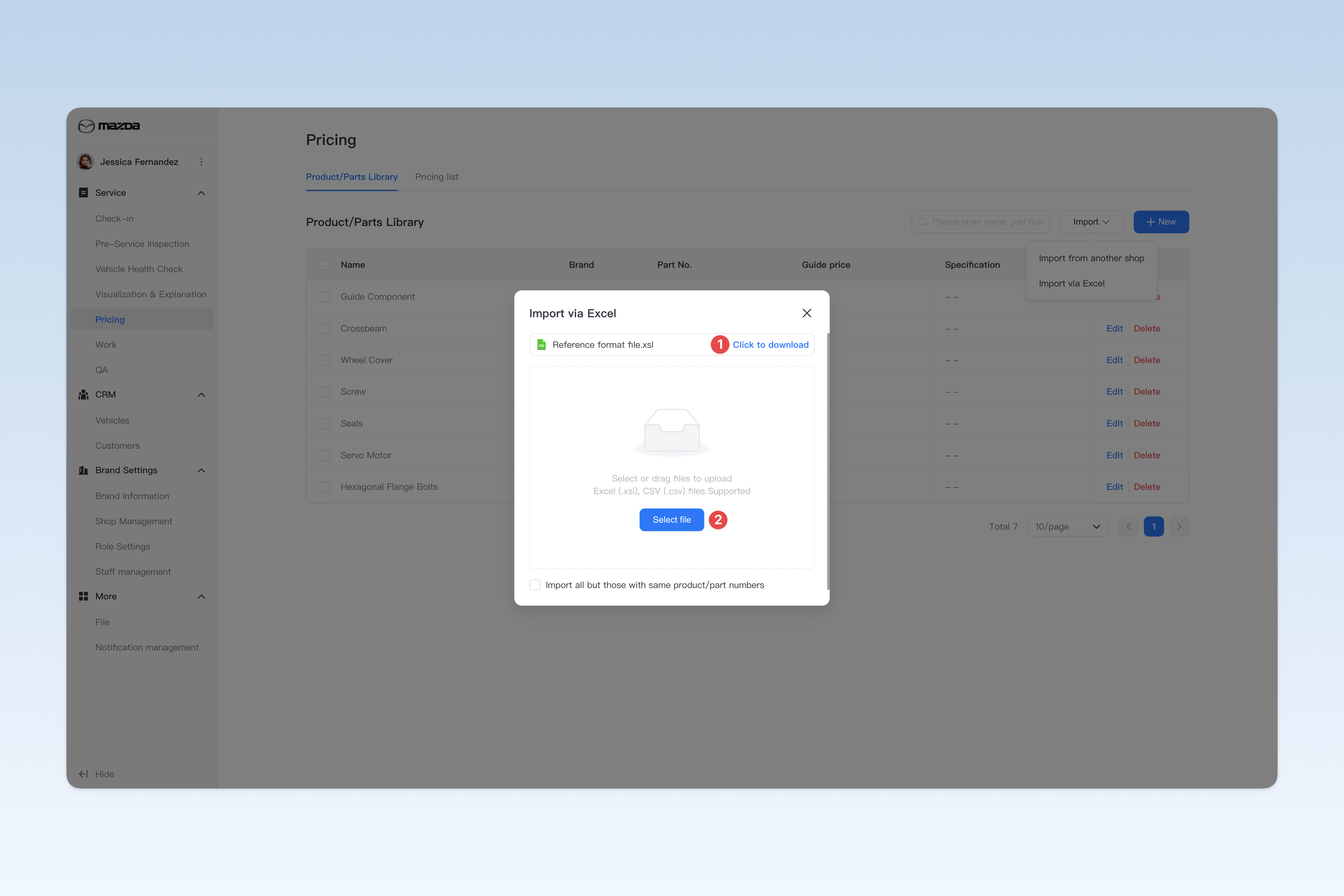
On the "Product/Parts Library" page, click the【Import Parts】button and select【Import via Excel】in the drop-down menu. The "Upload File" pop-up window will appear, where you need to first download the "Reference Format File". After downloading, please match the data to be imported according to the format of the "Reference Format File" to ensure the data is correct. Once adjusted, click the【Select File】button to upload the adjusted file. Wait a moment and the import will be successfully completed.
⚠️ Tip: To skip duplicate parts during import, check the "Import all but those with same product/part numbers" option.
Encountered import failure? Click here to see the reason!
- Format error: Please carefully check the header or content of the imported file to ensure it complies with the system's reference format file example.
- Duplicate content: Imported data may have names or parameters that already exist in the system. As these must be unique, duplicates cannot be imported (e.g. phone numbers).
- Content mismatch error: Some imported content needs to match existing data in the system. Please ensure the text is identical to the system content.
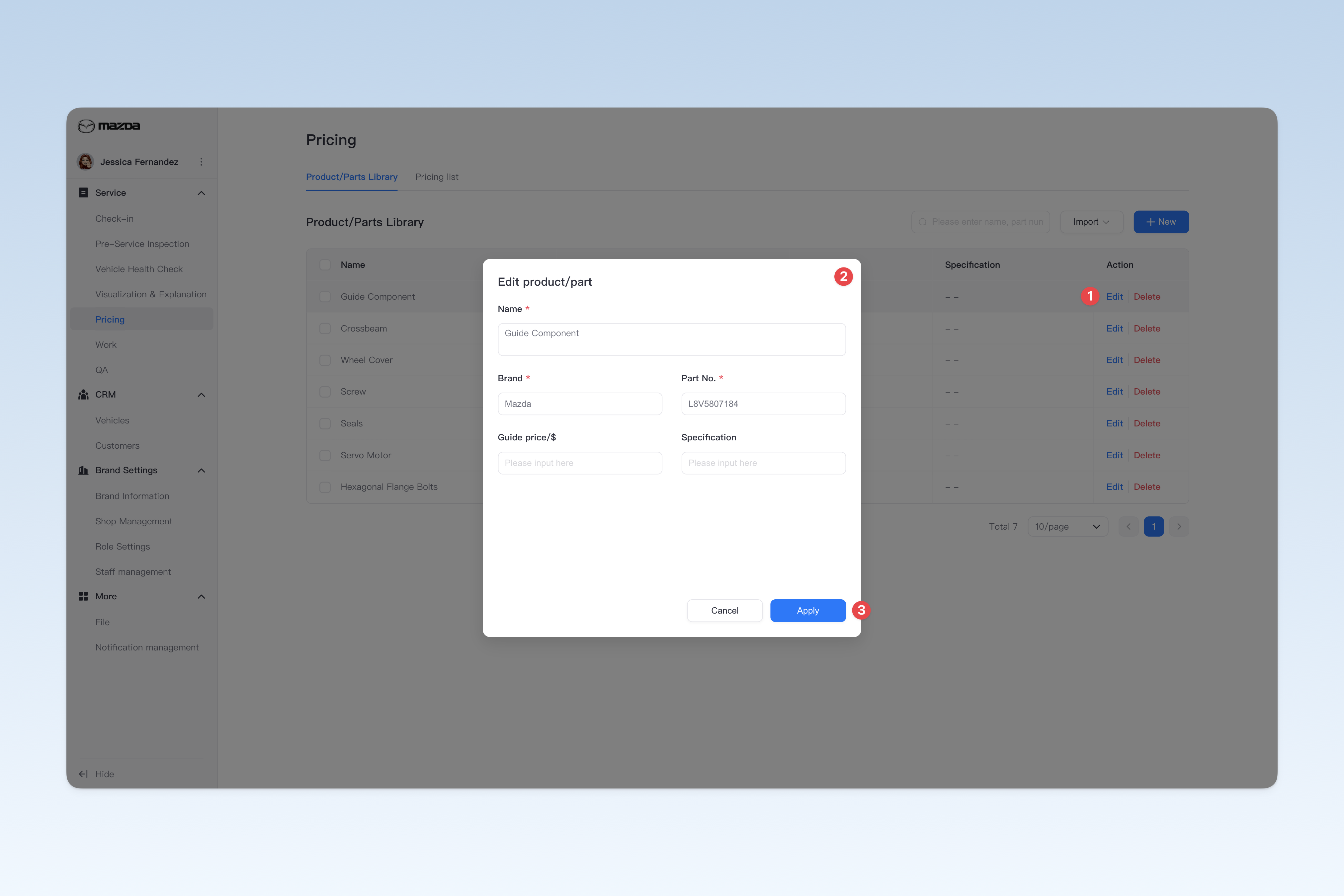
Delete Product/Part
On the "Product/Parts Library" page, find the product/part you want to delete, click the【Delete】button on the right side of the list. A confirmation pop-up window will appear. Click【Confirm】to delete.