◎ Brand and Model Management
The system has preset common vehicle brands and models on the market and provides default settings. If the preset vehicle information does not cover the brands or models operated by your group, you can create them according to your needs.
⚠️ Note: Vehicle brands/models preset by the system do not support custom modification for now.
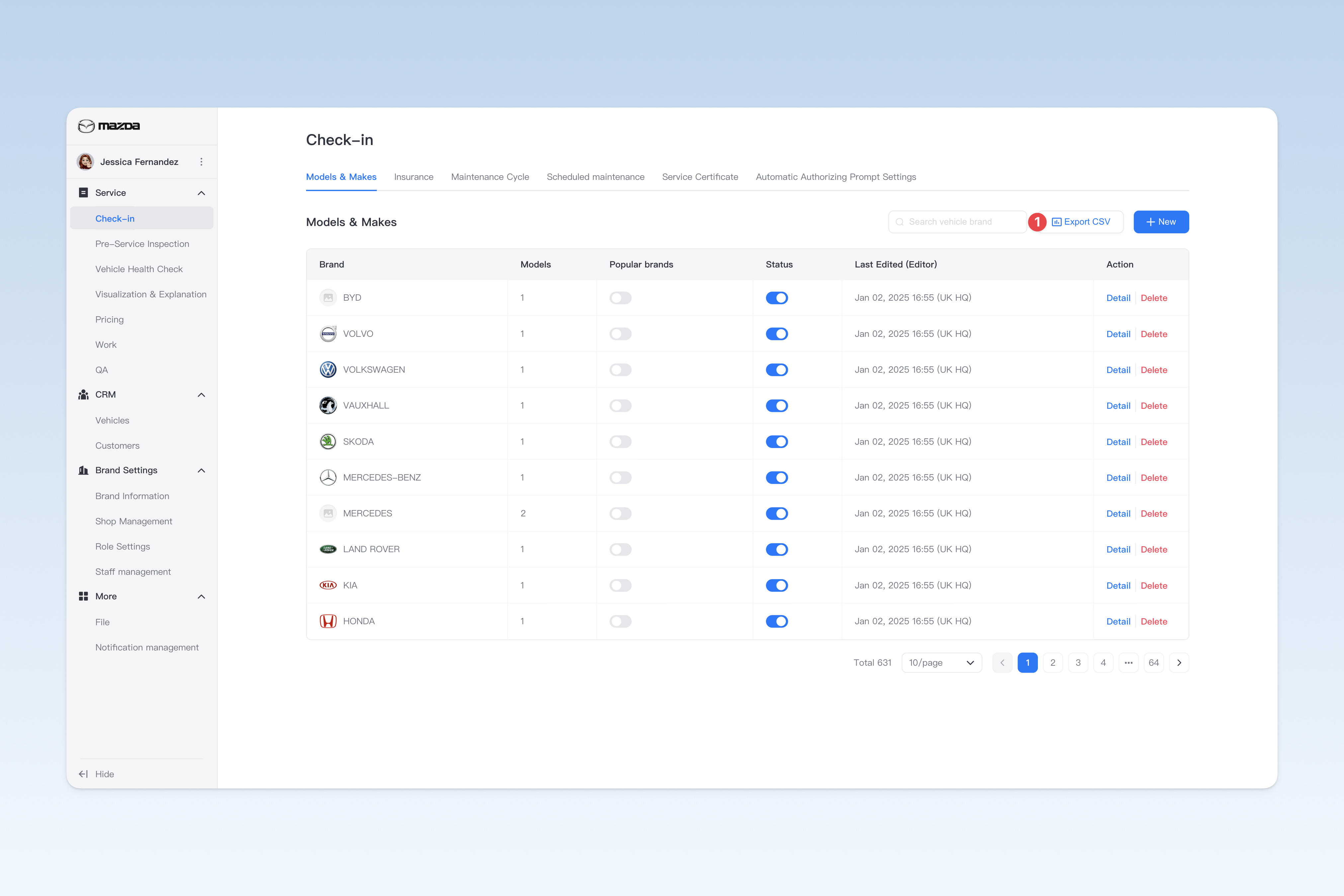
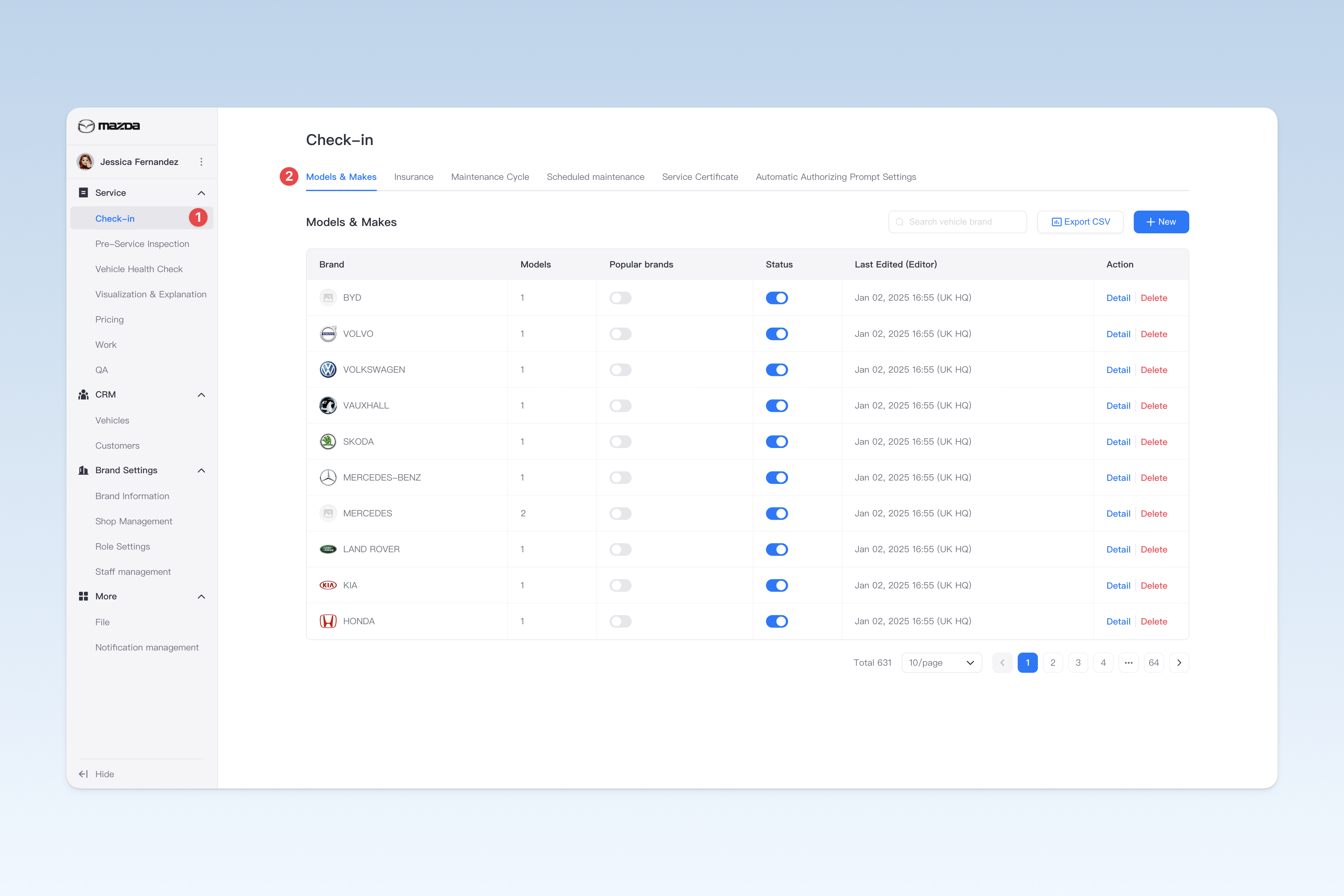
You can configure related content in: AutoX3 Brand Management Dashboard > Service > Check-in Vehicle > Models & Makes.
Create Vehicle Brand
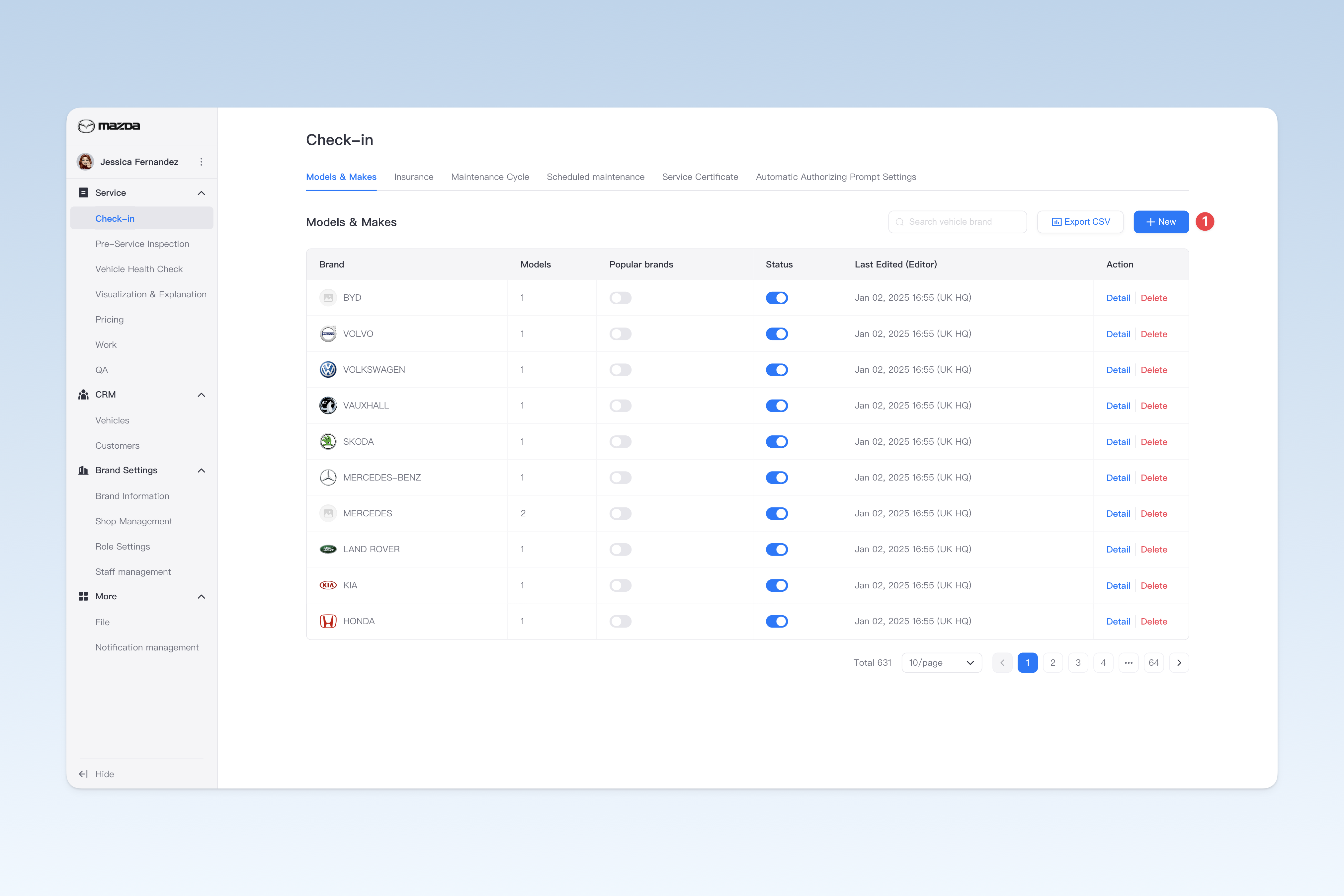
On the "Brands and Models" page, click the [Create] button to enter the "Create Brand and Model" page.
To create a brand and model, complete the following two steps: fill in the basic information and configure the model information. After completing, click the [Submit] button to finish the operation.
Configure Vehicle Brand Basic Information
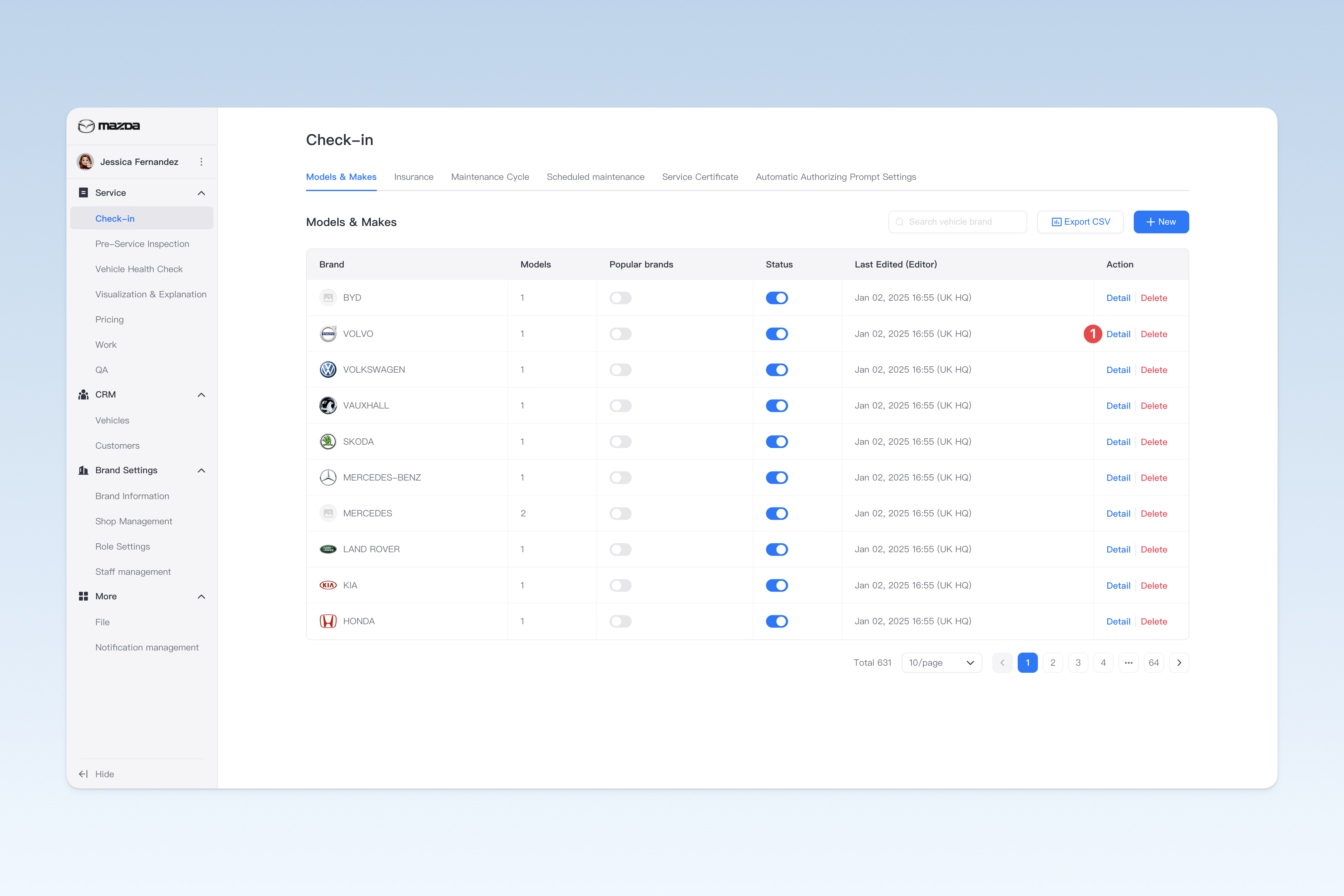
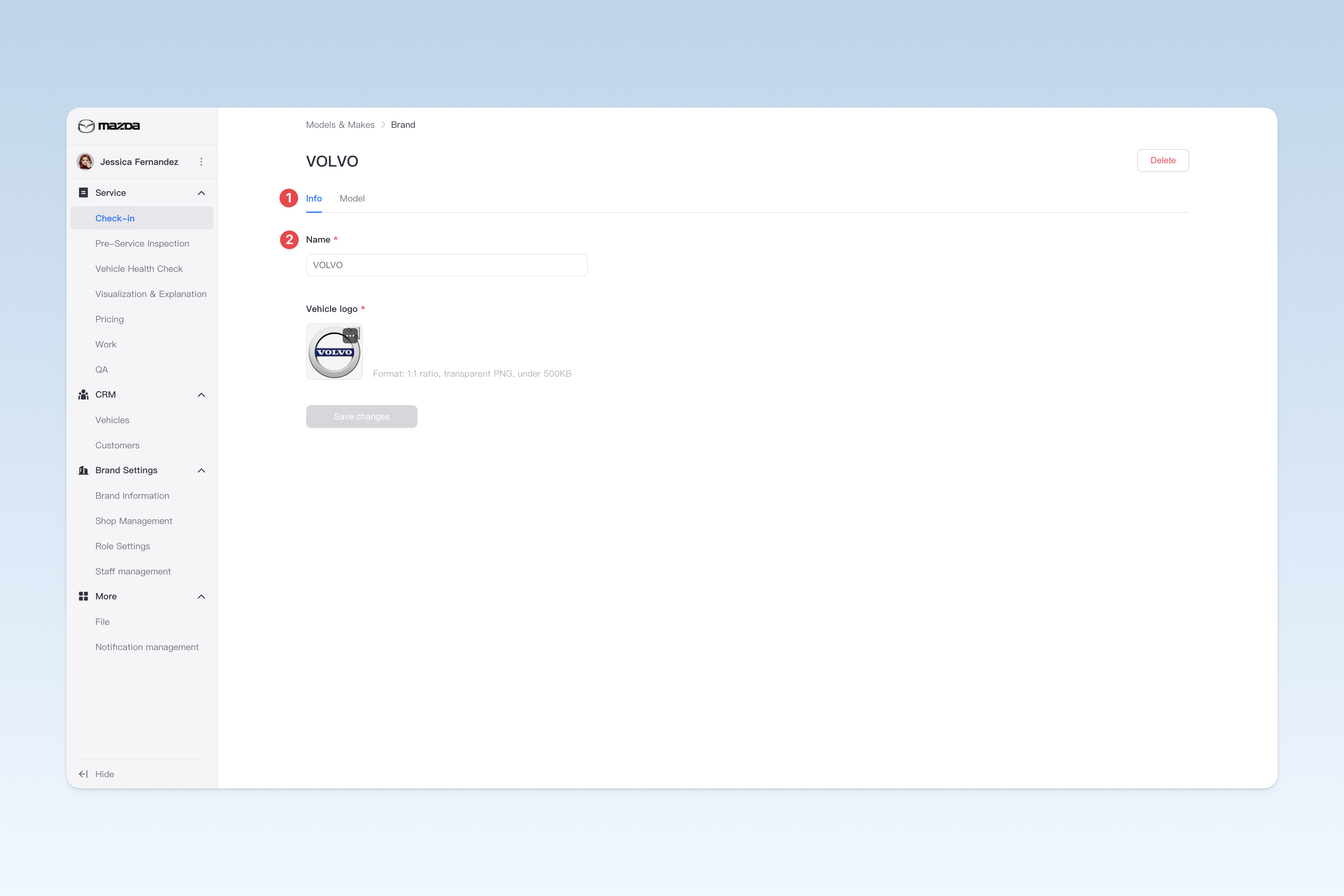
On the "Brands and Models" page, find the vehicle brand you need to modify, click the [Details] button in the operation column on the right side of the list, and on the pop-up "Vehicle Brand" page, click the [Basic Information] menu. This page is mainly used to configure some basic information of the vehicle brand.
- Brand Name: The brand name of the vehicle
- Vehicle Logo: Upload the brand logo of the vehicle (recommended ratio is 1:1, PNG format transparent background image within 500kb)
⚠️ Tip: The brand models preset by AutoX3 in Mainland China do not support modification for now. If you need to modify, please contact the sales staff.
Configure Model Information
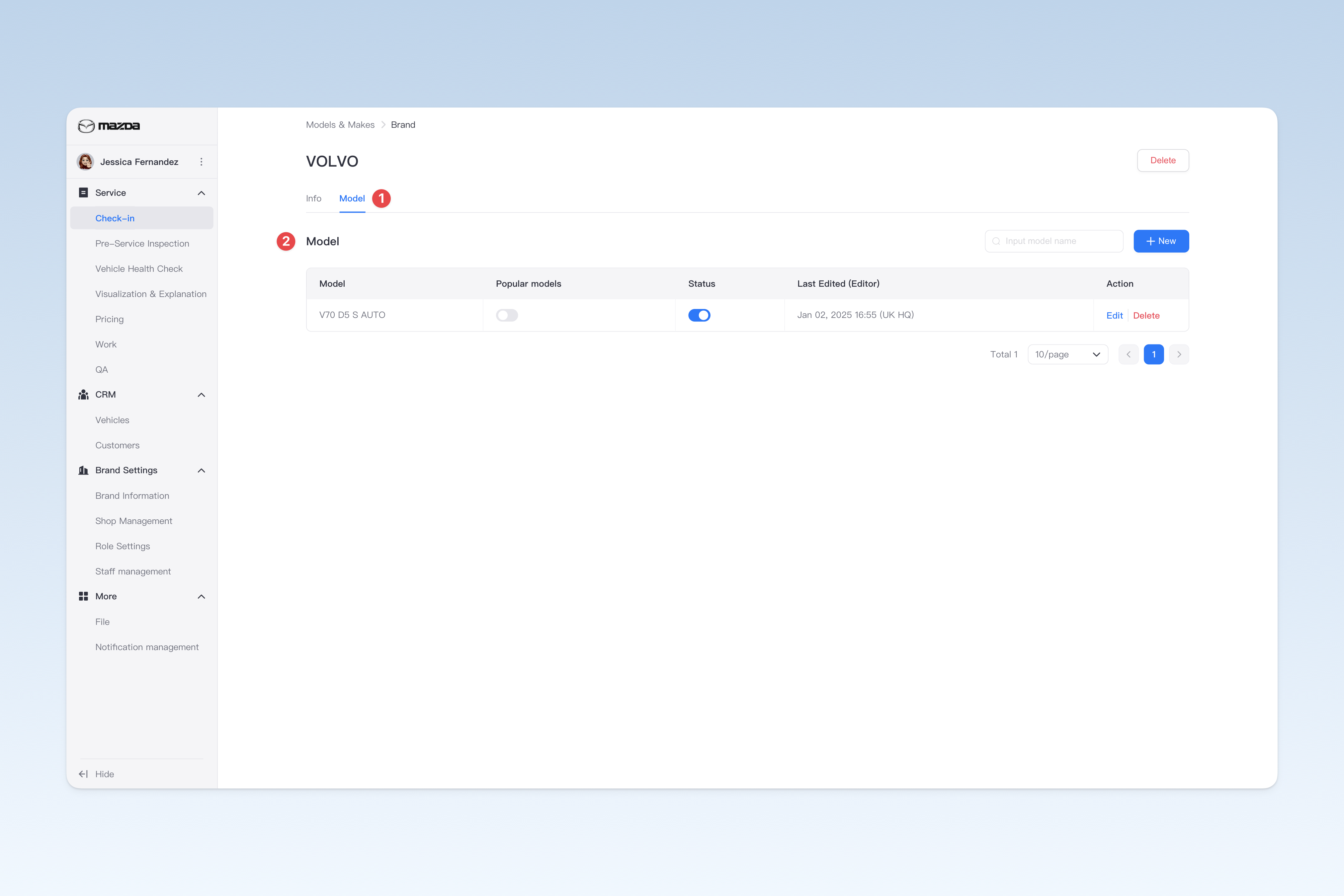
On the "Brands and Models" page, find the corresponding vehicle brand, click the [Details] button in the operation column on the right side of the list, and on the pop-up "Vehicle Brand" page, click the [Model Information] menu.
⚠️ Tip: The brand models preset by AutoX3 in Mainland China do not support modification for now. If you need to modify, please contact the sales staff.
Create Model
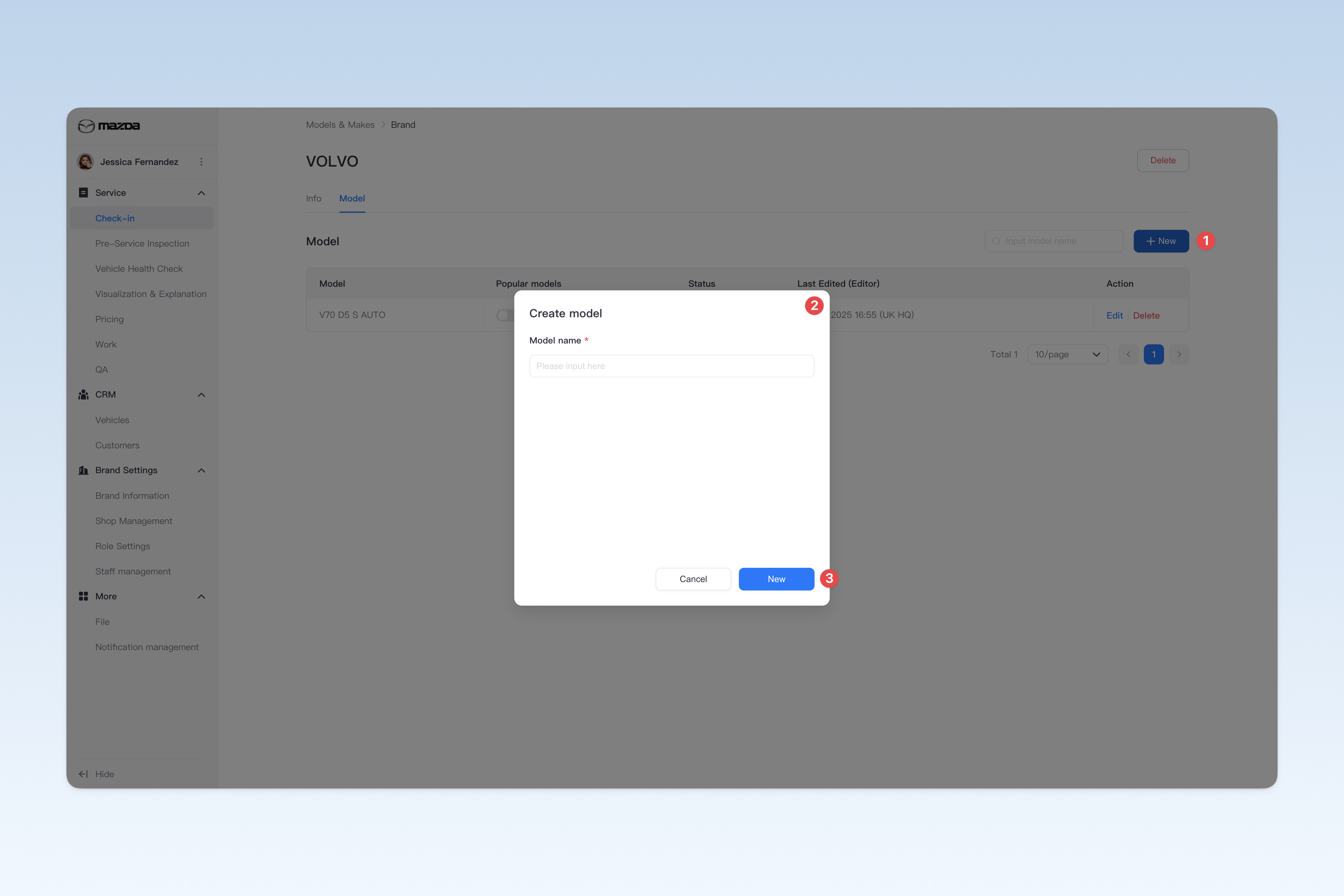
On the "Model Information" page, click the [Create] button, and the "Create Model" pop-up window will appear.
In the pop-up window, you need to enter the "Model Name". After completing, click the [Create] button to finish creating.
Modify Model Name
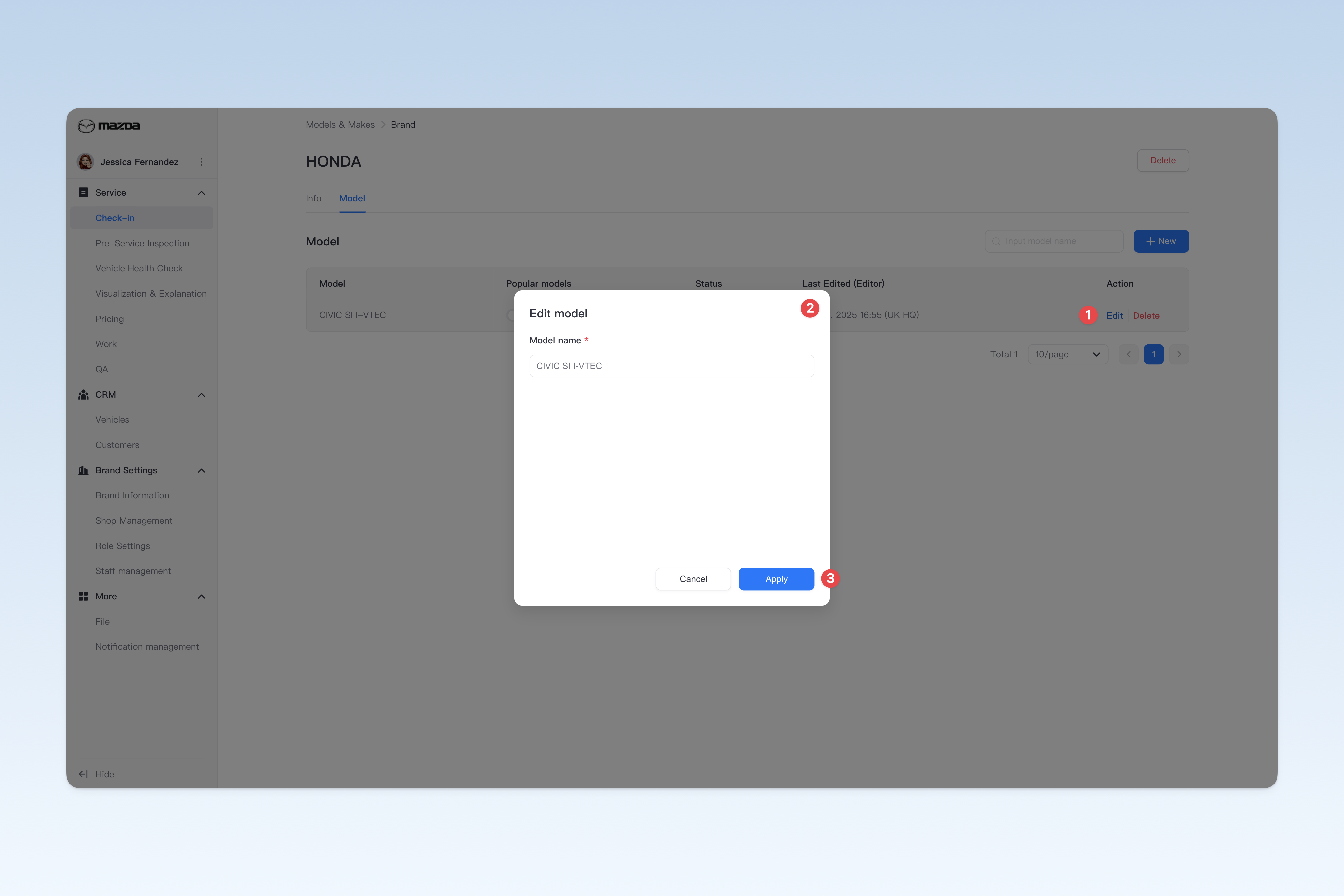
On the "Model Information" page, find the model you need to modify, click the [Edit] button in the operation column on the right side of the list, and modify the model name in the pop-up "Edit Model" window.
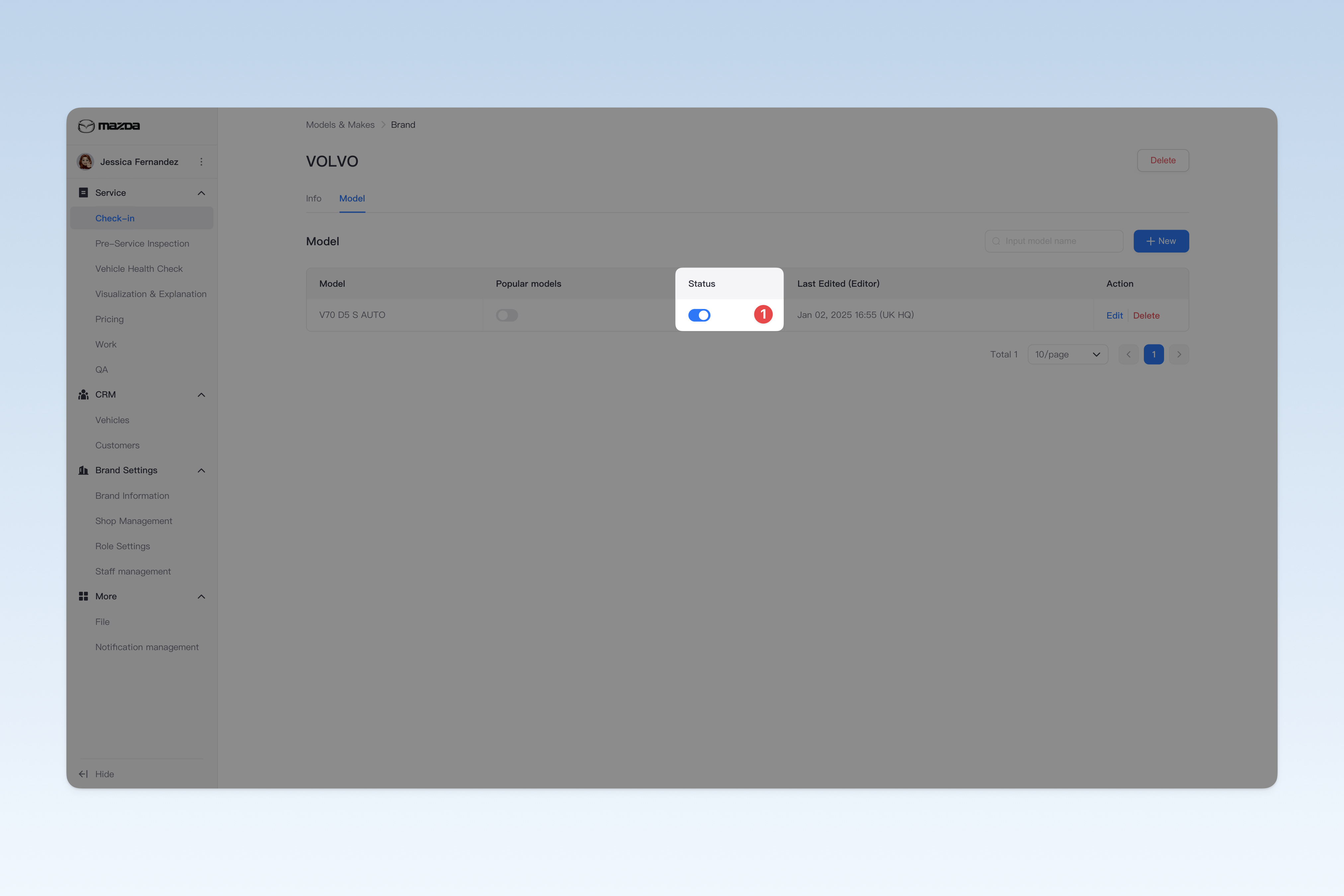
Enable/Disable Model
On the "Model Information" page, find the "Enabled Status" in the list and click the [On/Off] button to "Enable" or "Disable" any model.
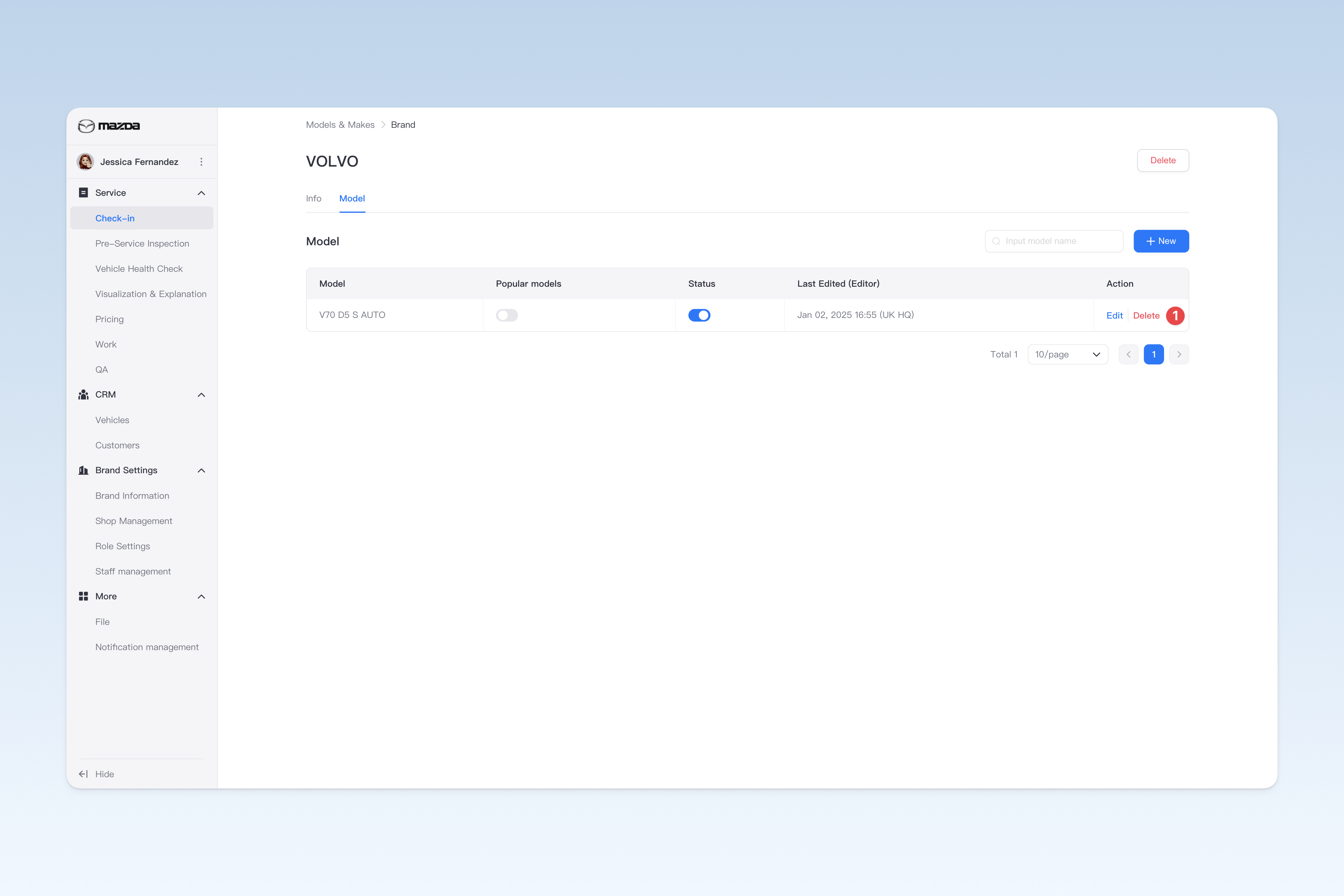
Delete Model
On the "Model Information" page, find the model you need to delete, click the [Delete] button in the operation column on the right side of the list, and a confirmation pop-up window will appear. Click [Confirm] to delete.
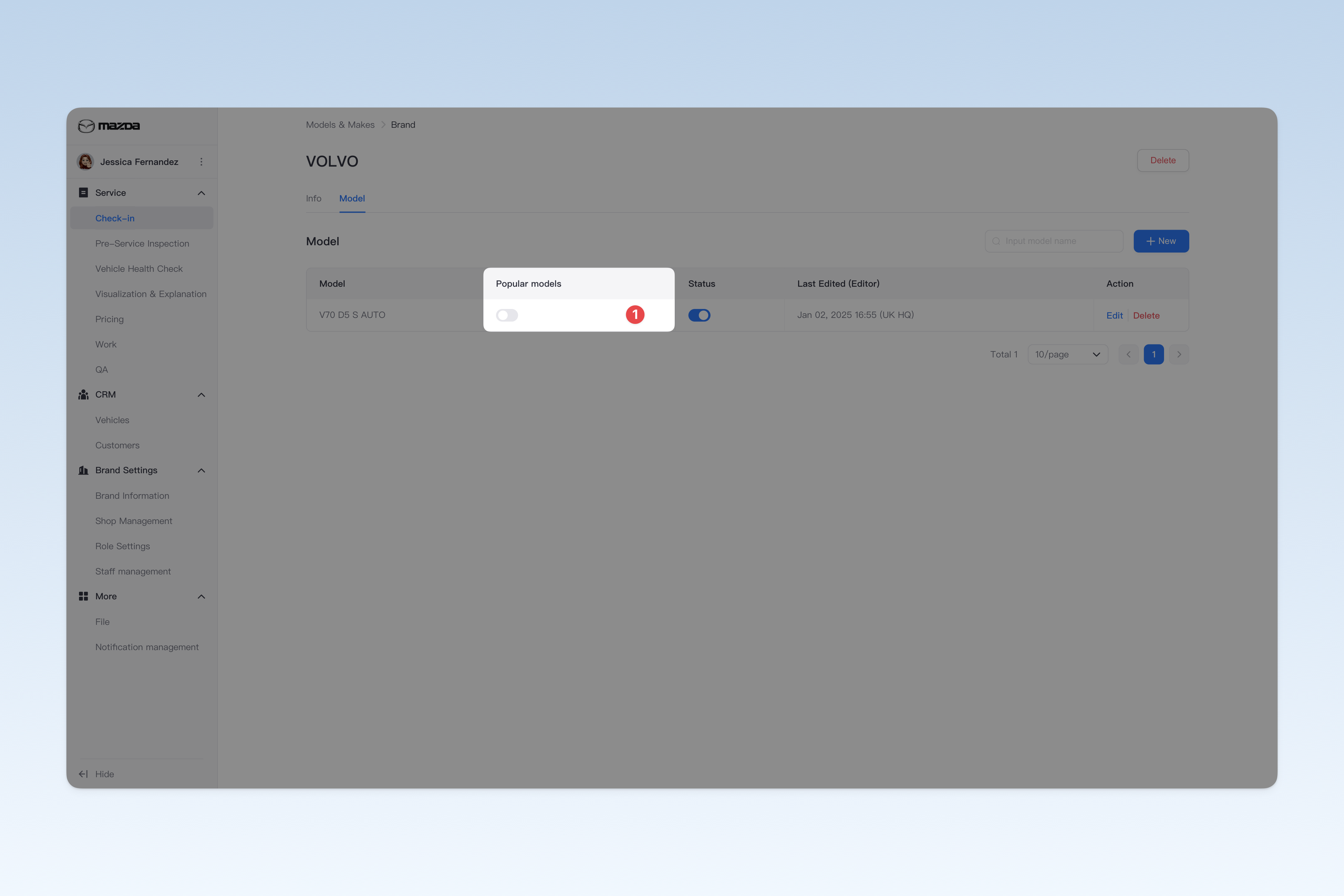
Set Model as Popular Model
On the "Model Information" page, find the "Popular Models" in the list and click the [On/Off] button to "Enable" or "Disable" any model as a popular model.
💡 Tip: After successful setting, when selecting models in the Intelligent Technician APP, popular models will be displayed at the top of the list for quick search and selection.
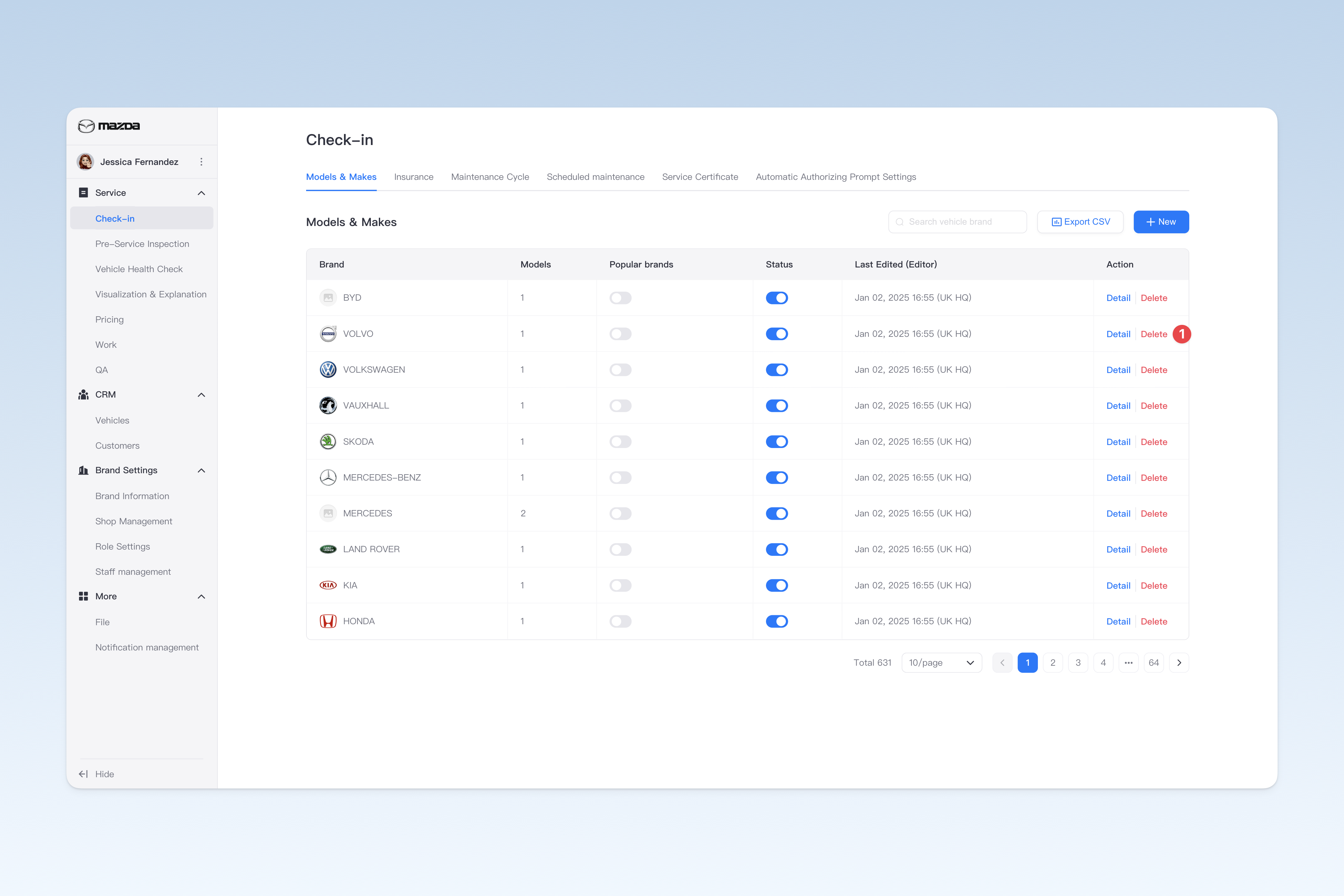
Delete vehicle brand
On the "Models & Makes" page, find the vehicle brand you want to delete, click the [Delete] button in the operation column on the right side of the list, a confirmation pop-up will appear, click [Confirm] to delete.
⚠️ Note: Brands preset by AutoX3 in mainland China currently do not support deletion.
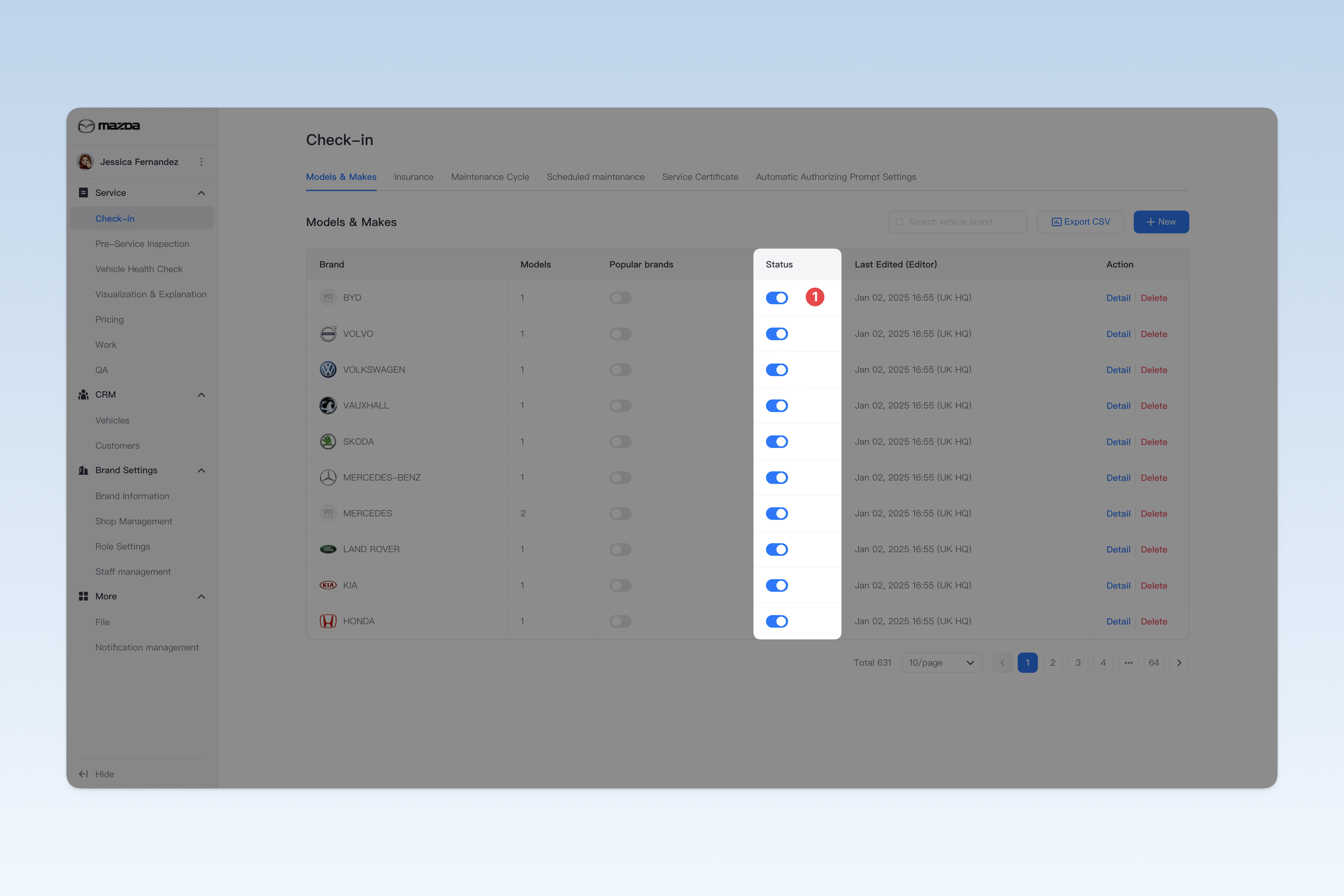
Enable/disable vehicle brand
On the "Models & Makes" page, find "Status" in the list, click the [On/Off] button to "Enable" or "Disable" any vehicle brand.
Set vehicle brand as popular brand
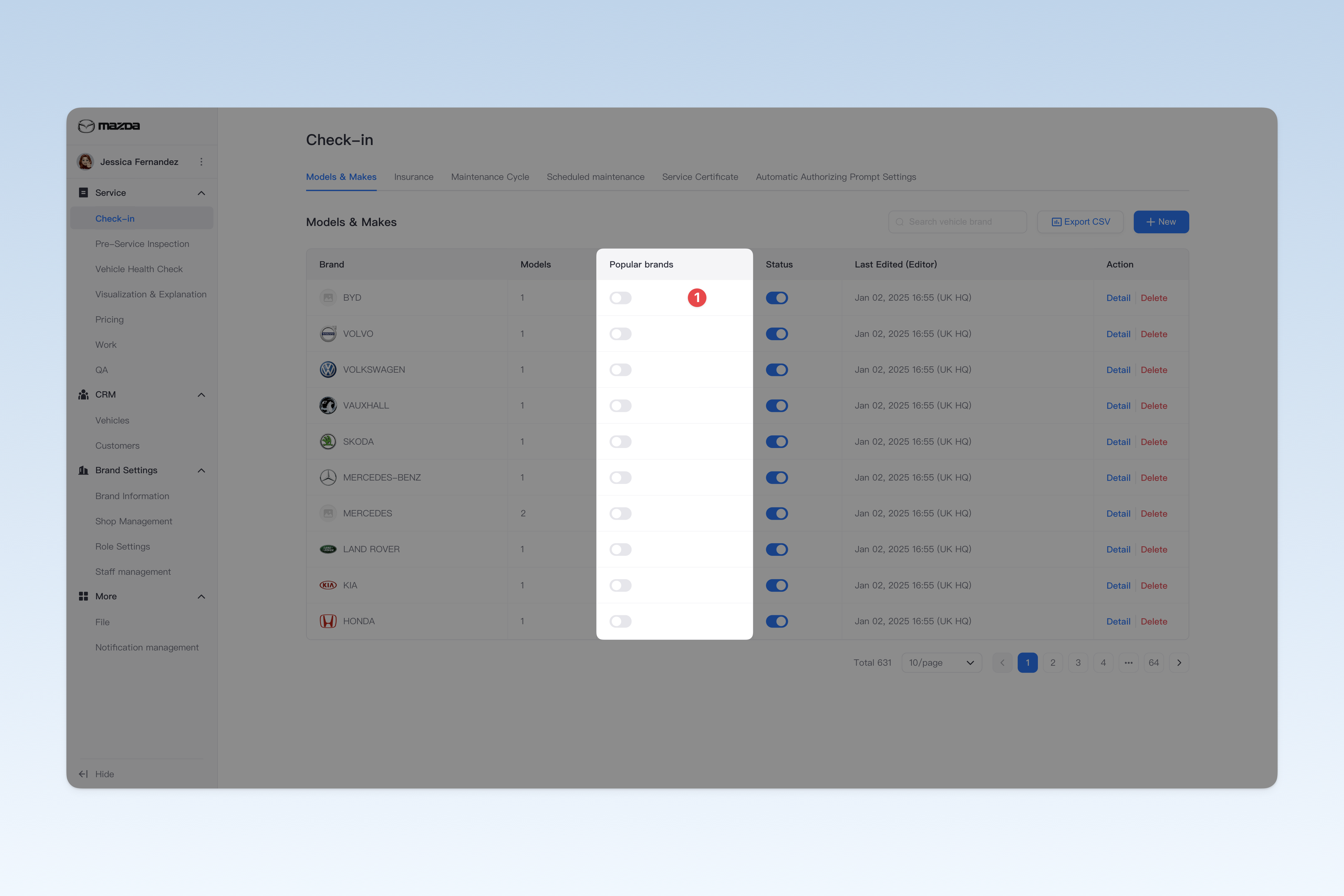
On the "Models & Makes" page, find "Popular brands" in the list, click the [On/Off] button to "Enable" or "Disable" any model as a popular model.
💡 Tip: After successful setup, when selecting vehicle brands in the iTechnician APP, popular brands will be displayed at the top of the list for quick search and selection.
Export brand/model information to a spreadsheet file
On the "Brand and Model" page, click the [Export CSV] button in the upper right corner. After a short wait, the system will automatically create a download task in your browser. Please find the exported spreadsheet file on your browser's download page.