◎ Work Service
Work service plays multiple core functions in the system, including service item ordering, recording the work process and uploading relevant photos or videos when performing work on vehicles, and important tasks such as statistics of output value. Therefore, you need to complete the configuration of work service to ensure the smooth implementation of the above functions.
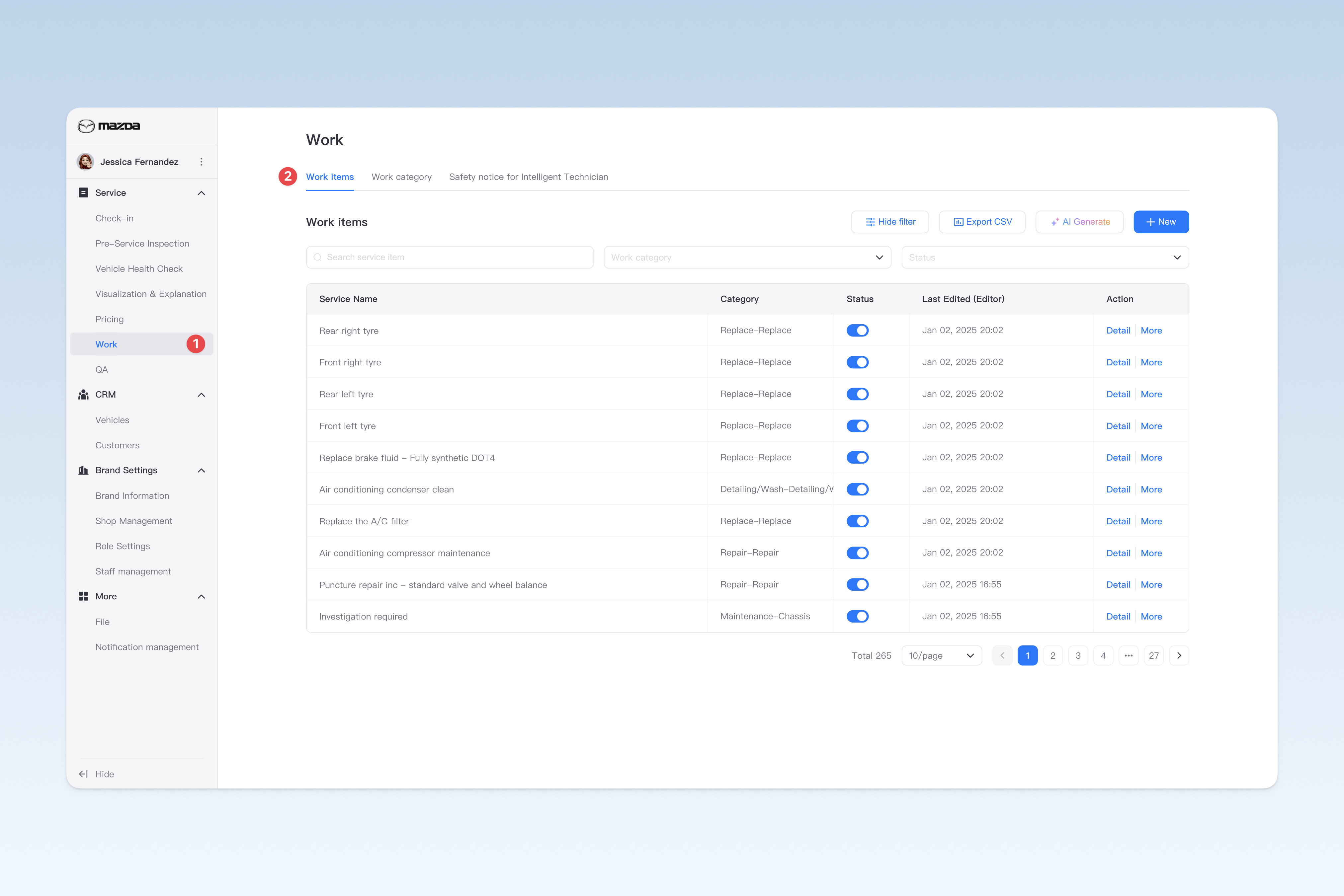
📍 You can configure related content in: AutoX3 Brand Management Dashboard > Service > Work > Work Service.
Create Work Service Item
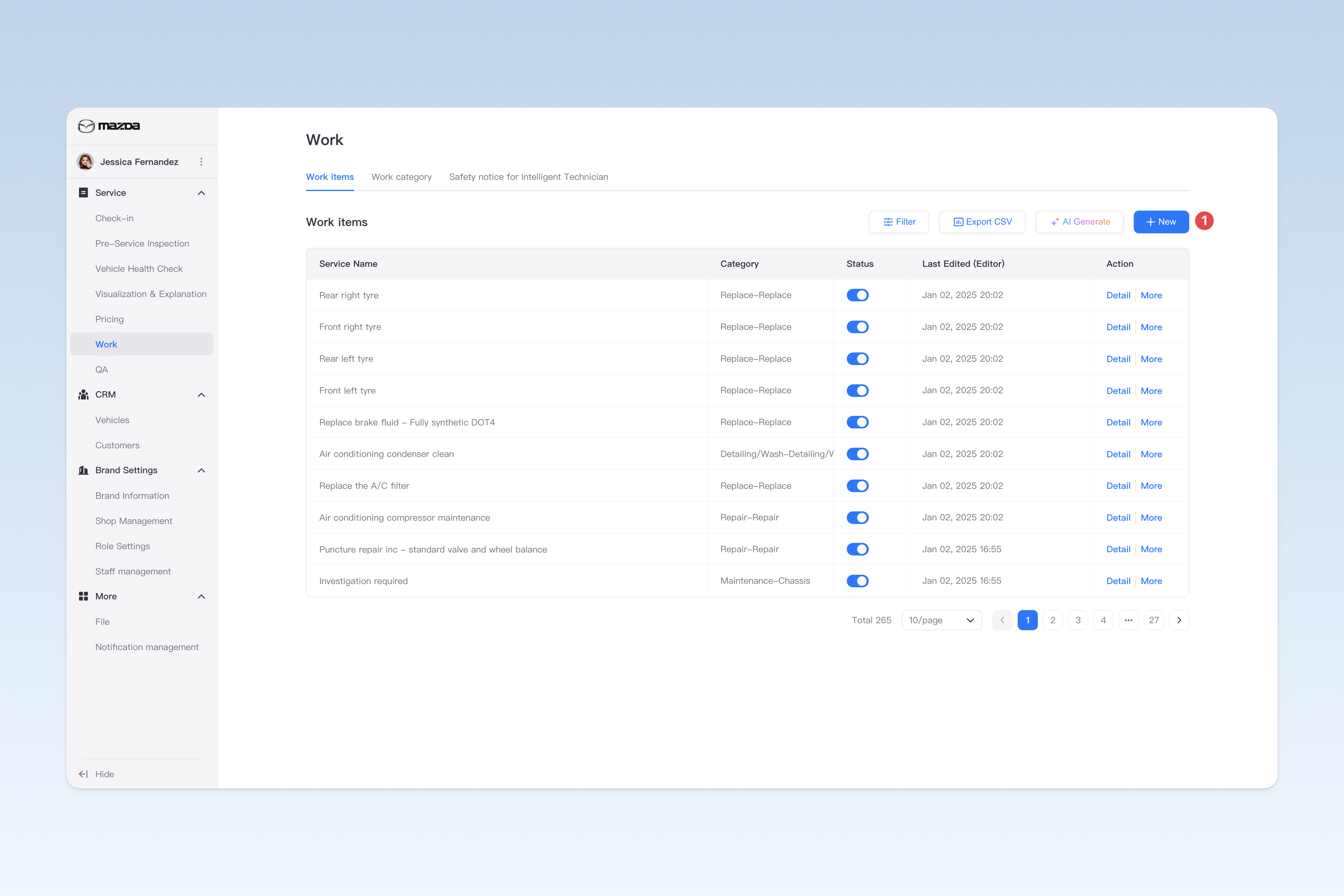
On the "Work Service Items" page, click the [Create] button to enter the "Create Work Service Item" page.
The following 5 steps are required to create a work service item: fill in basic information, configure item introduction, configure work procedures, configure QA procedures, and configure automatic order prompts. After completion, click the [Submit] button to finish.
Configure Basic Information
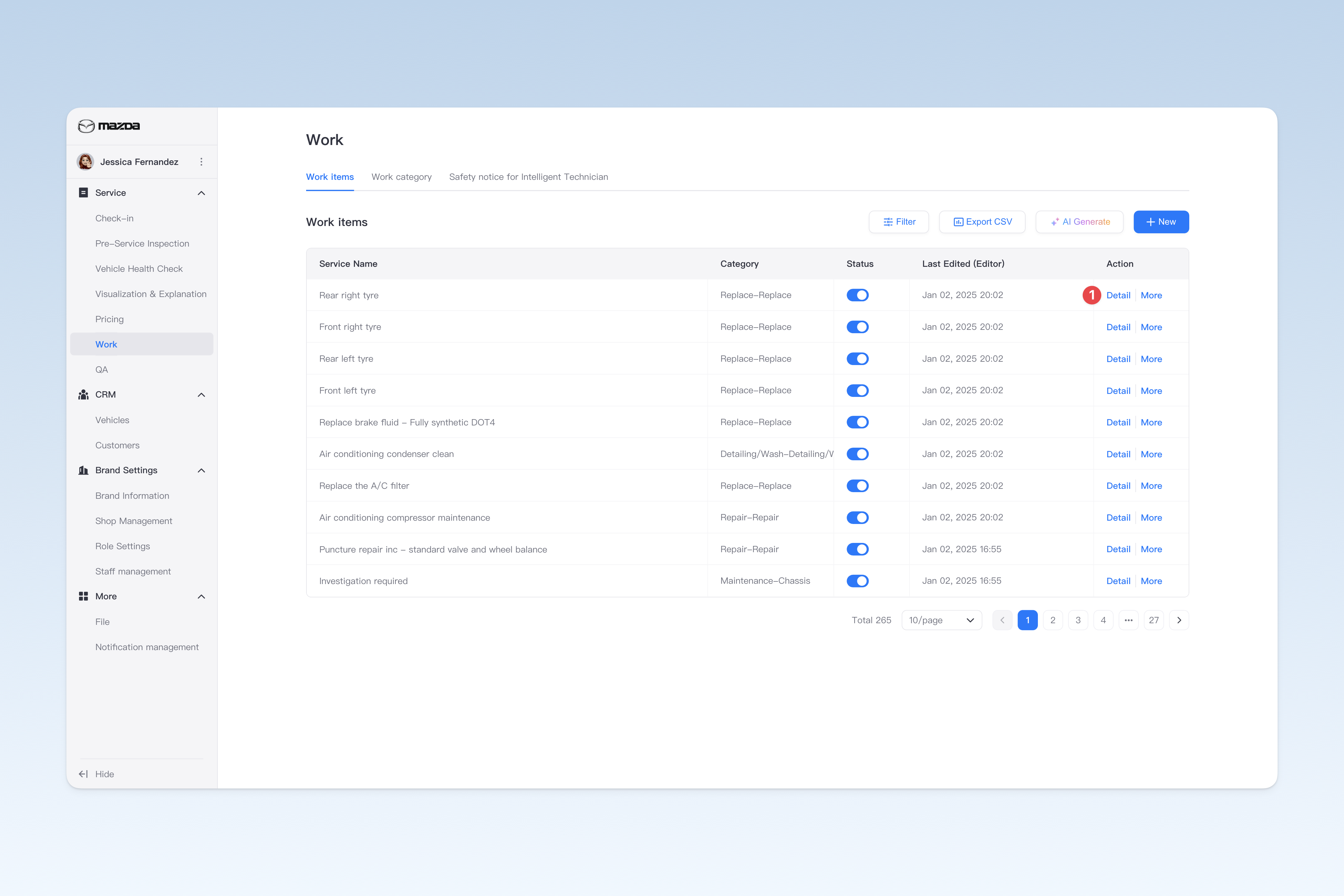
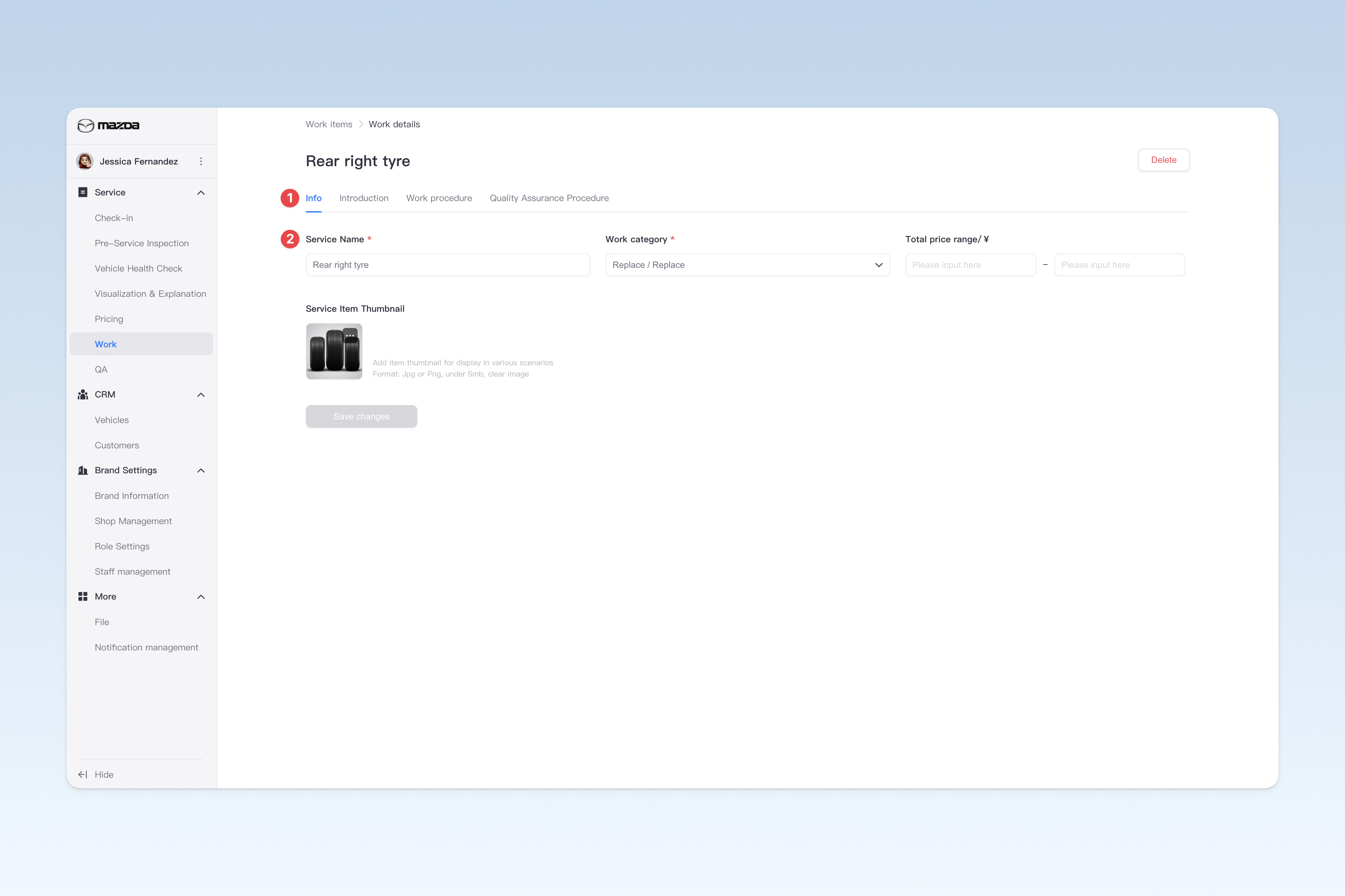
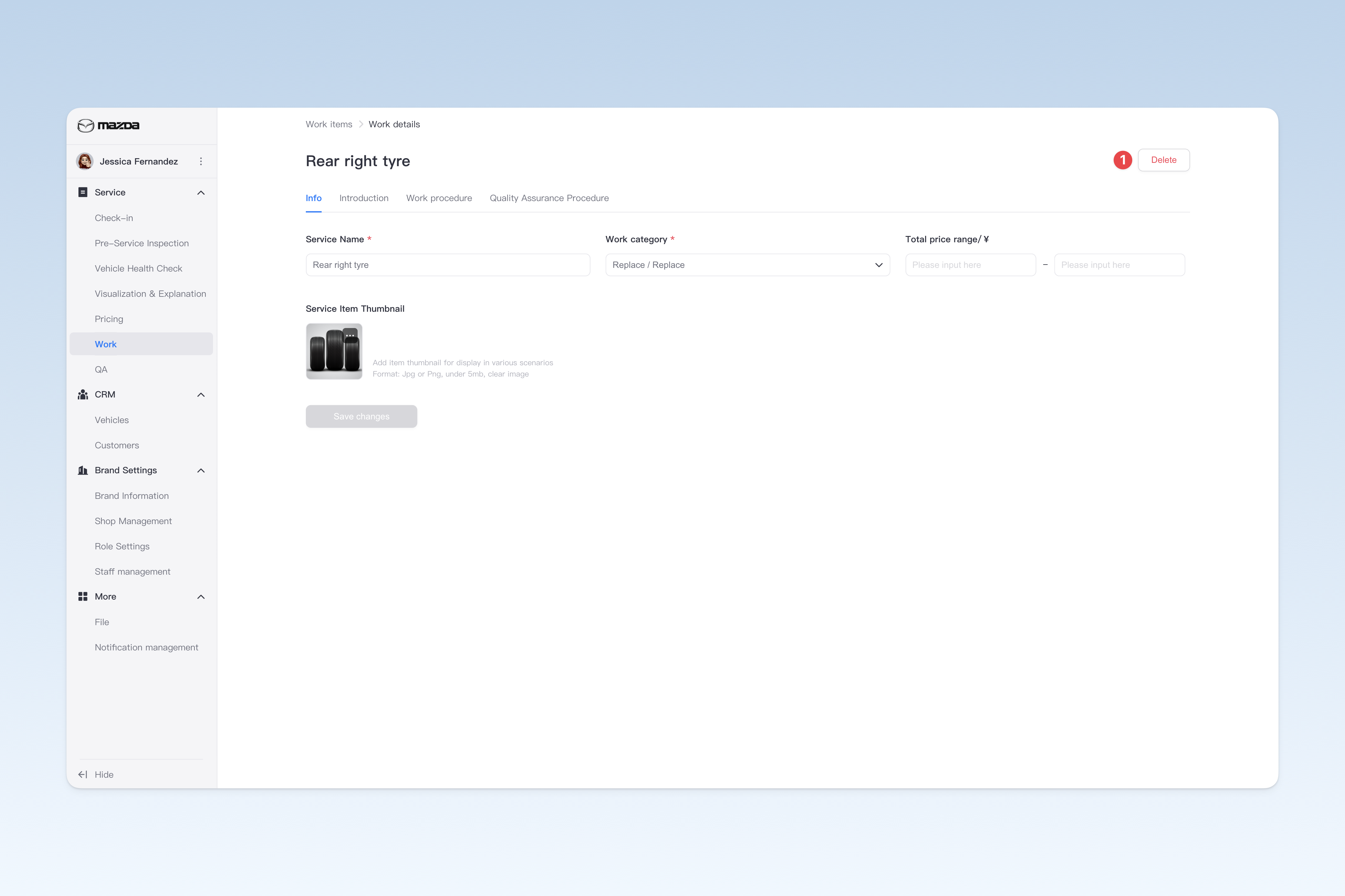
On the "Work Service Items" page, find the service item you need to modify, click the [Details] button on the right side of the list, and on the pop-up "Work Service Item" page, click the [Basic Information] menu. This page is mainly used to configure some basic information of the work service item.
- Item Name (Required): The name of the work item
- Work Service Category (Required): Categorize the item under the configured work service category for users to search and index more easily. For an introduction and configuration of work service categories, refer to: ◎ Work Service Categories
- Price Range: When presenting the item introduction to the customer, the relevant price information will be displayed. You can set a price range for the customer to understand the expected cost of the service.
- Thumbnail: Displayed as the cover of the service item. If not set, the system default cover will be used.
Configure Item Introduction
The item introduction allows customers to quickly understand the effect of the service item on the vehicle. It can build trust with customers, dispel their consumption doubts, and convey brand information. When designing the item introduction, fully conduct market research to avoid similarities with other brands' introductions. Also conduct consumer research to analyze the consumption intentions of the target consumer group.
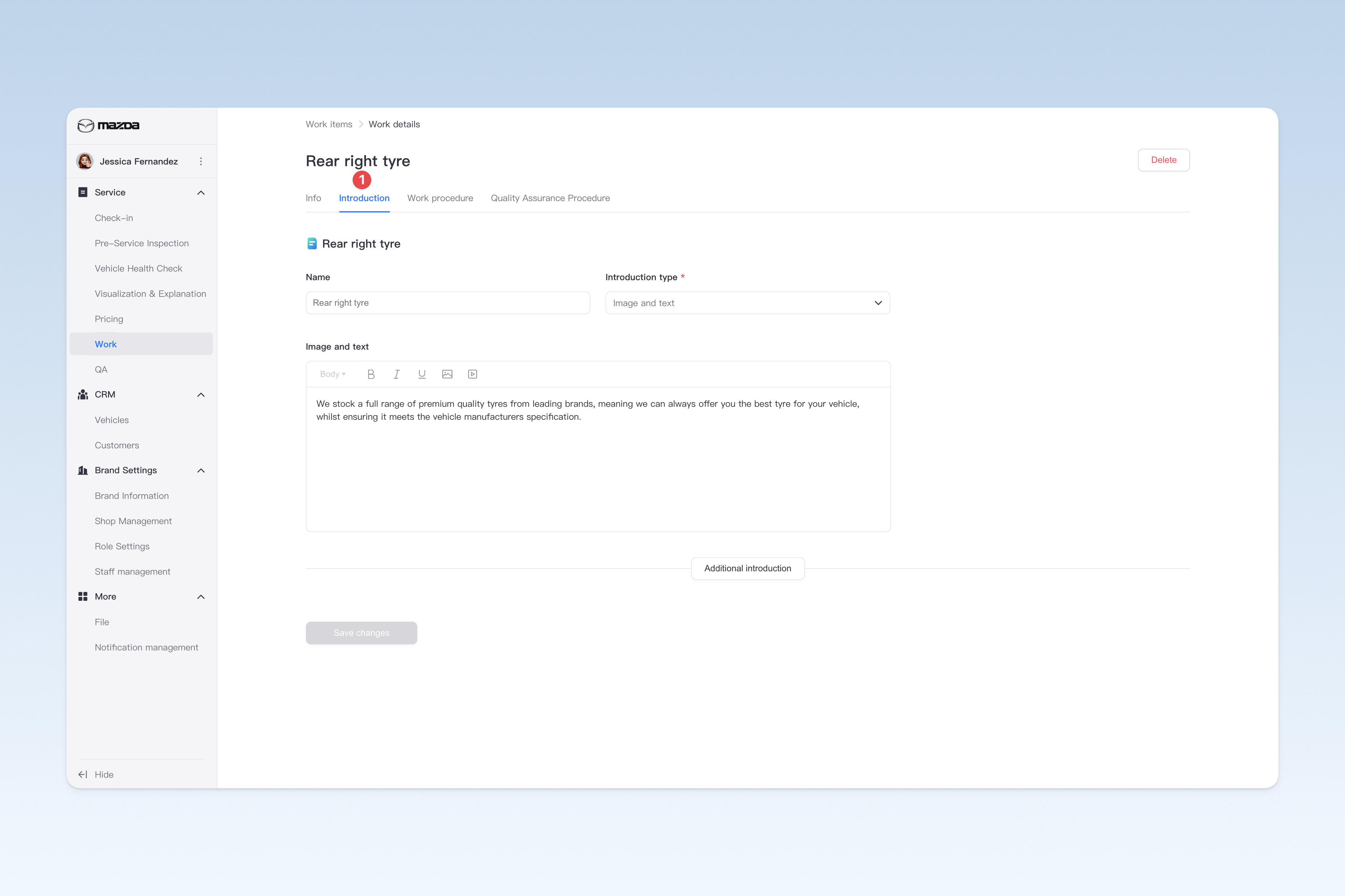
On the "Work Service Items" page, find the service item you need to modify, click the [Details] button on the right side of the list, and on the pop-up "Work Service Item" page, click the [Item Introduction] menu.
Item Introduction Methods
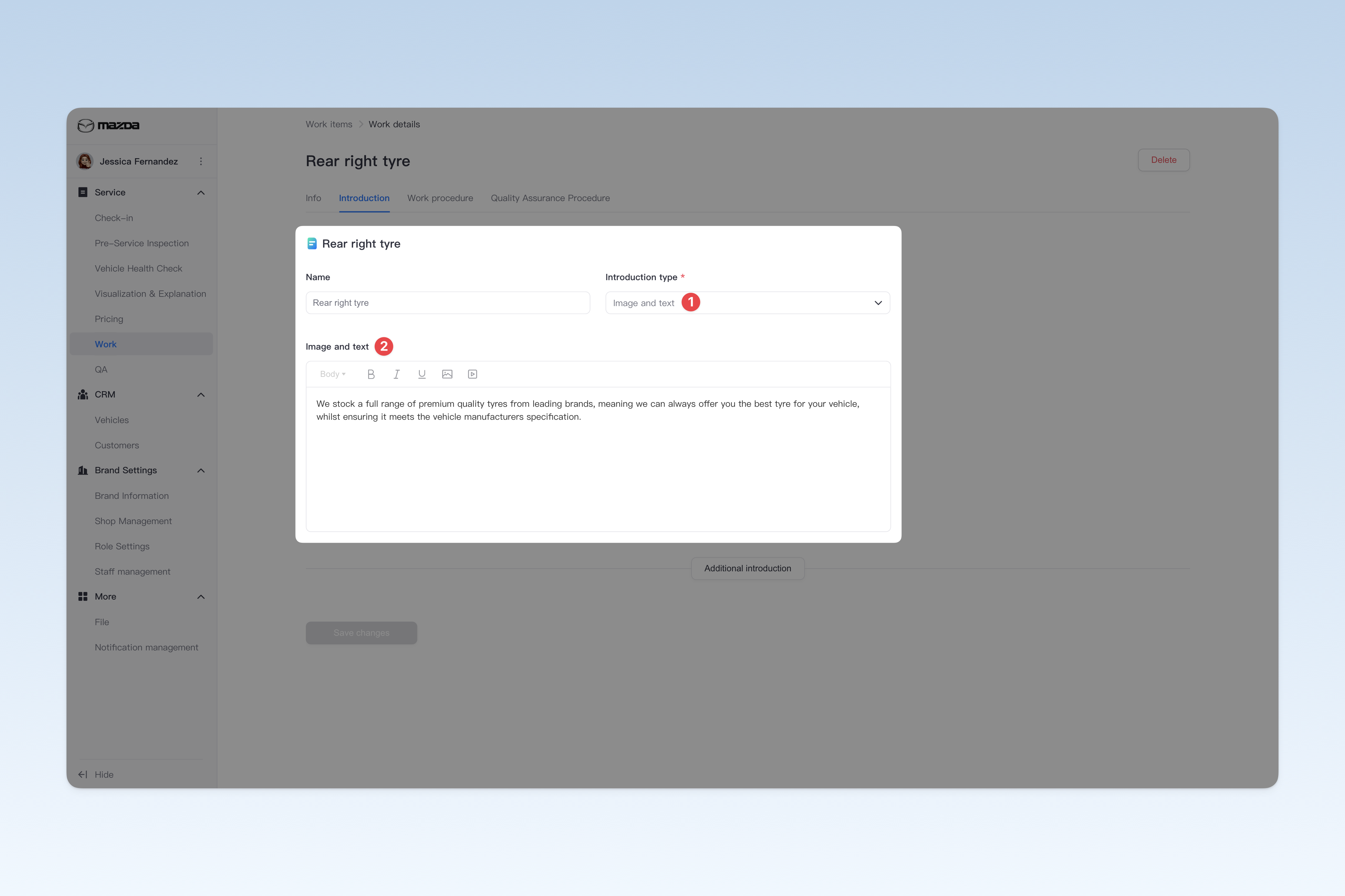
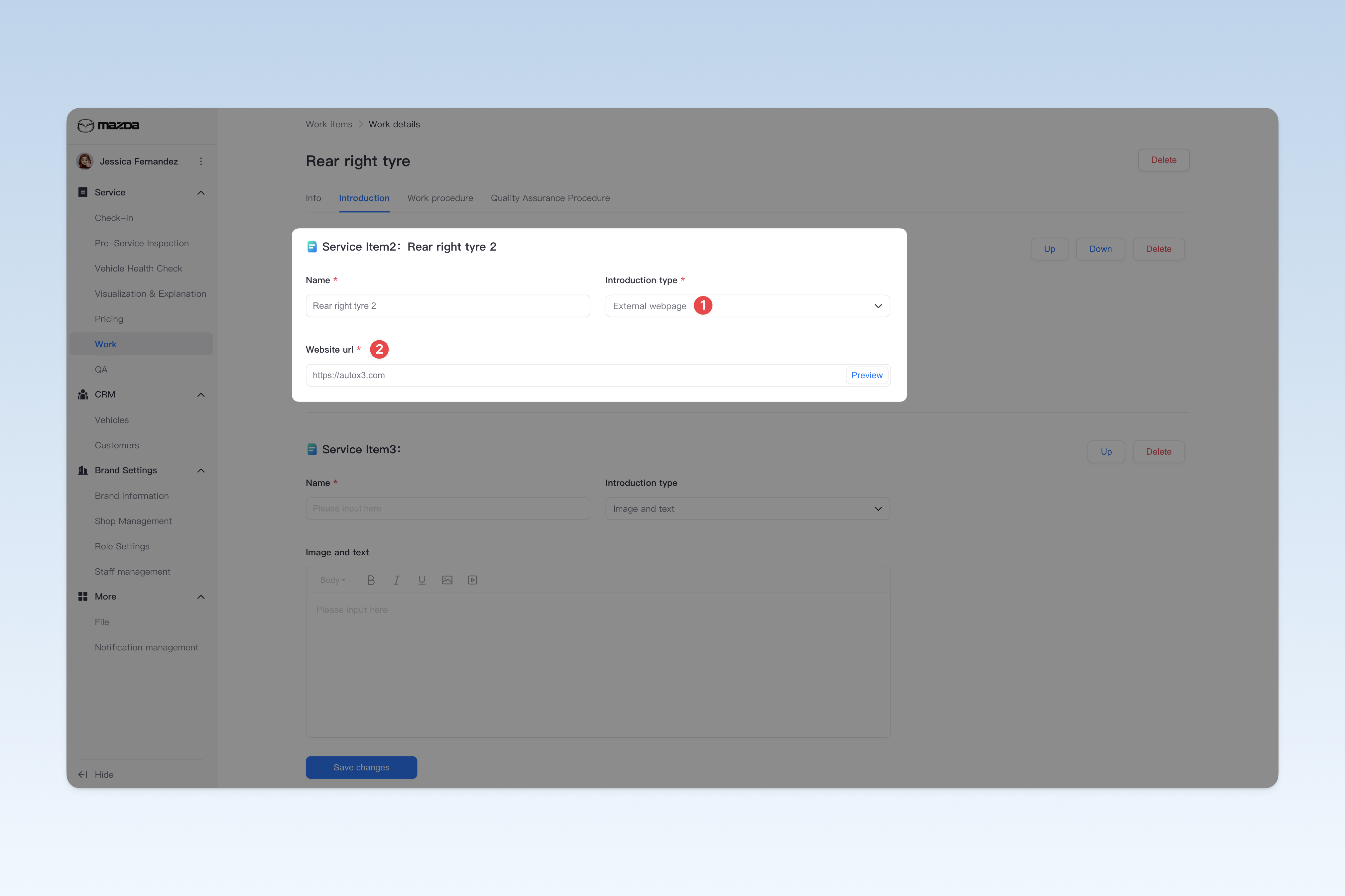
Two item introduction methods are currently provided:
- Image and Text Introduction: Enter the item's text, images, videos and other information, and layout the content.
- External Webpage: Directly reference an external webpage link. When viewing the item introduction, the system will automatically open the webpage and display its content as the introduction.
Add Multiple Item Introductions
Service item introductions support adding multiple independent introductions.
For example: In the "Replace Engine Oil" item introduction, it can be subdivided into "Total Engine Oil Introduction" and "Shell Engine Oil Introduction", with detailed descriptions for each.
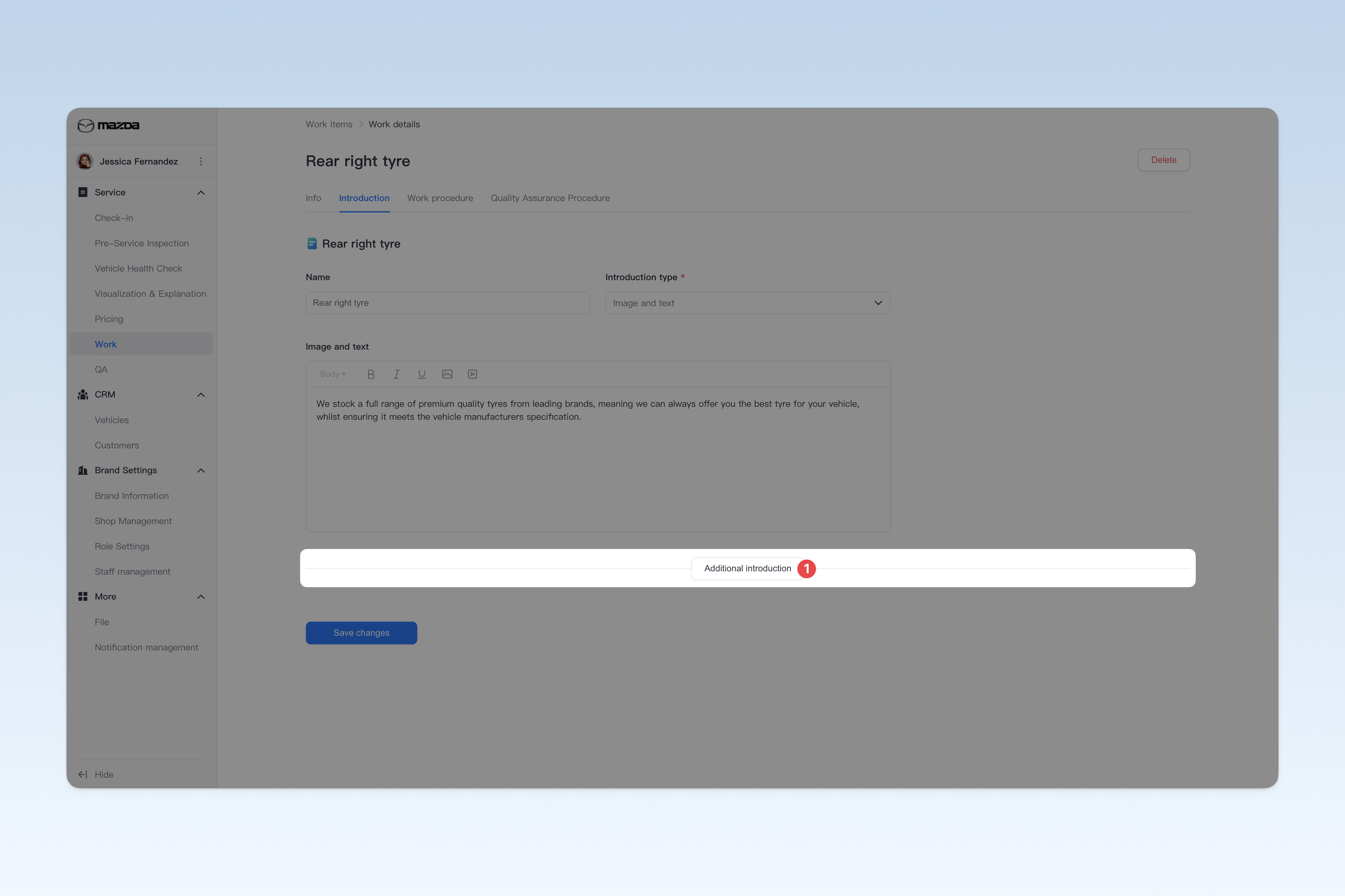
When entering the "Item Introduction" configuration page for the first time, the system will display one default introduction. To add more, click the [Add Item Introduction] button at the bottom.
Delete Item Introduction
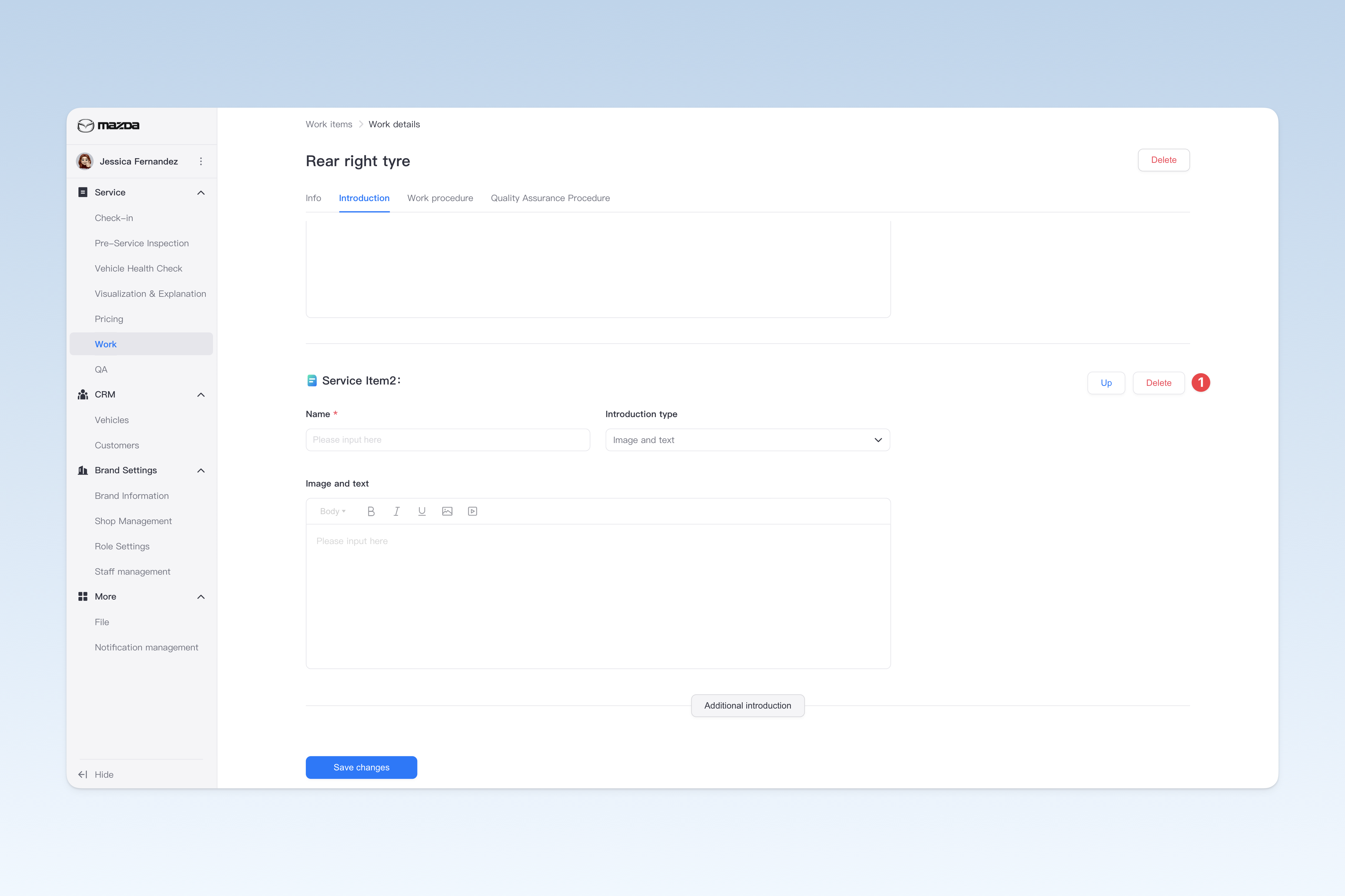
If you have created multiple item introductions, you can click the [Delete] button on the right side of the introduction title to delete it.
⚠️ Note: The system requires keeping at least one service item introduction by default. Therefore, if there is only one introduction, it cannot be deleted.
However, you can manually clear the "Item Introduction Name" and "Item Introduction Content" to cancel the introduction for that item (but we do not recommend doing this, as it will cause customers to see a blank page when viewing the item introduction, which can be frustrating).
Change Item Introduction Order
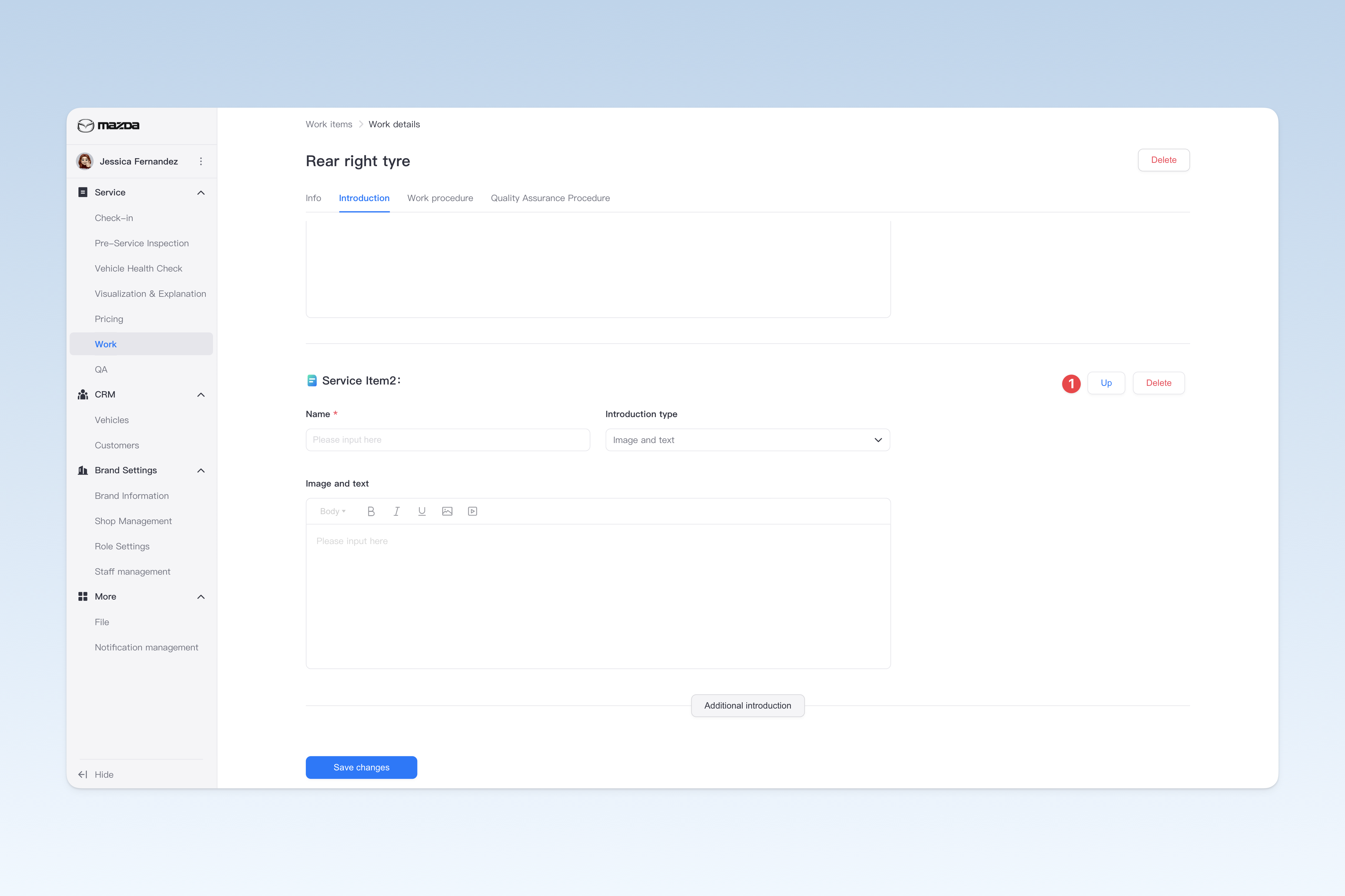
If you have created multiple item introductions, you can click the [Move Up] or [Move Down] button on the right side of the introduction title to change the display order.
Configure Work Procedures
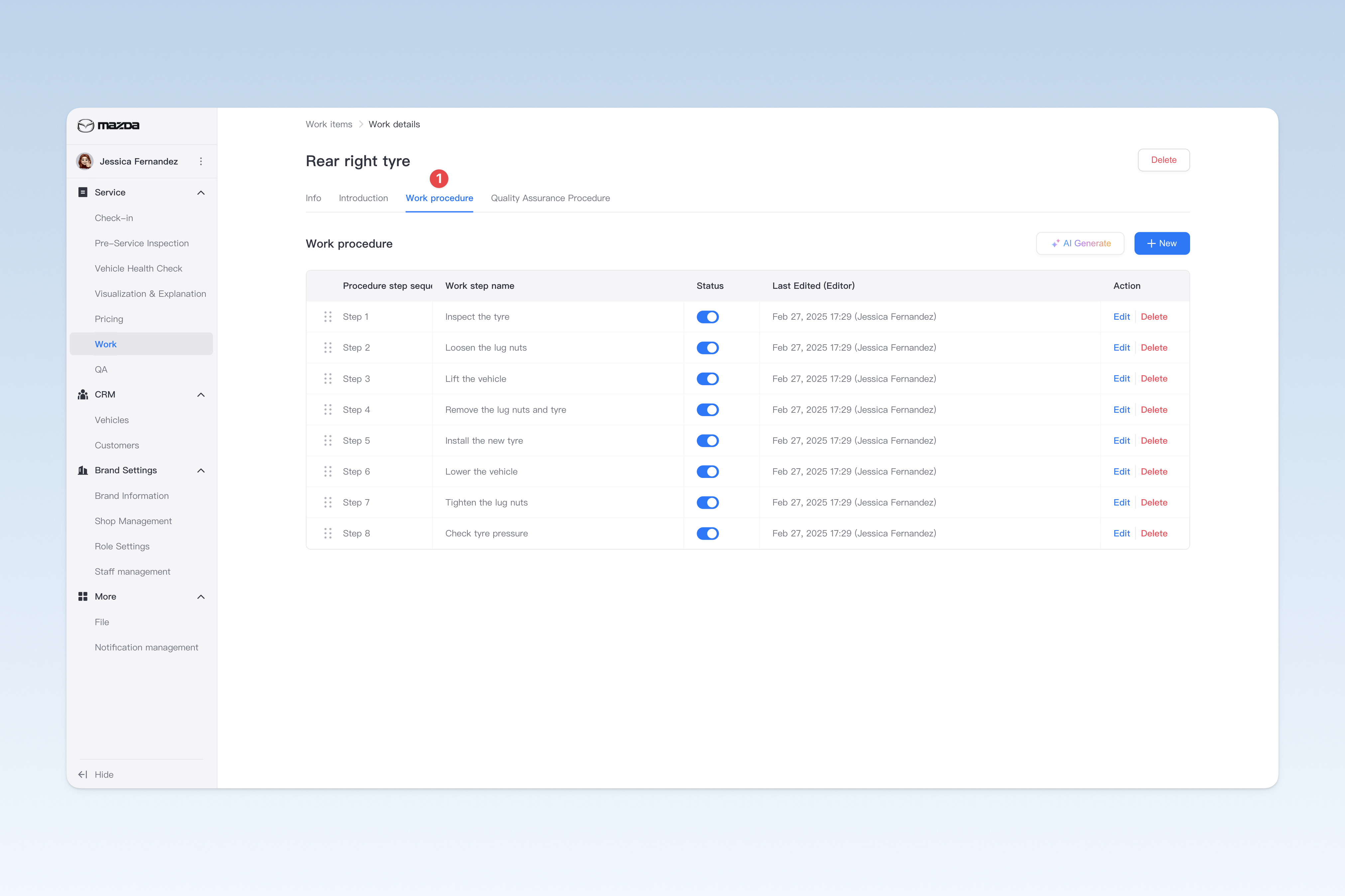
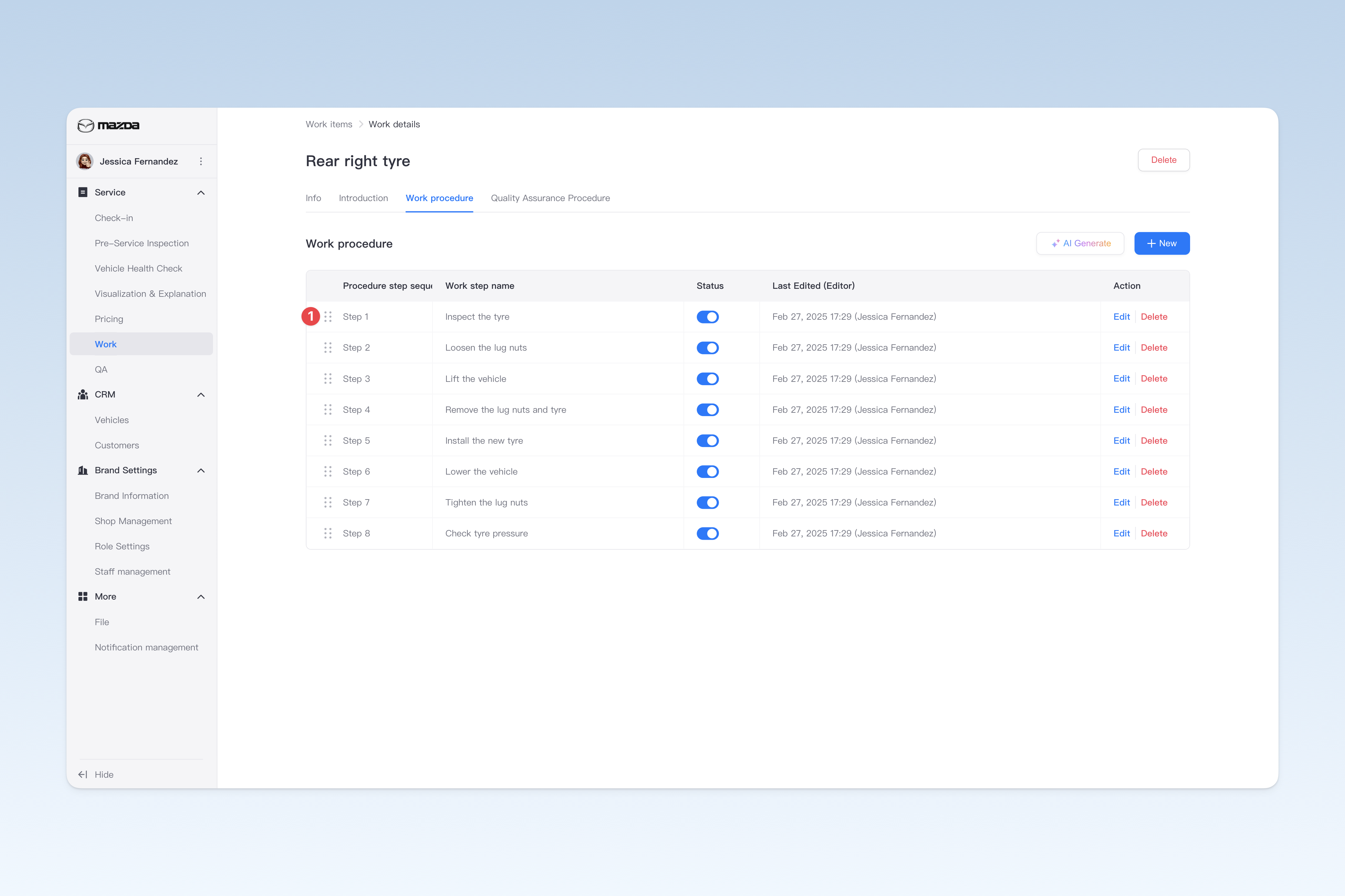
Work procedures break down the key steps of the work service item. During the work process, each step is photographed or videotaped, with relevant work instructions noted.
On the "Work Service Item" page, find the service item you need to modify, and click the [Details] button on the right side of the list. On the "Work Service Item" page that pops up, click the [Work Procedures] menu.
Add Work Procedure
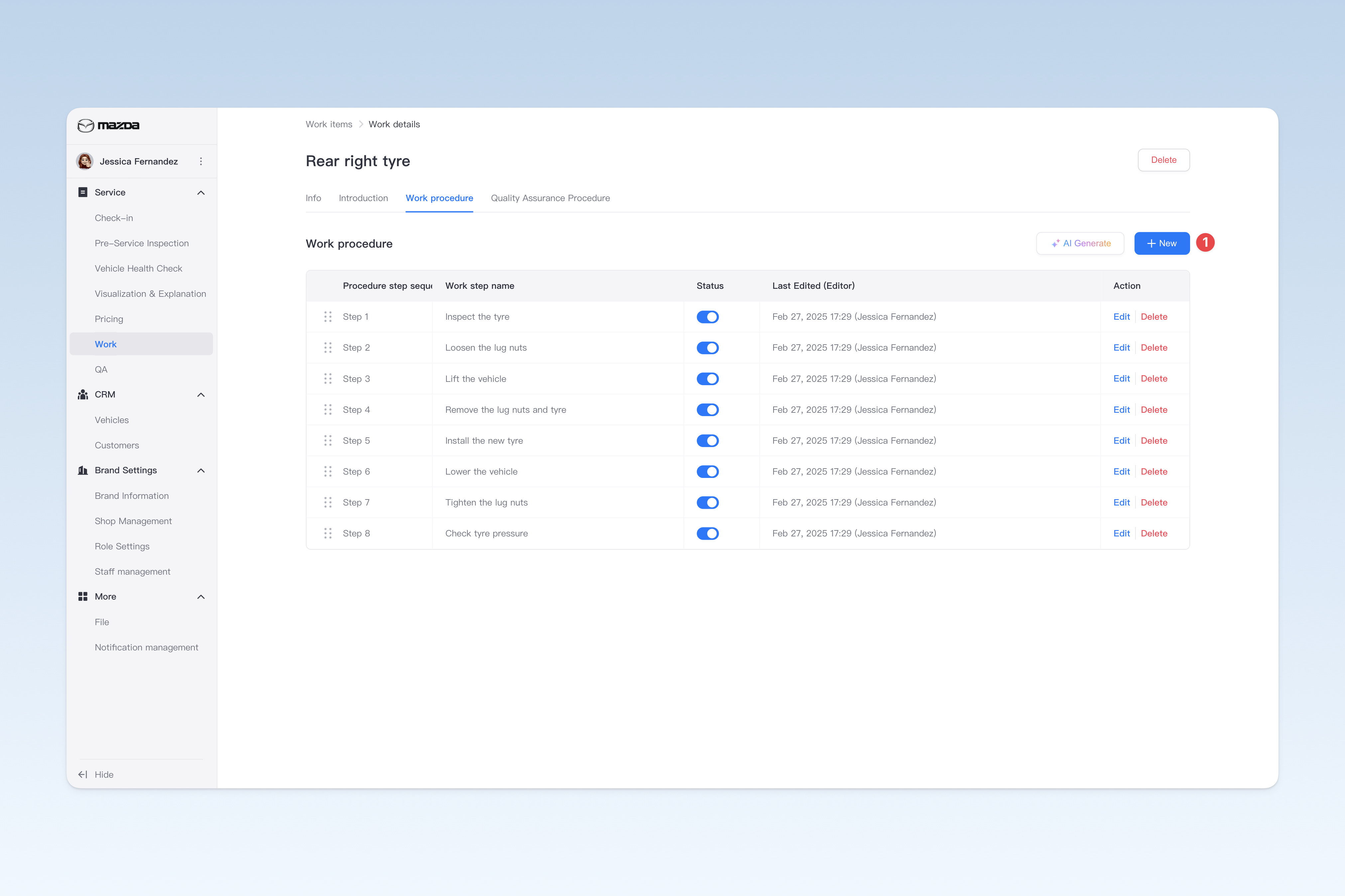
On the "Work Procedures" page, click the [Create] button, and the "Create Work Procedure" window will pop up.
In the pop-up window, you need to enter the work procedure name, select whether a photo is required, enter the procedure description, and upload illustration pics. After completion, click the [Create] button to finish creating.
Modify Basic Information of Work Procedure
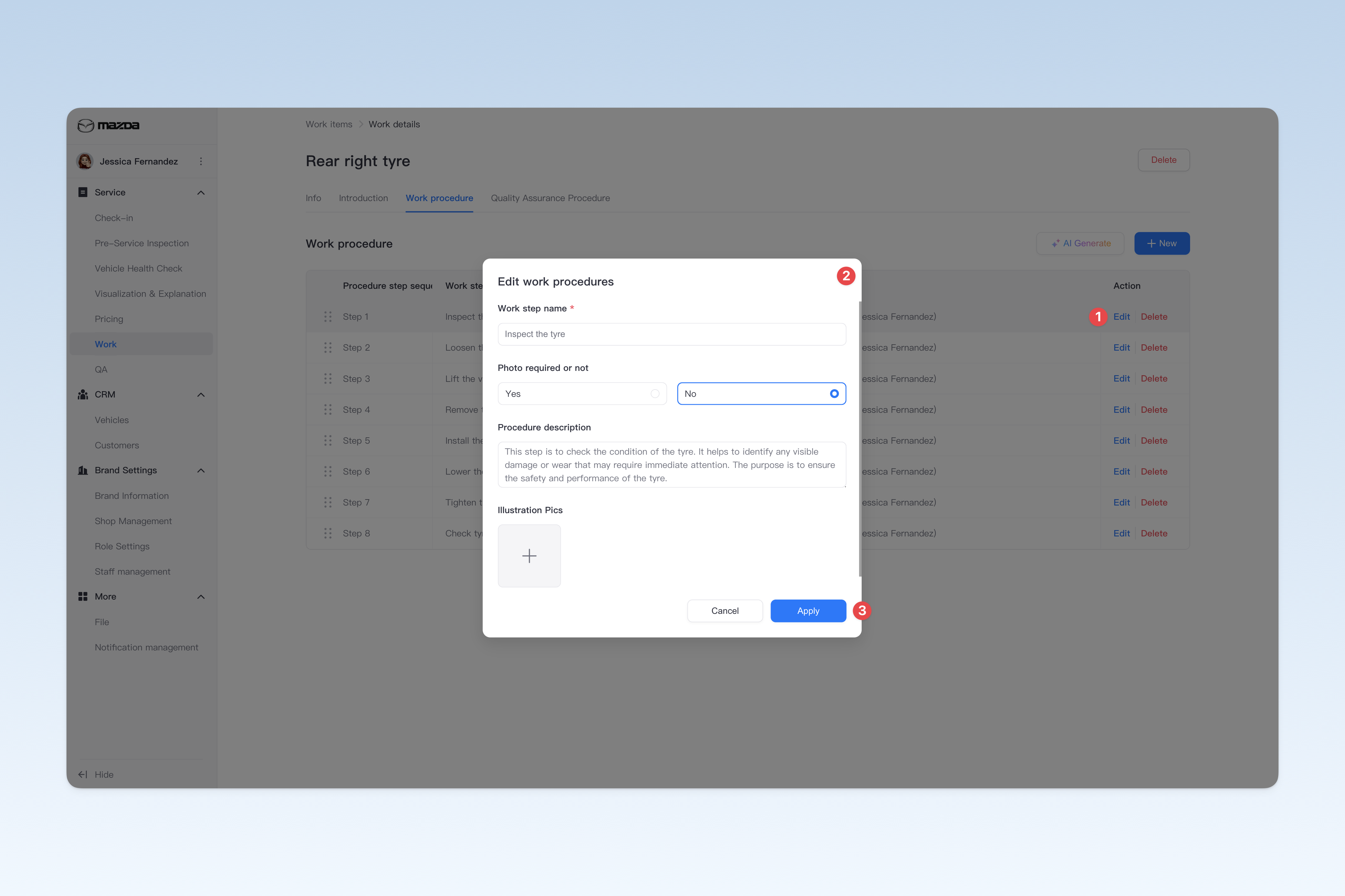
On the "Work Procedures" page, find the procedure you need to modify, click the [Edit] button on the right side of the list, and you can modify the following information in the "Edit Work Procedure" window that pops up.
- Work Procedure Name: The name of the work step.
- Photo Required: Whether to require staff to take photos/videos of the current step during work.
- Procedure Description: Detailed description of the work steps.
- Illustration Pics: Diagrams of the work steps, which can provide reference for workers and show the work process to customers.
Delete Work Procedure
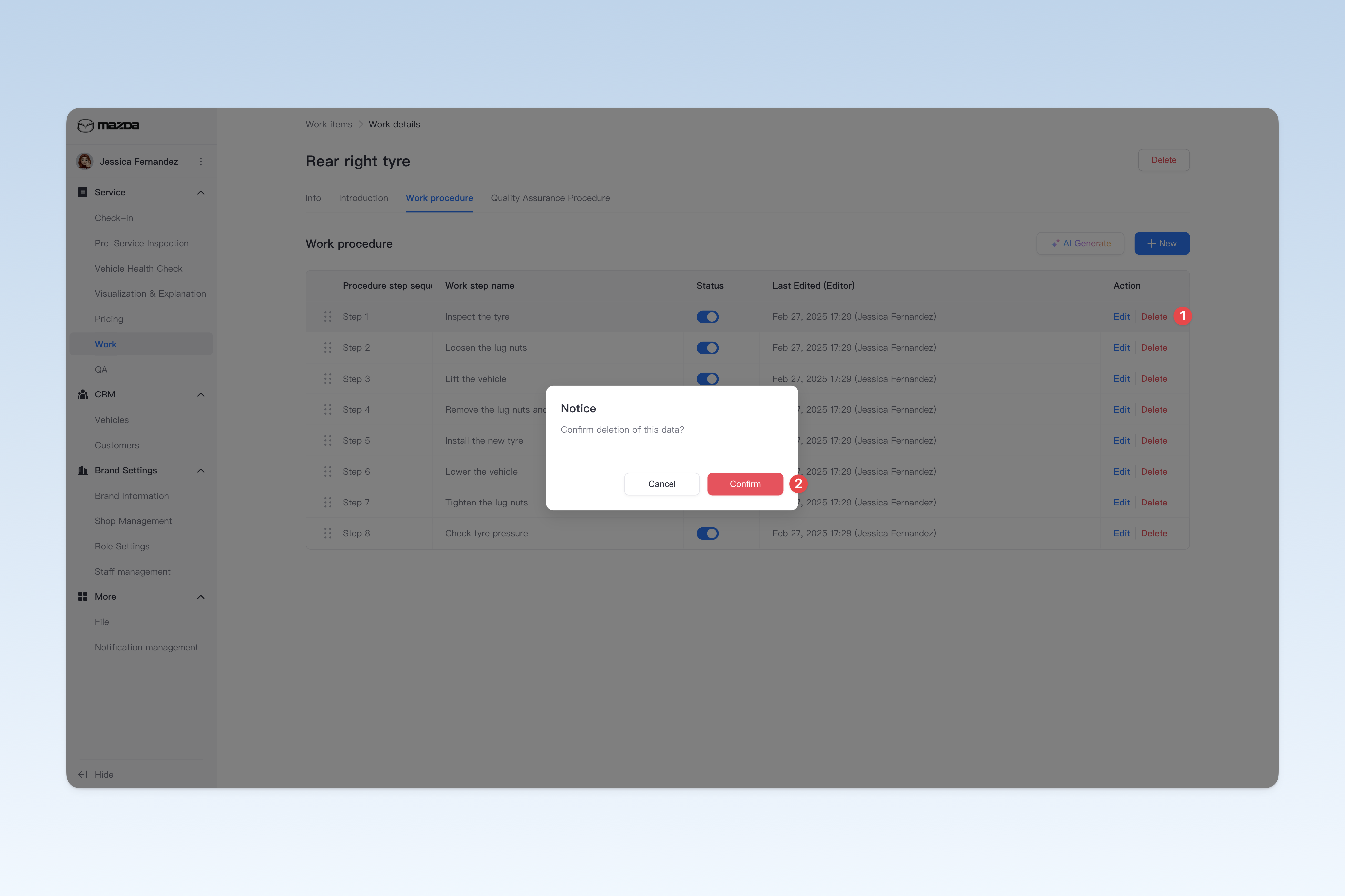
On the "Work Procedures" page, find the procedure you need to delete, click the [Delete] button on the right side of the list, a confirmation window will pop up, click [Confirm] to delete the corresponding procedure.
Enable/Disable Work Procedure
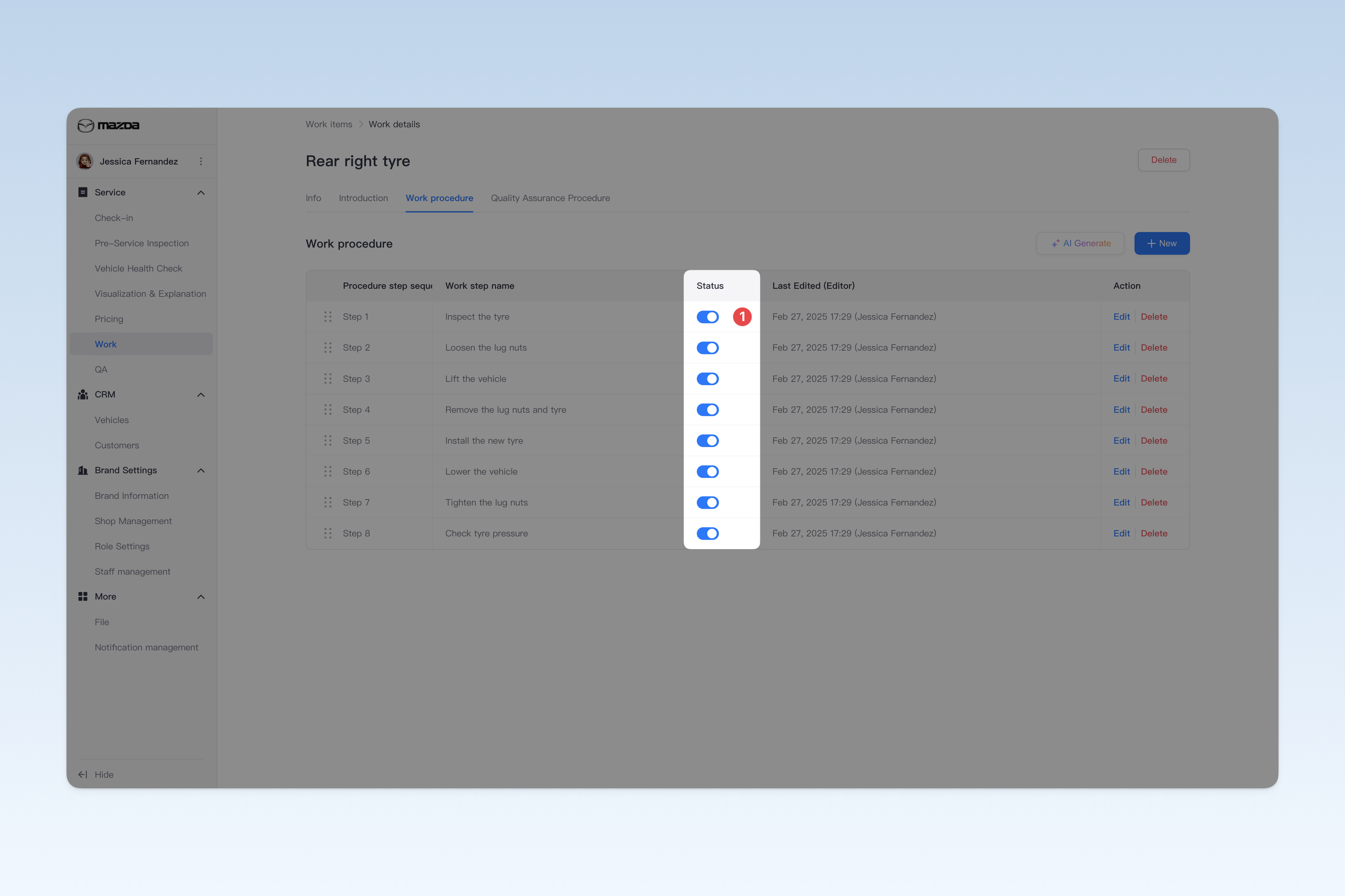
On the "Work Procedures" page, find the "Status" in the list, click the [On/Off] button to "Enable" or "Disable" any work procedure.
Change the Order of Work Procedures
On the "Work Procedure List" page, find the procedure you need to adjust, hover over the drag icon on the left , at this time the mouse pointer will change to a "drag" style. Hold down the left mouse button and drag up and down to adjust the order of the procedures.
Configure Work QA Procedure
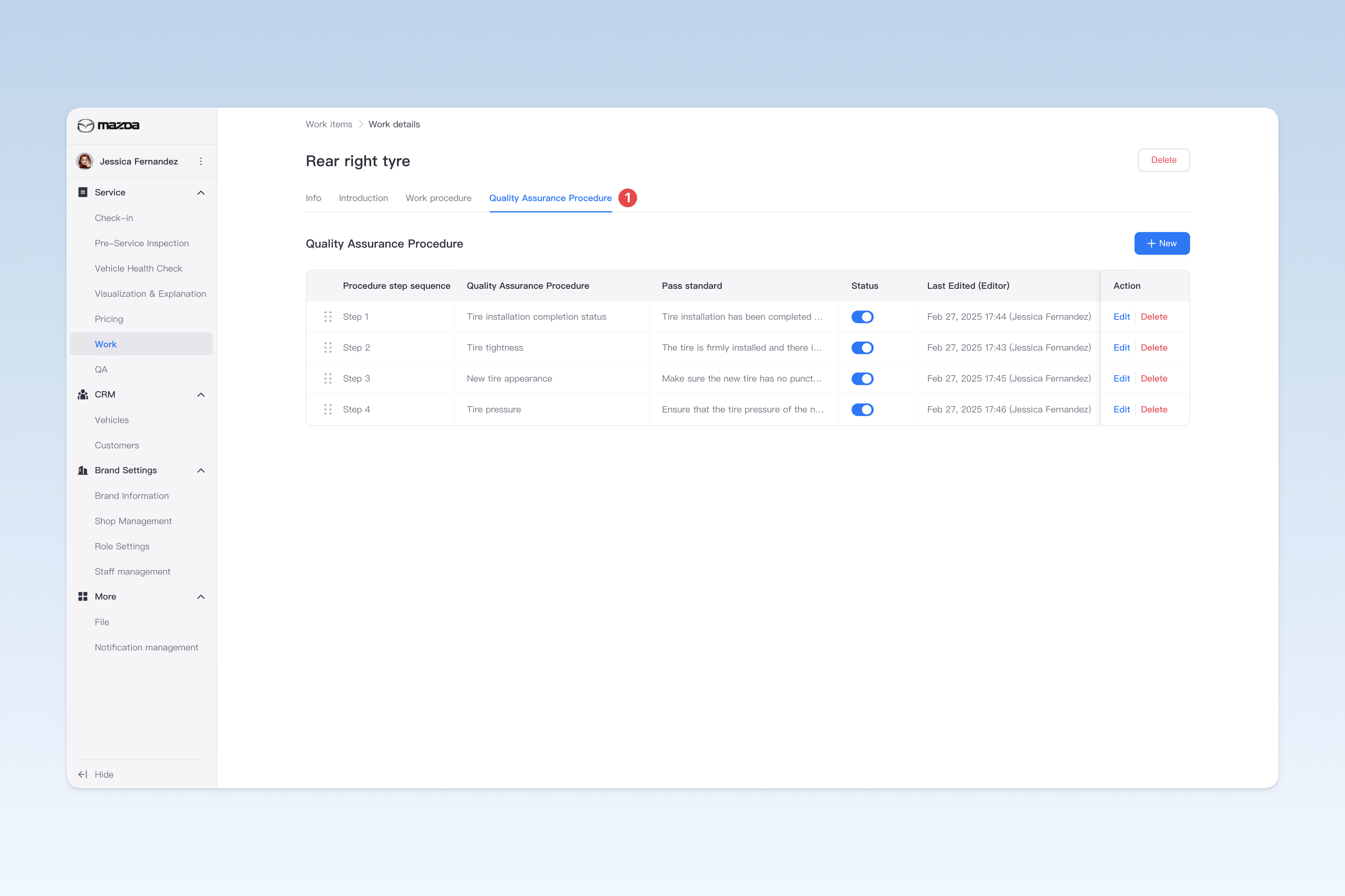
The QA procedure is specifically for the current work service item. After the QA procedure is configured, when the work item is completed, the Intelligent Technician APP will automatically activate the QA procedure for independent quality inspection of the item.
⚠️ Note: The QA procedure here only applies to the current work service, not all services. QA will only be activated after the current service is completed. To learn about or configure global QA, please refer to: ▣ Quality Control
On the "Work Service Item" page, find the service item you need to modify, and click the [Details] button on the right side of the list. On the "Work Service Item" page that pops up, click the [QA Procedure] menu.
Create Work QA Procedure
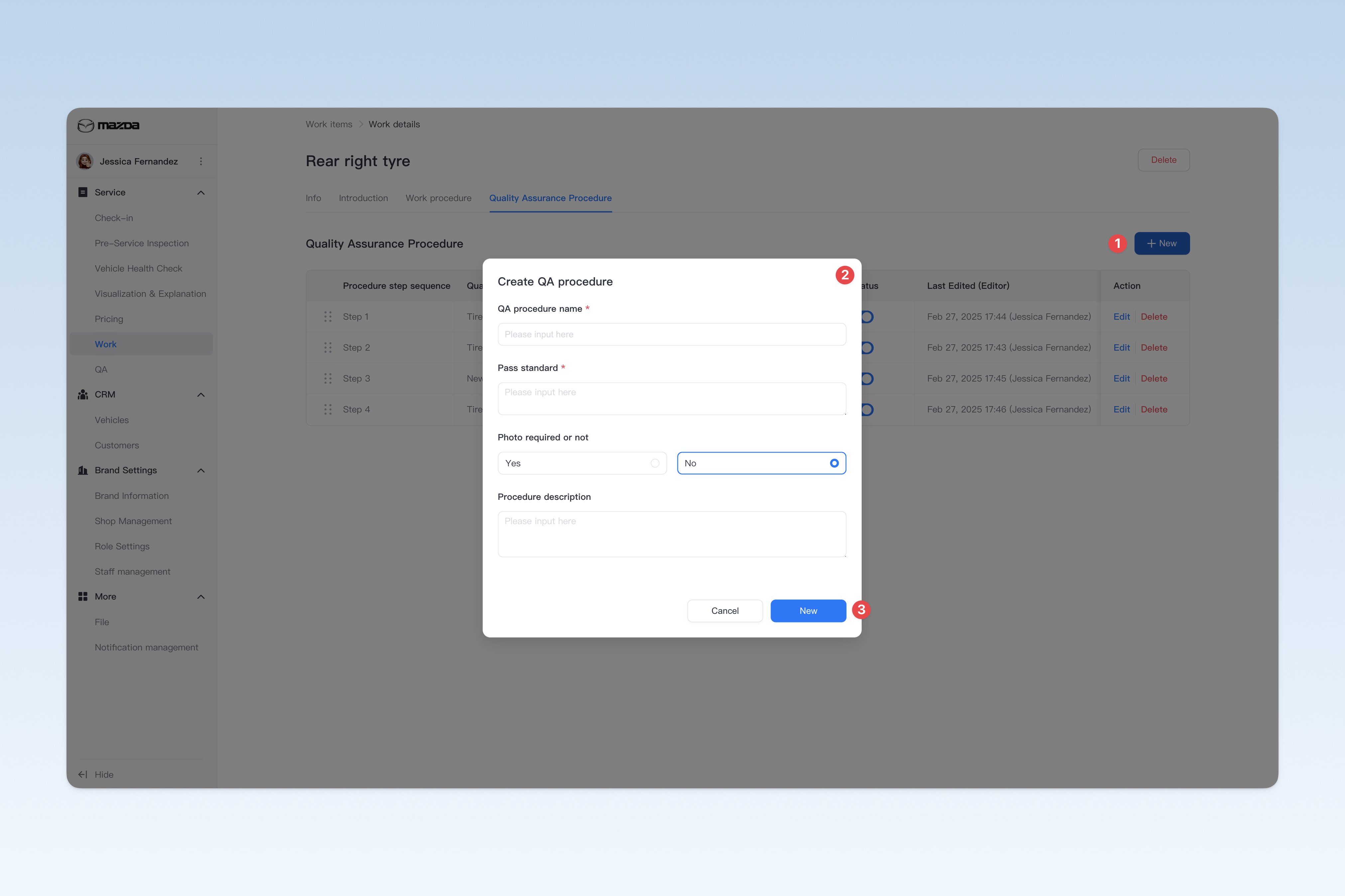
On the "QA Procedure" page, click the [Create] button, and the "Create QA Procedure" window will pop up.
In the pop-up window, you need to enter the QA procedure name, enter the pass standard, select whether a photo is required, and enter the procedure description. After completion, click the [Create] button to finish creating.
Modify Basic Information of Work QA Procedure
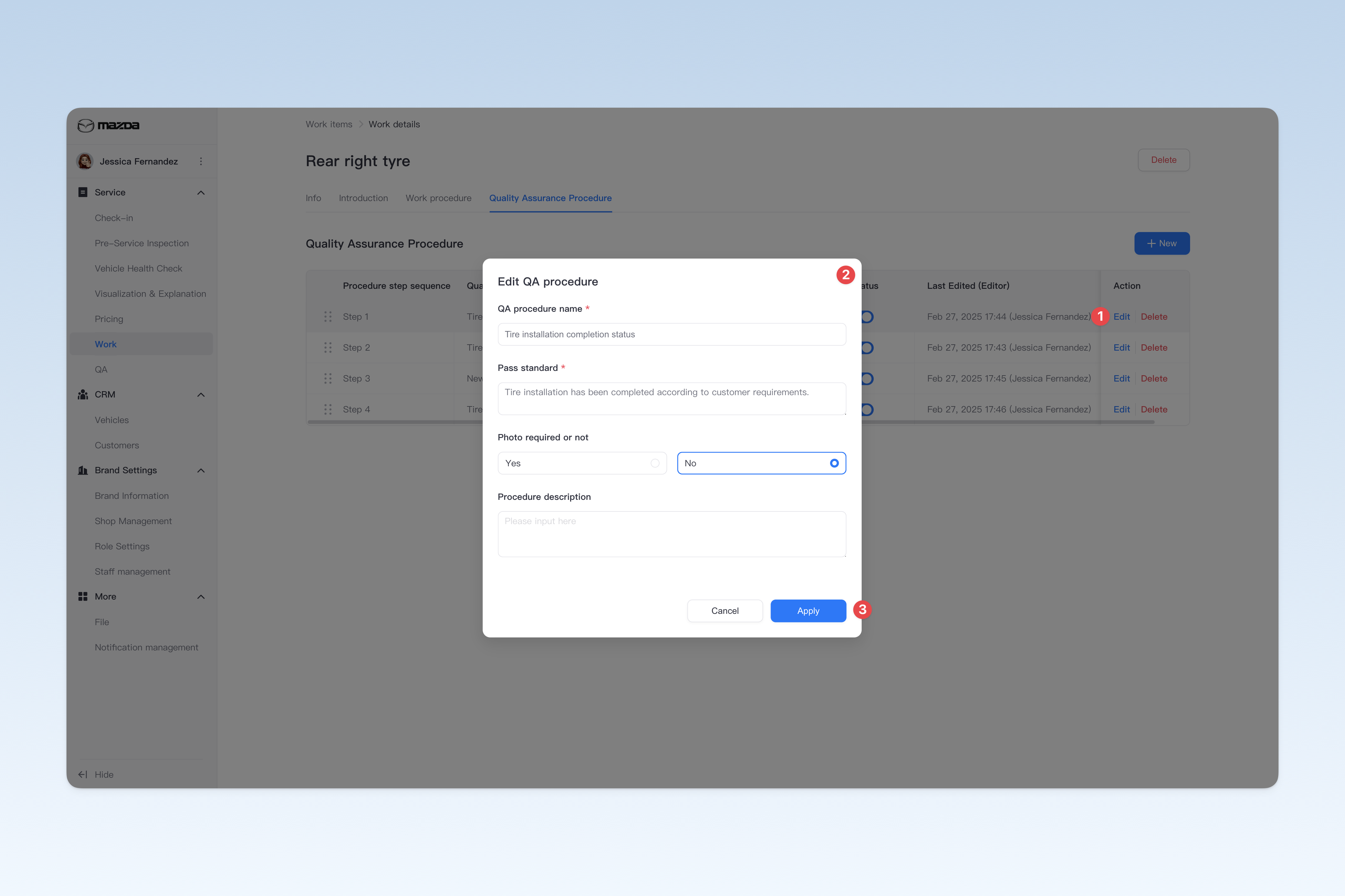
On the "QA Procedure" page, find the procedure you need to modify, click the [Edit] button on the right side of the list, and you can modify the following information in the "Edit QA Procedure" window that pops up.
- QA Procedure Name: The name of the QA step.
- Pass Standard: Used to clarify specific requirements and judgment basis for QA pass (to ensure QA personnel have standards to follow during QA).
- Photo Required: Whether to require staff to take photos/videos of the current step during QA.
- Procedure Description: Detailed description of the QA steps (for presentation to the customer).
Delete QA Procedure
On the "QA Procedure" page, find the QA procedure you need to delete, click the [Delete] button on the right side of the list, a confirmation window will pop up, click [Confirm] to delete the corresponding procedure.
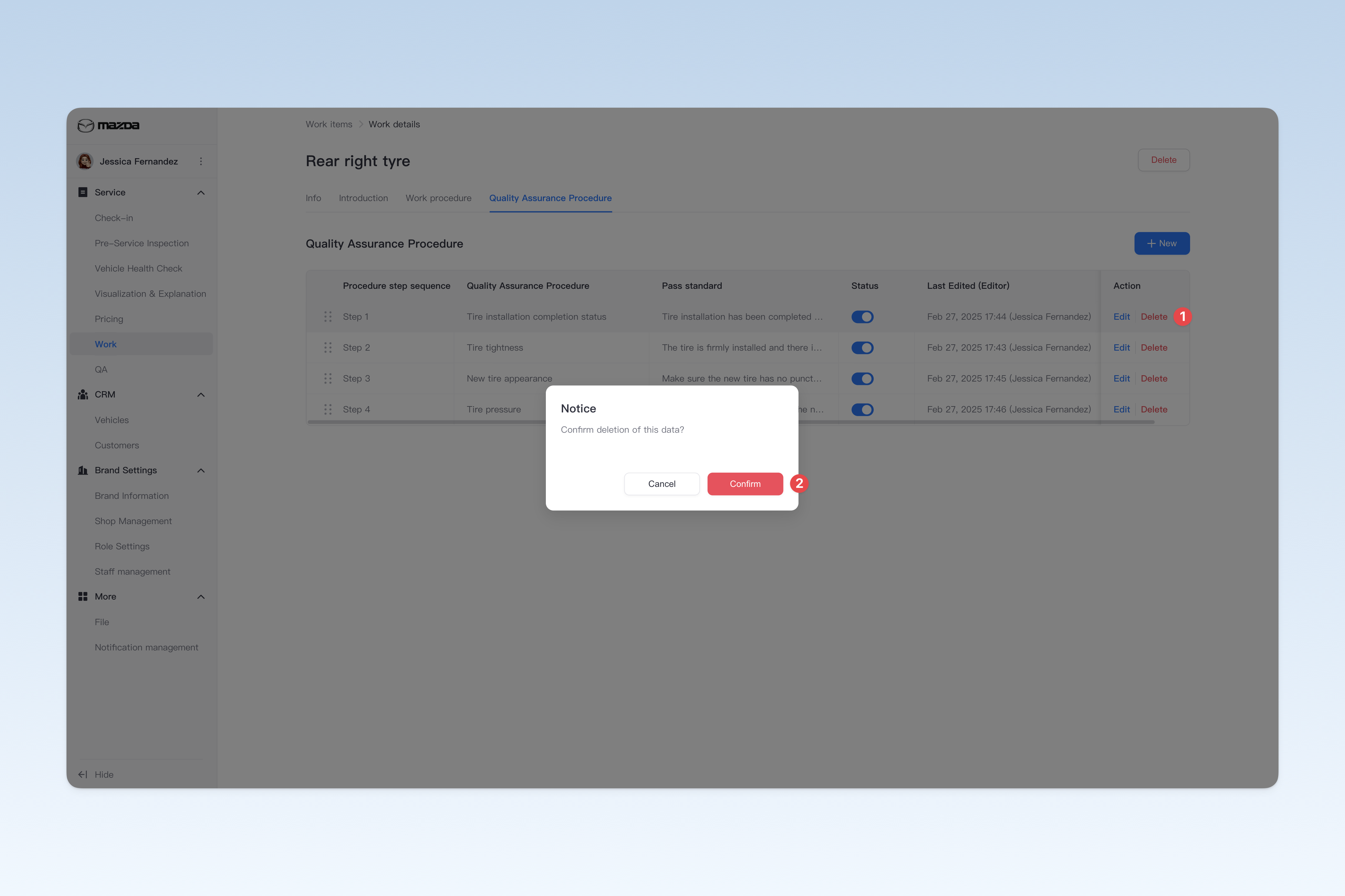
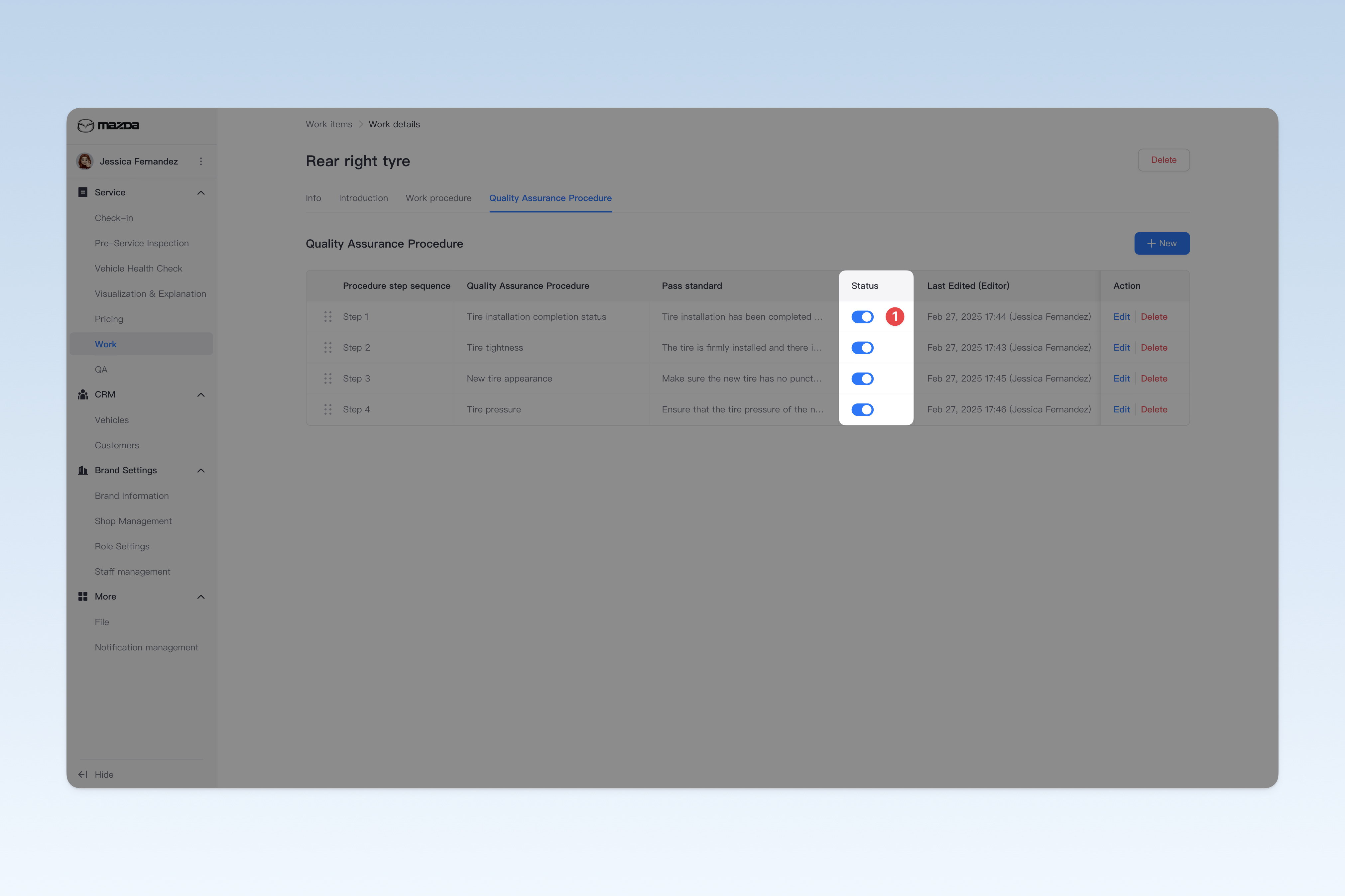
Enable/Disable QA Procedure
On the "QA Procedure" page, find the "Status" in the list, click the [On/Off] button to "Enable" or "Disable" any QA procedure.
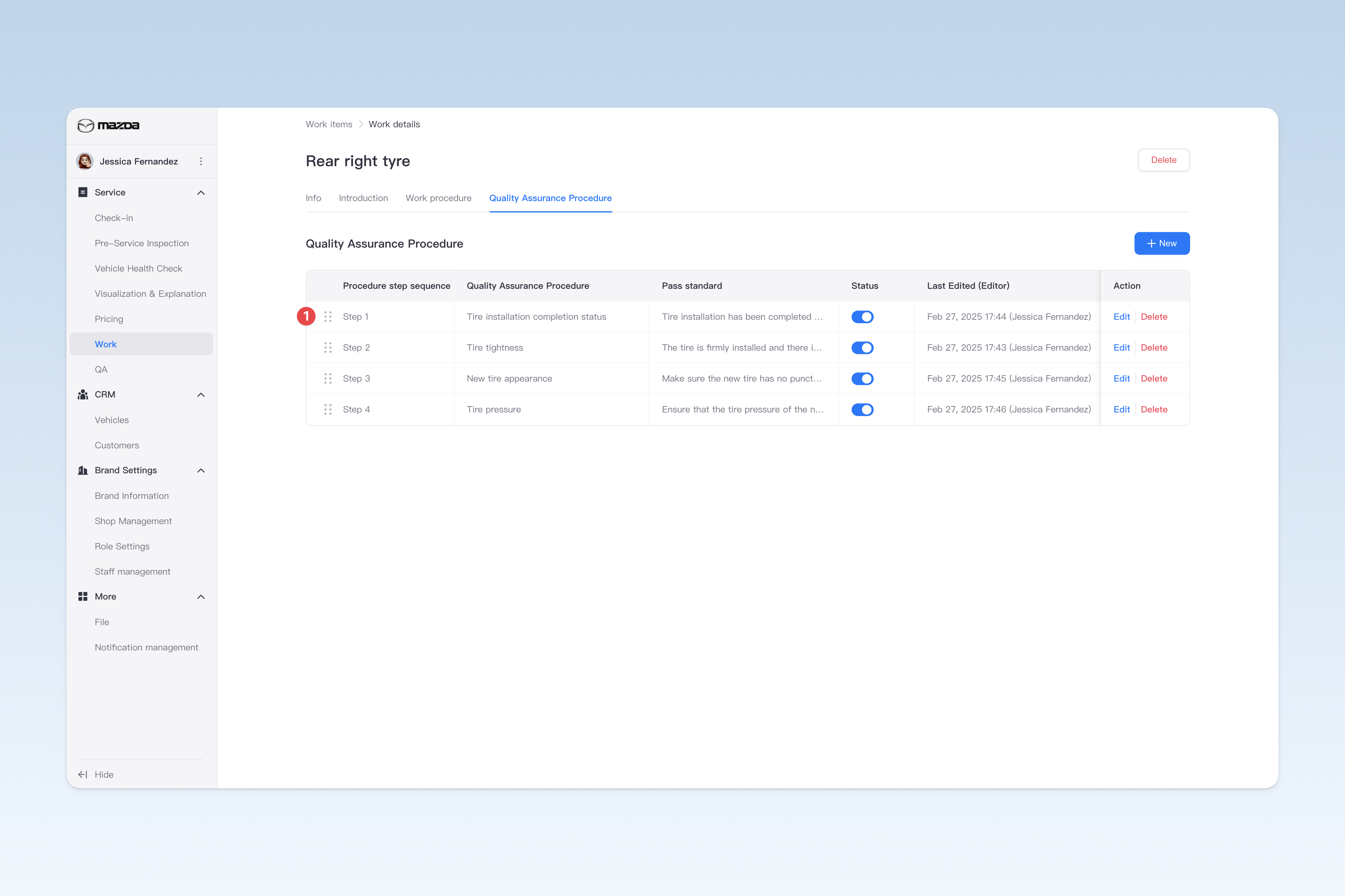
Change the Order of QA Procedures
On the "QA Procedure" page, find the procedure you need to adjust, hover over the drag icon on the left , at this time the mouse pointer will change to a "drag" style. Hold down the left mouse button and drag up and down to adjust the order of the procedures.
Delete Work Service Item
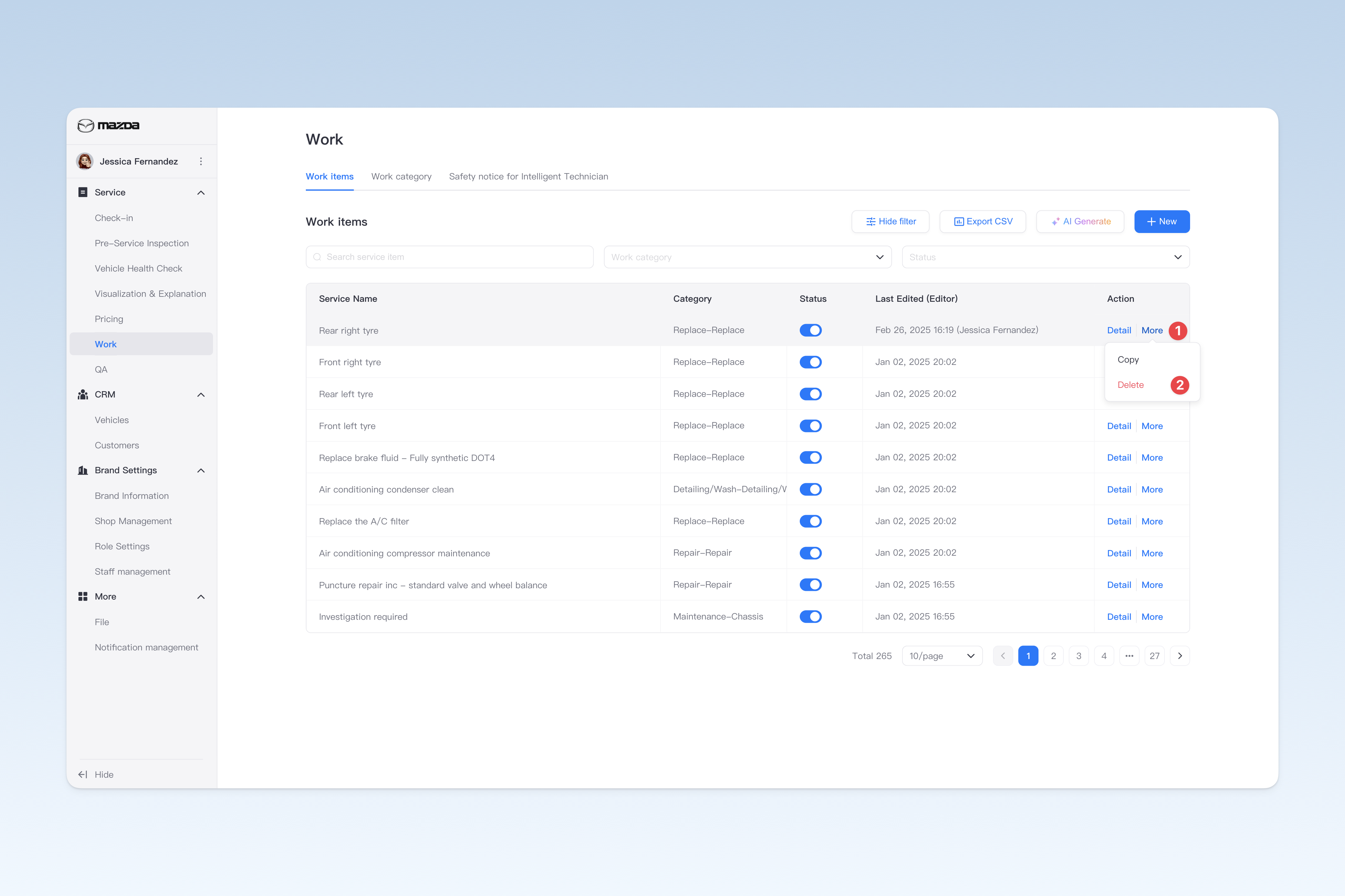
Currently, there are two ways to delete a work service item:
- On the "Work Service Item" page, click the [More] button on the right side of the list, and click the [Delete] button in the drop-down box.
- Go to the "Work Service Item Details" page and click the [Delete] button in the upper right corner of the page.
Enable/Disable Work Service Item
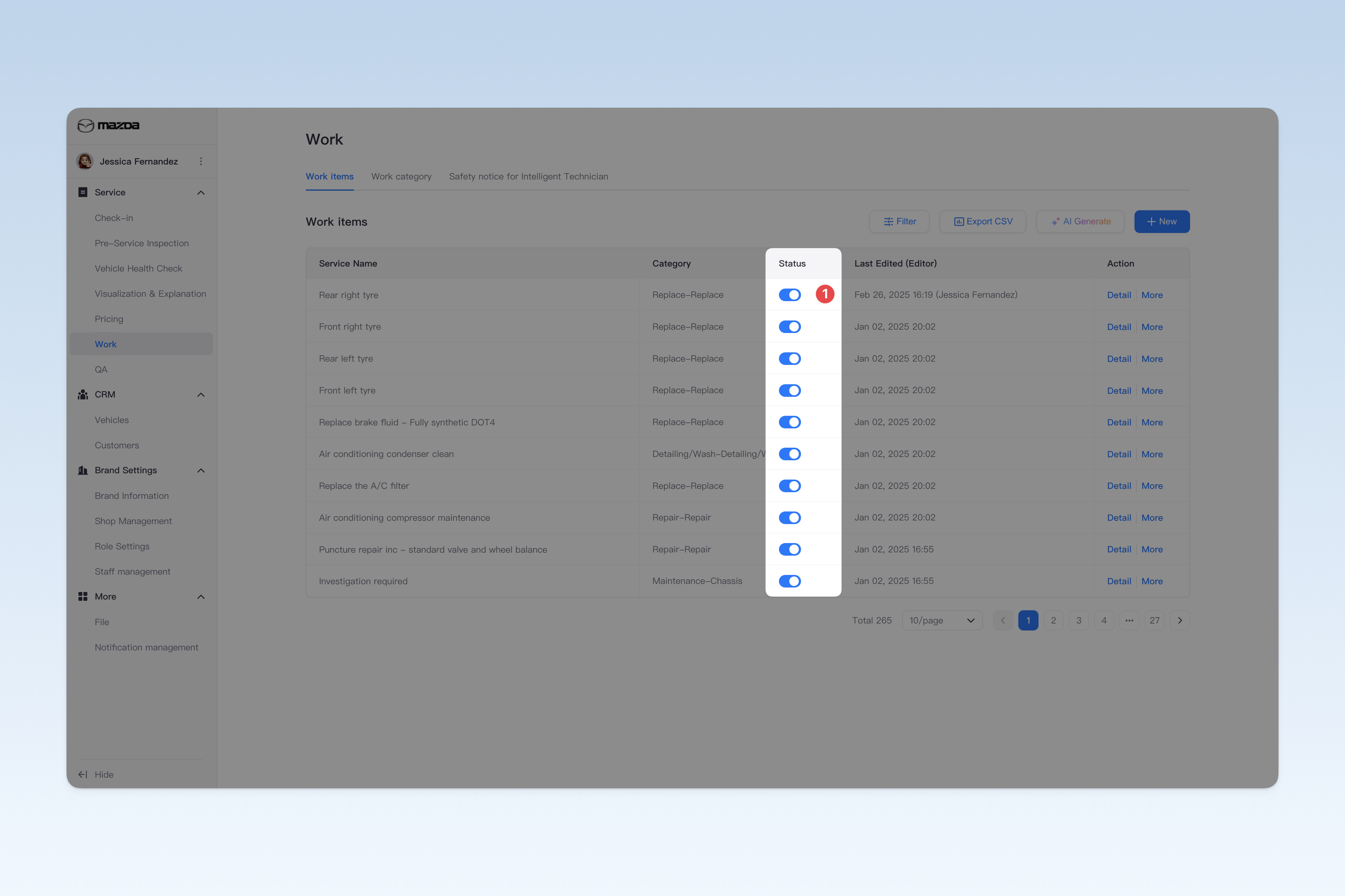
On the "Work Service Item" page, find the "Status" in the list, click the [On/Off] button to "Enable" or "Disable" any work service item.
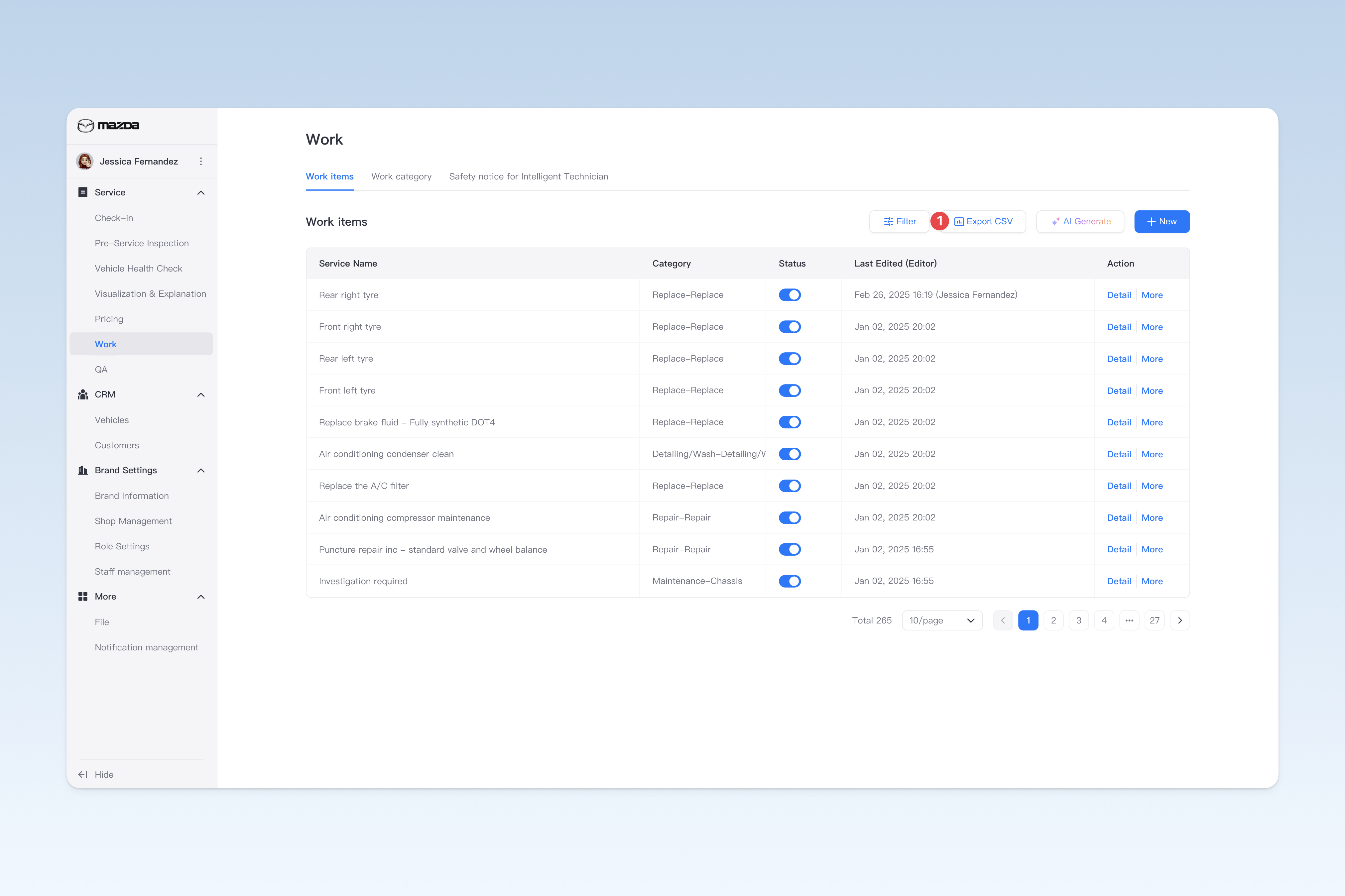
Export Service Item List as a Spreadsheet File
On the "Work Service Items" page, click the [Export CSV] button at the top right corner. After waiting for a short while, the system will automatically create a download task in the browser. Please find the exported spreadsheet file on the browser's download page.