◎ Sub-Modules
When technicians perform vehicle inspections, to ensure a clear and well-organized inspection report, we divide the entire report into three levels: module, sub-module, and checkpoint. Each module contains multiple sub-modules, and each sub-module contains multiple checkpoints. Through this layer-by-layer combination, a well-structured and logically clear inspection report is ultimately presented to the customer.
Among these three levels, sub-modules are at the second level. Therefore, you need to create sub-modules before proceeding to create checkpoints.
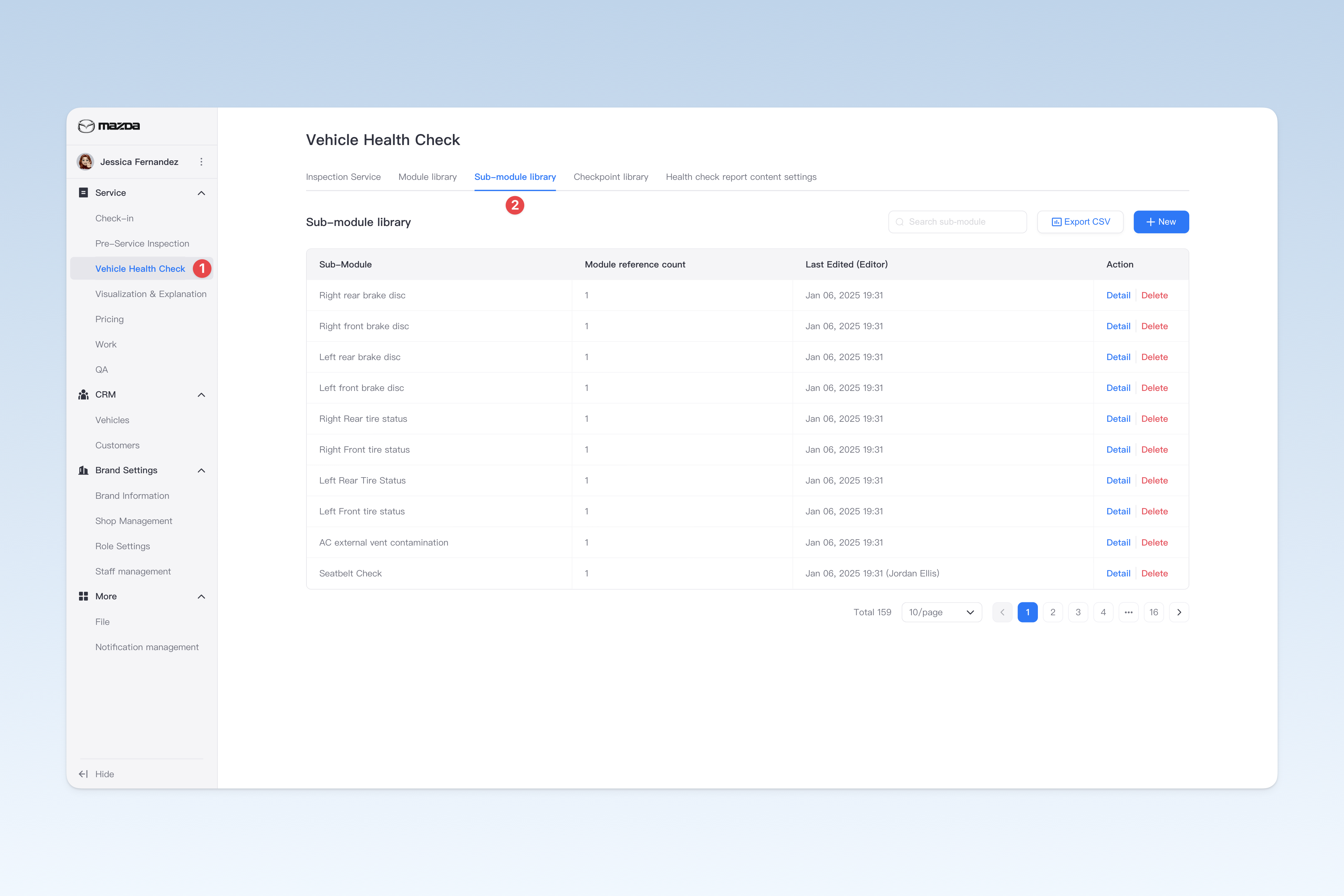
📍 You can configure related content in: AutoX3 Brand Management Dashboard > Service > Health Check > Sub-module Library.
Below is an example combination of modules, sub-modules, and checkpoints in a brake/tire inspection template for your reference and understanding of the composition principle.
1. Module: Tire System

    1.1 Sub-module: Tire Pressure and Age
        1.1.1 Checkpoint: Tire Pressure
        1.1.2 Checkpoint: Tire Age

    1.2 Sub-module: Front Tire Wear
        1.2.1 Checkpoint: Front Tire Tread Depth/mm
        1.2.2 Checkpoint: Front Tire Uneven Wear
        1.2.3 Checkpoint: Front Tire Condition

    1.3 Sub-module: Rear Tire Wear
        1.3.1 Checkpoint: Rear Tire Tread Depth/mm
        1.3.2 Checkpoint: Rear Tire Uneven Wear
        1.3.3 Checkpoint: Rear Tire Condition

 2. Module: Brake System

    1.1 Sub-module: Brake Fluid Quality
        1.1.1 Checkpoint: Brake Fluid Color
        1.1.2 Checkpoint: Brake Fluid Water Content/%

    1.2 Sub-module: Brake Disc Wear
        1.2.1 Checkpoint: Brake Disc Wear Thickness/mm
        1.2.2 Checkpoint: Brake Disc Wear Pattern

    1.3 Sub-module: Brake Pad Wear
        1.3.1 Checkpoint: Brake Pad Thickness/mm
Create Sub-module
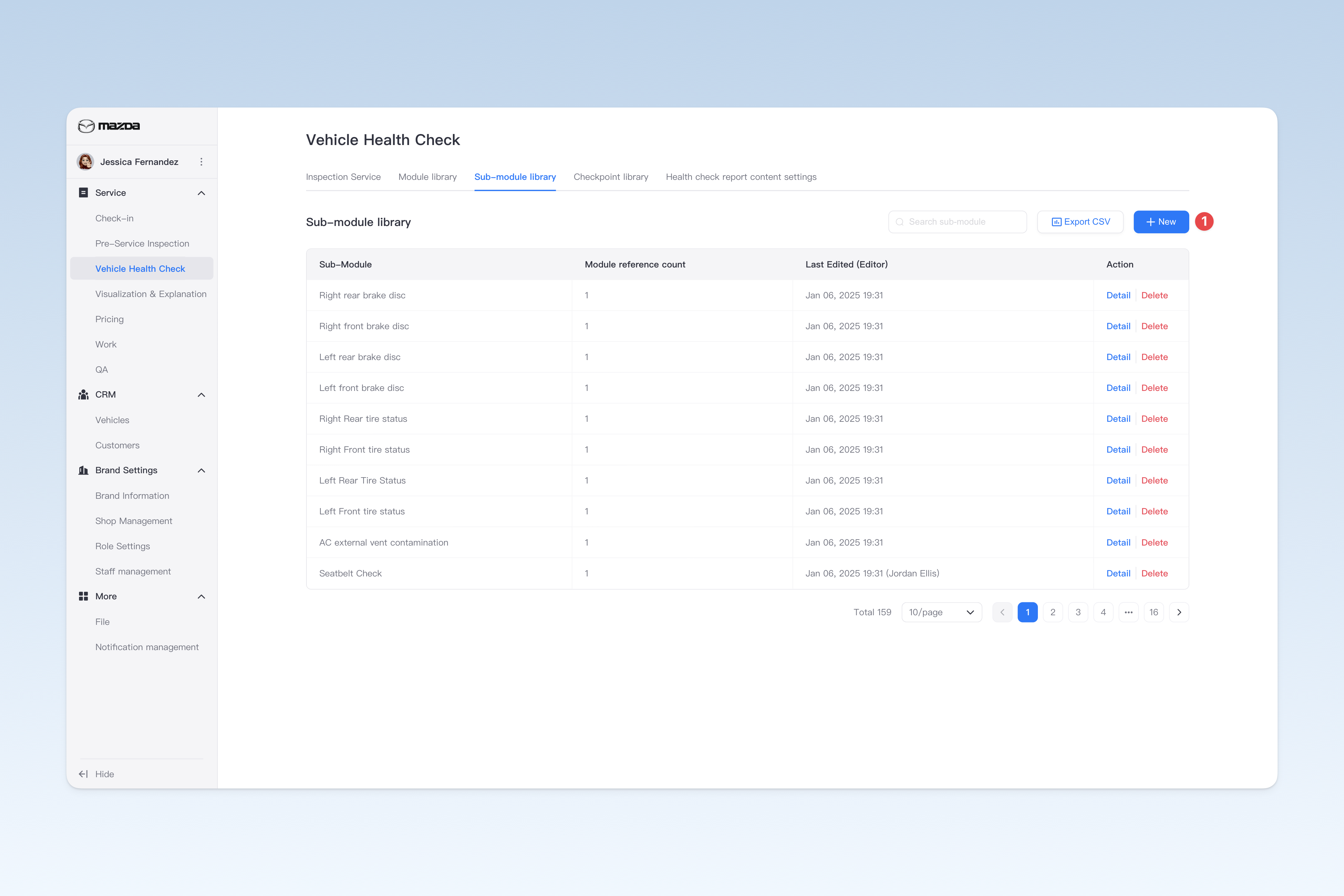
On the "Sub-module Library" page, click the [Create] button to enter the "Create Sub-module" page.
Creating a sub-module involves two steps: filling in basic information and configuring the inspection guide. After completing these steps, click the [Submit] button to finish the operation.
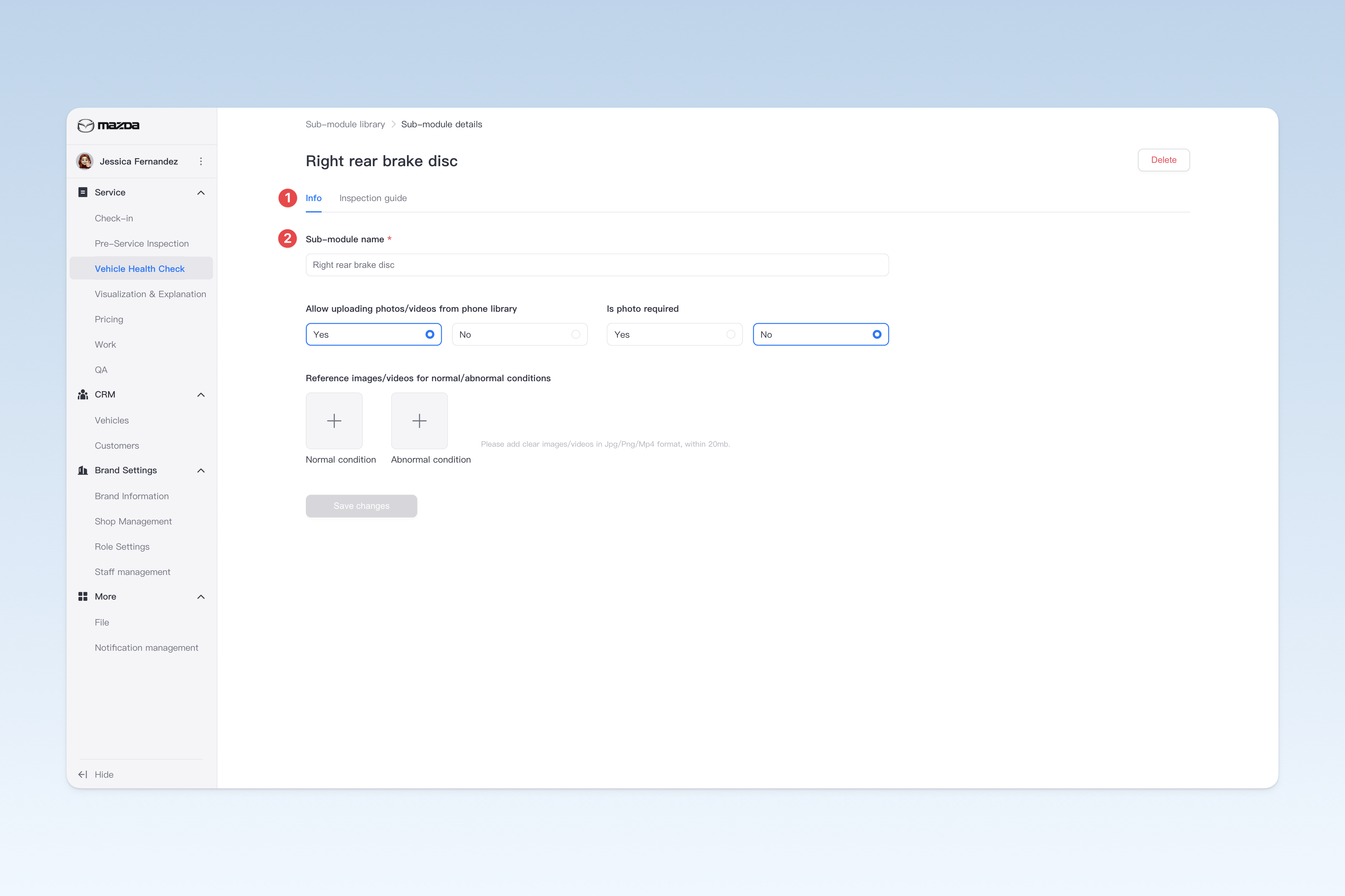
Configure Basic Information
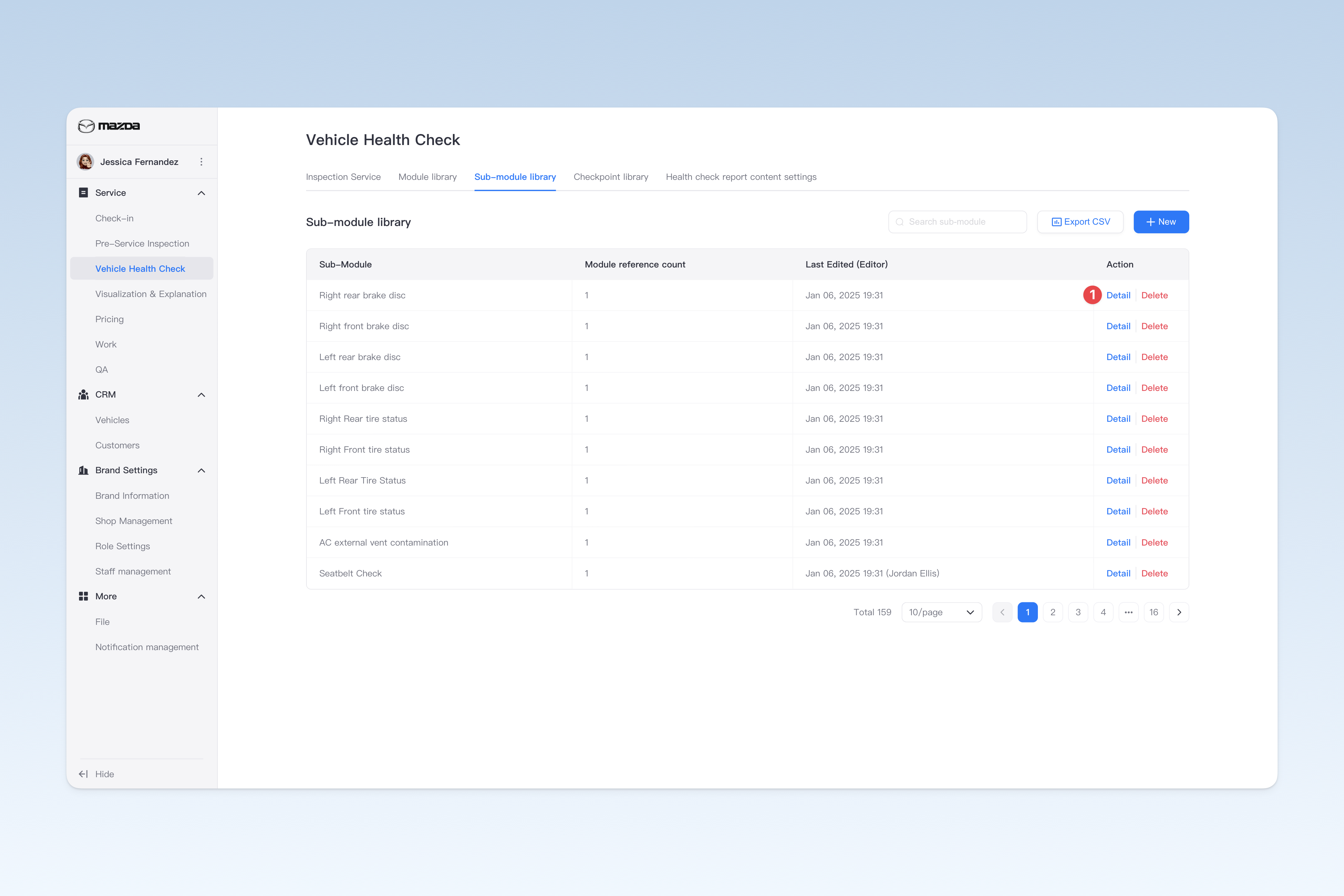
On the "Sub-module Library" page, locate the sub-module you want to modify and click the [Details] button in the Actions column. In the "Sub-module Details" page that pops up, click the [Basic Information] menu. This page is mainly used to configure some basic information of the sub-module.
- Sub-module Name: The name of the inspection item
- Allow Uploading Photos/Videos from Phone Library: Can staff upload photos/videos from their phone gallery? If "Not allowed" is selected, staff will only be able to take photos/videos on-site for this sub-module.
- Photo Required: Whether staff are required to take photos/videos during the inspection of the current step
- Minimal Photo/Video Amount Required: If staff are required to take photos, select the minimum number of photos here.
- Reference Images/Videos for Normal/Abnormal Conditions: Upload photos of the sub-module in normal and abnormal conditions for customers to compare when viewing the inspection report.
Configure Inspection Guide
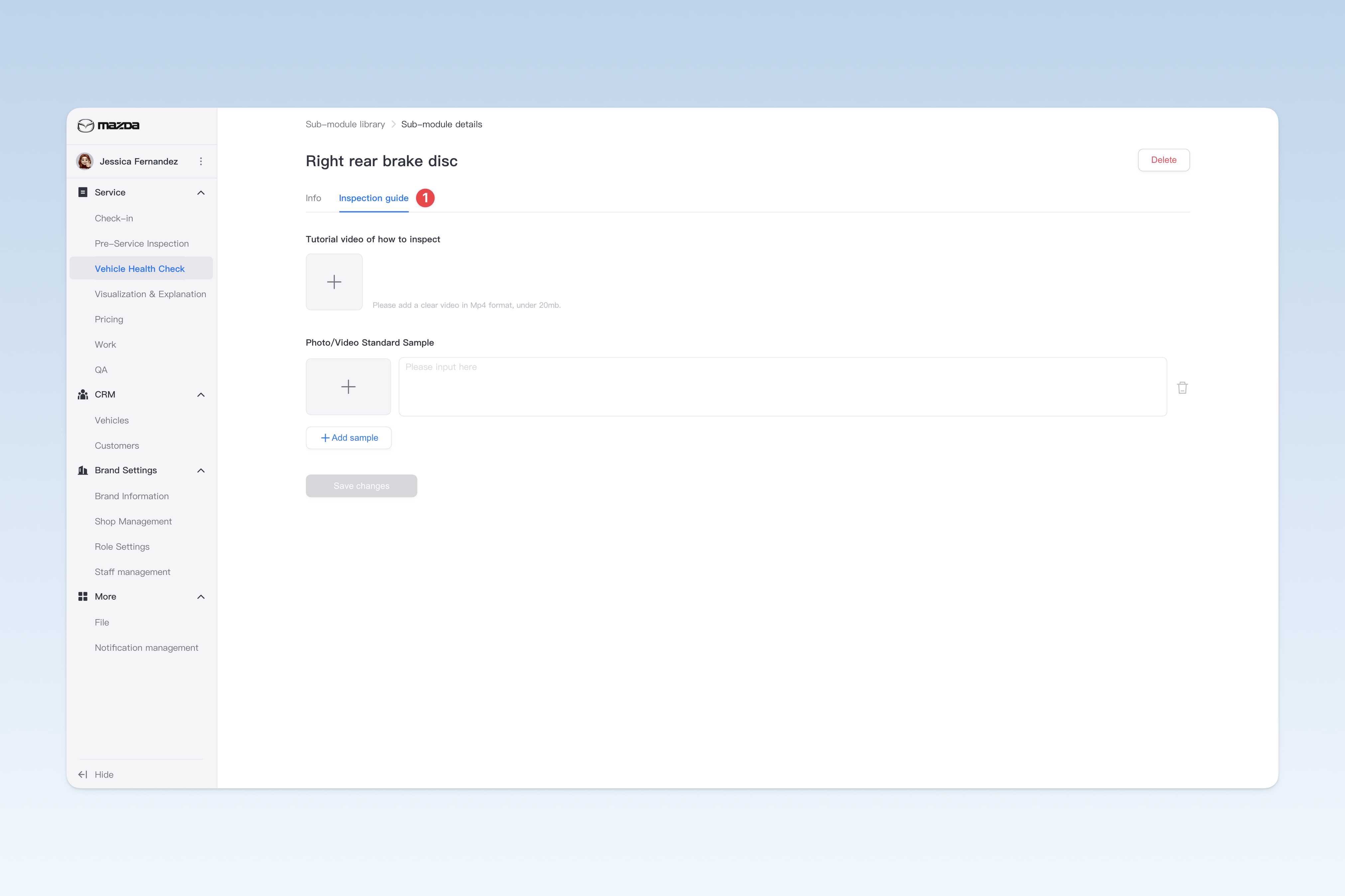
The inspection guide provides standardized inspection guidance for staff to help your group implement more uniform and standardized inspection processes.
On the "Sub-module Library" page, locate the sub-module you want to modify and click the [Details] button in the Actions column. In the "Sub-module Details" page that pops up, click the [Inspection Guide] menu.
- Tutorial Video of How to Inspect: You can upload an instructional video for this sub-module. After setup, staff can view the video in the Intelligent Technician app during inspection to learn standard operating methods.
- Photo/Video Standard Sample: You can upload sample photos for this sub-module and fill in shooting guidance descriptions to help staff take more standard and consistent photos. After setup, staff can view the relevant sample images from the top right corner of the camera page during inspection in Intelligent Technician. ** ⚠️: Note: This feature is only applicable to Full Camera mode and cannot be used in Simple Camera mode.**
Delete Sub-module
There are 2 ways to delete a sub-module:
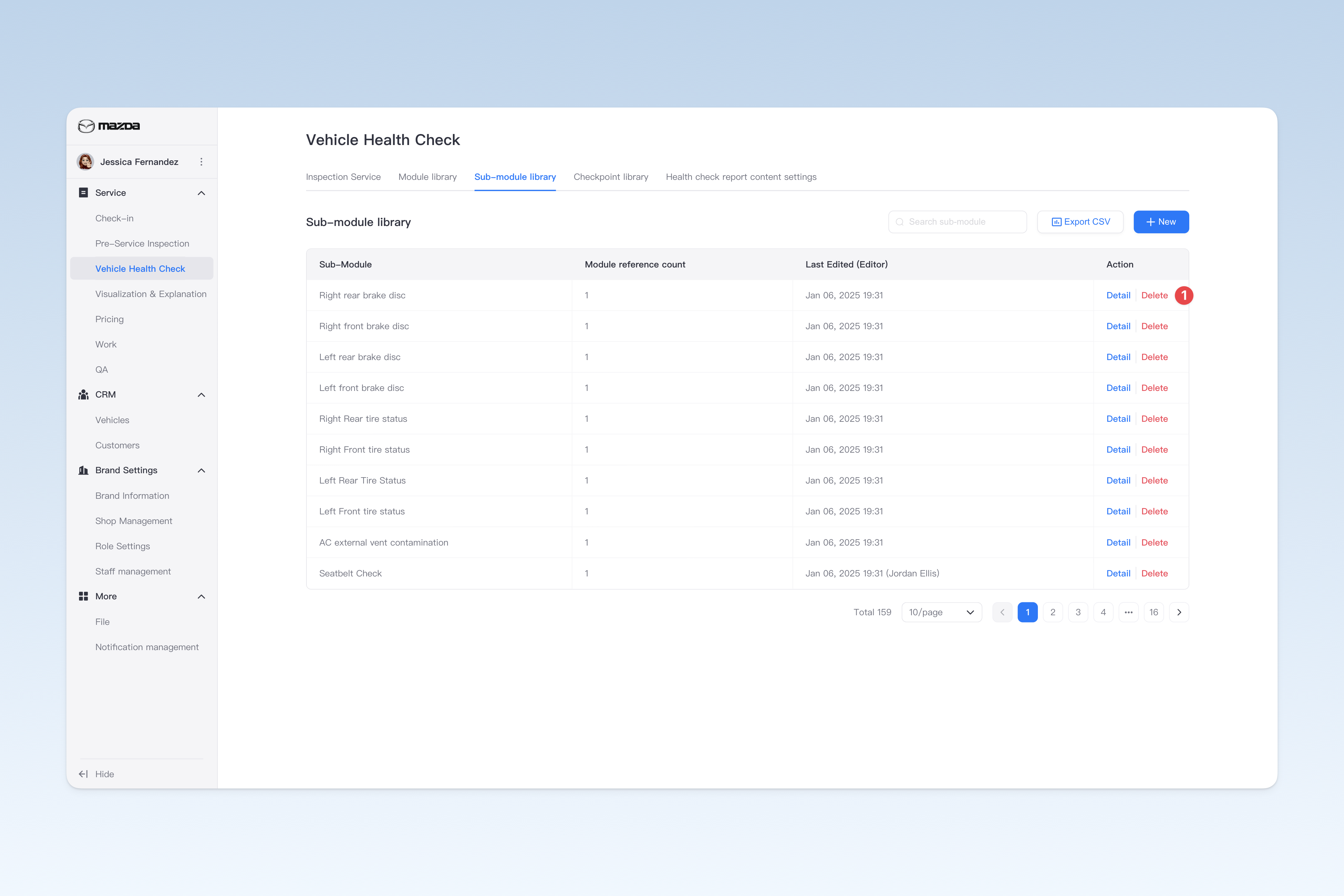
- On the "Sub-module Library" page, locate the sub-module you want to delete and click the [Delete] button in the Actions column. A confirmation dialog will pop up. Click [Confirm] to delete the sub-module.
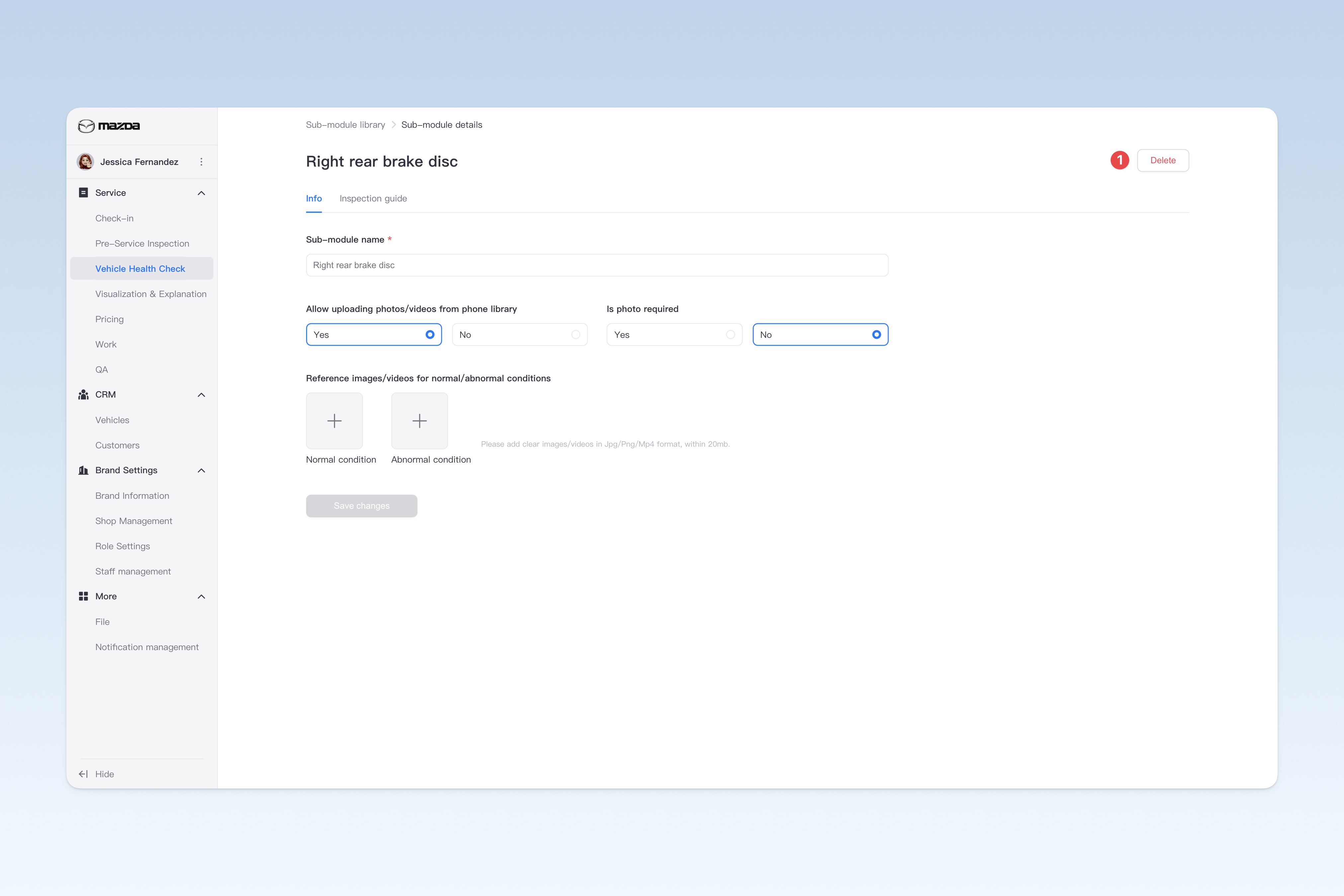
- On the "Sub-module Library" page, locate the sub-module you want to delete and click the [Details] button in the Actions column. In the "Sub-module Details" page that pops up, click the [Delete] button. A confirmation dialog will pop up. Click [Confirm] to delete the sub-module.
⚠️ Note: If the sub-module is referenced by any inspection service item, it cannot be directly deleted. You need to go to the relevant inspection service item > Inspection Content menu page and remove it from the referencing item first before attempting to delete it. For specific operations, please refer to: ◎ Inspection Service Items
Export Sub-module Data to Spreadsheet
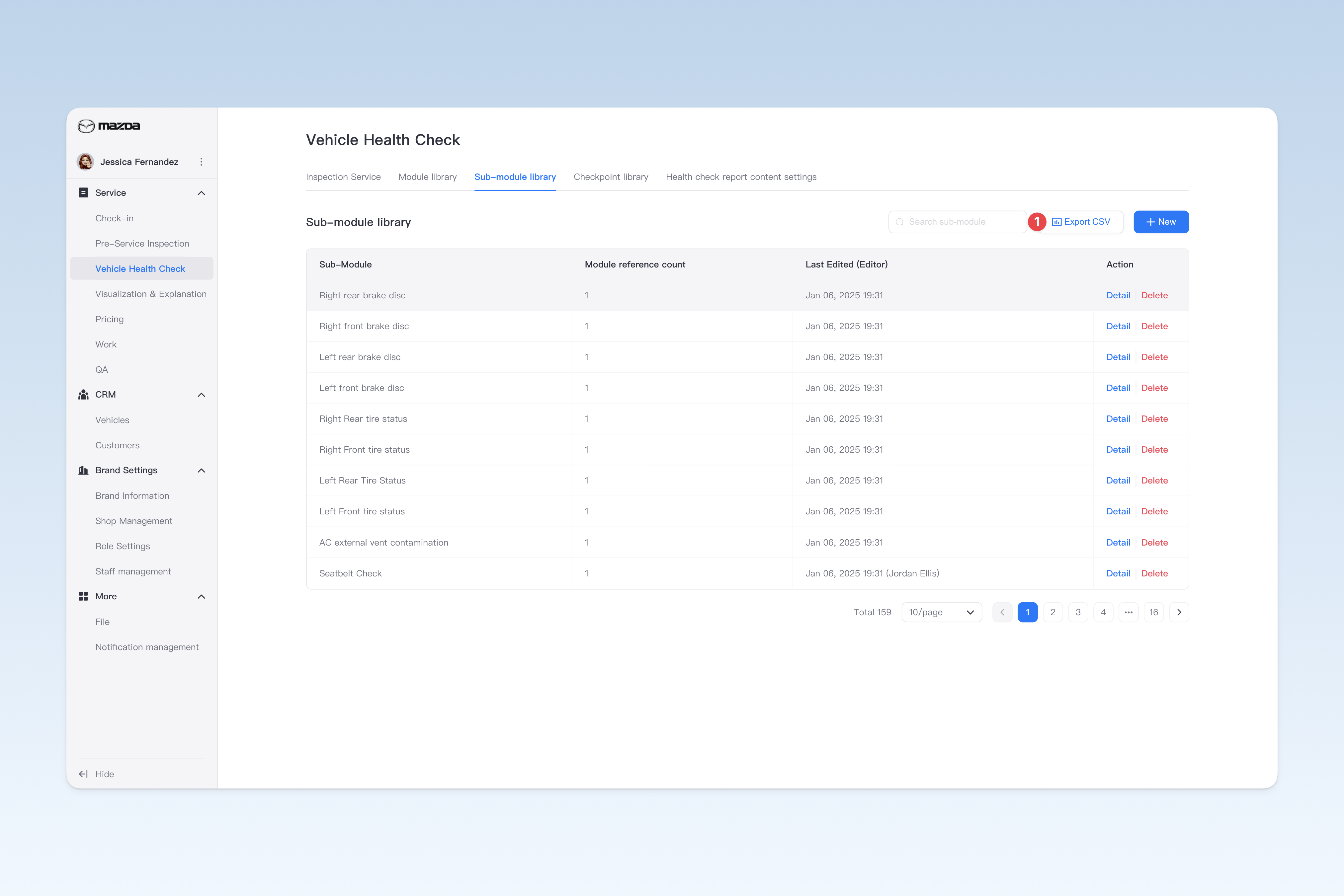
On the "Sub-module Library" page, click the [Export CSV] button in the upper right corner. After a short wait, the system will automatically create a download task in the browser. Please locate the exported spreadsheet file on the browser's download page.