◎ Checkpoint
When employees inspect vehicles, in order to make the inspection report clear and complete, we divide the entire report into three levels: module, sub-module, and checkpoint. Each module contains multiple sub-modules, and each sub-module contains multiple checkpoints. Through this layered combination, a well-structured and clear inspection report is ultimately presented to the customer.
Among these three levels, the checkpoint is at the lowest level. Once created, you can start configuring the inspection template.
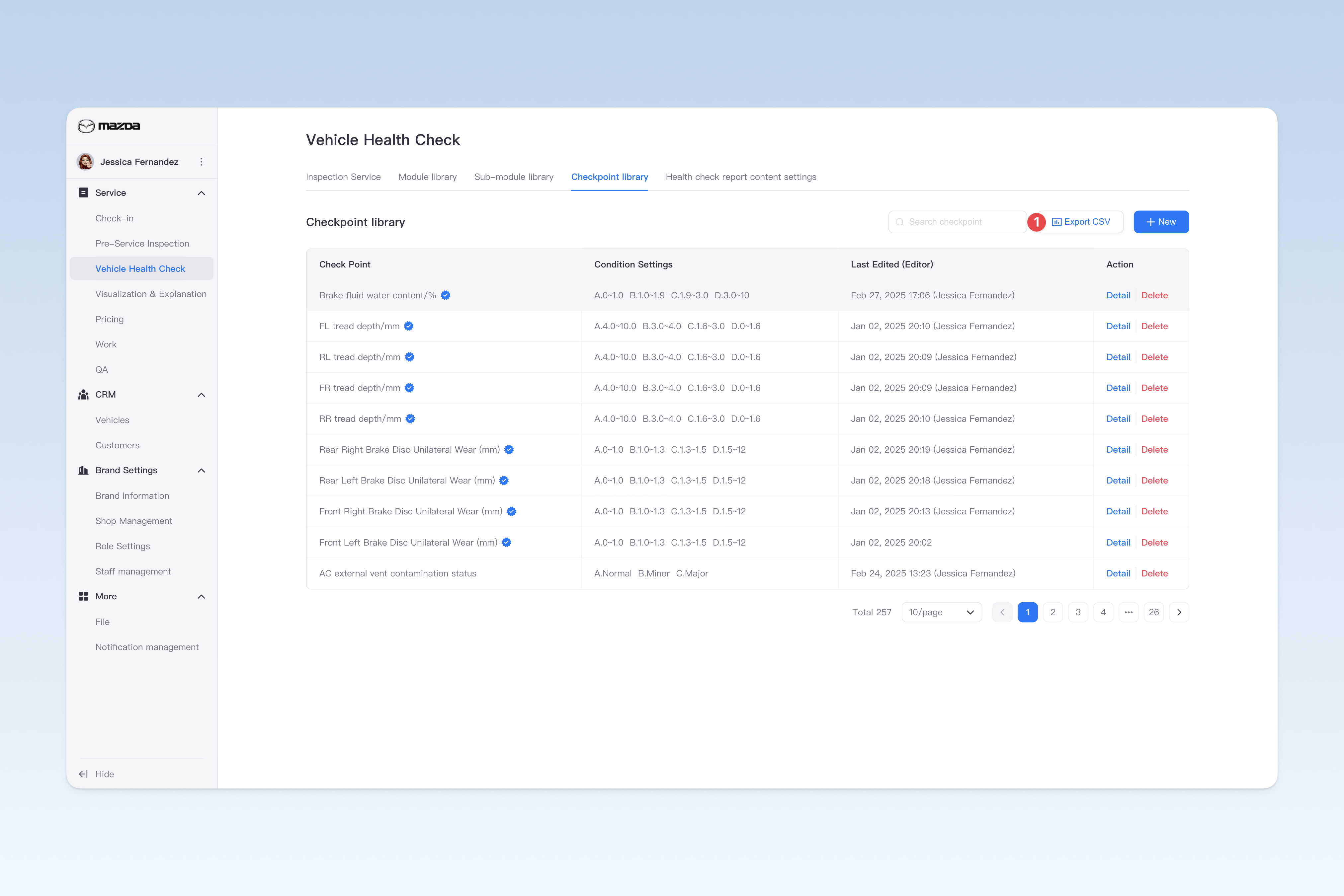
📍 You can configure related content in: AutoX3 Brand Management Dashboard > Service > Health Check > Checkpoint Library.
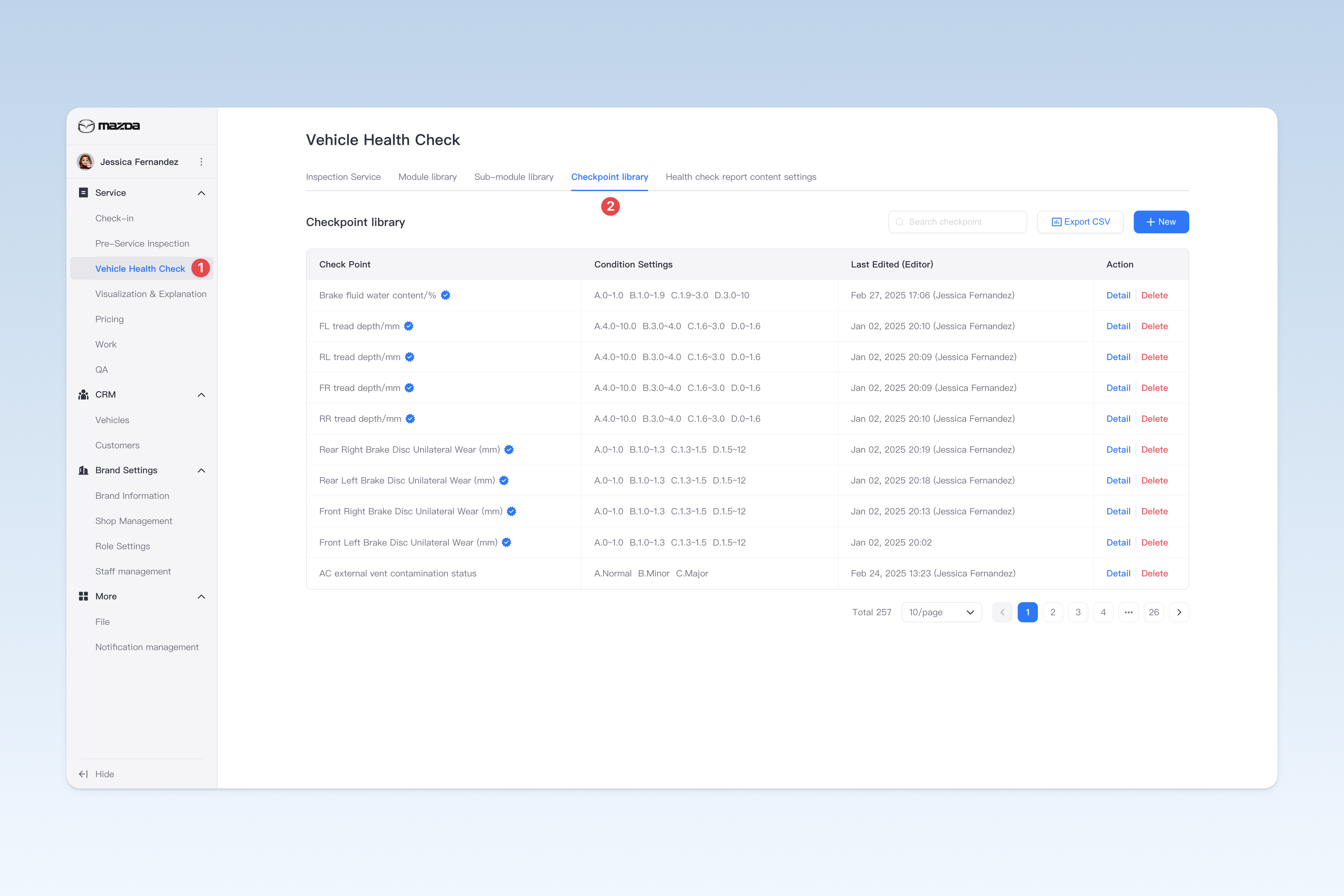
The following is an example combination of inspection modules, sub-modules and checkpoints from a brake/tire inspection template for your reference and understanding of how inspection templates are structured.
1. Inspection Module: Tire System

    1.1 Sub-module: Tire Pressure and Age
        1.1.1 Checkpoint: Tire Pressure
        1.1.2 Checkpoint: Tire Age

    1.2 Sub-module: Front Tire Wear
        1.2.1 Checkpoint: Front Tire Tread Depth/mm
        1.2.2 Checkpoint: Front Tire Uneven Wear
        1.2.3 Checkpoint: Front Tire Condition

    1.3 Sub-module: Rear Tire Wear
        1.3.1 Checkpoint: Rear Tire Tread Depth/mm
        1.3.2 Checkpoint: Rear Tire Uneven Wear
        1.3.3 Checkpoint: Rear Tire Condition

 2. Inspection Module: Brake System

    1.1 Sub-module: Brake Fluid Quality
        1.1.1 Checkpoint: Brake Fluid Color
        1.1.2 Checkpoint: Brake Fluid Water Content/%

    1.2 Sub-module: Brake Disc Wear
        1.2.1 Checkpoint: Brake Disc One-sided Wear/mm
        1.2.2 Checkpoint: Brake Disc Wear Pattern

    1.3 Sub-module: Brake Pad Wear
        1.3.1 Checkpoint: Brake Pad Thickness/mm
Creating Checkpoints
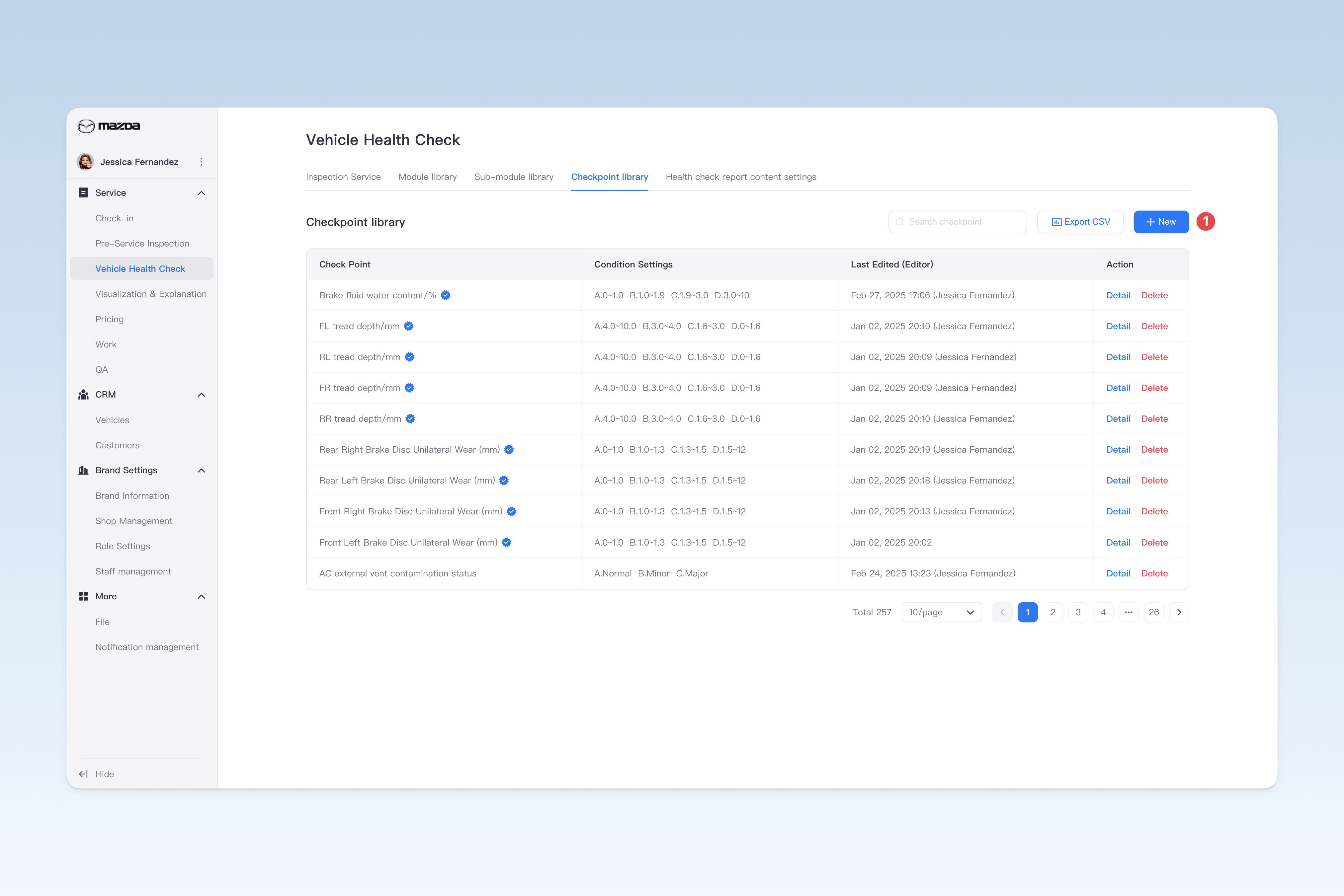
On the "Checkpoint Library" page, click the [Create] button to enter the "Create Checkpoint" page.
Creating a checkpoint requires the following 3 steps: filling in basic information, configuring condition settings, and configuring quick comments. Once complete, click the [Submit] button to finish.
Configuring Basic Information
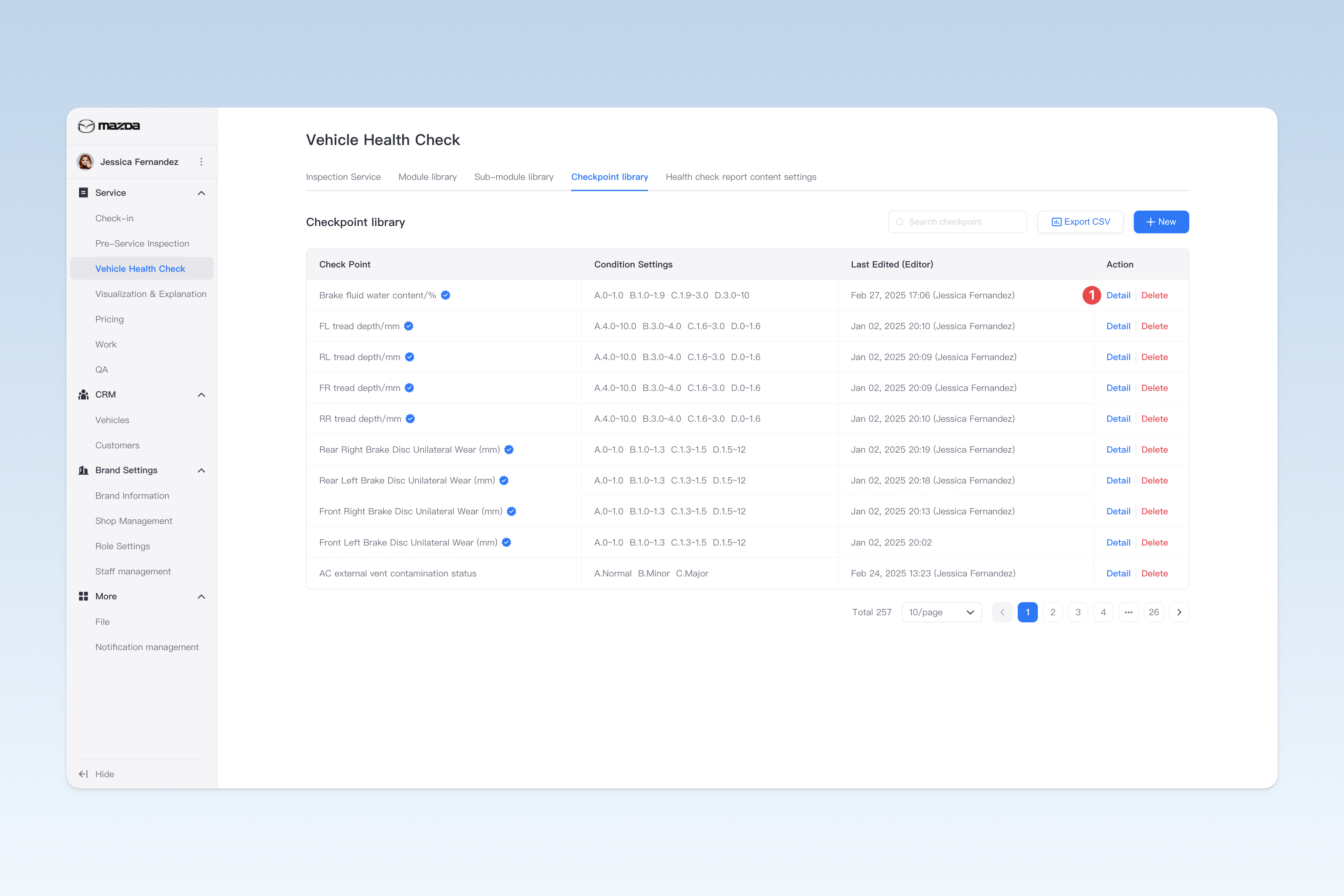
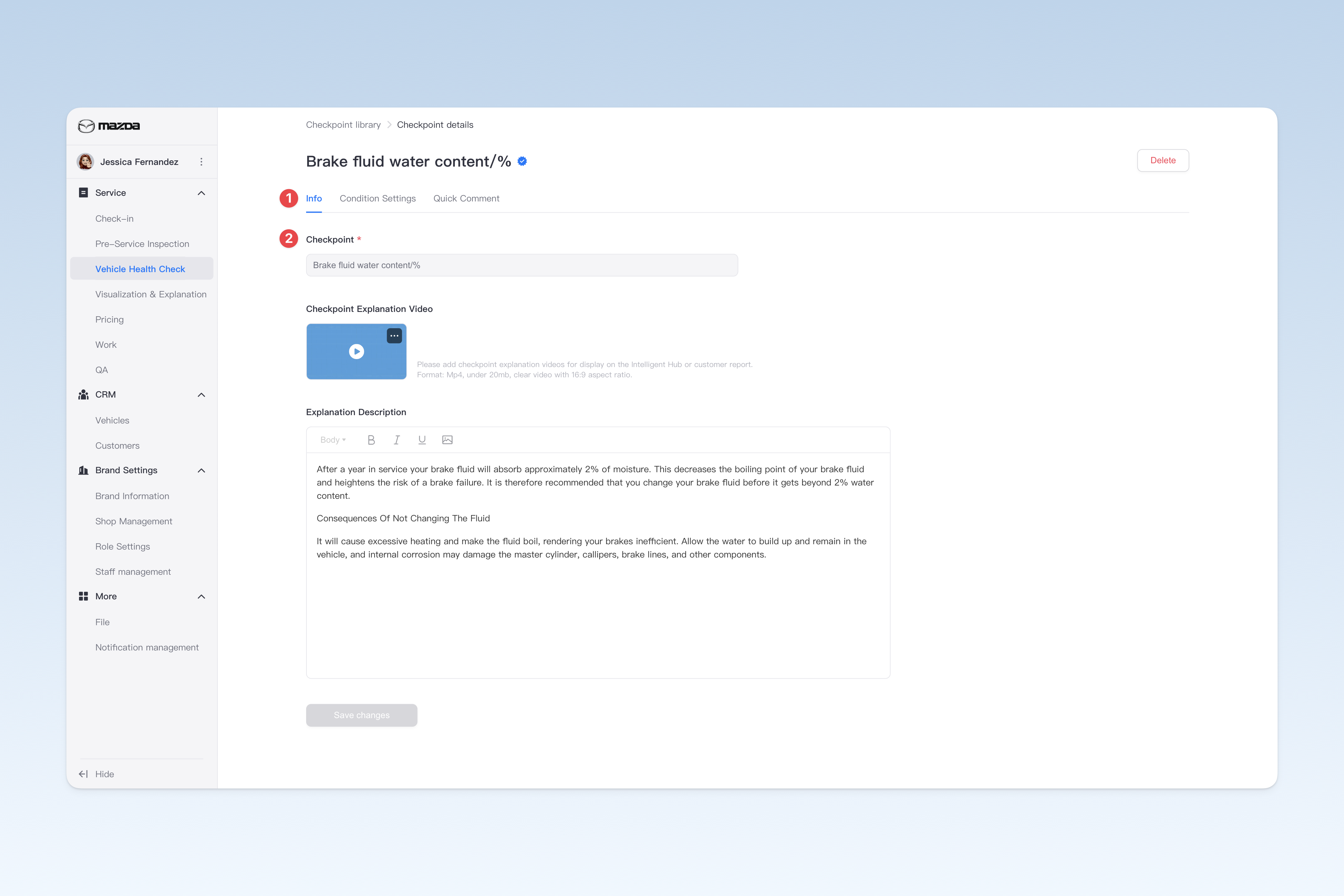
On the "Checkpoint Library" page, find the checkpoint you need to modify, click the [Detail] button in the operation column on the right side of the list, and in the "Checkpoint Details" page that pops up, click the [Basic Information] menu. This page is mainly used to configure some basic information of the checkpoint.
- Checkpoint name: The name of the checkpoint
- Checkpoint explanation video: You can upload an explanation video for the checkpoint. After uploading, customers can view the video explanation of the checkpoint in the Intelligent Hub APP and the customer health check report, allowing them to more clearly understand the content and importance of the checkpoint.
- Checkpoint explanation description: You can describe in detail the inspection process, method, comparison of various conditions, and their impact for the checkpoint. After uploading, customers can view the description of the checkpoint in the Intelligent Hub APP and the customer health check report.
Configure Condition Settings
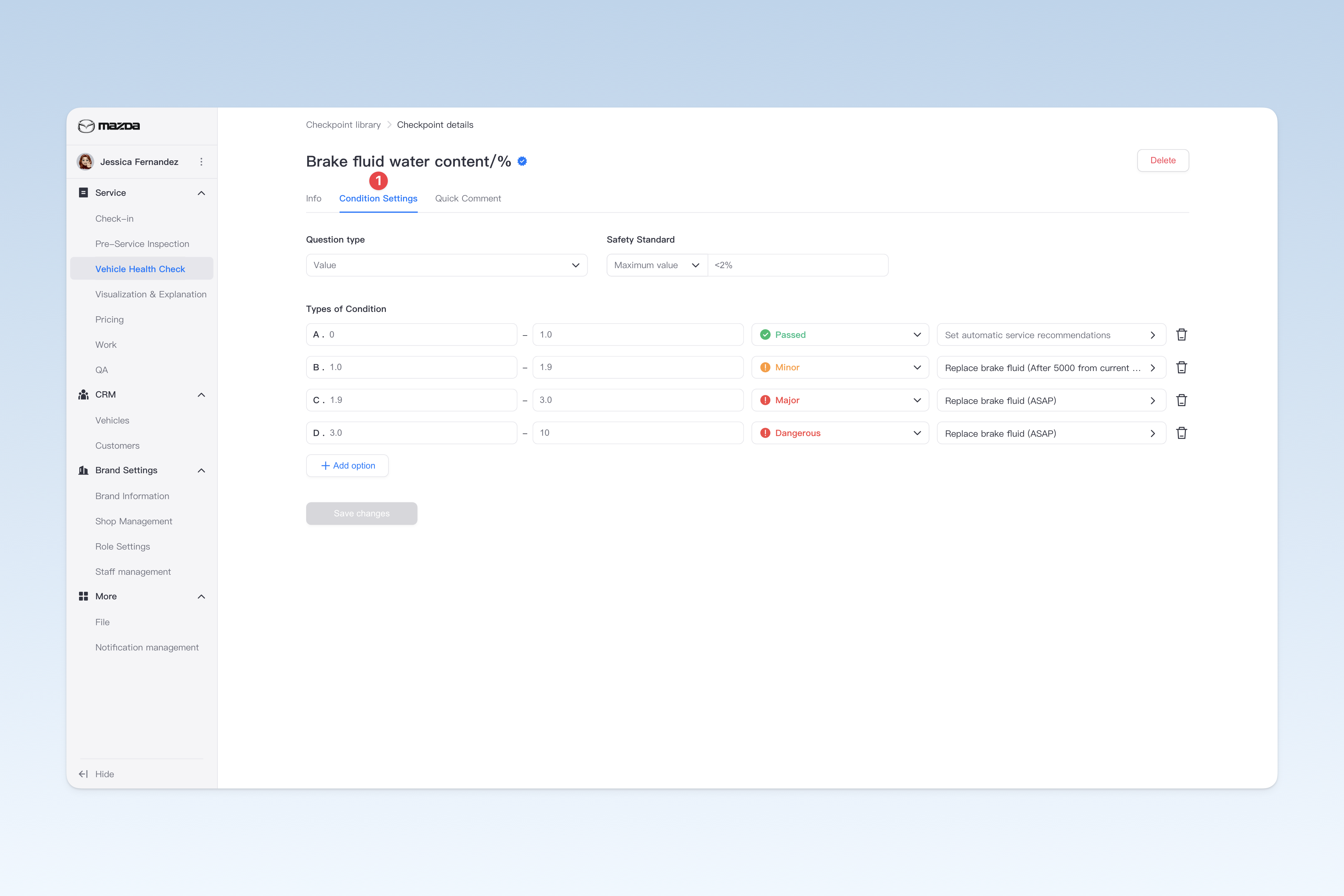
Configuring checkpoint options is done by setting standardized questions and answers, simplifying complex inspection processes into intuitive operations. By pre-setting inspection results, technicians only need to match the corresponding options during actual operations, greatly improving inspection efficiency and ensuring standardized operations.
On the "Checkpoint Library" page, find the checkpoint you want to modify, click the [Details] button in the operation column on the right side of the list, and in the pop-up "Checkpoint Details" page, click the [Condition Settings] menu.
Configure Checkpoint Conditions
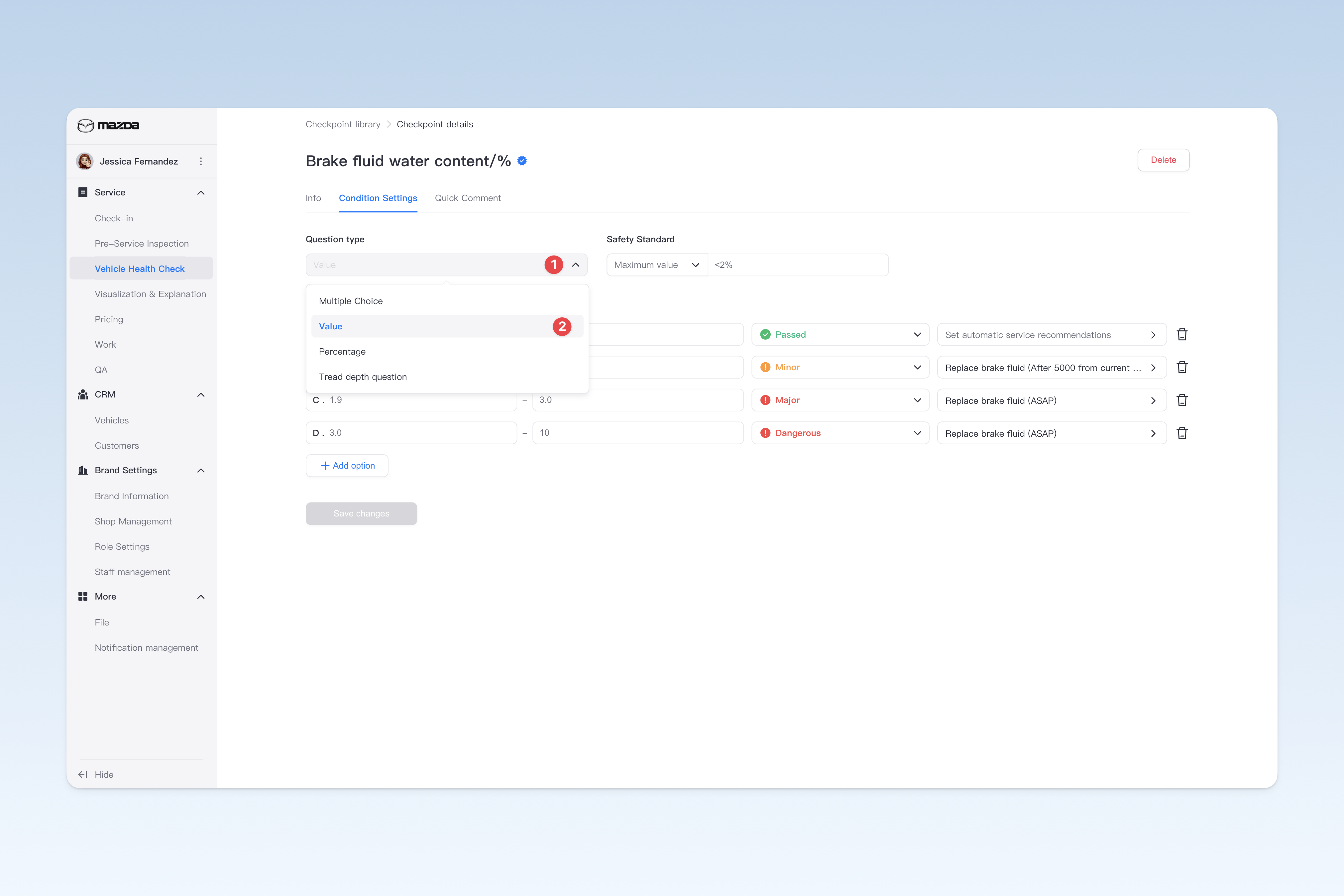
Checkpoint condition types include: single choice, fill-in-the-blank (value), fill-in-the-blank (percentage value), and fill-in-the-blank (tread depth value). Select the appropriate question type based on the actual inspection situation and configure the corresponding status for each option.
- Single Choice: Preset multiple fixed options and configure the corresponding status for each option. During the inspection process, technicians can directly select the corresponding option based on the actual inspection result, and the system will automatically match the status of the selected option.
- Single Choice Example:
Checkpoint Name: A/C Filter Contamination
Options: A. Clean (Normal) B. Average (Minor) C. Dirty (Abnormal)
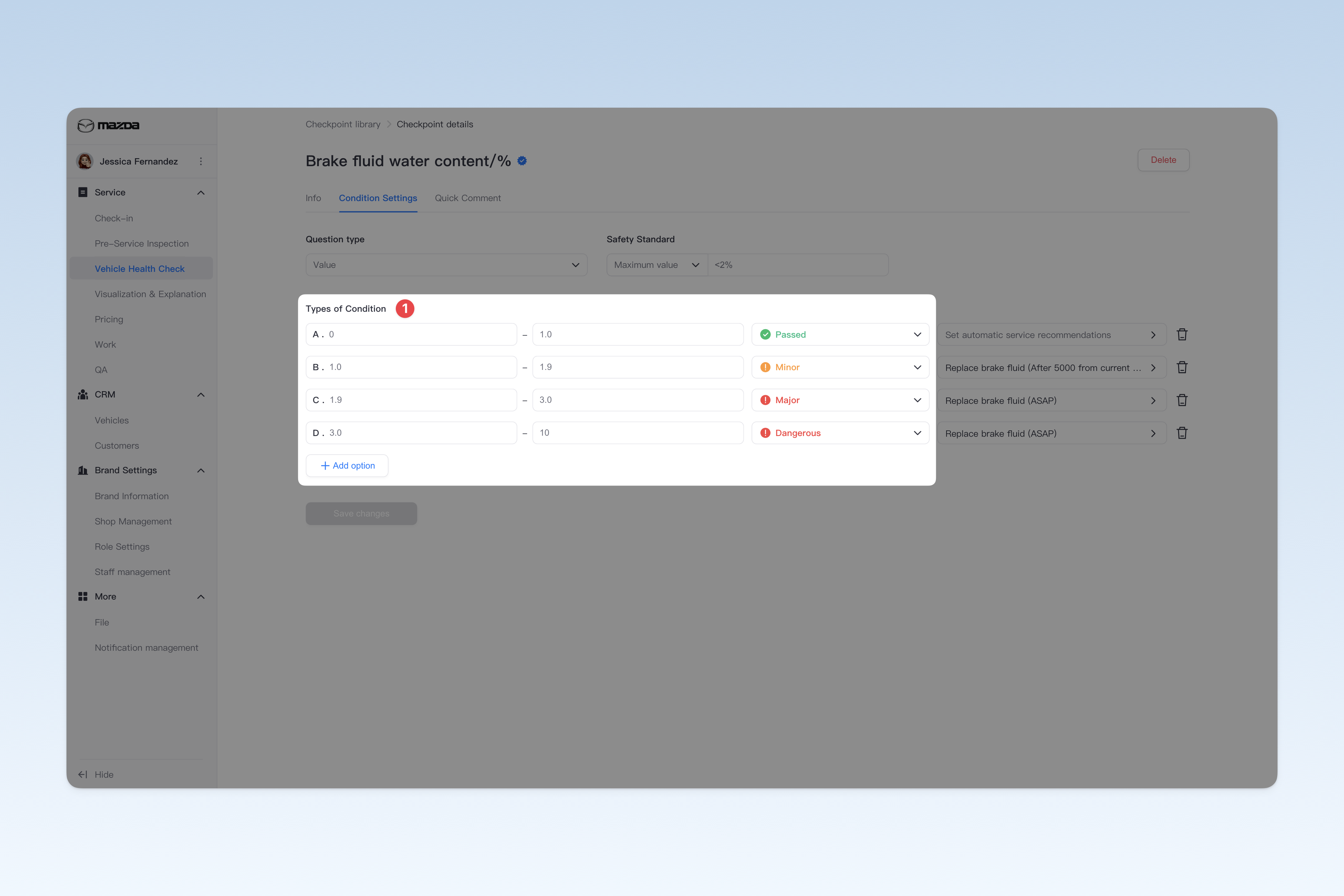
- Fill-in-the-Blank: Preset multiple value range intervals and configure the corresponding status for each interval. During the inspection process, technicians directly enter the inspection result into the designated input box, and the system will automatically match the status of the selected option.
- Fill-in-the-Blank Example:
Checkpoint Name: Coolant pH Value
Options: A. 7.07.5 (Abnormal) B. 7.59.0 (Normal) C. 9.0~14 (Abnormal)
- Percentage Fill-in-the-Blank: Similar to fill-in-the-blank (value), but the input value is limited between 0% and 100%, commonly used to represent percentages.
- Percentage Fill-in-the-Blank Example:
Checkpoint Name: Battery Health
Options: A. 80%~100% (Normal) B. 70%~80% (Minor) C. 1%~70% (Abnormal)
- Tread Depth: Similar to fill-in-the-blank, but optimized for "tire tread depth inspection". Optimizations include dynamically displaying the specific status of each tire groove through charts in the Intelligent Technician app and inspection report, enhancing data presentation clarity and professionalism.
- Tread Depth Example:
Checkpoint Name: Tire Tread Depth
Options: A. 4mm12mm (Normal) B. 3mm4mm (Minor) C. 2mm3mm (Abnormal) D. 0mm2mm (Dangerous)
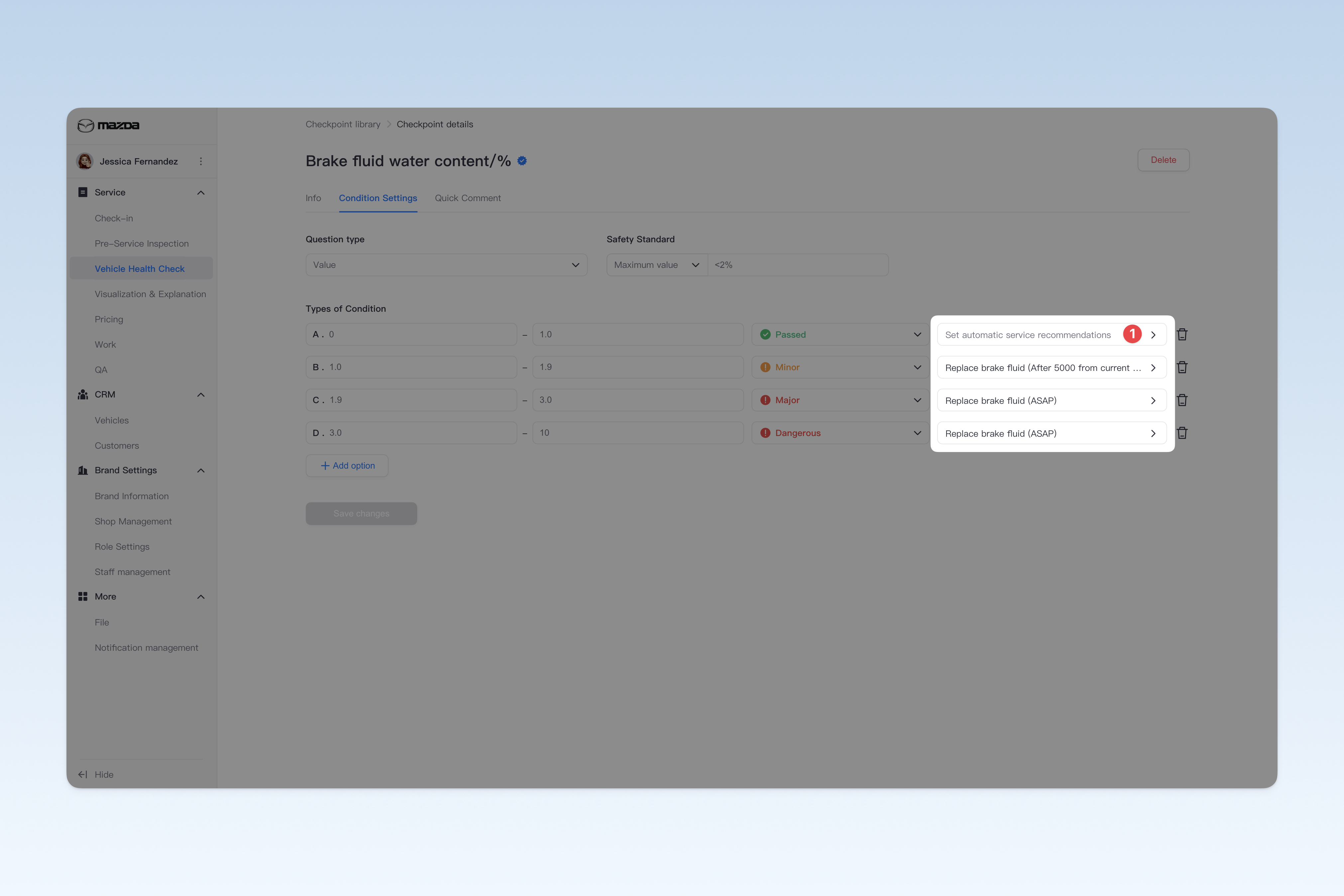
Configure Automatic Service Recommendation for Options
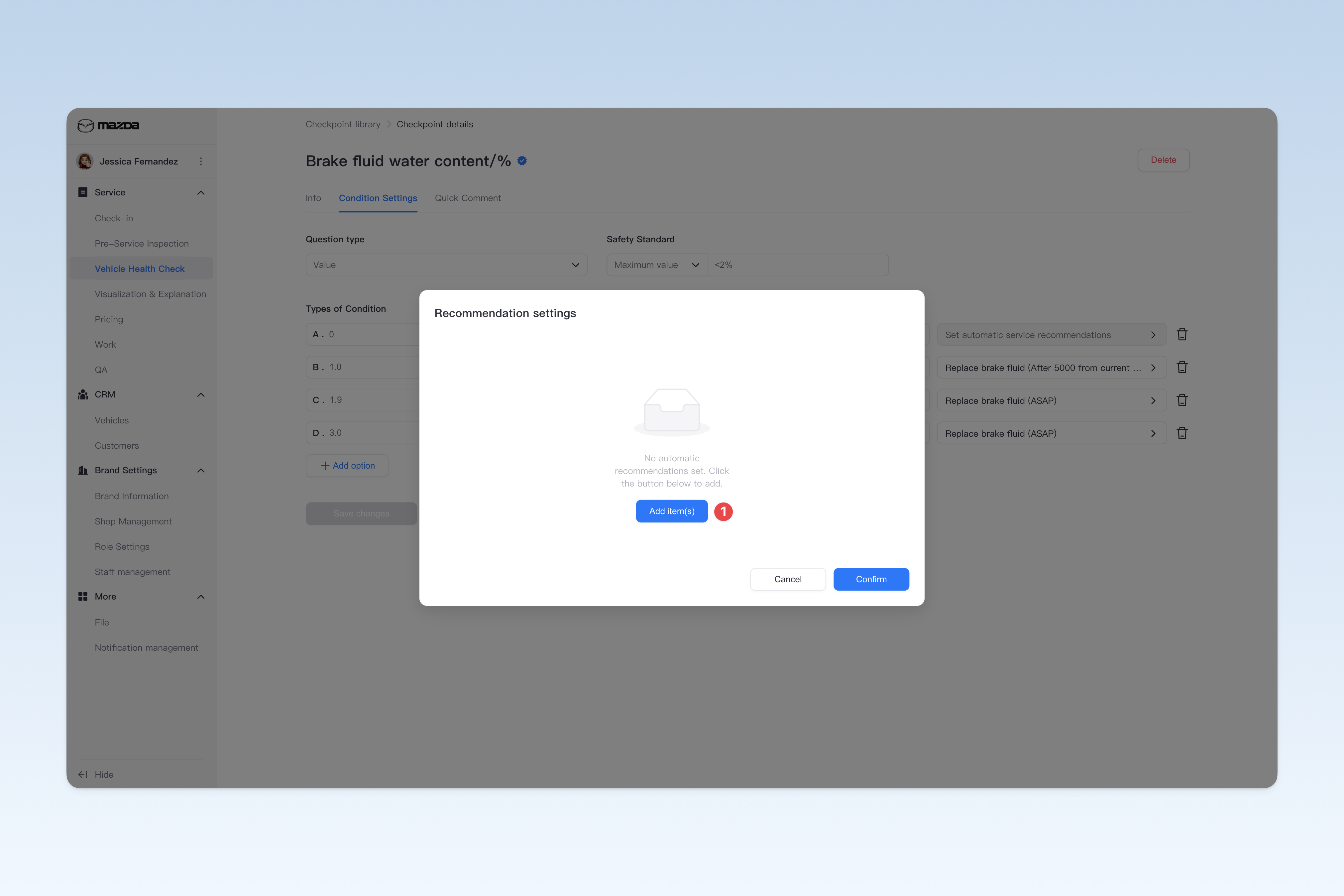
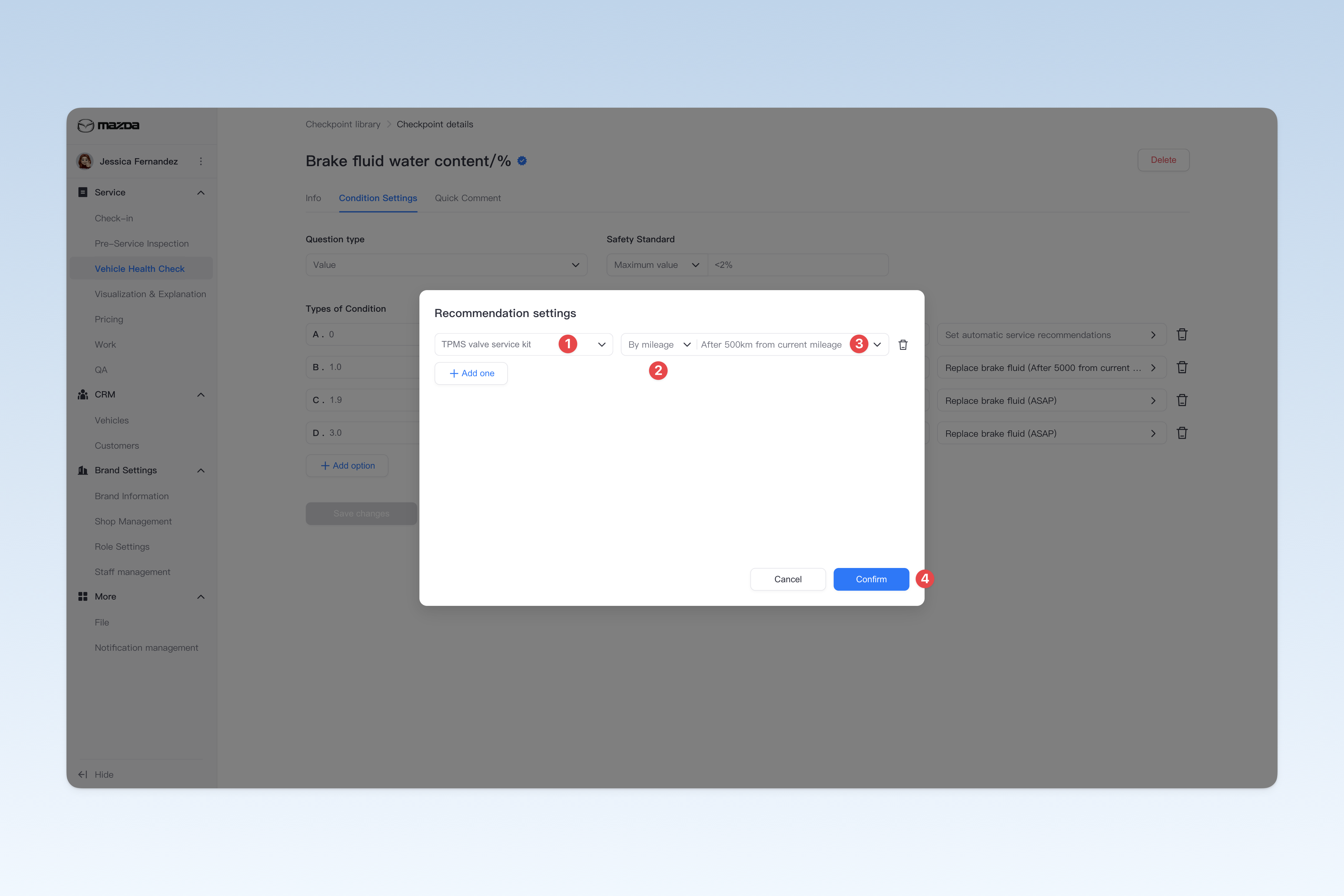
After completing the option configuration for a checkpoint, you can set automatic recommendation items for different statuses of each option. When a technician fills in an answer during the actual inspection process, the system will automatically match the corresponding status based on the answer selected by the technician and push the recommended item associated with that status.
This function is mainly used to recommend different service items based on the different statuses of a checkpoint to provide more accurate repair suggestions.
- Example:
Checkpoint Name: Tire Damage
A. No tire damage (Normal) [No automatic service recommendation]
B. Aging, cracking (Abnormal) [Replace tire]
C. Punctured (Abnormal) [Repair tire]
D. Damaged (Abnormal) [Replace tire]
Configure Safety Standard
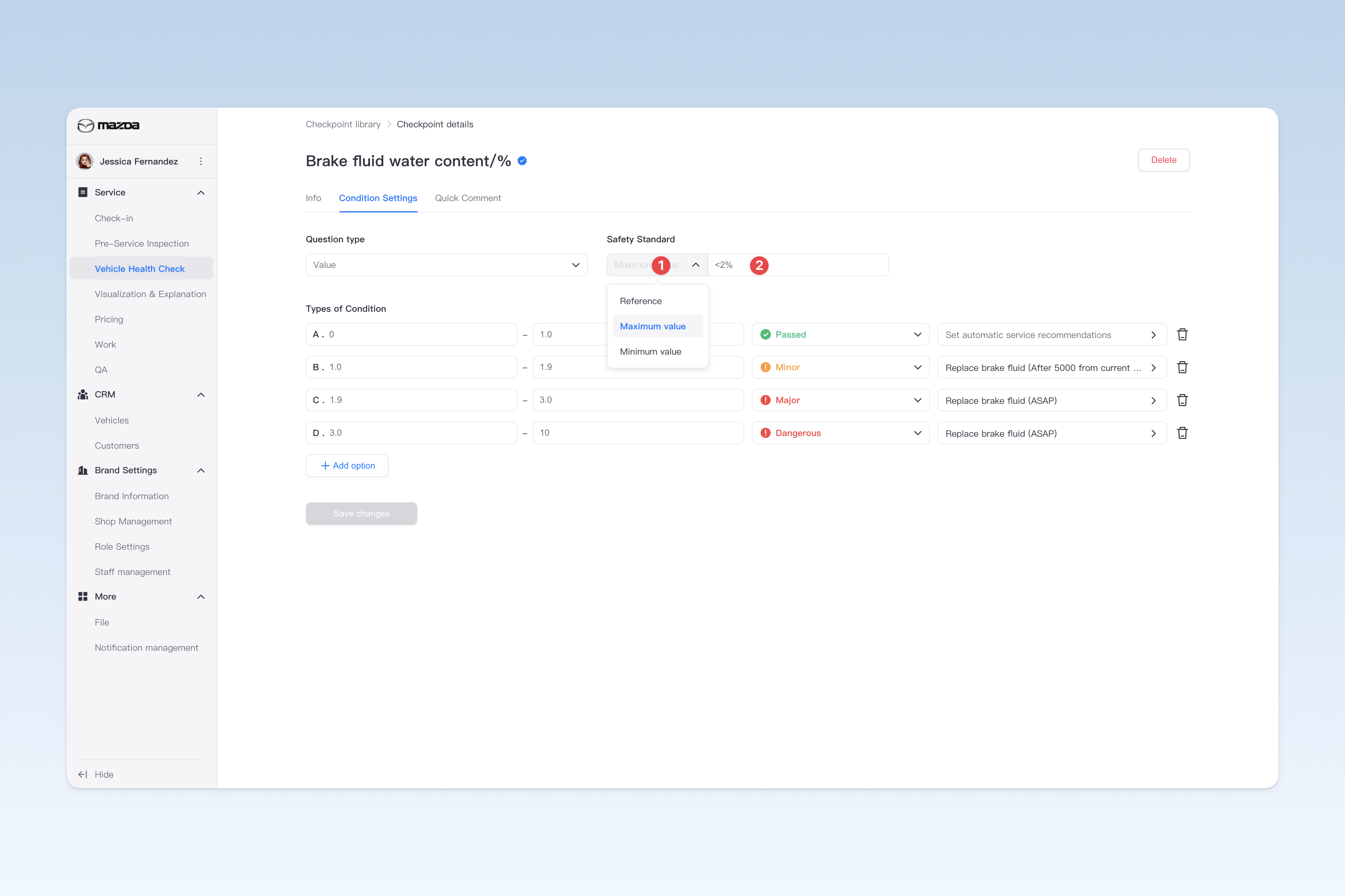
Safety standard values are usually displayed to customers (in inspection reports) to inform them of the safety reference value for the current checkpoint. By comparing the safety standard with the actual inspection result, customers can clearly understand the status of the current result, helping them make more informed decisions.
Safety standard provides three types:
- Reference Value: Represents the safety reference value for the current checkpoint, used to evaluate the checkpoint's status
- Maximum Value: The maximum safety threshold for the current checkpoint; exceeding this value is considered unsafe
- Minimum Value: The minimum safety threshold for the current checkpoint; below this value is considered unsafe
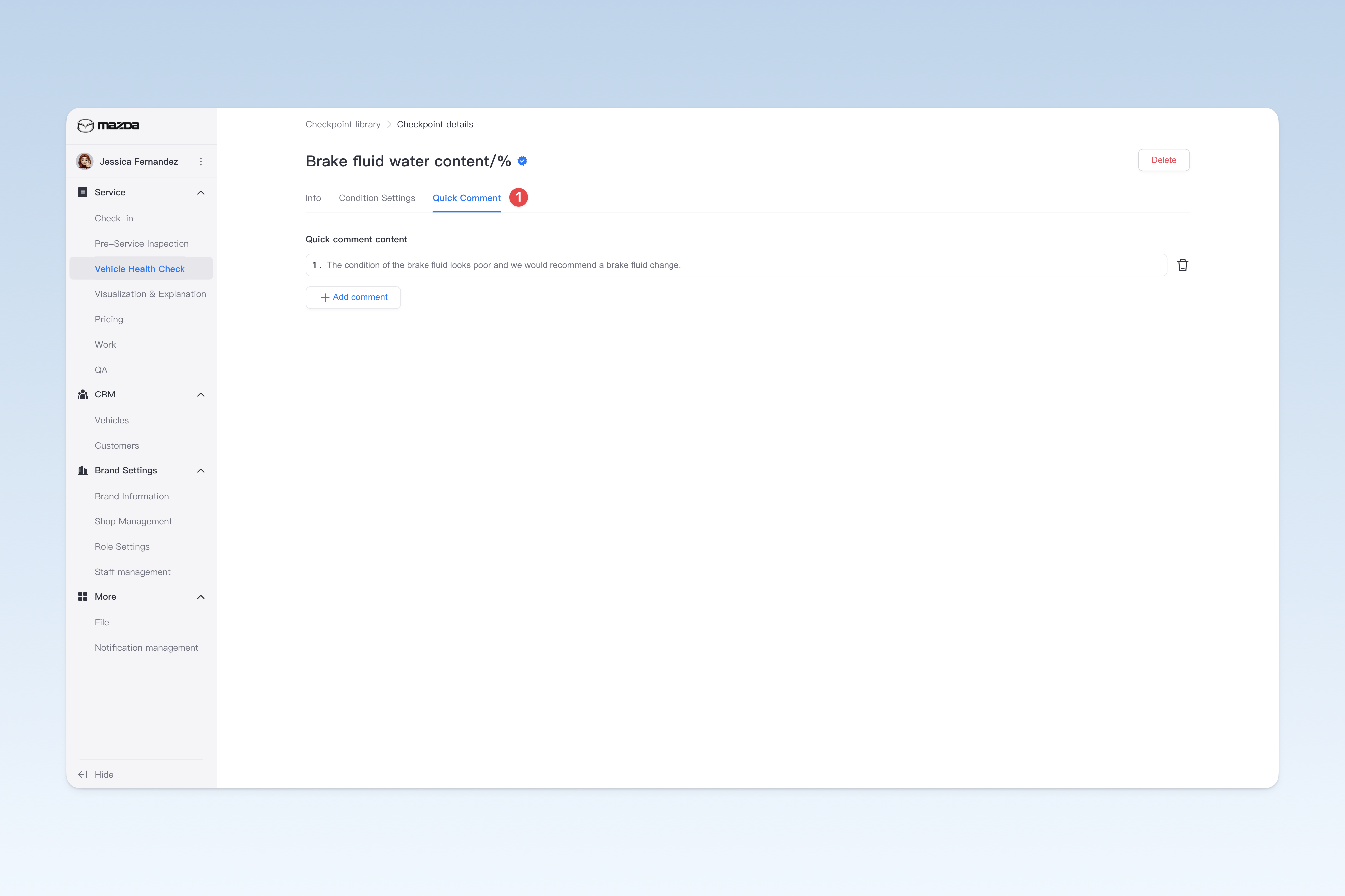
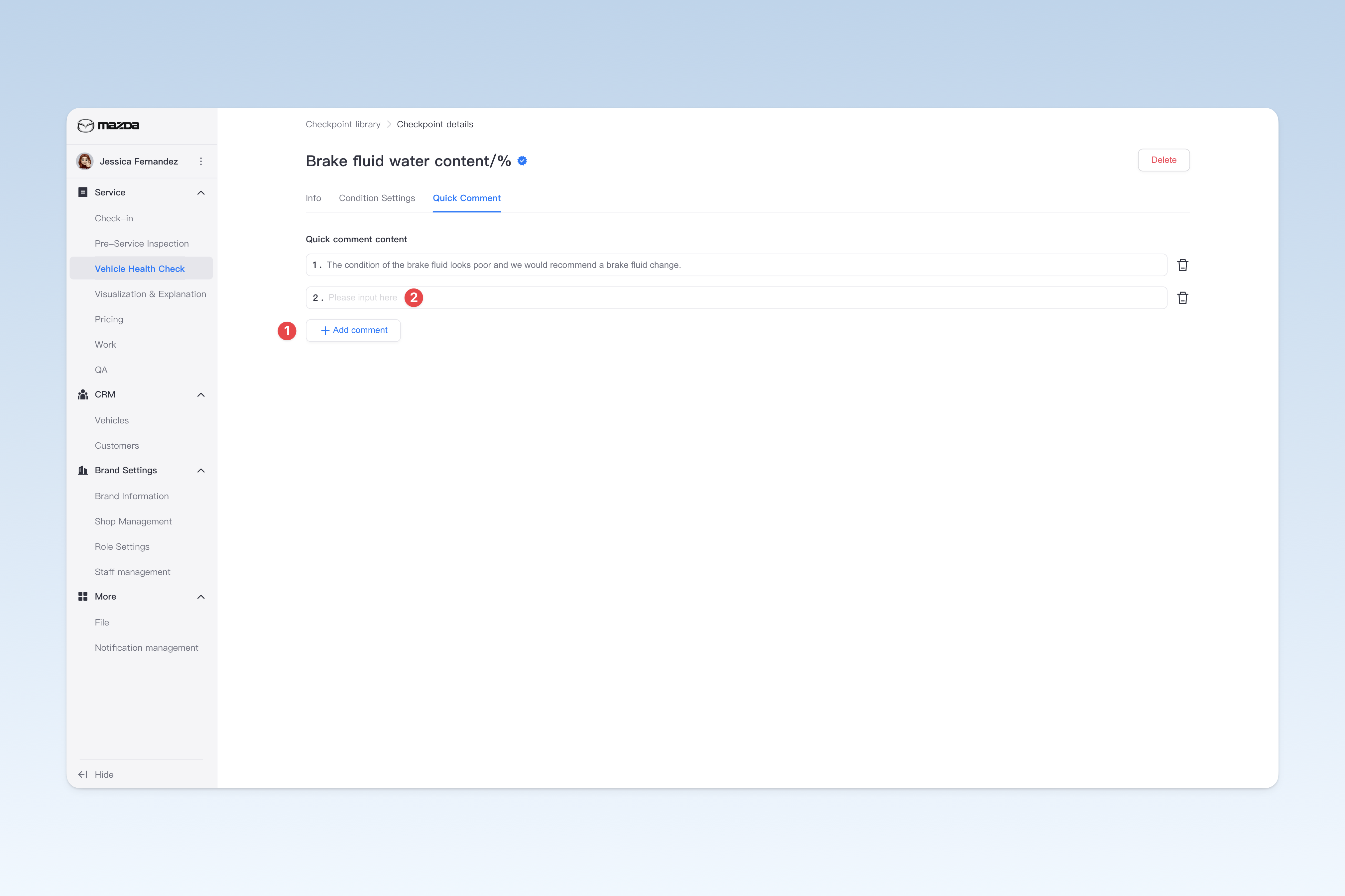
Configure Quick Comment
Quick comment provides a convenient commenting feature for technicians in the app by pre-setting standardized comment content for checkpoints. Once set up, when a technician completes the inspection of that checkpoint, they can directly use quick comments to comment on the inspection result and display it to the customer. This feature not only improves technicians' work efficiency but also makes comments more consistent and easier for customers to understand and reference.
Delete Checkpoint
There are two ways to delete a sub-module:
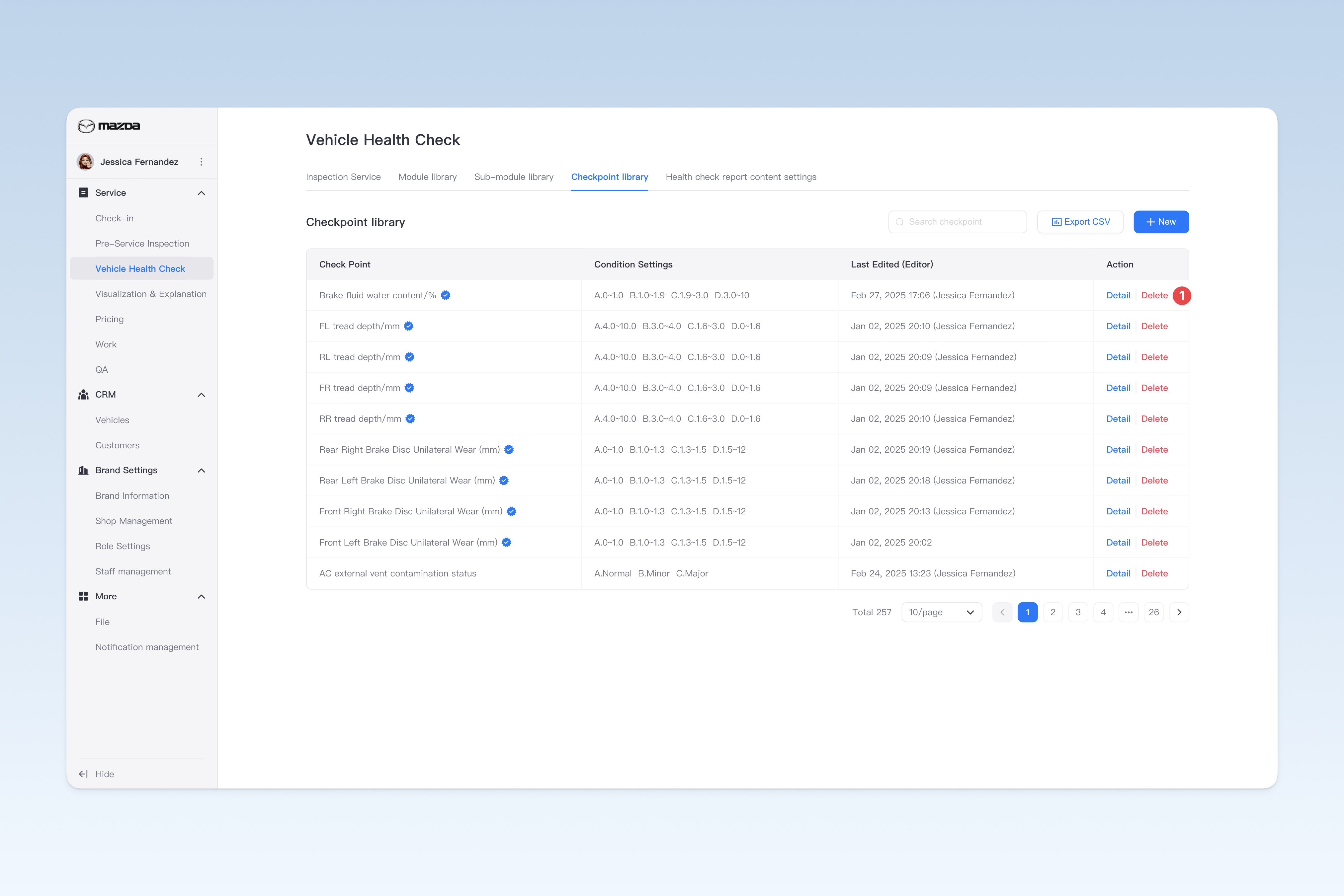
- On the "Checkpoint Library" page, find the checkpoint you want to delete, click the [Delete] button in the operation column on the right side of the list, a confirmation pop-up will appear, click [Confirm] to delete the sub-module.
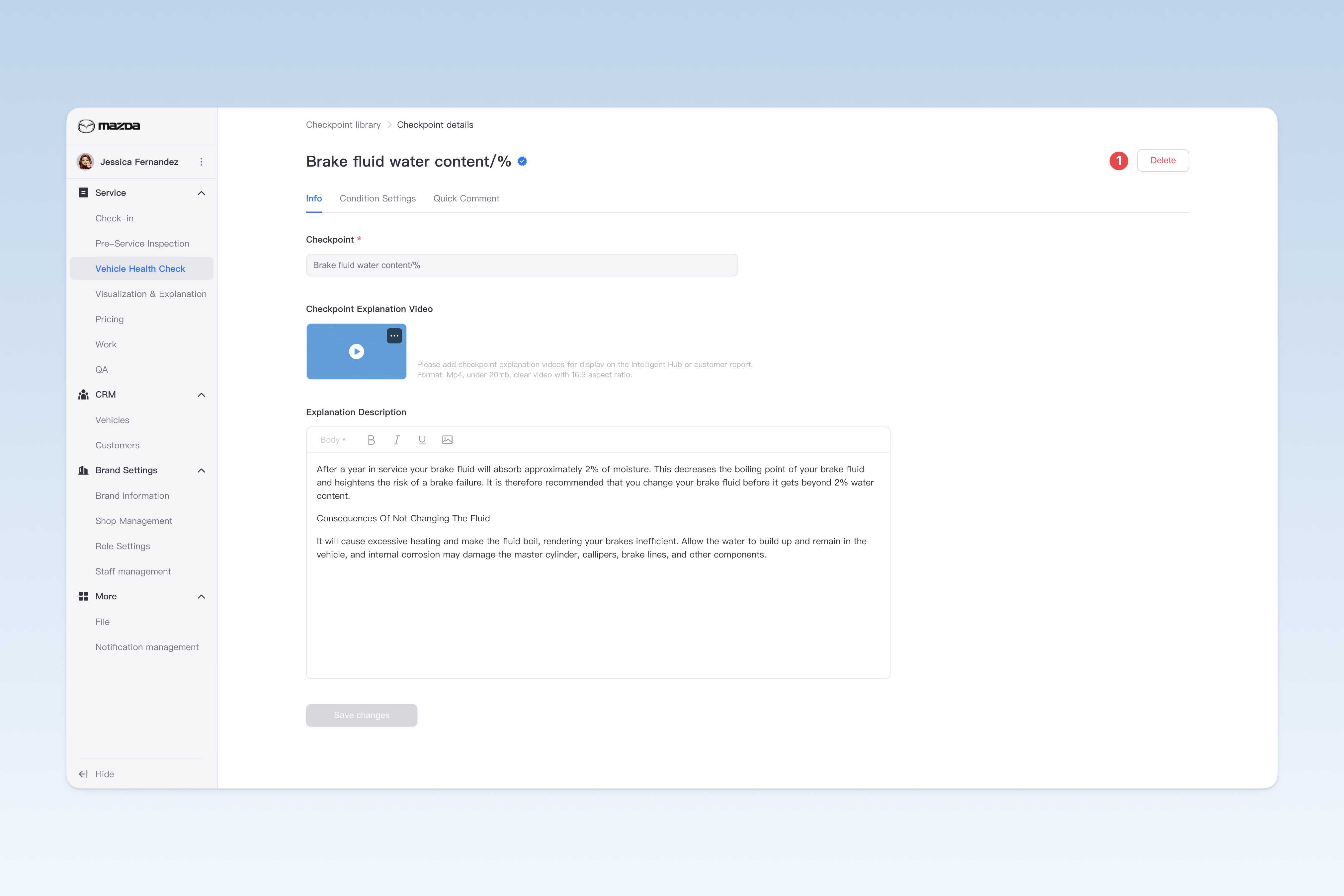
- On the "Checkpoint Library" page, find the checkpoint you want to delete, click the [Details] button in the operation column on the right side of the list, and in the pop-up "Checkpoint Details" page, click the [Delete] button, a confirmation pop-up will appear, click [Confirm] to delete the sub-module.
⚠️ Note: If the checkpoint is already referenced by any inspection service item, it cannot be deleted directly. You need to go to the Inspection Content menu page of the related inspection service item, remove it from the referenced item, and then try to delete it. For specific operations, please refer to: ◎ Inspection Service Item
Export checkpoint data to a spreadsheet file
On the "Checkpoint library" page, click the [Export CSV] button in the upper right corner. After a short wait, the system will automatically create a download task in your browser. Please find the exported spreadsheet file on your browser's download page.