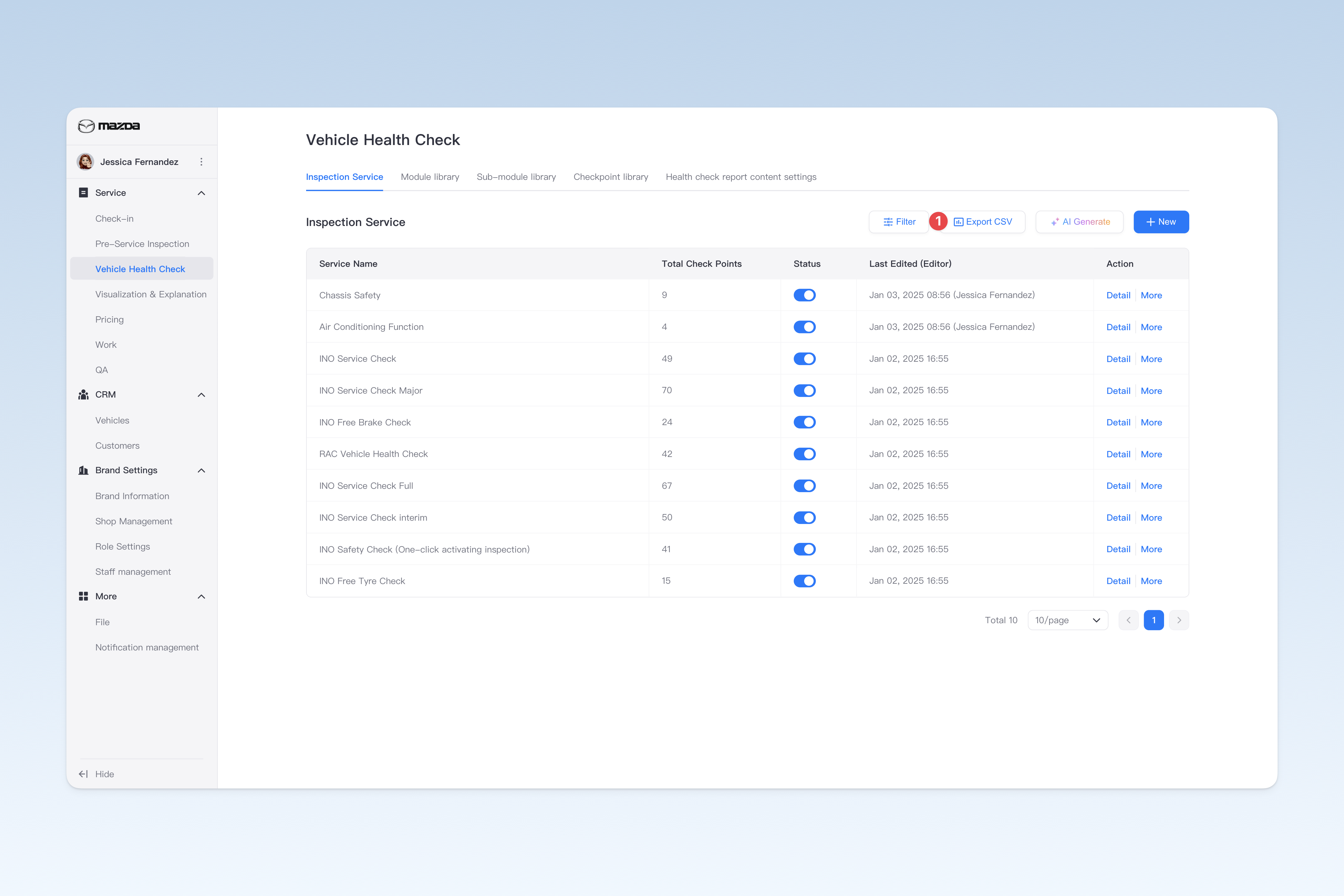
◎ Inspection Service Items
Service items undertake multiple core functions in the system, including placing orders, creating maintenance plans for customers, recording issues and uploading relevant photos or videos during vehicle inspections, and calculating output value. Therefore, you need to complete the configuration of inspection service items to ensure the smooth implementation of these functions.
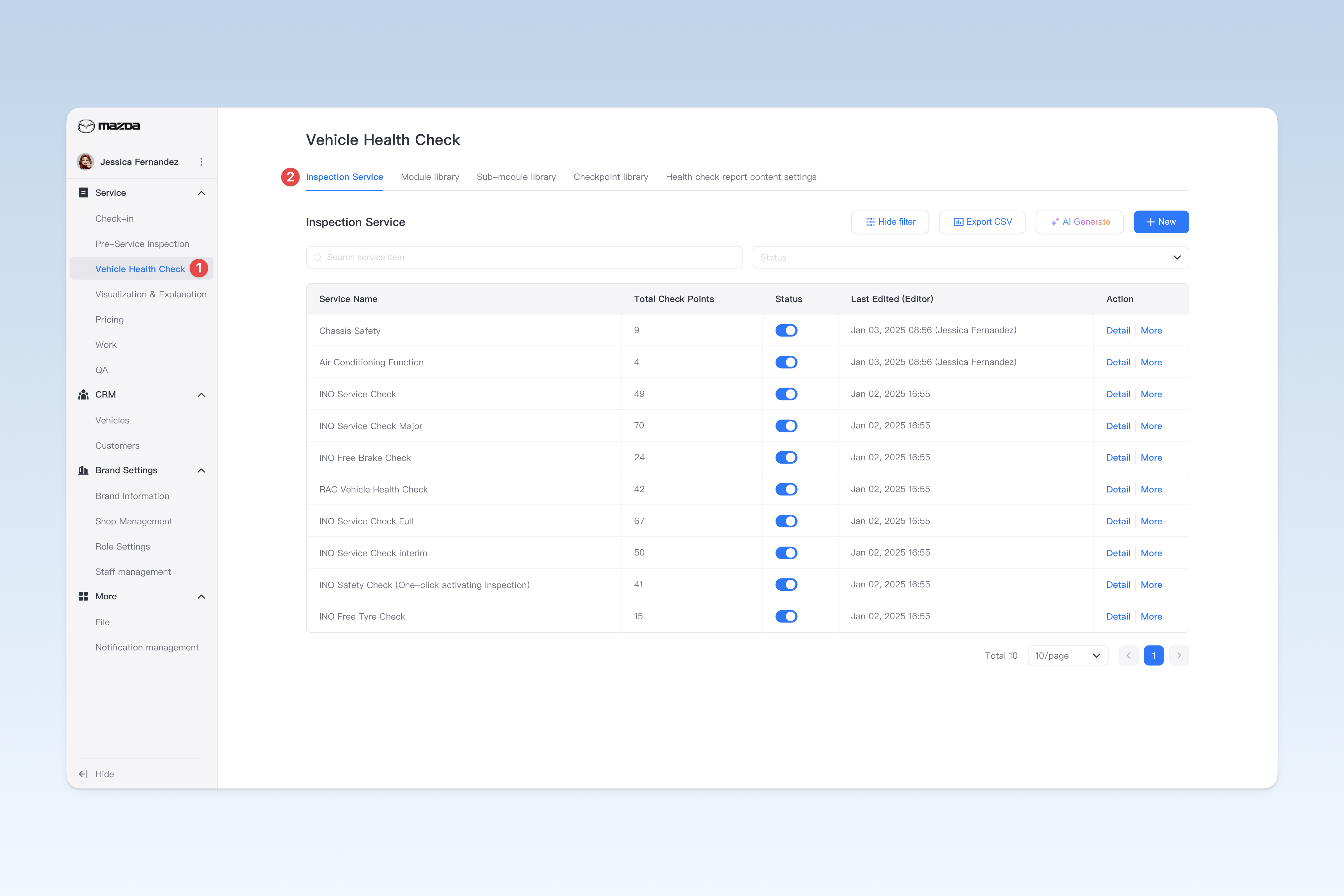
📍 You can configure related content in: AutoX3 Brand Management Dashboard > Service Management > Health Check > Inspection Service Items.
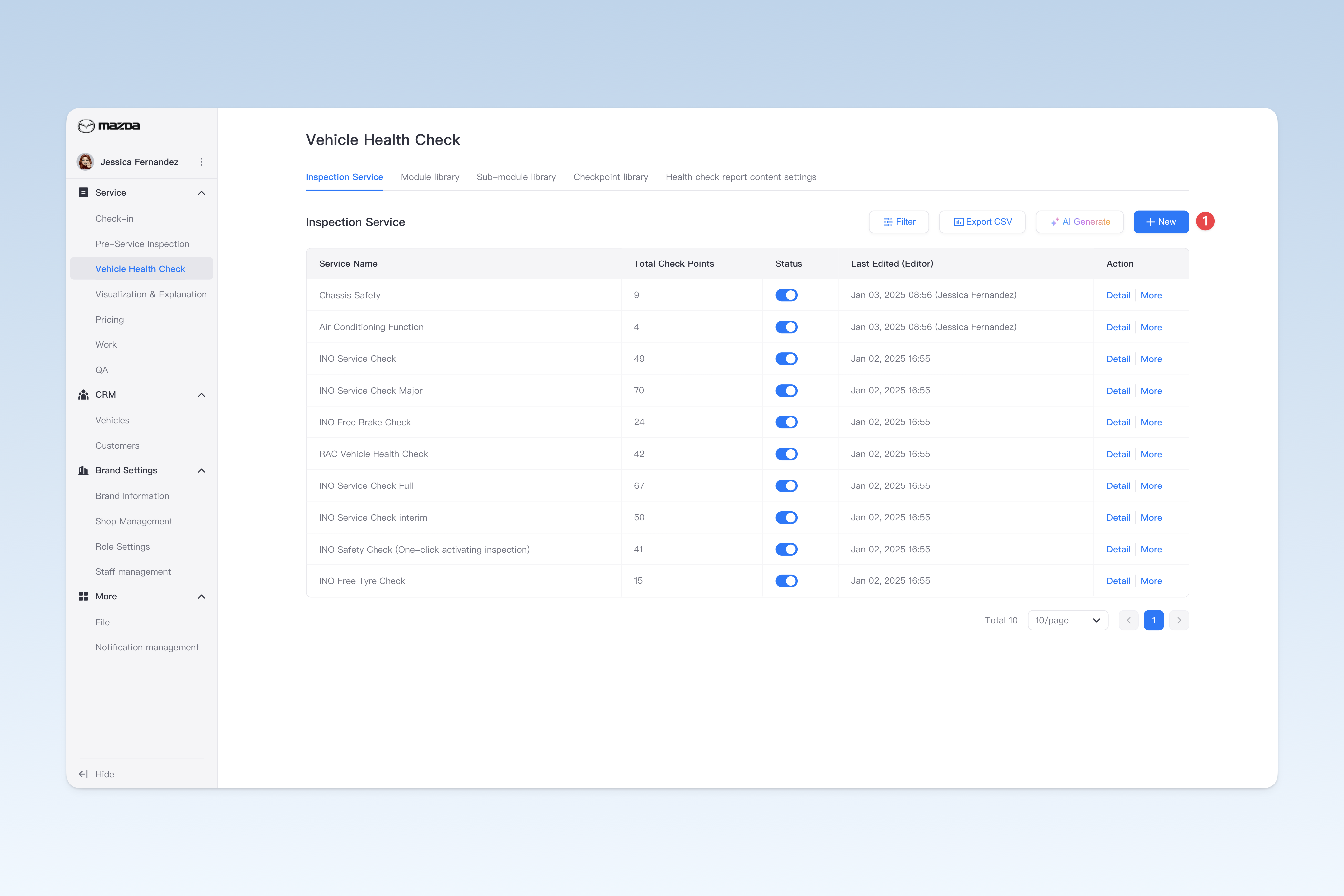
Create Health Check Service Item
On the "Health Check Service Item" page, click the [Create] button to enter the "Create Health Check Service Item" page.
Creating a health check service item requires completing the following 7 steps: filling in basic information, configuring item introduction, configuring inspection content, configuring scoring rules, configuring inspection workflow, configuring automatic order prompts, and configuring health check report settings. After completion, click the [Submit] button to finish.
Configure Basic Information
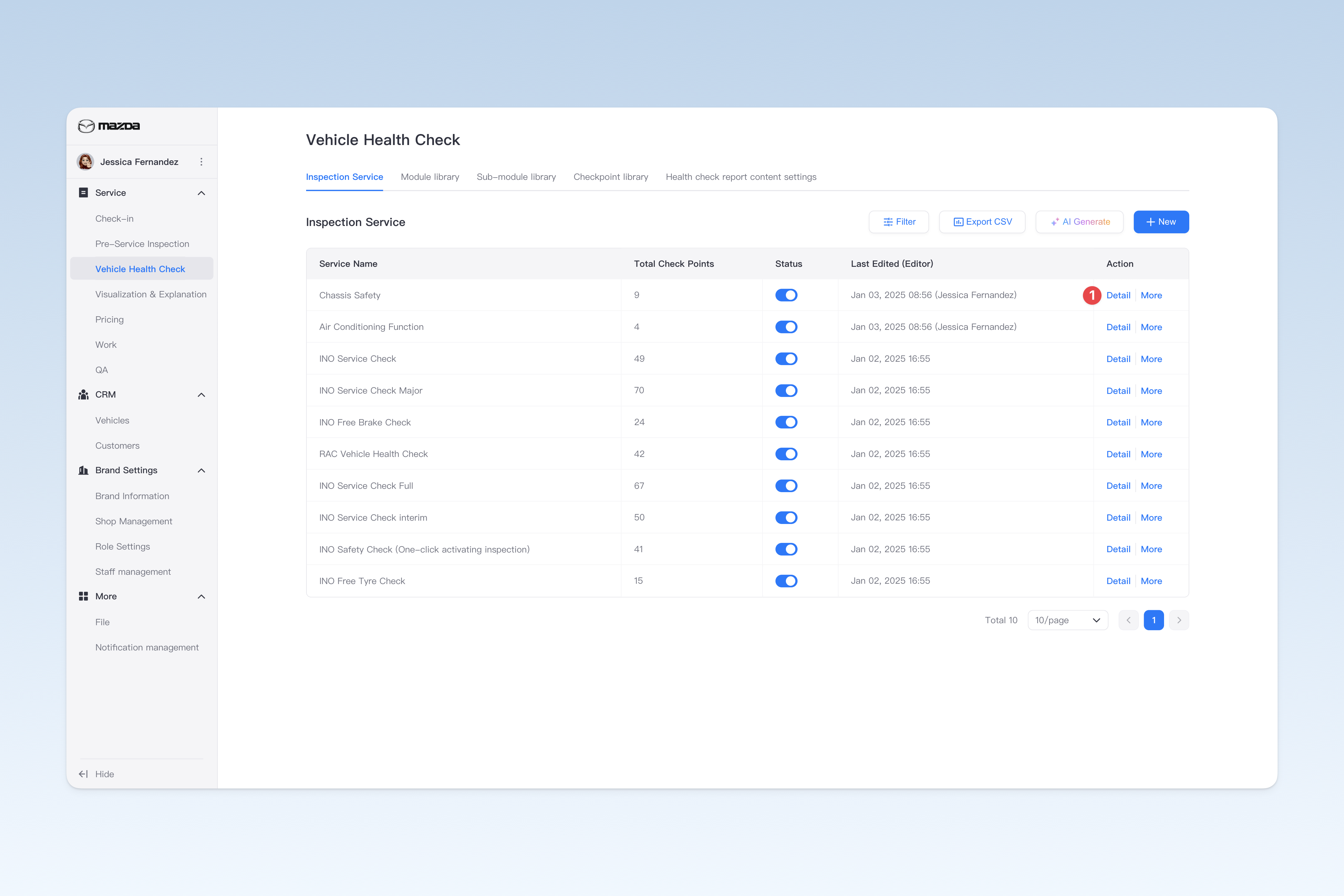
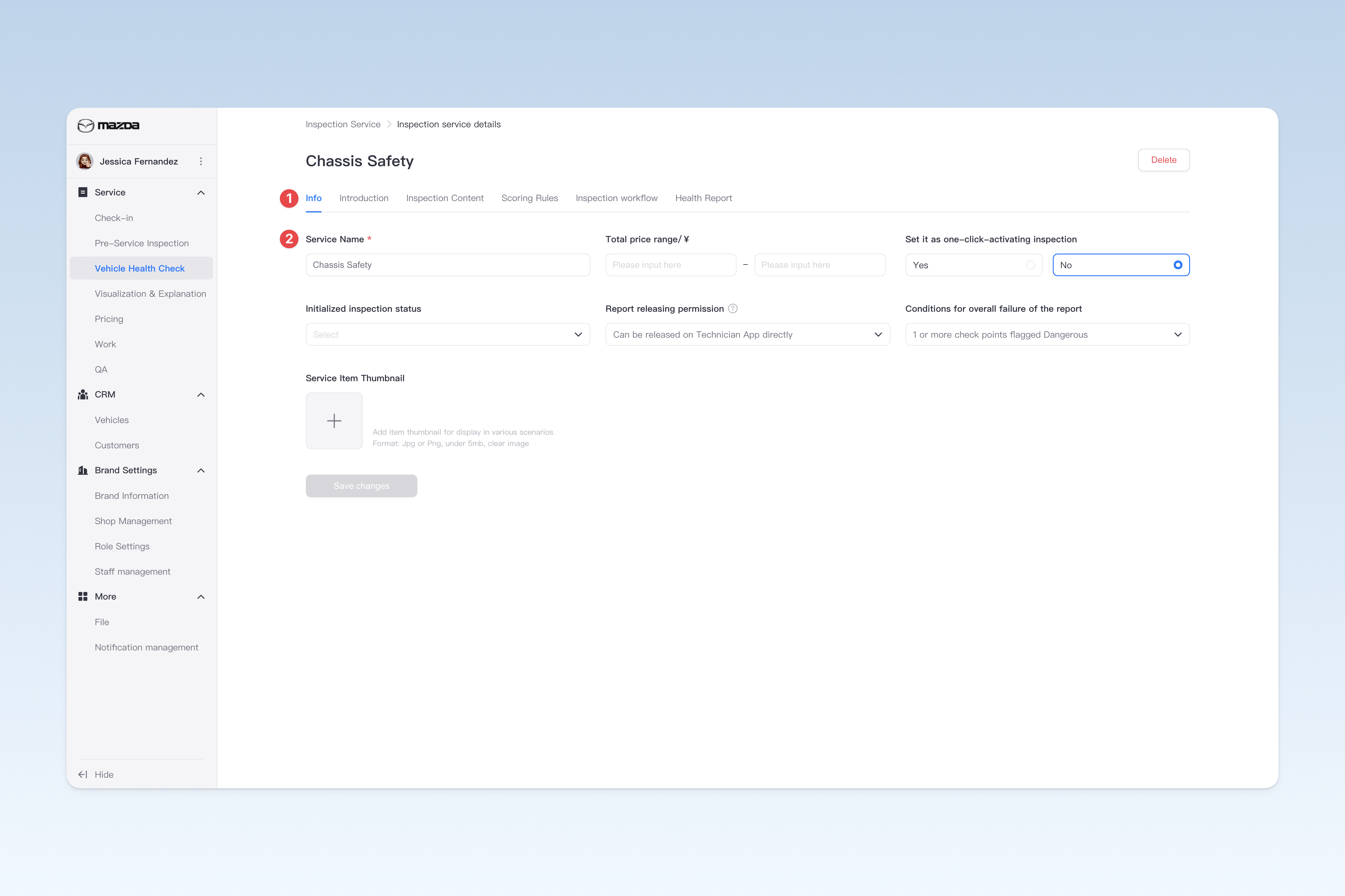
On the "Health Check Service Item" page, find the service item to modify, click the [Details] button on the right side of the list, and in the pop-up "Health Check Service Item" page, click the [Basic Information] menu. This page is mainly used to configure some basic information of the health check service item.
- 2.1 Service Name (Required): The name of the inspection item
- -The following are optional configuration items that need to be manually expanded to view - -
2.3 Total price range
When displaying the item introduction to the customer, the service item will show related price information. You can set a price range for customers to understand the expected cost of the service.
2.4 Set as one-click-activating inspection
This setting aims to facilitate technicians to quickly order inspection items through the APP. After setting as one-click-activating inspection, technicians only need to enter the license plate number to start the inspection before beginning, and other key information can be supplemented after the inspection is completed. Among all health check service items, only one inspection item is allowed to be set as "one-click-activating inspection". Therefore, it is recommended to comprehensively consider actual needs and set the most frequently used inspection item as one-click-activating inspection to improve operational efficiency.
2.5 Business type
Mark the business type of the inspection item for use when filtering health check reports or conducting inspection-related data statistics.
2.6 Initialized inspection status
After ordering an inspection item, the default status of all multiple-choice questions is "Unanswered". When the [Passed by default] option is enabled, all multiple-choice questions will be defaulted to the "Passed" state. This setting is more suitable for new vehicle inspection scenarios and can significantly save inspection technicians' operation time and improve work efficiency.
2.7 Report releasing permission
When the technician completes the vehicle inspection, the system directly publishes the health check report and shares it with the customer by default. If the [Shop approval required] option is enabled, the health check report needs to be reviewed and approved by the management personnel in the shop management dashboard before it can be published and shared with the customer. This setting is suitable for scenarios that require strengthened report quality control.
2.8 Conditions for overall failure of the report
The health check report shared with the customer will display a "Passed" or "Failed" status. In this setting, you can customize the criteria for determining the "Failed" status of the health check report to intuitively show whether the vehicle meets safety requirements. This function can help customers quickly understand the vehicle's condition and take corresponding measures in a timely manner.
2.9 Third-Party Item ID
This option is used for enterprises that interface with AutoX3 to enter a unique identification code. If you are not involved in interfacing with AutoX3, there is no need to pay attention to or fill in this option.
2.10 Miniature on App
Displayed as the cover of the service item. If not set, the system default cover will be used.
Configure Service Item Introduction
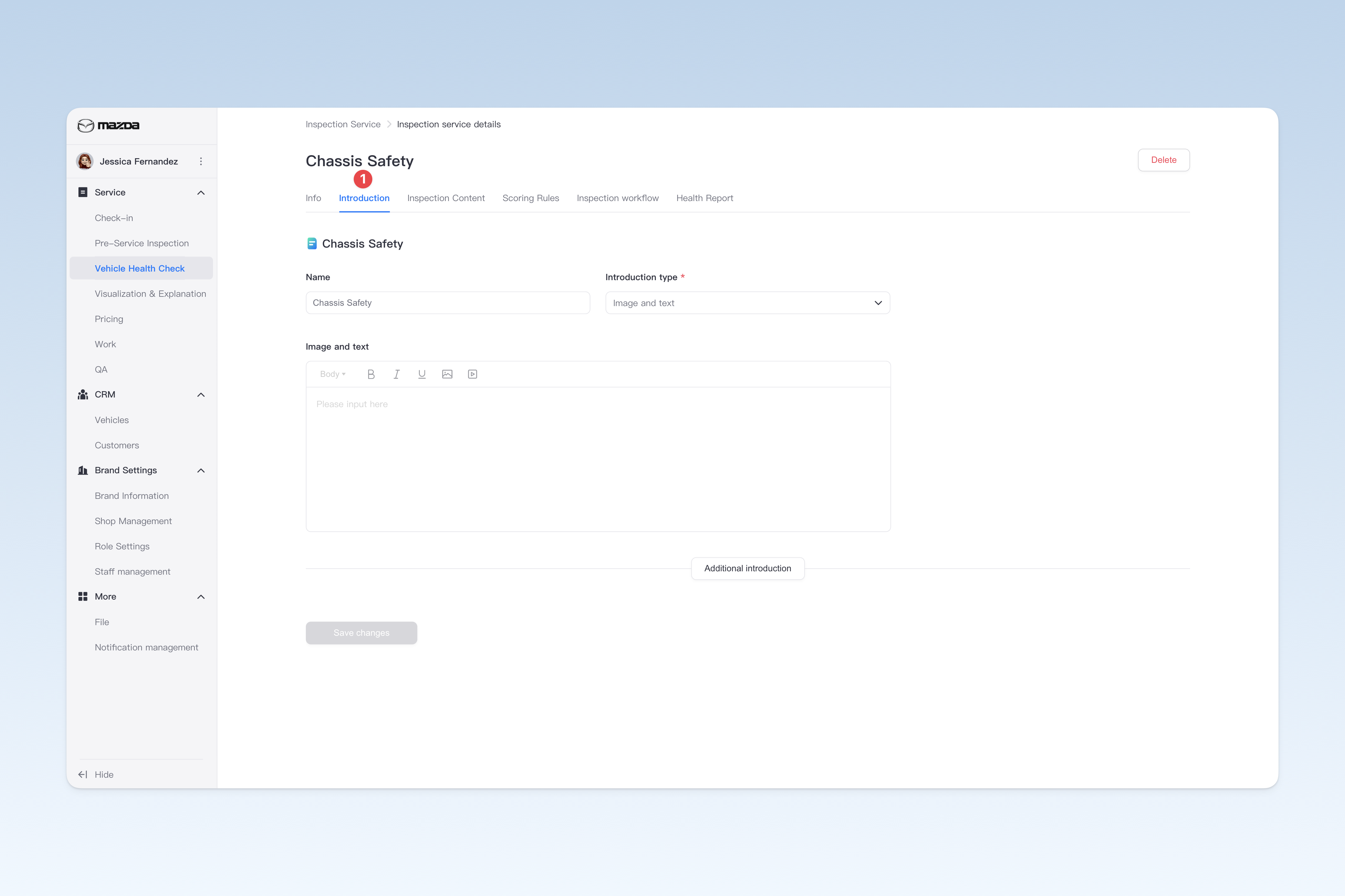
The service item introduction can help customers quickly understand the purpose of the service item for the vehicle. It can build trust with customers, dispel their consumption doubts, and convey corporate brand information. When designing the item introduction, sufficient market research should be conducted to avoid similarity with other brands' item introductions. At the same time, consumer surveys should be conducted to analyze the consumption intentions of the target consumer group.
On the "Health Check Service Item" page, find the service item to be modified, click the [Details] button on the right side of the list, and in the pop-up "Health Check Service Item" page, click the [Service Item Introduction] menu.
Item Introduction Methods
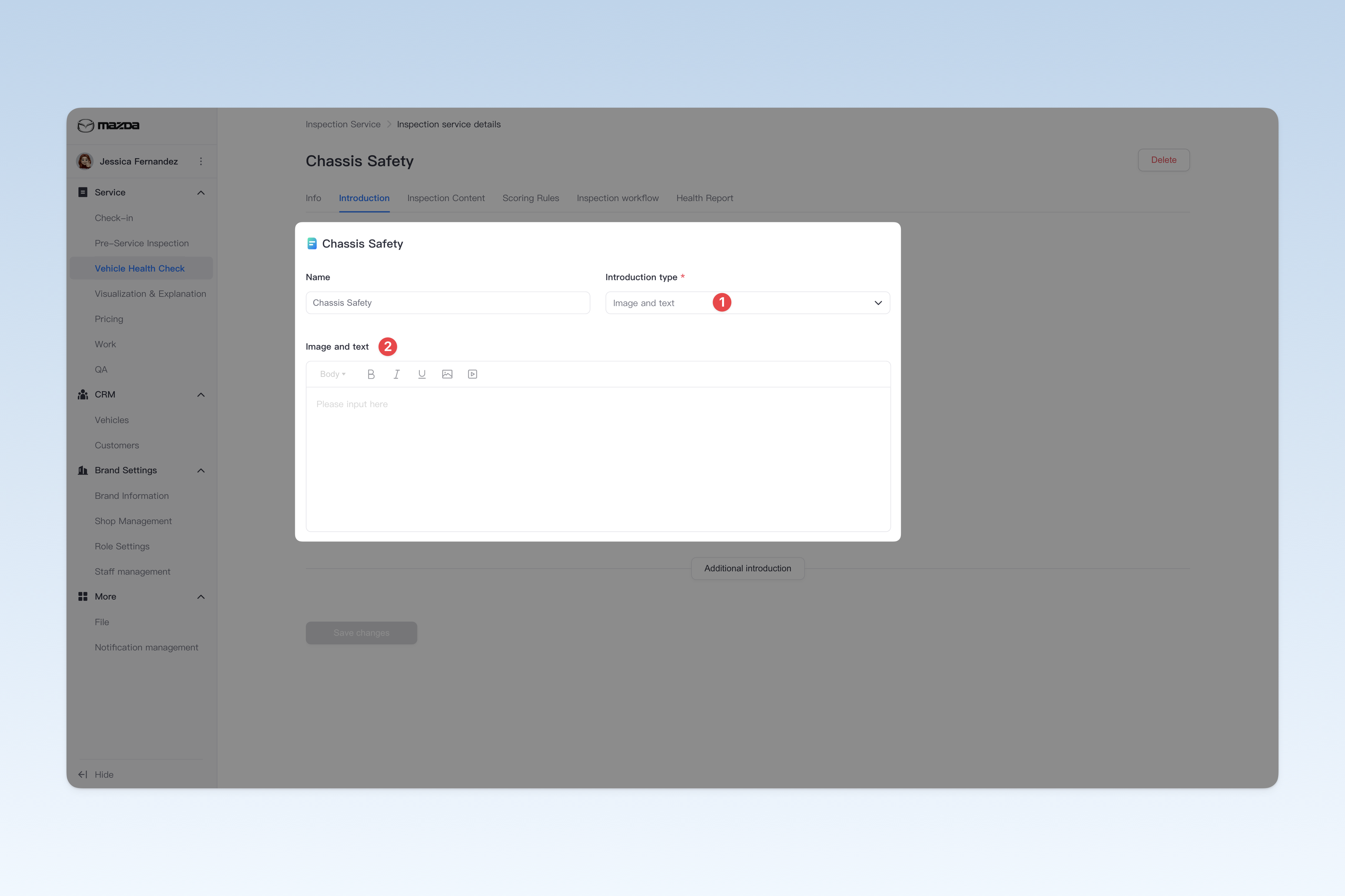
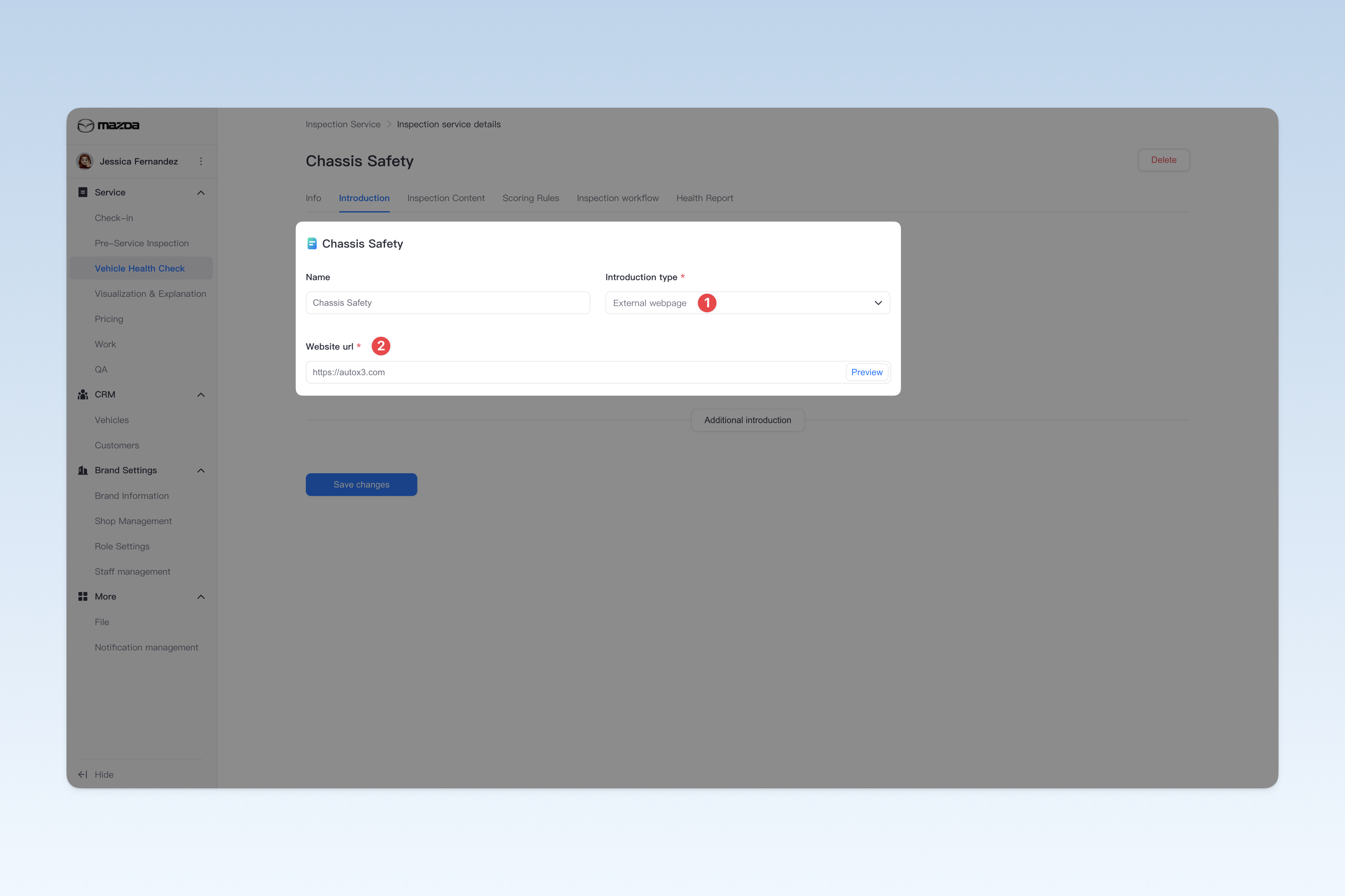
Currently, two item introduction methods are provided:
- Image and text: Enter the text, images, videos and other information of the item introduction, and arrange the content.
- External webpage: You can directly reference an external webpage link. When the item introduction needs to be viewed, the system will automatically open the webpage and display its content as the item introduction.
Add Multiple Item Introductions
The service item introduction supports adding multiple independent item introductions.
For example, the tire inspection item introduction can be divided into two sub-items: "Manual Tire Inspection" and "Automatic Inspection by Tire Inspection Equipment", with different introductions based on these two inspection methods.
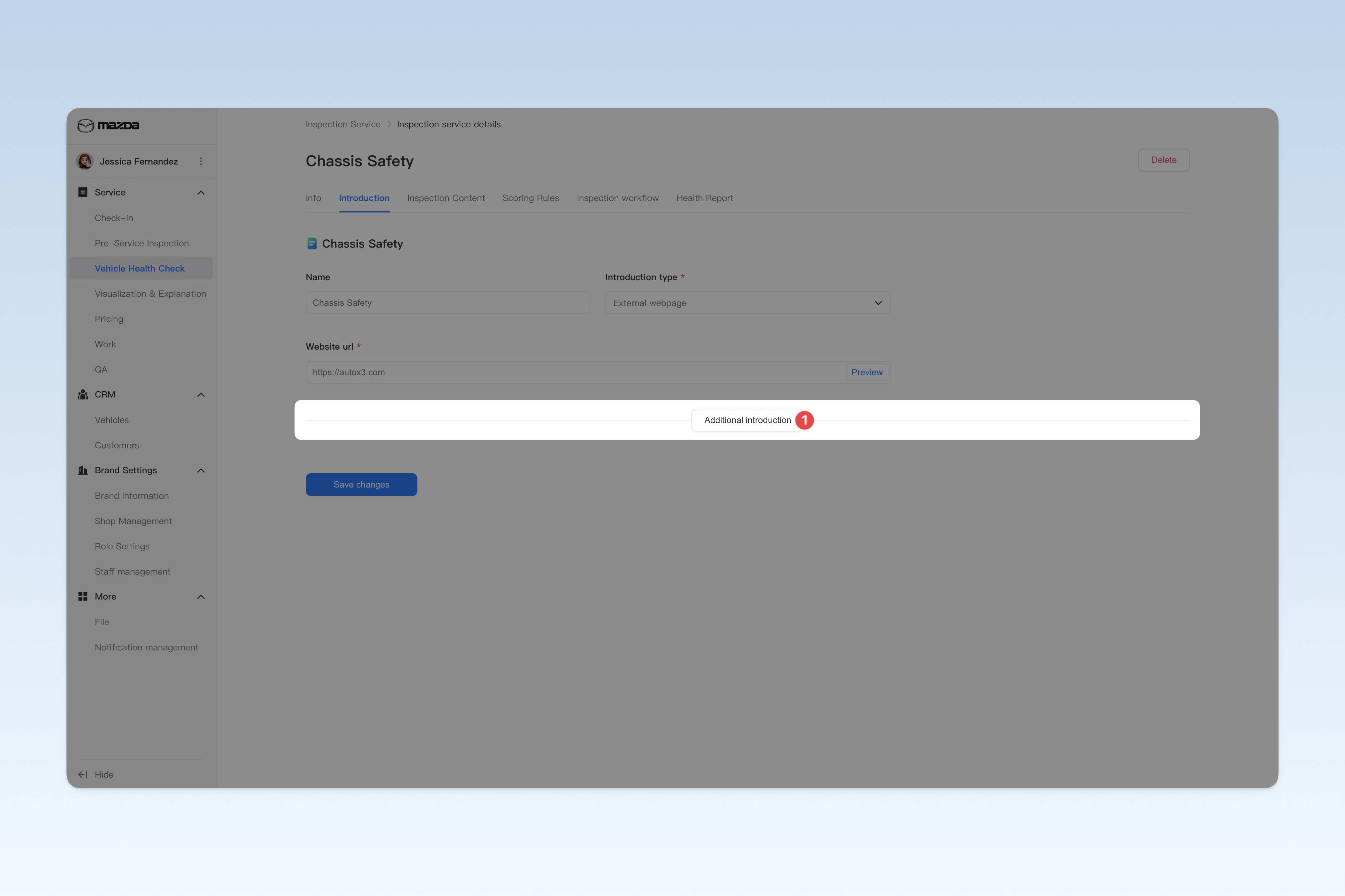
When entering the "Item Introduction" configuration page for the first time, the system will display an item introduction by default. If you need to add more, please click the [Additional introduction] button at the bottom of the item introduction.
Delete Item Introduction
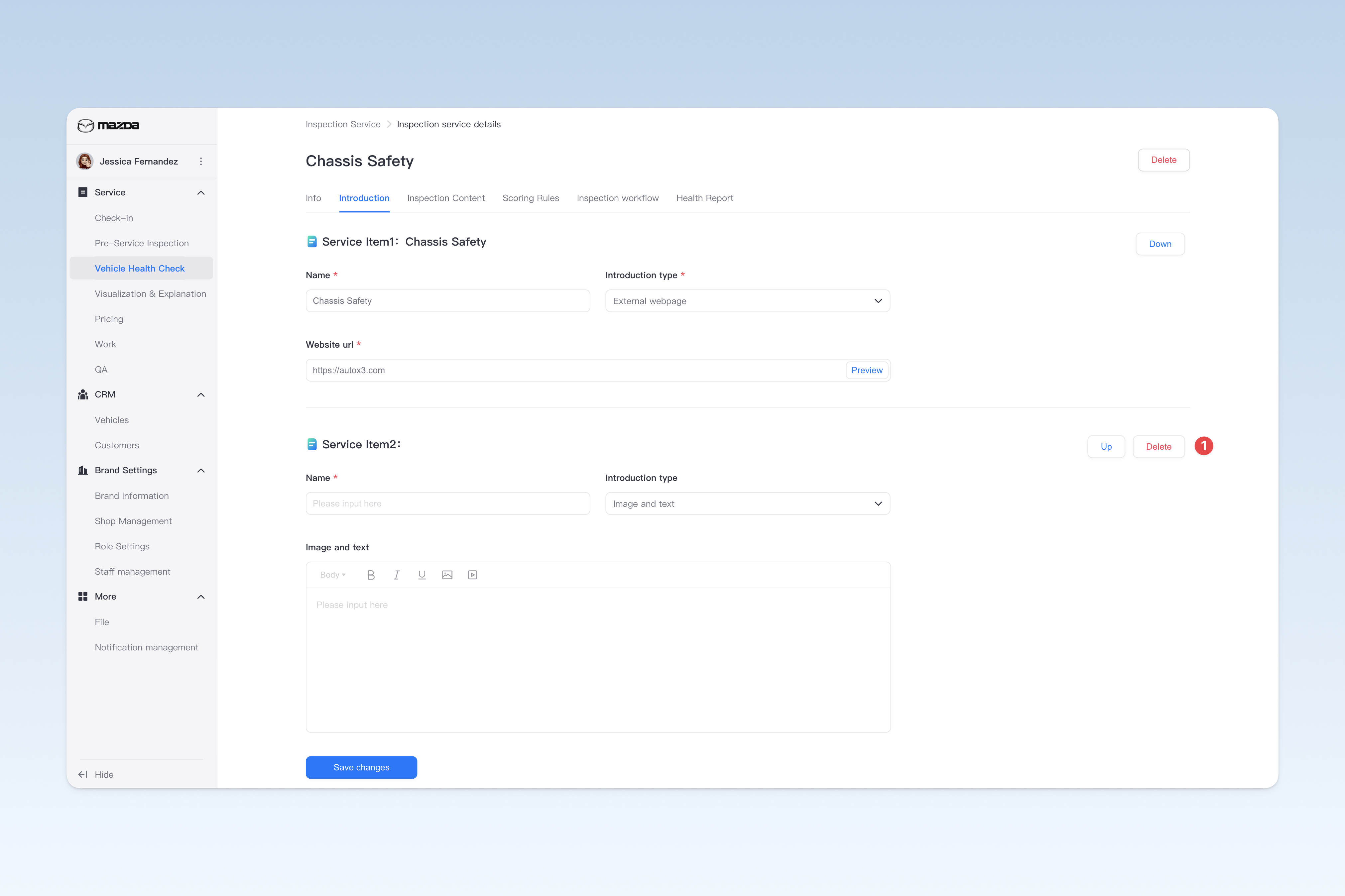
If you have created multiple item introductions, you can click the [Delete] button on the right side of the item introduction title to delete that introduction.
⚠️ Note: The system requires keeping at least one service item introduction by default. Therefore, when there is only one item introduction, it cannot be deleted.
However, you can use the method of manually clearing the "Item Introduction Title" and "Item Introduction Content" to cancel the introduction for that item (but we do not recommend doing this, as it will cause customers to see a blank page when viewing the relevant item introduction, which can easily make them feel frustrated).
Change Item Introduction Order
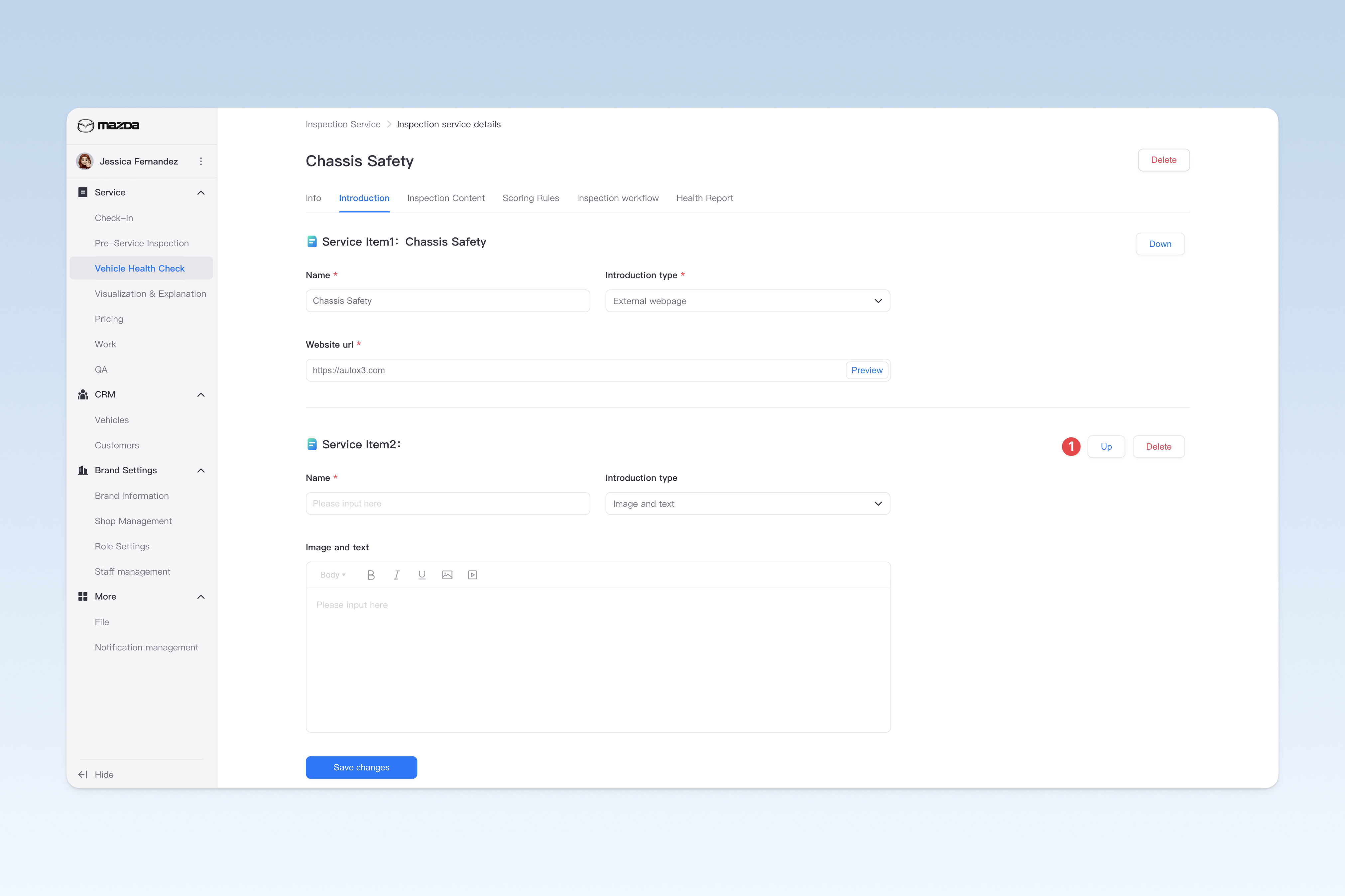
If you have created multiple item introductions, you can click the [Up] or [Down] button on the right side of the item introduction title to move the display order of the corresponding item introduction.
Configure Inspection Content
To use the inspection function of this work service, you must add the previously created inspection modules, sub-modules and checkpoints to this work service. After configuration, technicians can follow the preset inspection order to operate on the ordered inspection work services in the APP. After inspection, a well-structured and clear inspection report will be presented to the customer.
On the "Inspection Work Service" page, find the work service that needs to be modified, click the [Details] button on the right side of the list, and on the pop-up "Inspection Work Service" page, click the [Inspection Content] menu.
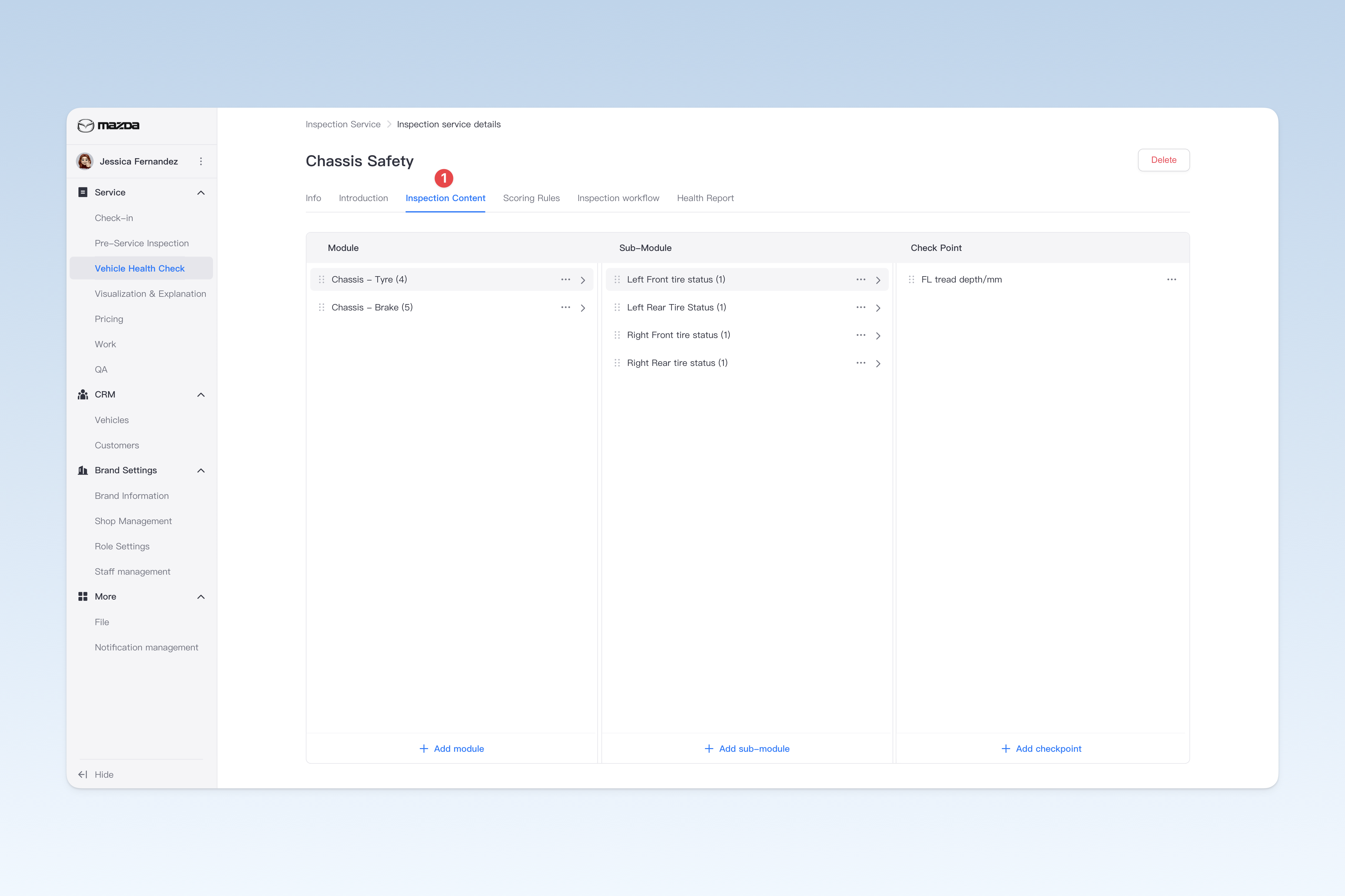
The following is an example of the combination of inspection modules, sub-modules and checkpoints in a brake/tire inspection template for your reference and learning of the combination principle of inspection templates.
1. Inspection Module: Tire System

    1.1 Sub-module: Tire Pressure and Age
        1.1.1 Checkpoint: Tire pressure
        1.1.2 Checkpoint: Tire age

    1.2 Sub-module: Front Tire Wear
        1.2.1 Checkpoint: Front tire tread depth/mm
        1.2.2 Checkpoint: Front tire uneven wear
        1.2.3 Checkpoint: Front tire condition

    1.3 Sub-module: Rear Tire Wear
        1.3.1 Checkpoint: Rear tire tread depth/mm
        1.3.2 Checkpoint: Rear tire uneven wear
        1.3.3 Checkpoint: Rear tire condition

 2. Inspection Module: Brake System

    1.1 Sub-module: Brake Fluid Quality
        1.1.1 Checkpoint: Brake fluid color
        1.1.2 Checkpoint: Brake fluid water content/%

    1.2 Sub-module: Brake Disc Wear
        1.2.1 Checkpoint: Brake disc unilateral wear/mm
        1.2.2 Checkpoint: Brake disc wear track

    1.3 Sub-module: Brake Pad Wear
        1.3.1 Checkpoint: Brake pad thickness/mm
Add Inspection Content
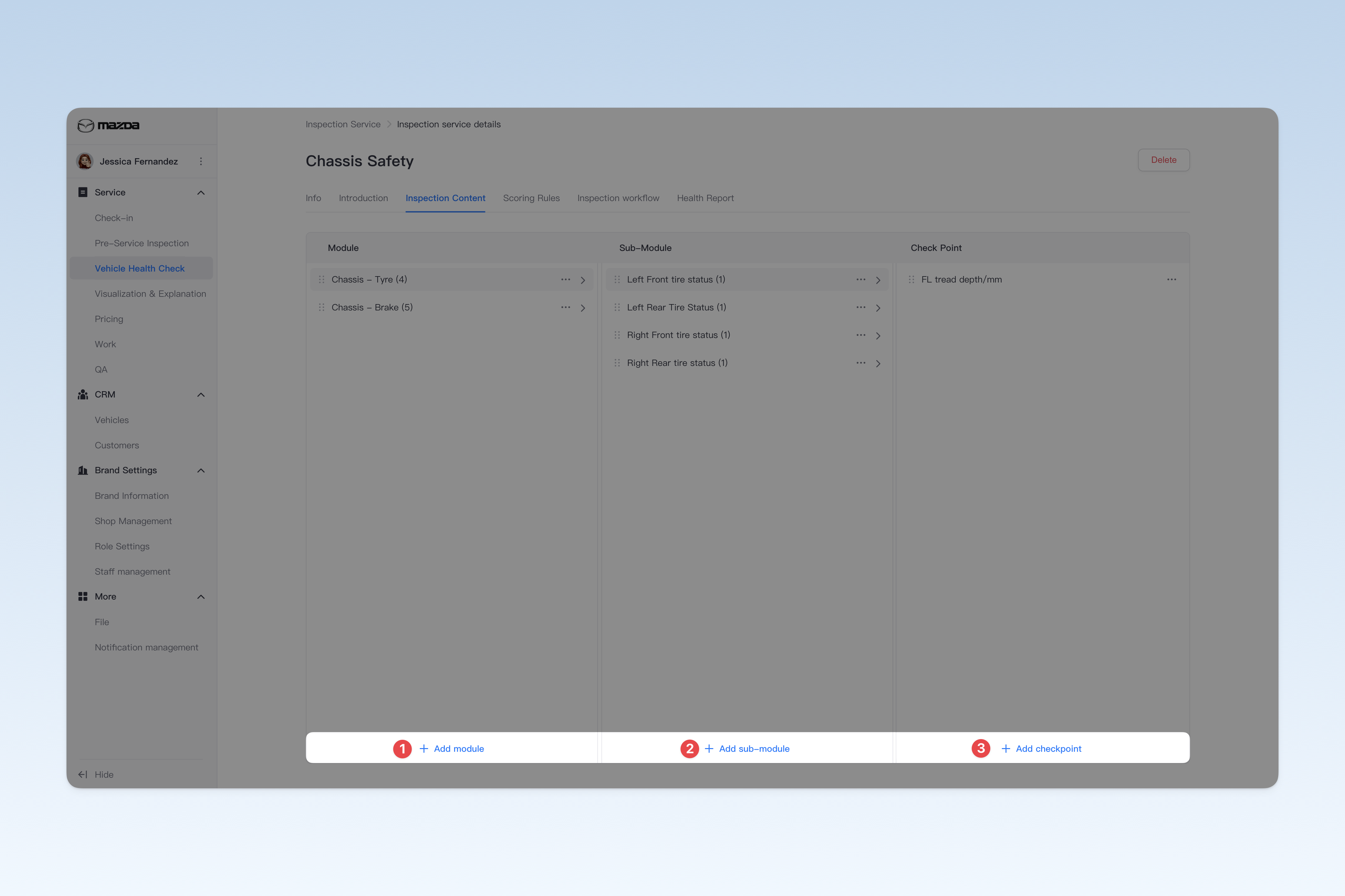
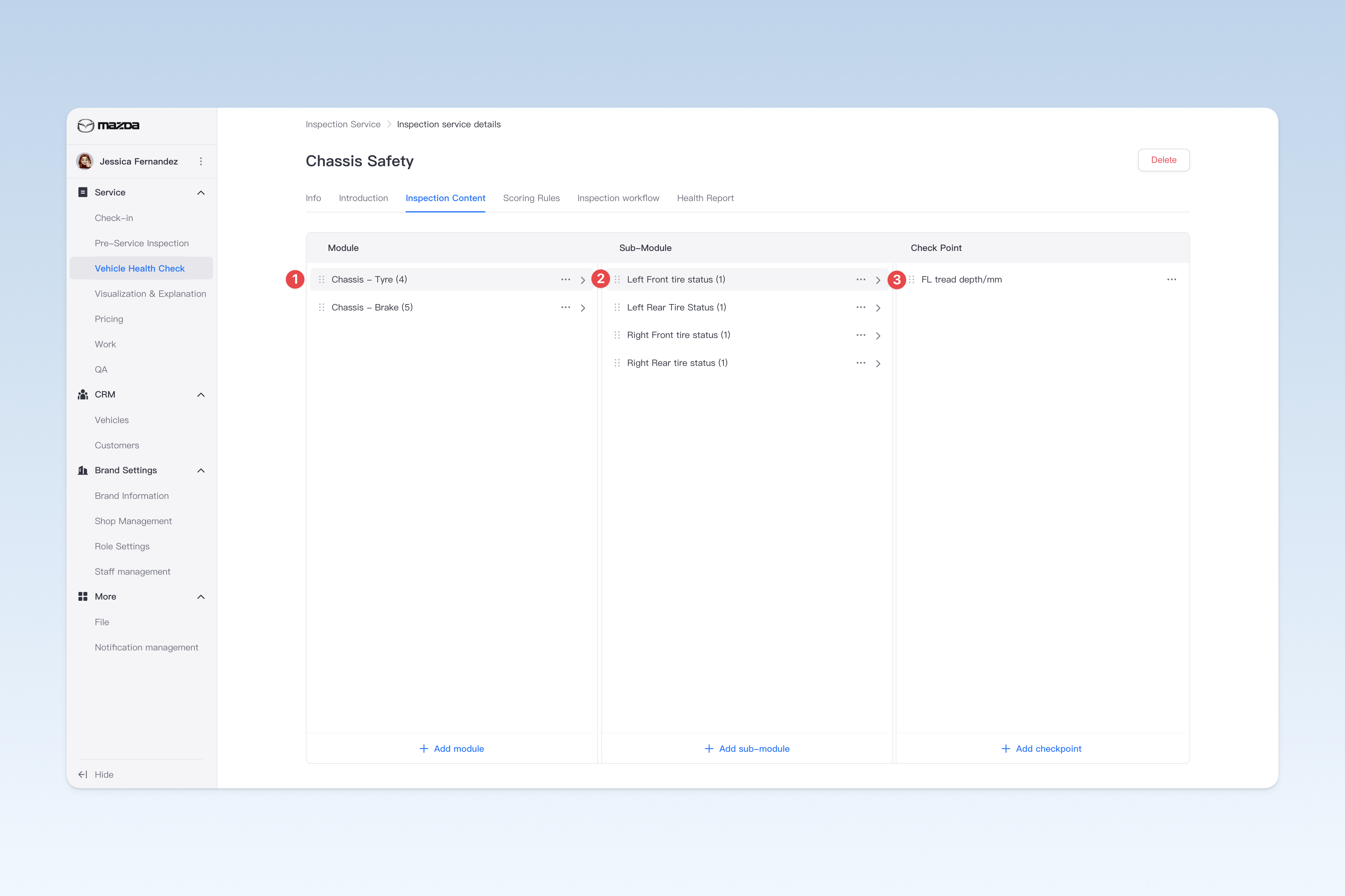
When initializing the "Inspection Content" page, no inspection content will be displayed by default. You need to complete the configuration of inspection content step by step in the following order: add inspection modules first, then add sub-modules, and finally add checkpoints.
- Add Inspection Modules
- After clicking the [Add Inspection Module] button, a configuration window will pop up.
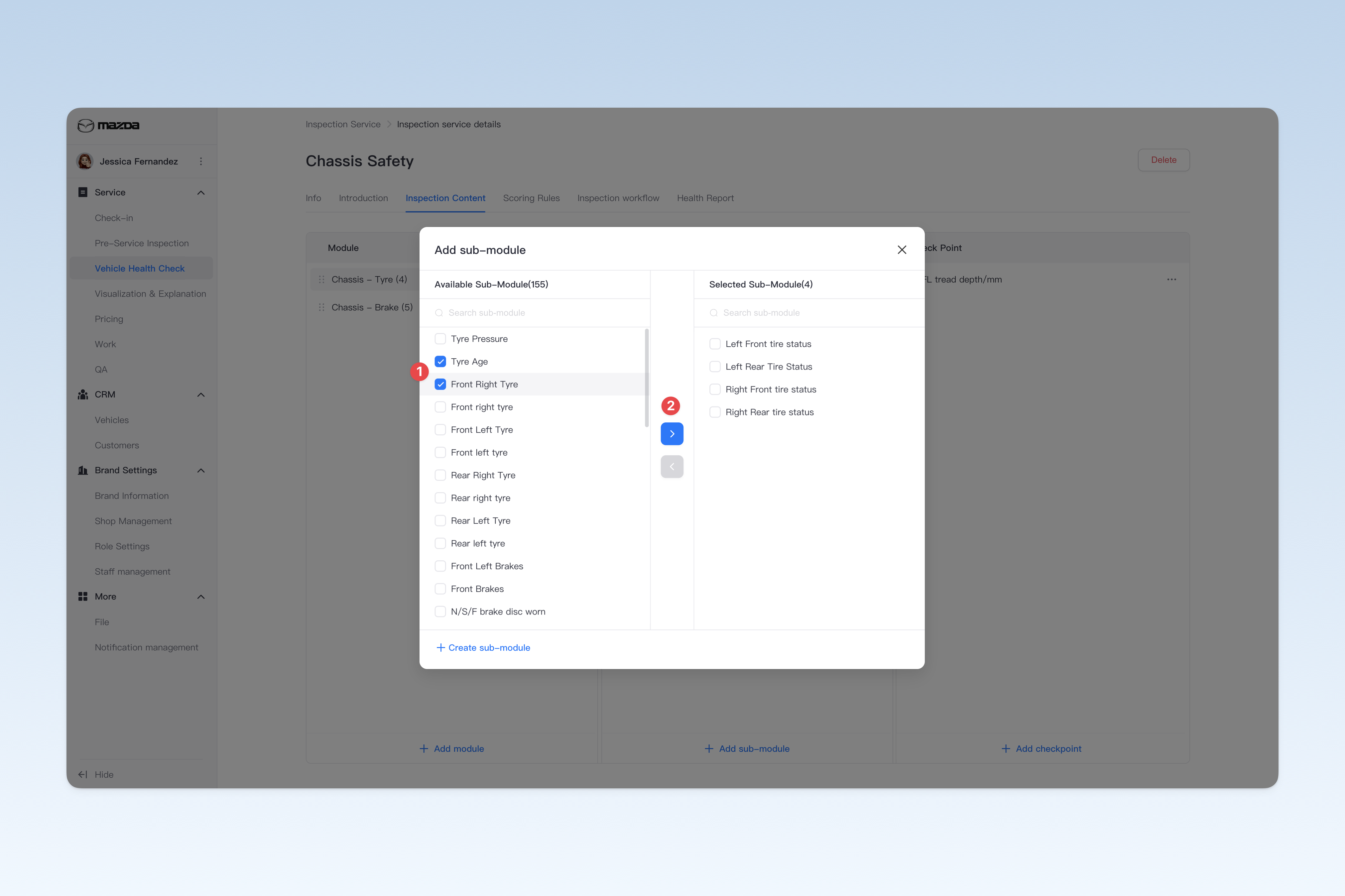
- The left side of the pop-up window displays the inspection modules you have created on the "Inspection Module Library" page, while the right side displays the currently added inspection modules.
- In the left list, select the inspection modules to be added and click the blue [>] arrow button in the middle. The selected inspection modules will move to the right, indicating successful addition.
- After selection, click the close button in the upper right corner of the pop-up window to complete the operation of adding inspection modules.
- Return to the "Inspection Content" page, and you will see the just added inspection modules displayed in the list.
- Configure Sub-modules for Inspection Modules
- Click the name of the just added inspection module, and the sub-module information will expand.
- Click the [Add Sub-module] button, and follow the same operation process as adding inspection modules to add sub-modules to the inspection module.
- Configure Checkpoints for Sub-modules
- After adding sub-modules, click the sub-module name, and the checkpoint information will expand.
- Click the [Add Checkpoint] button, continue to follow a similar operation process to add checkpoints to the sub-module.
Please add the corresponding sub-modules to each inspection module in turn, and add the corresponding checkpoints to each sub-module, until the configuration on the "Inspection Content" page is completed. Ensure the completeness and accuracy of the configuration to support the smooth execution of the inspection process.
Remove Inspection Content
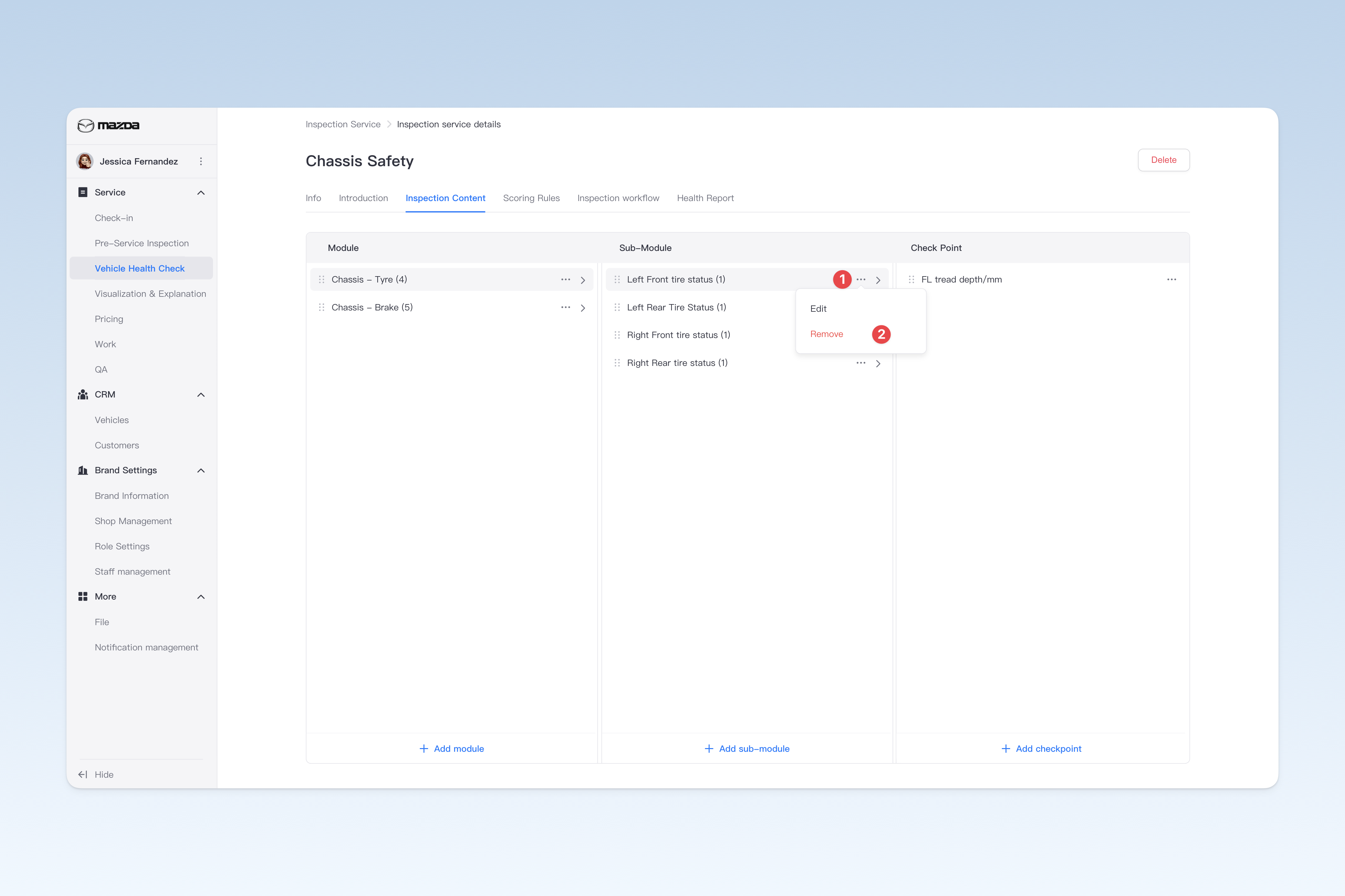
After selecting the inspection content to be removed, click the [...] button on the right, and in the pop-up menu window, select the [Remove] button to remove the corresponding inspection content.
Edit Inspection Content
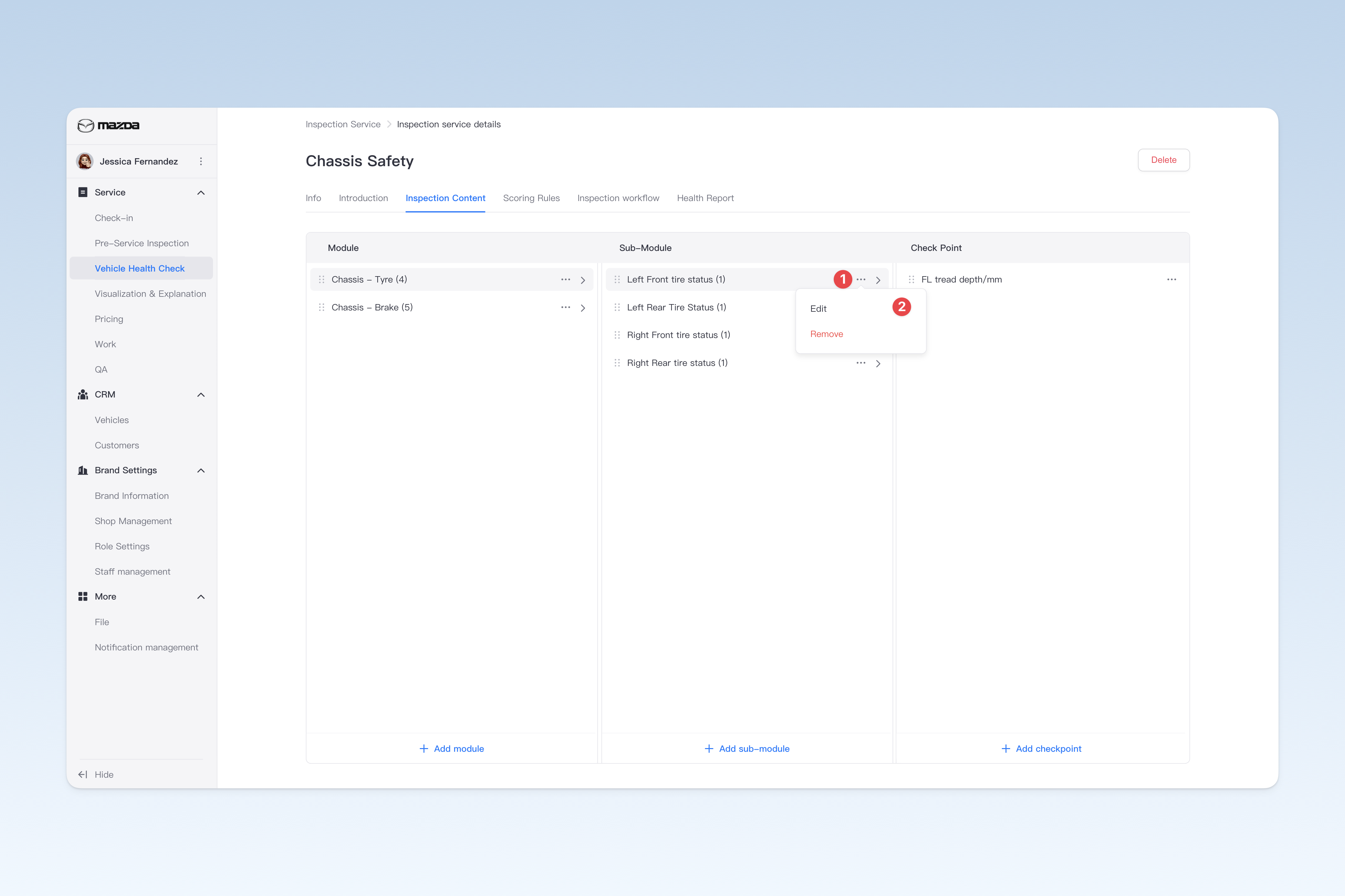
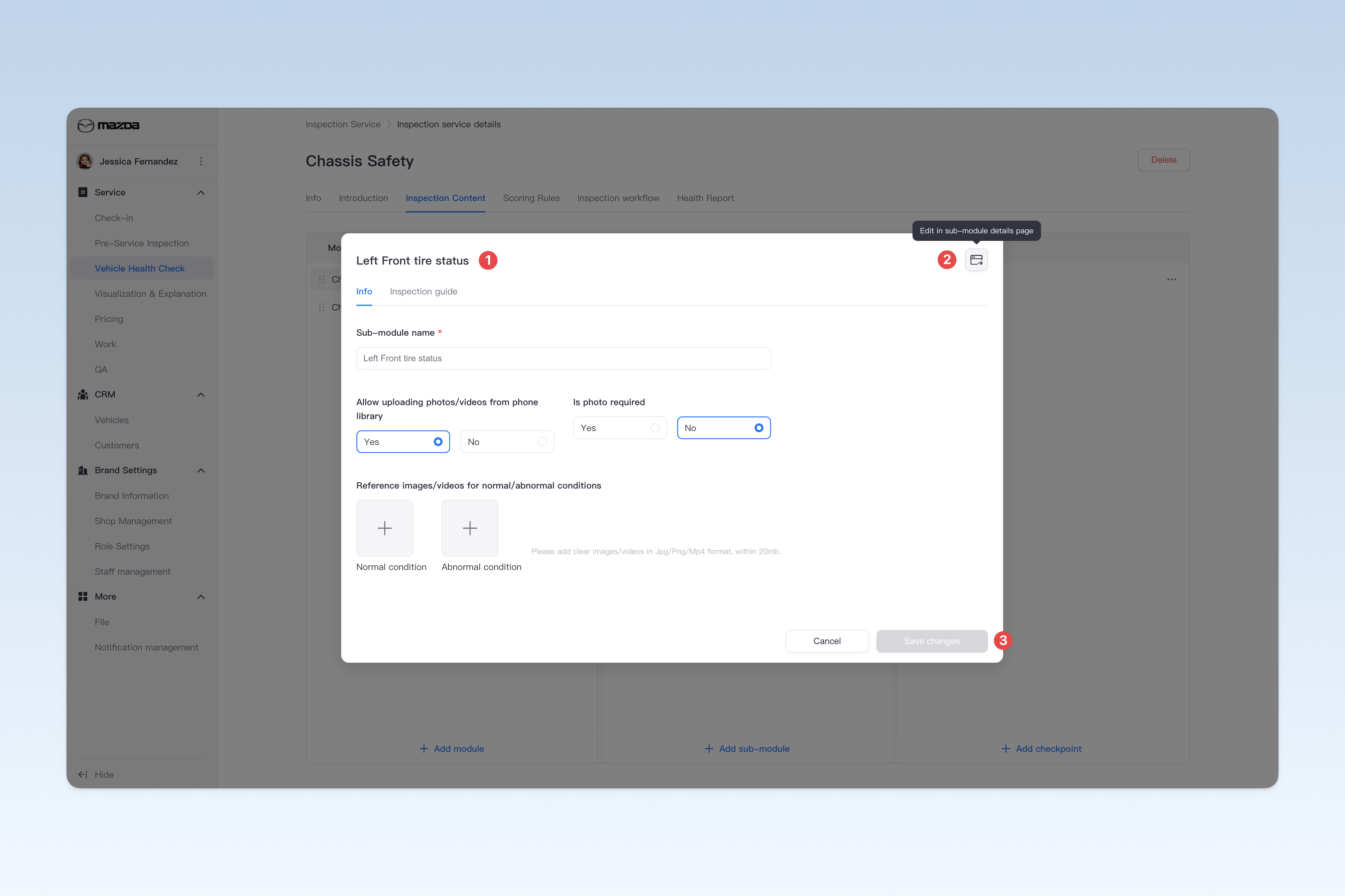
After selecting the inspection content to be edited, click the [...] button on the right, and in the pop-up menu window, select the [Edit] button. The corresponding editing pop-up window will appear, where you can edit the content.
- For editing inspection modules, please refer to: ◎ Inspection Module
- For editing sub-modules, please refer to: ◎ Sub-module
- For editing checkpoints, please refer to: ◎ Checkpoint
💡 Tip: In the editing pop-up window of "Sub-module" and "Checkpoint", you can select "Go to details page for configuration" in the upper right corner of the pop-up window.
Adjust the Order of Inspection Content
In the actual inspection process, the inspection order should be reasonably configured according to the actual inspection scenario. This not only makes the process more in line with the actual operation requirements, but also effectively improves the work efficiency of inspection technicians, ensuring the orderly progress and efficient completion of inspection tasks.
Find the inspection content that needs to be reordered, hover the mouse over the drag icon on the left, and the mouse pointer will change to a "drag" style. Press and hold the left mouse button and drag up and down to adjust the order of the inspection content.
Configuring Scoring Rules
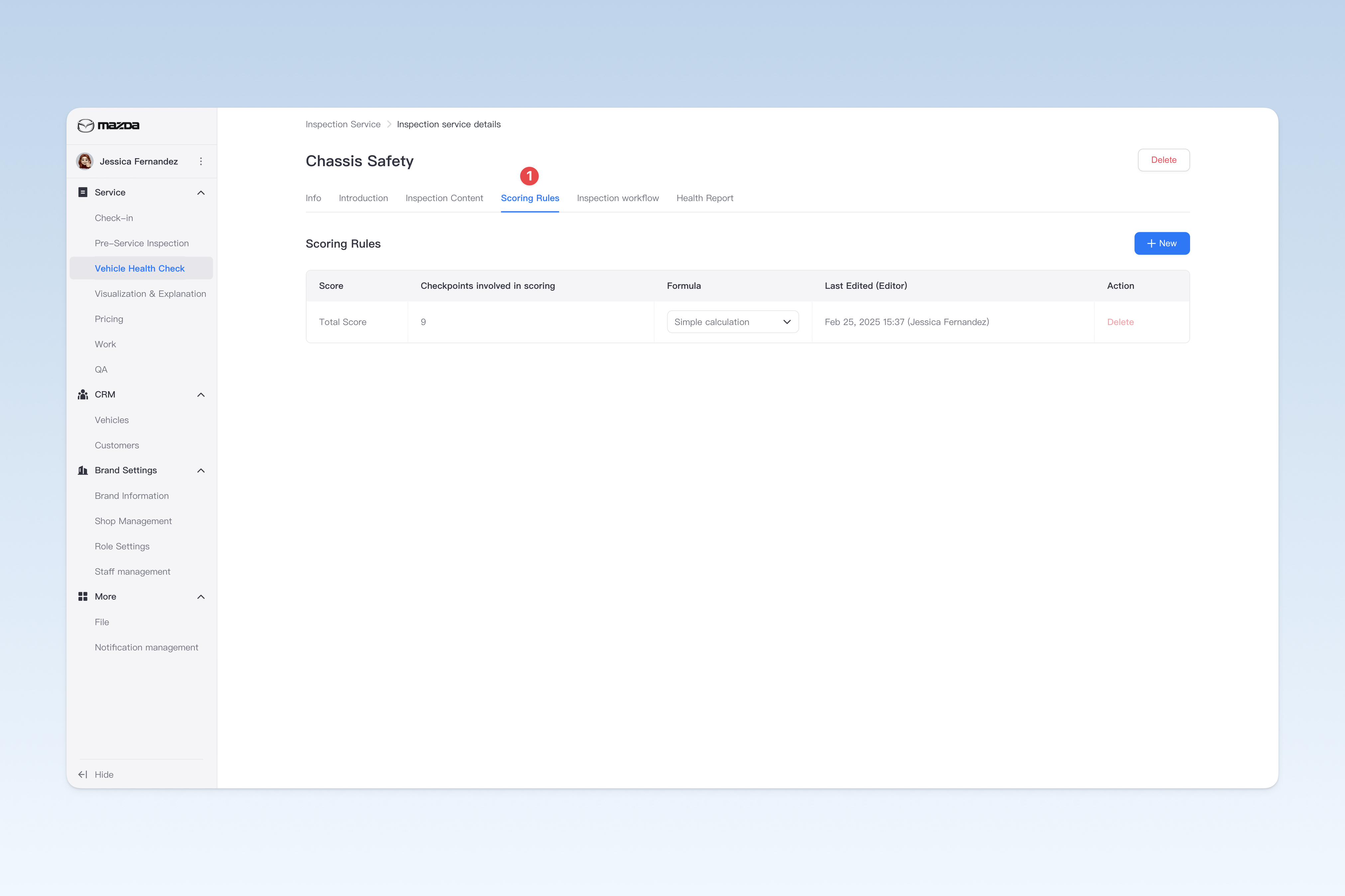
Scoring rules are used to generate the scoring basis in the customer inspection report after the inspection is completed. The core of these rules is to collect statistics on all checkpoints under the inspection service item and calculate scores based on the status of each checkpoint after the inspection. By setting unified rules, it ensures the objectivity and accuracy of scoring, making it easy for customers to intuitively understand the vehicle's condition.
On the "Inspection Service Items" page, find the service item you need to modify and click the [Details] button on the right side of the list. On the "Inspection Service Item" page that pops up, click the [Scoring Rules] menu.
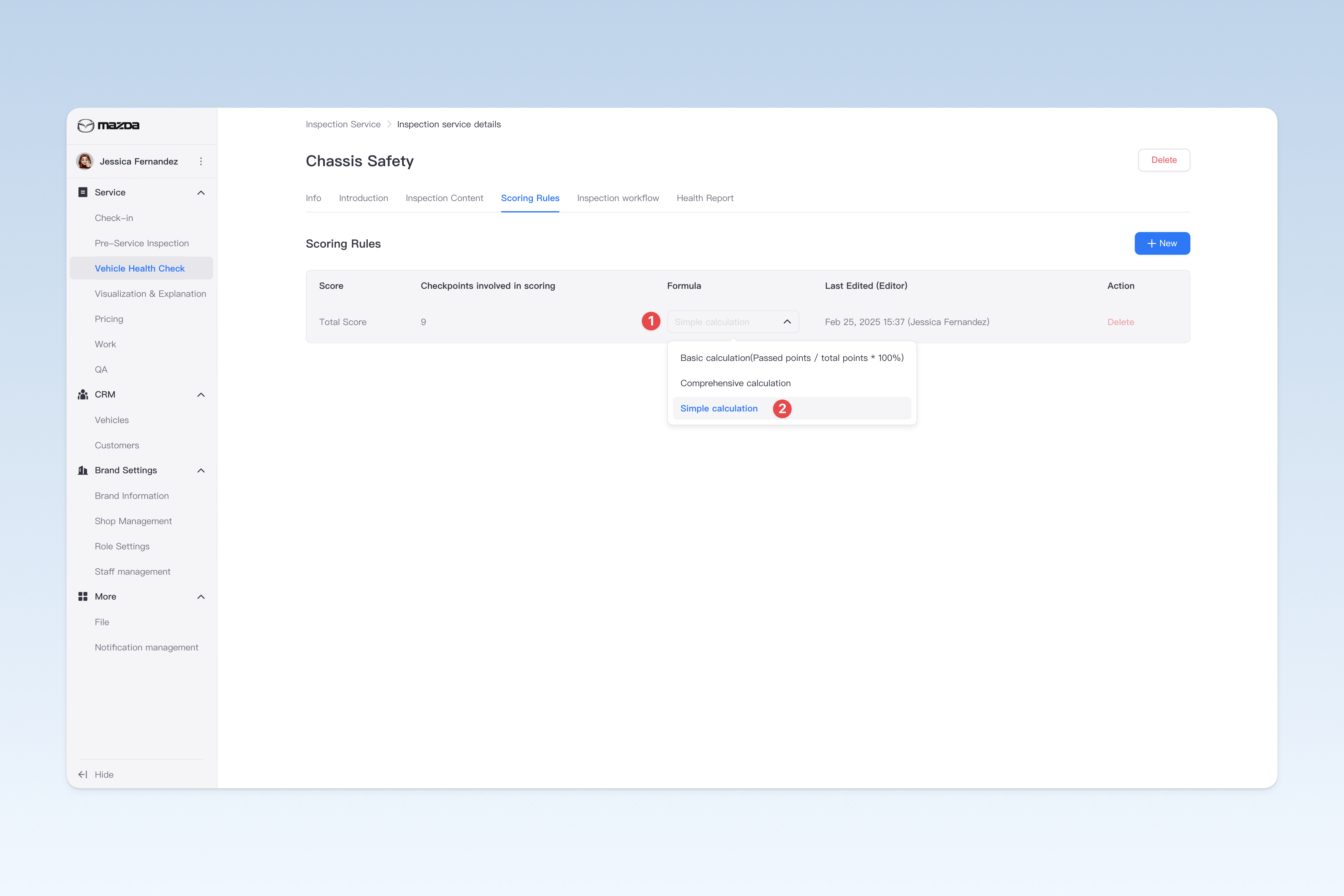
Currently, three scoring calculation methods are provided:
- Simple calculation: To avoid the unreasonable phenomenon of the total score being deducted to 0 when all checkpoints are slightly abnormal, the "Simple calculation" rule was created. This rule deducts points based on the severity of checkpoint abnormalities, with fewer points deducted for minor abnormalities and more points deducted for abnormal and urgent states, thus reasonably reflecting the actual impact of problems. Even if all checkpoints are slightly abnormal, the total score will not be reduced to 0, ensuring the scoring results are more reasonable and fair in real-world scenarios.
- Ultra-simple calculation: According to the 100-point scoring rule, the total score will be evenly distributed to each checkpoint. If the status of a checkpoint is not "normal", the average points corresponding to that checkpoint will be deducted. As the number of abnormal checkpoint statuses increases, the deductions accumulate until the total score drops to 0 when all checkpoints are not "normal".
- Comprehensive calculation: By manually configuring the corresponding deduction rules for each checkpoint, the system will strictly deduct points according to the configured rules based on the status of the checkpoint. This scoring method is the most rigorous and scientific, highly tailored to actual needs. However, due to the need for manual configuration of each checkpoint, this rule is more complex and costly to implement. If there are no special requirements, it is not recommended to use this calculation method.
⚠️ Note: The system uses the "Simple calculation" method for scoring by default. This method achieves a good balance between configuration complexity and scoring rationality, so it is recommended as the default setting. If you do not have special requirements for scoring rules, it is recommended to keep the default configuration to avoid additional adjustments affecting the applicability and efficiency of scoring.
Configure Inspection Workflow
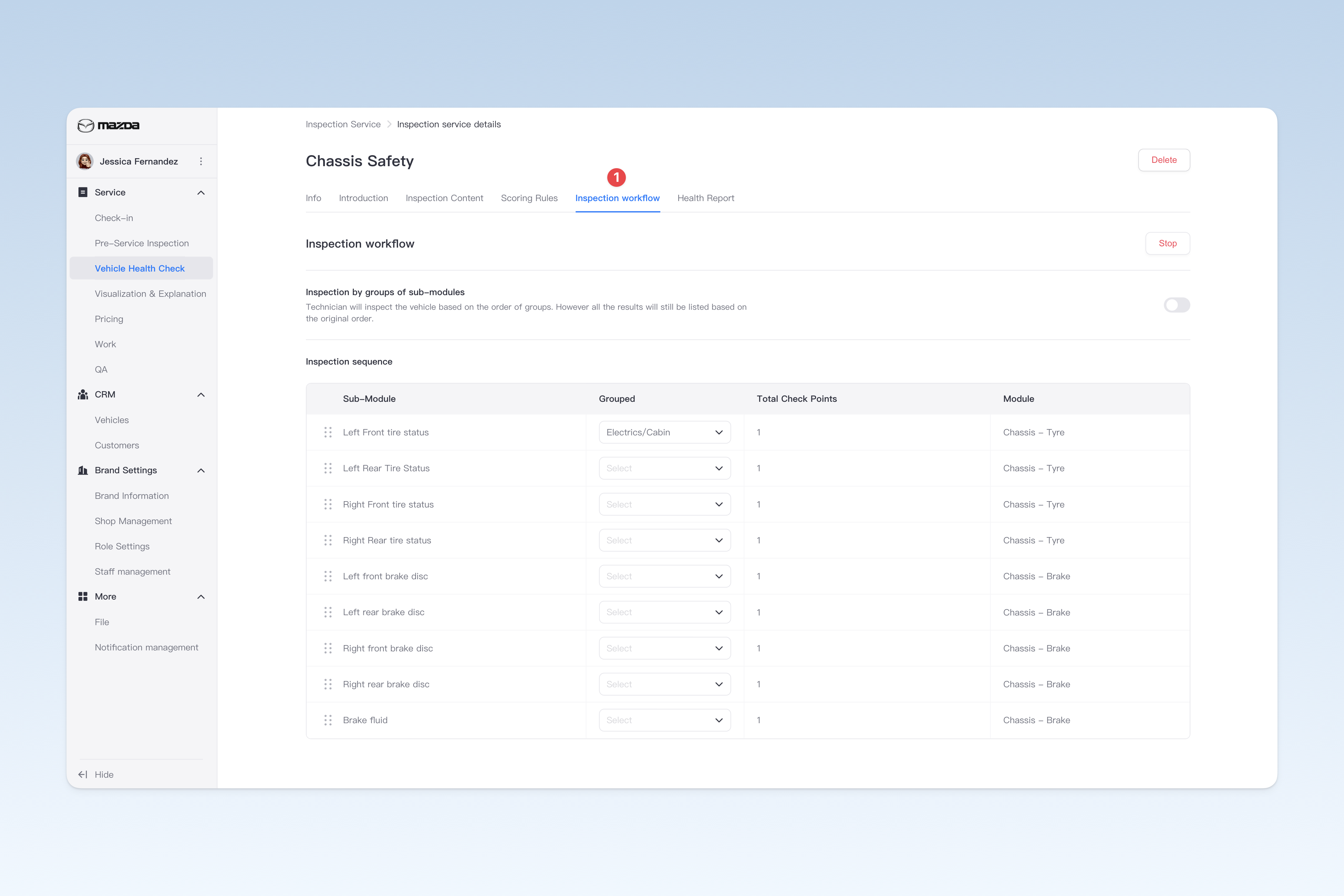
The inspection workflow is used to extract all configured sub-modules from the inspection work service and reorder them. When technicians perform actual operations in the shop, they will inspect the vehicle according to the order set in the "Inspection Workflow". The inspection workflow configuration only affects the inspection order of technicians and does not change the display logic of the inspection report. It aims to optimize the technician's inspection process to make it more in line with the actual inspection scenario, thereby significantly improving the work efficiency of technicians.
Example: In the inspection work service, "Valve Cover Oil Leakage" and "Brake Fluid Level" belong to different inspection modules, the former belongs to the "Engine System", and the latter belongs to the "Brake System". In the actual inspection process, technicians may need to complete all inspections of the engine system and submit them before starting the inspection of the brake system. However, in fact, both "Valve Cover Oil Leakage" and "Brake Fluid Level" are located in the engine compartment of the vehicle. According to the current inspection order, technicians must perform inspections separately, resulting in a discontinuous process. At this time, the inspection workflow can separately sort "Valve Cover Oil Leakage" and "Brake Fluid Level", making these two sub-modules adjacent in the actual inspection process, thereby optimizing the inspection process and improving inspection efficiency.
On the "Inspection Work Service" page, find the work service that needs to be modified, click the [Details] button on the right side of the list, and on the pop-up "Inspection Work Service" page, click the [Inspection Workflow] menu.
Use Inspection Workflow
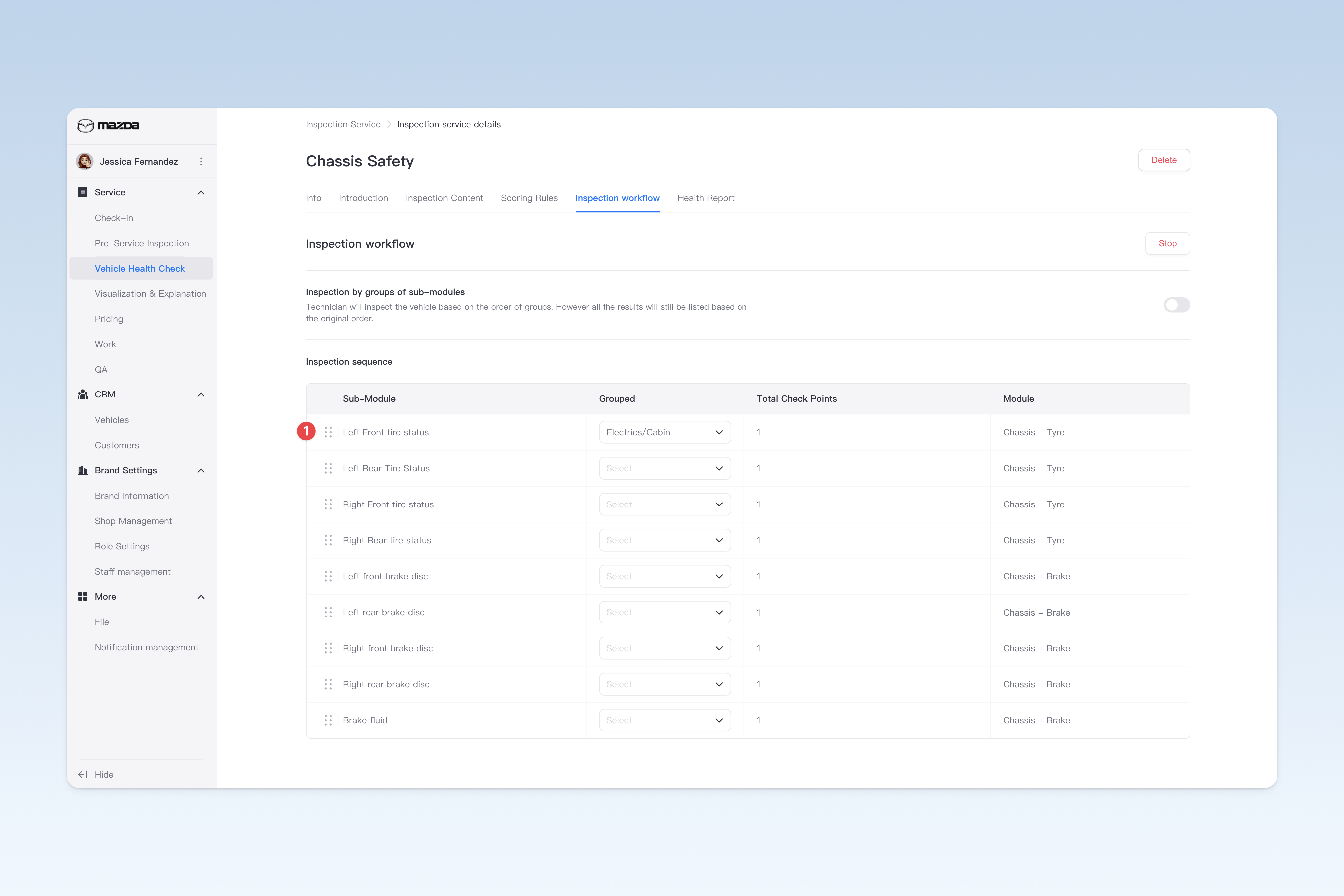
When using it for the first time, you need to click the [Start] button to enter the "Inspection Workflow" configuration page. In the inspection order list at the bottom of the page, the system will automatically list all configured sub-modules in the work service. Find the sub-module that needs to be reordered, hover the mouse over the drag icon on the left, and the mouse pointer will change to a "drag" style. At this time, press and hold the left mouse button and drag up and down to adjust the inspection order.
Inspection by groups of sub-modules
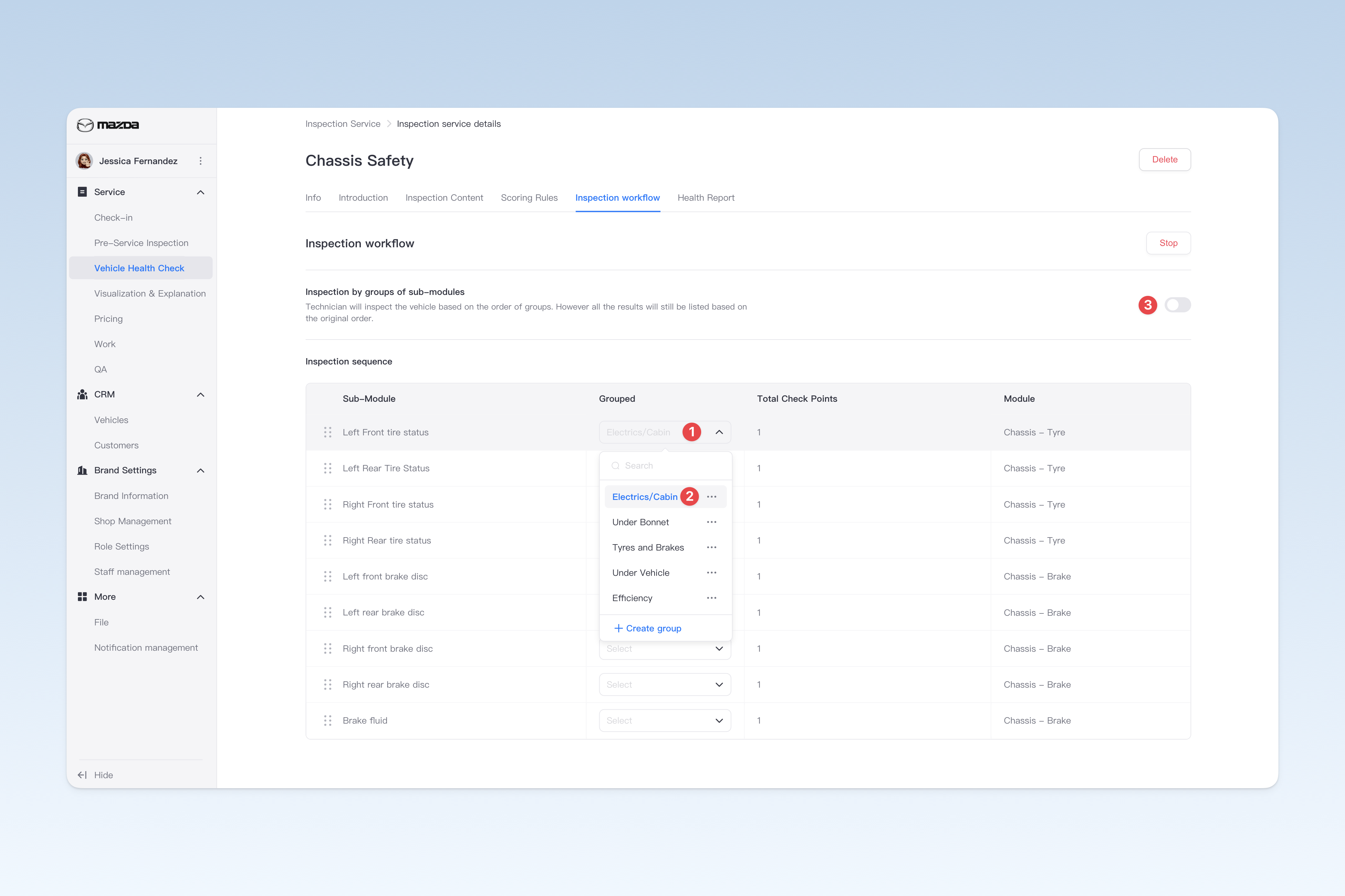
The function of the inspection workflow is to regroup all sub-modules and display them in the order of groups during actual inspection, thereby optimizing the inspection process.
⚠️ Tip: If you need to use grouping, please group all sub-modules first, and then manually enable it: group the sub-modules
Inspection Report Preference Settings
Visualized inspection reports and explanations by technicians can help customers clearly and easily understand the working principles of each component of the vehicle and the safety hazards when parts are damaged. Therefore, a detailed and complete inspection report can enhance the persuasiveness of employees when introducing products to customers, build a sense of trust for customers, and dispel customers' consumption doubts, thereby improving customers' trust in the brand.
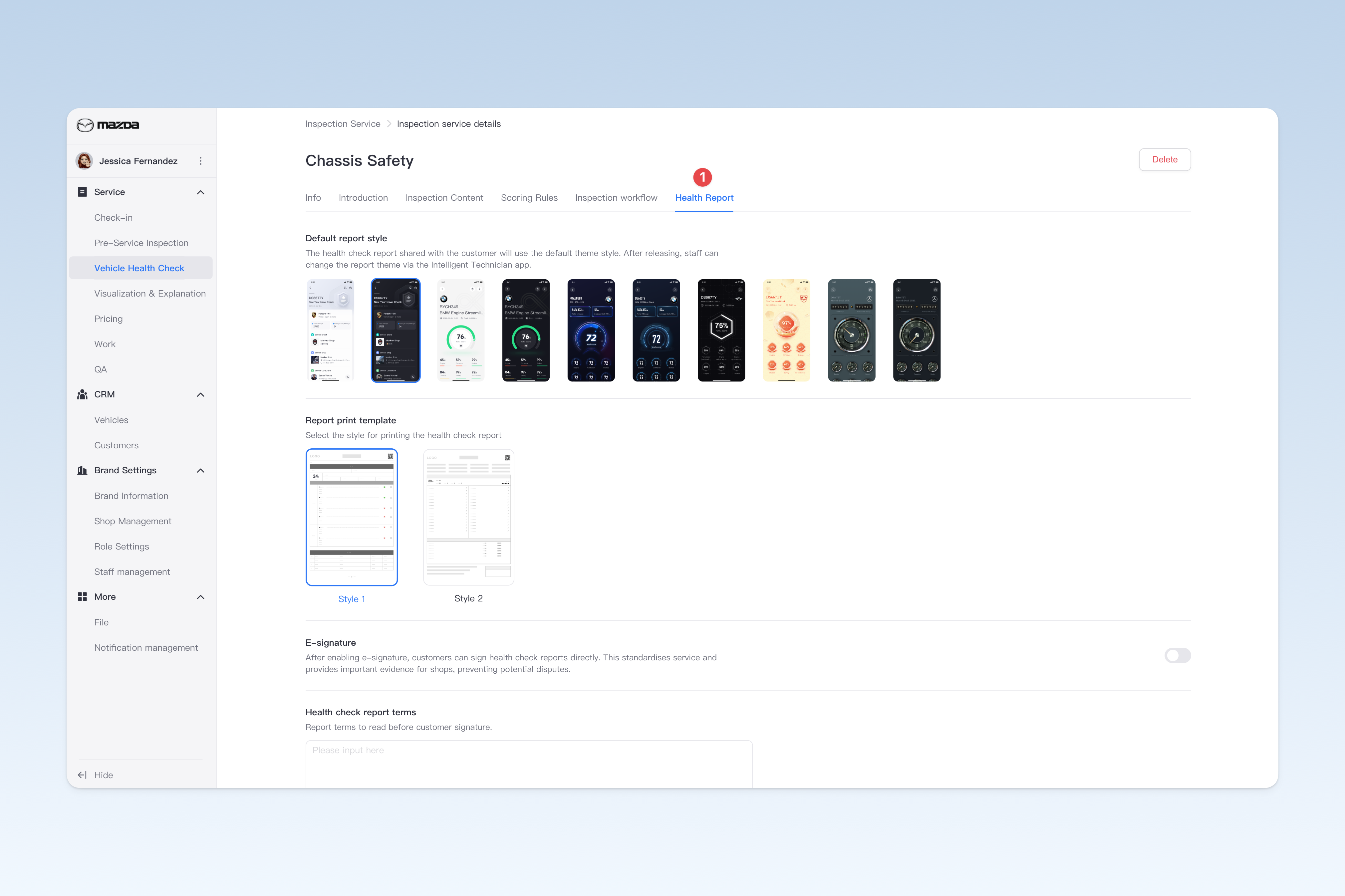
On the "Inspection Work Service" page, find the work service that needs to be modified, click the [Details] button on the right side of the list, and on the pop-up "Inspection Work Service" page, click the [Inspection Report] menu.
- Default theme of inspection report: Set the default style for the inspection report shared with customers (this style can also be modified in the technician APP)
- Inspection report print template: Inspection reports support paper printing and PDF export and sharing. Therefore, you can customize the theme style of the paper report and flexibly set the presentation form of the report.
- Customer signature: After enabling the electronic signature function, customers can directly sign and confirm on the inspection report. This not only standardizes the service process but also retains important evidence for the shop, effectively preventing potential disputes that may occur later.
- Inspection report terms: After the inspection is completed, the customer will review the inspection report and sign to confirm. Therefore, you need to enter the group's risk notices or user agreements for the customer to read before signing to avoid unnecessary disputes.
- Live video teaser: Technicians can livestream vehicle inspections or work processes through the "Intelligent Technician" APP. After starting the livestream, customers can watch the technician's work live on the service certificate. The livestream cover can be set here.
⚠️ Note: This setting only applies to the current inspection work service and does not affect the global settings of all reports. To adjust the global inspection report settings, please go to: AutoX3 Brand Management Dashboard > Service Management > Inspection Management > Inspection Report Content Settings to configure related content. For details, please refer to: ◎ Inspection Report Content Settings
Copy Inspection Work Service
You can copy a fully configured inspection work service and modify it, effectively improving configuration efficiency and saving operation time.
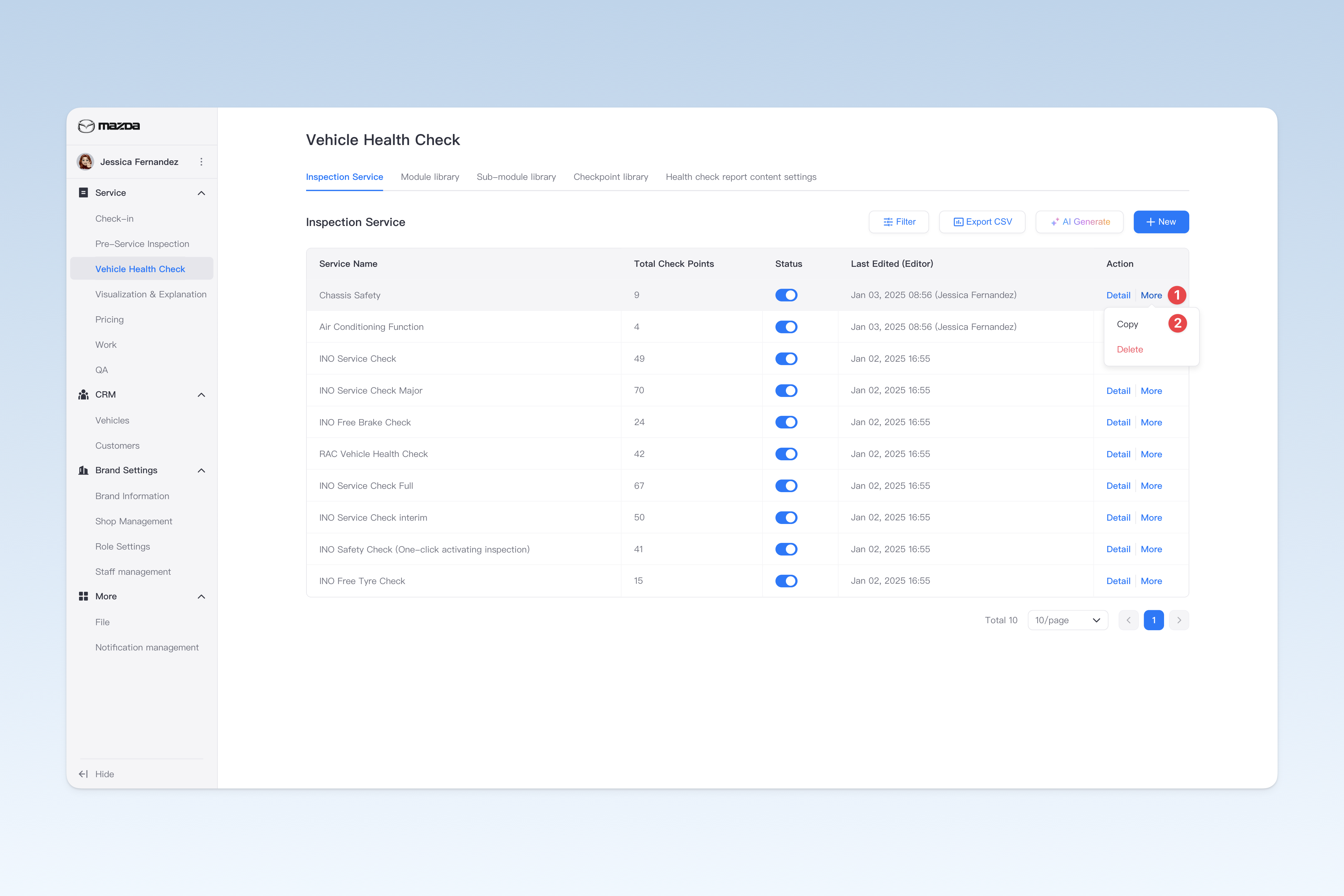
On the "Inspection Work Service" page, find the item you want to copy, click the [More] button on the right side of the list, and click [Copy] in the drop-down menu. A new item inheriting all data will be generated above the original item for you to further edit and use.
Delete Work Service
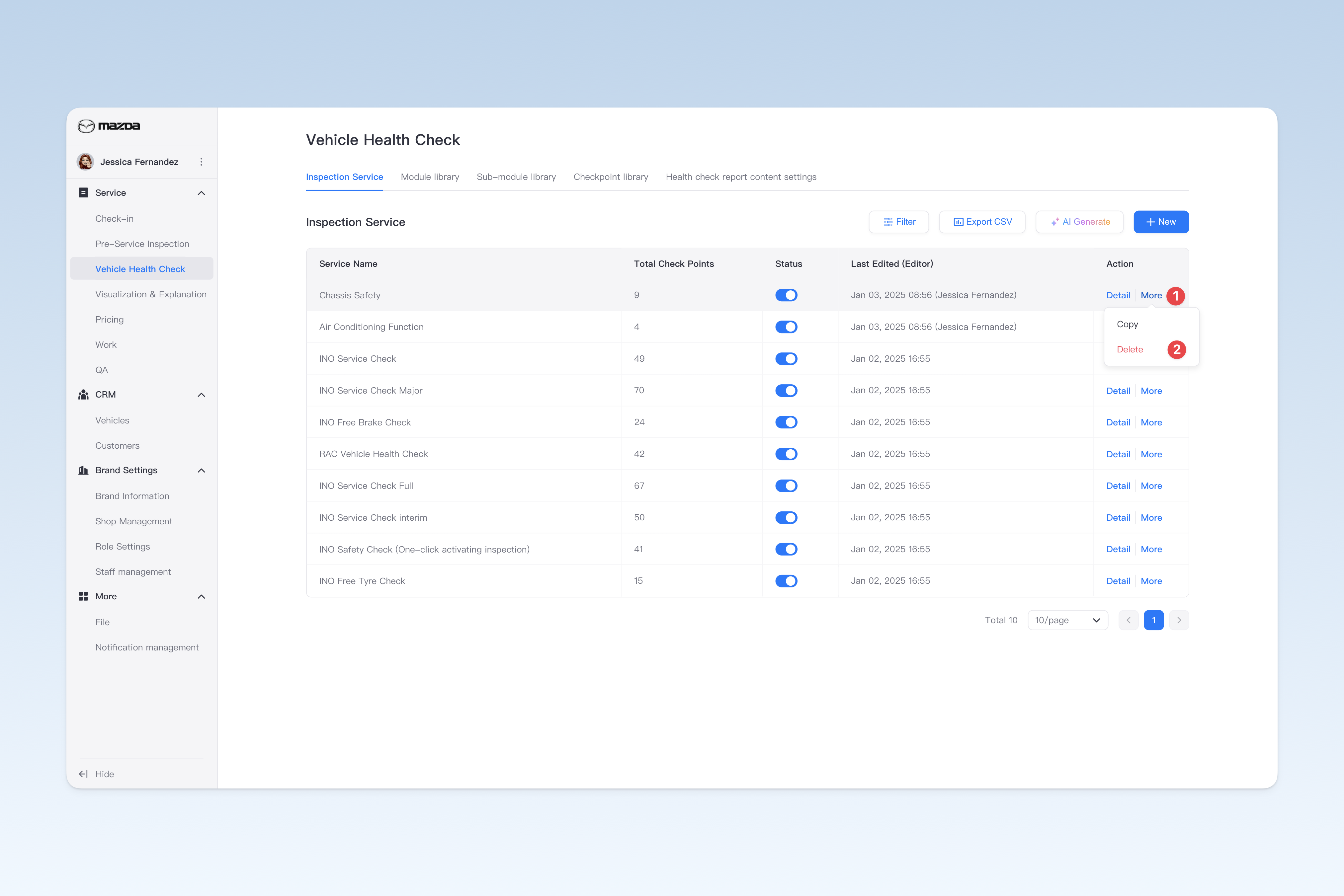
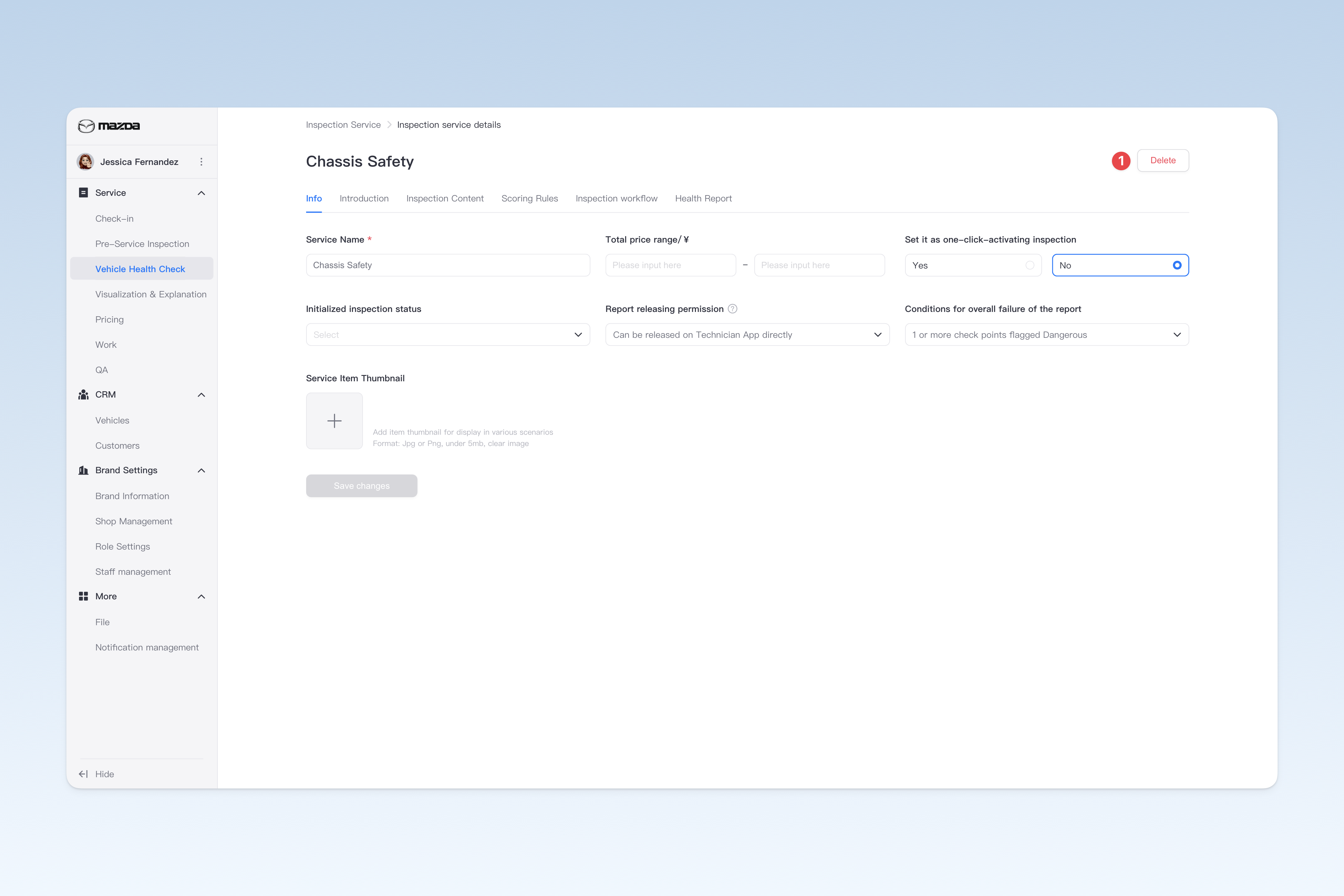
There are currently two ways to delete an inspection work service:
- On the "Inspection Work Service" page, click the [+ More] button on the right side of the list, and click [Delete] in the drop-down box.
- Go to the "Inspection Work Service Details" page and click the [Delete] button in the upper right corner.
Enable/Disable Work Service
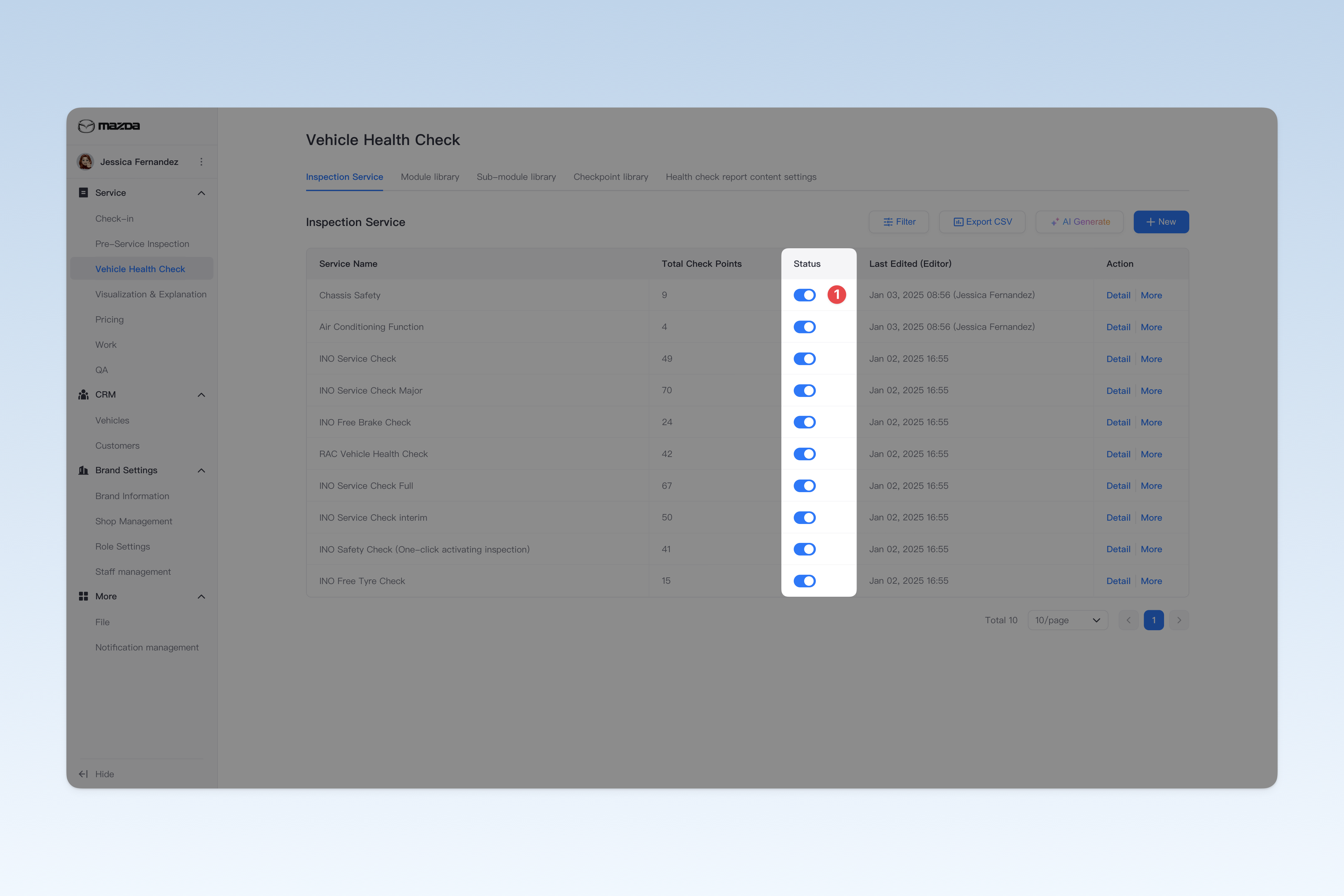
On the "Inspection Work Service" page, find the "Enabled Status" column in the list and click the [+ On/Off] button to "Enable" or "Disable" any inspection work service.
Export Service Item List to Spreadsheet File
On the "Inspection Service Items" page, click the [+ Export CSV] button located in the upper right corner. After waiting for a short period, the system will automatically create a download task in the browser. Please find the exported spreadsheet file on the browser's download page.