◎ Brand Management Backend Preference Settings
When first entering the brand management backend, it is recommended that you make some preference settings to make the website better suit your usage habits.
📍 On the "AutoX3 Brand Management Backend" page, click on the user avatar name at the top, and in the dropdown menu that pops up, you can make the following settings:
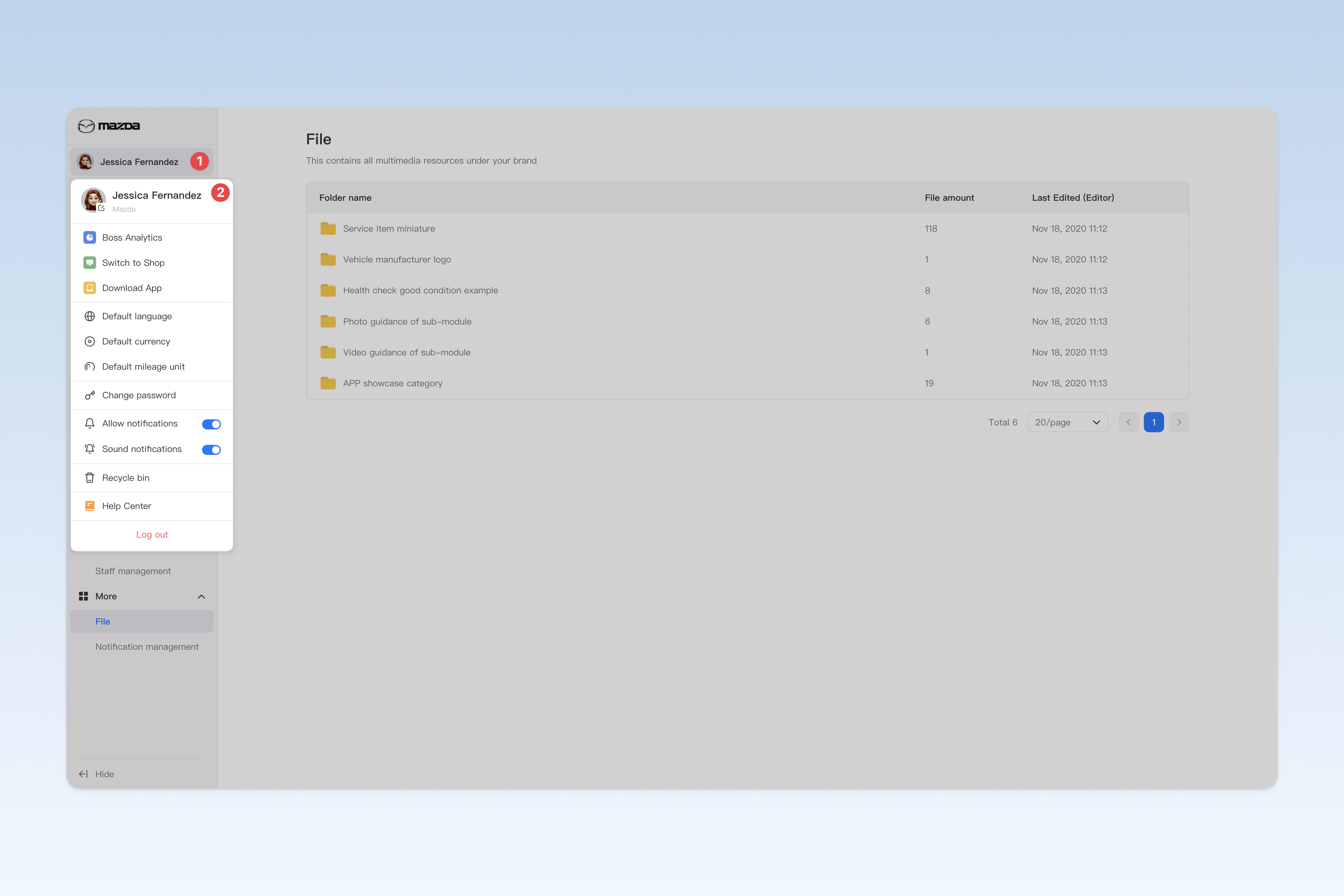
Change Avatar
After clicking the avatar at the top of the dropdown menu, the file selection window that comes with your computer system will pop up. Please locate the folder where the target image is stored, select a PNG or JPG format image file, and click [Confirm] to complete the upload. After a successful change, the new avatar will be applied to your account and take effect synchronously on other AutoX3 platforms.
Set Default Language
By default, your account's default language is the language of the country/region where the account was activated. However, you can choose to use another language as the default language for your account. After modification, the newly set language will be applied to your account and take effect synchronously on other AutoX3 platforms.
Set Default Currency
By default, your account's default currency unit is the currency unit of the country/region where the account was activated. However, you can choose another currency unit as the default currency unit for your account. After modification, the newly set currency unit will be applied to your account and take effect synchronously on other AutoX3 platforms.
Set Default Mileage Unit
By default, your account's default mileage unit is the mileage unit of the country/region where the account was activated. However, you can choose another mileage unit as the default setting. After modification, the newly set mileage unit will be applied to your account and take effect synchronously on other AutoX3 platforms.
Change Account Login Password
After clicking [Change Password], in the Change Password popup that appears, you need to enter the old password and the new password to complete the change.
If you forget the old password, you can click the [Forgot Old Password] button, which will enter a new popup window where you can change your password via mobile number + verification code.
Notification Settings
System notification push is enabled by default, with sound alerts:
- Allow system notification push: On by default, turning it off will prevent receiving any message alerts.
- Sound notifications: On by default, turning it off will only show a small popup prompt without sound alerts.