◎ Scheduled Maintenance
Scheduled Maintenance is a sales tool designed for service advisors. After completing vehicle check-in, the system automatically recommends suitable service items based on the "Maintenance Cycle Template" to help service advisors provide more professional maintenance advice to customers. If system recommendations are not needed and service advisors want to manually recommend certain service items based on their own experience, categories can be set here to help service advisors better classify and search for service items.
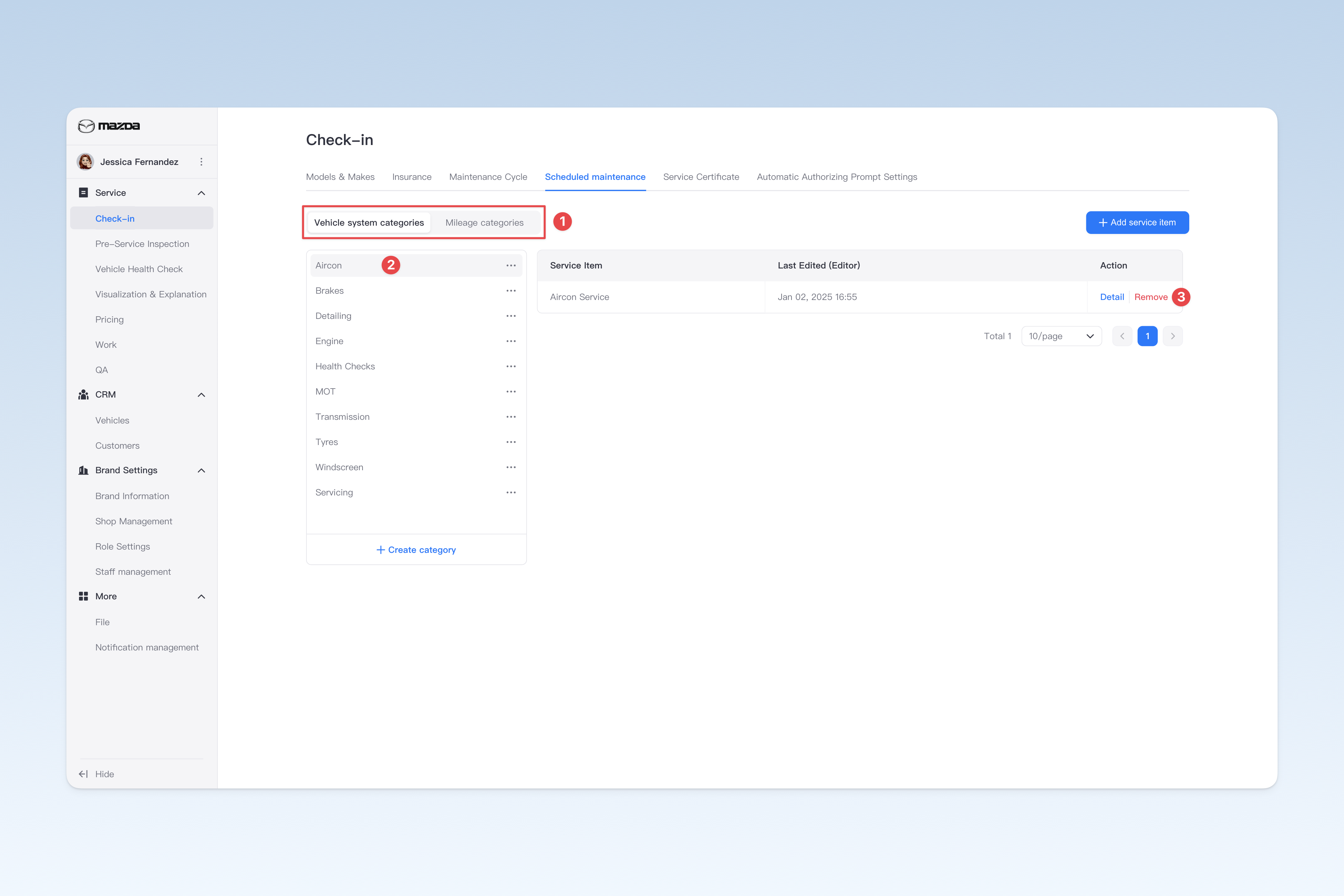
📍 You can configure related content in: AutoX3 Brand Management Dashboard > Service Management > Check-in Management > Scheduled Maintenance.
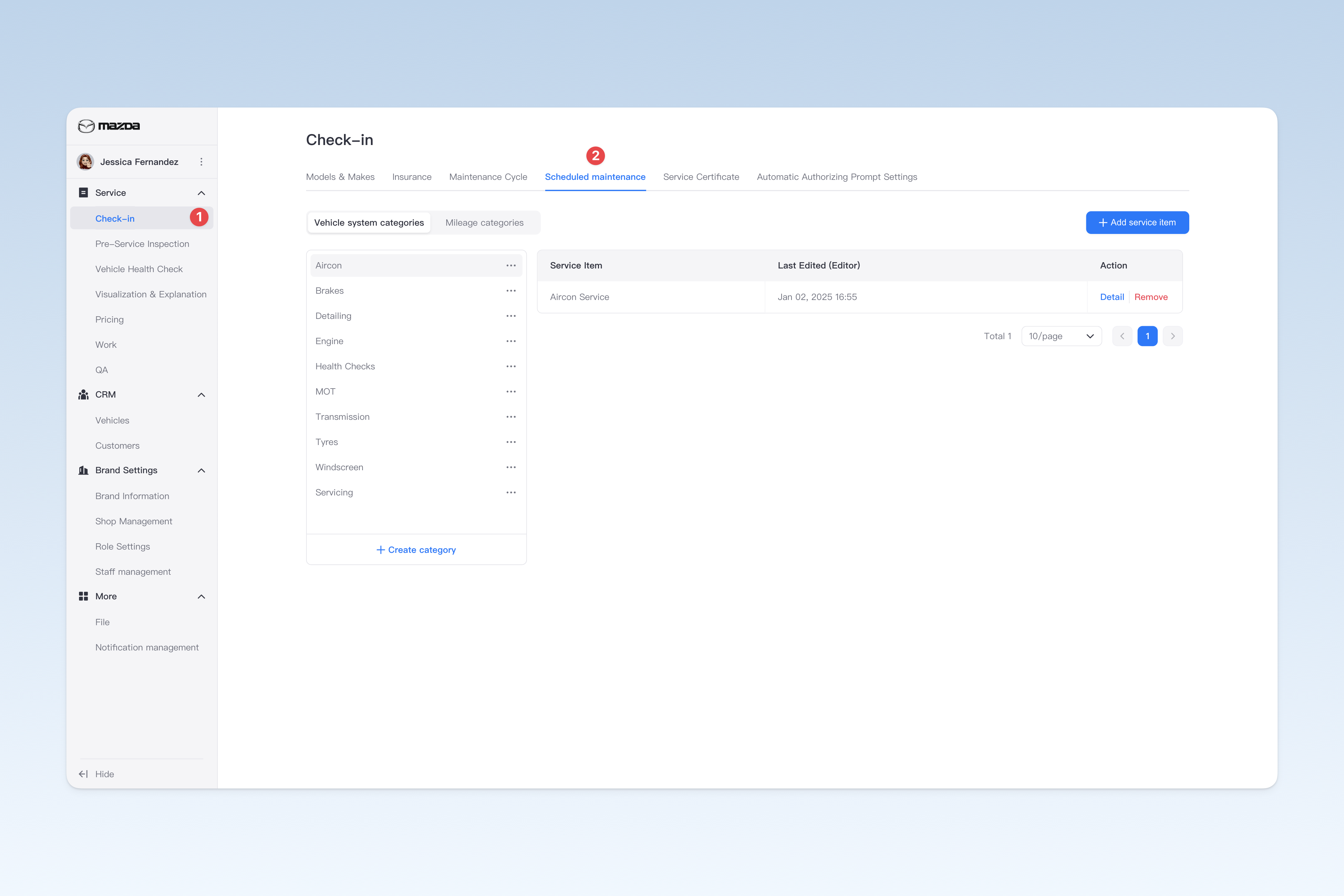
Scheduled maintenance categories currently provide 2 types of classifications:
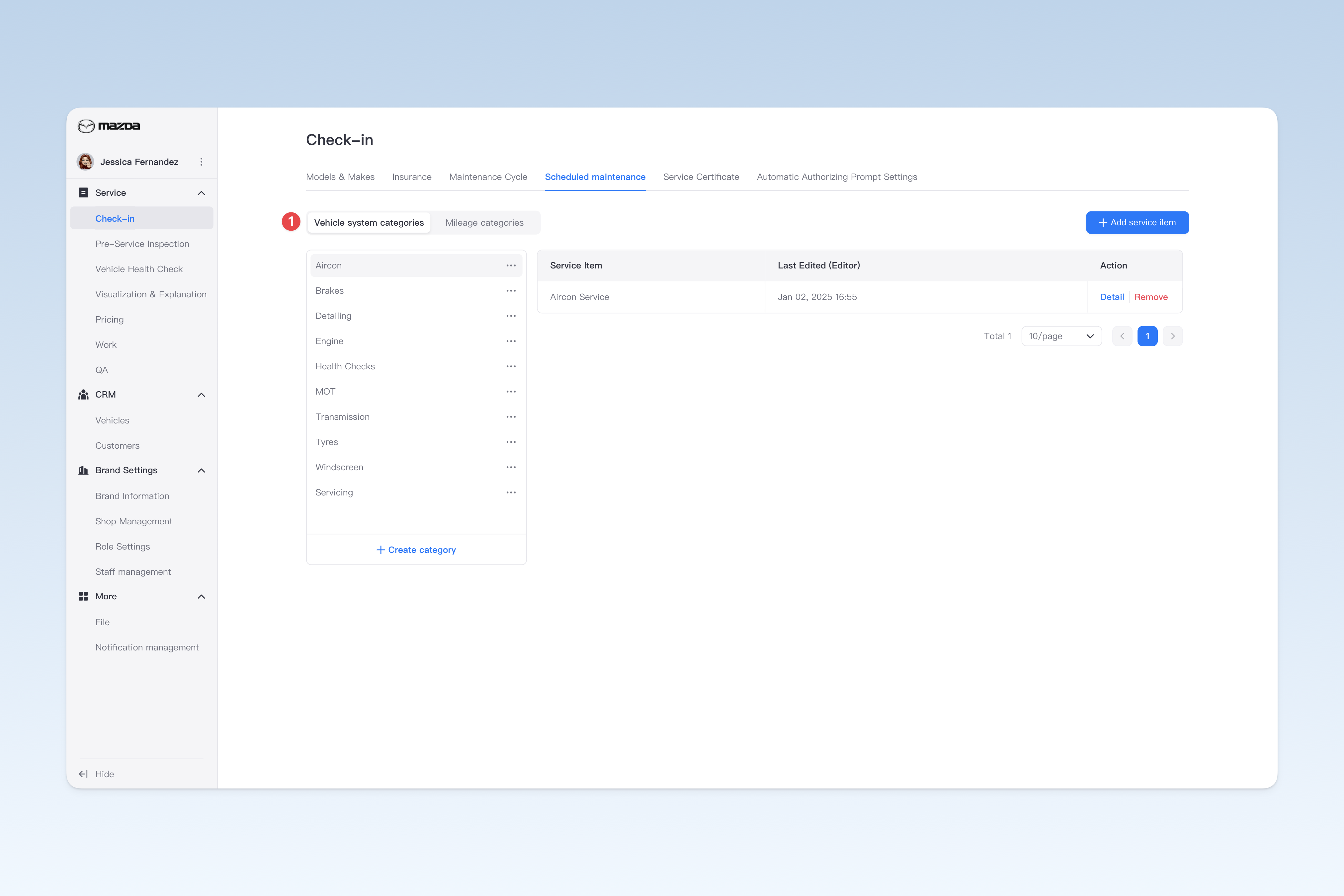
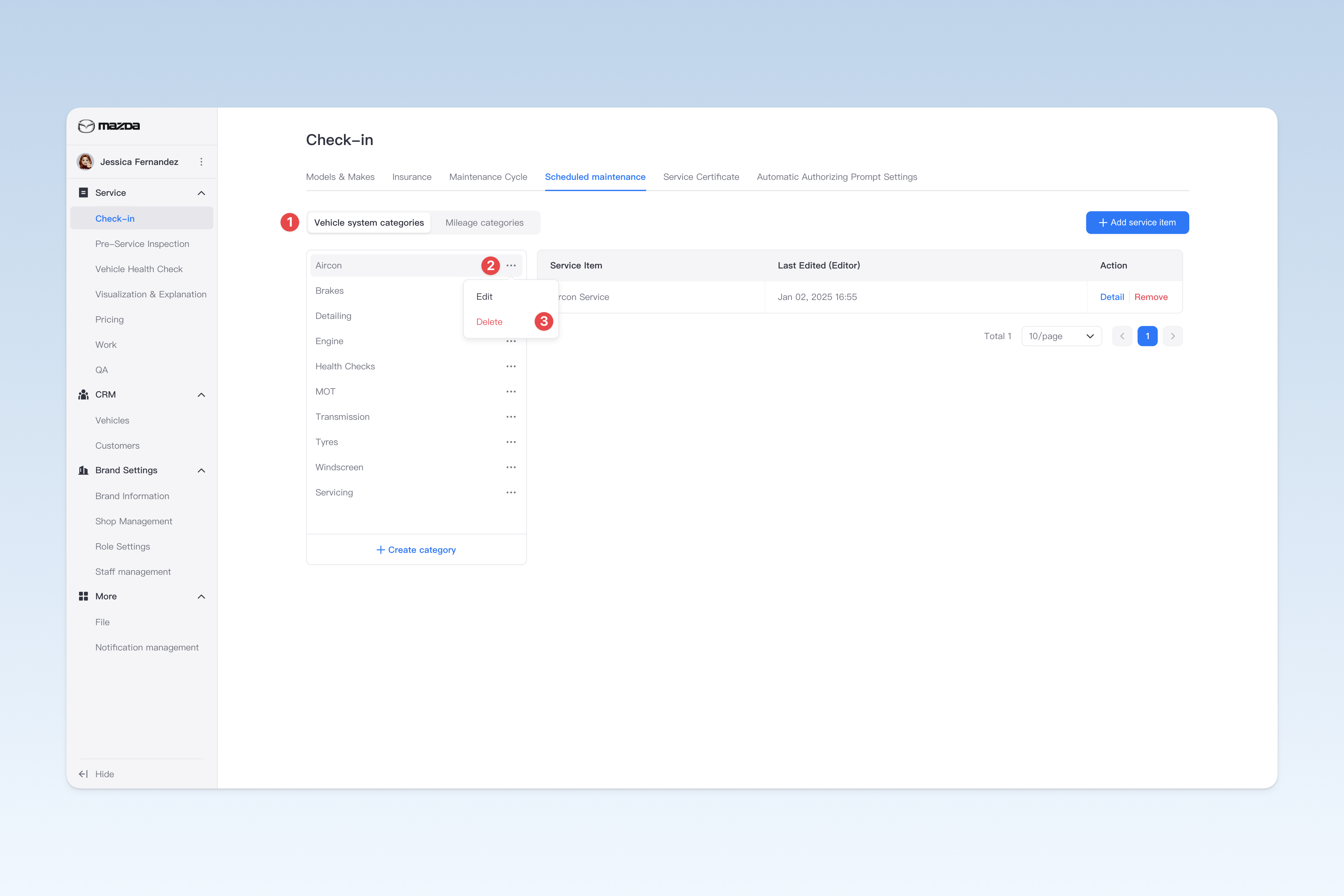
- Vehicle system categories: Classification based on vehicle structure, such as engine, transmission, chassis, etc. You can also personalize these categories according to the group's business needs to better align with actual operations.
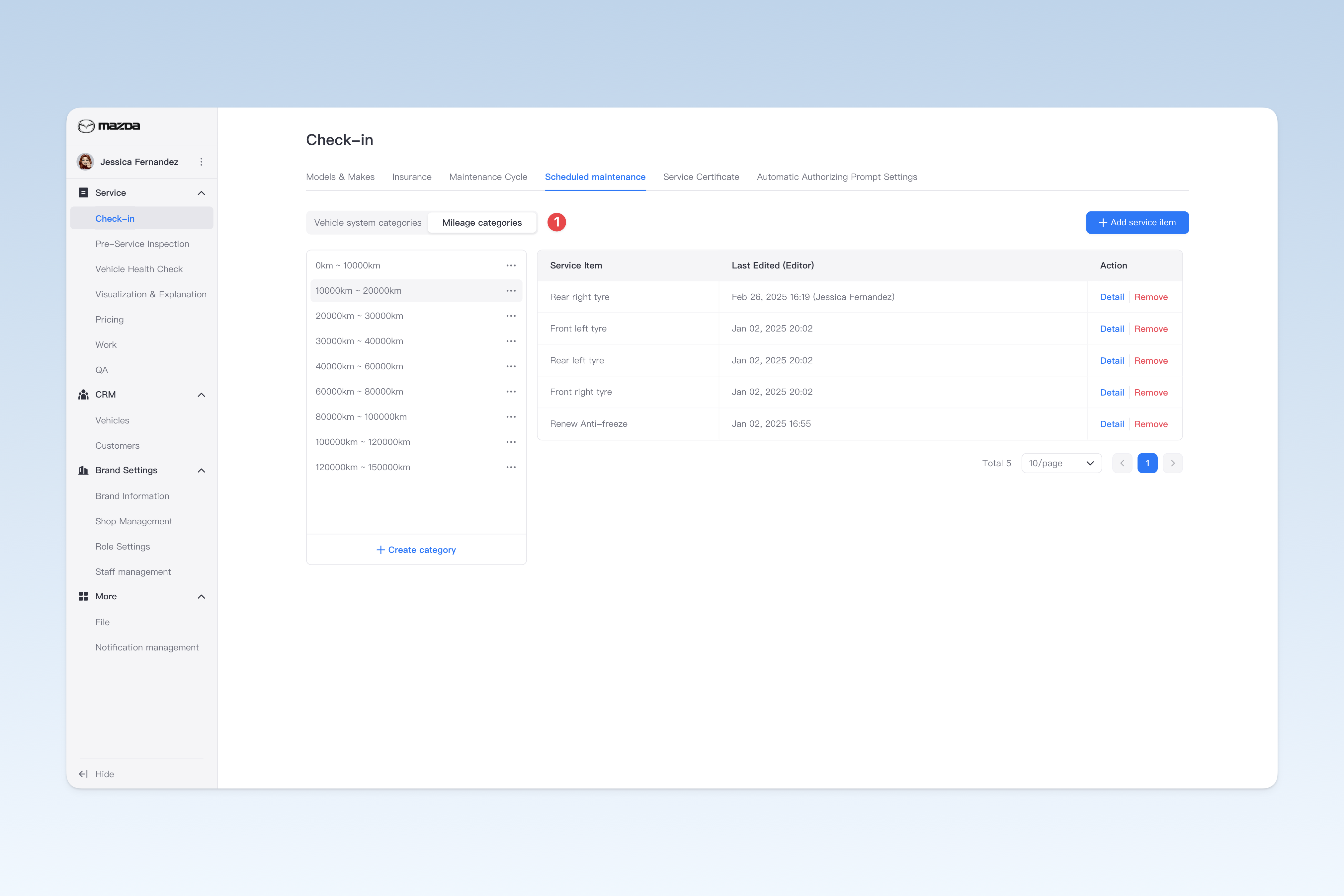
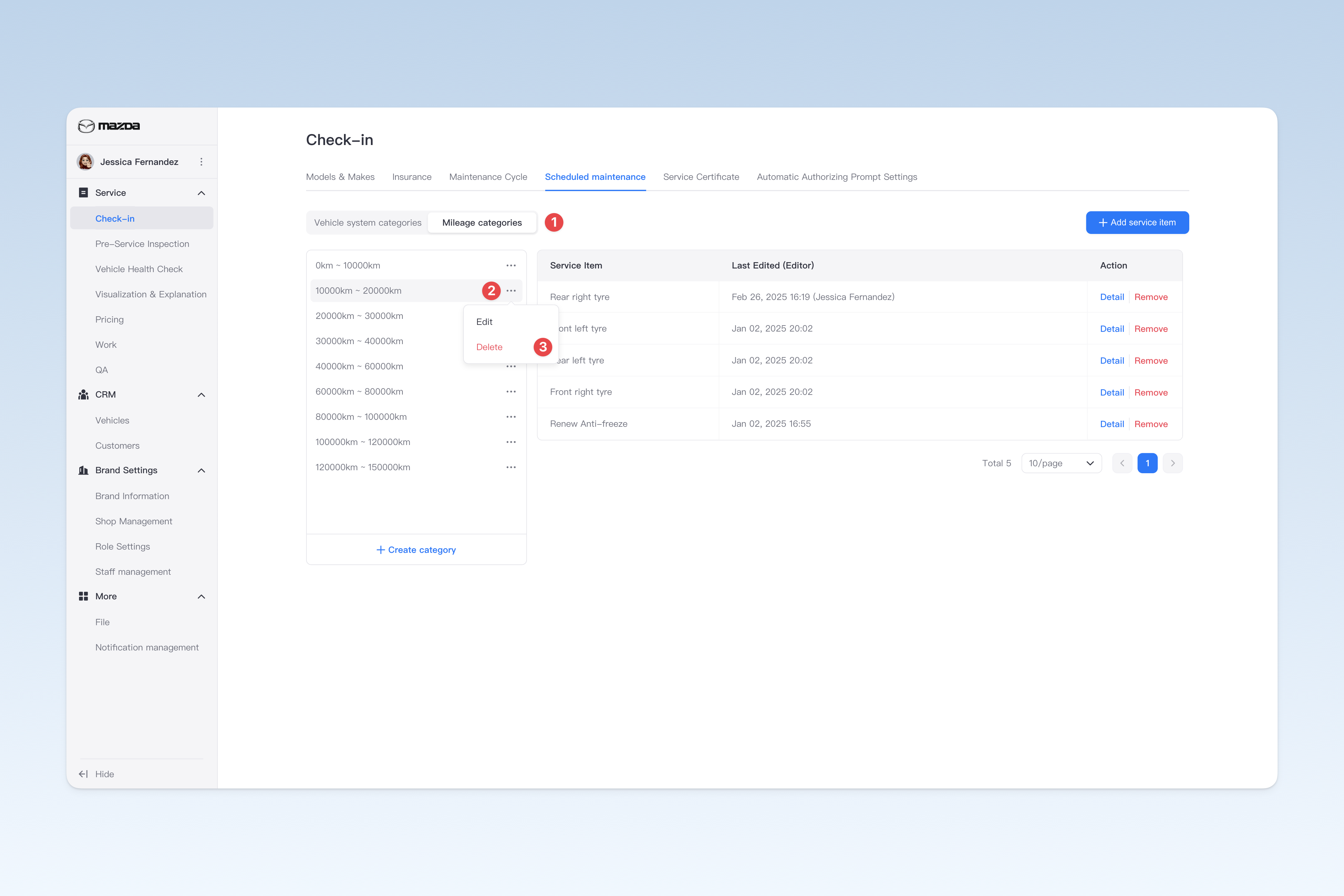
- Mileage categories: Usually classified based on vehicle mileage, such as 5000
8000km, 1000020000km. This type of classification is mainly used to recommend and display corresponding service items to vehicle owners based on different mileages, improving the targeting and professionalism of services.
Create scheduled maintenance categories
On the "Scheduled Maintenance" page, after selecting the corresponding category type (vehicle system categories, mileage categories), the system will display the categories and service item list under that type.
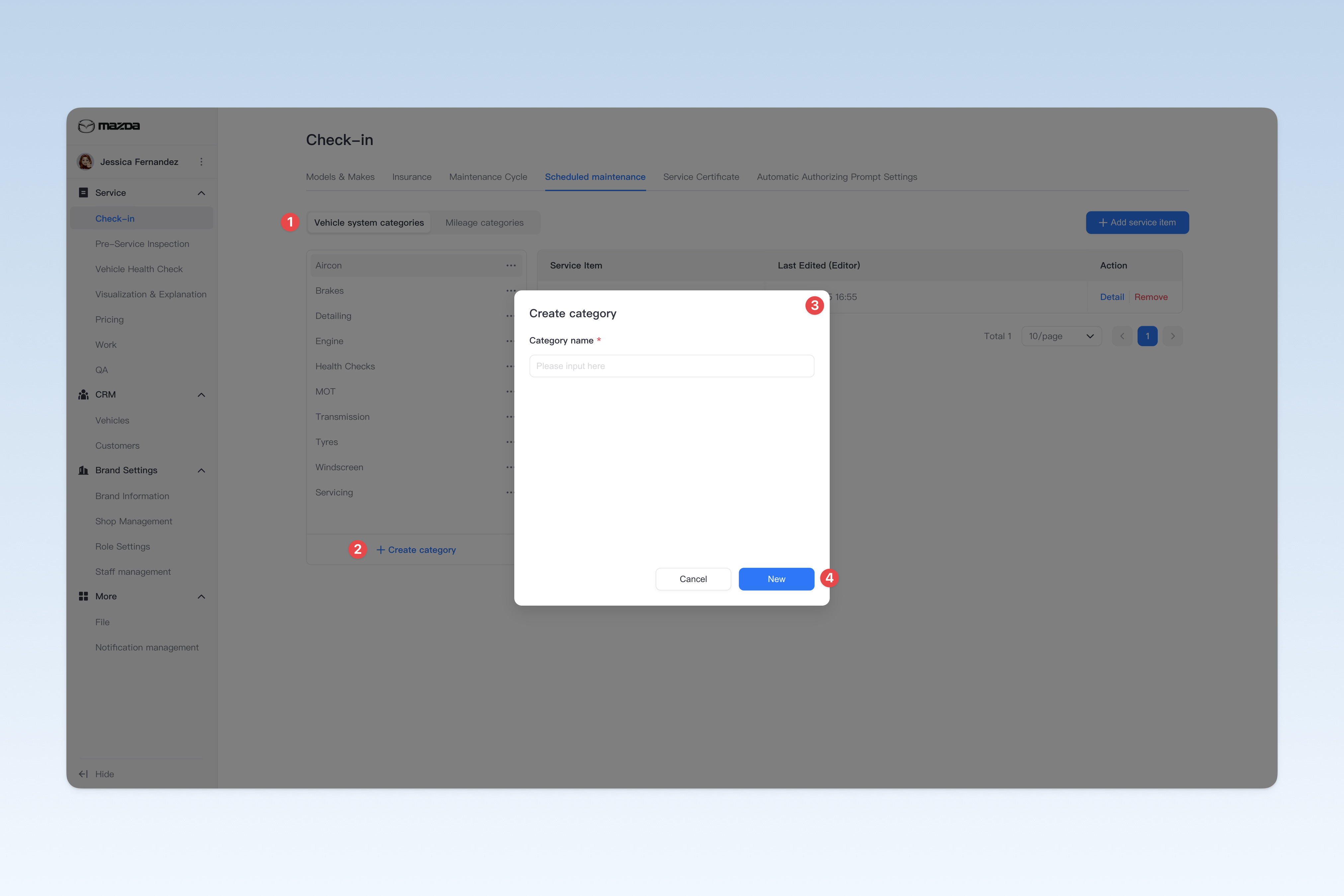
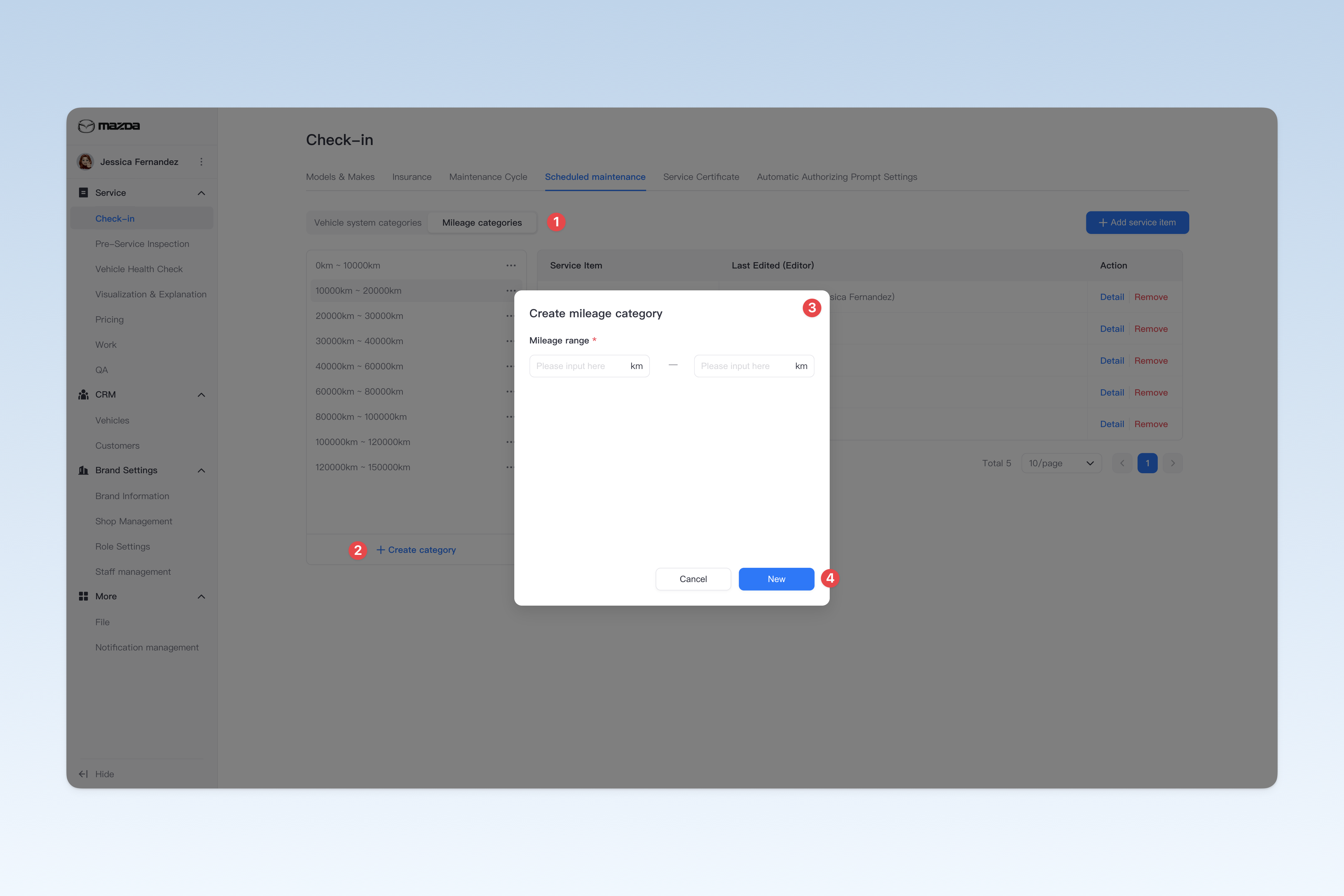
Click the【Create category】button to open the "Create category" popup window. In the window, you need to enter:
- Category name: The name of the category (e.g., engine, transmission, interior, etc.)
- Mileage range: Used for mileage categories (e.g., 5000
8000km, 1000020000km, etc.) - Thumbnail: Used for display in the customer APP (only applicable to the UK region)
After completing, click the【Create】button to finish creating.
Edit scheduled maintenance categories
On the "Scheduled Maintenance" page, after selecting the corresponding category type (vehicle system categories, mileage categories), the system will display the categories and service item list under that type.
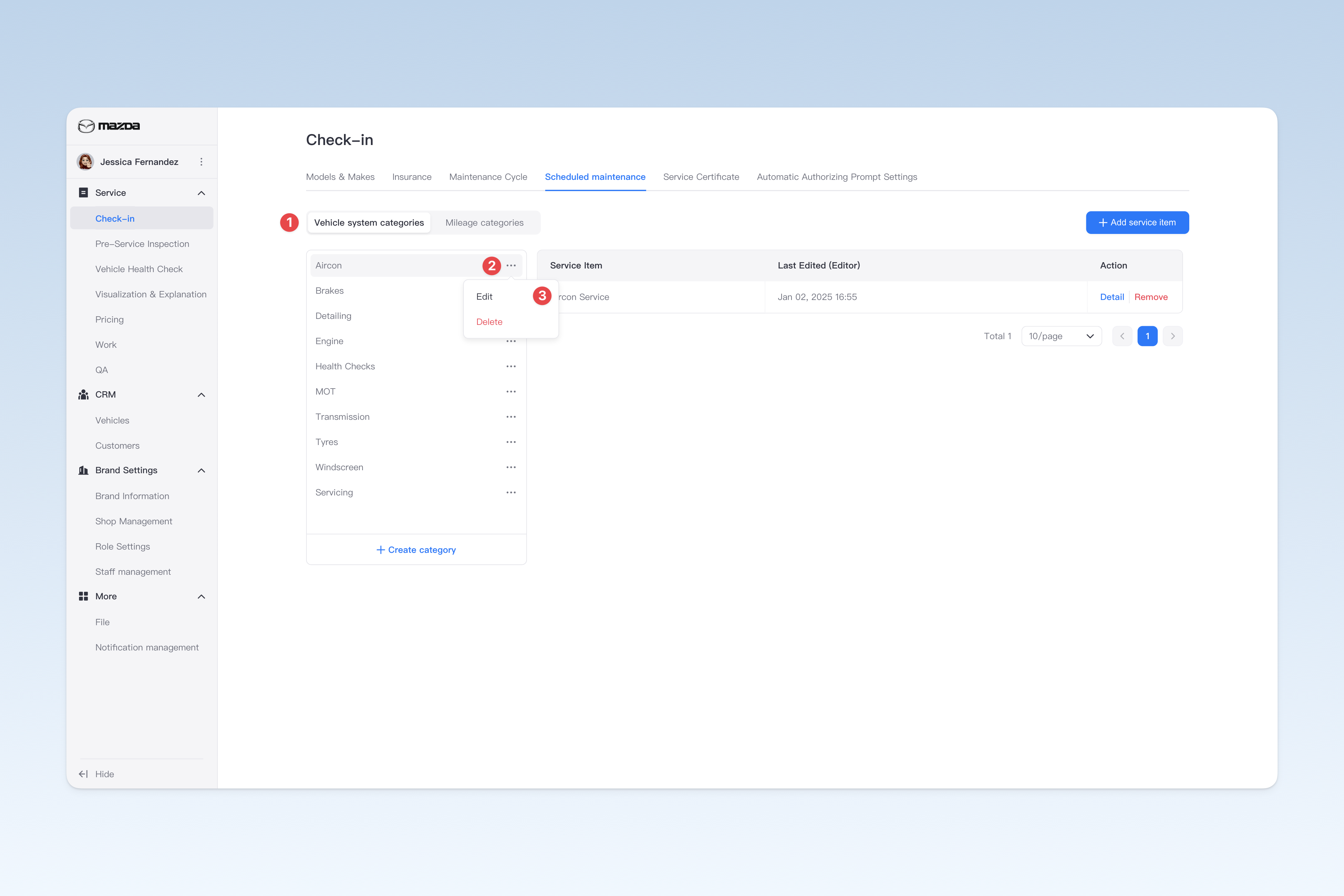
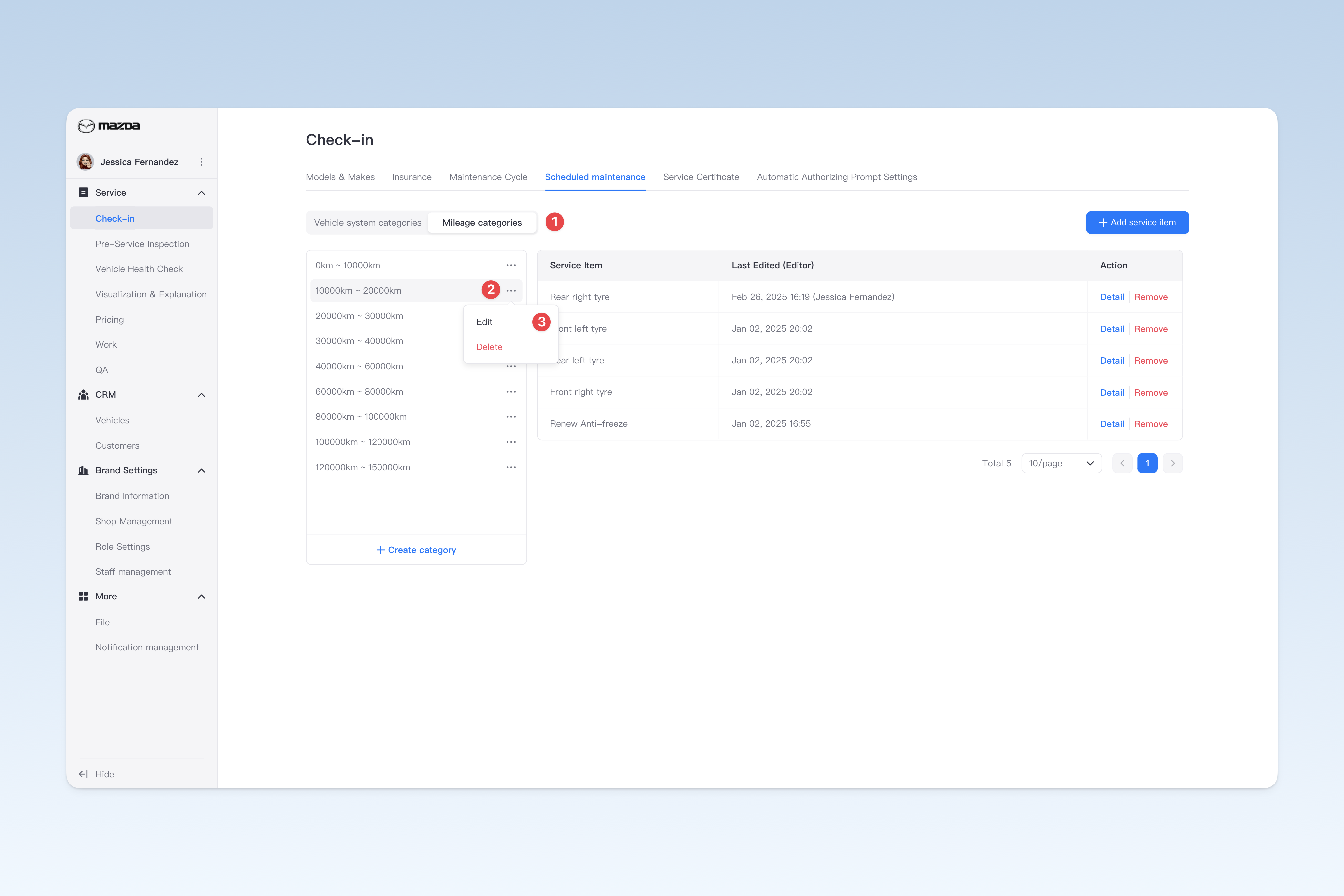
Find the service item you want to modify, click the【···】button on the right, and select【Edit】from the drop-down menu to open the "Edit category" popup window. In the window, you can modify:
- Category name: The name of the category (e.g., engine, transmission, interior, etc.)
- Mileage range: Used for mileage categories (e.g., 5000
8000km, 1000020000km, etc.) - Thumbnail: Used for display in the customer APP (only applicable to the UK region)
Delete Scheduled Maintenance Category
On the "Scheduled Maintenance" page, after selecting the corresponding category type (vehicle system category or mileage category), the system will display the categories and service items under that type.
Find the category you want to delete, click the【···】button on the right, and select【Delete】from the drop-down menu. A confirmation window will pop up. Click【Confirm】to delete.
Add/Edit Service Items for a Category
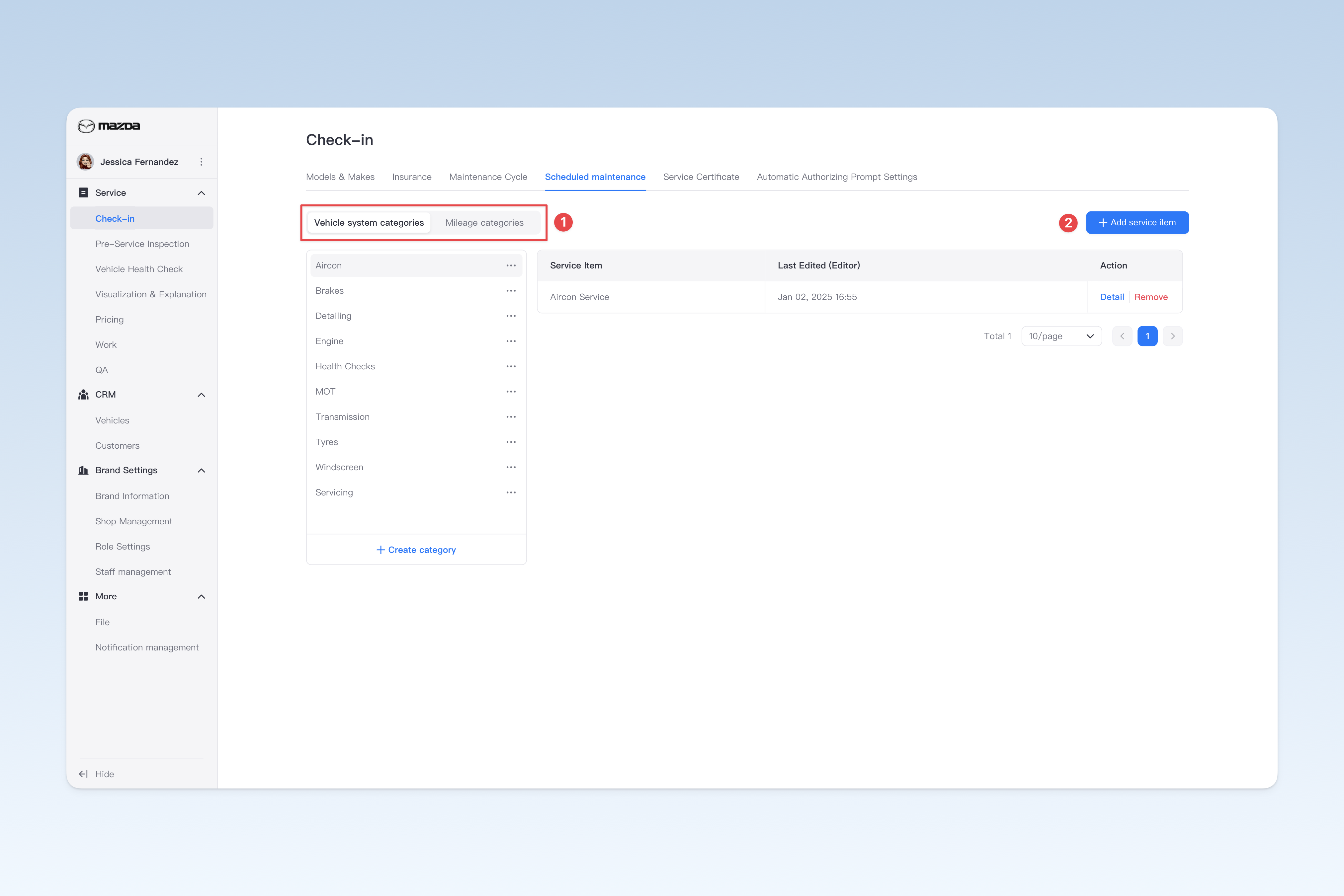
On the "Scheduled Maintenance" page, after selecting the corresponding category type, the system will display the service items under that category. Click the【Add Service Item】button and an "Add Item" window will pop up.
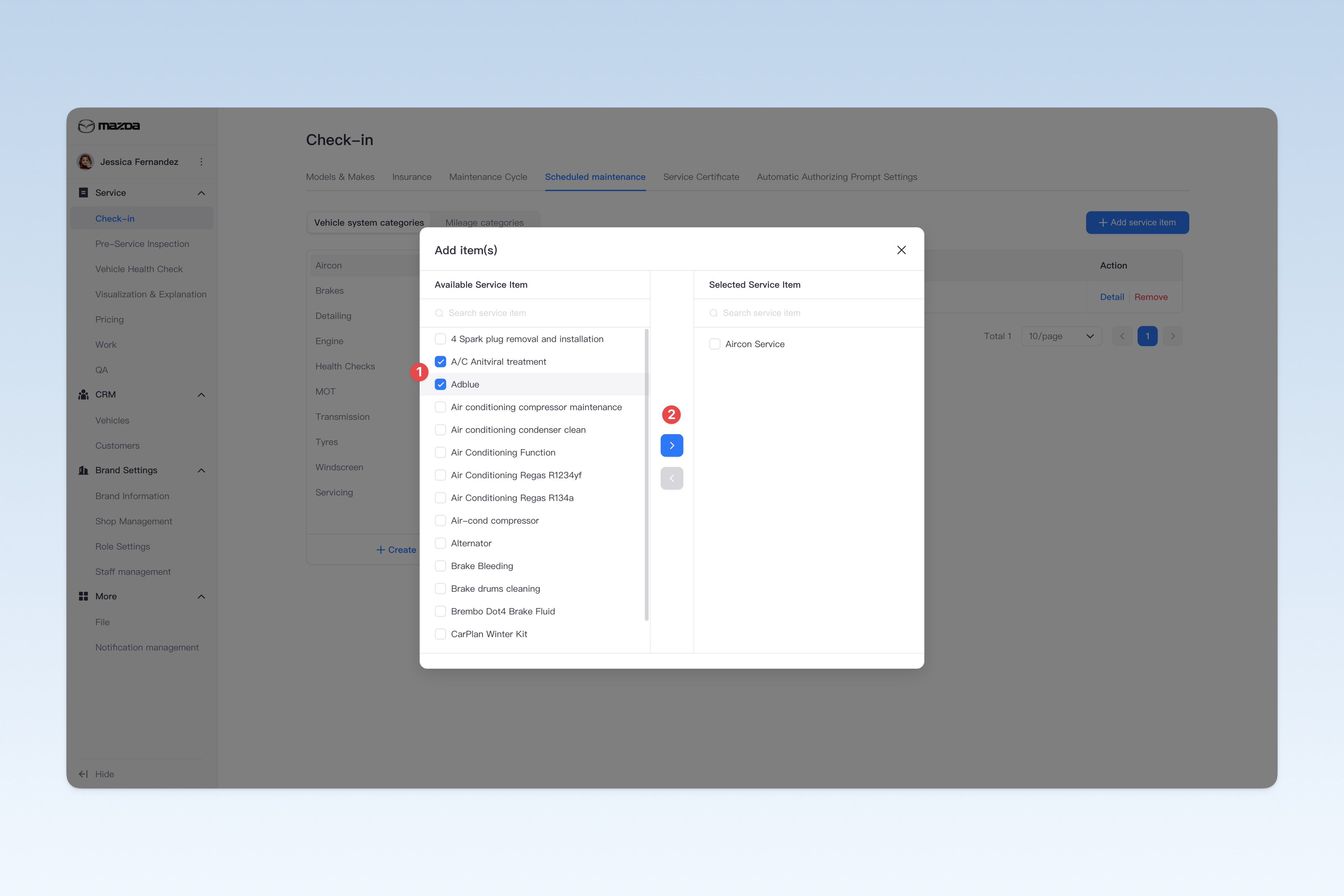
- The left side of the window shows existing service items under the group, while the right side shows currently added service items.
- In the left list, select the service items to add and click the blue【>】arrow button in the middle. The selected items will move to the right, indicating successful addition. (Similarly, in the right list, select items to remove and click the blue【<】arrow button in the middle. The selected items will move to the left, indicating successful removal.)
- After selection, click the close button at the top right of the window to complete adding service items.
- Return to the "Scheduled Maintenance" page and you will see the newly added service items in the list.
Remove Service Items from a Category
On the "Scheduled Maintenance" page, after selecting the corresponding category type (vehicle system category or mileage category), the system will display the categories and service items under that type. Click the category name and all service items under that category will be displayed on the right.
Find the service item to remove, click the【Remove】button in the operation column on the right of the list. A confirmation window will pop up. Click【Confirm】to remove the item from the corresponding category.