◎ Maintenance Cycle Management
Maintenance cycles set the mileage or time interval at which service items should be maintained. When a vehicle's mileage or maintenance time reaches the set value, the system will automatically remind shop staff of the vehicle's maintenance cycle status during check-in and recommend relevant service items in the scheduled maintenance module of the Intelligent Hub APP.
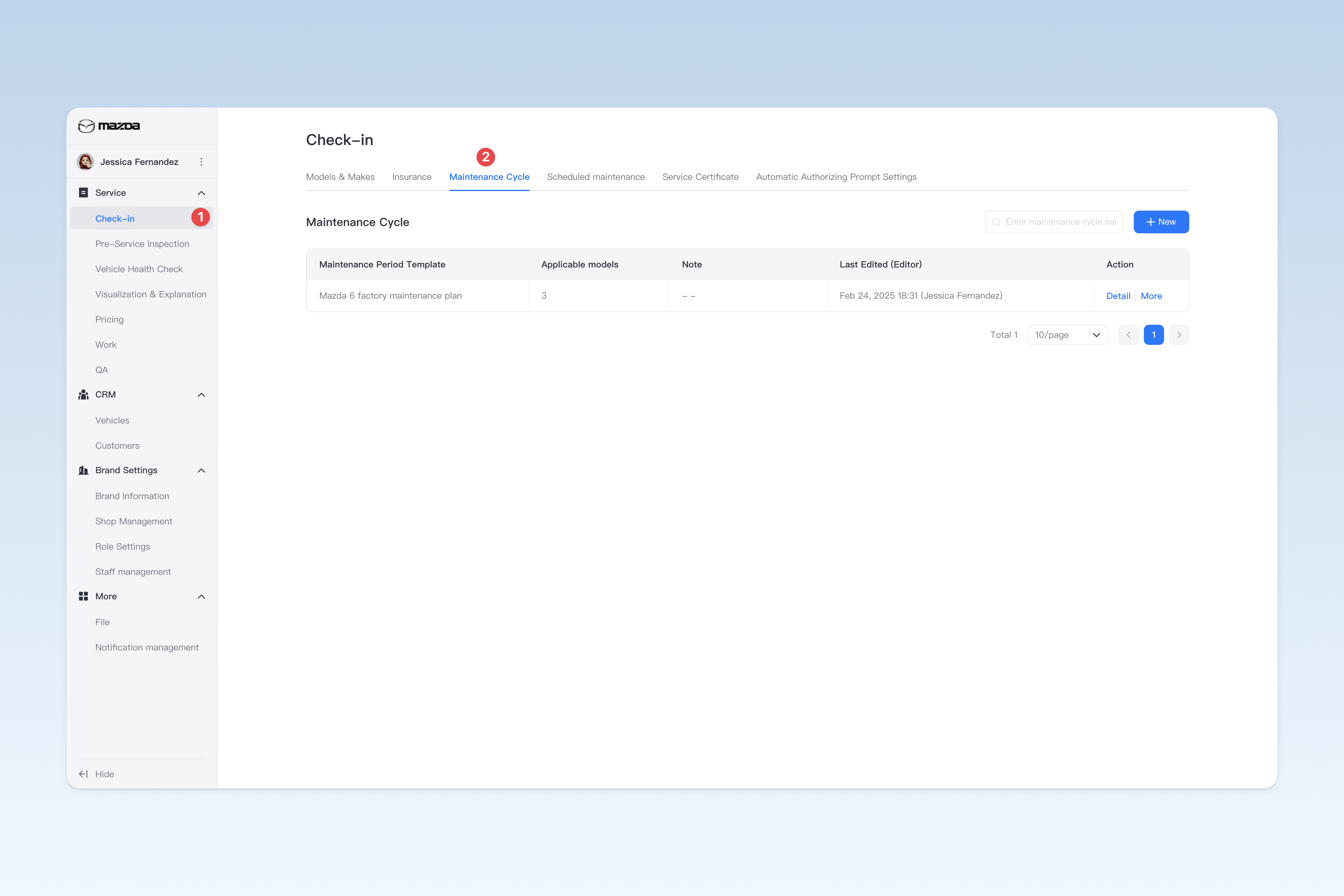
📍 You can configure related content in: AutoX3 Brand Management Dashboard > Service Management > Check-in Vehicle > Maintenance Cycle Template.
Create Maintenance Cycle Template
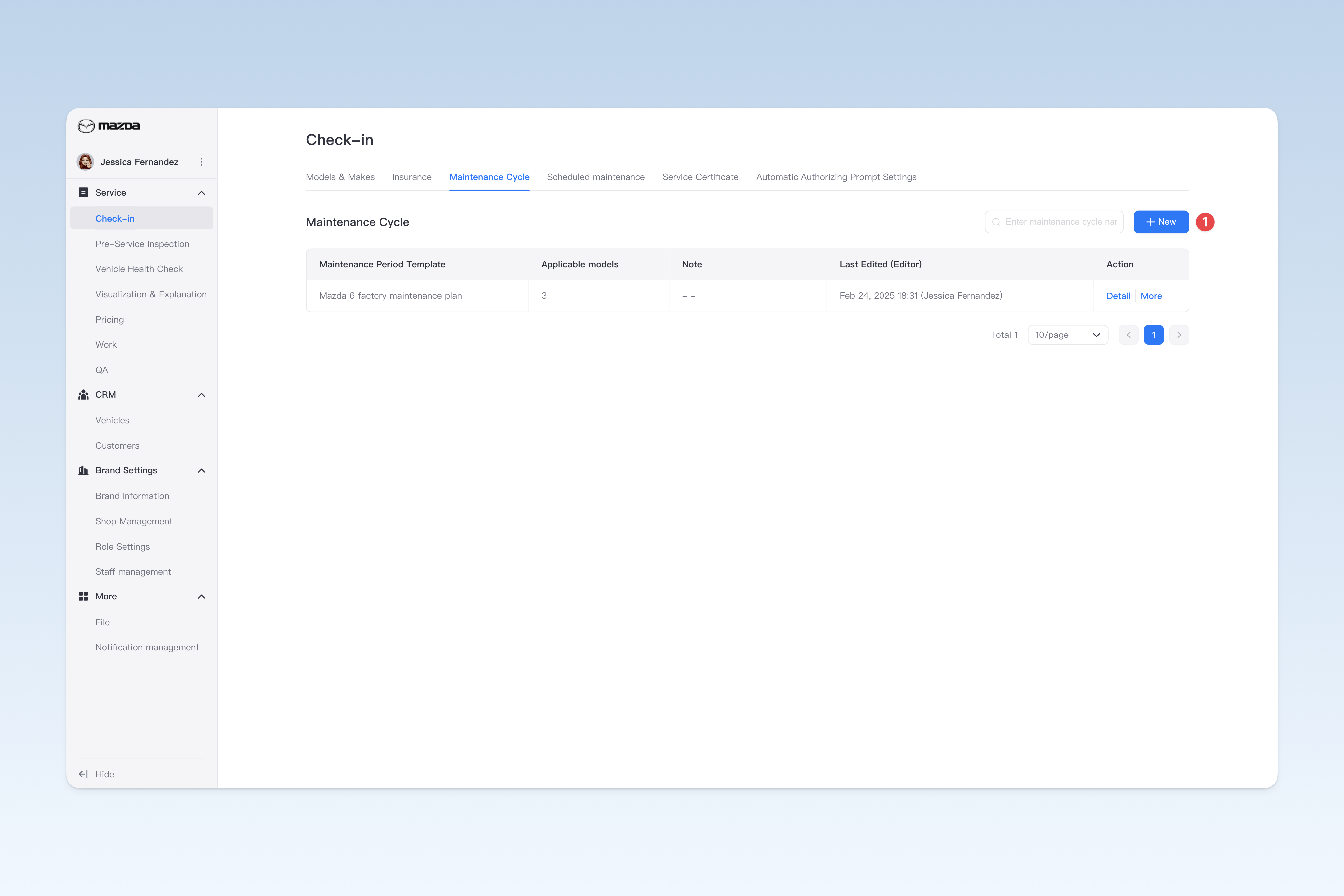
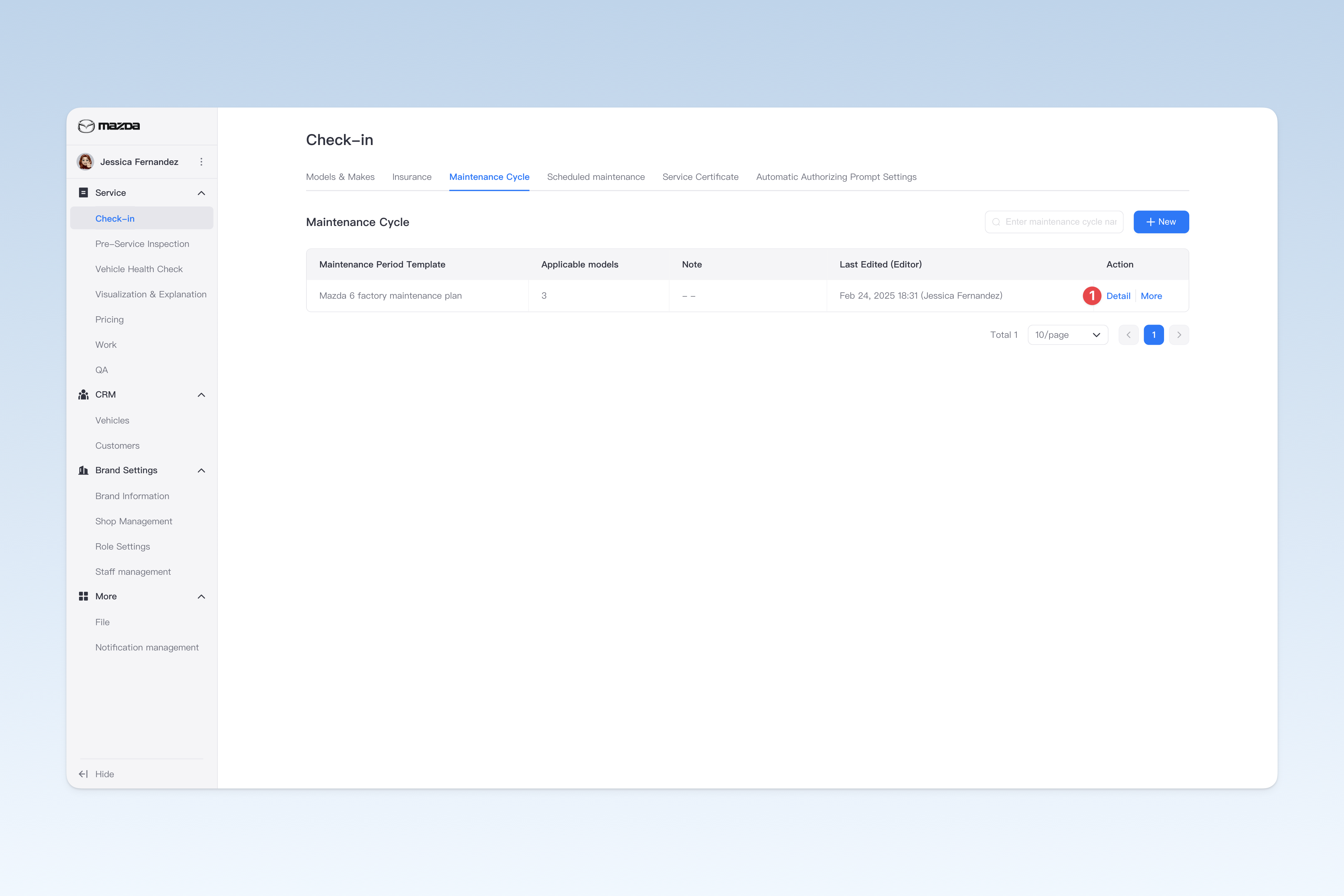
On the "Maintenance Cycle Template" page, click the [Create] button to enter the "Create Maintenance Cycle" page.
When creating a maintenance cycle template, you need to complete the following 3 steps: fill in basic information, configure maintenance cycles, and associate applicable models. After completion, click the [Submit] button to finish the operation.
Configure Basic Information of Maintenance Cycle Template
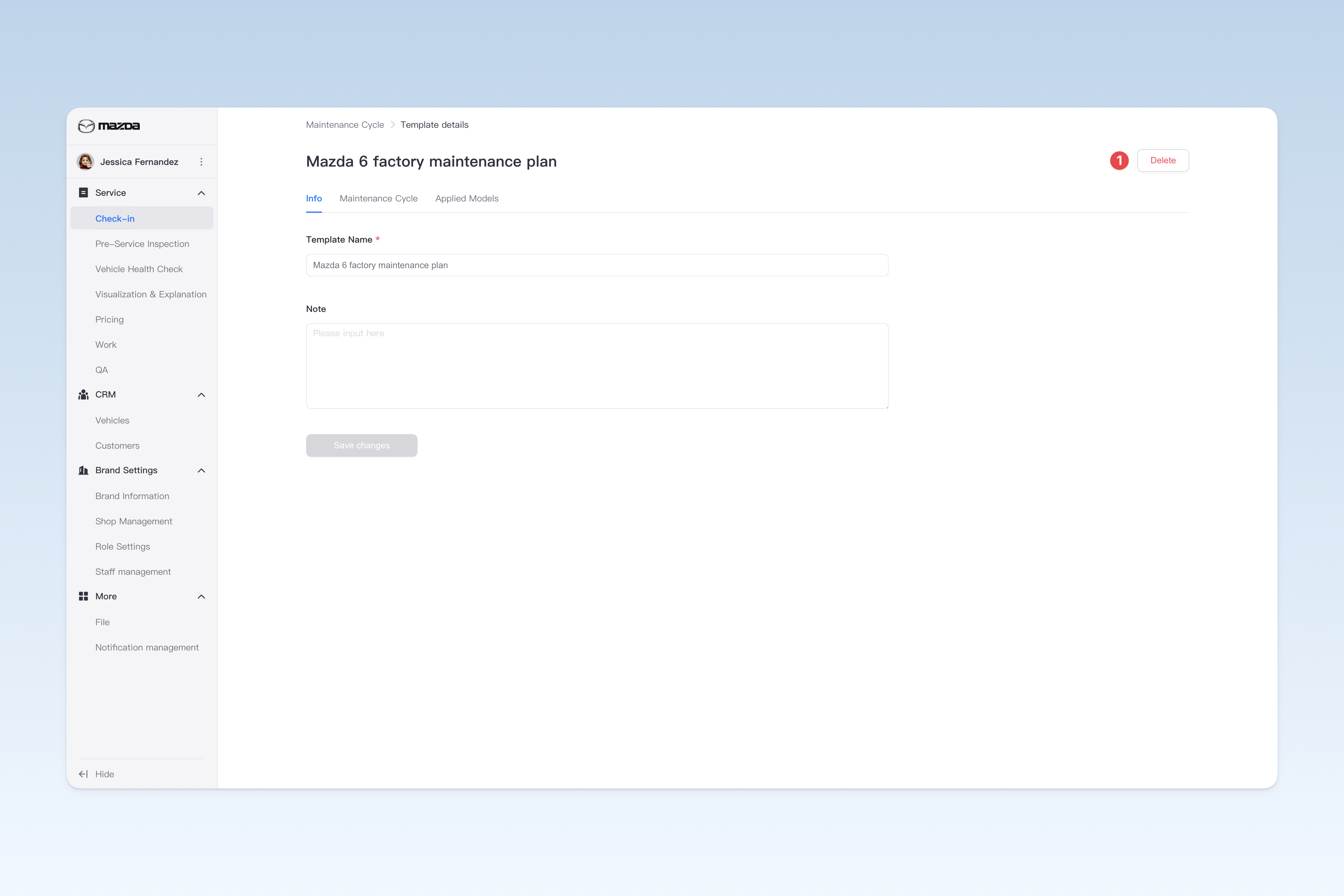
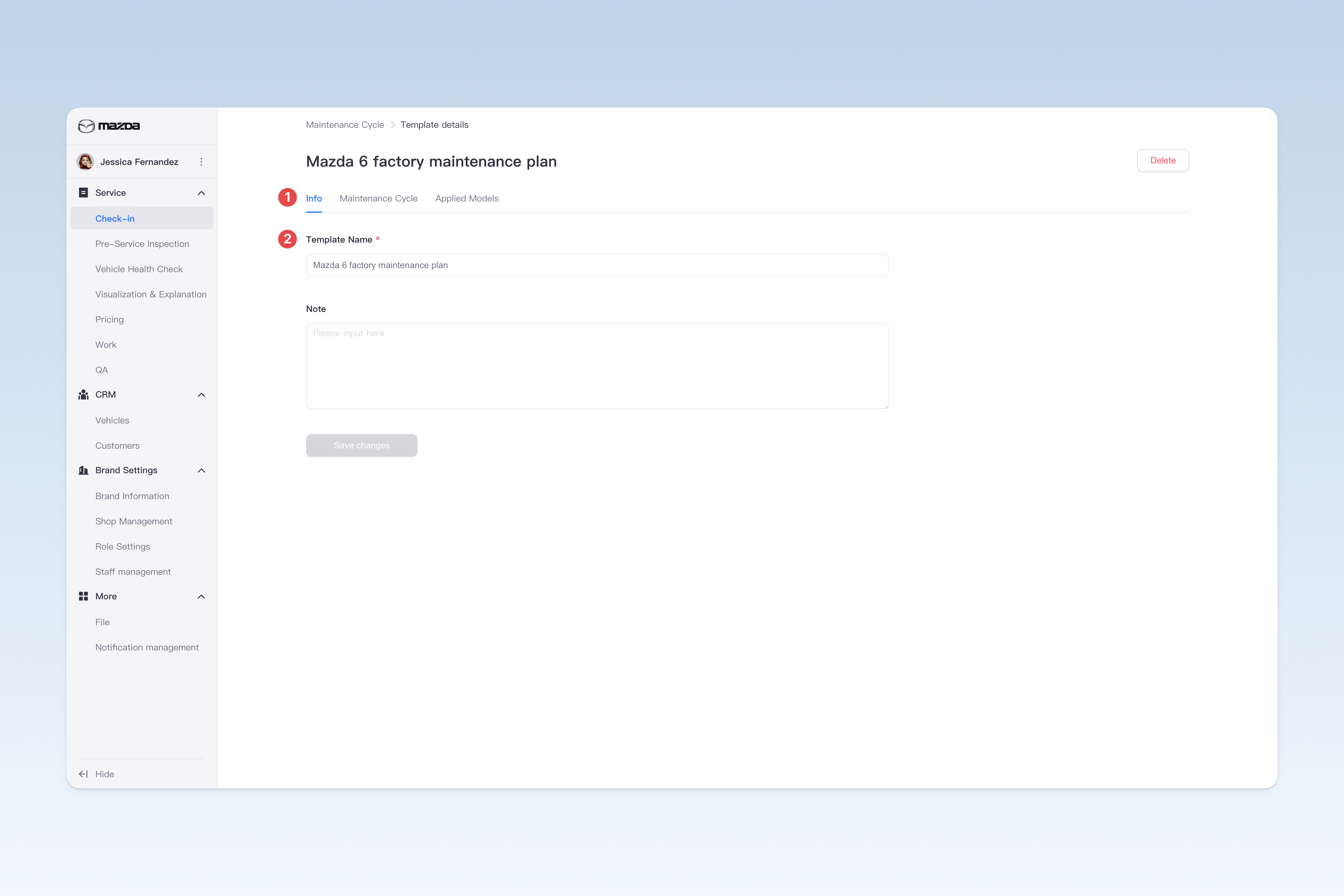
On the "Maintenance Cycle Template" page, find the template you want to modify, click the [Details] button in the operation column on the right, and click the [Basic Information] menu on the pop-up "Template Details" page. This page is mainly used to configure some basic information of the maintenance cycle template.
- Template Name: Name of the maintenance cycle template
- Note: This information is only displayed internally to record and describe relevant information about the template.
Configure Maintenance Cycle
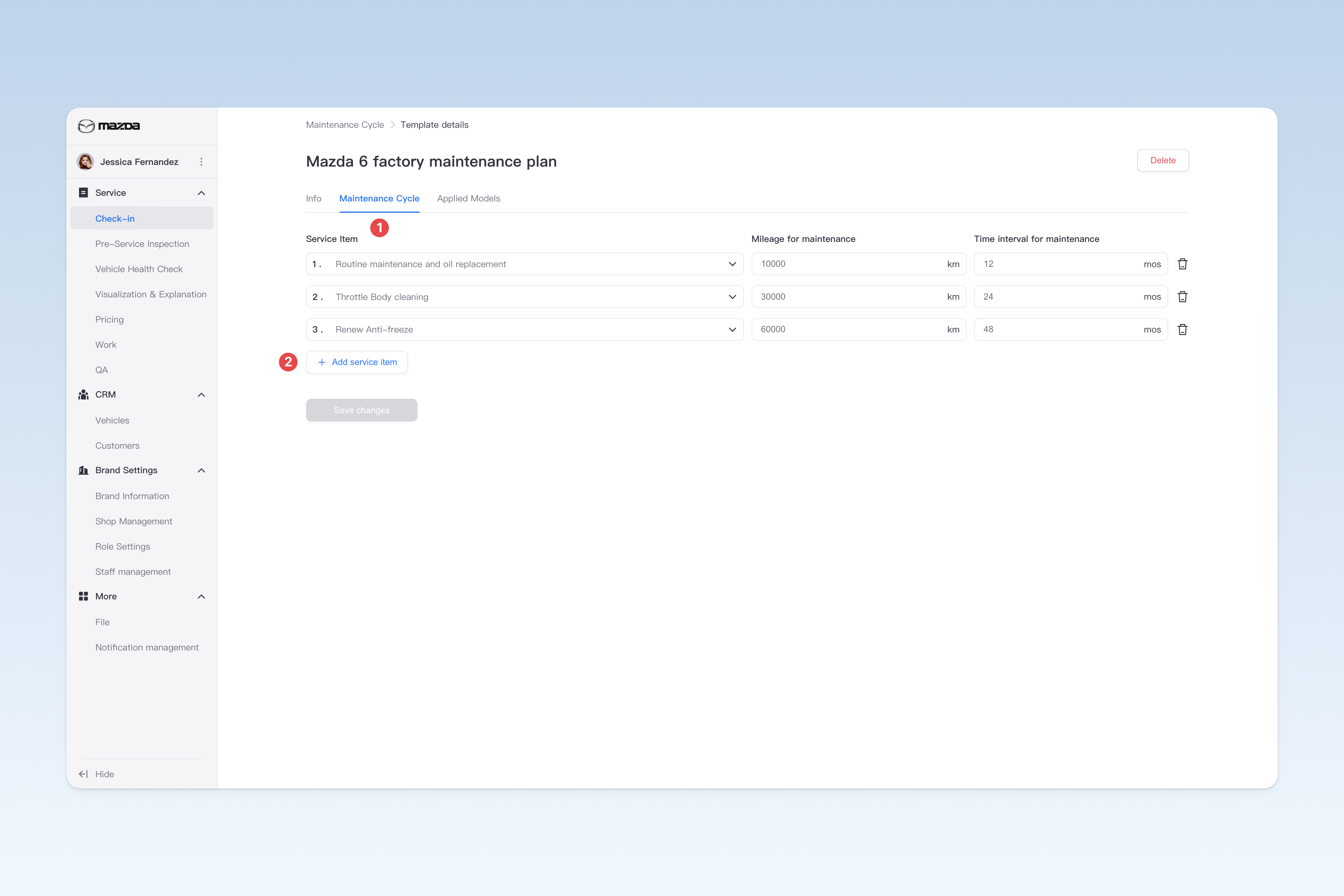
On the "Maintenance Cycle Template" page, find the template you want to modify, click the [Details] button in the operation column on the right, and click the [Maintenance Cycle] menu on the pop-up "Template Details" page.
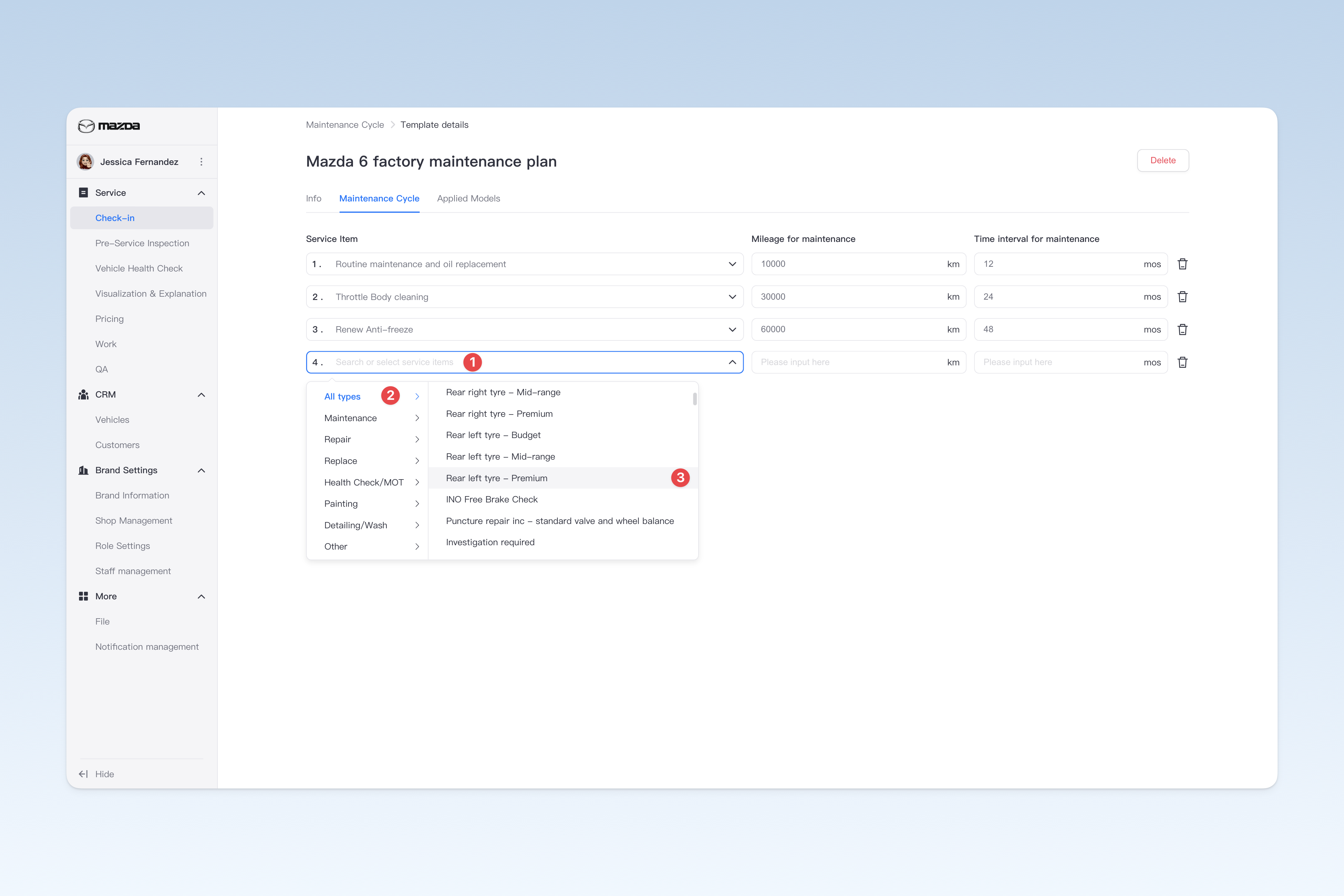
- After clicking the [Add Service Item] button, a blank record will be inserted. Click the "Service Item" box and select the service item to add from the drop-down menu, or directly enter keywords to search.
- After selecting the service item, fill in the mileage interval and time interval for maintenance of the item.
| Example | ||
|---|---|---|
| Service Item | Mileage Interval for Maintenance | Time Interval for Maintenance |
| Routine Maintenance and Oil Change | Every 10,000Km | Every 12 months |
| Throttle Cleaning | Every 30,000Km | Every 24 months |
| Replace Antifreeze | Every 60,000Km | Every 48 months |
Associate Applicable Models
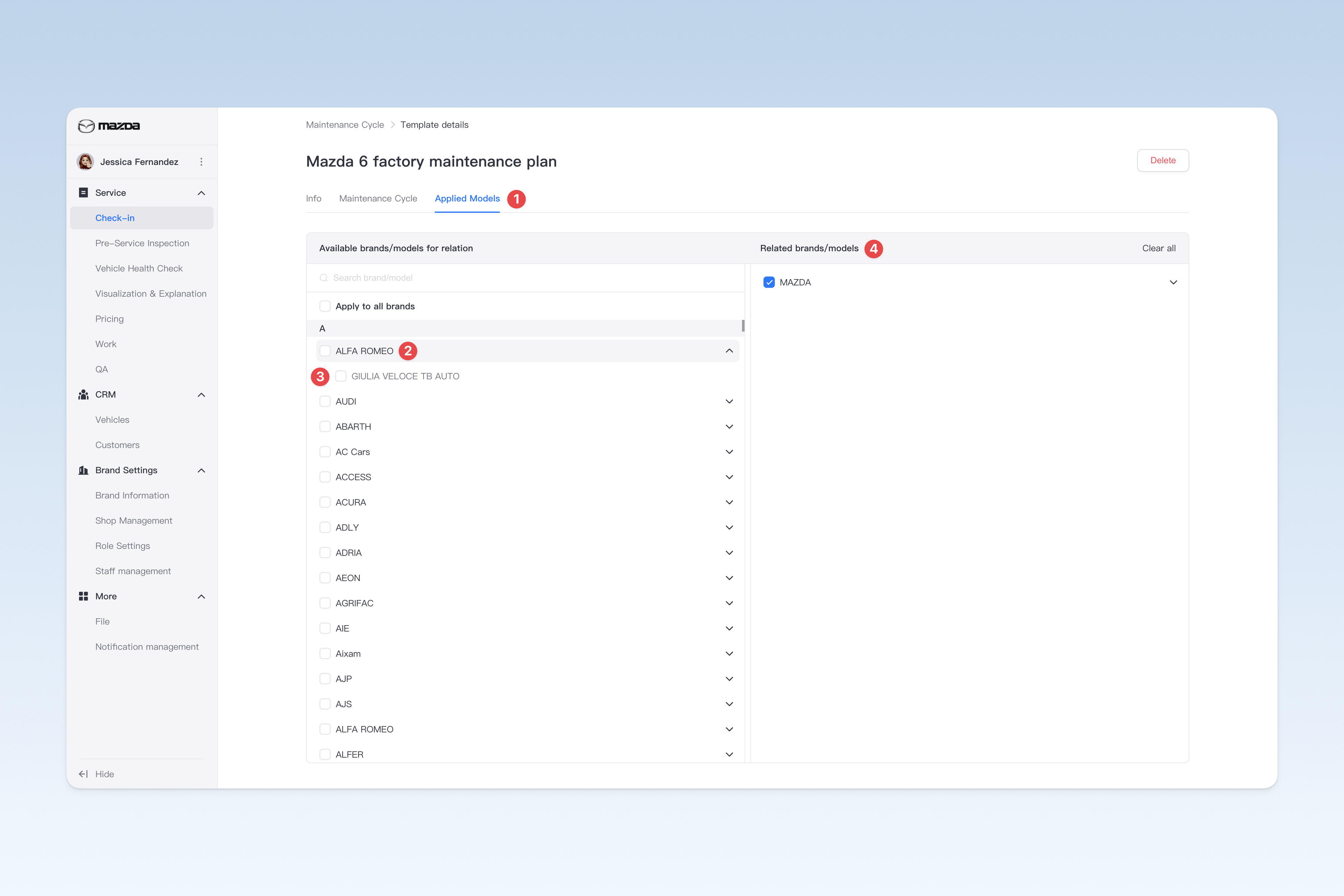
On the "Maintenance Cycle Template" page, find the corresponding template, click the [Details] button in the operation column on the right, and click the [Applicable Models] menu on the pop-up "Template Details" page.
On the "Applicable Models" page, all vehicle brands are displayed on the left. Clicking on a brand name will expand all models under that brand. You can select the models to associate by checking them. Associated brands and models will be displayed in the "Associated Brands/Models" list on the right for easy viewing and management.
Copy Maintenance Cycle Template
You can copy a completed maintenance cycle template and modify it on this basis, effectively improving template configuration efficiency and saving operation time.
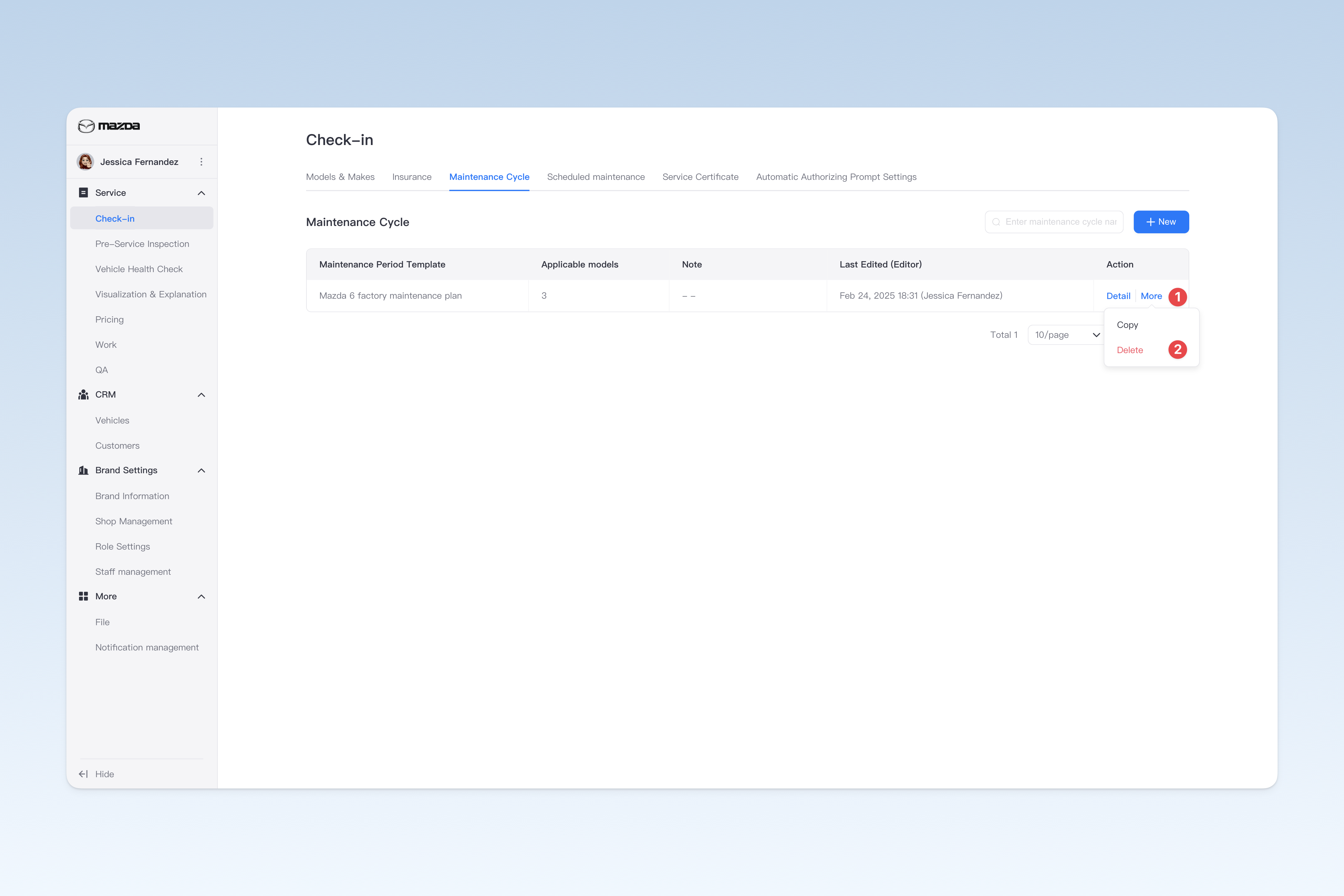
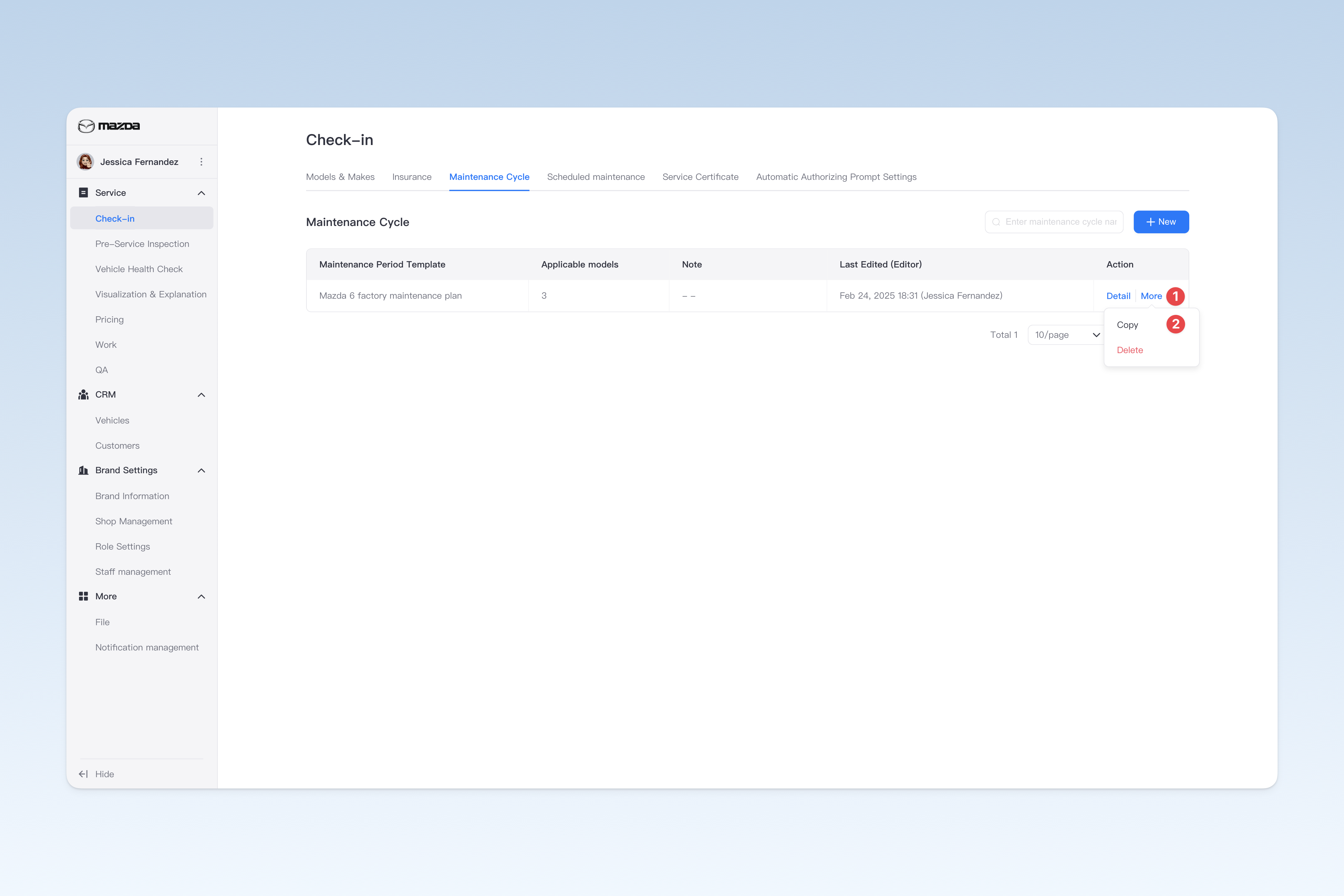
On the "Maintenance Cycle Template" page, find the template you want to copy, click the [More] button in the operation column on the right, and click the [Copy] button in the drop-down menu. A new template that inherits all data will be generated above the original template for you to further edit and use.
Delete Maintenance Cycle Template
On the "Maintenance Cycle Template" page, find the template you want to delete, click the [More] button in the operation column on the right, click the [Delete] button in the drop-down menu, and a confirmation pop-up will appear. Click [Confirm] to delete.