◎ Module
When employees inspect vehicles, to make the health check report clear and well-structured, we divide the entire report into three levels: module, sub-module, and checkpoint. Each module contains multiple sub-modules, and each sub-module contains multiple checkpoints. Through this hierarchical combination, a well-structured and clear health check report is ultimately presented to the customer.
Among these three levels, the module is the highest level, so you need to create the module first, and then create the sub-modules and checkpoints.
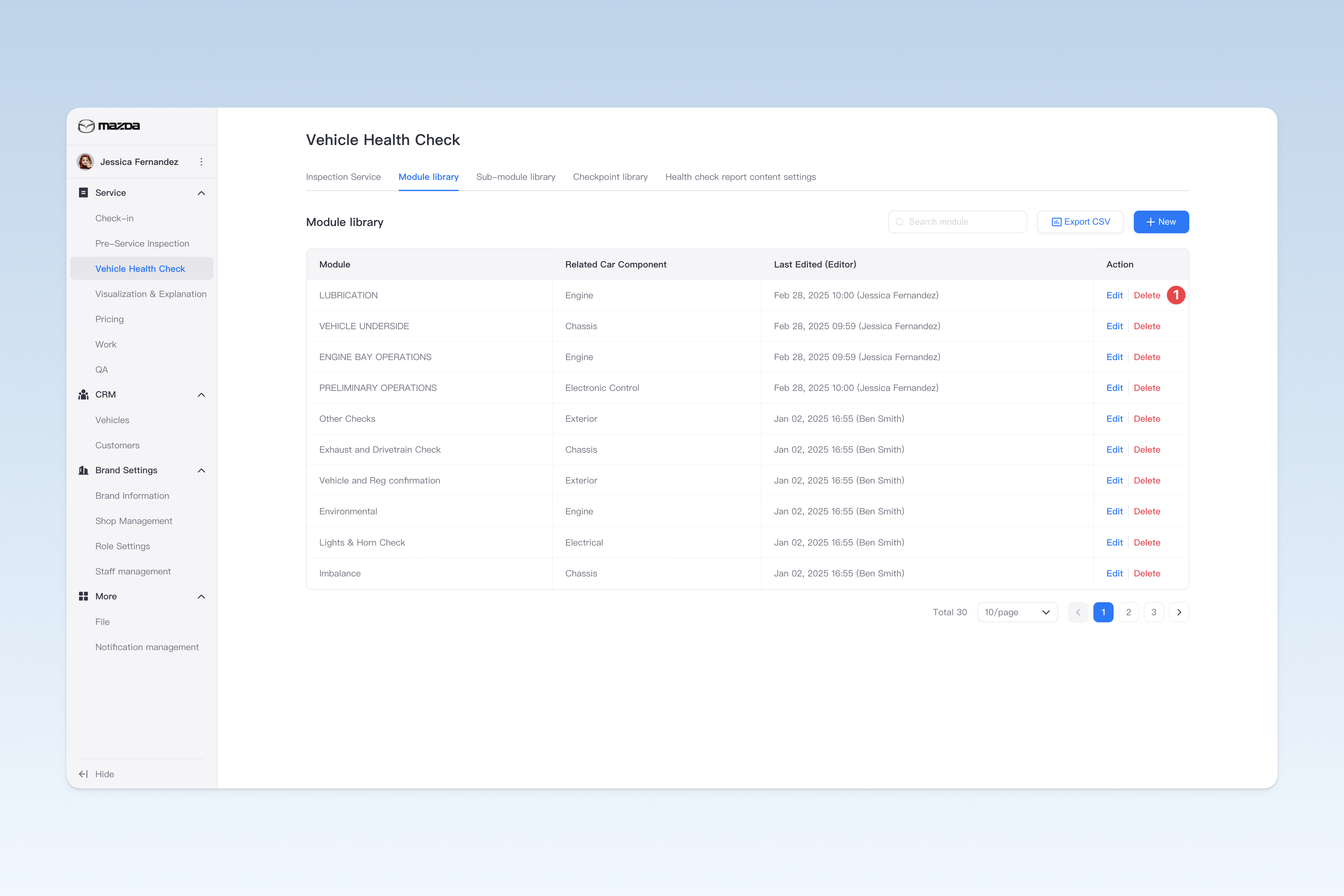
📍 You can configure related content at: AutoX3 Brand Management Dashboard > Service > Health Check > Module Library.
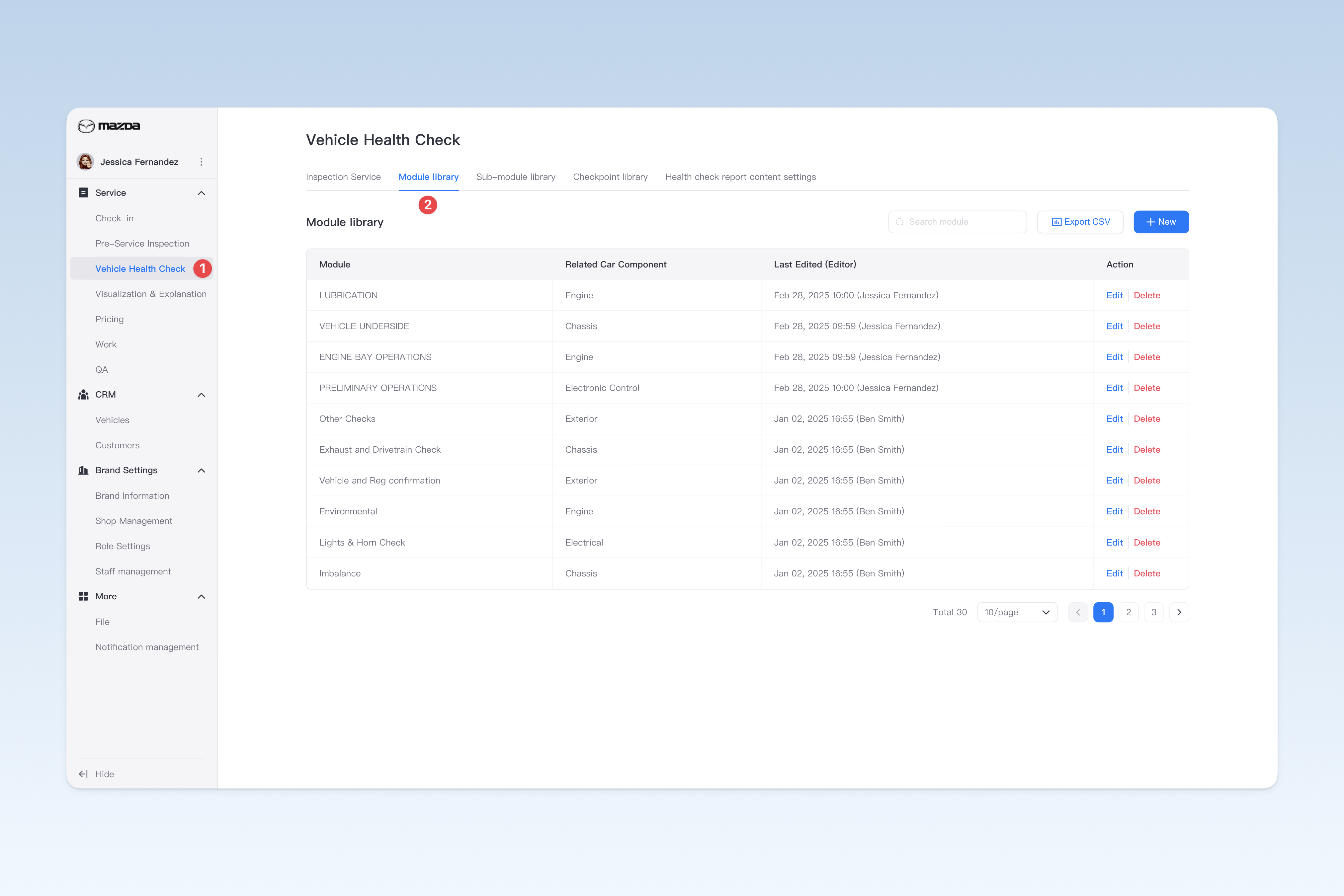
Below is an example combination of modules, sub-modules, and checkpoints in a brake/tire inspection template for your reference and to learn the combination principles of inspection templates.
1. Module: Tire System

    1.1 Sub-module: Tire Pressure and Age
        1.1.1 Checkpoint: Tire Pressure
        1.1.2 Checkpoint: Tire Age

    1.2 Sub-module: Front Tire Wear
        1.2.1 Checkpoint: Front Tire Tread Depth/mm
        1.2.2 Checkpoint: Front Tire Uneven Wear
        1.2.3 Checkpoint: Front Tire Condition

    1.3 Sub-module: Rear Tire Wear
        1.3.1 Checkpoint: Rear Tire Tread Depth/mm
        1.3.2 Checkpoint: Rear Tire Uneven Wear
        1.3.3 Checkpoint: Rear Tire Condition

 2. Module: Brake System

    1.1 Sub-module: Brake Fluid Quality
        1.1.1 Checkpoint: Brake Fluid Color
        1.1.2 Checkpoint: Brake Fluid Water Content/%

    1.2 Sub-module: Brake Disc Wear
        1.2.1 Checkpoint: Brake Disc Unilateral Wear/mm
        1.2.2 Checkpoint: Brake Disc Wear Pattern

    1.3 Sub-module: Brake Pad Wear
        1.3.1 Checkpoint: Brake Pad Thickness/mm
Create Module
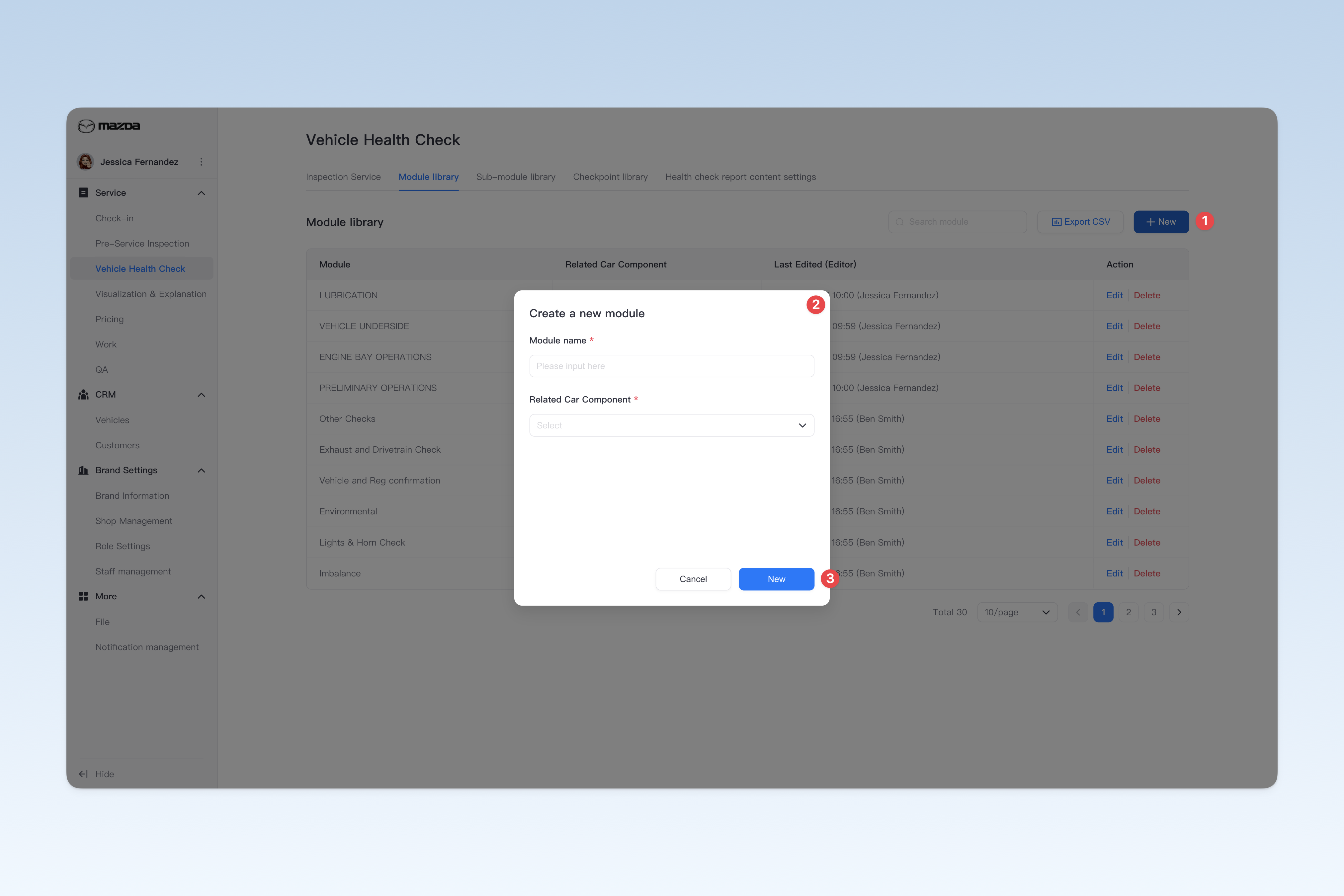
On the "Module Library" page, click the [Create] button and the "Create Module" pop-up window will appear.
In the pop-up window, you need to enter the module name and select the module category. After completing, click the [Create] button to finish creating.
Edit Module Name
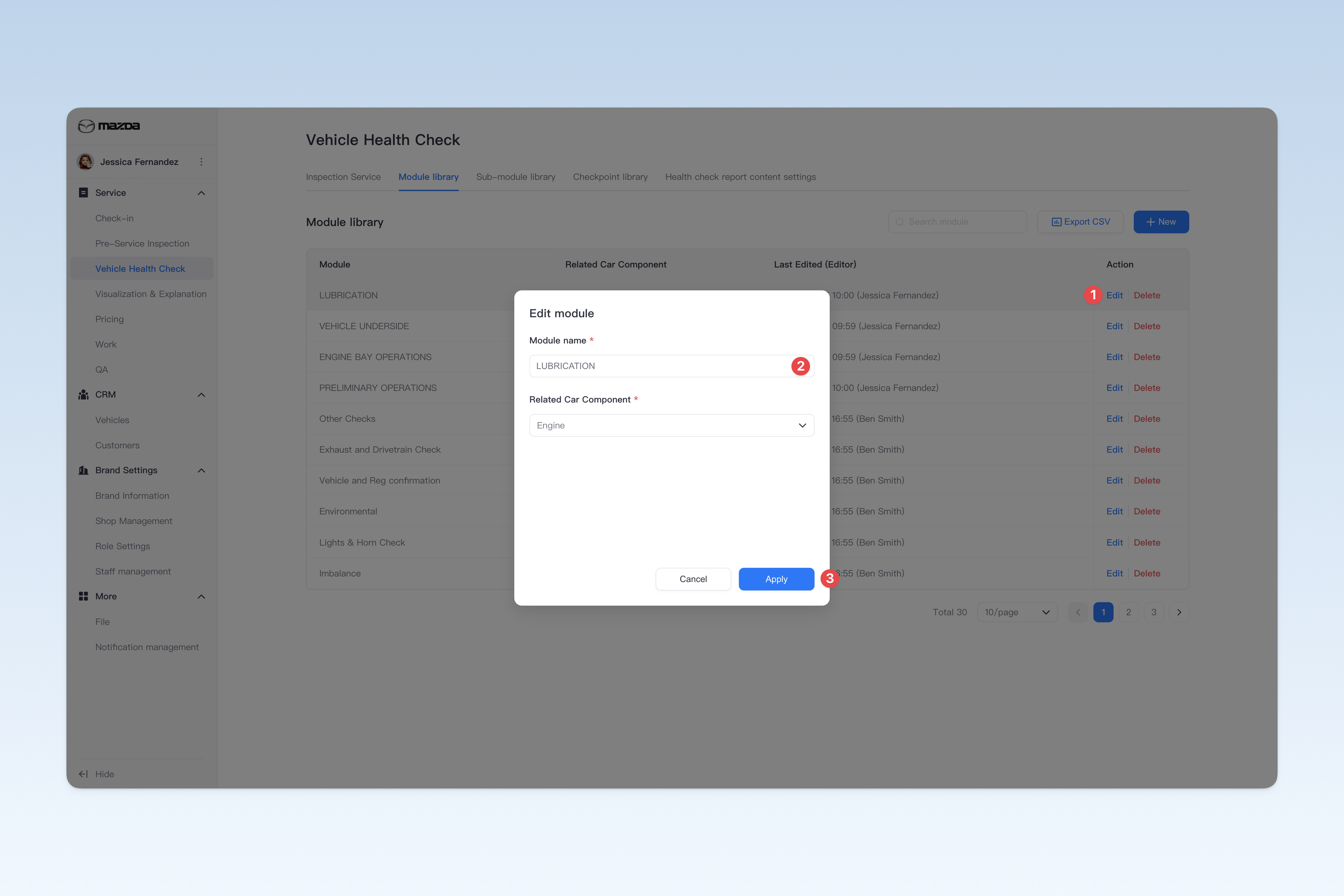
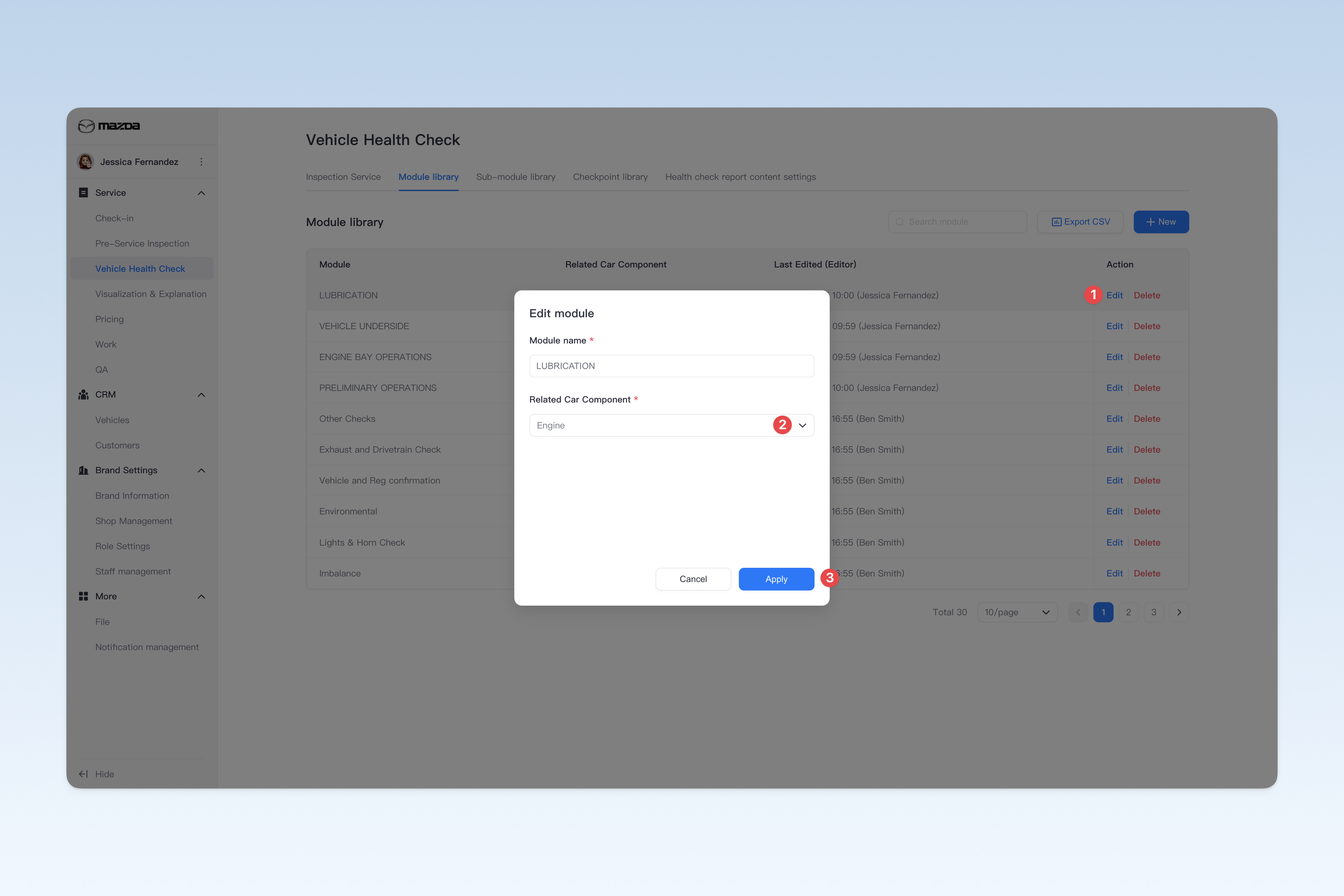
On the "Module Library" page, find the module you want to modify, click the [Edit] button in the Actions column on the right side of the list, and modify the module name in the "Edit Module" pop-up window.
Edit Module Category
On the "Module Library" page, find the module you want to modify, click the [Edit] button in the Actions column on the right side of the list, and modify the module category in the "Edit Module" pop-up window.
Module categories are provided by AutoX3 and divided based on major vehicle components for standardizing 3D model management, data statistics, and other content.
Export Module as Spreadsheet File
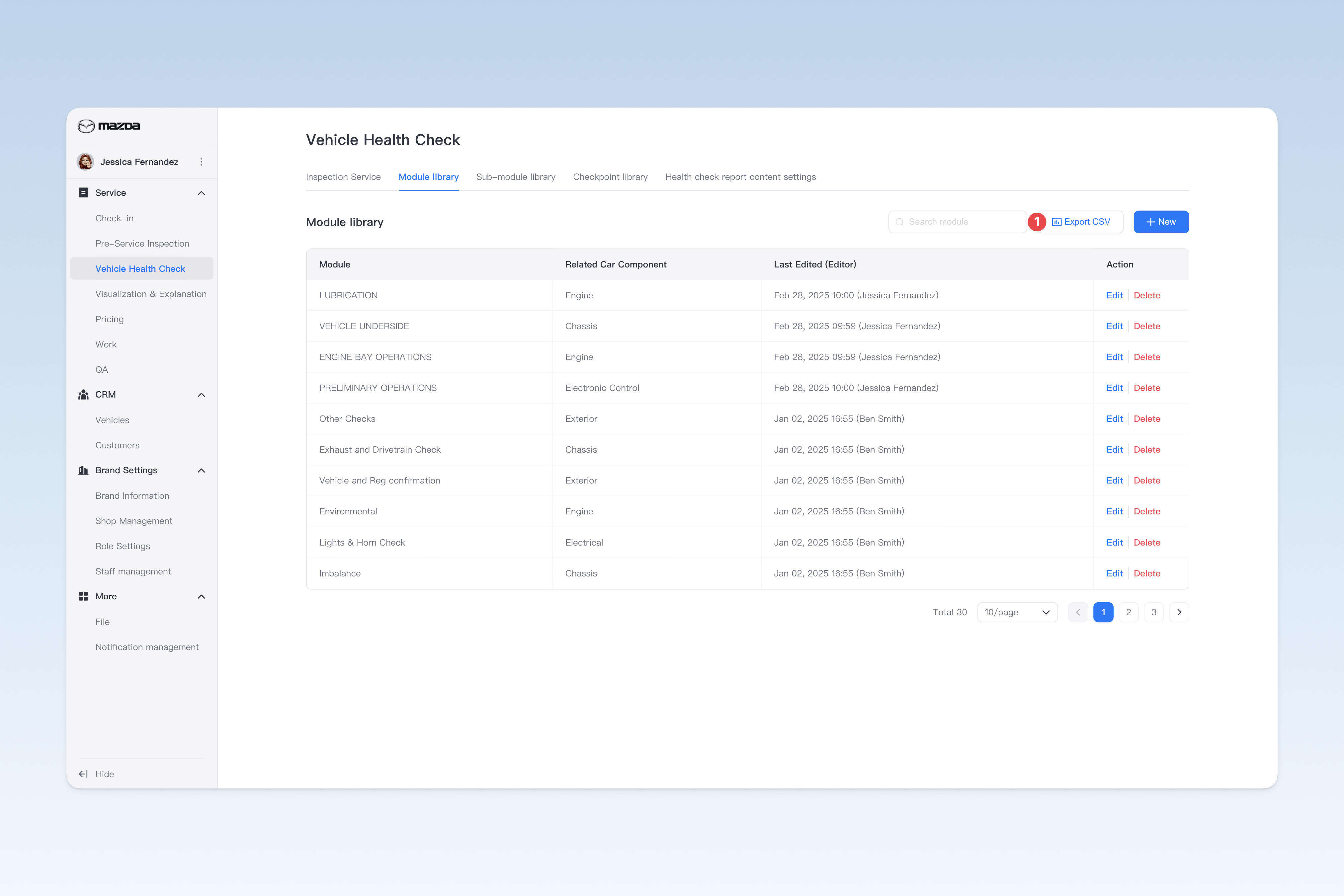
On the "Module Library" page, click the [Export CSV] button in the upper right corner. After a short wait, the system will automatically create a download task in the browser. Please find the exported spreadsheet file on the browser's download page.
Delete Module
On the "Module Library" page, find the module you want to delete, click the [Delete] button in the Actions column on the right side of the list, and a confirmation pop-up window will appear. Click [OK] to delete the sub-module.
⚠️ Note: If the module is already referenced by any health check service item, it cannot be deleted directly. You need to go to the relevant health check service item > Inspection Content menu page and remove it from the referenced item before attempting to delete. For specific operations, please refer to: ◎ Health Check Service Item