◎ Health Check Report Content Settings
tip
📍 You can configure related content in: AutoX3 Brand Management Dashboard > Service > Health Check > Health Check Report Content Settings.
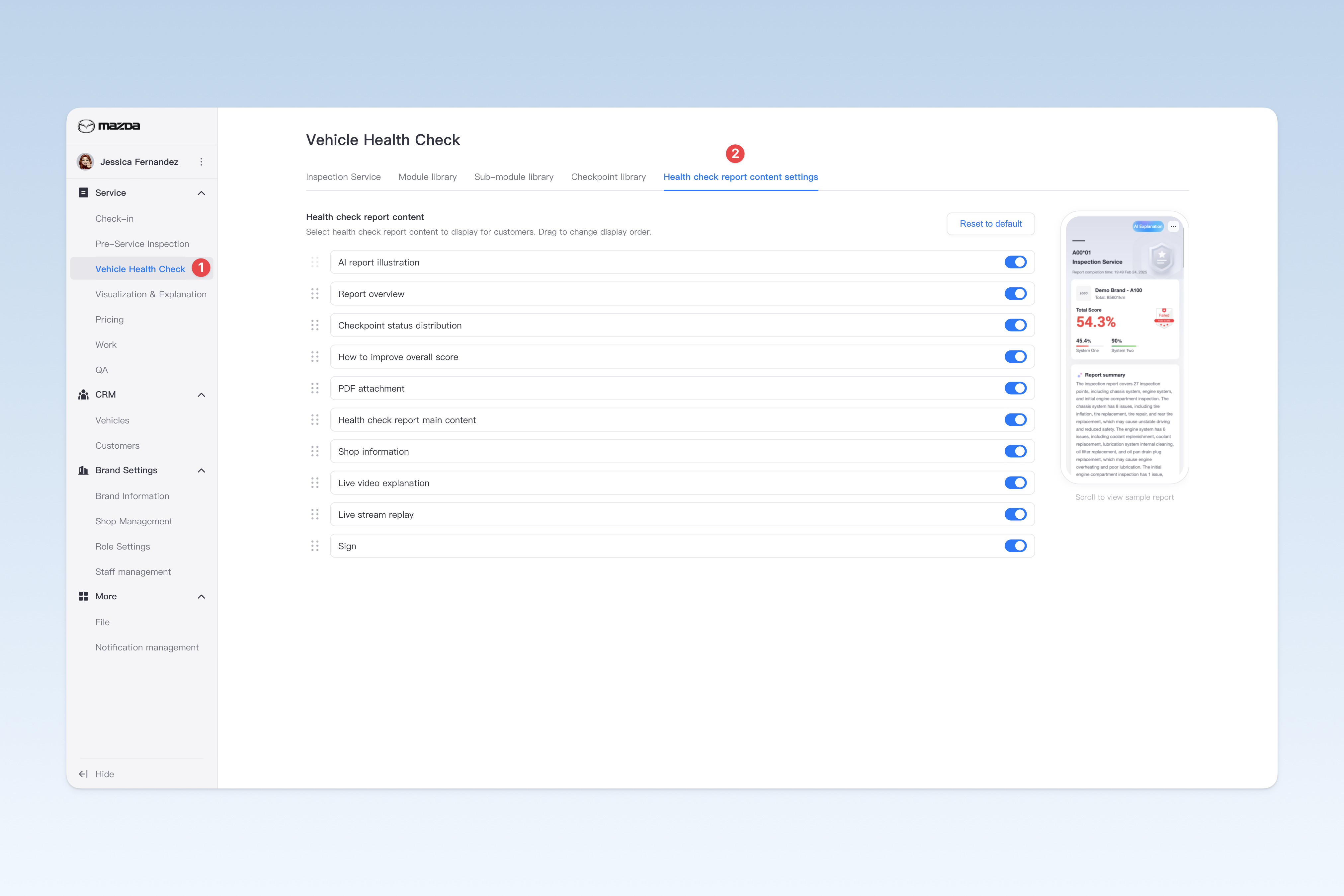
Health Check Report Content Settings: Currently, the health check report supports enabling/disabling and sorting the following 8 items: You can select the content to display and prioritize based on your actual needs.
- AI Report Explanation: AI will provide detailed interpretation and professional explanation for each checkpoint result in the health check report.
- Report Overview: AI will summarize the inspection results based on the health check report and outline potential situations.
- Checkpoint Status Comparison: View the status distribution of all checkpoints, including normal, minor, major, and dangerous situations.
- How to Improve Total Score: Used to show customers which work services can improve the score of this health check.
- PDF Attachment: PDF files related to this health check uploaded by the shop.
- Health Check Report Main Content: The specific inspection content of the health check report.
- Shop Information: Display group information and basic information of the shop visited by the customer.
- Video Explanation: Technician explanation videos can be recorded in the Intelligent Hub APP.
- Usage: After recording an explanation video in the Intelligent Hub APP, go to Intelligent Hub APP > Settings > Training Centre > Shop's Cases Study, find the recorded video. Long press the video and select "Send to customer", in the pop-up window select "Merge into health check report", then select the corresponding health check report, and the video will be merged into the selected report.