◎ Manage Group Roles
Roles have functions such as tracking staff performance, dividing responsibilities, and managing permissions. Therefore, before adding employee information for the group, it is recommended to first complete the group's role information to more efficiently manage employee-related affairs.
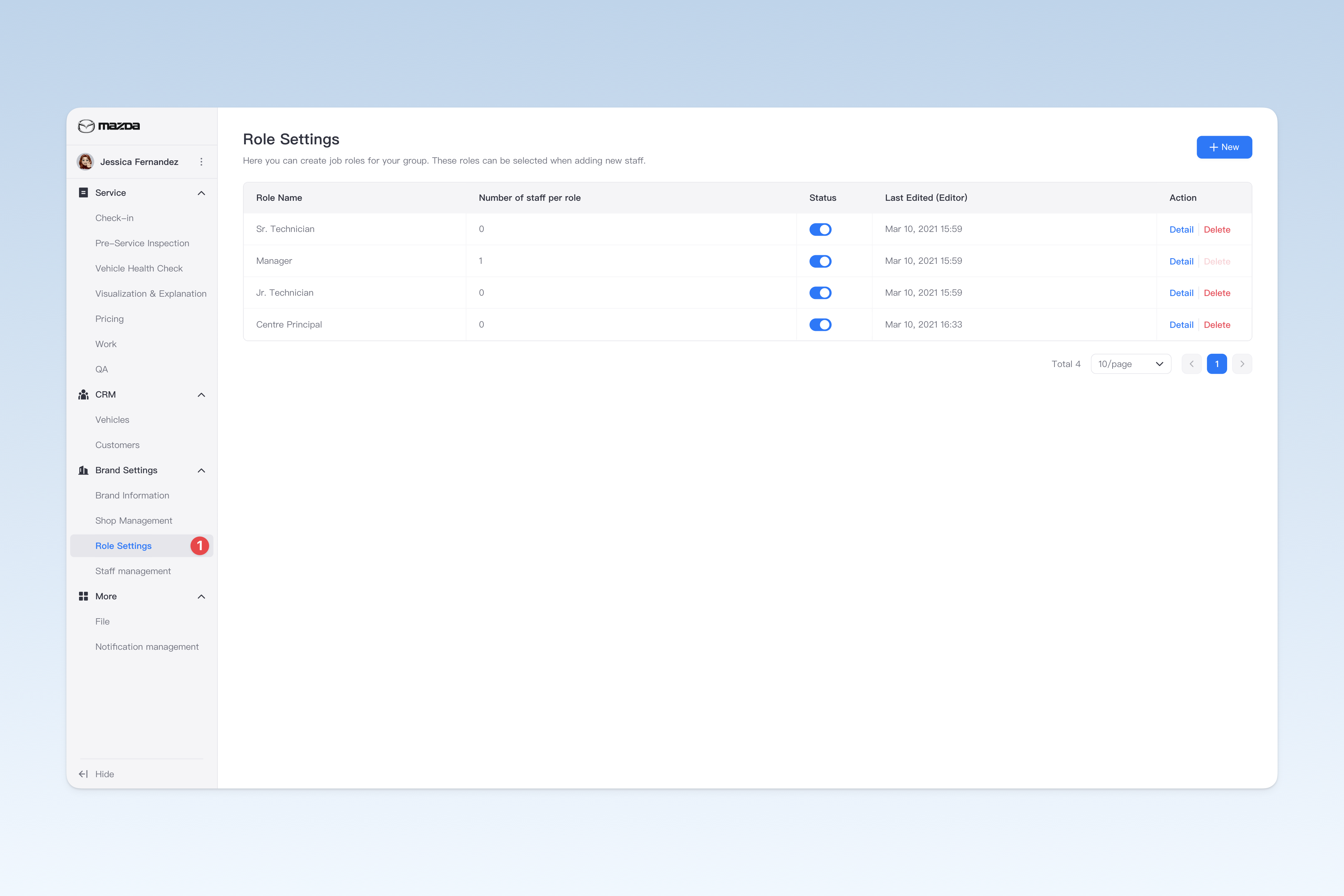
📍 You can configure related content in: AutoX3 Brand Management Dashboard > Brand Management > Role Settings.
Create Role
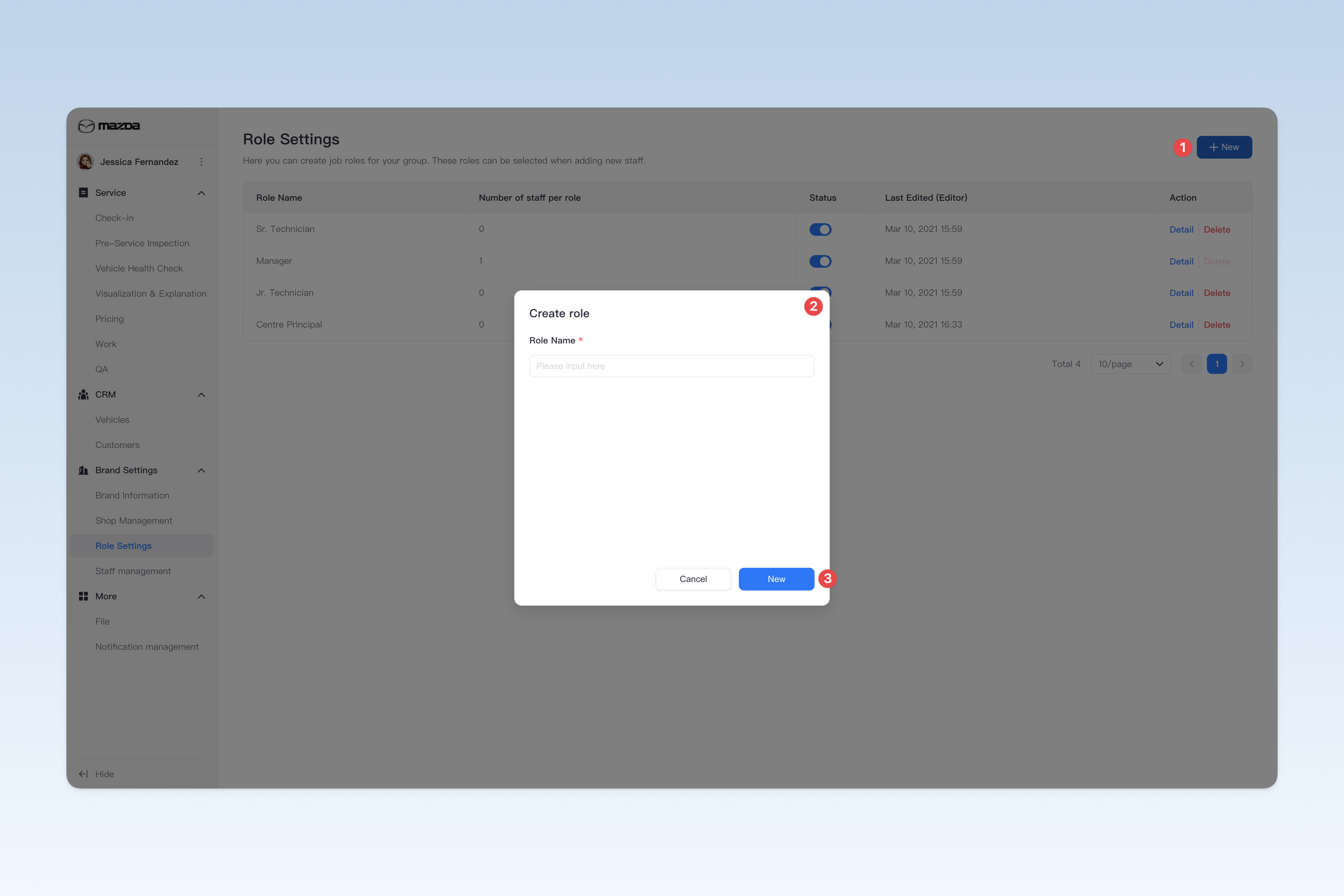
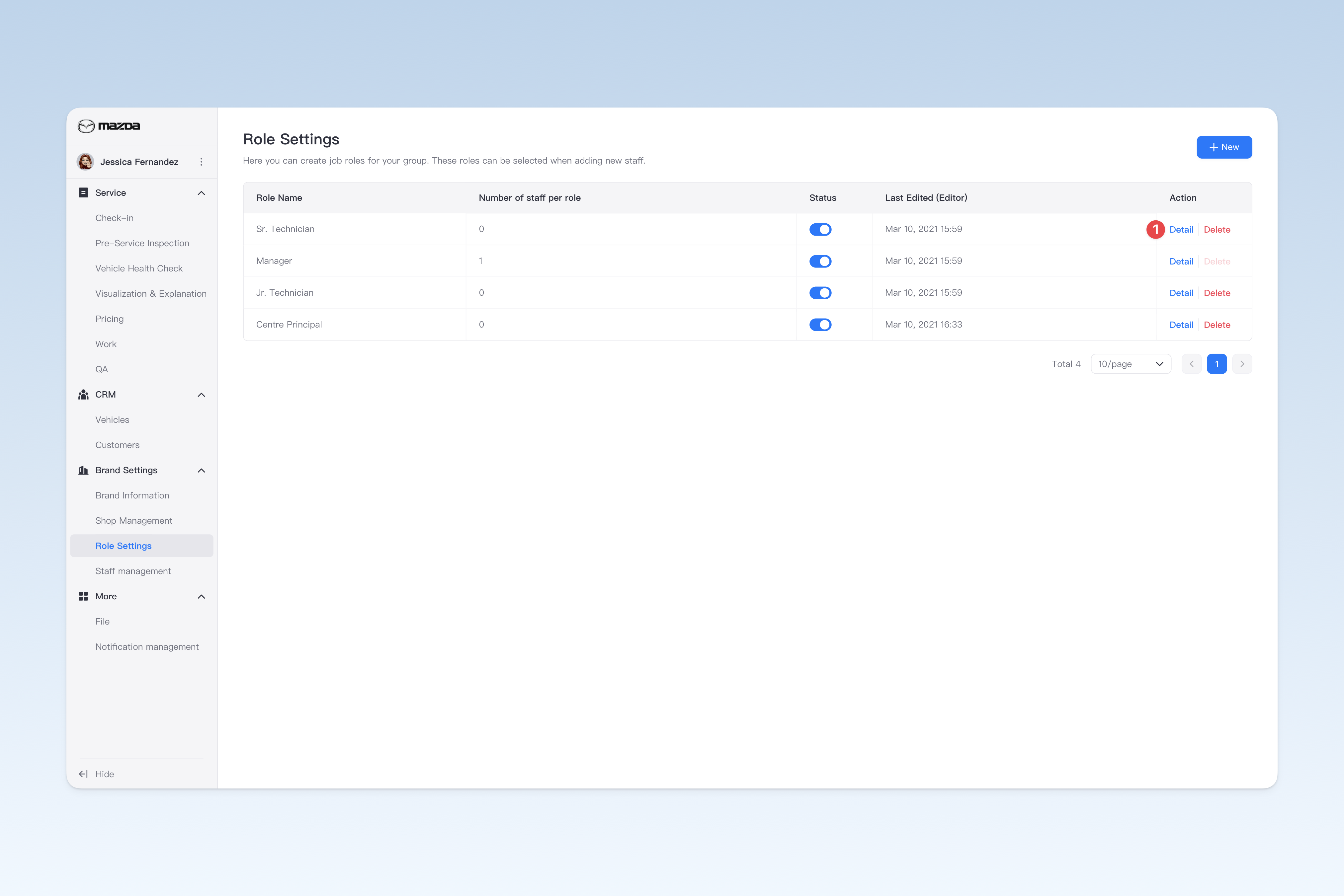
On the "Role Settings" page, click the [Create] button to open the "Create Role" pop-up window.
In the pop-up window, you need to enter the role name. After completing, click the [Create] button to finish creation.
⚠️ Note: The role name should be consistent with the role information set within the group to avoid confusion or misunderstanding among employees.
Edit Role Information
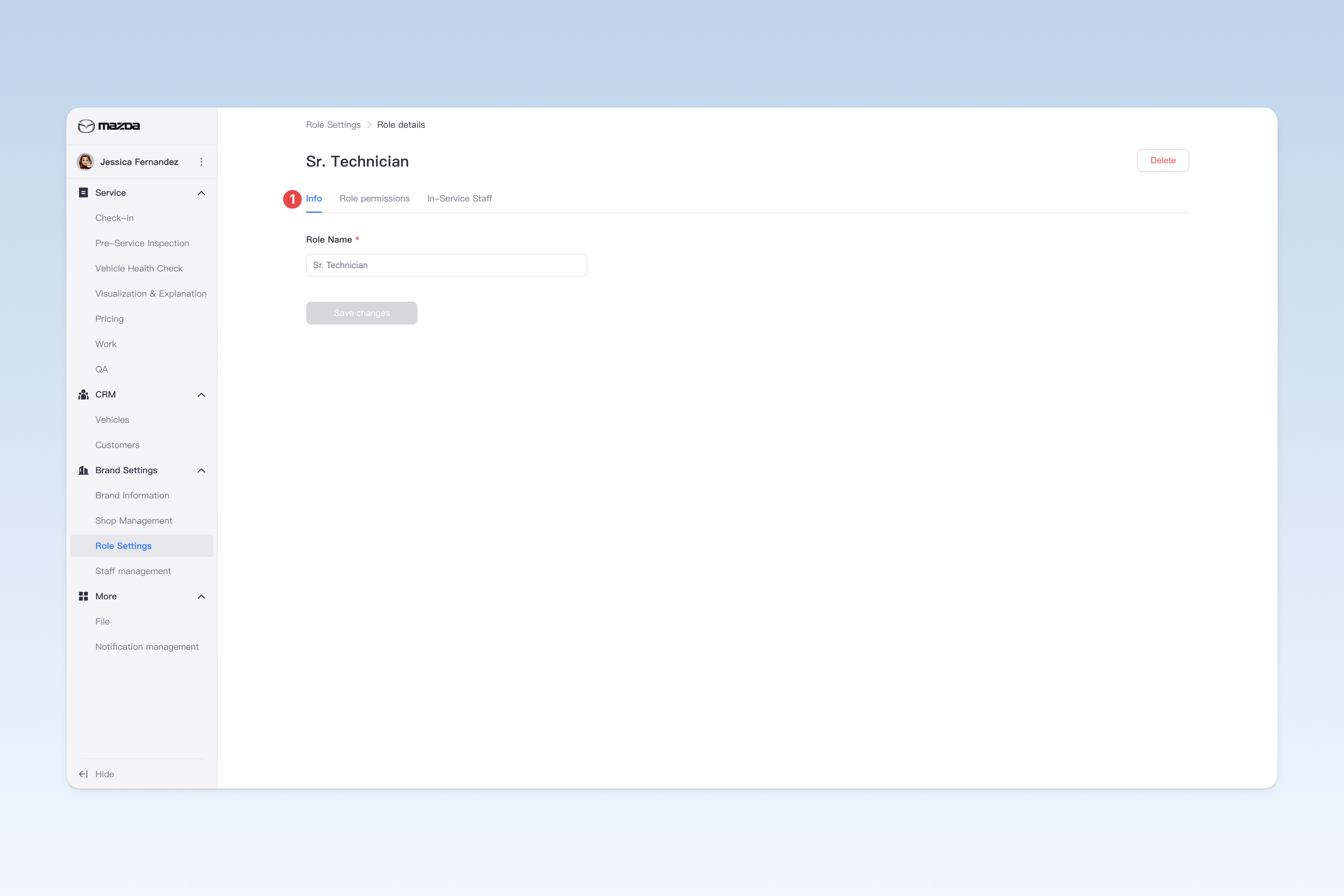
On the "Role Settings" page, find the role that needs to be modified, click the [Detail] button in the operation column on the right side of the list, and on the "Role details" page that pops up, click the [Info] menu to modify the role name on this page.
Configure Role Permissions
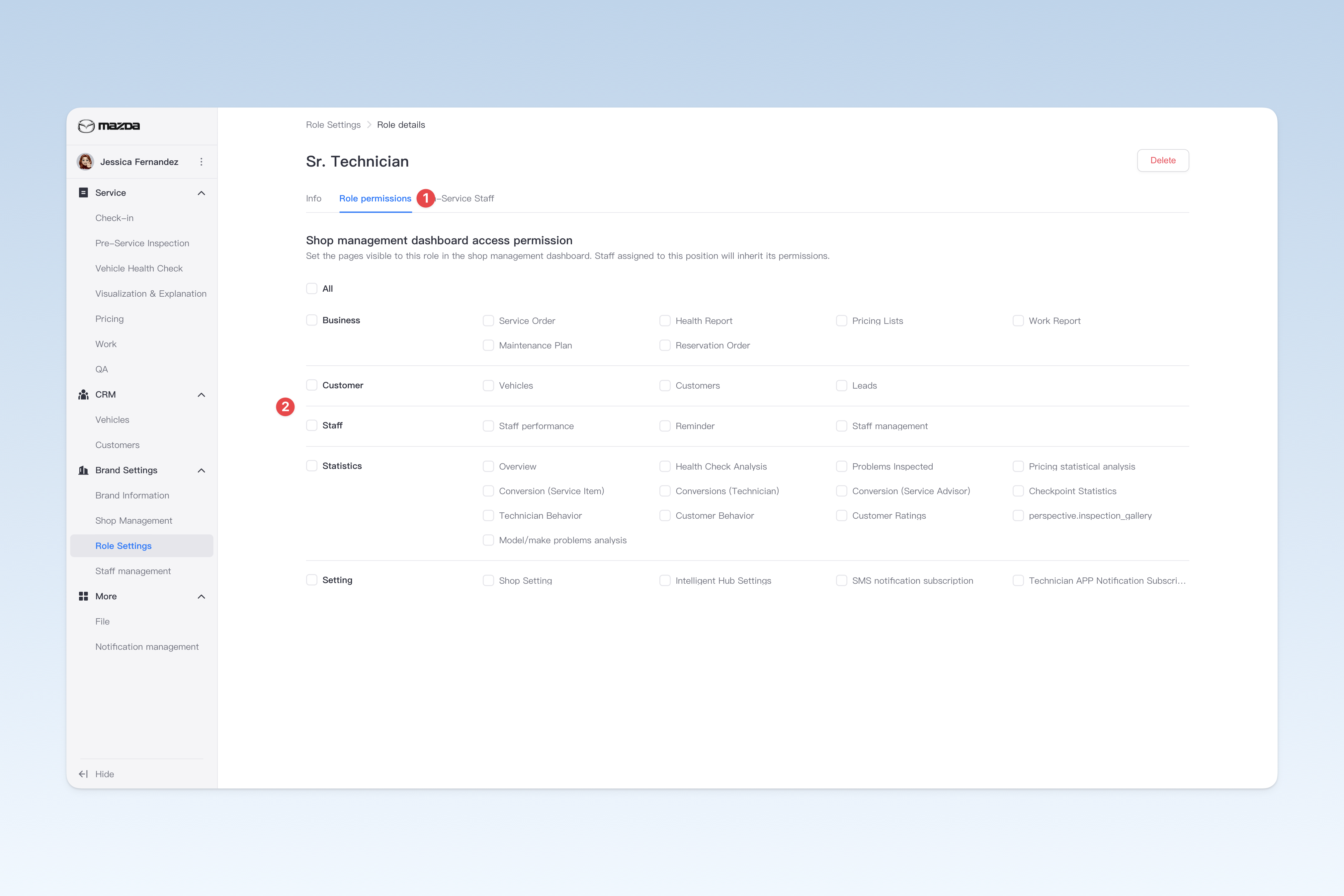
On the "Role Settings" page, find the role that needs to be modified, click the [Detail] button in the operation column on the right side of the list, and on the "Role details" page that pops up, click the [Role permissions] menu.
Role permissions are used to set the page access permissions for employees under this role in the "Shop Management Dashboard". Once set, the permissions will automatically take effect for all employees under this role.
⚠️ Note: When adding new employees, after selecting their corresponding role, the employee will automatically inherit the preset permissions of that role.
View In-Service Staff
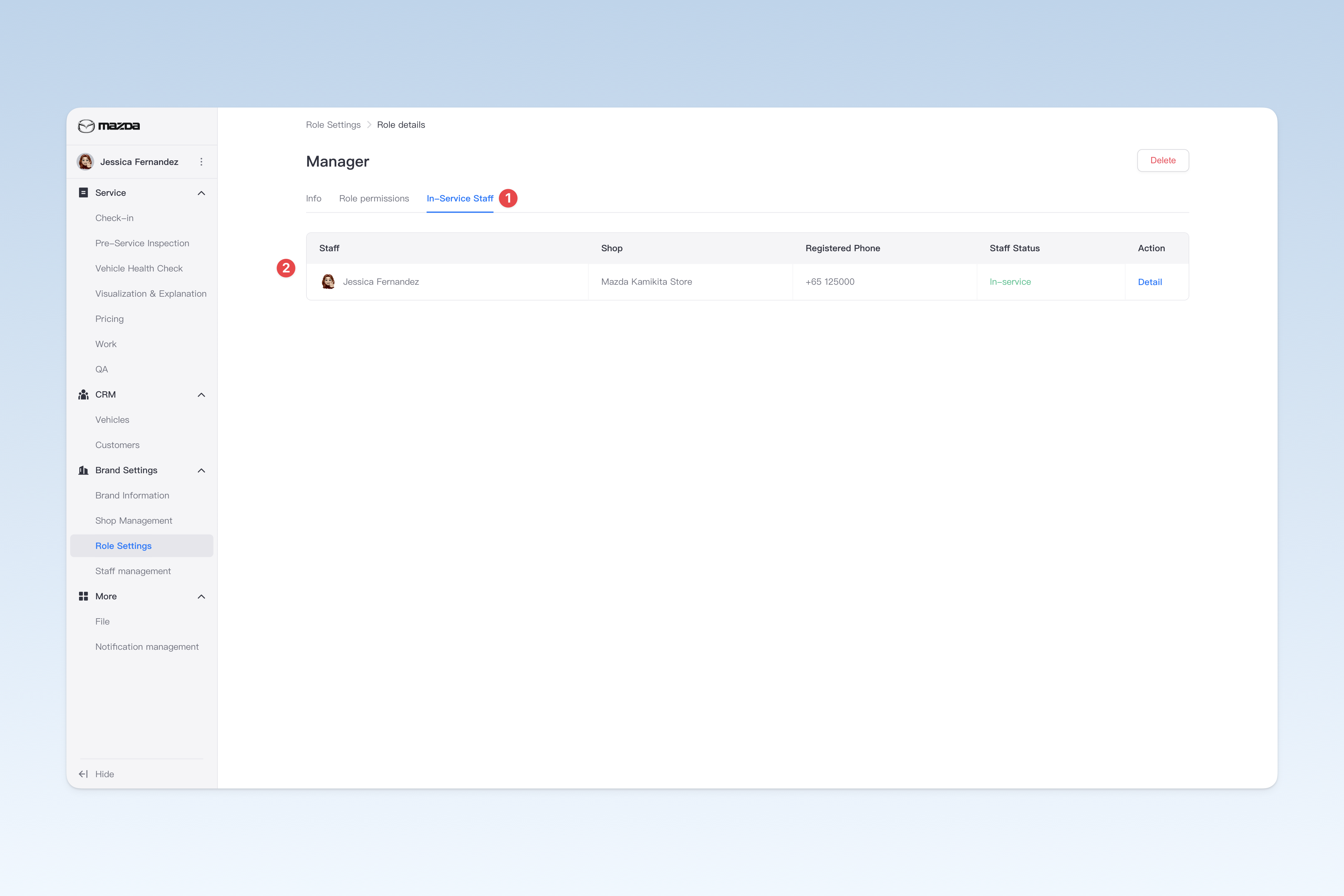
On the "Role Settings" page, find the corresponding role, click the [Detail] button in the operation column on the right side of the list, and on the "Role details" page that pops up, click the [In-Service Staff] menu.
On this page, you can clearly view all employees under the current role. Click the [Detail] button in the operation column on the right side of the list to view the detailed information of that employee.
Enable/Disable Role
On the "Role Settings" page, find the "Status" in the list, and click the button to "Enable" or "Disable" any role.
⚠️ Note: When there are employees under the role, the role cannot be disabled.
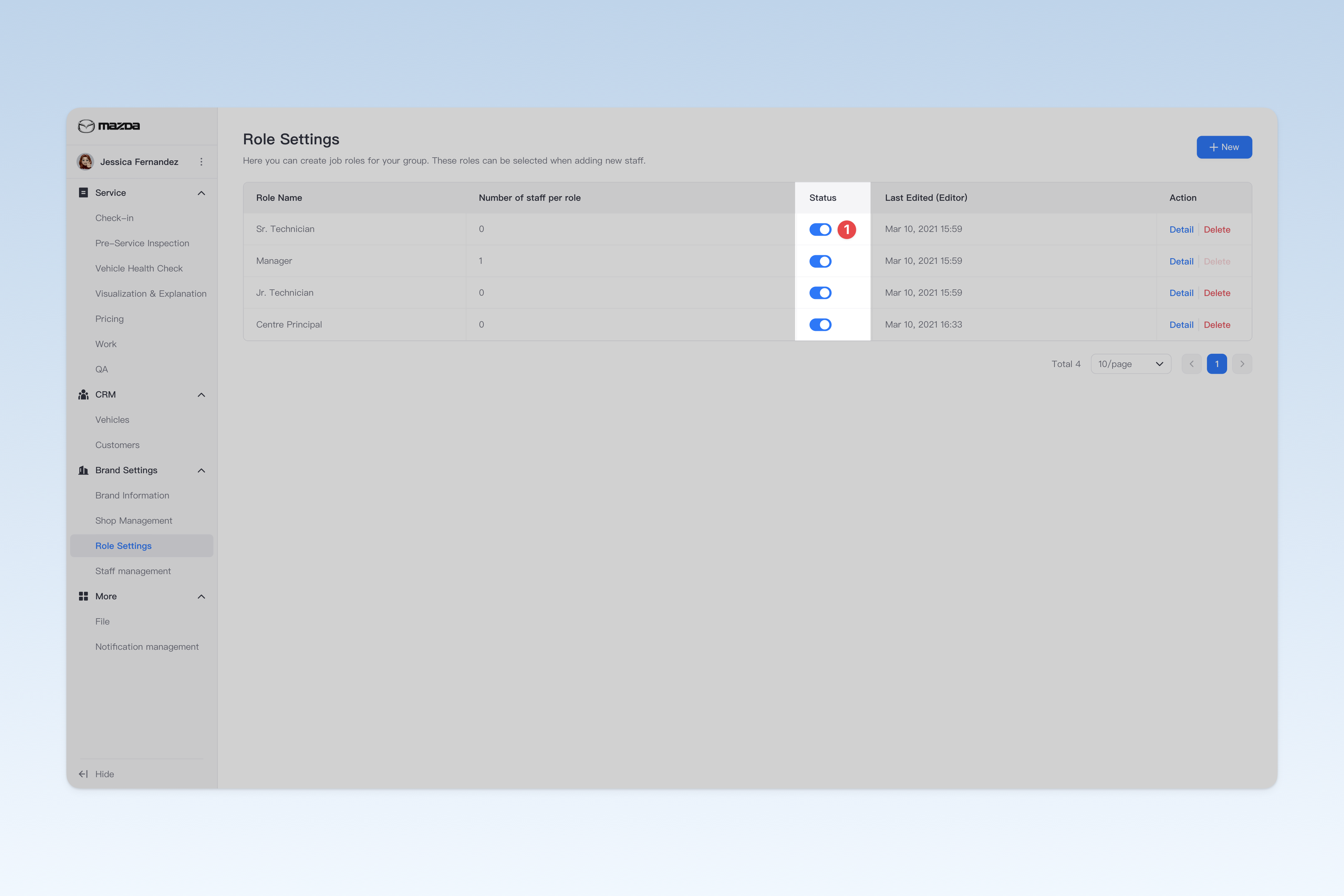
Delete Role
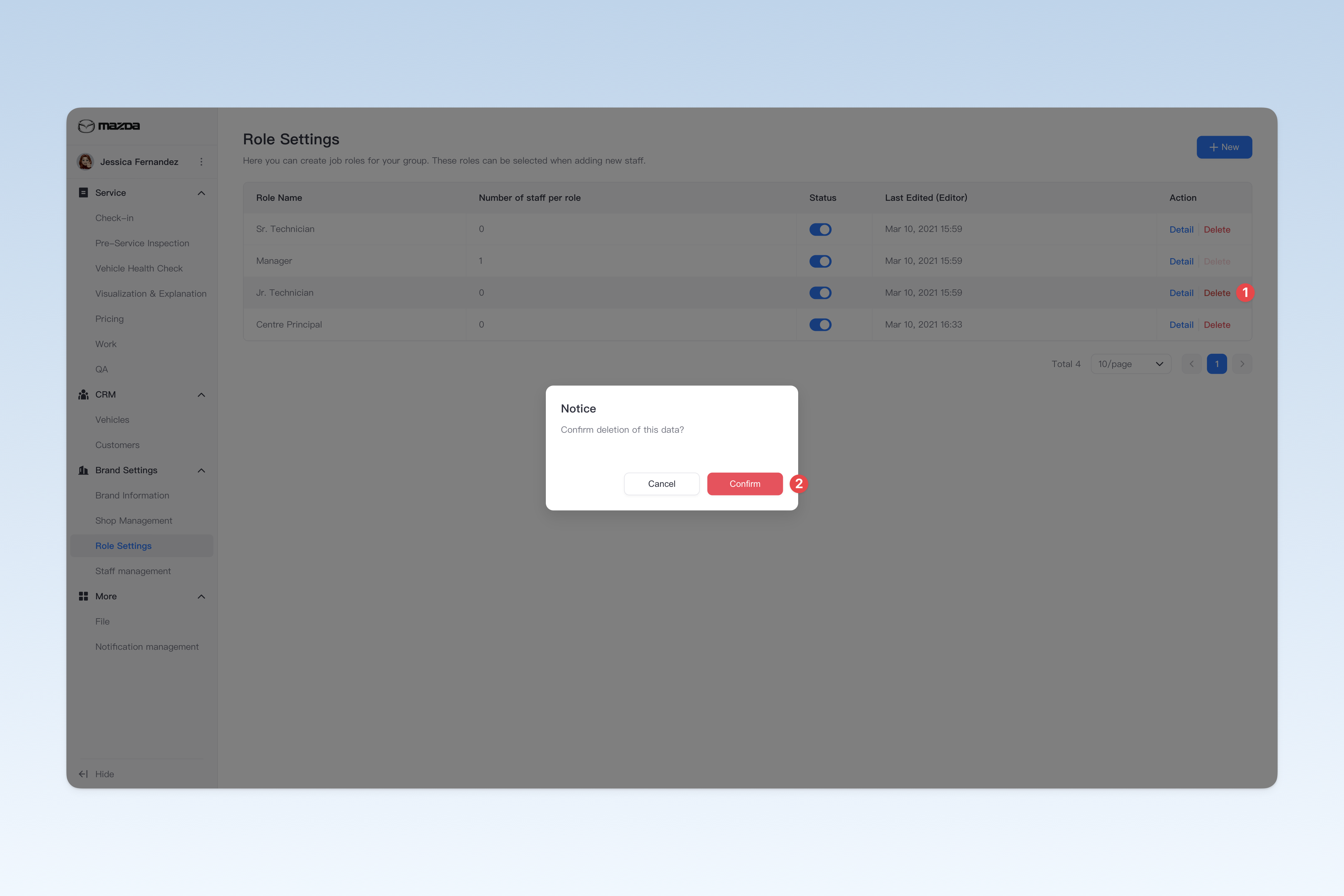
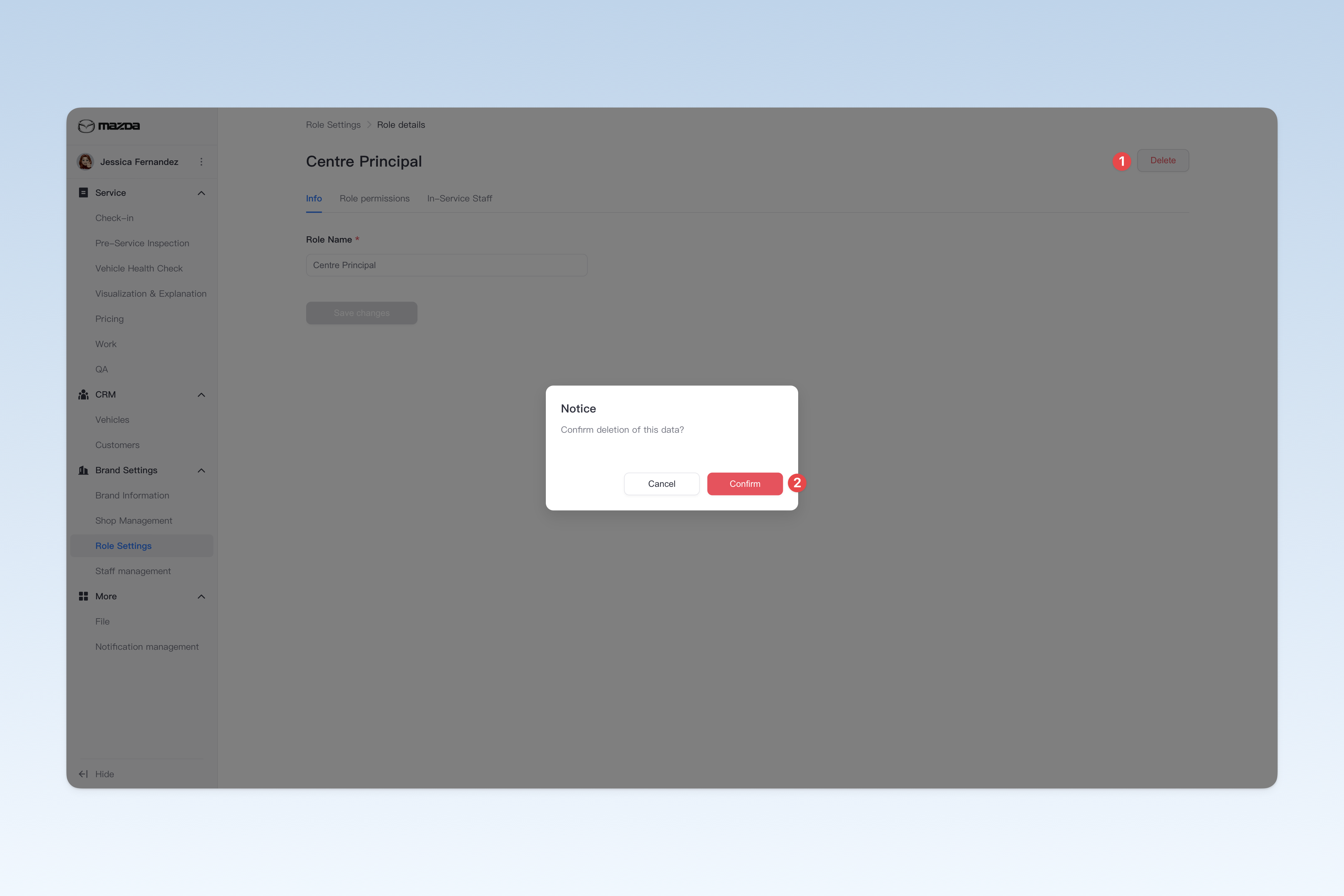
On the "Role Settings" page, find the role that needs to be deleted, click the [Delete] button in the operation column on the right side of the list, a confirmation pop-up window will appear, click [Confirm] to delete.
⚠️ Note: When there are employees under the role, the role cannot be deleted. If you need to delete it, please transfer the employees under this role to other roles first.