◎ Manage Group Employees
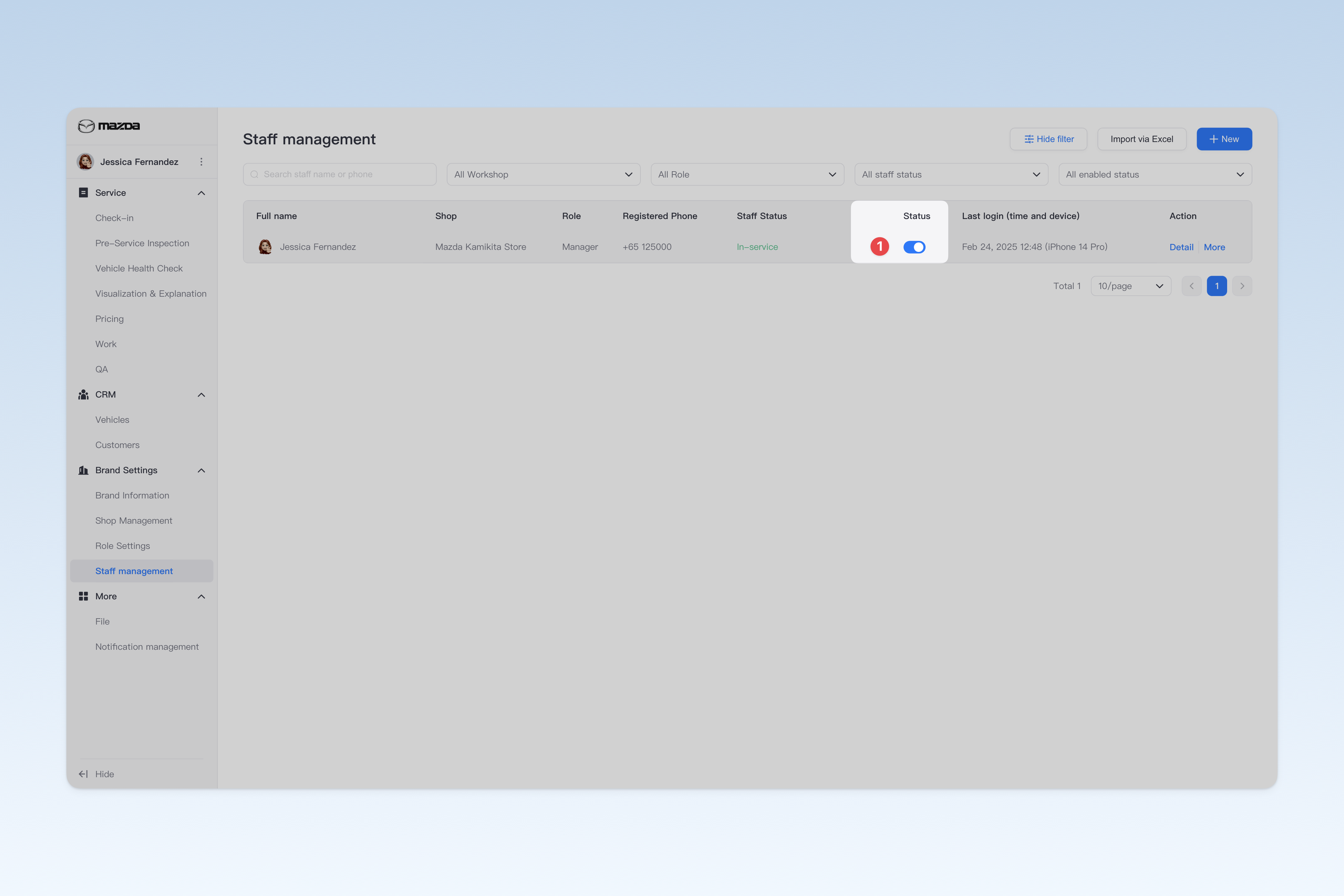
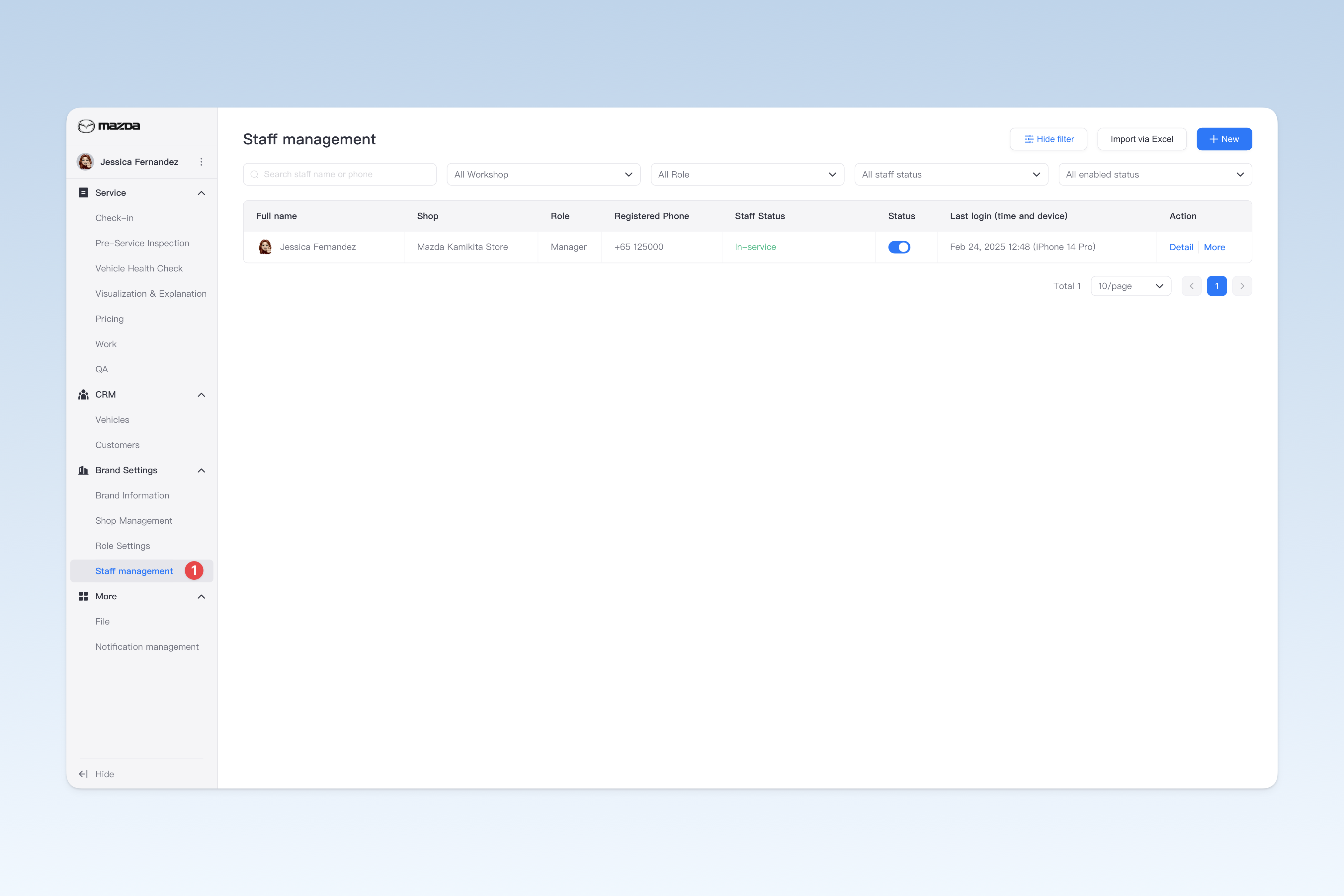
📍 You can configure related content in: AutoX3 Brand Management Dashboard > Brand Management > Staff Management.
Create Staff
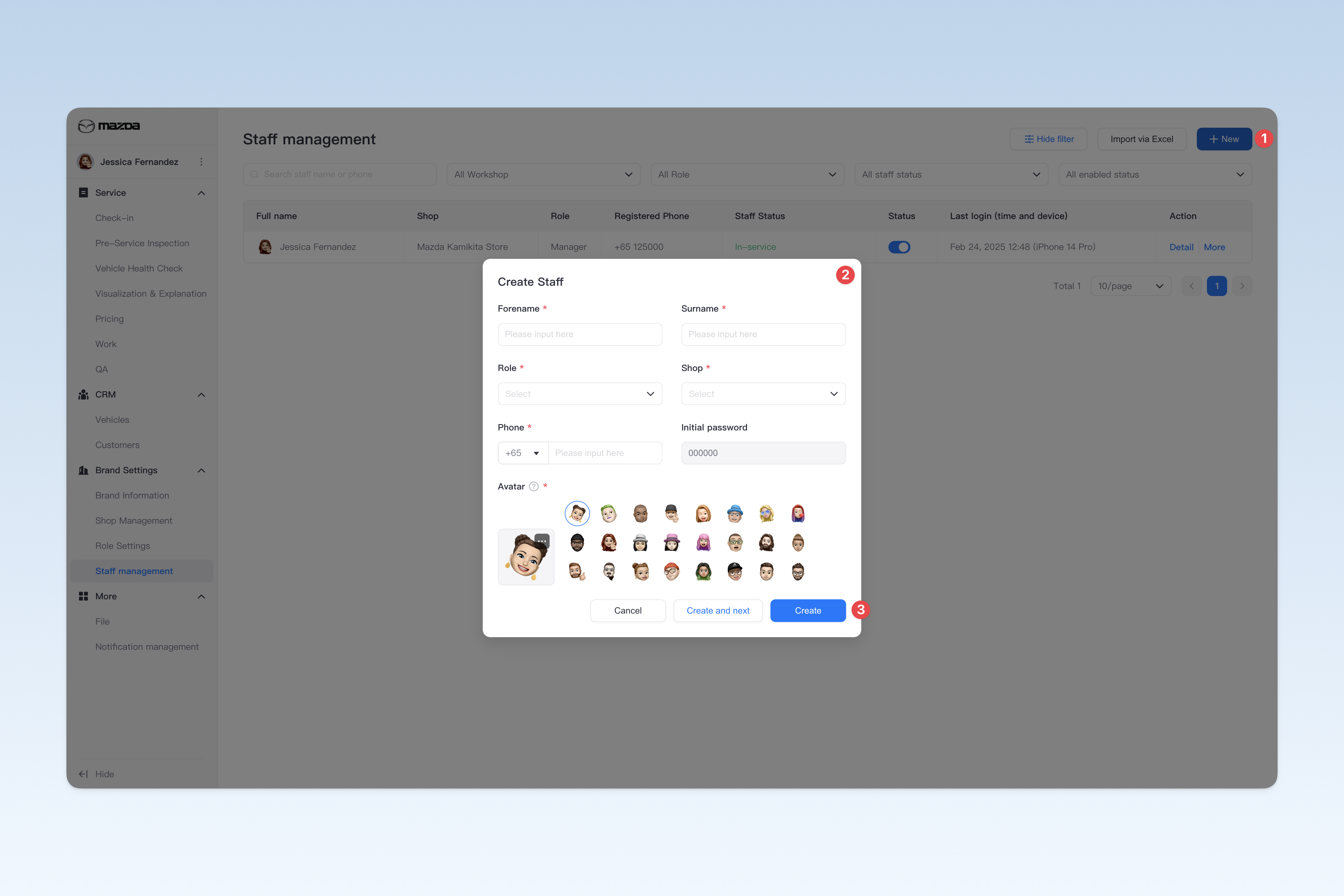
On the "Staff Management" page, click the [Create] button to open the "Create Staff" window.
In the window, you need to enter: staff surname, staff name, staff role, shop, phone number, initial password, and staff avatar.
After completing, click the [Create] button to finish creating the staff.
⚠️ Note: The initial password is preset as "000000" for staff's first login. To ensure account and data security, it is recommended to promptly remind staff to change the password to a more secure one.
Configure Staff Basic Information
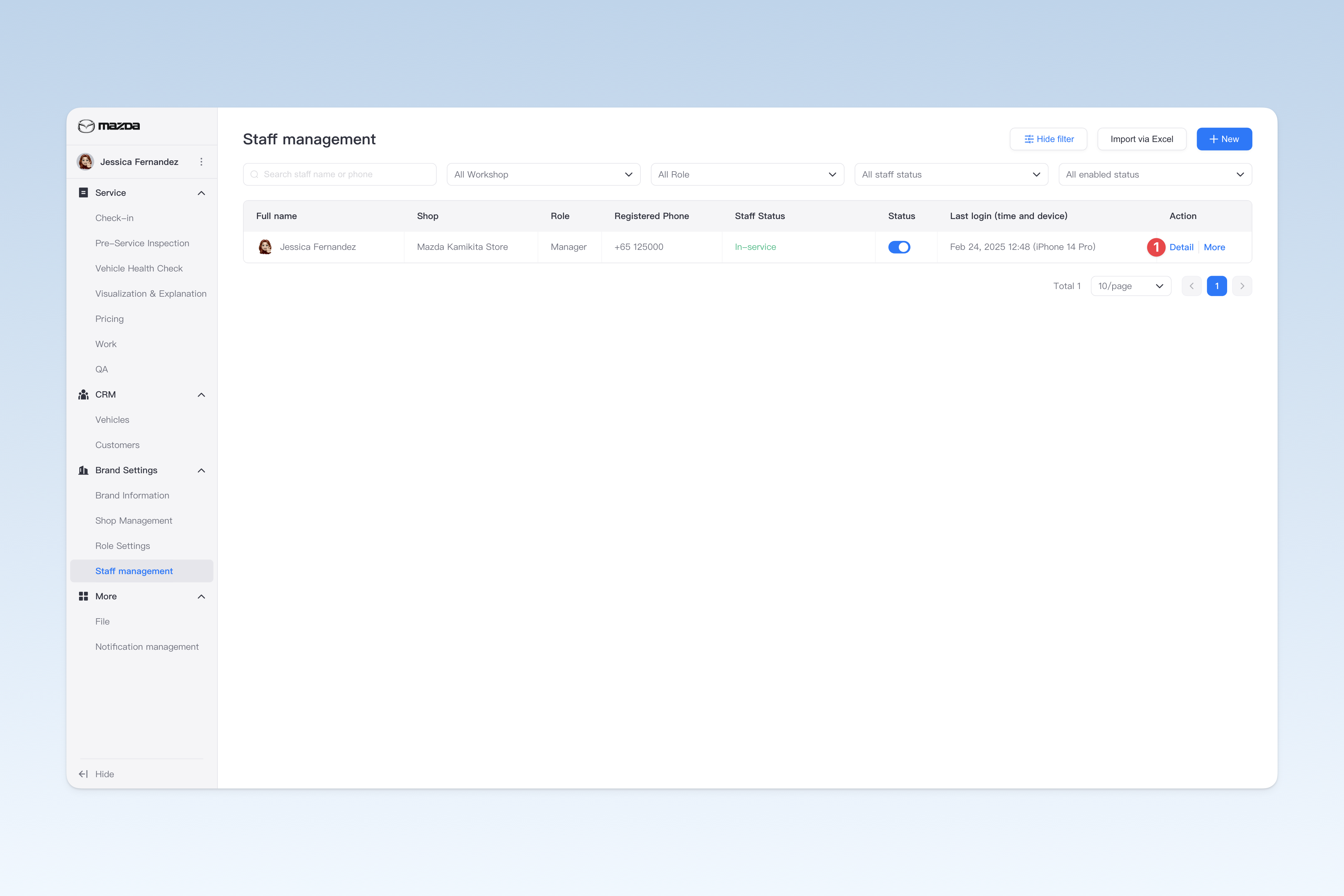
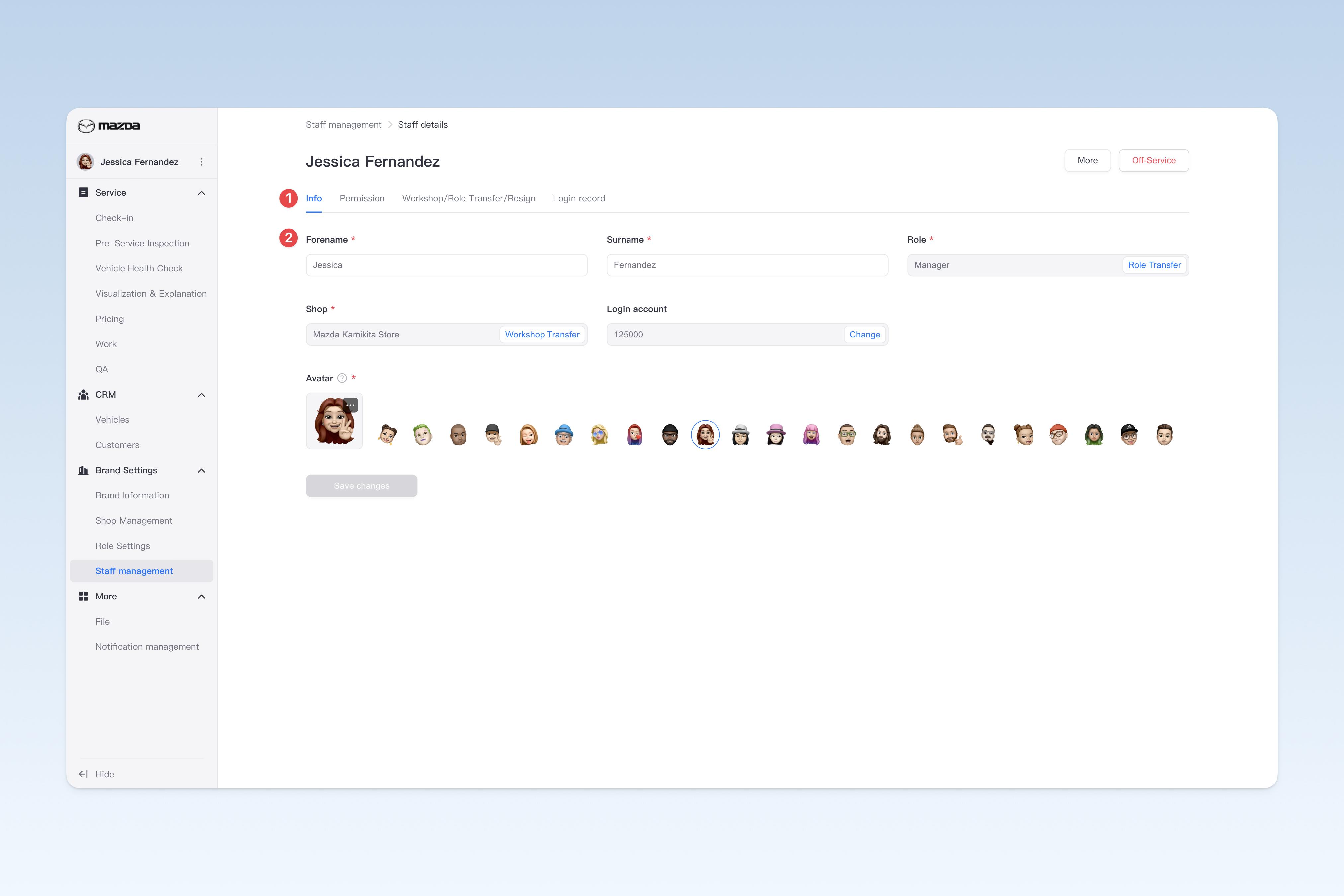
On the "Staff Management" page, find the corresponding staff and click the [Details] button in the operation column on the right side of the list. In the pop-up "Staff Details" page, click the [Basic Information] menu. This page is mainly used to configure some basic information of the staff.
- Staff Surname: The surname of the staff
- Staff Name: The name of the staff
- Staff Avatar: Add an avatar for the staff. The system will provide 10 default cartoon avatars
Transfer Staff to Another Role
Currently, there are three ways to transfer a staff to another role:
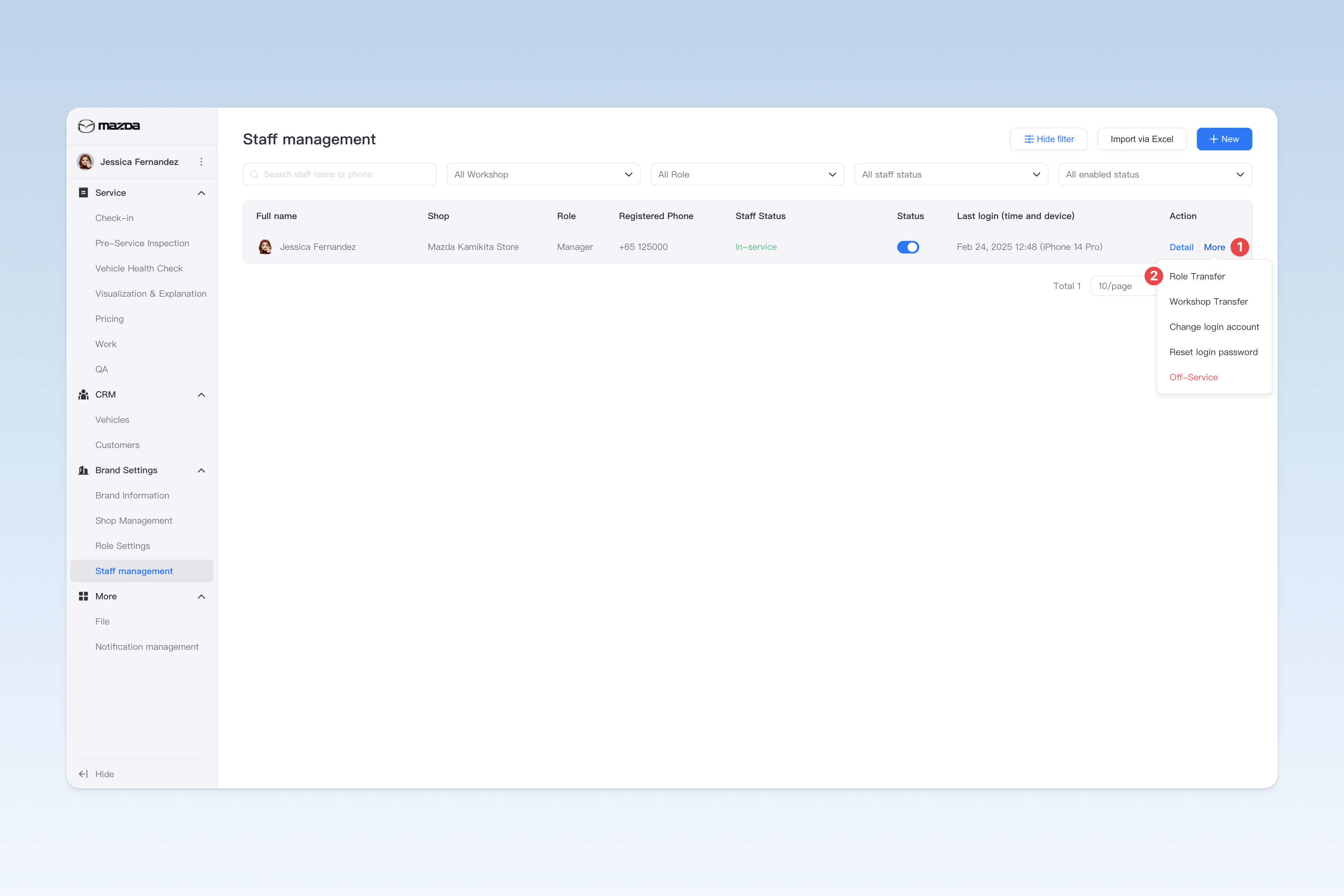
- On the "Staff Management" page, click the [More] button in the operation column on the right side of the list, and then click the [Role Transfer] button in the drop-down menu.
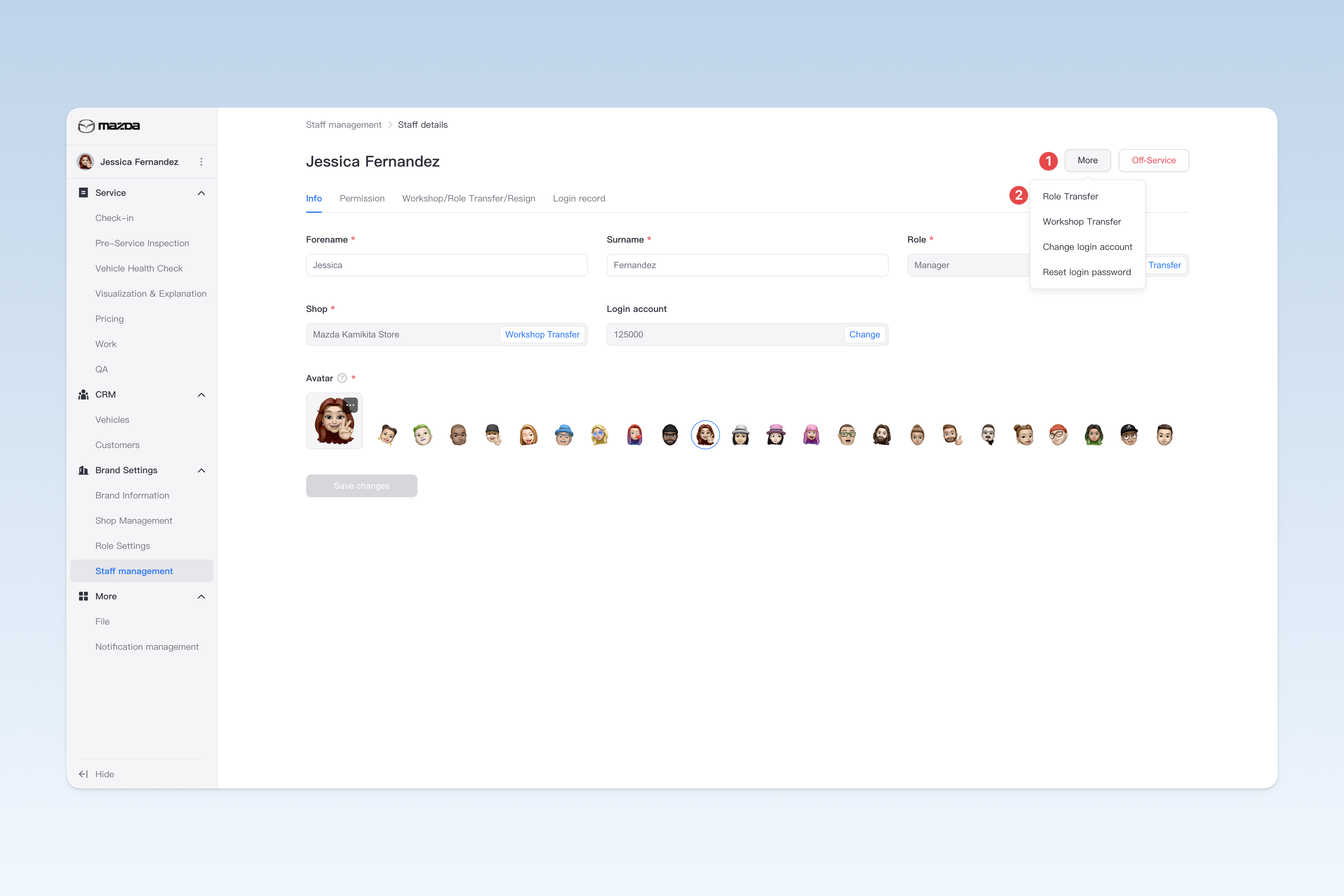
- On the "Staff Management > Staff Details" page, click the [More] button in the upper right corner of the page, and then click the [Role Transfer] button in the drop-down menu.
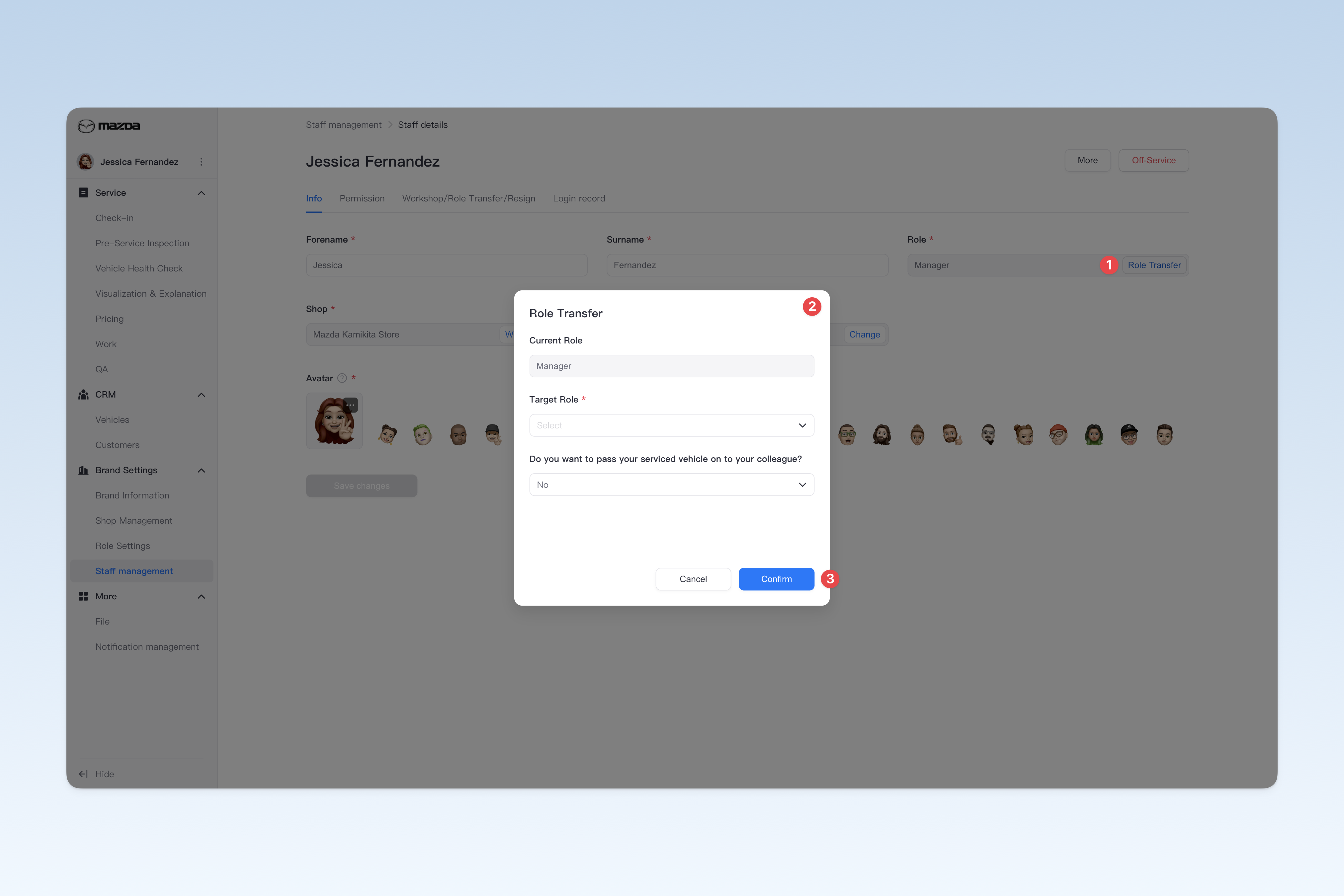
- On the "Staff Management > Staff Details > Basic Information" page, find the "Staff Role" information and click the [Role Transfer] button.
After clicking the "Role Transfer" button using any of the above methods, the "Role Transfer" window will pop up. In the window, you need to operate the following options:
- Target Role: Select the target role for the staff transfer
- Do you want to pass your serviced vehicle on to your colleague? If you need to transfer the vehicles followed up by the staff to other staff, please select "Yes". After selection, the system will automatically pop up the "Receiver" option, where you can select other staff as the handover person from the drop-down box. If you select "Not now", the vehicles followed up by the staff will be in a state of no follow-up. However, you can go to the "Vehicle Pool" at any time to reassign a follow-up person for these vehicles without follow-up. 📚 For how to set a follow-up person for vehicles in the "Vehicle Pool", please refer to: ◎ Manage Vehicle Information
Change Employee's Shop
Currently, there are three ways to transfer an employee to a new shop:
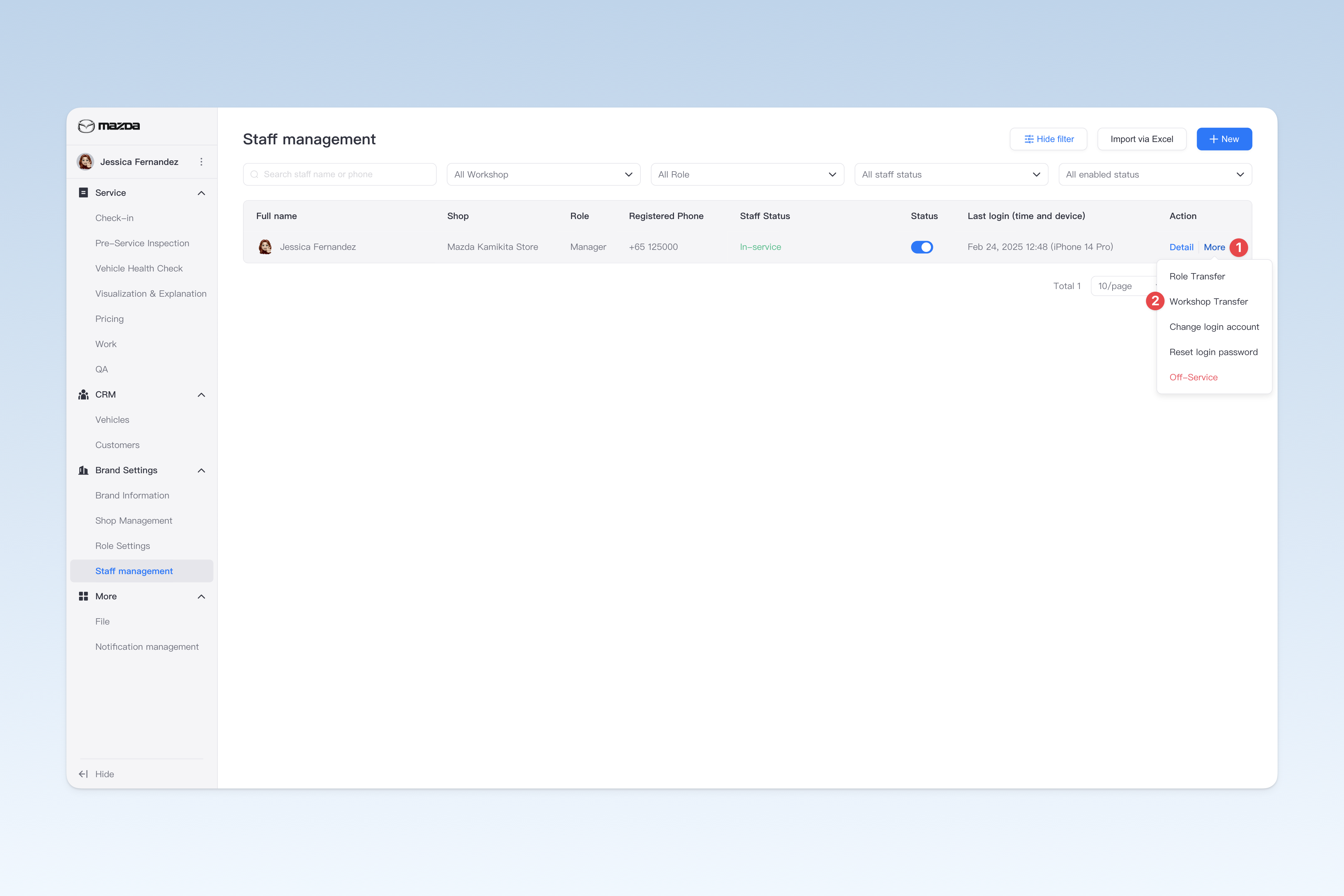
- On the "Staff Management" page, click the "More" button on the right side of the list, and click "Workshop Transfer" in the dropdown menu.
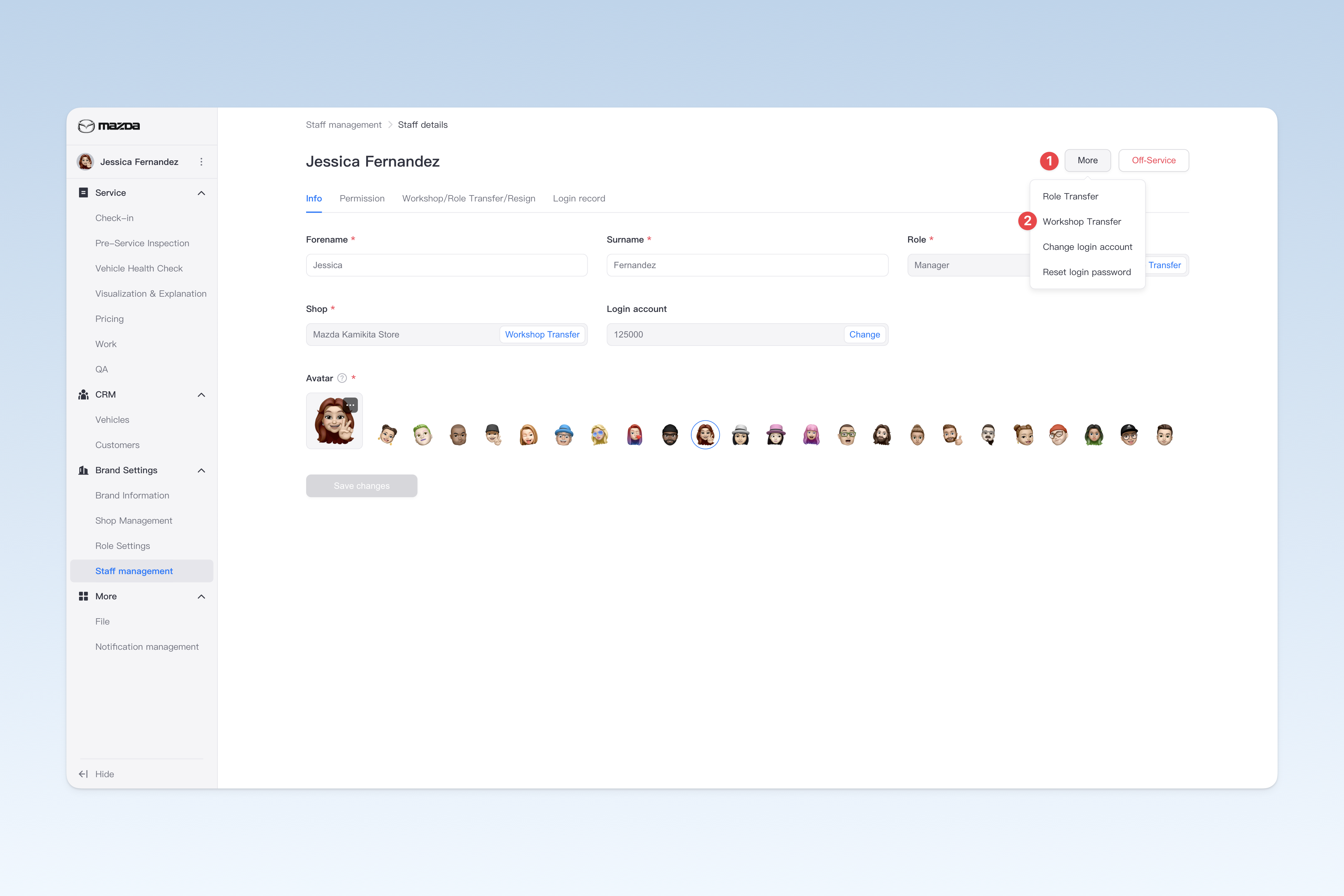
- On the "Staff Management > Staff Details" page, click the "More" button in the upper right corner of the page, and click "Workshop Transfer" in the dropdown menu.
- On the "Staff Management > Staff Details > Info" page, find the "Current Workshop" information and click the "Workshop Transfer" button.
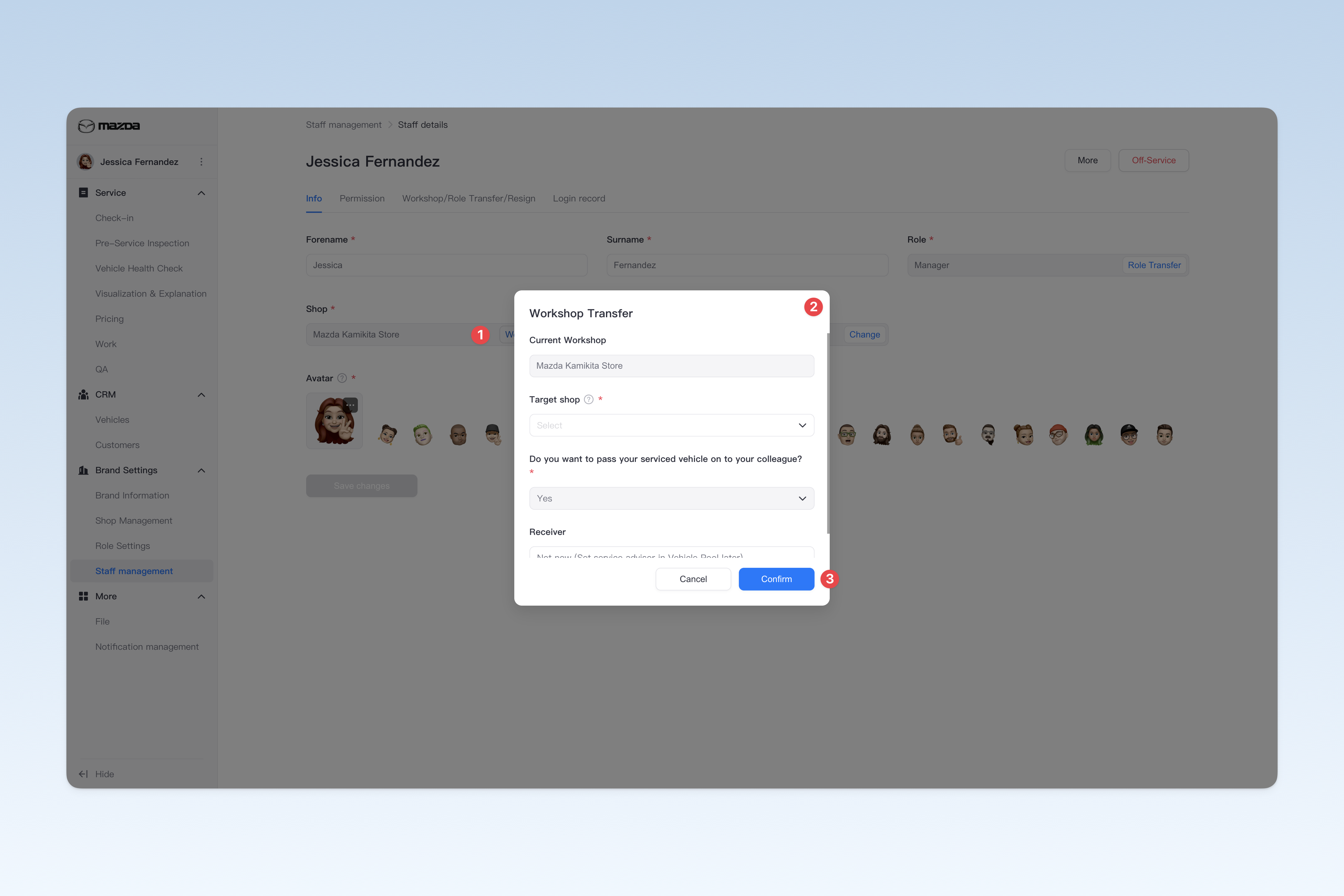
After clicking the "Workshop Transfer" button using any of the above methods, a "Workshop Transfer" popup will appear. In the popup, you need to operate the following options:
- Target shop: Select the target shop for the employee's transfer (i.e., specify the new shop location for the employee).
- Do you want to pass your serviced vehicle on to your colleague? This option must be selected as "Yes" during the "Workshop Transfer" operation, so you need to designate a handover person for the vehicles followed up by the employee. You can select other employees as the handover person from the dropdown box. If you choose "Not now", the vehicles followed up by the employee will be in an unattended state. However, you can also go to the "Vehicle Pool" at any time to reassign a follow-up person for these unattended vehicles. 📚 For how to set a follow-up person for a vehicle in the "Vehicle Pool", please refer to: ◎ Manage Vehicle Information
Process Employee Resignation
Currently, there are two ways to process an employee's resignation:
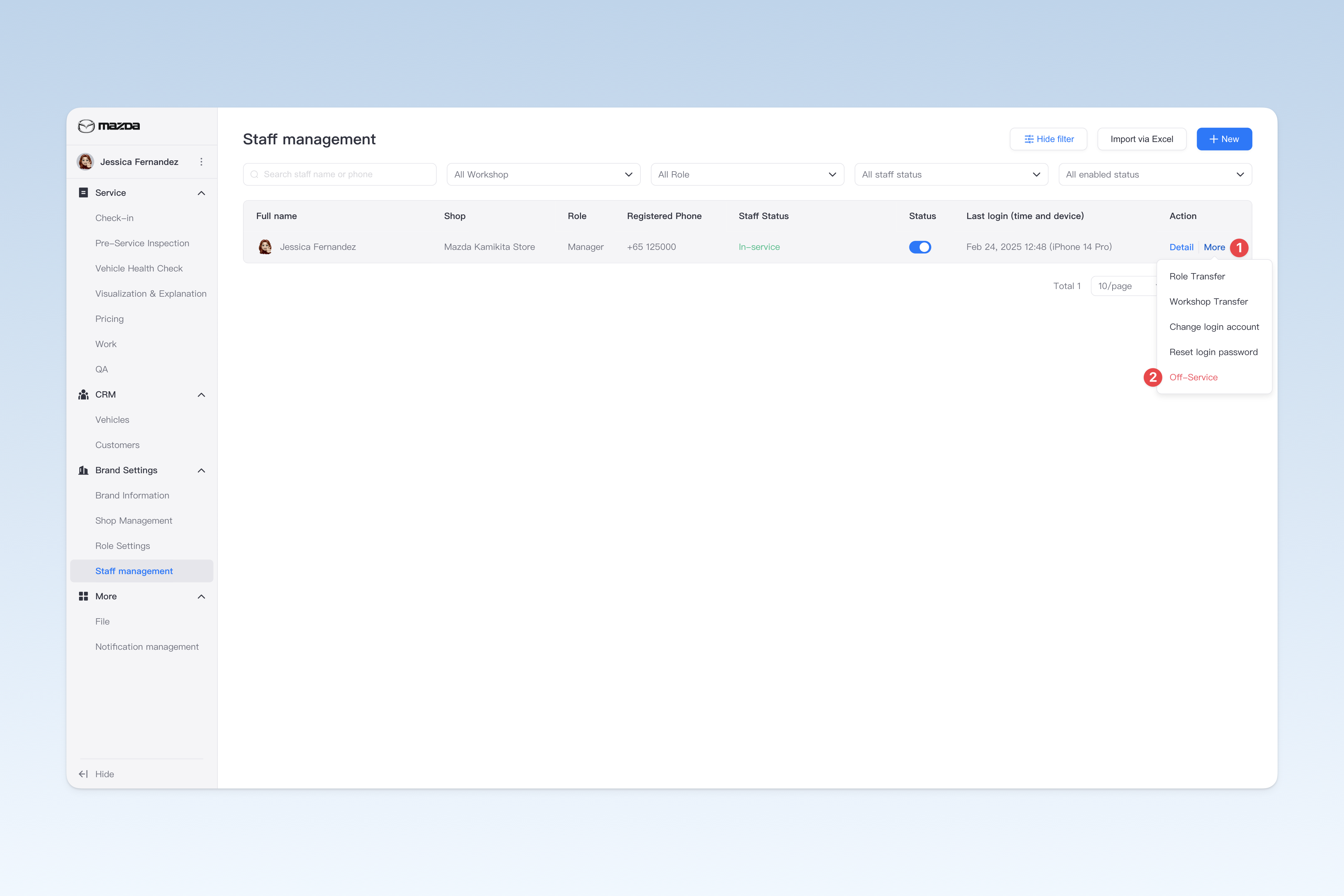
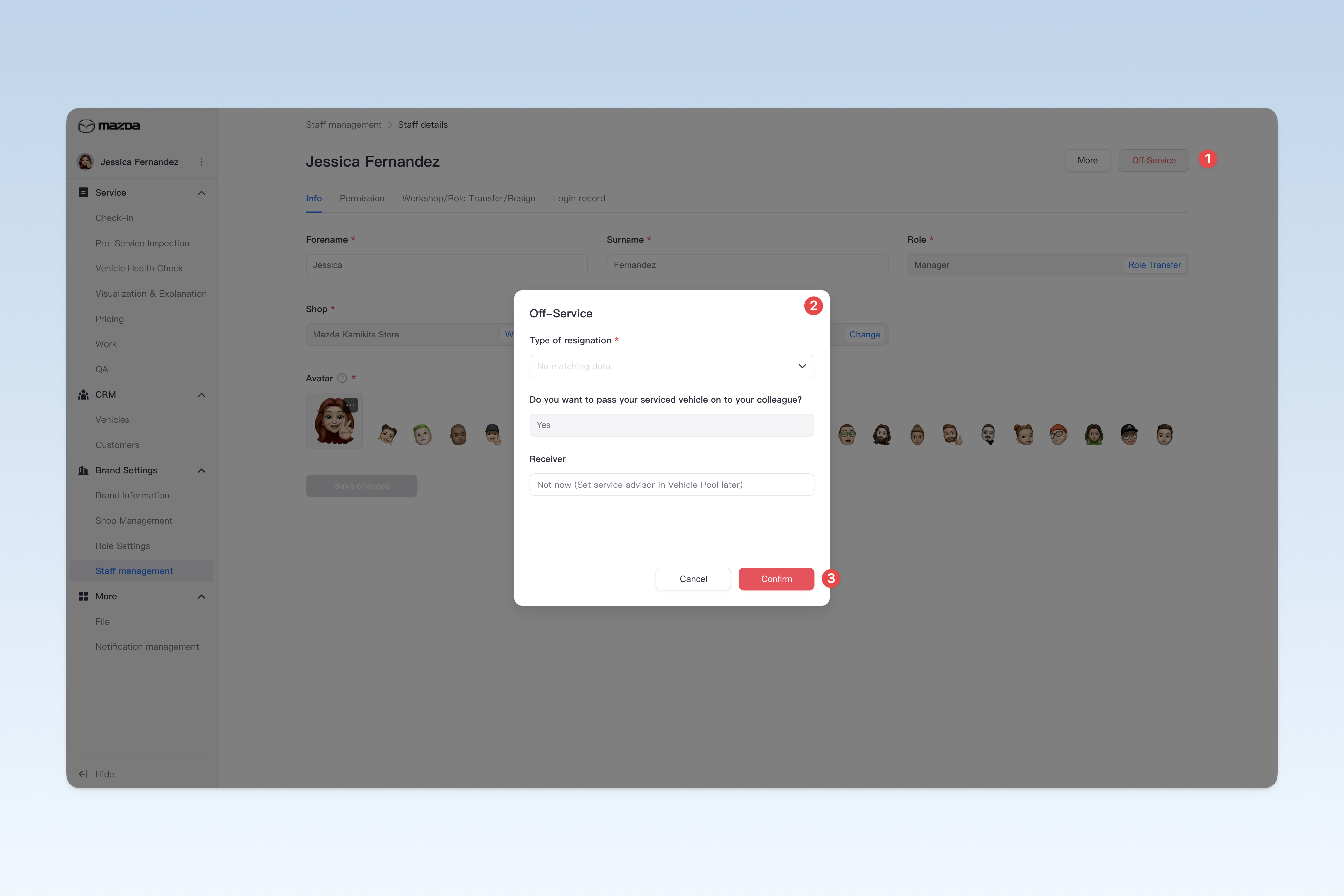
- On the "Staff Management" page, click the "More" button on the right side of the list, and click "Off-Service" in the dropdown menu.
- On the "Staff Management > Staff Details" page, click the "Off-Service" button in the upper right corner of the page.
After clicking the "Off-Service" button using any of the above methods, an "Off-Service" popup will appear. In the popup, you need to operate the following options:
- Type of resignation: Select whether the employee resigned voluntarily or was dismissed by the company.
- Do you want to pass your serviced vehicle on to your colleague? This option must be selected as "Yes" during the "Off-Service" operation, so you need to designate a handover person for the vehicles followed up by the employee. You can select other employees as the handover person from the dropdown box. If you choose "Not now", the vehicles followed up by the employee will be in an unattended state. However, you can also go to the "Vehicle Pool" at any time to reassign a follow-up person for these unattended vehicles. 📚 For how to set a follow-up person for a vehicle in the "Vehicle Pool", please refer to: ◎ Manage Vehicle Information
Change Employee's Login Phone Number
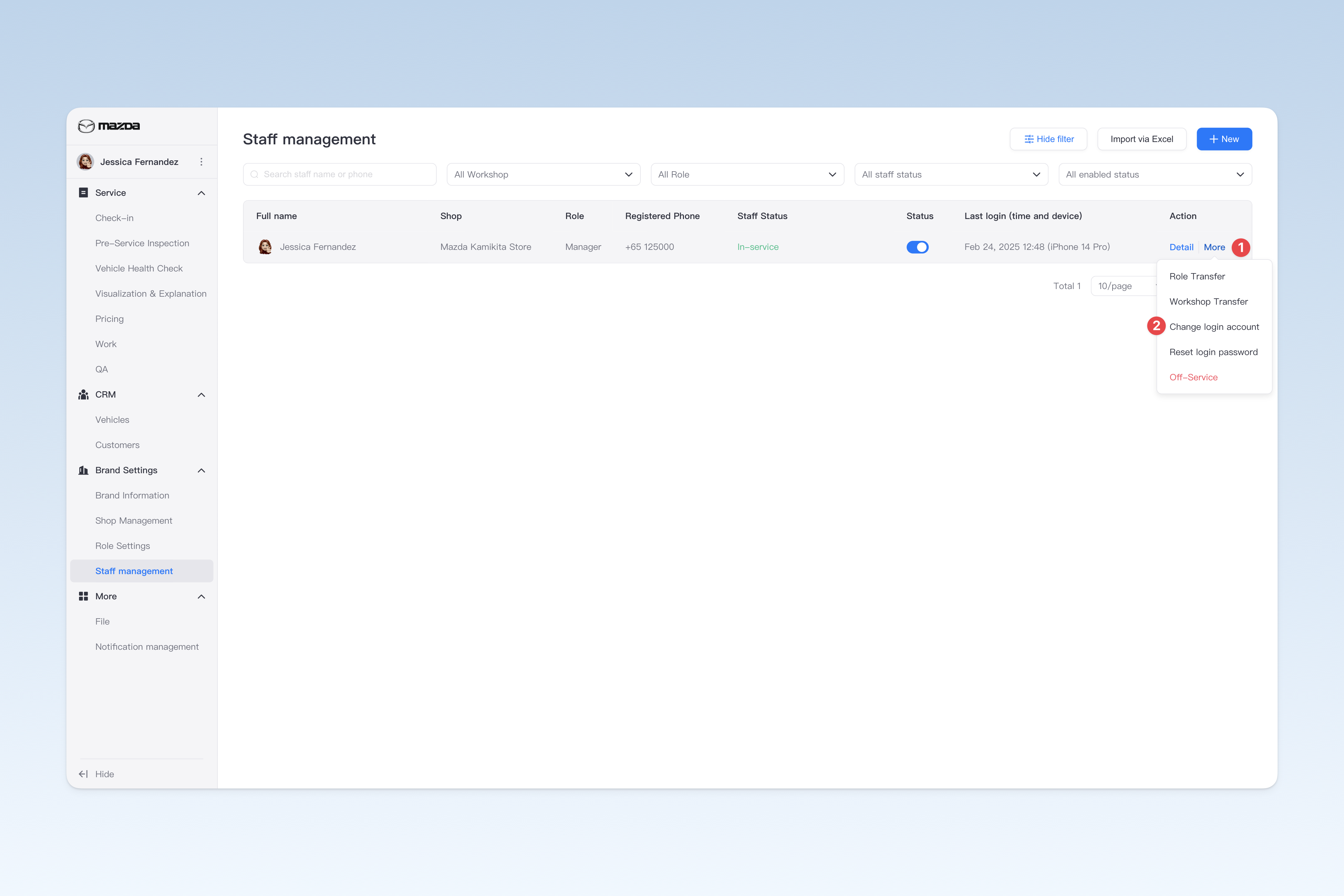
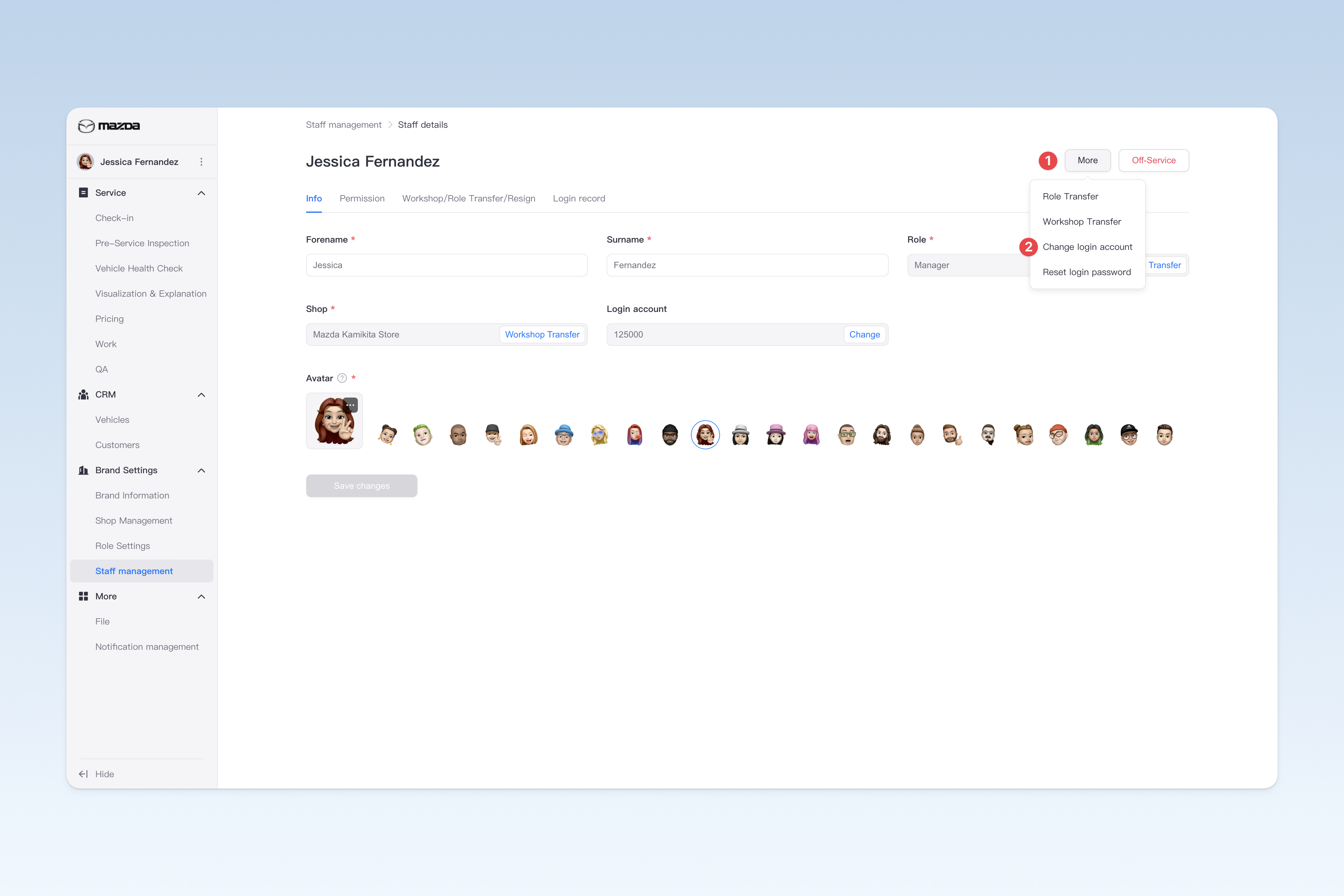
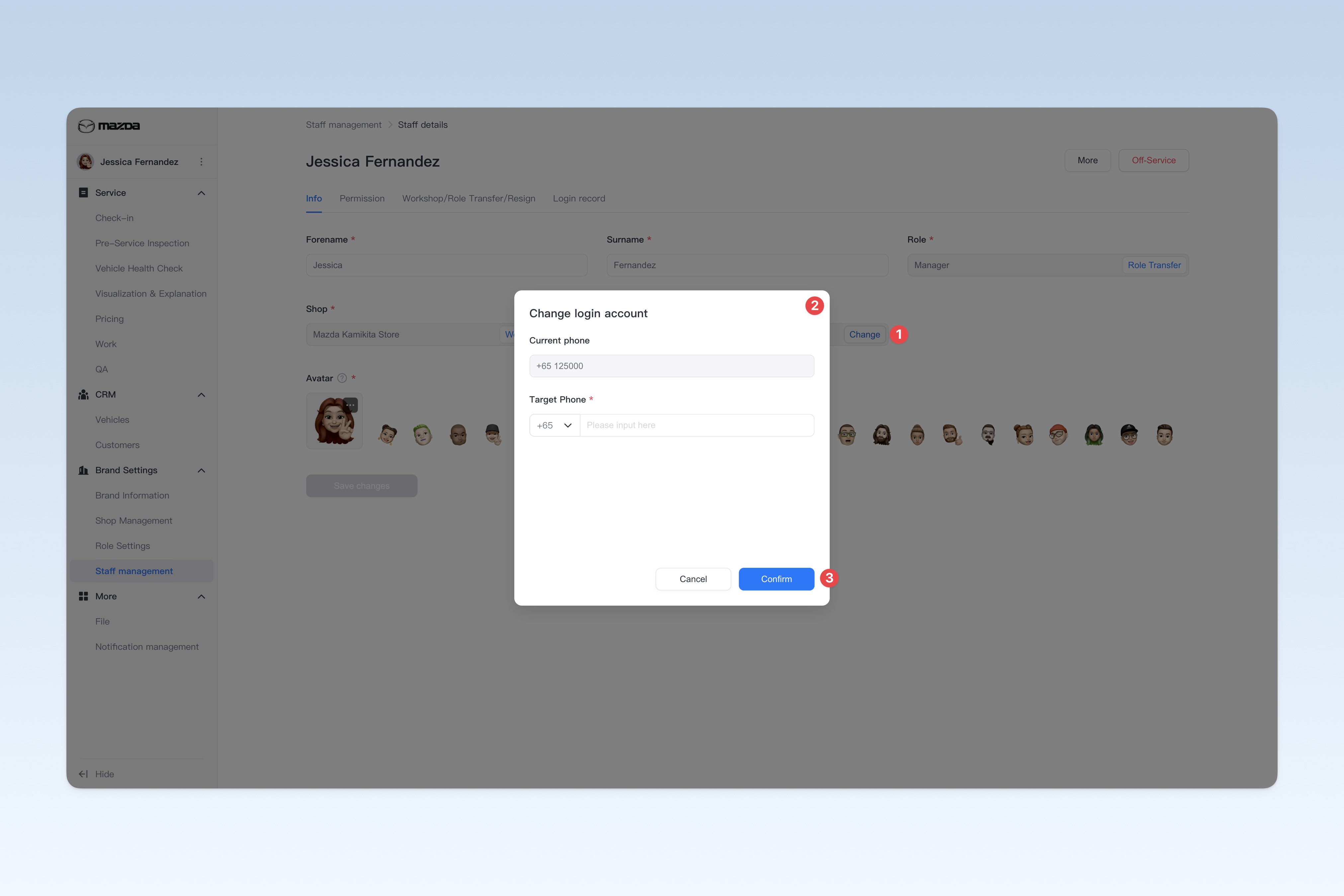
Currently, there are two ways to change an employee's login phone number:
- On the "Staff Management" page, click the "More" button on the right side of the list, and click "Change login account" in the dropdown menu.
- On the "Staff Management > Staff Details" page, click the "More" button in the upper right corner of the page, and click "Change login account" in the dropdown menu.
- On the "Staff Management > Staff Details > Info" page, find the "Login account" information and click the "Change" button.
Reset Employee Login Password
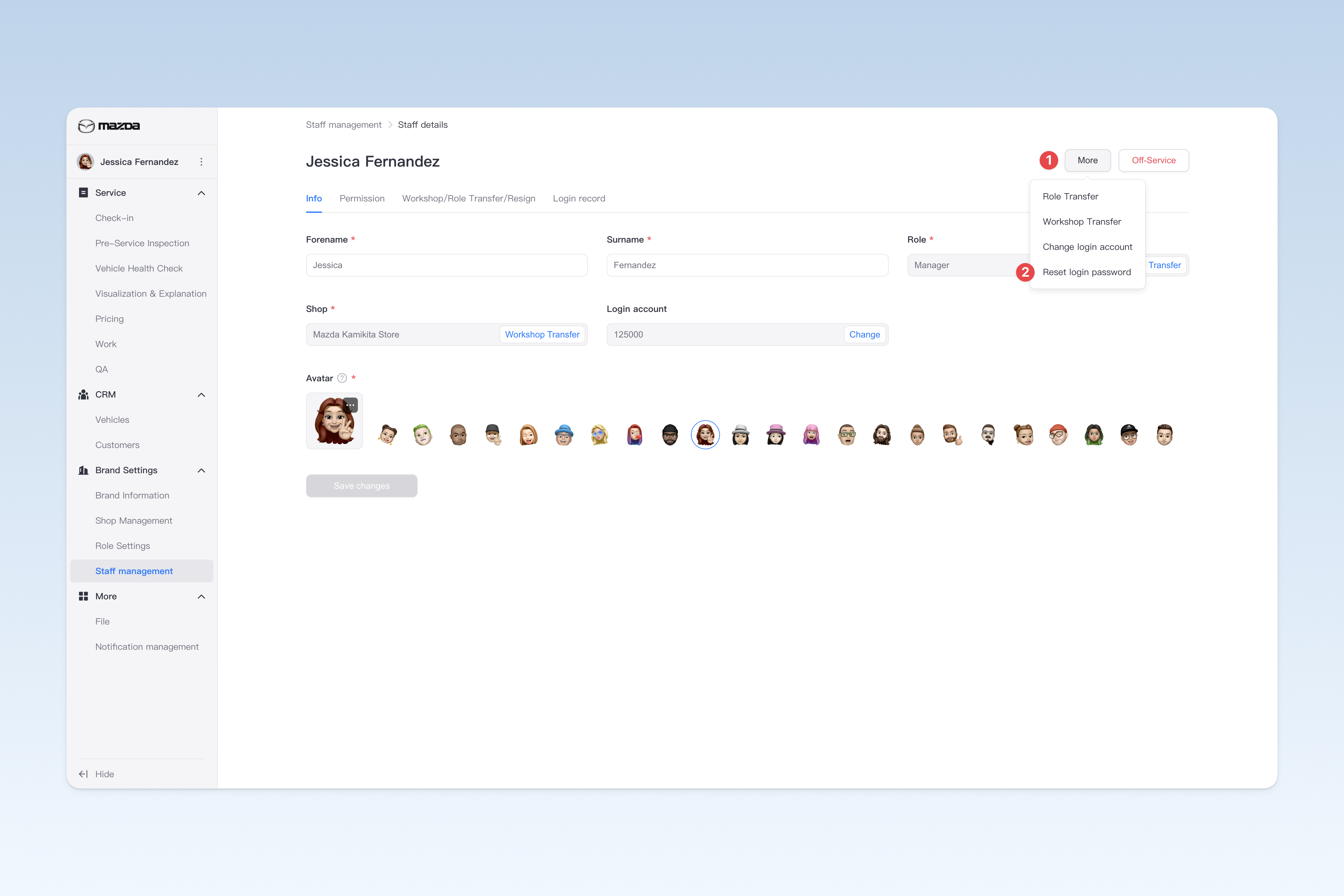
When an employee forgets their login password, the administrator can reset the password to the initial password "000000". After resetting, the employee can use this password to log in.
⚠️ Tip: To ensure account and data security, it is recommended to promptly remind employees to change their password to a more secure one.
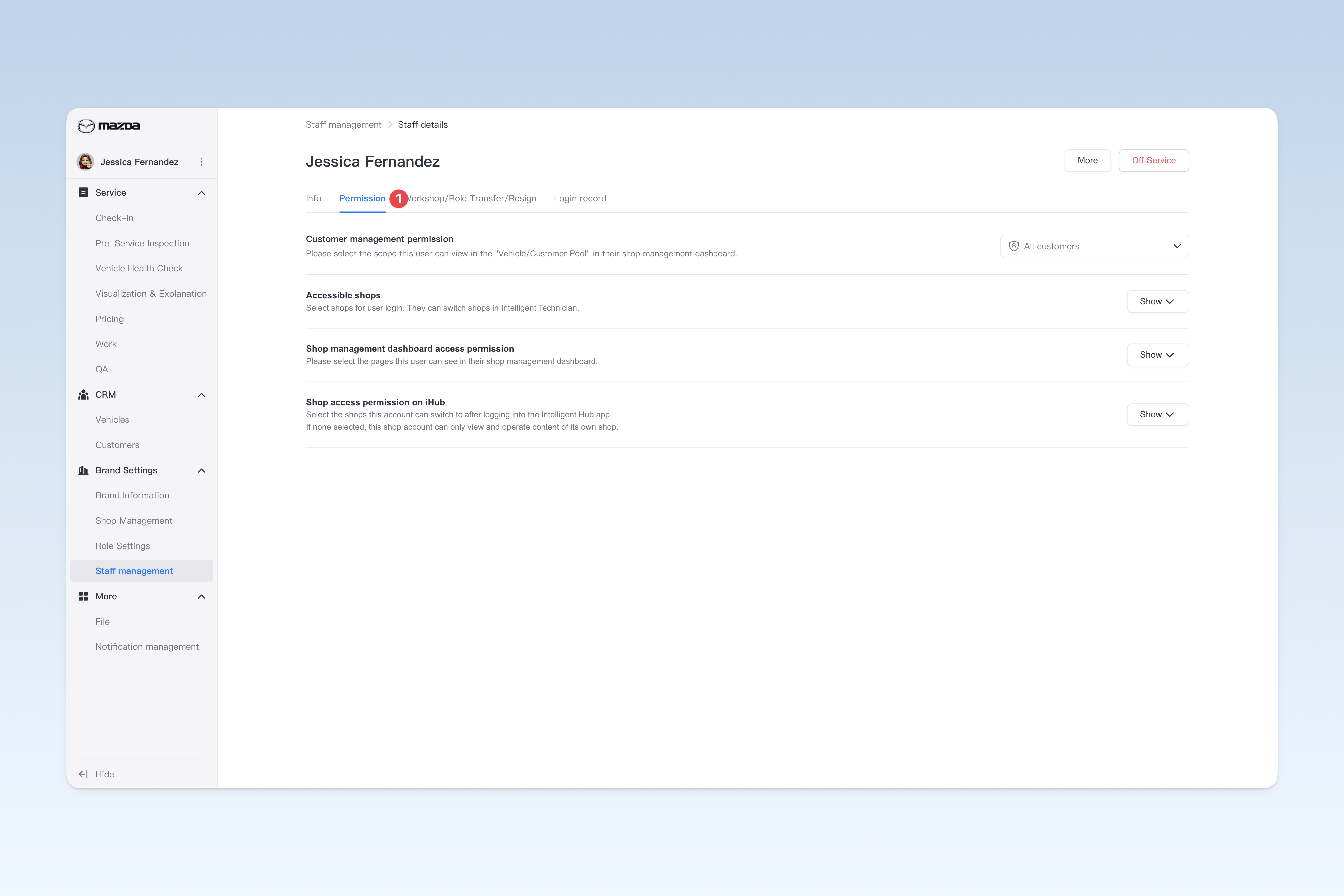
Adjust Employee Permissions
On the "Staff Management" page, find the corresponding employee and click the [Details] button on the right side of the list. In the pop-up "Staff Details" page, click the [Permission] menu.
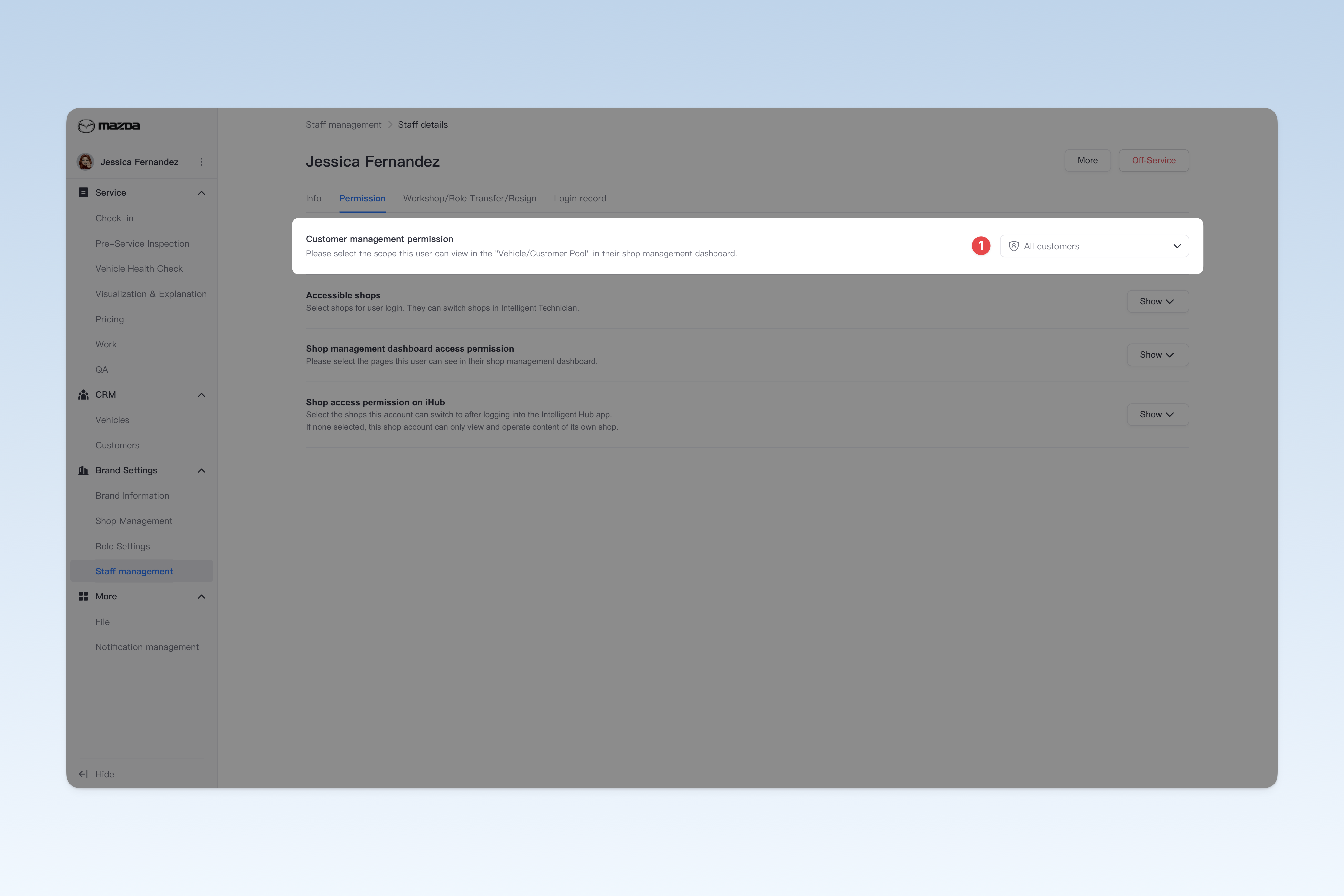
Customer Management Permission
You can adjust the employee's viewing permissions for the "Vehicle Pool/Customer Pool" content in the "Shop Management Dashboard" or Intelligent Technician APP, to control the vehicle or customer information that the employee can access and manage.
- View All: The employee can view all vehicle and customer data of their shop.
- View Own Only: The employee can only view vehicle and customer information they are following up on, and cannot access data of other employees' customers.
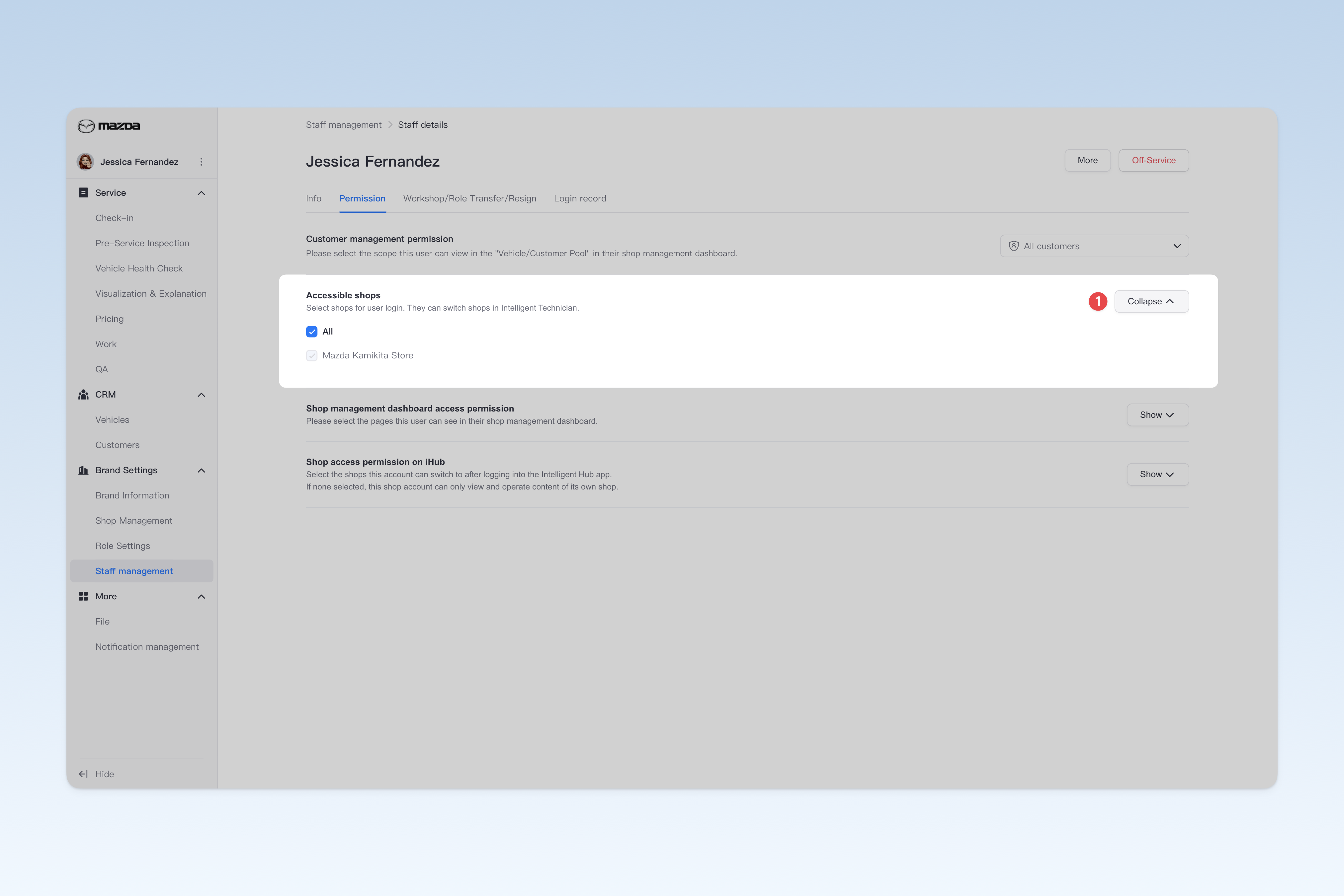
Accessible Shops
You can adjust the employee's shop access permissions in the Intelligent Technician APP. By default, employees can only access their own shop, but if adjusted to access multiple shops, the employee will be able to access and switch between multiple shops, facilitating cross-shop work arrangements.
Employees can go to: My > Settings > Switch Shop in the Intelligent Technician APP to switch to other shops for operations.
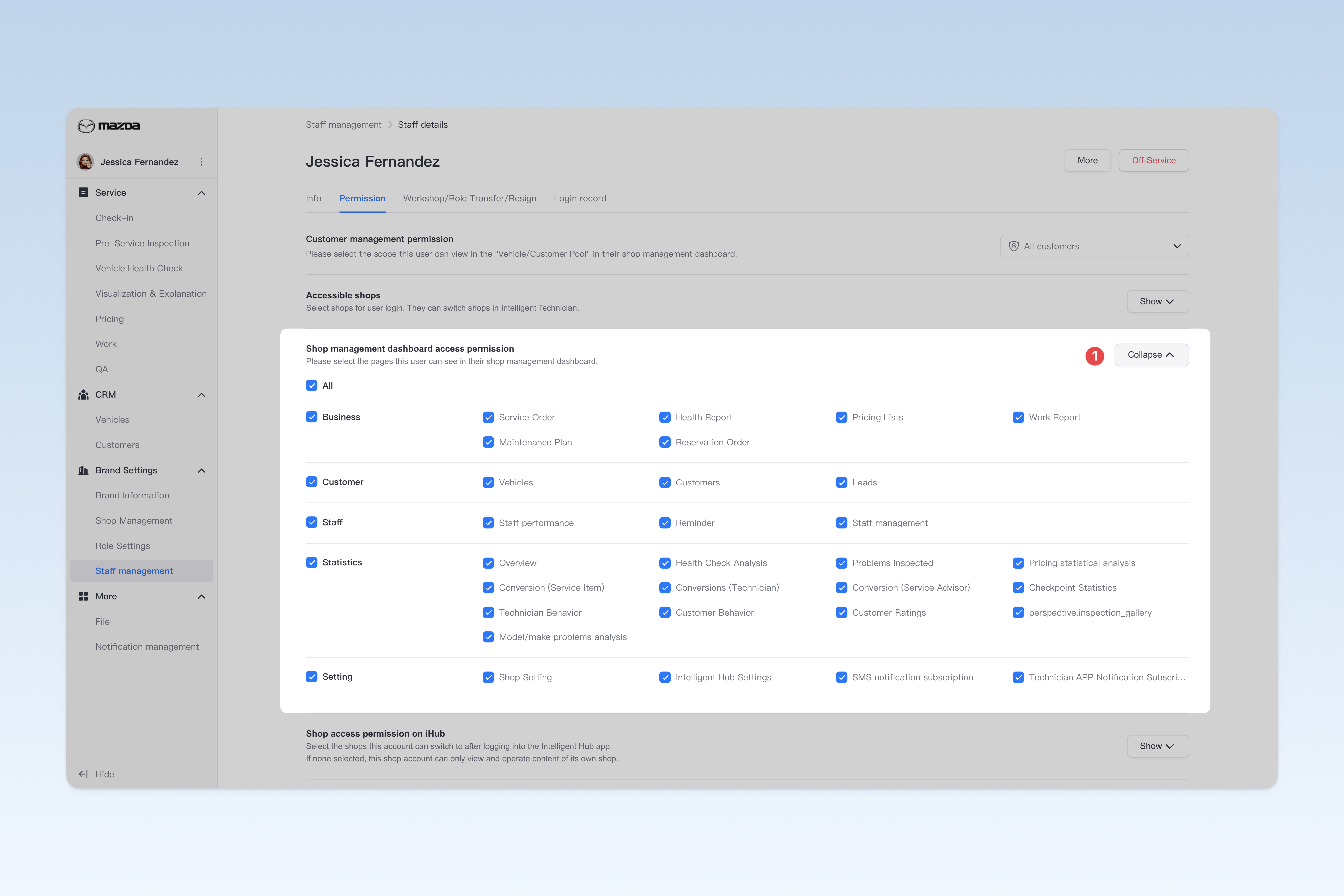
Shop Management Dashboard Page Access Permission
You can adjust the employee's page access permissions in the "Shop Management Dashboard". Employees will inherit the permission settings of their role by default, but if you modify them, the new permission settings will take the highest priority as the employee's personal permissions, overriding their role permissions. This allows for more flexible management of employee access, ensuring permissions align with actual work needs.
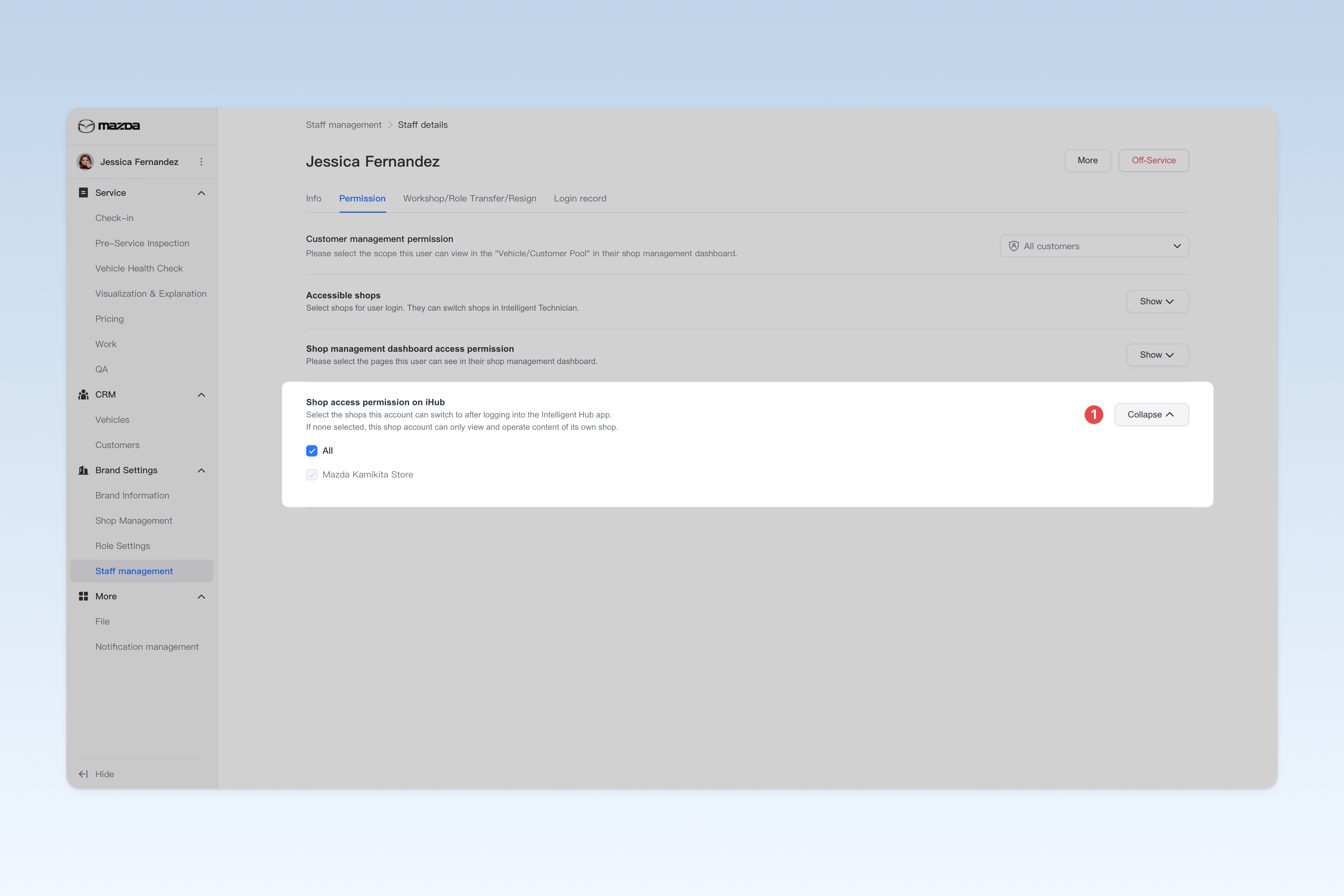
Intelligent Hub APP Shop Access Permission
You can adjust the employee's permission to switch shops in the Intelligent Hub APP. By default, employees can only view data of their own shop, but if you adjust the permission to allow switching to multiple shops, the employee will be able to switch to other shops on the Intelligent Hub APP homepage using the [Switch Shop] button at the top to view data of other shops.
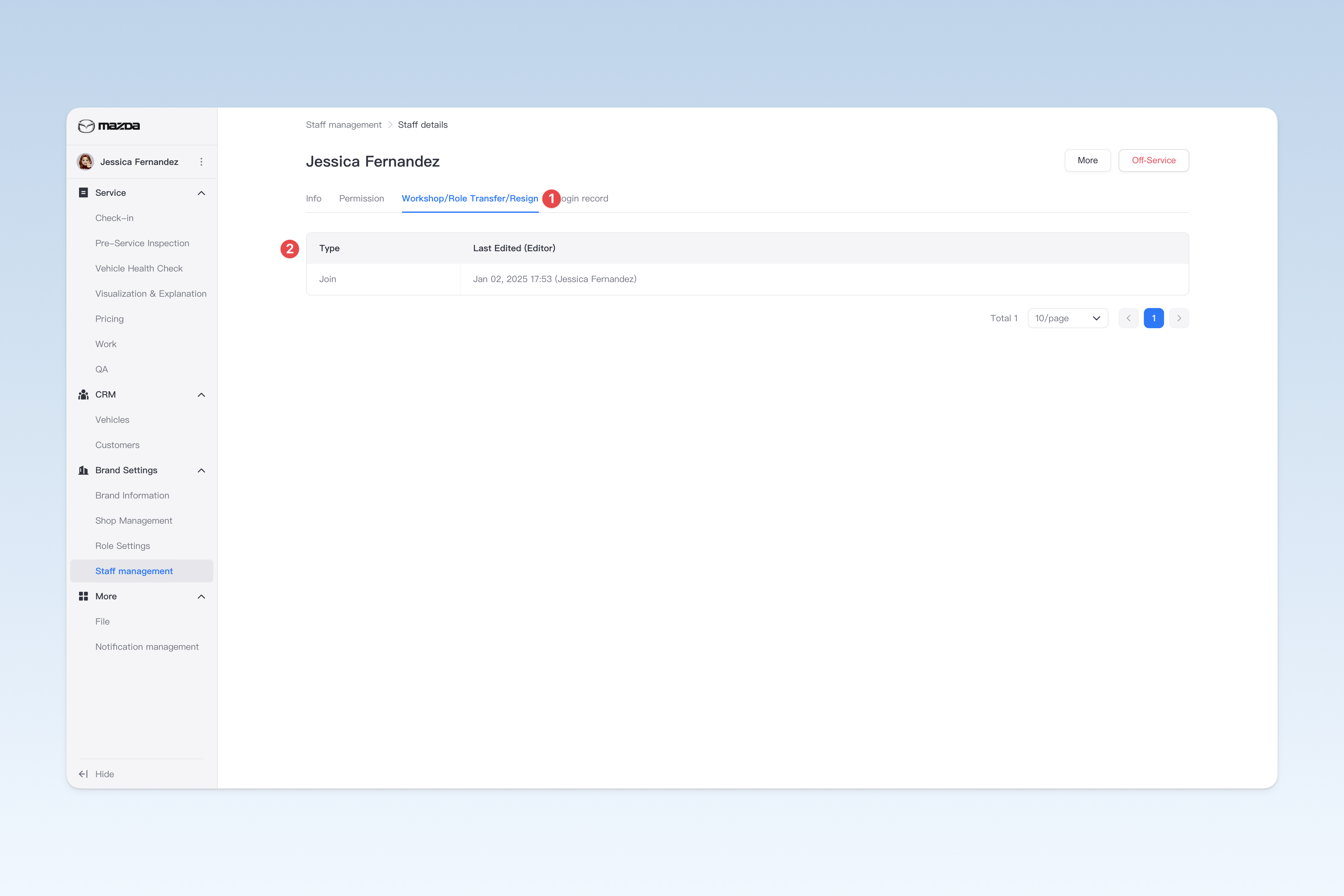
View Employee Change Records
Change records are used to record employee changes such as onboarding, role transfers, shop transfers, and resignations. These records help track employee career development and changes, ensure accuracy and timely updates of employee information, and facilitate HR management and statistical analysis by management.
On the "Staff Management" page, find the corresponding employee and click the [Details] button on the right side of the list. In the pop-up "Staff Details" page, click the [Change Records] menu.
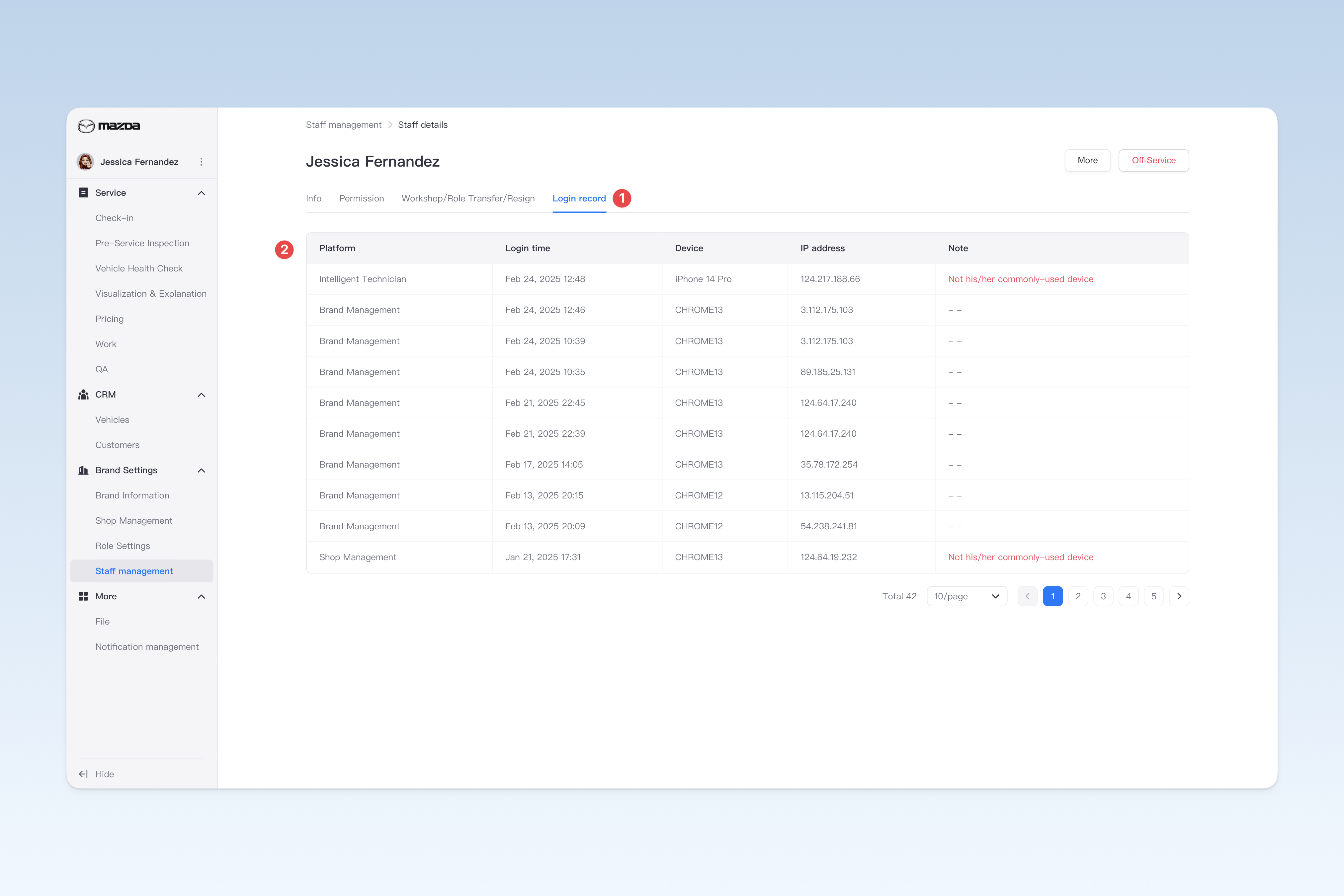
View Staff Login Records
Login records are used to record staff logins across all products in the AutoX3 system, including the following details: login platform, login time, login device, IP address, and remarks. Through these records, administrators can track staff login behavior.
On the "Staff Management" page, find the relevant staff member and click the [Details] button in the operation column on the right side of the list. In the pop-up "Staff Details" page, click the [Login Record] menu.
Enable/Disable Staff
On the "Staff Management" page, find the "Enabled Status" column in the list and click the [On/Off] button to "enable" or "disable" any staff account.
⚠️ Note: After disabling, the staff member will not be able to log in to the system normally.